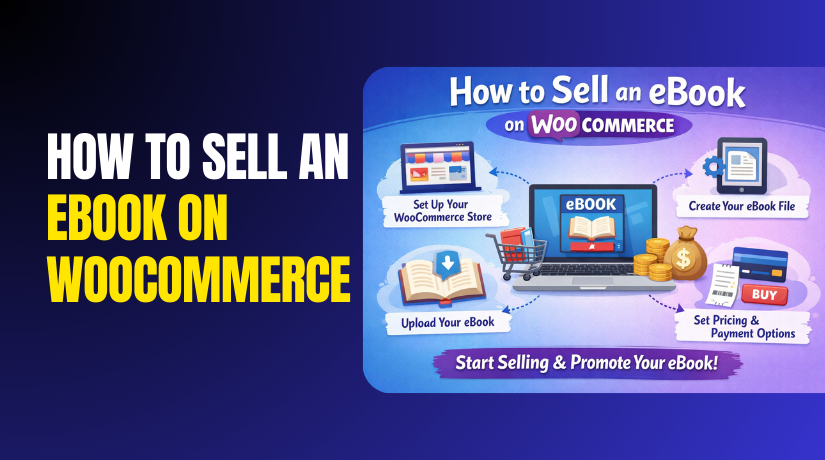
How to Sell an eBook on WooCommerce Step by Step?
Table of Contents
- Introduction
- What is an eBook?
- What are the Key Features of eBook?
- What are the Benefits of Selling eBooks on WooCommerce?
- What You Need Before You Start WooCommerce Digital Download Setup?
- How to Sell Ebooks on WooCommerce Step by Step?
- Final Verdict
Introduction
Selling eBooks is one of the easiest digital business models today. You create the file once and sell it repeatedly. WooCommerce makes this possible without complex development work. You can Sell eBook WooCommerce using built-in digital product features. You can also control pricing, downloads, and customer access easily.
WooCommerce is flexible, widely supported, and easy to extend. It supports downloadable and virtual products by default. It supports payment gateways for instant order completion. It supports automatic email delivery with download links. It supports coupons and sales for marketing campaigns. It supports tax settings for digital goods in many regions. It also supports account based access for repeat customers. This makes WooCommerce a strong choice for digital content stores.
This guide is a complete WooCommerce eBook tutorial for beginners. It shows How to sell eBooks online WordPress using a clean workflow. It also explains WooCommerce digital download setup step by step. You will learn how to upload files, set download rules, and protect content. You will also learn how to deliver files securely after payment. This approach helps you create stable WooCommerce digital products that scale. You will avoid common mistakes that cause broken downloads and refunds.
What is an eBook?
An eBook is a digital book file that customers read on devices. It can be a PDF, ePub, or Kindle format file. It can be downloaded after purchase or accessed via account. It can be a guide, workbook, manual, or short book. It can also include templates, checklists, and bonus files.
When you sell eBook WooCommerce, you are selling access to a file. You must make delivery simple and secure for buyers. You must also make the product page explain what buyers get.
- An eBook is a digital file version of a book or guide.
Buyers download it and read it on phones and computers. - Common eBook formats include PDF, ePub, and MOBI files.
Format choice affects reading experience and device compatibility. - eBooks can include bonus files like templates and worksheets.
Bonuses increase value and help justify premium pricing. - eBooks are delivered instantly after payment in most stores.
Instant delivery improves satisfaction and reduces refund requests.
Best eBook format for WooCommerce digital products
- PDF is easiest to sell and easiest to support.
- ePub is best for reflowable reading on ebook readers.
- MOBI is older but still used for some Kindle workflows.
- Many sellers offer PDF plus ePub for best coverage. Offering multiple formats reduces customer support questions. It also reduces refund requests due to compatibility issues.
What are the Key Features of eBook?
An eBook has digital features that physical books cannot offer. It is easy to deliver, easy to update, and easy to bundle. It also supports instant access after checkout. These features make it perfect for WooCommerce digital products.
1. Instant delivery and fast access
- Buyers can receive the eBook immediately after payment.
- WooCommerce can email download links automatically to customers.
- Customers can download again from their account when allowed.
2. Easy updates and version control
- You can update the file and keep the same product listing.
- You can add a new version when content changes significantly.
- You can notify customers using email marketing if needed.
3. Low operational cost and high scalability
- You do not need storage space or shipping logistics for delivery.
- You can sell globally without courier delays and surcharges.
- You can automate delivery using WooCommerce download features.
4. Bundling and upsells for higher order value
- You can bundle eBooks with worksheets and templates for value.
- You can sell multiple eBooks as a series or a bundle.
- You can create upsells using related products and coupons.
5. Digital protection and controlled access options
- WooCommerce supports download limits and expiry settings.
- You can use secure file links and restricted access delivery.
- You can require login for downloads using account settings.
What are the Benefits of Selling eBooks on WooCommerce?
WooCommerce gives you ownership and control over your digital sales. You do not depend on marketplaces for visibility and payouts. You can control pricing, branding, and customer experience fully. You can also build an email list for future sales. These benefits make WooCommerce strong for ebook selling.
1. Higher profit margins with low delivery cost
- You avoid printing costs and shipping fees completely.
- You can sell the same file repeatedly without extra cost.
- You can run discounts without losing the logistics budget.
2. Full control over pricing and marketing
- You can set your price, sale price, and coupon strategies freely.
- You can create landing pages and product pages for SEO traffic.
- You can track purchases and customer behavior using analytics tools.
3. Better customer experience and brand ownership
- You can design the store to match your brand identity.
- You can offer instant access and clear email delivery.
- You can support buyers with FAQs and guides on your site.
4. Easy automation for fulfillment and access
- WooCommerce can complete orders automatically for virtual products.
- Download permissions are granted automatically after payment.
- Email notifications can include download links for easy delivery.
5. Scalability and product expansion options
- You can add more eBooks and build a full digital library.
- You can add memberships or bundles for recurring revenue later.
- You can sell globally without shipping rules and delivery delays.
What You Need Before You Start WooCommerce Digital Download Setup?
Preparation keeps your WooCommerce digital download setup smooth and error free. It also helps you launch faster with fewer fixes later. You should collect every file and asset before product creation. You should also confirm payment and delivery flow is ready.
Use the checklist below and complete each point carefully.
1. Prepare the eBook File in PDF and Optional ePub Format
- Export your final eBook as a high quality PDF file.
PDF works on almost every device and app today. It also keeps your layout and fonts consistent everywhere. This reduces customer complaints about broken formatting and missing pages. It also reduces refund requests due to reading issues. - Create an ePub version if your audience uses eReaders often.
ePub is better for Kindle style reading and reflow text. It makes reading smoother on mobile screens and small devices. It also improves accessibility for users who change font size. Offering ePub reduces compatibility support messages later. - Check file size and compress only when quality stays clear.
Huge files load slowly and cause download failures sometimes. Very small compressed files can look blurry and unprofessional. Keep a balanced file size that loads quickly and stays readable. This prevents failed downloads and negative reviews. - Add a clear file name that buyers can understand quickly.
File names like “ebook-title-v1.pdf” reduce confusion later. They also help repeat downloads and customer file organization. Clear naming improves buyer experience and reduces support questions.
2. Create a Clear Cover Image and a Few Preview Page Images
- Design a clean cover image with readable title and author name.
The cover is the first thing buyers notice on product pages. A strong cover increases trust and improves click and purchase rate. It also makes your eBook look premium and well prepared. - Create preview images from key pages like contents and sample chapter.
Previews help buyers understand what they will get inside. They reduce doubt and improve product page conversion. They also reduce refunds because expectations stay realistic. - Use correct image size and optimize for fast loading.
Large images slow down pages and increase bounce rates. Optimized images improve speed and SEO experience signals. Faster pages also improve mobile conversion and shopping comfort. - Keep your images consistent with your brand style and colors.
Consistency makes your store look professional and reliable. It helps buyers trust your brand and your content quality. It also improves recognition across ads and social posts.
3. Write Product Description, Table of Contents, and Key Outcomes
- Write a short opening summary that explains the eBook value fast.
Buyers decide quickly when they land on product pages. A clear summary helps them understand benefits without scrolling much. This reduces hesitation and increases add to cart actions. - Add a table of contents with clear chapter names and topics.
Contents give structure and reduce uncertainty for buyers. It also adds keyword relevance and improves search visibility. Buyers trust products more when structure is visible. - Add key outcomes that explain what the buyer will achieve.
Outcomes help buyers connect your eBook with real results. They reduce confusion and improve buyer confidence. Clear outcomes also reduce wrong purchases and refund requests. - Add who the eBook is for and who should avoid it.
This improves trust and sets correct expectations early. It also filters low intent buyers who may complain later. Clear targeting increases satisfaction and reduces support workload. - Add what is included in the section with file formats and page count.
Clear inclusions reduce compatibility issues and confusion. It also prevents buyers expecting printed delivery or extra items. Buyers feel more confident when details are complete.
4. Set Up a Payment Gateway for Instant Order Completion
- Enable a payment gateway that supports instant confirmation.
Instant confirmation is critical for digital delivery success. Buyers expect immediate access after payment completion. Delays increase frustration and refund requests quickly. - Test payment flow in sandbox or test mode before launch.
Testing prevents broken checkout and missing order statuses. It also confirms email delivery and download access triggers correctly. Testing reduces issues during your first real sales. - Confirm order status changes to processing or completed after payment.
Download permissions usually trigger after payment success. If status stays pending, buyers cannot access the file. Correct status flow ensures smooth delivery and fewer tickets. - Confirm payment settings work for your target countries and currencies.
Payment errors can block international buyers from purchasing. Country compatibility improves conversion and reduces checkout failures. This is important for scaling digital products globally.
5. Add a Refund Policy Message for Digital Products on the Product Page
- Add a clear refund policy section near pricing and buy button.
Policy visibility reduces disputes and misunderstanding later. It also prevents chargebacks based on unclear expectations. Buyers trust stores that show policies clearly. - Mention that digital downloads are delivered instantly after payment.
Instant access explains why refunds are limited in many stores. It sets expectations and reduces post purchase complaints. It also supports legal clarity for digital goods. - Add a support contact option for download issues and access problems.
Buyers feel safer when support options are easy to find. It reduces panic when emails go to spam or links fail. Good support reduces chargebacks and improves reviews. - Keep the policy simple and readable for quick understanding.
Long policies are ignored and create confusion later. Simple text improves transparency and reduces support tickets. Clear policies also improve customer trust signals.
How to Sell Ebooks on WooCommerce Step by Step?
This section is the practical WooCommerce eBook tutorial workflow. You will set up the product, file delivery, and buyer access. You will also test downloads end to end for stability. Follow the steps in the same order for best results.
Step 1: Create a new WooCommerce product for your eBook
You must create a product listing first in WooCommerce. This listing holds price, description, and file download rules. This is the base for the Sell eBook WooCommerce workflow.
WordPress Dashboard → Products → Add New
- Add a clear eBook title that explains the book topic.
Clear titles improve search intent match and increase conversion. - Add a short summary that explains the main value quickly.
Summary helps buyers decide without scrolling too much. - Add a detailed description with outcomes and who it is for.
Detailed copy reduces support questions and improves trust.
Step 2: Set product type as downloadable and virtual
WooCommerce must treat the eBook as a digital item. Virtual removes shipping requirements and checkout shipping steps. Downloadable enables secure file delivery and links.
Product Edit Screen → Product data → Select Simple product
Product Edit Screen → Product data → Check Virtual
Product Edit Screen → Product data → Check Downloadable
- Enable Virtual to remove shipping fields and shipping calculations.
Virtual products avoid shipping steps and reduce checkout friction. - Enable Downloadable to unlock file upload and download settings.
Downloadable gives buyers a secure link after purchase. - Save draft and confirm downloadable fields appear correctly.
This confirms WooCommerce digital product settings are active.
Step 3: Upload the eBook file and configure download rules
This step is the core of WooCommerce digital download setup. You upload the file and decide limits and expiry. Correct rules protect your content and reduce abuse.
Product Edit Screen → Product data → Downloadable files → Add file
- Upload the eBook file using the file chooser and name it clearly.
Clear naming helps buyers understand what they are downloading. - Set Download limit to control how many times buyers can download.
Limits reduce link sharing and uncontrolled distribution risk. - Set Download expiry to limit access after a number of days.
Expiry reduces long term sharing and supports secure delivery. - Add multiple files if you provide PDF and ePub versions.
Multiple formats improve buyer satisfaction and device support.
Step 4: Set pricing, discounts, and sale strategy
Pricing decides revenue and buyer expectations. You can set the regular price and sale price in WooCommerce. You can also run limited time discounts to improve launches.
Product Edit Screen → Product data → General → Regular price
Product Edit Screen → Product data → General → Sale price
- Set a regular price that matches your eBook value and niche.
Value based pricing improves profit and reduces low intent buyers. - Use sale price for launches or seasonal offers carefully.
Short sales create urgency without training buyers to wait. - Consider bundles and upsells when you have more digital products.
Bundles raise average order value and improve store revenue.
Step 5: Add product images, previews, and media assets
Good visuals increase trust and reduce hesitation. Cover image is critical for product listing and marketing. Preview images show buyers what they will learn.
Product Edit Screen → Product image → Set product image
Product Edit Screen → Product gallery → Add product gallery images
- Upload a clean cover image as the main product image.
Cover image improves click-through and perceived professionalism. - Add preview page screenshots in the gallery for transparency.
Previews reduce refund requests by setting correct expectations. - Add a short PDF sample as a separate downloadable file if needed.
Samples improve trust and increase conversion for new visitors.
Step 6: Write a strong product page structure for SEO and sales
A good structure helps rankings and conversions together. You should include clear headings, outcomes, and what is included. This supports How to sell eBooks online WordPress traffic goals.
Product Edit Screen → Product description editor
Product Edit Screen → Short description editor
- Add a benefits list and key learning outcomes near the top.
Outcomes help buyers decide quickly and reduce scrolling. - Add table of contents section for clarity and SEO relevance.
Table of contents adds keywords and improves buyer confidence. - Add who this eBook is for and who should avoid it.
This improves trust and reduces wrong buyer purchases. - Add what is included in the section and file formats clearly.
Clear inclusions reduce compatibility issues and support tickets.
Step 7: Configure WooCommerce download method for better protection
WooCommerce has download method options that affect file security. Some methods expose file URLs more easily than others. You should choose a secure method that works with your hosting.
WordPress Dashboard → WooCommerce → Settings → Products → Downloadable products


- Choose a secure download method recommended for your hosting setup.
Secure delivery reduces file URL sharing and unauthorized downloads. - Test downloads after saving the method to confirm no errors.
Some servers block certain methods and cause failed downloads. - Avoid storing downloadable files in public uploads when possible.
Public files can be accessed without WooCommerce permissions.
Step 8: Set automatic order completion for digital products
Digital products should deliver instantly after payment. Auto completion helps by granting downloads without manual actions. This is important for global buyers across time zones.
WordPress Dashboard → WooCommerce → Settings → Products
Payment Gateway Settings → Enable instant payment capture
- Ensure payment gateway marks orders as paid immediately.
Paid status triggers download permissions and email delivery. - Use settings or plugins to auto complete virtual downloadable orders.
Auto completion reduces delays and improves buyer satisfaction. - Test order flow to ensure emails are sent without manual completion.
Email delivery is a key part of digital product experience.
Step 9: Configure downloadable product settings in WooCommerce
WooCommerce has global download settings that affect all products. You must configure them for security and reliability. This step improves your WooCommerce digital download setup stability.
WordPress Dashboard → WooCommerce → Settings → Products → Downloadable products
- Choose the correct download method for your server and hosting.
Some methods work better based on server permissions and rules. - Set file download permissions to grant access after payment is complete.
Correct permissions ensure buyers get access automatically. - Avoid exposing direct file URLs by using protected download methods.
Protected delivery reduces sharing and unauthorized downloading. - Save settings and test downloads using a real order flow.
Testing confirms links work and files download without errors.
Step 10: Configure product inventory and purchase limits for eBooks
Digital products do not need stock management normally. Still, you may want purchase limits for licensing control. You may also want to restrict quantity per order.
Product Edit Screen → Product data → Inventory
Product Edit Screen → Product data → Advanced
- Disable stock management for your eBook product usually.
Digital files do not run out and should remain available always. - Set purchase note with access instructions for buyers.
Notes reduce confusion and guide buyers to their download link. - Enable sold individually if you want one eBook per order.
This prevents quantity abuse and supports license based selling. - Add a custom license note if you include personal use restrictions.
License clarity reduces misuse and protects your content rights.
Step 11: Configure taxes for WooCommerce digital download products
Digital goods tax rules depend on location and business setup. You must configure taxes carefully based on your region. WooCommerce supports tax settings and tax classes for products.
WordPress Dashboard → WooCommerce → Settings → Tax
Product Edit Screen → Product data → Tax status
- Set tax status for eBook as taxable or none based on your rules.
Wrong tax status can create compliance issues and buyer confusion. - Use a standard rate or a special tax class if your region requires it.
Some regions apply different rules to digital products. - Decide whether to calculate tax based on customer address.
Destination tax affects totals and can affect checkout conversion. - Test checkout totals for different locations if you sell globally.
Testing avoids surprise totals and reduces disputes later.
Step 12: Create a thank you page experience for download clarity
Many buyers want clear instructions after payment. The thank you page should confirm access and next steps. This reduces support messages about missing downloads.
WordPress Dashboard → WooCommerce → Settings → Advanced → Page setup
Website Frontend → Checkout → Order received page
- Confirm order received page loads correctly after successful payment.
Broken thank you page makes buyers feel payment failed. - Add clear instructions for where to find the download link.
Buyers should know they can use email or account downloads. - Include support contact link for download problems or access issues.
Quick support reduces chargebacks and negative reviews. - Add a short note about download limits and expiry rules.
Transparency reduces disputes and prevents repeated support requests.
Step 13: Set up a secure download delivery experience for buyers
Delivery experience includes email links and account access. Buyers should find downloads without confusion. This improves satisfaction and reduces support messages.
WordPress Dashboard → WooCommerce → Settings → Emails
WordPress Dashboard → WooCommerce → Settings → Accounts and privacy
Website Frontend → My Account → Downloads
- Enable customer account downloads page for easy repeat access.
Account downloads reduce lost email issues and support tickets. - Ensure download links appear inside order emails clearly.
Email links are the fastest access method for most buyers. - Add simple instructions for downloads inside email templates.
Instructions reduce confusion and improve buyer experience quickly. - Test email links and account downloads using a real order flow.
Real tests catch broken links and permission issues early.
Step 14: Add eBook upsells, bundles, and cross-sells for more revenue
Once the first eBook sells, you should increase order value. Upsells and bundles help you earn more from the same traffic. This improves profit without adding extra ads cost.
WordPress Dashboard → Products → All Products → Edit eBook → Linked Products
- Add related eBooks as upsells for higher value options.
Upsells increase order value and improve buyer lifetime value. - Add companion templates or worksheets as cross-sells.
Extras increase perceived value and improve conversion rate. - Create a bundle product when you have multiple eBooks ready.
Bundles sell better for buyers who want complete solutions. - Offer a limited time bundle discount to encourage quick decisions.
Controlled urgency improves conversions without harming brand trust.
Step 15: Add coupons and launch pricing strategy for your eBook
Coupons help you drive first sales and build momentum. Launch pricing helps you collect reviews and social proof early. Use discounts carefully to protect perceived value.
WordPress Dashboard → Marketing → Coupons → Add coupon
WordPress Dashboard → WooCommerce → Settings → Genera
- Create a launch coupon for first week buyers only.
Early discounts help you collect initial sales and reviews. - Use minimum spend rules when offering discounts on bundles.
Minimum spend protects margins and increases cart size. - Add usage limits to prevent coupon sharing abuse.
Limits reduce misuse and protect your campaign goals. - Display coupon message on product page for clarity.
Clear messaging reduces confusion and improves redemption rate.
Step 16: Improve product page SEO to rank for ebook searches
SEO helps you get free traffic for long-term sales. Your product page should target clear intent and keywords. This supports WooCommerce eBook tutorial ranking goals.
WordPress Dashboard → Products → Edit eBook → Product description
SEO Plugin → Product SEO Title → Meta Description
- Use the main keyword naturally in the product title and first lines.
Early keyword placement improves relevance and click potential. - Add headings for what buyers will learn and what is included.
Structured content improves readability and SEO signals. - Add FAQs on the product page for long tail search coverage.
FAQs target buyer questions and improve conversion trust. - Add internal links to related eBooks and category pages.
Internal links improve crawl and keep visitors browsing longer. - Add image alt text using relevant ebook topic wording.
Alt text supports image SEO and accessibility improvements.
Final Verdict
Selling an eBook with WooCommerce is a clean and profitable setup. You can sell eBook WooCommerce by creating a simple product first. You should mark it as Virtual and Downloadable for smooth delivery. You should upload the PDF and optional ePub file for compatibility. You should set download limits and expiry for better file protection. You should also configure secure download methods in global settings.
This makes your WooCommerce digital download setup stable and buyer friendly. You should add a strong cover image and preview pages. You should also write clear outcomes and a table of contents. This helps buyers trust your product and purchase faster.
After setup, you should test the full order flow carefully. You should place a test order and confirm payment status updates. You should check the email download link and My Account downloads page. You should also verify downloads work on mobile and desktop devices. You should add a clear digital refund policy on the product page. You should also add simple download help instructions after checkout.
For growth, you should create bundles and add related WooCommerce digital products. You should also use content marketing to learn how to sell eBooks online WordPress long term. If you follow this WooCommerce eBook tutorial process, your store will deliver instantly and scale smoothly
Have questions before starting with WooCommerce & WordPress? Get support here at WooHelpDesk.