How to Remove the Additional Information Tab in WooCommerce (Step-by-Step Guide)
Table of Contents
- Introduction
- Why You Might Want to Remove It for Better Product Page Results
- Before You Remove It, Check This First to Avoid Store Problems
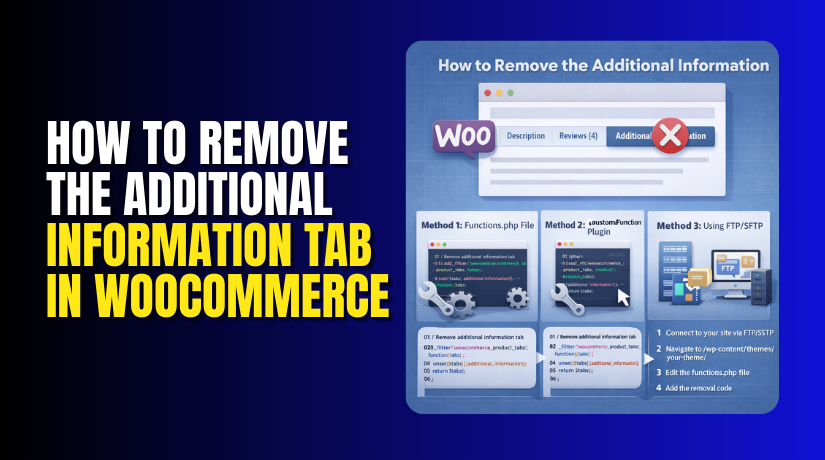
- How to Remove Product Attributes So Additional Information Tab Disappears (Method 1)
- Hide the Additional Information Tab Using Theme Settings or Customizer (Method 2)
- How to Remove the Additional Information Tab Using Plugin (Method 3)
- Conclusion
Introduction
Many store owners want a cleaner product page experience today. Tabs can look crowded, especially on mobile screens. If you never use attributes, the tab adds no value. This guide helps you remove the Additional Information tab in WooCommerce safely. You will also learn the best way for WooCommerce product page customization.
We will keep the steps simple and beginner friendly. You can also use these ideas for WooCommerce customize product page needs. By the end, you will know what to check first.
What Is the Additional Information Tab in WooCommerce?
WooCommerce adds product tabs on many themes by default. One common tab is called “Additional Information” on product pages. This tab usually shows product attributes and extra details. It may include size, material, color, or other attribute values. It can also show weight and dimensions if you enable them. If your product has visible attributes, this tab often appears.
If no attributes are visible, it may stay hidden automatically. Some themes always show tabs even with less content. That is why store owners try Disable Additional Information tab WooCommerce settings. This is also a common request in WooCommerce remove product tabs work.
Why You Might Want to Remove It for Better Product Page Results
Your Product Page Looks Too Busy on Desktop and Mobile
Tabs add extra sections that many buyers never open. On mobile, tabs often take more space and look cramped. A cleaner layout helps shoppers focus on price and benefits. This is a common reason to remove the Additional Information tab in WooCommerce.
The Tab Repeats Details Already Shown in the Description
Many stores already mention size, material, and features in descriptions. When the same details appear again, it feels repetitive. Shoppers may think the page is poorly arranged. This is why people look for WooCommerce product page customization options.
The Tab Is Empty or Shows Very Little Information
If you do not use attributes, the tab can look blank. Some themes still show the tab even with minimal data. An empty tab reduces trust and looks unfinished. Many users then try Disable Additional Information tab WooCommerce settings.
You Want a One-Scroll Product Page Experience
Some customers prefer scrolling instead of clicking tabs. A single flow improves reading and keeps attention longer. This is useful for long descriptions and feature sections. It also fits modern WooCommerce customized product page designs.
You Use a Page Builder and Need Full Layout Control
Builders like Elementor can design product pages without default tabs. Tabs may conflict with your custom design blocks and spacing. Removing the tab gives more control over layout consistency. This supports advanced WooCommerce product page customization work.
You Want to Improve Clarity and Reduce Buyer Confusion
Too many tabs can confuse customers about where to read details. When content is spread across tabs, users miss key points. A simpler structure improves clarity and product understanding. That is why WooCommerce removes product tabs is a popular request.
Before You Remove It, Check This First to Avoid Store Problems
Check If the Tab Appears Because Attributes Are Set as Visible
Open a product and go to the Attributes section. If “Visible on the product page” is checked, the tab can show. If you uncheck it, the tab may disappear automatically. This is the safest first check before you Remove Additional Information tab in WooCommerce.
Confirm If Your Product Uses Variations Like Size or Color
Variable products use attributes to create dropdown options. If you remove variation attributes, your variations can break. Customers may not be able to select size or color. For variable products, use safer methods to Disable Additional Information tab WooCommerce.
Review Whether Attributes Are Needed for Filters and Search
Some stores use attributes for layered navigation filters. These filters help users find products by size or material. If you remove attributes, filters can stop working. This impacts store browsing and conversions.
Check If Your Theme Controls Tabs Instead of WooCommerce
Many themes add their own tab system and overrides. Even if WooCommerce settings change, theme tabs may remain. Look in theme settings for product layout and tabs options. This step matters in WooCommerce removing product tabs troubleshooting.
Check If Elementor or Another Builder Template Adds Tabs
If you use Elementor, open the Single Product template. Some templates insert Product Tabs widgets by default. Removing WooCommerce tabs will not remove that widget output. This is common during WooCommerce customize product page changes.
Decide If You Want to Remove the Tab or Only Hide It
Removal means the tab will not load at all on pages. Hiding keeps the data but removes the visual tab section. Hiding is safer if you still need attributes for variations. This choice guides your WooCommerce product page customization path.
How to Remove Product Attributes So Additional Information Tab Disappears (Method 1)
This method works when the tab shows only attribute details. When no visible attributes exist, the tab often vanishes. It is a clean way to Remove Additional Information tab in WooCommerce. It also supports fast WooCommerce product page customization without extra tools.
Step-by-Step: Hide Attributes for a Single Product
Use this when only a few products show the unwanted tab. It keeps your changes controlled and easy to undo later.
- Go to Products → All Products in your WordPress dashboard.
- Open the product where you want the tab removed.
- Scroll to Product data and open the Attributes tab.
- For each attribute, uncheck Visible on the product page.
- Remove unused custom attributes if you do not need them.
- Click Update to save changes and refresh your product page.
If the tab had only attributes, it should now disappear. This is a safe way to Disable Additional Information tab WooCommerce without code.
Step-by-Step: Remove or Hide Global Attributes Carefully


Use this when many products share the same attributes. This method helps scale your WooCommerce customized product page work.
- Go to Products → Attributes in the dashboard menu.
- Review global attributes like Color, Size, or Material.
- Decide if the attribute is still needed for your store.
- If you still need it, keep it and hide visibility per product.
- If you do not need it anywhere, remove it carefully.
Global attribute changes can affect many products at once. Always check a few products after making changes.
Best Use Cases for This Method
This method is best when you want quick changes with low risk. It fits stores that do not use attributes for display.
- You sell simple products with no visible attributes.
- Your theme hides empty tabs automatically.
- You want a fast way to Remove Additional Information tab in WooCommerce.
- You want fewer changes while doing WooCommerce remove product tabs.
Hide the Additional Information Tab Using Theme Settings or Customizer (Method 2)
This method works best when you want quick visual changes. You do not touch product data or attribute settings here. You simply adjust how your theme displays product tabs. This is a common approach to Disable Additional Information tab WooCommerce without code. It also supports clean WooCommerce product page customization for beginners.
Where to Check Theme Options for Product Tabs Settings
Most modern WooCommerce themes provide product page layout controls. These settings are often inside theme panels or WooCommerce layout options. Start by checking these common places in your dashboard.
- Go to Appearance → Customize and open product settings.
- Check WooCommerce → Product Catalog or Single Product sections.
- Look for options like Product Tabs, Tabs Layout, or Tab Display.
- Some themes use Accordion mode instead of classic tabs.
- If you see a toggle for Additional Information, disable it.
- After saving, open a product page and test your changes.
- This is an easy way to remove the Additional Information tab in WooCommerce visually.
How to Hide Tabs in Popular Theme Control Panels
Some themes do not use the Customizer for WooCommerce options. They provide a theme settings panel instead. You can usually find it under these menu locations.
- Appearance → Theme Options or Theme Settings
- Dashboard → Theme Name → WooCommerce Settings
- Appearance → Widgets if tabs are added via blocks
- Look for product page sections like layout, elements, or components.
- Disable tabs or switch to a layout without tabs.
- This is a simple WooCommerce customized product page technique.
How to Remove the Additional Information Tab Using Plugin (Method 3)
A plugin is useful when your theme has limited tab controls. It also helps when you need advanced product tab control. Many plugins let you disable only one tab quickly. This helps you Remove Additional Information tab in WooCommerce without editing code. It also supports flexible WooCommerce product page customization for many store setups.
Steps to Disable the Additional Information Tab with a Plugin
Most tab plugins follow a similar setup flow. You install it, enable it, then control product tabs. Follow these steps carefully for clean results.
- Install and activate a WooCommerce product tabs plugin.
- Open the plugin settings page from the dashboard.
- Find the list of default WooCommerce tabs.
- Disable the “Additional Information” tab option.
- Save settings and refresh your product page in the front-end.
This is a direct way to Disable Additional Information tab WooCommerce without theme changes.
When a Plugin Is the Best Choice for Tab Removal
Plugins work well when you want simple control from a dashboard screen. They also help when you manage many products and categories. If your theme forces tabs, a plugin can override them easily. This is a strong option for WooCommerce to remove product tabs needs.
Common Issues and Fixes After Removing the Tab
Sometimes you disable the tab, but it still shows. This usually happens due to cache or theme overrides. Use these fixes in order to save time. These steps also help in WooCommerce remove product tabs troubleshooting.
The Tab Still Shows After Changes
Caching is the most common reason for this problem. Your site may show an older saved version of the page.
- Clear your caching plugin cache fully.
- Purge server cache from hosting control panel.
- Purge CDN cache if you use Cloudflare or similar.
- Test in an incognito window and refresh again.
After clearing cache, recheck if you Remove Additional Information tab in WooCommerce successfully.
Your Theme Forces Tabs Even After Plugin Changes
Some themes hard-code tabs in product templates. The tab may show even when WooCommerce hides content. In this case, the theme controls the output.
- Check theme settings for product tabs and layout modes.
- Switch to a default layout if available.
- Test with a default WooCommerce theme temporarily.
If the tab disappears in the default theme, your theme overrides tabs.
Elementor or Page Builder Template Still Displays Tabs
If you use Elementor, the Product Tabs widget can still show. It may display even when a tab is disabled elsewhere. You must update the template layout.
- Open Elementor Single Product template.
- Find the widget that shows tabs or product data tabs.
- Remove the widget or adjust its display settings.
- Update the template and clear cache again.
This is common during WooCommerce customize product page work.
Variations Stop Working After Attribute Changes
This usually happens when variation attributes are removed incorrectly. Variations need attributes for dropdown selections. Restore variation attributes to fix the issue.
- Re-enable attributes used for variations in product settings.
- Keep “Used for variations” enabled for variable products.
- Hide visibility, but do not remove variation attributes.
This keeps sales working while you Disable Additional Information tab WooCommerce.
The Tab Shows Because Weight or Dimensions Exist
Some stores use shipping fields that trigger the tab. If weight and dimensions exist, WooCommerce may still show the tab. Check product shipping fields before deciding.
- Open the product and go to the Shipping section.
- Review weight and dimension values carefully.
- Remove only if you do not need them.
If you need shipping accuracy, keep them and use plugin removal.
Conclusion
Removing the Additional Information tab can improve product page clarity. The best method depends on your theme and product setup. If you want quick control, use a tabs plugin first. If you want a clean data approach, hide visible attributes carefully. Always protect variation products and test after every change. If you want expert help with WooCommerce product page customization, WooHelpDesk can handle it fast. Contact WooHelpDesk to Remove Additional Information tab in WooCommerce safely and cleanly. We can also fix tab conflicts, builder issues, and layout problems.