How to remove a category from a WordPress site
Table of Contents
- Introduction
- Why Categories Matter in WordPress
- Why You Might Need to Remove a Category from Your WordPress Site
- How to Remove a Category from a WordPress Site
- Considerations and Issues When Removing a Category
- Common Issues After Removing a Category
- Conclusion
Introduction
In WordPress, categories are an essential element for organizing your content.Using categories to organize your posts makes it easier for search engines and users to navigate and comprehend your website. Sometimes, though, you might need to delete a WordPress category.This could be for reasons like rebranding, outdated categories, or simply tidying up your site’s structure. The process of deleting a category in WordPress is straightforward, but understanding its impact is crucial for maintaining a clean and effective website.
Why Categories Matter in WordPress
Categories are more than just organizational tools. In WordPress, they help establish a logical structure for your site’s content. When you categorize your posts effectively, it makes it easier for search engines to index and rank your content, which can have a positive impact on your SEO efforts. Categories also provide clear pathways for users to navigate through related content.
For instance, if you are running a blog, categories like “News,” “Tutorials,” and “Reviews” can help users find relevant content quickly. Proper categorization can lead to improved user experience (UX), as visitors can find what they’re looking for without sifting through unrelated posts.
Categories and Website Structure
In WordPress, categories provide a hierarchical structure for your posts, which helps in organizing them logically. Categories can be parent categories, which can have child categories under them. For example, a “Food” category might have child categories like “Recipes,” “Nutrition,” and “Reviews.” This organization makes your site easier to navigate and helps with internal linking, which improves SEO.
When you remove a category in WordPress, the posts associated with that category are not lost. WordPress automatically assigns them to a default category, typically called “Uncategorized.” While this ensures that no content is lost, it might not provide the best structure for your site. It’s critical to comprehend the potential effects of this shift on the dissemination of content on your website.
Why You Might Need to Remove a Category from Your WordPress Site
In a number of situations, you may need to delete a category from your WordPress website. Every circumstance has a specific function in keeping a website well-structured and effective.. Below are the common situations where removing a category is beneficial:
- Rebranding or Shifting Focus
If you’re rebranding your website or shifting the focus of your content, some categories may no longer align with your new direction. For instance, if your site initially focused on “Tech News” and you’re transitioning to “Gadget Reviews,” a category like “Software” may no longer be relevant. Removing outdated or irrelevant categories helps maintain clarity and coherence across your site.
Why remove a category here?
- It helps eliminate confusion for your users.
- It streamlines your site, making it more relevant to the new focus.
- It ensures that search engines see your content as aligned with your current goals, improving your SEO rankings.
- Consolidation of Categories
Over time, you might end up with too many categories that overlap or are similar. For example, if you have categories like “Tech Reviews” and “Electronics Reviews,” you might want to consolidate them into a single category for better organization. Removing or merging similar categories helps simplify your site’s structure and ensures users are not overwhelmed with too many options.
Why remove a category here?
- It reduces redundancy in your content structure.
- It helps improve site navigation and enhances the user experience.
- It can positively impact your SEO by making your site’s hierarchy more logical and easier for search engines to crawl.
- Seasonal or Temporary Content
Many websites have categories based on seasonal events, promotions, or temporary content. For example, a retail website may have a “Holiday Deals” category that only applies during the holiday season. Once the season or promotion ends, it makes sense to delete the category to avoid clutter and confusion. Keeping only relevant, ongoing categories makes your website more professional and manageable.
Why remove a category here?
- It keeps your website tidy and relevant by removing outdated categories.
- It prevents users from clicking on irrelevant links.
- It helps maintain a clean content management system (CMS), improving backend performance.
- Improving SEO
Sometimes, categories may not be optimized properly for SEO, or they could be affecting the overall SEO performance of your site. If a category has very few posts or isn’t relevant to your current content, it could create issues such as keyword cannibalization or thin content that doesn’t add value to your SEO strategy. Removing poorly performing or unnecessary categories can improve your site’s SEO rankings by reducing the number of low-value pages.
Why remove a category here?
- It reduces the chance of keyword cannibalization, where multiple pages are competing for the same keywords.
- It improves the quality of your site’s content and indexing, helping your site rank better in search engines.
- It ensures that search engines focus on high-quality, relevant content.
- Reducing Clutter and Enhancing Navigation
As your WordPress site grows, you might accumulate too many categories, making it harder for users to find what they need. If the categories become overwhelming, users may not know where to click, leading to a higher bounce rate. Removing unnecessary categories helps create a more intuitive and user-friendly navigation system, making it easier for visitors to find relevant content.
Why remove a category here?
- It enhances the overall user experience (UX).
- It makes your website easier to navigate and more attractive to users.
- It improves engagement, as users can quickly find the content they’re looking for.
- Outdated or Irrelevant Categories
In some cases, categories might become outdated due to changes in industry trends or technology. For example, a category like “Windows XP Tips” might no longer be relevant in the age of modern operating systems. As your content becomes more current, it’s important to remove categories that no longer serve your website’s purpose. This ensures that your site stays fresh, relevant, and authoritative.
Why remove a category here?
- It ensures your site remains up-to-date and authoritative.
- It prevents users from landing on outdated content.
- It improves the credibility and professionalism of your website.
- Avoiding Duplicate Content
Duplicate content can be harmful to your website’s SEO and rankings. If a category contains duplicate content or very similar articles, removing or merging those categories can help eliminate this problem. This is particularly important when content from multiple categories overlaps or when two or more categories cover the same subject matter.
Why remove a category here?


- It helps to eliminate duplicate content, improving SEO.
- It ensures each category has unique, high-quality content.
- It streamlines your site and ensures content is organized and categorized correctly.
How to Remove a Category from a WordPress Site
Removing a category from your WordPress site is simple and can be done in a few steps. Whether you’re cleaning up your website, rebranding, or just need to reorganize your content, follow the methods below to easily remove a category from WordPress.
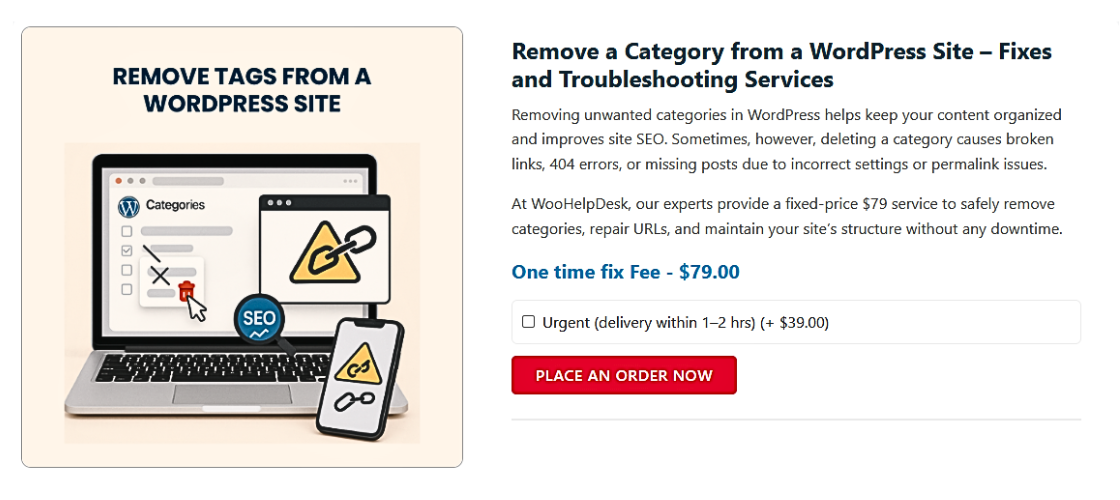
Method 1: Deleting a Category from the WordPress Admin Panel
- Log In to Your WordPress Dashboard
- Open your browser, go to your WordPress login page, and log in with your credentials.
- Navigate to the Categories Page
- Once logged in, find Posts in the left sidebar of your dashboard.
- Click on Categories under the Posts section. This will bring you to the category management page.
- Find the Category You Want to Delete
- On the Categories page, you’ll see a list of all the categories on your site. Scroll through the list or use the search box to find the category you want to remove.
- Delete the Category
- Once you’ve found the category you wish to delete, hover your mouse over the category name.
- You’ll see several options appear beneath the category name, including Edit, Quick Edit, Delete, and View.
- Click Delete. A confirmation message will pop up asking if you’re sure about deleting this category. Click Confirm to remove the category.
- Reassign Posts to Another Category (If Needed)
- If the category has posts associated with it, WordPress will automatically ask you to reassign these posts to another category.
- You can select another category from the dropdown menu. If you don’t want these posts in any category, WordPress will move them to the default “Uncategorized” category.
By following these steps, you can quickly delete a category in WordPress without affecting your content.
Method 2: Using Quick Edit to Remove or Modify a Category
- Go to Categories
- From your WordPress dashboard, navigate to Posts > Categories again.
- Quick Edit the Category
- Hover over the category you want to modify or delete.
- Click on Quick Edit. This allows you to make quick changes to the category without going to a separate page.
- Edit or Remove the Category
- If you only want to change the name or slug of the category, you can do that here.
- If you want to remove the category, you’ll still need to reassign the posts to another category. You can do this directly in the Quick Edit interface.
- Save Changes
- After making the necessary changes, click Update to save your edits. If you’re deleting, make sure posts are reassigned correctly before clicking Update.
This method is great for making minor adjustments without having to go through the entire category management page.
Method 3: Deleting a Category via phpMyAdmin (For Advanced Users)
This method should only be used if you are comfortable working with databases. It allows you to directly delete a category from the database using phpMyAdmin.
- Access phpMyAdmin
- Log in to your web hosting control panel (like cPanel) and find the phpMyAdmin tool. It’s usually located in the Databases section.
- Select Your WordPress Database
- In phpMyAdmin, locate the database that your WordPress site is using. You can find the database name in your wp-config.php file if you’re unsure.
- Locate the wp_terms Table
- In the left sidebar, find and click on the wp_terms table (it may have a different prefix depending on your site settings, like wp_ or another custom prefix).
- Delete the Category from the Table
- In the wp_terms table, you’ll see a list of categories. Find the one you want to delete and click Delete.
- Make sure you’re deleting the right category. Double-check the name or ID to be sure.
- Check the wp_term_taxonomy Table
- Go to the wp_term_taxonomy table and make sure the category ID is removed as well.
- If not, manually remove the entry related to the category ID you just deleted.
Note: Deleting categories via phpMyAdmin should be done with caution. Always back up your database before making changes directly to the database to avoid data loss or site errors.
Considerations and Issues When Removing a Category
When you decide to remove a category from your WordPress site, it’s important to understand the potential consequences. Here are some considerations and common issues to be aware of before removing a category:
Things to Consider Before Removing a Category
- Reassigning Posts to Another Category
- When you remove a category, WordPress automatically assigns its posts to another category.
- If no category is selected, posts are assigned to the Uncategorized category.
- It’s essential to reassign posts to a relevant category to maintain organized content on your site.
- Impact on User Experience
- Categories help users navigate your site easily. If you remove a category, ensure there’s an alternative category or a better-organized structure in place.
- A well-organized category system enhances user experience by making it easier to find content.
- SEO Considerations
- Removing a category can impact your site’s SEO, especially if that category has indexed pages in search engines.
- It’s important to set up redirects for the category URL to avoid broken links and prevent a drop in rankings.
- You can set up 301 redirects using plugins like Redirection to guide search engines and users to the appropriate content.
- Content Availability
- When you delete a category, the posts assigned to it are still available on your site but under different categories.
- Make sure all posts are accessible after removal and that the site structure is still easy to navigate.
Common Issues After Removing a Category
When you remove a category in WordPress, there are some common issues you may encounter. It’s essential to be aware of these problems and address them quickly to maintain a smooth user experience and SEO performance.
- Broken Links
- After removing a category, links pointing to that category can break.
- Users and search engines will encounter 404 errors if not redirected.
- To fix this, set up 301 redirects to guide users to the new content.
- Missing Content
- When you delete a category, its posts still exist but are reassigned.
- If posts aren’t reassigned properly, users may have difficulty finding them.
- Make sure posts are moved to appropriate categories to avoid confusion.
- SEO Issues
- Removing a category can impact your site’s SEO, especially if that category had indexed pages.
- Search engines may encounter 404 errors when trying to access removed category pages.
- Set up redirects for category URLs to maintain SEO value and prevent ranking loss.
- User Confusion
- Visitors might expect content to be under specific categories. Removing one can cause confusion.
- Make sure your site structure remains logical and easy to navigate.
- Consider adding a site map or updating navigation menus after removing categories.
Conclusion
If you’ve been dealing with the challenge of removing a category from your WordPress site for a long time, this guide provides a clear solution. by eliminating a category. Whether you’re rebranding, consolidating categories, or just cleaning up your site, understanding the methods and their potential impact is crucial.
You can easily remove categories by following the instructions in this guide. Whether using the WordPress Admin Panel, Quick Edit, or phpMyAdmin, each method is designed to meet your needs. Remember to consider potential SEO effects, reassign posts properly, and set up redirects to prevent broken links and maintain user experience.
In conclusion, removing a category isn’t just about decluttering; it’s a way to ensure your WordPress site stays organized, professional, and SEO-friendly. When done properly, it will enhance your site’s functionality and user experience.
👉 Need expert help? Please visit our team at WooHelpDesk.com — we’ll be happy to assist you.