How to Integrate Mailchimp with WooCommerce: Step-by-Step Guide
Table of Contents
- Introduction
- What is Mailchimp?
- Advantages of Mailchimp Email Marketing for WooCommerce
- Does Mailchimp Integrate With WooCommerce?
- Requirements Before You Start for Smooth Mailchimp and WooCommerce Connection
- How to Integrate Mailchimp With WooCommerce (Step-by-Step)
- Common Problems and Fixes While Mailchimp and WooCommerce Integration
- Conclusion
Introduction
Email marketing helps you stay connected with every WooCommerce customer. It brings buyers back to your store for repeat orders. With Mailchimp WooCommerce integration, you can automate emails and track sales. You can send welcome emails, cart reminders, and order follow-ups. This saves time and keeps your store active every day. Many store owners also want better customer lists and cleaner targeting. This is where Mailchimp becomes very useful for WooCommerce stores. In this Mailchimp WooCommerce integration guide, you will learn the basics first. You will also learn what Mailchimp is and why it matters. Later parts will show how to integrate Mailchimp with WooCommerce step by step.
What is Mailchimp?
Mailchimp is an email marketing tool that helps you send emails easily. It also helps you build subscriber lists and manage contacts. You can create campaigns for offers, product launches, and announcements. You can also create automated emails based on customer actions. For example, you can send emails after signup or after purchase. When you connect Mailchimp to WooCommerce, Mailchimp can use store data smartly. It can group customers by what they buy and how often. This makes your emails more personal and more effective. Many users choose Mailchimp because it feels simple and quick. It works well for beginners and growing stores.
Advantages of Mailchimp Email Marketing for WooCommerce
- Automate key emails that bring buyers back. With Mailchimp WooCommerce integration, you can send emails automatically. You can trigger welcome emails, follow-ups, and simple promo flows. This saves time and keeps your store active daily.
- Recover lost sales with abandoned cart reminders. Many buyers add items, then leave without paying. When you connect Mailchimp to WooCommerce, you can send cart reminders. These emails bring shoppers back and improve your checkout success rate.
- Build a cleaner email list with better control. Mailchimp helps manage contacts in one place for marketing. With Mailchimp for WooCommerce setup, you can keep lists organized. You can tag buyers, remove inactive emails, and reduce junk signups.
- Send targeted offers using smart customer segments. You can group buyers by products, order value, or frequency. This makes each email feel more personal and useful. This is a key part of any Mailchimp WooCommerce integration guide.
- Promote products without sounding pushy or spammy. Mailchimp lets you send product updates and sale alerts easily. When you learn how to integrate Mailchimp with WooCommerce, product data helps. It helps you suggest items that match the buyer’s interest.
- Track email performance and sales in one workflow. Mailchimp shows clicks, opens, and revenue from email campaigns. With the WooCommerce Mailchimp plugin, tracking becomes smoother and clearer. You can improve future emails using real data and results.
Does Mailchimp Integrate With WooCommerce?
Yes, Mailchimp integrates with WooCommerce using an official plugin. The easiest method is the WooCommerce Mailchimp plugin made for store syncing. This Mailchimp WooCommerce integration lets your store share key data with Mailchimp. It can sync customers, orders, and products in a controlled way.
Once you connect Mailchimp to WooCommerce, you can build better email campaigns. You can also run automations based on real store actions and sales. This makes your emails more timely and more useful for buyers. This Mailchimp WooCommerce integration guide focuses on the plugin method. It is the safest and most common way to connect both platforms. If you want full setup steps, the next section shows how to integrate Mailchimp with WooCommerce properly.
Requirements Before You Start for Smooth Mailchimp and WooCommerce Connection
A good setup starts before you install anything on WordPress. Small checks now can save hours later during sync. This section prepares your store for Mailchimp WooCommerce integration without errors. You will also avoid missing data, broken sync, and wrong audience issues. Follow this checklist before you start the actual connection steps.
Make Sure WordPress and WooCommerce Are Working Properly First
Your store should load fast and complete checkout without problems. Add one test product and run a test checkout flow. Fix any checkout errors before you connect marketing tools. A stable store gives better results after you start syncing data. This keeps your Mailchimp WooCommerce integration guide clean and reliable.
Confirm You Have Admin Access and Plugin Install Rights
You must access the WordPress admin dashboard with full rights. You also need permission to install and activate plugins. If you use managed hosting, confirm plugin installs are allowed. Without these rights, setup can stop at the first step. This matters for the WooCommerce Mailchimp plugin installation process.
Prepare Your Mailchimp Account and Keep Login Ready
Log in to Mailchimp and confirm your account is active. Use the main admin login for faster connection permissions. If you use two-step login, keep your device ready. A clean login prevents connection errors during setup screens. This helps when you connect Mailchimp to WooCommerce in one attempt.
Create or Choose the Right Mailchimp Audience Before Setup
Mailchimp stores contacts inside an Audience, also called a list. Decide if you will use an existing Audience or a new one. Using too many Audiences can create duplicates and confusion. One Audience is easier for most WooCommerce stores to manage. This choice is important for Mailchimp for WooCommerce setup later.
Decide How You Will Collect Email Marketing Consent
You should only email people who agree to marketing messages. Plan where you will ask for consent in checkout or signup. Use a clear opt-in checkbox at checkout when possible. Keep the wording simple and easy to understand. This keeps your store safe and builds trust with buyers.
Confirm SSL Is Enabled on Your Store
Your site should load using HTTPS, not plain HTTP. SSL protects customer data during login and checkout. It also helps plugins connect to services without security blocks. Many connection issues happen on sites without proper SSL. This is a simple step that improves Mailchimp WooCommerce integration stability.
Check If Caching or Security Plugins May Block Sync
Caching plugins can block scripts and background requests sometimes. Security plugins can block login, API calls, or site requests. If you use these plugins, note their settings for later checks. You may need to allow Mailchimp requests through the security rules. This reduces sync failures during the connection process.
Review Basic WooCommerce Store Settings for Better Data Sync
Check your store currency and timezone in WooCommerce settings. Confirm your store address is correct for taxes and shipping. Set permalinks to a standard format, not plain links. These settings affect how products and orders appear in integrations. Clean settings make how to integrate Mailchimp with WooCommerce much smoother.
Make a Full Backup Before You Add New Plugins


Back up your website files and your database before changes. A backup protects you if a plugin conflict happens. Many hosting panels offer one-click backup options. You can also use a trusted backup plugin for WordPress. This step is simple and gives peace of mind during setup.
Plan What Data You Want to Sync to Mailchimp
Most stores sync customers, orders, and products to Mailchimp. Decide if you want to sync existing customers right away. Also decide if you want to sync guest checkout buyers. Planning this early reduces mistakes when you pick sync settings. It also keeps your Audience clean and well organized.
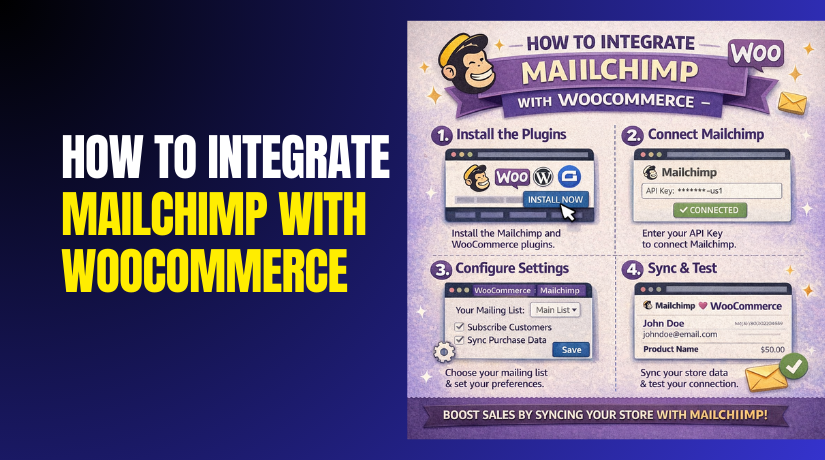
How to Integrate Mailchimp With WooCommerce (Step-by-Step)
Step 1: Install the WooCommerce Mailchimp Plugin
- Go to WordPress Dashboard and open Plugins.
- Click Add New and search WooCommerce Mailchimp plugin.
- Install Mailchimp for WooCommerce and then activate it.
- This starts your Mailchimp for WooCommerce setup process.
Step 2: Open Mailchimp Settings in WordPress
- Go to WooCommerce or Mailchimp settings in your dashboard.
- Find the Mailchimp connection screen inside the plugin.
- This is where you will connect Mailchimp to WooCommerce.
Step 3: Connect Your Mailchimp Account
- Click the Connect button shown in plugin settings.
- Log in to your Mailchimp account in the popup window.
- Approve access so Mailchimp can sync store data.
- This completes the base Mailchimp WooCommerce integration link.
Step 4: Select the Right Mailchimp Audience
- Choose the Audience you want for WooCommerce customers.
- Use one Audience to avoid duplicate subscriber issues.
- This keeps your Mailchimp WooCommerce integration guide clean.
Step 5: Enable Sync for Store Data
- Turn on sync for customers, products, and orders.
- Save settings after choosing your sync options.
- Sync helps Mailchimp use store data for better emails.
Step 6: Set Marketing Consent Options
- Enable marketing permission settings if available in plugin.
- Add an opt-in checkbox at WooCommerce checkout settings.
- This keeps list quality strong and avoids spam complaints.
Step 7: Run the First Sync and Wait for Completion
- Start the initial sync from the plugin settings screen.
- Keep the tab open and do not click connect again.
- Large stores may take longer due to more order data.
Step 8: Verify Sync Inside Mailchimp
- Open Mailchimp and go to connected store settings.
- Check if customers, orders, and products are showing.
- This confirms you completed how to integrate Mailchimp with WooCommerce properly.
Step 9: Do a Quick Live Test Checkout
- Place a test order using a real email address.
- Check Mailchimp to confirm the contact appears correctly.
- This final test confirms your integration works smoothly.
Common Problems and Fixes While Mailchimp and WooCommerce Integration
1) Sync not working (customers, orders, products)
- Update and activate the WooCommerce Mailchimp plugin.
- Reconnect in plugin settings to refresh access.
- Save Permalinks once to refresh site routes.
- Disable cache/security plugins and test sync again.
- Run manual sync to complete Mailchimp for WooCommerce setup.
2) Duplicate contacts or wrong audience
- Use only one audience for one store.
- Do not switch audiences after syncing starts.
- Check if popup forms also add the same emails.
- Test checkout opt-in with a new email address.
3) Abandoned cart emails not sending
- Enable cart tracking in integration settings.
- Exclude cart and checkout pages from cache.
- Test using incognito mode for clean cookies.
4) Orders or products missing in Mailchimp
- Make sure products are published and visible.
- Run a full resync after fixing product settings.
- Place a test order to confirm store data updates.
Conclusion
Mailchimp works well with WooCommerce when your setup is done correctly. Once you connect Mailchimp to WooCommerce, you can sync customers, orders, and products automatically. This helps you run smarter email campaigns with less manual work. You can also track results and improve sales using real customer data.
Follow this Mailchimp WooCommerce integration guide step by step for best results. Keep one audience, use clean opt-in settings, and test the sync after setup. After that, your emails and automations will run smoothly. This makes Mailchimp for WooCommerce setup a strong choice for growing your store.
Need expert help with your WooCommerce store? Visit WooHelpDesk for fast WooCommerce support, setup, fixes, and performance improvements.