How to Import Orders into WooCommerce Step by Step?
Table of Contents
- Introduction
- Why to Import Orders into WooCommerce?
- When to Import Orders into WooCommerce?
- How to Import Orders into WooCommerce Step by Step?
- How to Import Order History into WooCommerce Step by Step?
- What are the Top 3 Best Plugins to Import Orders into WooCommerce?
- Final Verdict
Introduction
Running a store often involves moving data between platforms. Order data is usually the hardest to move safely. Many store owners need past orders inside WooCommerce quickly.
This guide explains how to import orders without breaking reports. It also explains how to keep customers and products linked correctly. You will learn safe steps for every common import situation. You will also learn tools that reduce errors and cleanup time.
Use this guide when you need to import orders into WooCommerce. Use it when you plan a store migration or rebuild. Use it when you need a reliable WooCommerce order import process. You can also use it for scheduled bulk uploads. The goal is to clean order records inside WooCommerce.
Order imports require planning and accurate data mapping. A wrong mapping can break taxes and totals. A wrong customer link can create duplicate accounts. A wrong product link can break inventory and refunds.
So you should treat imports like a small project. You should plan fields, formats, and validation steps first. You should also choose the right WooCommerce import orders plugin. The right plugin makes bulk work much easier. It also helps you migrate orders to WooCommerce safely.
This is useful when moving from Shopify or Magento. It is also useful when moving from custom carts. It is also useful when rebuilding a broken store. If you follow the steps, imports become predictable.
Why to Import Orders into WooCommerce?
Importing orders helps you keep business history and continuity. It also protects customer support and accounting accuracy. Here are the main reasons for import orders into WooCommerce.
- You need complete sales history inside WooCommerce. Past orders help you analyze seasonal sales patterns. Past orders also help you forecast stock needs. Past orders help you measure campaign results accurately. Missing history can mislead your business decisions.
- You want smooth customer support and return handling. Customers may ask about older orders frequently. Support teams need order IDs and item details quickly. Imports keep refunds and replacements easier to manage. Without history, support becomes slow and frustrating.
- You are migrating from another ecommerce platform. Platform migrations often require orders and customers are moved. You may be moving from Shopify to WooCommerce. You may be moving from Magento to WooCommerce. You may be moving from Wix stores to WooCommerce. Migration requires clean WooCommerce order import execution.
- You need accounting and tax records stored consistently. Accountants often ask for historical order exports. Taxes need accurate totals and tax lines per order. Importing orders keeps records in one place. This makes audits and reconciliations much easier.
- You want better reporting and analytics inside WooCommerce. WooCommerce reports use order totals and statuses. Missing orders make reports incomplete and misleading. Imported orders improve insights for products and customers. Better insights help optimize pricing and marketing strategies.
- You need subscription renewals and follow up workflows. Some stores follow up on past order customers. You may run winback emails and loyalty campaigns. You may need warranty and service tracking too. Imports make those workflows possible inside WooCommerce.
- You want to consolidate multiple stores into one store. Some brands merge stores after rebranding or expansion. Consolidation requires combining order records carefully. Imports help unify customer history and purchase patterns. This improves long term customer experience and retention.
When to Import Orders into WooCommerce?
Timing matters because imports can affect live operations. You should choose a time that reduces risk. Here are common situations where bulk import WooCommerce orders are needed.
- During a full store migration to WooCommerce. Import orders after products and customers are ready. Import orders before the public launch of the new store. Validate totals before you switch your domain DNS. This reduces broken links and missing order confusion.
- After rebuilding a broken WooCommerce store. Rebuilds may require restoring orders from backups. You may export orders from a staging or old site. Import restores order history for business continuity. Validate order statuses and payment records carefully.
- When moving from a custom cart system. Custom carts may export orders in CSV format. You can import those orders into WooCommerce for history. You should map fields to WooCommerce structures carefully. You should test with a small sample file first.
- When merging multiple stores into one WooCommerce store. Imports help bring orders from separate systems together. You should add a source tag for each imported batch. This helps filter and debug issues later. Merging requires careful customer matching and deduplication.
- When correcting missing orders after a plugin issue. Some checkout failures may skip order creation. You might have payment records but missing orders. Importing reconstructed orders restores accurate reporting. You should confirm payment IDs and timestamps before import.
- When adding legacy orders for customer lifetime value tracking. Legacy orders improve LTV and segmentation insights. This helps retention marketing and loyalty offers. It also helps customer support verify older purchases. Import these orders during low traffic maintenance windows.
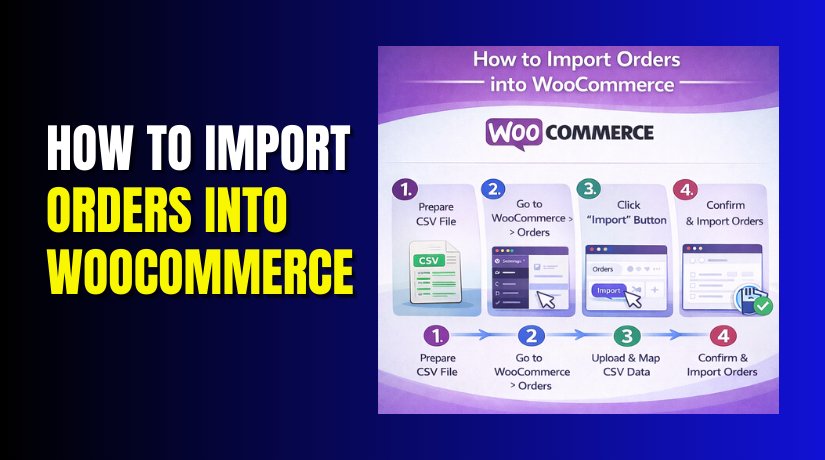
How to Import Orders into WooCommerce Step by Step?
This section shows a safe workflow for import orders into WooCommerce. The steps work for most CSV based import methods. You can use them with a WooCommerce import orders plugin too. Always test on staging before importing on production.
Step 1: Prepare a Clean CSV File for Orders
Source Platform → Orders Export → Download CSV → Open in Spreadsheet
Start by exporting orders from your old platform or system. Ensure the export includes line items and totals fields. Ensure it includes billing and shipping address fields. Ensure it includes customer email and phone fields. Remove empty rows and duplicate header rows immediately. Fix date formats so they are consistent across orders. Use one date format for all order records.
Step 2: Create Products and Customers Before Import
Dashboard → Products → Add New → Set SKU → Publish
Create all products that appear in imported orders. Ensure each product has a unique SKU value. Ensure variations also have SKUs if you use variations. If you already have products, verify SKU matching carefully. Use a SKU list export for cross checking quickly. If SKUs mismatch, orders will be imported with custom items.
Step 3: Choose Your Import Method for WooCommerce Orders
You can import orders using plugins or custom scripts. Plugins are the safest choice for most store owners. Plugins also provide mapping interfaces and batch controls. Custom code is for developers and special edge cases only. Choose based on your data size and complexity.
- Plugin based CSV import works for most use cases.
- API based migration works for platform to platform moves.
- Database level import is risky and needs expert handling.
- Manual creation works only for a few orders and testing.
- Hybrid import uses CSV for orders and API for payments.
Step 4: Install an Order Import Plugin
Dashboard → Plugins → Add New → Search Plugin → Install → Activate
Search for a plugin that supports order imports. Confirm the plugin supports WooCommerce order fields needed. Confirm it supports line items and customer mapping. Confirm it supports taxes and shipping fields too. Install and activate the plugin on your staging site first. Then repeat on production after testing succeeds.
Step 5: Upload Your CSV File Inside the Import Tool
WooCommerce → Import Tool → Orders Import → Upload CSV
Upload the CSV file using the plugin interface. Choose the order import module if the plugin has modules. Confirm the file encoding is UTF 8 before upload. Confirm separators match plugin expectations for commas. Confirm headers match what the plugin expects for mapping. If headers differ, rename headers to match.
Step 6: Map CSV Columns to WooCommerce Order Fields
Import Tool → Field Mapping → Match Columns → Save Mapping
Mapping is the most important step in order imports. Map each CSV column to the correct WooCommerce field. Map billing fields like name and address properly. Map shipping fields like city and postcode properly. Map line item fields like SKU and quantity properly. Map totals fields like shipping total and tax total properly.
Step 7: Run a Test Import Using a Small Sample
Import Tool → Test Run → Import Ten Orders → Review Results
Always test import with a small sample first. Import ten to twenty orders for validation checks. Review those orders in WooCommerce admin screens. Check billing and shipping details for correctness. Check totals and taxes for accurate calculations. Check line items for correct product linking by SKU.
Step 8: Import the Full Order File in Batches
Import Tool → Start Import → Batch Settings → Run Import
After successful testing, import the full CSV file. Use batch processing for safer import performance. Monitor each batch for errors and warnings quickly. Export error logs if the plugin provides logging. Fix errors in CSV and re import only failed orders. Avoid re importing successful orders again and again.
Step 9: Validate Orders After Import Completion
WooCommerce → Orders → Search Imported Orders → Review Records
Validation is required after every bulk import. Check order totals against the original platform totals. Check taxes match expected values for major orders. Check shipping totals match for several random orders. Check refunds and notes if your import included them.
How to Import Order History into WooCommerce Step by Step?
Order history imports focus on older completed orders and archives. These imports should not affect live store operations. They should also preserve dates and original order references. Follow these steps to import orders into WooCommerce safely for history.
Step 1: Decide What “Order History” Includes for Your Store
Planning Sheet → Define Date Range → Define Statuses → Finalize Scope
Order history usually means older completed and refunded orders. Some stores also include canceled and failed orders for records. Decide the date range you want to import into WooCommerce. Decide which statuses are important for reporting and support. Decide if you need refunds and notes included. Decide if you need transaction IDs included for reference. This scope prevents unnecessary imports and duplicate clutter.
Step 2: Export Historical Orders from Your Source Platform
Source Platform → Orders → Filters → Export CSV → Download
Filter orders by your decided date range and statuses. Export with line items, totals, taxes, and shipping values. Export customer email and address details for each order. Export payment method name and transaction ID when available. Export coupon codes and discount totals if used. Use platform export options for “detailed orders” when available.
Step 3: Clean and Normalize the Export File for WooCommerce Import
Spreadsheet Tool → Clean Columns → Fix Dates → Fix Numbers → Save CSV
Clean your CSV by removing unused columns first. Remove columns that your plugin cannot map or use. Standardize date format across every row of the file. Use a consistent format like YYYY-MM-DD for safer parsing. Remove currency symbols from numeric totals fields. Ensure decimal separators are consistent across all totals.
Step 4: Create an “Imported History” Tag Strategy for Filtering
Mapping Plan → Add Source Tag → Add Source Order ID → Add Batch Name


You should tag every historical order import batch. Add a custom field like source_platform for every order. Add a custom field like source_order_id for every order. Add a custom field like import_batch_name for each file. These fields help you filter imported orders later. They also help rollback and delete batches if needed.
Step 5: Decide How to Handle Customer Accounts for Old Orders
Strategy → Match By Email → Create New Users → Keep Guest Orders
You have three main options for customer history linking. Choose one strategy and stay consistent across imports.
- Match customers by billing email for best linking results.
- Create user accounts only when email is present and valid.
- Keep older orders as guest orders when accounts are unknown.
- Avoid creating duplicates by importing customers separately first.
- Avoid changing user roles during history imports for safety.
Most stores should match by email and keep guests as guests. This keeps WooCommerce clean and avoids duplication issues. It also avoids creating thousands of unnecessary user accounts. Your support team can still search by email in orders.
Step 6: Import Historical Orders Using a Controlled Batch Method
Import Tool → Upload CSV → Map Fields → Test Batch → Run Batches
Upload your cleaned historical order CSV file to the import tool. Map fields carefully for dates, totals, and line items. Confirm order date maps to create date fields properly. Confirm order status maps to be completed or refunded properly. Confirm product linking uses SKU for line items properly.
Step 7: Import Refunds and Adjustments for Historical Orders
Source Export → Refund Data → Map Refund Fields → Import Refund Rows
Refund history is important for accurate reporting and support. Some plugins support refunds import directly as refunds. Some plugins import refunds as negative fee items instead. Choose the method your plugin supports for clean results.
Step 8: Prevent Duplicate Imports and Keep Imports Idempotent
Import Settings → Skip Existing → Unique Key Mapping → Batch Tracking
Duplicate prevention is critical during history imports. Enable skip existing orders if your plugin supports it. Use a unique key like source_order_id for duplicate checks. Keep a record of each imported batch name and range. Do not re import the same file without skipping logic enabled. Create a separate file for failed rows and retry only those.
Step 9: Validate Imported Order History for Accuracy
WooCommerce → Orders → Filter By Source Tag → Spot Check Orders
Validation should focus on the most important order fields. Validate order dates and timestamps match your source platform. Validate totals and taxes match within acceptable rounding rules. Validate discounts and coupon totals match for random orders. Validate customer email and addresses are complete and readable. Validate status values match completed and refunded correctly.
What are the Top 3 Best Plugins to Import Orders into WooCommerce?
Choosing the right plugin makes WooCommerce order import easier and safer. A good plugin supports order fields and line items properly. It also supports customer matching and batch processing options. These three plugins are strong choices for most stores.
1. WP All Import with WooCommerce Add On
This plugin is very flexible for CSV and XML imports. It is widely used for complex WooCommerce data imports. It can support large files with careful batching settings. It is useful when you need advanced mapping logic.
Key Features
- Imports orders using CSV or XML with advanced mapping options
This plugin supports both CSV and XML formats for order imports. You can drag and map each column to WooCommerce order fields. This is useful when your source data structure is complex or inconsistent. It gives full control over how data enters WooCommerce. - Supports line item mapping with products linked by SKU
Orders can be linked to existing WooCommerce products using SKUs. This ensures imported orders show correct product names and links. It also keeps reporting and refunds accurate. SKU-based mapping prevents duplicate product creation. - Supports custom fields and custom meta mapping for tracking
You can import custom order meta like source order IDs or platform names. This helps track where orders originated from. It is useful during migrations and future audits. Support teams also benefit from this extra reference data. - Supports conditional logic for importing specific orders
Conditional rules allow importing only selected orders. You can import orders based on status, date, or value. This is helpful for partial migrations or cleanup tasks. It prevents unnecessary or duplicate imports. - Supports scheduled imports using cron automation
The plugin allows automated imports at fixed intervals. This is useful for recurring migrations or syncing orders regularly. Cron scheduling reduces manual work. It helps maintain updated order records over time.
Pros
- Highly flexible mapping for complex file structures
The plugin handles non-standard CSV or XML layouts easily. This flexibility helps when working with custom systems. It reduces the need for manual data restructuring. Developers often prefer it for advanced use cases. - Handles large imports using chunking and batch controls
Orders are imported in smaller batches for stability. This reduces server timeouts and memory errors. It works well for thousands of orders. Batch control improves import reliability. - Allows reusable templates for repeated import tasks
Import settings can be saved and reused later. This saves time for ongoing migration work. It ensures consistent mapping every time. It is ideal for agencies and large stores. - Supports custom checkout fields and extra metadata
Stores with custom checkout fields can import that data easily. This preserves business-specific information. It ensures order records remain complete. Custom data stays usable after migration. - Works well for technical and developer-led projects
Developers can build very precise import workflows. The plugin supports advanced logic and filters. It integrates well with complex store setups. It is powerful for controlled environments.
Cons
- Initial setup can feel complex for beginners
The interface offers many options that may overwhelm new users. Incorrect setup can cause errors. Beginners may need tutorials or documentation. Learning time is higher than simpler plugins. - Requires WooCommerce add-on for full order imports
Order importing is not available in the base plugin alone. The WooCommerce add-on must be installed separately. This adds to cost and setup steps. Missing the add-on limits functionality. - Incorrect mapping can break totals or line items
A wrong field mapping may cause missing products or wrong totals. This affects reporting and accounting. Careful testing is required before live imports. Mistakes can require cleanup work. - Advanced imports may require technical knowledge
Conditional logic and complex mapping need experience. Non-technical users may struggle initially. Some cases require understanding WooCommerce data structure. This plugin is not fully beginner-focused. - Large imports require strong hosting resources
Shared hosting may struggle with heavy imports. Memory and execution limits must be adjusted. Poor hosting can cause failed imports. Performance tuning is sometimes necessary.
Download Link: WP All Import – Product Import for WooCommerce
2. Advanced Order Export For WooCommerce with Import Support
This solution is strong for structured export and import workflows. It is often used when stores need controlled data migration. It works well when you need clean templates and repeat processes. It is useful for moving orders between WooCommerce stores.
Key Features
- Creates structured order exports with consistent templates
The plugin generates clean and predictable CSV exports. These templates are easy to reuse. Consistency makes importing into another store easier. It reduces mapping errors during imports. - Supports custom export formats for different tools
You can customize column order and naming. This helps match requirements of other import plugins. It simplifies cross-platform migrations. Clean formats save preparation time. - Filters exports by date, status, or order fields
You can export only specific orders. This is useful for partial migrations or backups. Filters reduce file size and complexity. They help focus on relevant data only. - Exports order meta fields for tracking and linking
Custom fields and meta data are included in exports. This helps preserve references like source IDs. It supports better order traceability. Meta data improves support and audits. - Supports scheduled exports for recurring workflows
Exports can run automatically at set intervals. This is useful for syncing systems. It reduces manual export tasks. Scheduled exports support long-term workflows.
Pros
- Produces clean export files ready for import
The exported data is well structured and readable. This reduces preparation work. Import plugins handle these files easily. It improves migration success rates. - Works well for WooCommerce to WooCommerce migrations
This plugin is ideal when moving between WooCommerce stores. Data remains compatible across versions. It minimizes conversion issues. It suits staging to production transfers. - Strong filtering options improve data accuracy
Only required orders are exported. This avoids importing unnecessary records. Filters improve control over migration scope. Accuracy improves overall results. - Useful for accounting and reconciliation tasks
Accountants can use exported data for reports. Custom fields support financial tracking. Clean exports simplify audits. It saves time during reviews. - Efficient for repeated export tasks
Templates and schedules reduce repeated effort. This is helpful for agencies and large stores. Consistency improves long-term workflows. Manual errors are reduced.
Cons
- Import features may need additional tools
The plugin focuses more on exports than imports. Importing may require another plugin. This adds extra steps. Users must plan the workflow carefully. - Not all import cases are fully automated
Some data needs manual preparation. Complex imports still require testing. Automation is limited in certain scenarios. User oversight is often required. - Advanced fields require careful testing
Custom meta fields must be verified during import. Mapping errors can occur. Testing is essential before live use. Skipping tests increases risk. - Large exports may impact performance
Exporting many orders can strain servers. Hosting limits may affect performance. Scheduled jobs should be timed carefully. Optimization may be required. - Customer import may need separate handling
Customers are not always imported automatically. User data may require another tool. Coordination is necessary. Full migrations need extra planning.
Download Link: Advanced Order Export For WooCommerce
3. Import Export Suite for WooCommerce
This plugin is designed for WooCommerce migration workflows. It supports import and export for orders and other store data. It is often used for bulk migration tasks and backups. It is useful when you want a guided import interface.
Key Features
- Supports bulk order imports using ready CSV templates
The plugin provides predefined CSV structures. This simplifies preparation work. Beginners can follow templates easily. It reduces formatting mistakes. - Imports customers, products, and coupons together
Multiple data types can be imported in one workflow. This is useful for full store migrations. Data remains connected correctly. It saves time during setup. - Provides mapping interface for common order fields
Field mapping is guided and user-friendly. Common WooCommerce fields are pre-configured. This helps non-technical users. Setup time is shorter. - Supports background processing for large imports
Imports run in the background without browser timeouts. This improves stability for large files. Users can continue working. Failures are reduced. - Supports exports for rollback and verification
Data can be exported for backup purposes. This helps validate imports. Rollbacks become easier. Safety is improved.
Pros
- Ideal for full WooCommerce migration projects
It handles multiple data types together. This reduces plugin switching. Migration becomes more organized. It suits store rebuilds. - Templates simplify CSV preparation significantly
Users do not need deep technical knowledge. Templates guide correct formatting. Errors are reduced. Beginners benefit greatly. - Background processing improves reliability
Large imports complete without interruptions. Server strain is reduced. Stability improves overall success. This is useful on shared hosting. - Customer matching based on email works well
Existing customers are linked correctly. Duplicate accounts are minimized. Order history stays clean. Support workflows improve. - Lower learning curve compared to advanced tools
The interface is easier to understand. Setup is faster. Documentation is clearer for beginners. Less training is required.
Cons
- Advanced mapping requires premium features
Free versions may be limited. Complex imports need paid upgrades. Cost increases for advanced needs. Planning is required. - Custom meta imports may need manual fixes
Some custom fields may not map perfectly. Manual adjustments may be required. Testing is essential. Edge cases need attention. - Duplicate prevention requires careful setup
Wrong settings can create duplicates. Unique identifiers must be configured. Users must follow best practices. Skipping setup causes issues. - Performance depends on hosting quality
Weak hosting can still cause slow imports. Batch sizes must be adjusted. Server limits affect success. Hosting optimization helps. - Some niche order fields may not import perfectly
Rare or custom fields may need workarounds. Not all data types are supported equally. Verification is needed. Documentation should be reviewed.
Download Link: Import Export Suite for WooCommerce
Final Verdict
Order imports are manageable when you use a safe process. Start by preparing products and customer matching first. Always use a staging test run before production imports. Use a trusted WooCommerce import orders plugin for better control. Tag every imported order with source ID and batch name. Disable emails and stock reduction during historical imports. Validate totals, dates, and customer links after each batch. Keep backups and rollback options ready before you begin.
With these steps, you can import orders into WooCommerce confidently. You can also migrate orders to WooCommerce without losing history. You can run bulk import WooCommerce orders for large migrations reliably.
Have questions before starting with WooCommerce & WordPress? Get support here at WooHelpDesk.