How To Fix WordPress Memory Limit Exhausted Error On GoDaddy Hosting
Introduction
A fatal error or memory exhausted issue in WordPress usually occurs when your website does not have enough PHP memory to execute scripts properly. This can result in a broken site, inaccessible admin panel, or error messages that disrupt normal functionality. Such issues are commonly caused by heavy plugins, large themes, outdated PHP versions, or insufficient server configuration. In this guide, we explain how to identify and fix WordPress fatal errors related to memory limits on GoDaddy hosting. You’ll learn how to check your site’s PHP version and memory usage through Site Health, update the PHP version, flush hosting cache, and manually increase the WordPress memory limit using the wp-config.php file. Following these steps ensures your website has adequate resources to run smoothly and helps restore stability to your WordPress site hosted on GoDaddy.
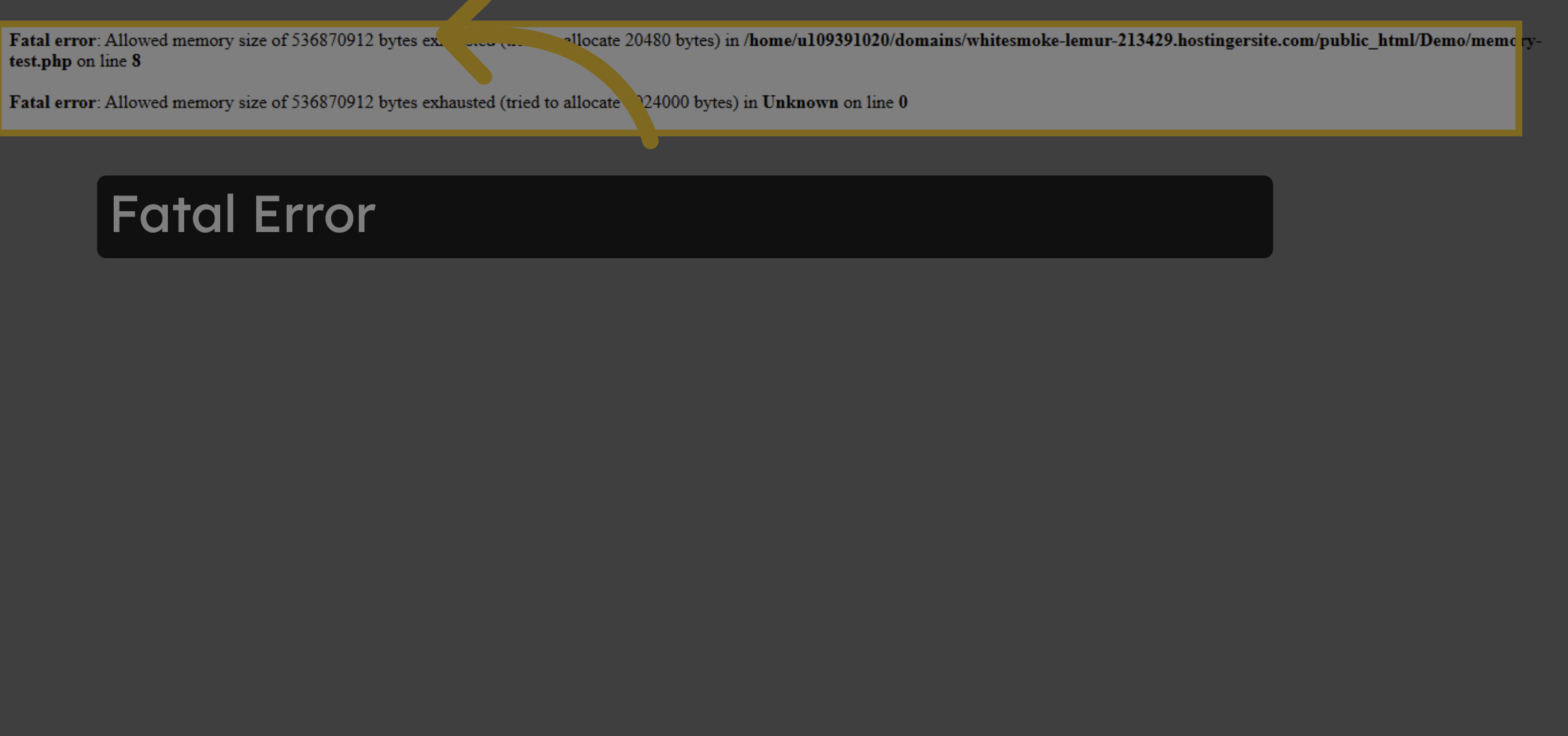
1. Fatal Error
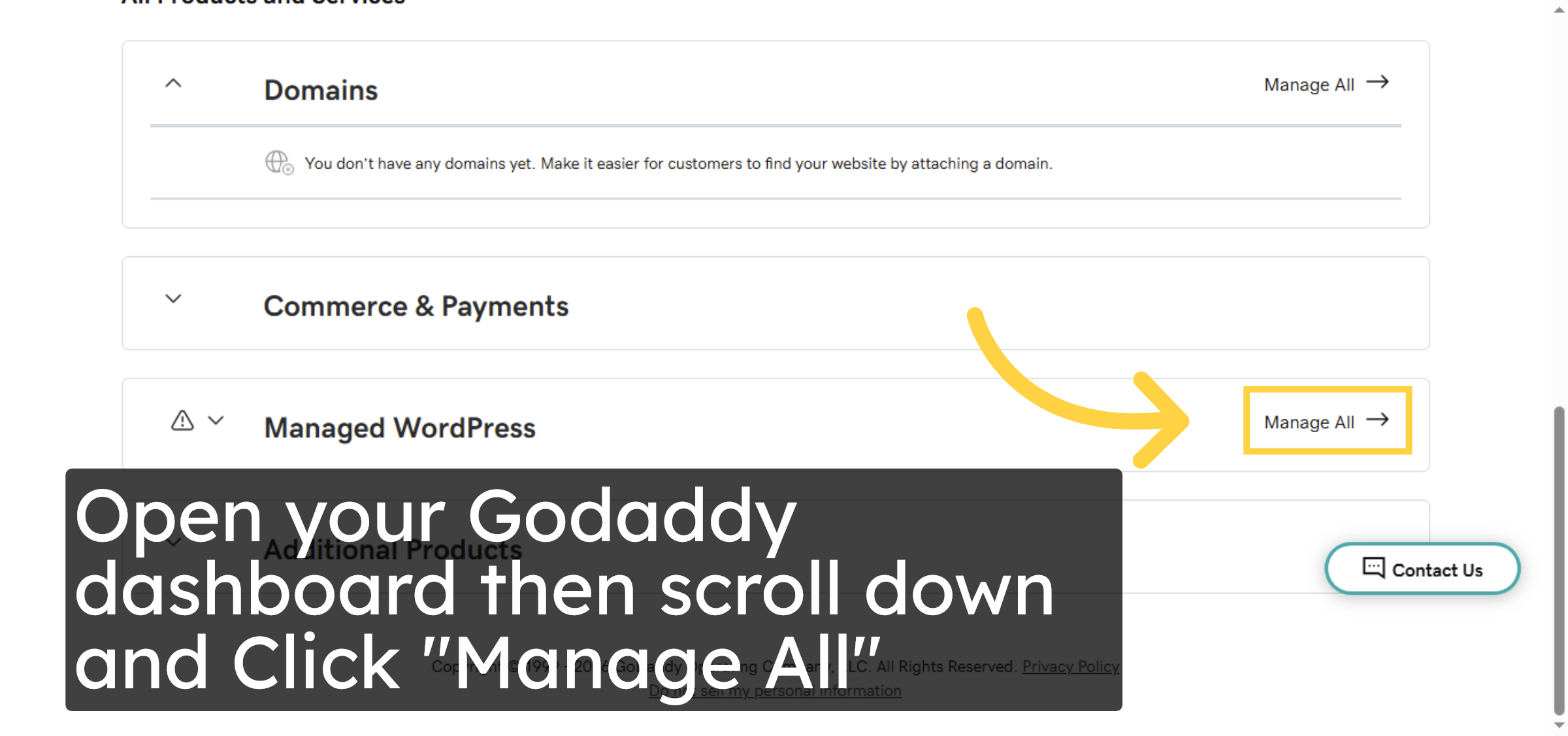
2. Click Manage All
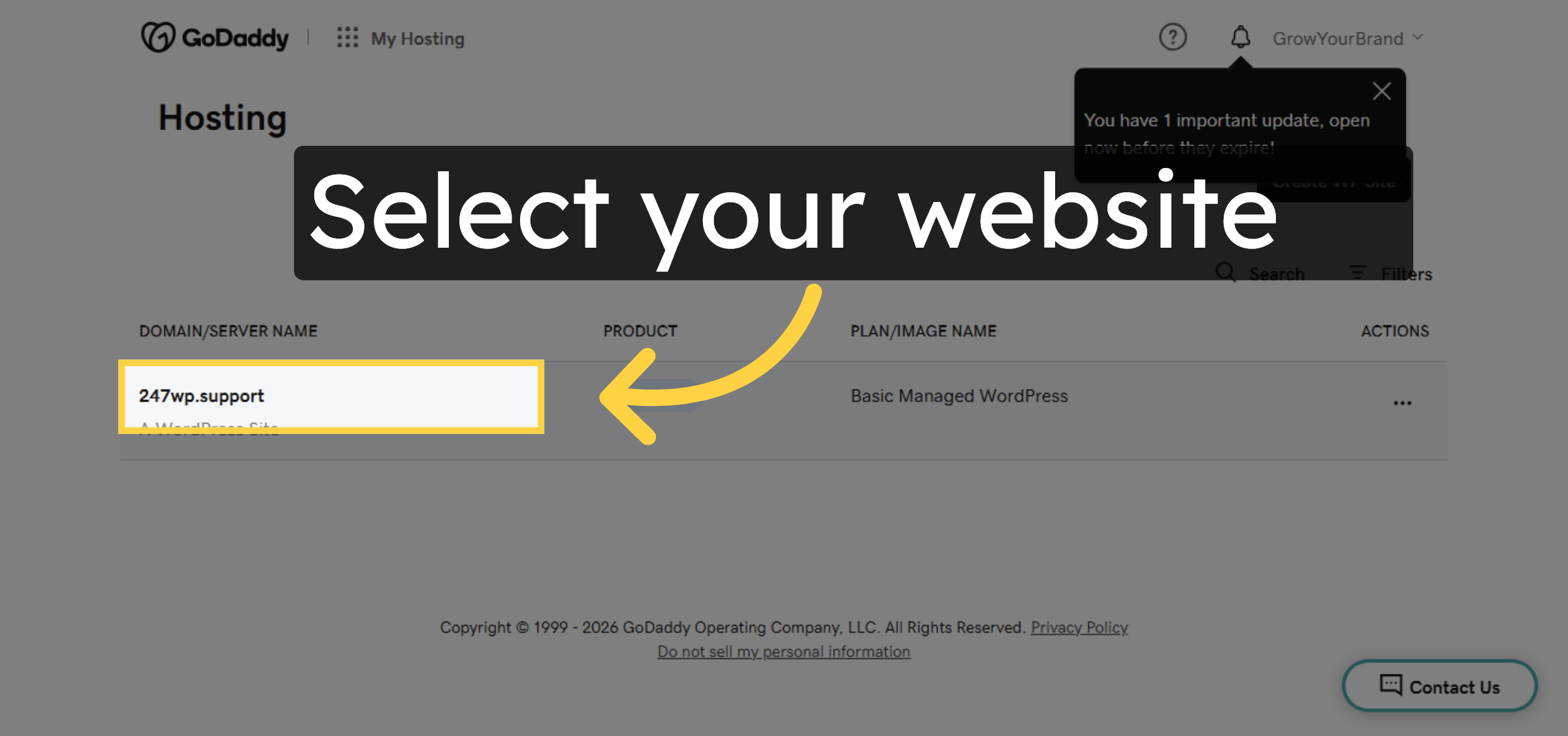
3. Select Your Hosting Account
4. Click Edit Website
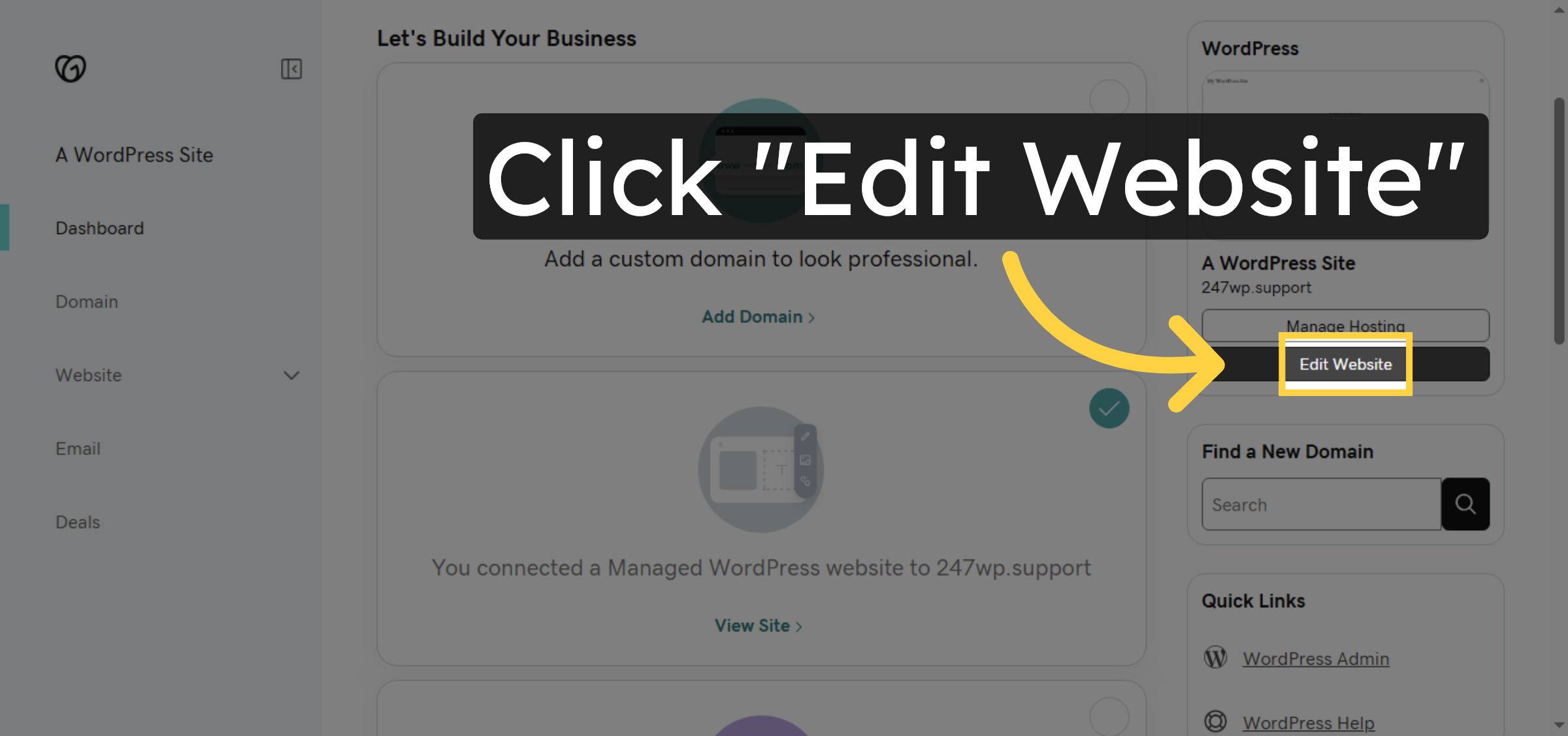
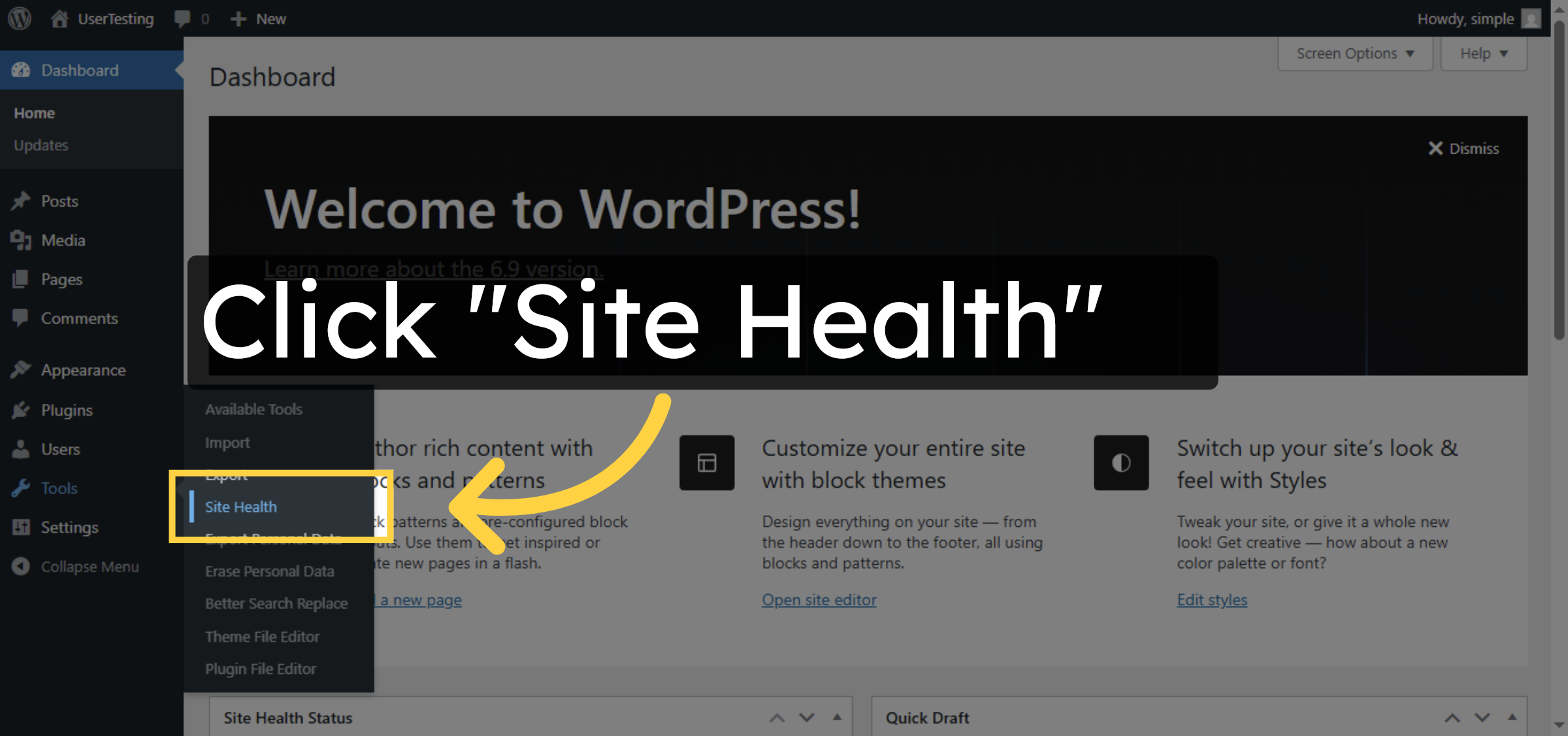
5. Open Site Health
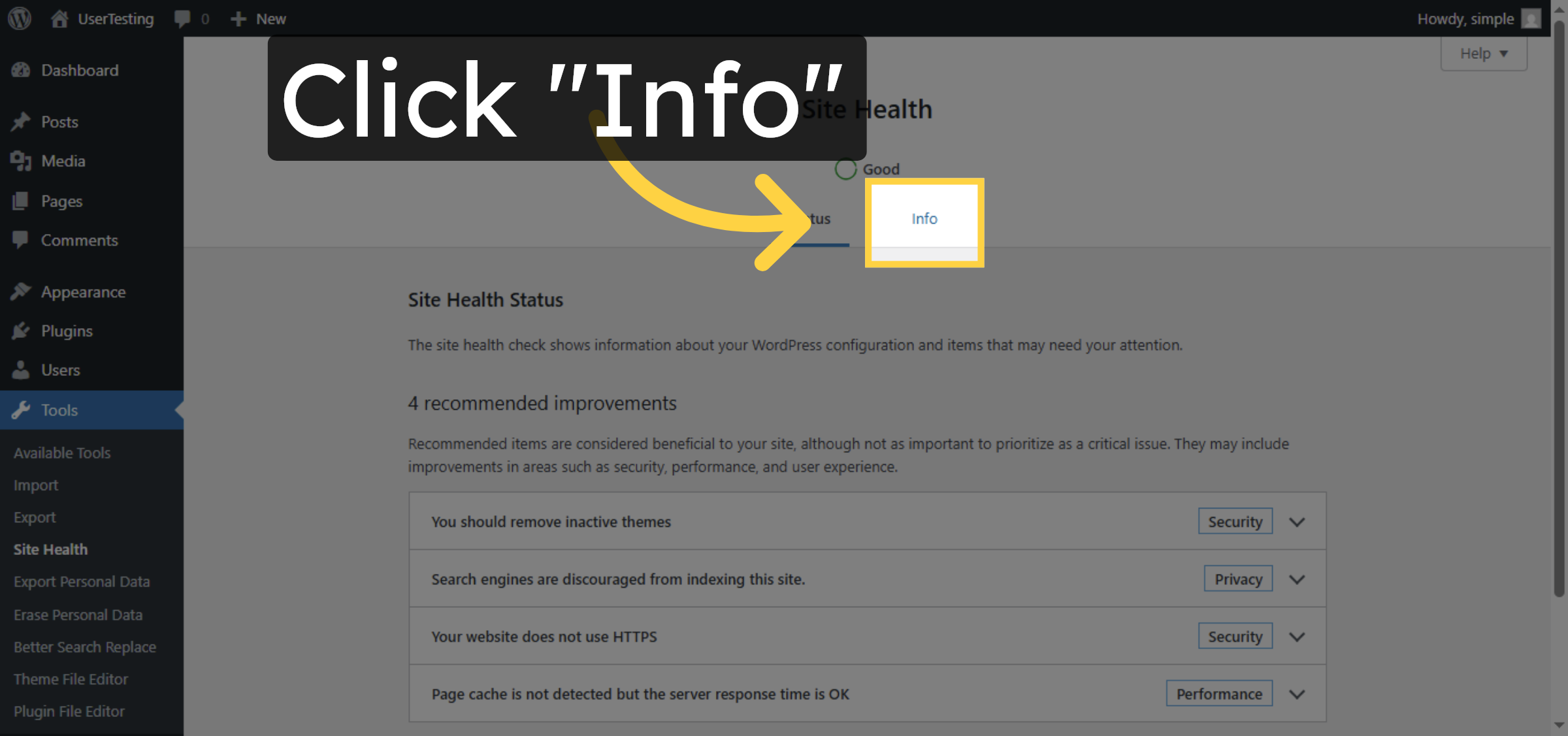
6. Access Site Health Info
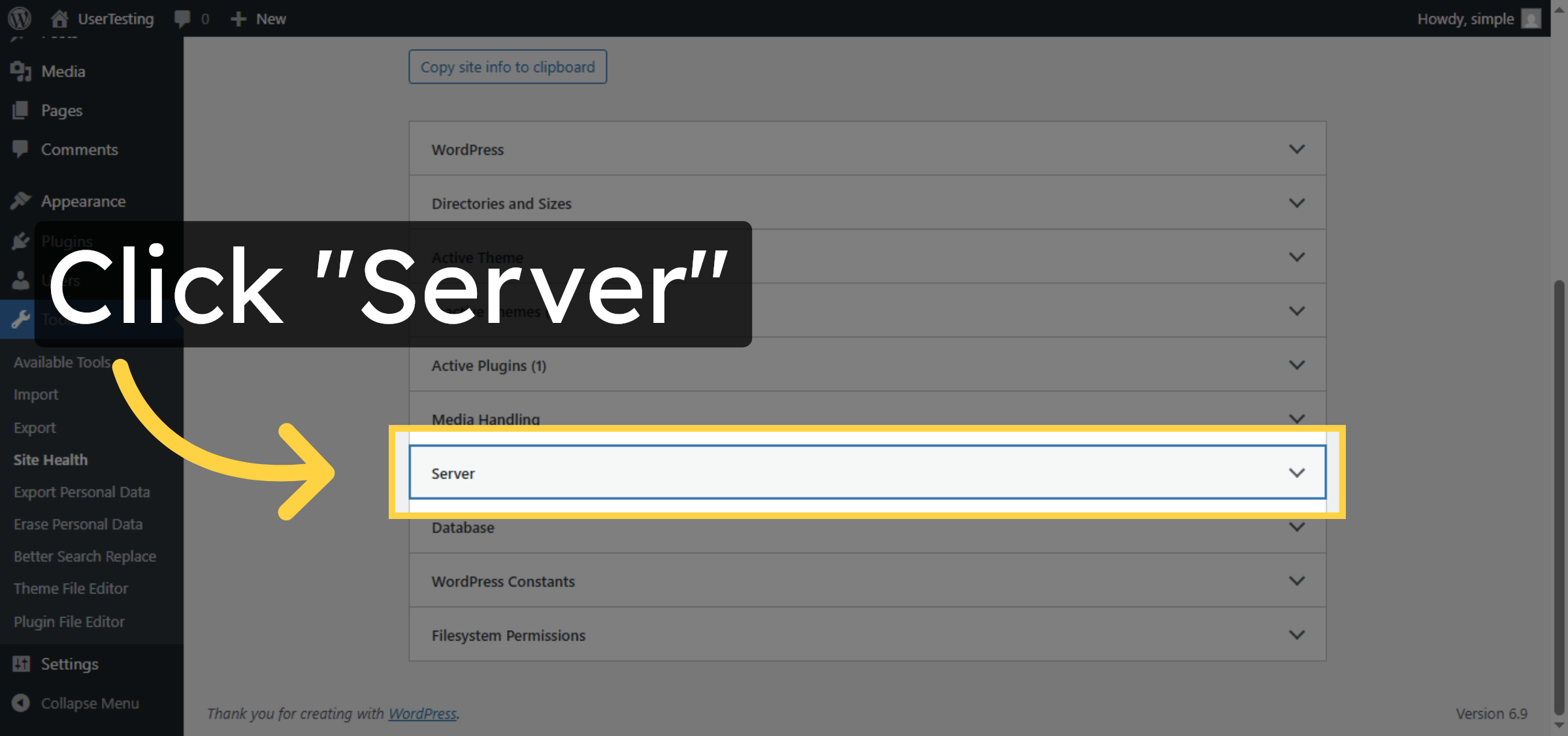
7. View Server Details
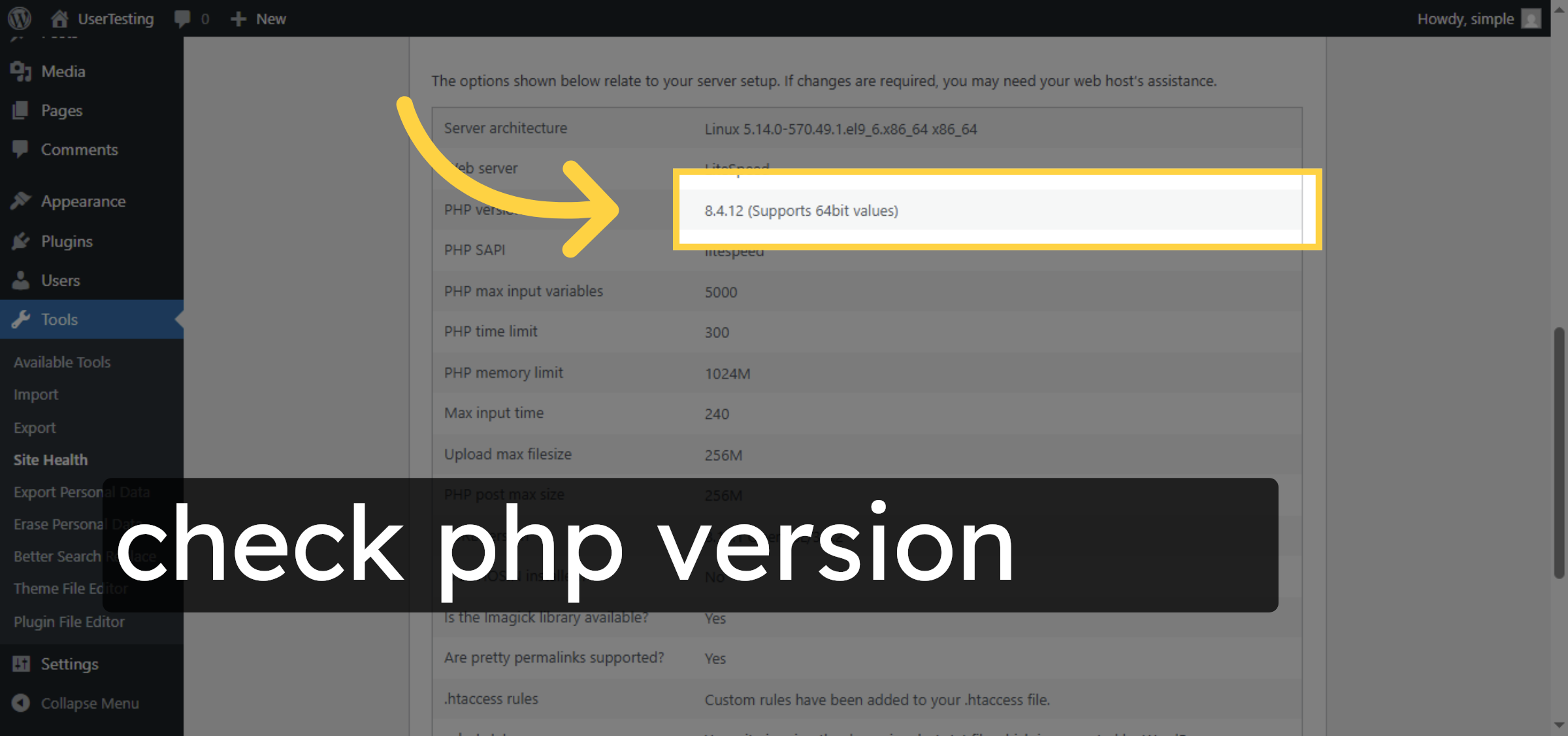
8. Check PHP Version
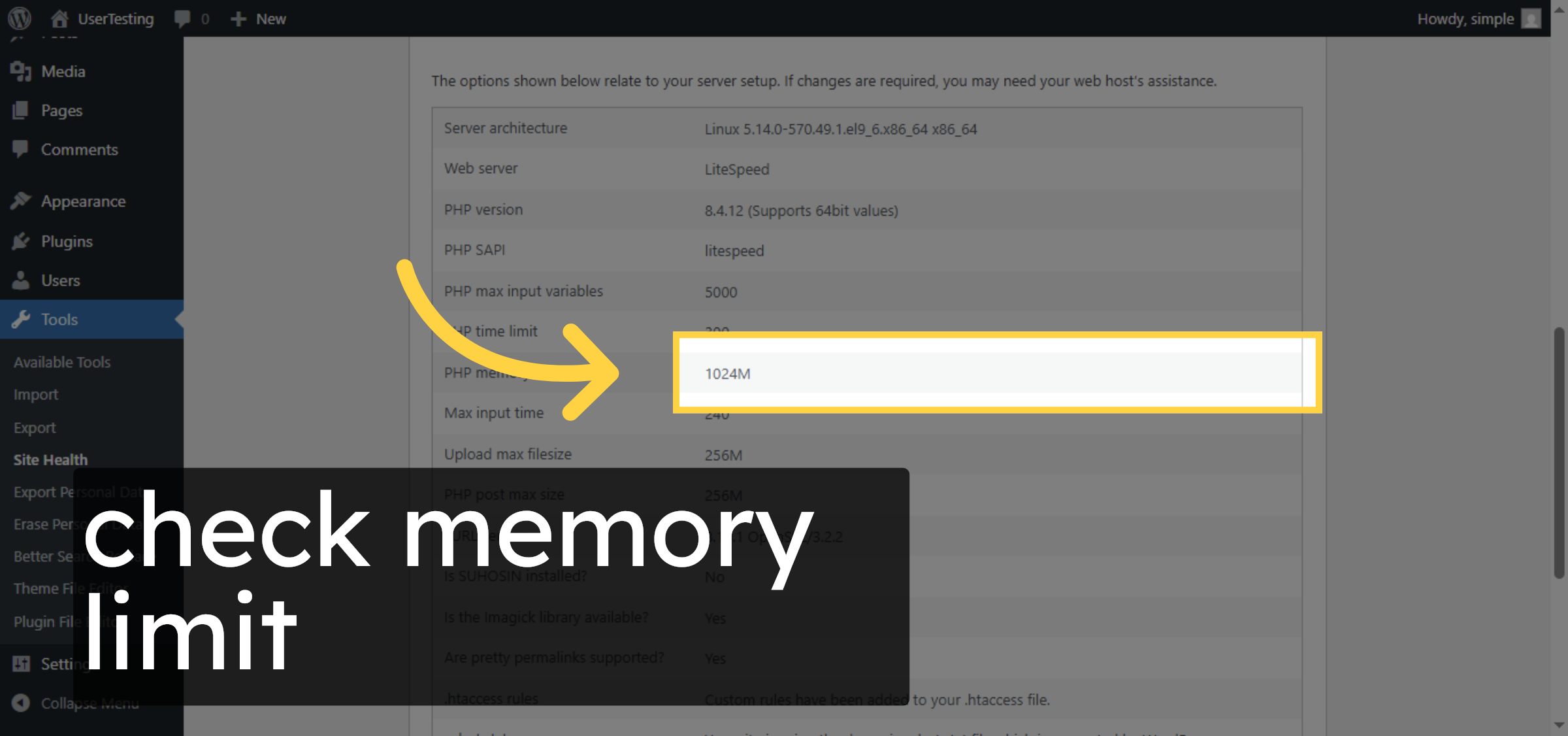
9. Review Memory Limit
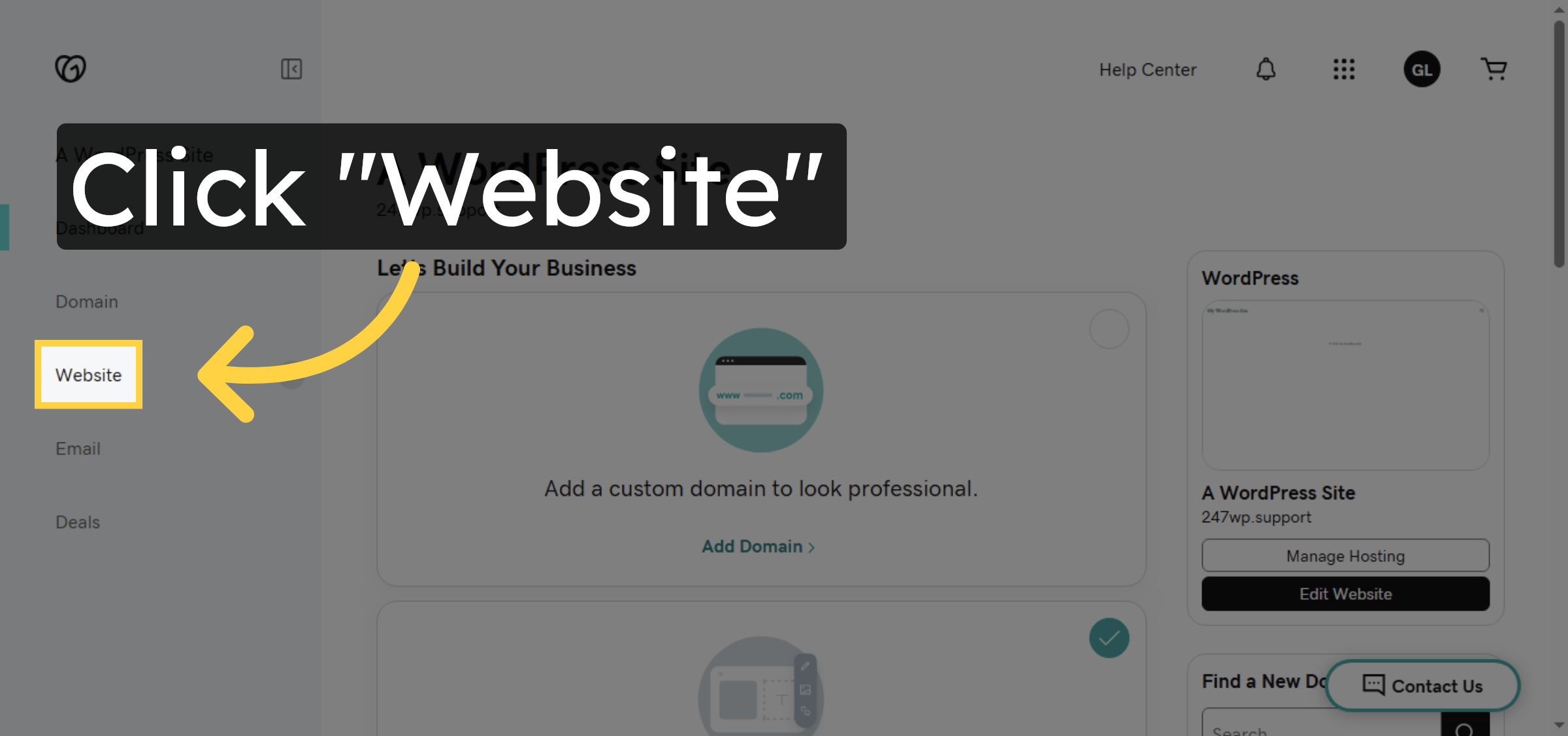
10. Open Website Settings
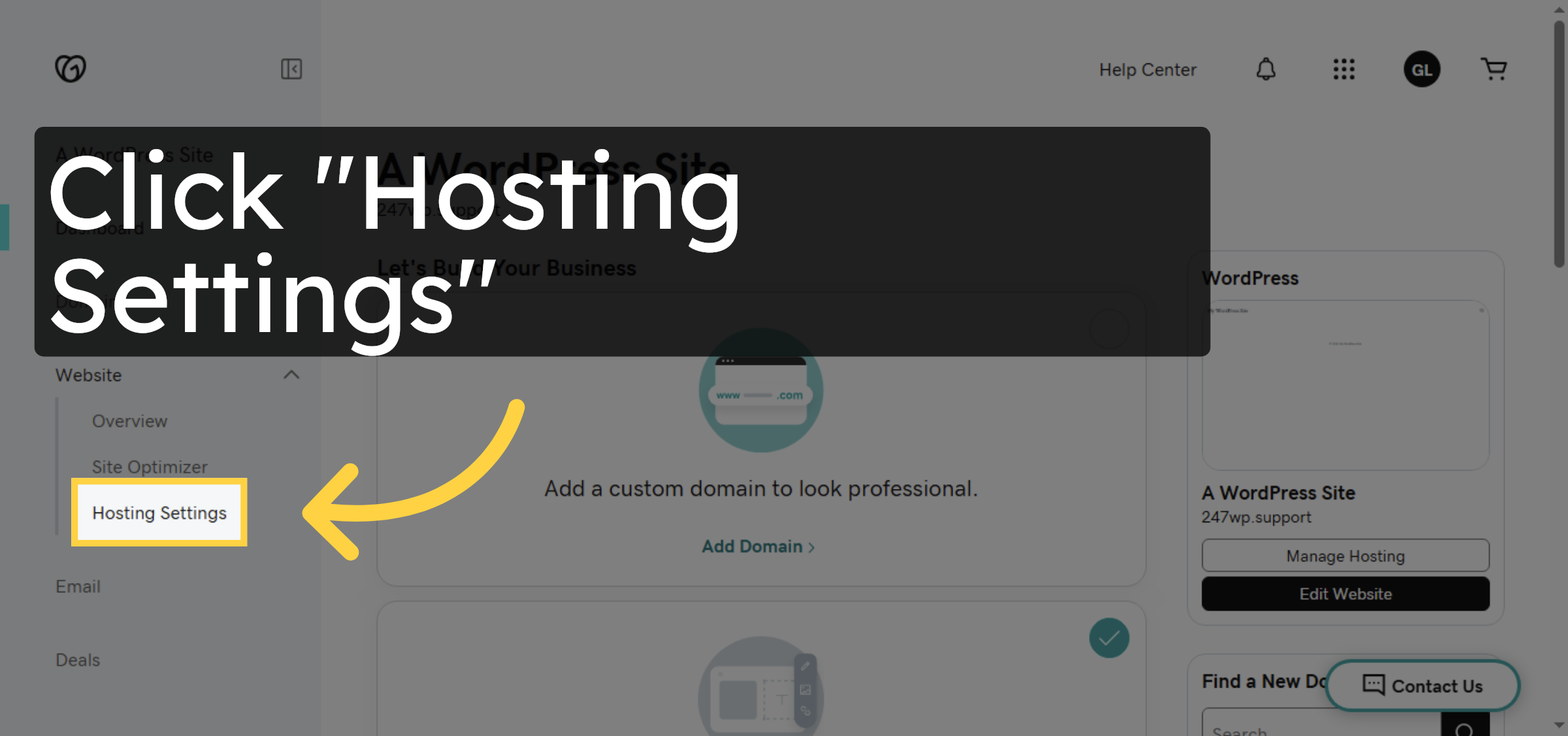
11. Access Hosting Settings
12. Change PHP Version
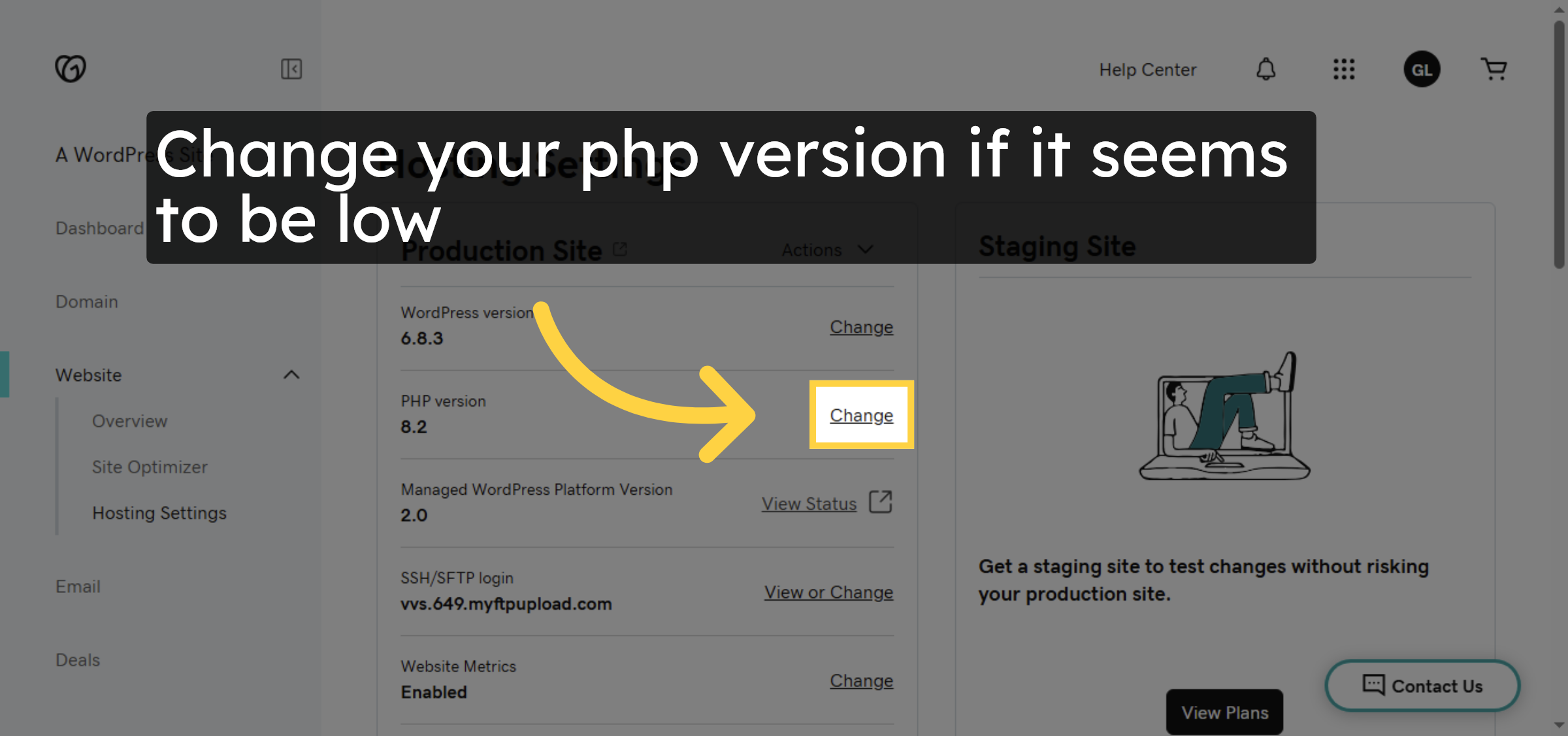
13. Select PHP Version
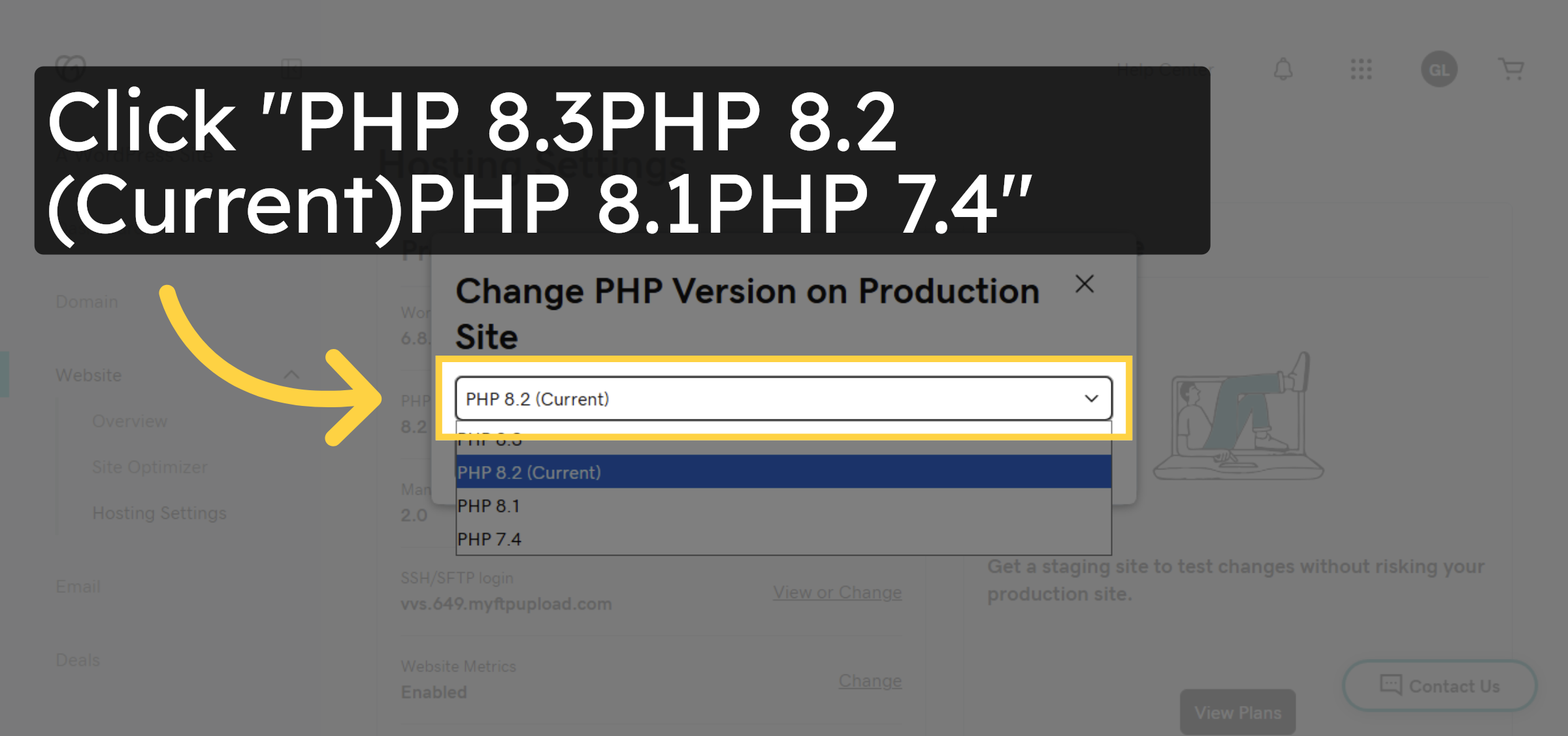
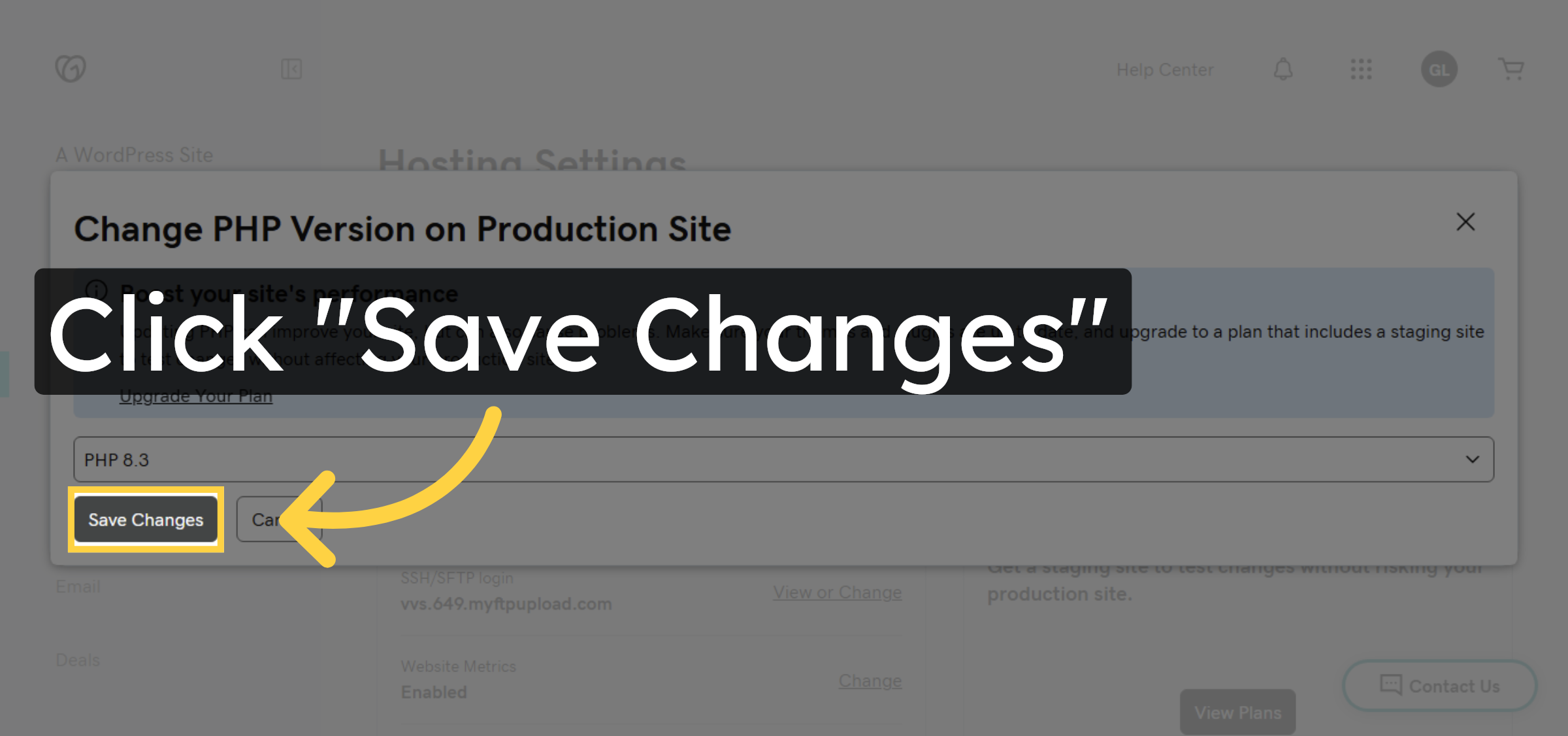
14. Save PHP Version Changes
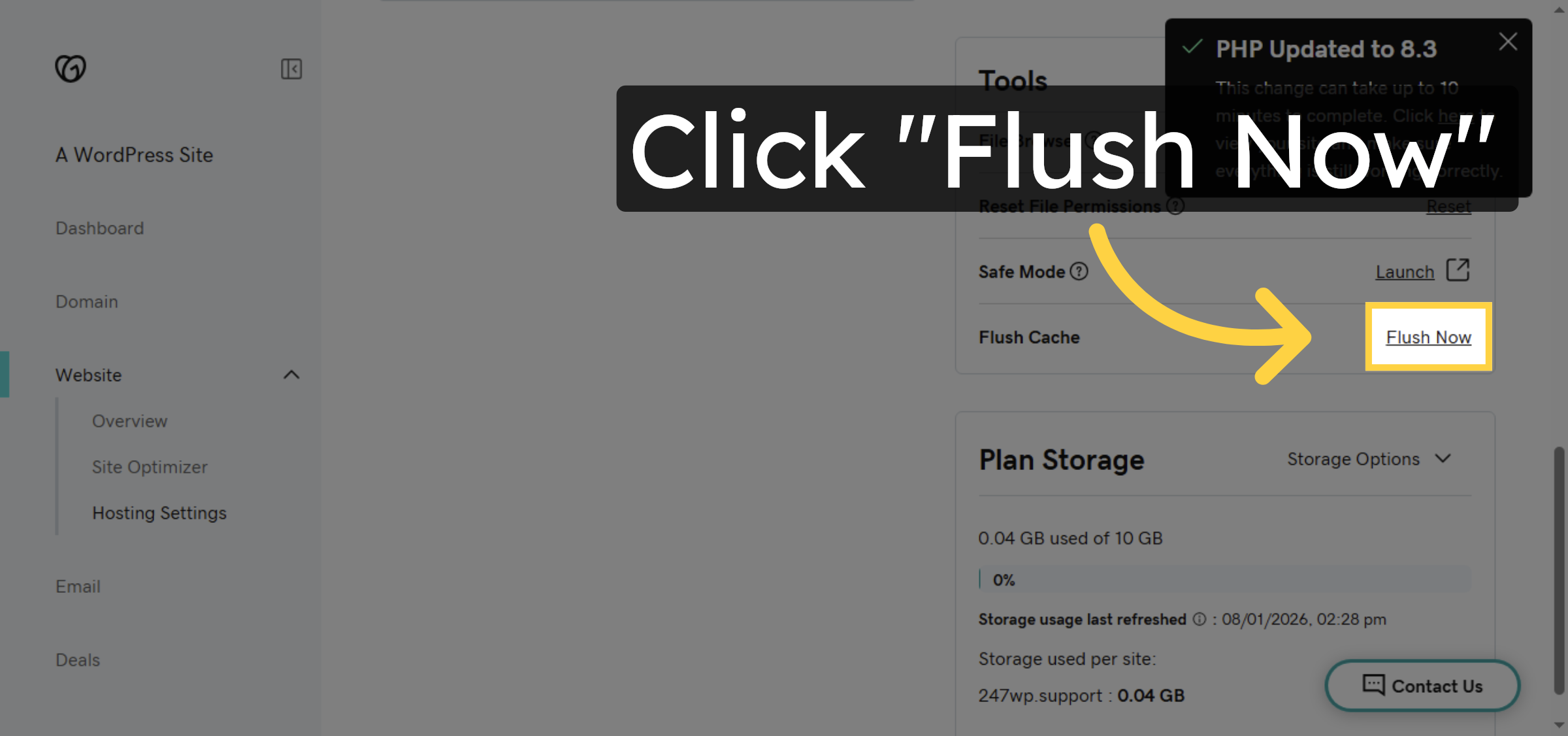
15. Flush Cache


16. Access file manager
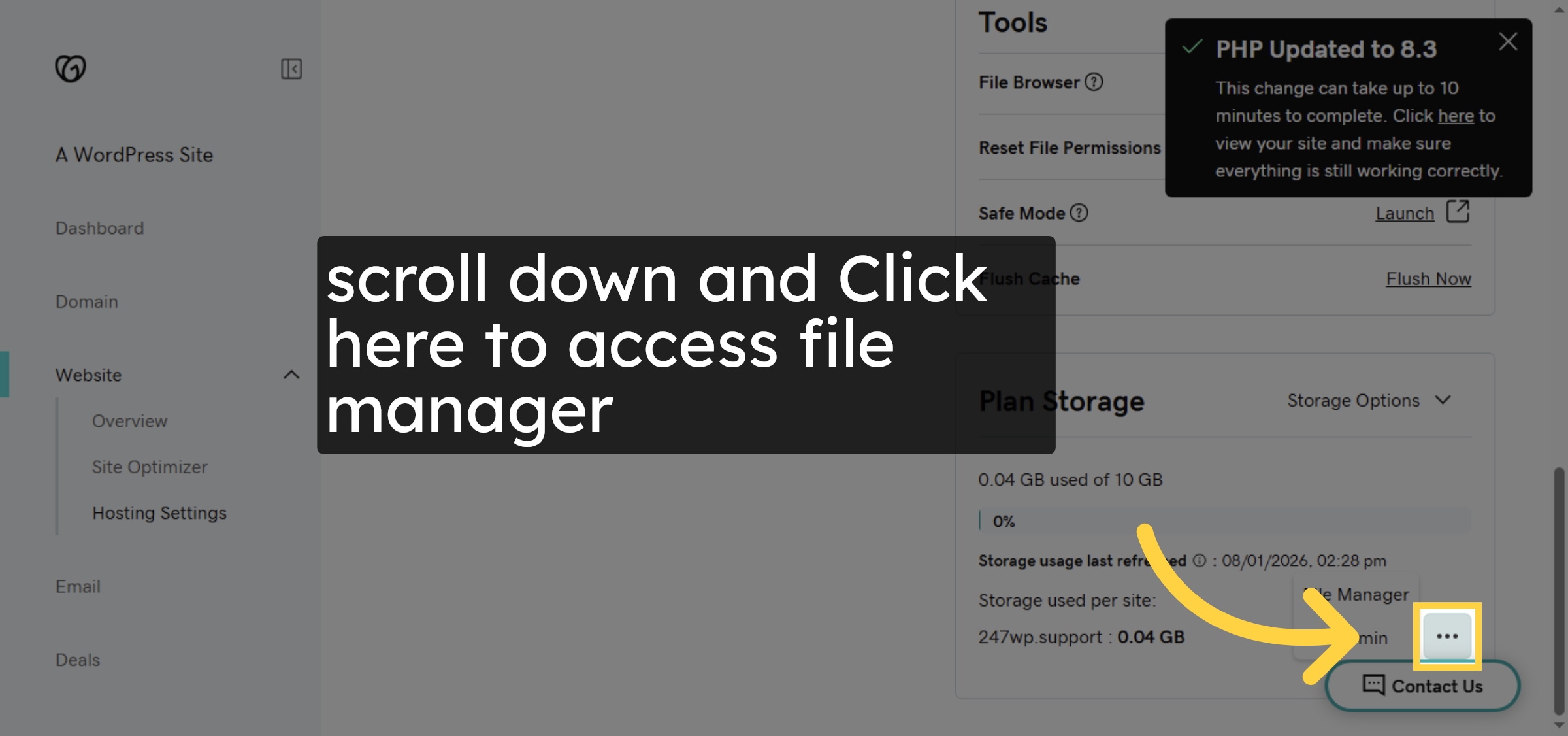
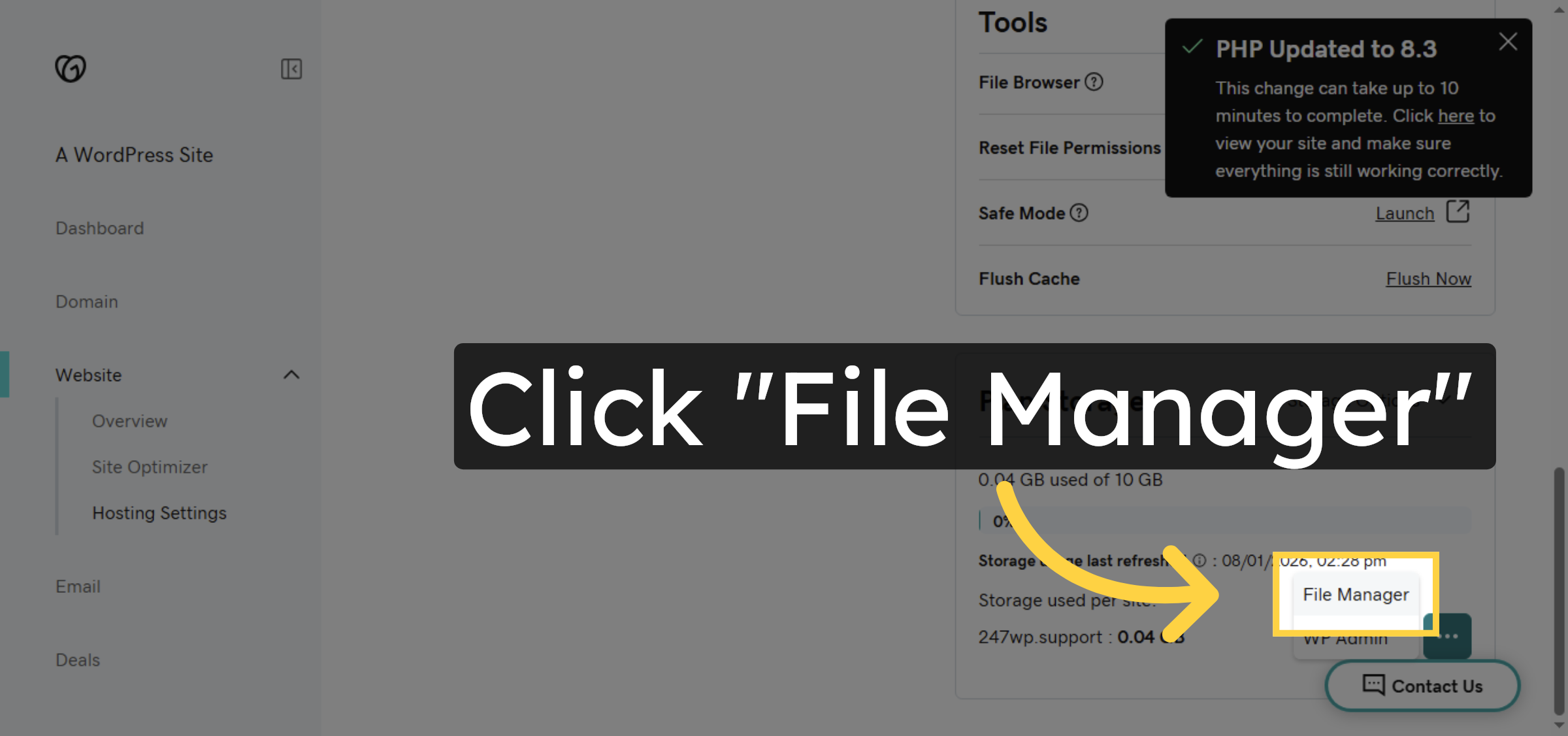
17. Open File Manager
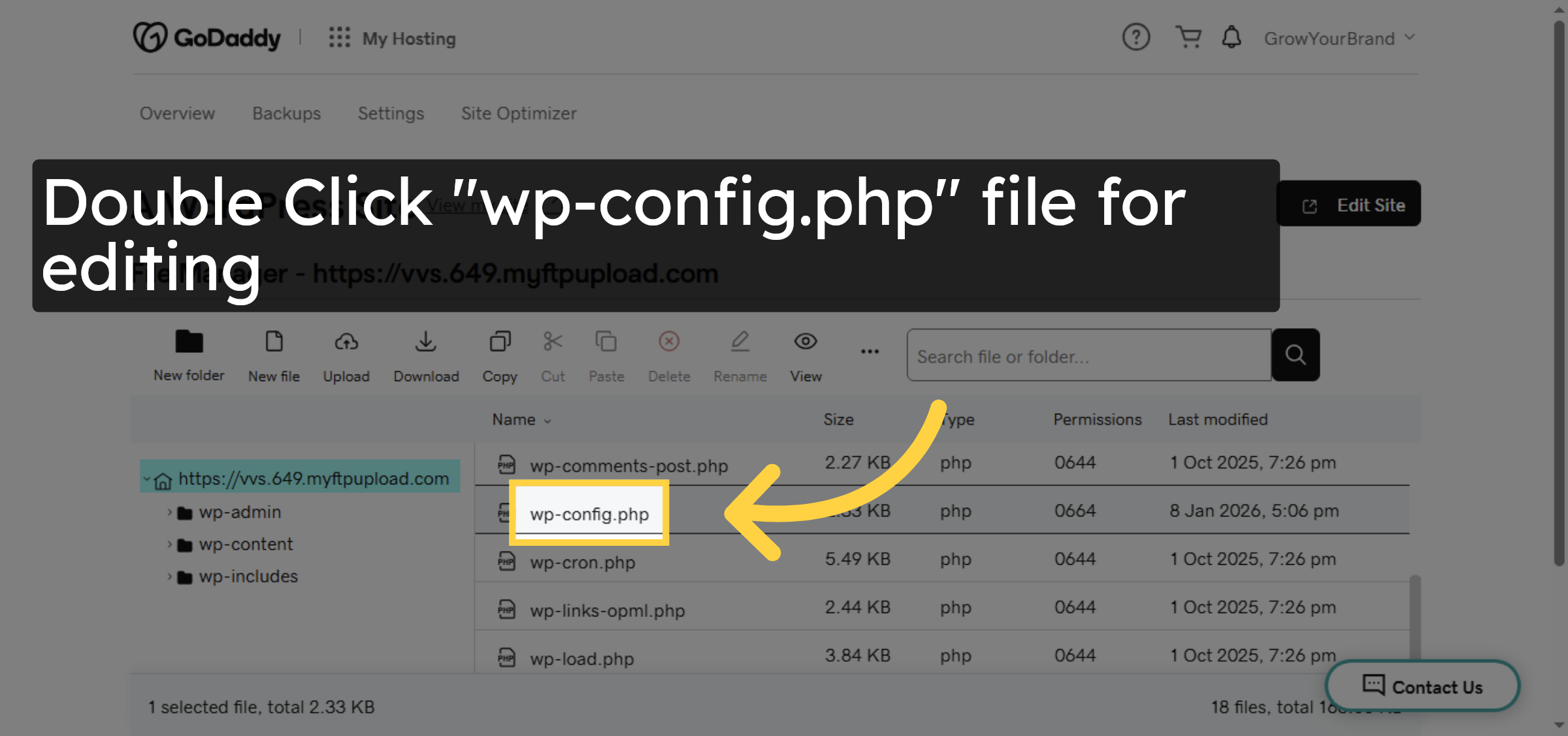
18. Open wp-config.php File
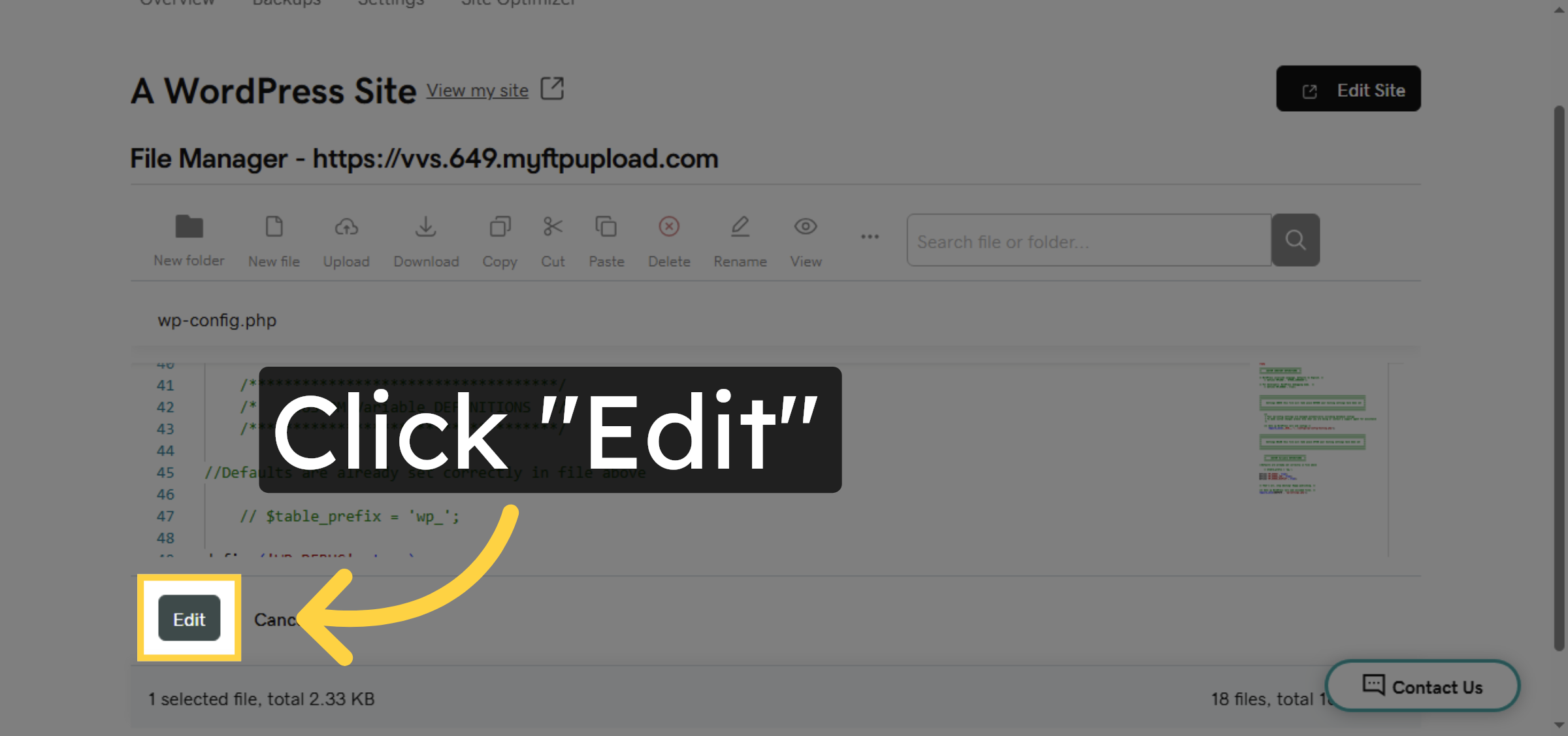
19. Edit Configuration File
20. Navigate To Memory Limit Setting
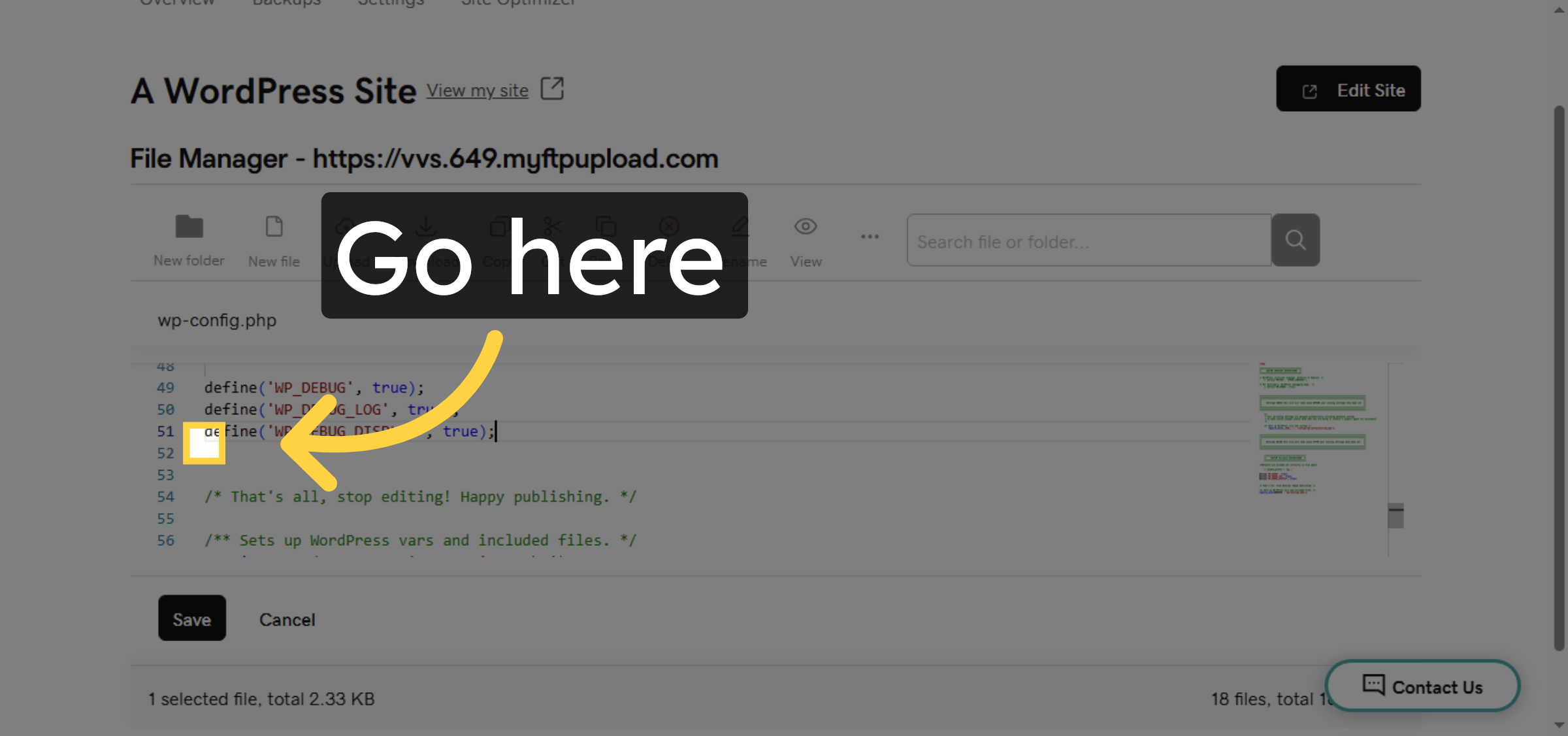
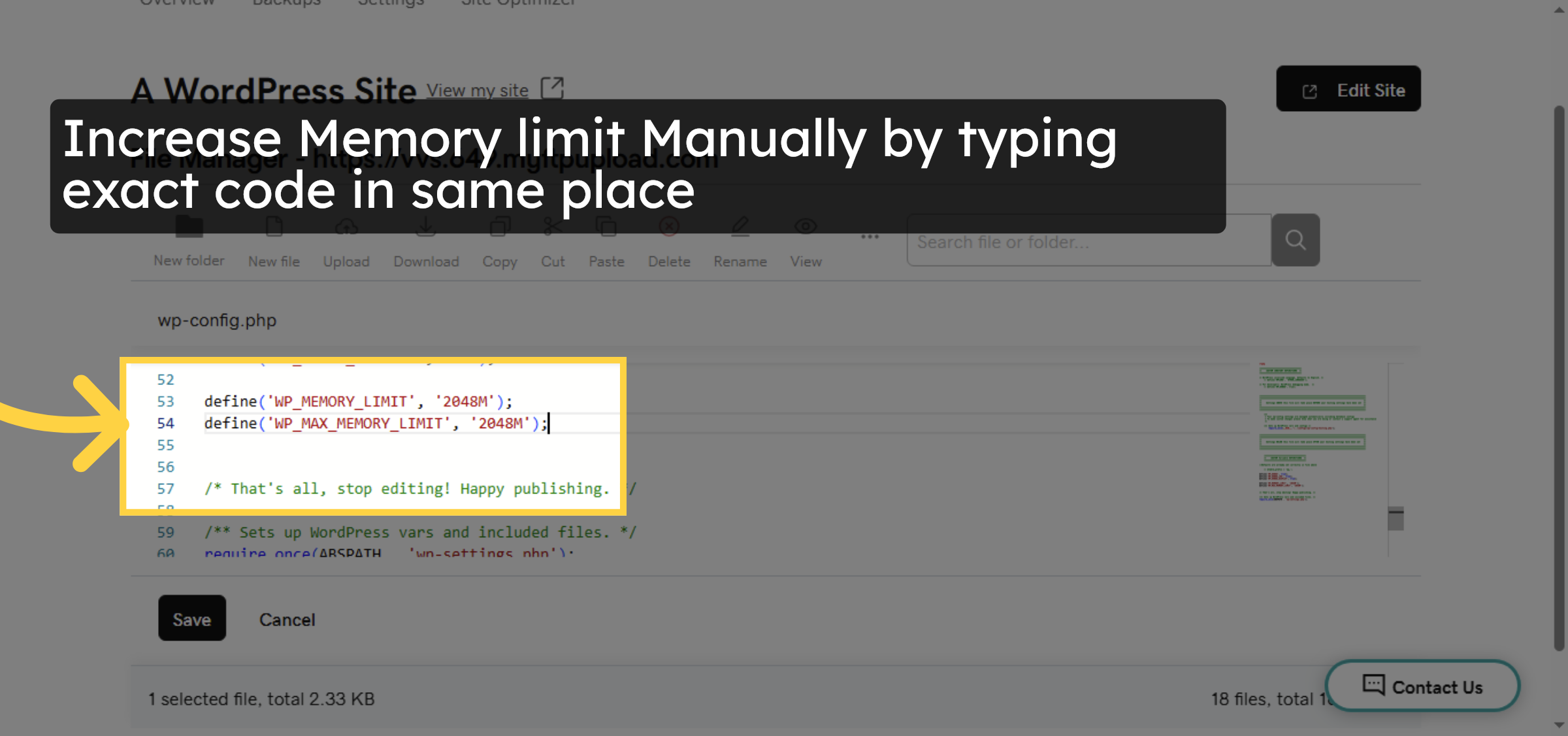
21. Update Memory Limit
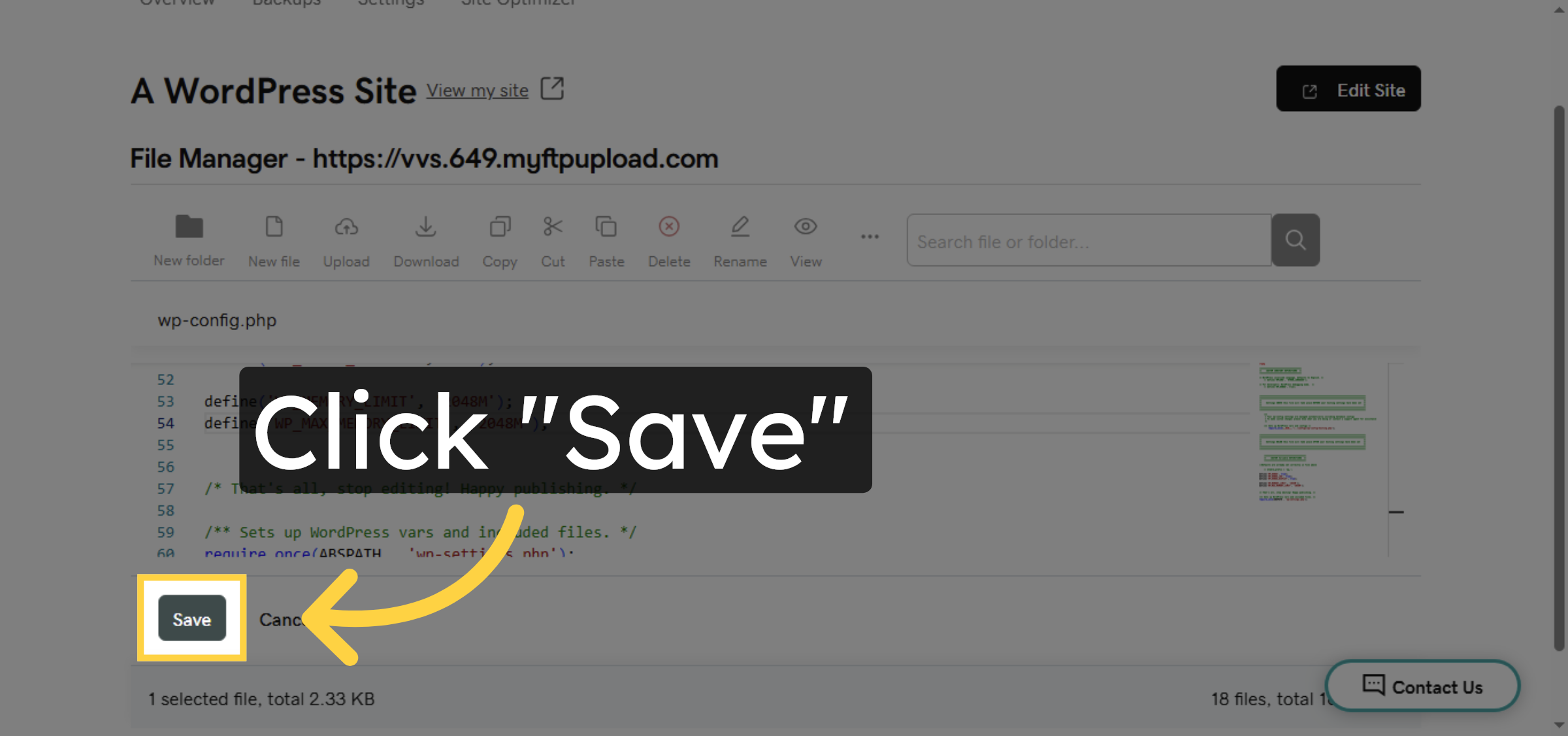
22. Save Configuration Changes
23. Select UserTesting Site
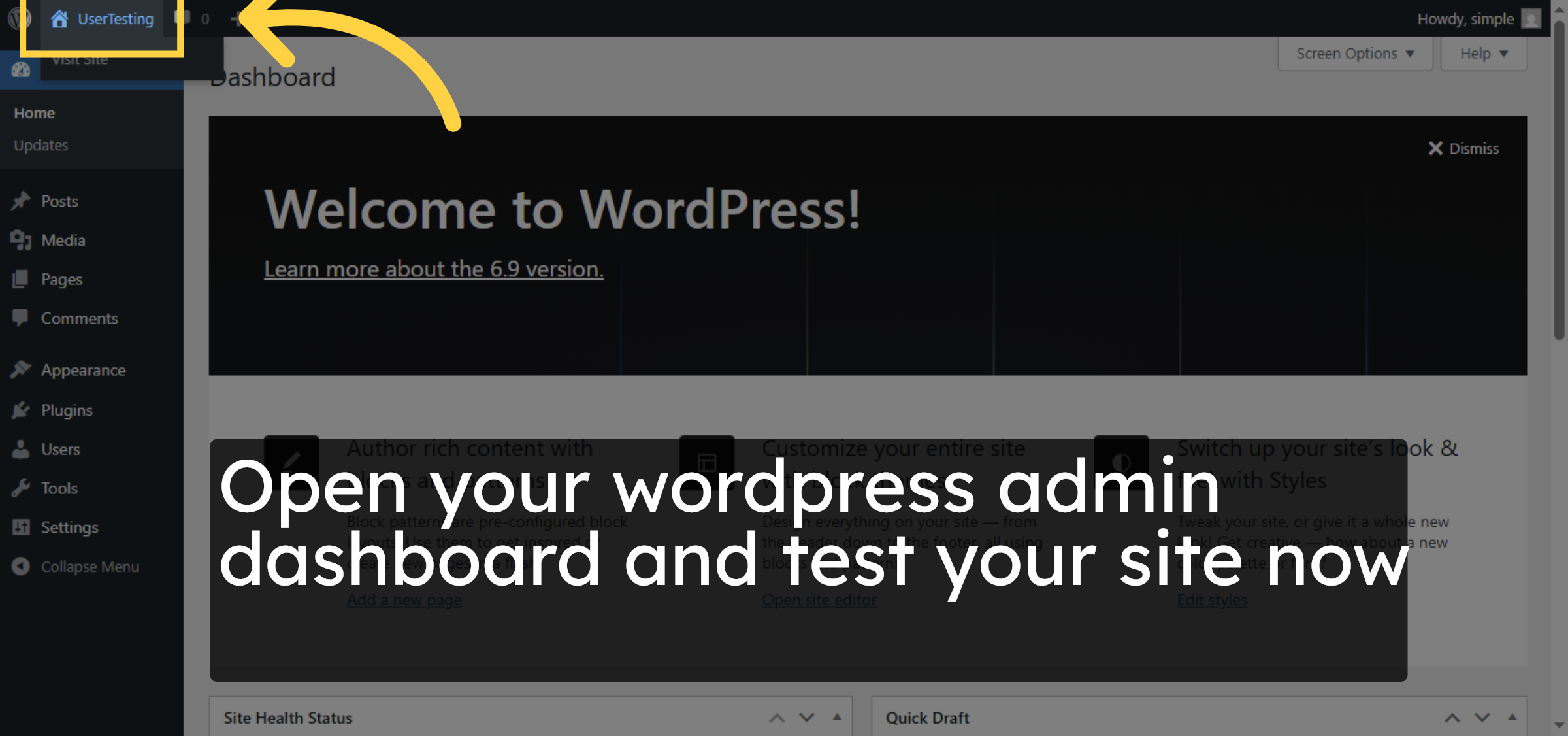
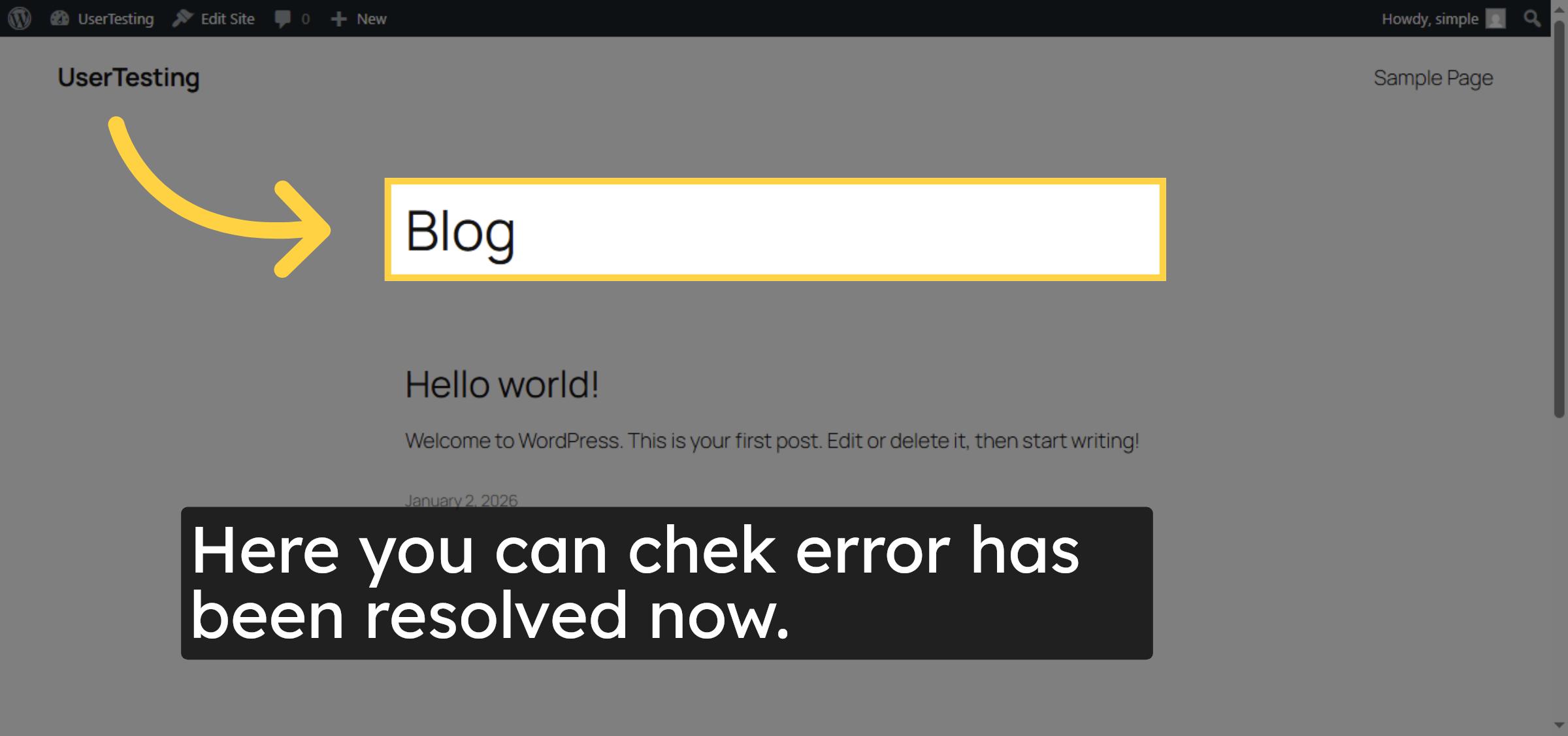
24. Open Blog Section
Conclusion
By following the steps outlined in this guide, you have successfully resolved the WordPress fatal error caused by insufficient PHP memory on GoDaddy hosting. Updating the PHP version, increasing the memory limit, and clearing the cache help eliminate resource-related issues and restore normal website functionality. Regular monitoring of server settings and site health can prevent similar errors in the future.
-
Visit: https://www.woohelpdesk.com
-
Call Us Toll-Free: +1 888 602 0119 (US & Canada)
-
Get professional support for fixing WordPress fatal errors, GoDaddy hosting troubleshooting, PHP memory configuration, performance optimization, and WooCommerce solutions



