
How to Fix WooCommerce Related Products Not Showing on Product Page
Table of Contents
- WooCommerce Related Products Not Showing on Product Page?
- Why Related Products on Product Pages Matter
- Common Causes Why Related Products Don’t Show in WooCommerce
- How to Fix WooCommerce Related Products Not Showing
- Recommended Plugins to Control and Customize Related Products
- Best Practices to Keep Related Products Working Well
- Conclusion
WooCommerce Related Products Not Showing on Product Page? You’re Not Alone
Have you noticed that related products are missing from your product pages? There are others like you. This problem affects a lot of WooCommerce store owners. It can happen suddenly or after a change in your site setup.
When related products are not showing, it leaves your product page looking empty. Visitors get no product suggestions, and they may leave without buying anything. This is frustrating, especially if you’re running ads or putting effort into getting traffic.
This problem can also affect your store’s sales and customer experience. Thankfully, it’s often fixable with a few steps. We’ll explain what’s wrong and how to solve it in this post.
We’ll also explain why related products are important and how to better manage them going forward. You’ll know how to restore them and make them look better by the end.
Why Related Products on Product Pages Matter
Related products play a big role in eCommerce. On WooCommerce product pages, they help customers discover more products they may like. This is not just good for user experience — it can boost your sales.
Related items are important for the following main reasons:
- Higher Average Order Value
When customers see more items, they often buy more. - Better Product Discovery
Related items help shoppers find similar or matching products. - Increased Time on Site
Customers spend more time exploring when they see more choices. - Cross-sell and Upsell Opportunities
You can suggest products that match or upgrade what they’re buying.
Let’s say you sell t-shirts. If someone is looking at a red t-shirt, the related products could show similar colors, styles, or accessories. Without this feature, that customer might never see those items.
Even if your products are great, missing related products can hurt your performance. Visitors may leave your site quickly if your pages feel empty or limited.
Also, WooCommerce uses tags and categories to decide which products are related. If these are not set up right, related products may not show at all. That’s why fixing the issue is not just about showing something — it’s about showing the right products to the right users.
In short:
- Missing related products = missed revenue.
- Empty product pages = poor experience.
- Fixing it = better engagement + more sales.
Common Causes Why Related Products Don’t Show in WooCommerce
If related products are not showing on your WooCommerce product page, there’s always a reason. This section covers the most common causes behind this frustrating issue. Once you know the cause, fixing it becomes much easier.
- Your Theme Doesn’t Support Related Products
Some WordPress themes are not fully compatible with WooCommerce. The section on related products could be omitted by these themes. Others might hide it for design reasons.
Even popular themes can have this issue. If the theme doesn’t include the right WooCommerce hook, related products will not show.
You may need to check with the theme developer or switch to a default theme to confirm the cause.
- WooCommerce Template Files Are Overridden
Themes can override default WooCommerce templates. This is done to customize the design of product pages. But sometimes, the overridden files remove or skip the related products section.
The two files often responsible are:
- single-product.php
- content-single-product.php
If these files don’t include the related products code, it won’t appear on your product pages.
- Plugin Conflicts
WooCommerce stores often use many plugins. Some of these plugins may conflict with how related products are displayed.
Plugins that often cause problems include:
- Page builder plugins
- Speed optimization tools
- WooCommerce extensions
These plugins may block the related products section by mistake. In some cases, they might change the layout or style, hiding that area entirely.
- Missing Product Tags or Categories
WooCommerce shows related products based on shared tags or categories. If your product doesn’t share categories or tags with others, it won’t have any related items to show.
For example, if a t-shirt has no tag or is in a unique category, WooCommerce won’t find matches to display.
This is one of the most common and overlooked causes.
- Custom Code or Theme Snippets
Some themes or developers use custom code to clean up product pages. This code might remove extra elements like related products.
The most common line used is:
remove_action(‘woocommerce_after_single_product_summary’, ‘woocommerce_output_related_products’, 20);
If this line exists in your theme’s functions.php file, it will stop related products from showing. This can be removed or commented out to restore them.
How to Fix WooCommerce Related Products Not Showing
It’s time to address the issues now that you are aware of them. The good news? Most fixes are simple and don’t require coding skills. The best methods for restoring similar products on your WooCommerce product pages are listed below.
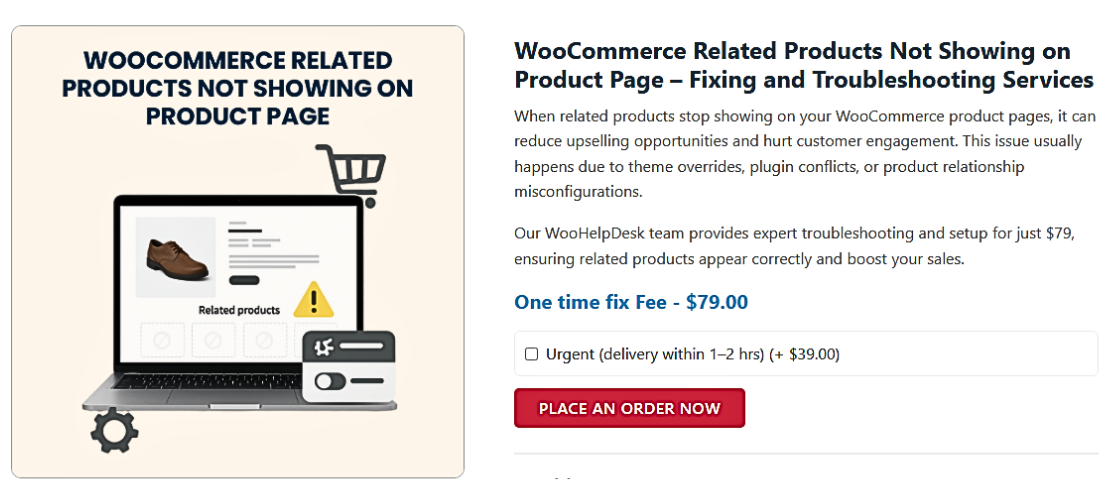
- Switch to a Default Theme to Check Compatibility
If your theme is the problem, this step will confirm it.
- Go to Appearance > Themes in your WordPress dashboard.
- Activate the Storefront theme or another default WooCommerce-friendly theme.
- View a product page to see if related products appear.
If they do, your original theme is likely blocking the section. You can:
- For assistance, get in touch with the theme creator or
- Add the missing WooCommerce hook to your theme template.
- Restore WooCommerce Template Files
Some themes override WooCommerce templates and forget to include related products.
You need to:
- Use File Manager or FTP to access your theme folder.
- Locate files like single-product.php or content-single-product.php.
- Check if the line for related products is missing.
WooCommerce uses this hook by default:
do_action(‘woocommerce_after_single_product_summary’);
If it’s not there, add it, or compare your file with the default WooCommerce template to restore it.
- Deactivate Plugins to Identify Conflicts
Plugins can often block or hide related products, even by accident.
To test for a conflict:


- The Health Check & Troubleshooting plugin should be installed and activated.
- All plugins other than WooCommerce should be disabled using the “Troubleshooting Mode.”
- Visit a product page.
If related products now show, a plugin is the issue. Turn on each plugin individually until the associated products vanish once more.
Once you find the plugin causing trouble:
- Check its settings
- Contact the plugin developer
- Or consider replacing it
- Add Product Tags and Categories
WooCommerce shows related products using shared tags or categories.
Make sure each product:
- Has a minimum of one category
- Shares that category with other products
- Includes relevant tags that match other items
Steps to do this:
- Go to Products > All Products
- Click “Edit” on the product
- Add tags and categories on the right sidebar
- Save and view the product page
If there’s still no match, related products won’t display. So group similar items properly.
- Remove Custom Code That Hides Related Products
Sometimes developers add custom code to hide related products. This is frequently done to make product pages simpler.
Check your theme’s functions.php file for this line:
remove_action(‘woocommerce_after_single_product_summary’, ‘woocommerce_output_related_products’, 20);
If you see it:
- Add // at the beginning to disable it, or
- Delete it completely
Save the file and refresh your product page.
Bonus Tip: Clear Cache After Making Changes
If you use a CDN or caching plugin, changes may not show up immediately.
- Clear your WordPress cache
- Clear your browser cache
- If using Cloudflare, purge site cache there too
This guarantees that you are viewing the most recent iteration of your product pages.
Recommended Plugins to Control and Customize Related Products
WooCommerce shows related products based on categories and tags by default. But this is basic and not always ideal. Sometimes, you may want more control or smarter suggestions. Plugins are useful in this situation.
The following are a few of the top plugins to assist:
🔌 1. Related Products for WooCommerce (by WebToffee)
This plugin gives you full control over related product settings. You can:
- Select specific related products manually
- Enable or disable automatic suggestions
- Customize how related products appear
It’s perfect if you want more flexibility without editing code.
🔌 2. WooCommerce Custom Related Products (by Scott Bolinger)
With this lightweight plugin, you can override WooCommerce’s default logic. You can:
- Choose custom related products for each item
- Avoid unrelated auto-suggestions
- Keep your product pages clean and relevant
It’s simple, free, and very effective.
🔌 3. YITH WooCommerce Frequently Bought Together
Amazon-style “frequently bought together” recommendations are added by this plugin. While not exactly the same as related products, it can boost:
- Cross-selling
- Bundle offers
- Purchase value
It’s a great way to show helpful product combos.
🔌 4. Product Recommendations (by WooCommerce.com)
This is a premium plugin with smart features. It uses customer behavior, filters, and rules to:
- Suggest products based on real data
- Improve upsells and cross-sells
- Personalize each product page
If your store has many products, this can be a powerful tool.
Best Practices to Keep Related Products Working Well
Once your related products are back, follow these tips to avoid future issues:
- Use consistent categories and tags
Keep them organized and relevant across your product range. - Avoid too many plugins
An excessive number of add-ons may slow down your website or cause issues. - Update themes and plugins regularly
Outdated files often break things, including the related product section. - Check after major updates
WooCommerce or theme updates can change layout or template behavior. - Preview changes before publishing
Always check product pages on mobile and desktop.
By following these best practices, you can avoid related product issues in the future and deliver a better shopping experience.
Conclusion
Related products do more than just fill space. They increase sales, enhance user experience, and increase the amount of time visitors spend on your website. It’s a serious problem if they’re absent, but you now know just how to resolve it.
From checking themes to using smart plugins, the solutions are within your control. Additionally, keep in mind that you are not alone if you ever get stuck.
📣 Need help fixing or improving WooCommerce product pages?
Reach out to our experts at WooHelpDesk — we’re here to help you grow your store.



