
How to Fix the White Screen Issue in Beaver Builder (With Proven Solutions)?
Introduction
One of the most widely used WordPress page builders is Beaver Builder. It enables you to create stunning websites without knowing any code. But sometimes, things go wrong. One common issue is the dreaded white screen. This can stop your workflow and cause a lot of stress.
The problem often shows up like this:
- The Beaver Builder editor does not load at all.
- A blank page appears when you open the editor.
- You get stuck on a loading spinner forever.
If you’ve seen these signs, you are not alone. Many WordPress users face this issue. It’s often called the “Beaver Builder white screen problem.” It may occur unexpectedly and without warning.
The good news? There’s no need to panic. You will be guided through the most frequent causes in this guide. More importantly, we’ll give you step-by-step solutions that actually work.
What is the Beaver Builder White Screen Problem?
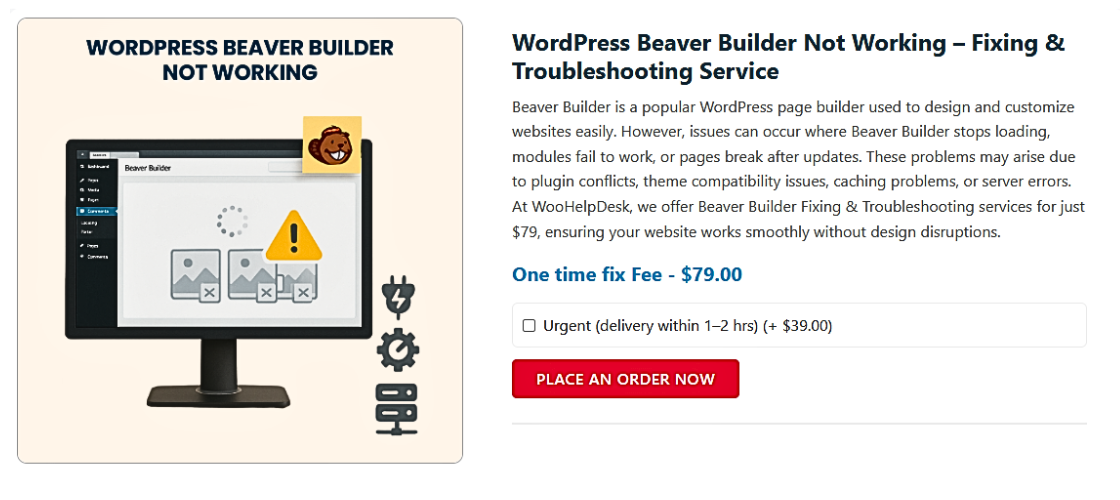
The white screen issue in Beaver Builder is a common frustration. When you attempt to launch the editor, nothing loads. Instead of seeing your content, you see a blank white screen. Sometimes, it shows a spinning circle that never stops.
These names may sound different, but they point to the same problem. Your editor is stuck, and you can’t build or update your pages.
Let’s examine what you might observe when this problem occurs:
- Blank Page When Editing
You click “Edit with Beaver Builder,” but the screen turns white. Neither content nor tools are shown. This frequently perplexes people, particularly those who are unfamiliar with WordPress.
- Spinning Loader That Never Ends
Sometimes the editor loads part-way and gets stuck on a spinner. It just keeps spinning without loading your layout or controls.
- No Error Message or Warning
The most frustrating part? Usually, there isn’t a noticeable mistake. The editor appears to be functioning, but nothing is happening.
These signs can appear suddenly—even on a site that was working fine. You might make a small change or install a plugin, then the editor breaks.
This problem is not specific to your website. The same issue is reported by other users. It affects websites of all sizes—from simple blogs to business sites.
The white screen often points to a deeper problem. Low memory, an out-of-date plugin, or a plugin conflict could be the cause. We’ll investigate each of these.
But first, it’s important to know—you’re not alone. This is fixable. Many fixes are simple and don’t need advanced skills. All you have to do is follow a few simple instructions.
Common Reasons Behind the White Screen Issue
Let’s examine the causes of the white screen problem now that you are aware of its appearance. This problem doesn’t have just one cause. It can come from many different things happening in the background.
The following are the most typical causes of a white screen in Beaver Builder:
- Plugin Conflicts
Plugin conflicts are one of the most frequent causes. Some plugins do not play well with Beaver Builder. Things can go wrong when two plugins attempt to load scripts simultaneously.
Conflicts can come from:
- Security or optimization plugins
- Caching plugins
- Page builders like Elementor or WPBakery
- Outdated third-party addons
Even plugins that worked before can suddenly cause problems after updates.
- Theme Compatibility Issues
Your WordPress theme could be the issue. Some themes may not support Beaver Builder fully. A poorly coded theme or outdated theme files can block the editor from loading.
Beaver Builder works best with themes made for page builders. If your theme overrides layout files or scripts, it may cause a blank screen.
- Outdated Beaver Builder or WordPress Version
Using outdated versions of WordPress or Beaver Builder can cause problems. The most recent version of WordPress might not work with outdated plugins. This can cause scripts to fail and lead to a white screen.
- Low PHP Memory Limit
Your server needs enough memory to run WordPress and Beaver Builder. The editor might not load if your PHP memory limit is too low.
This often happens on shared hosting or budget servers. When the memory runs out, WordPress may crash silently, showing only a blank screen.
- JavaScript Errors in the Browser
JavaScript runs many parts of Beaver Builder. If a script fails, the editor may stop working.
These errors may come from:
- Broken plugins
- Incompatible themes
- Outdated browsers
- Browser extensions blocking scripts
You won’t always see an error message, but the editor won’t load.
- Beaver Themer Conflicts
If you’re using Beaver Themer, it might also cause display issues. An error in a conditional layout or a missing template part can break the frontend editor.
The more advanced your layouts are, the higher the chance something can go wrong.
Step-by-Step Solutions to Fix the White Screen Issue in Beaver Builder
Now that we understand the main causes, it’s time to fix them. This section will walk you through proven solutions that work for most users. Pay close attention to each step. These instructions are simple enough for beginners and don’t require any knowledge of code.
Let’s begin with the quickest checks first.
- Clear Browser and Site Cache
Beaver Builder may fail to load due to a straightforward cache problem. Outdated files may be stored by a caching plugin or your browser.
To fix it:
Clear your browser cache:
- Press Ctrl + Shift + Delete on Windows.
- On Mac, press Command + Shift + Delete.
- Choose “All time” or “Everything.”
- Delete all browsing data, including files and images that are cached.
Clear your WordPress site cache:
- Open the settings of any plugin you’re using, such as WP Rocket or W3 Total Cache.
- Click the “Clear Cache” or “Purge All Caches” button.
If using a hosting cache (like SiteGround or Bluehost):
- Log into your hosting panel.
- Find the performance tools.
- Clear the server-side cache.
After clearing cache, reload the page and check if Beaver Builder works.
- Deactivate All Plugins (Plugin Conflict Test)
A plugin conflict is one of the most common causes. To check:
Step-by-step:
- Go to WordPress Dashboard > Plugins > Installed Plugins.
- Click “Deactivate All” (don’t worry, this won’t delete them).
- Reactivate only Beaver Builder.
- Try opening the editor again.
If Beaver Builder works:
- You’ve confirmed a plugin conflict.
- Reactivate each plugin individually now.
- Check the editor after each one to find the troublemaker.
Common conflicting plugins include:
- Security plugins (like Wordfence)
- Caching plugins
- Other page builders (Elementor, WPBakery)
Once found, replace or remove the conflicting plugin.
- Switch to a Default WordPress Theme
Beaver Builder can occasionally be broken by your theme. To test:
Steps to switch:
- Go to Appearance > Themes.
- Turn on a simple theme, such as Twenty Twenty-Four.
- Try editing the page again in Beaver Builder.
If it loads, the problem is with your original theme.
To fix it:
- Contact the theme developer.
- Switch to a Beaver Builder-compatible theme (like Astra or GeneratePress).
- Increase PHP Memory Limit
Beaver Builder needs enough memory to run. Many shared hosting plans set this limit too low.
Here’s how to increase it:
- Open your wp-config.php file (in the root of your WordPress site).
- Add this line above the “That’s all, stop editing!” comment:
- define(‘WP_MEMORY_LIMIT’, ‘256M’);
- Reload your website after saving the file.
Is the white screen still appearing? It might be necessary to request an increase in the limit from your hosting support.
- Update Beaver Builder and WordPress
Using out-of-date software might lead to numerous issues. Always use the latest version.


Steps:
- Go to Dashboard > Updates.
- Update Beaver Builder, Beaver Themer, and WordPress.
- Also update any Beaver Builder add-ons you’re using.
Remember to make a backup of your website before making any updates.
Refresh the editor when it has been updated. If the issue was due to compatibility, it should be gone now.
- Reinstall Beaver Builder Plugin
A corrupted plugin file can stop Beaver Builder from loading.
To reinstall safely:
- Go to Plugins > Installed Plugins.
- Deactivate and delete Beaver Builder.
- Don’t worry — your designs are saved in the database.
- Reinstall it by clicking Add New > Upload Plugin.
- Upload the latest .zip file from your Beaver Builder account.
- Activate the plugin and try editing again.
This clean reinstall fixes many hidden bugs and file issues.
- Check for JavaScript Errors in the Browser
Beaver Builder relies heavily on JavaScript. Errors in your browser can block it.
How to check:
- Right-click on the page where the editor fails.
- Click Inspect > Console.
- Look for red error messages.
Common causes of JS errors:
- Broken third-party plugins
- Theme scripts with bugs
- Ad blockers or browser extensions
Try turning off every browser extension, then try again. If errors continue, note the message and share it with a developer or Beaver Builder support.
- Enable WordPress Debug Mode
Debug mode helps find hidden errors behind the white screen.
Steps:
- Access your site files using FTP or File Manager.
- Open wp-config.php.
- Add or update these lines:
- define(‘WP_DEBUG’, true);
- define(‘WP_DEBUG_LOG’, true);
- define(‘WP_DEBUG_DISPLAY’, false);
- Save the file.
Now visit the page again. Then go to your site’s /wp-content/ folder. Open the debug.log file to check for errors.
This log helps developers find the exact issue.
- Temporarily Disable Beaver Themer (If Installed)
If you use Beaver Themer, it could be part of the issue. Sometimes, a broken conditional layout or missing template part crashes the editor.
To test:
- Deactivate Beaver Themer from your plugins page.
- Reload the page.
If the editor works, your issue is likely within a Themer layout or rule. You may need to rebuild or correct that layout.
Advanced Fixes (If Common Solutions Don’t Work)
Don’t worry if you’ve tried every simple solution and the screen remains white. A couple of advanced steps are still useful. These methods go deeper but are still safe to try if you follow carefully.
- Use a Staging Site for Safe Testing
Before making big changes, it’s best to use a staging environment. You can test this secure version of your website without taking any chances.
Most major hosting providers offer this feature, including:
- SiteGround
- Bluehost
- 24x7WPSupport
- Kinsta
With a staging site, you can:
- Test plugin deactivation
- Try theme changes
- Experiment with updates
You can use the same fixes on your live site if everything is functioning properly.
- Check Server Error Logs
Server logs can show hidden errors that WordPress doesn’t display. Usually, you can find these in your hosting management panel.
How to check:
- Log in to your hosting dashboard
- Look for “Error Logs” or “Logs” under cPanel or your hosting tools
- Open the latest error log file
- Search for fatal errors, memory issues, or plugin paths
Share these logs with your developer or hosting support if needed.
- Try Safe Mode Plugins
Some tools can help you troubleshoot without touching code. One great option is the Health Check & Troubleshooting plugin by WordPress.
With this plugin, you can:
- Enable troubleshooting mode just for yourself
- Deactivate themes and plugins only for your session
- Keep your site running normally for visitors
This is a safe way to find conflicts without affecting your site.
- Restore a Recent Backup
If nothing works and your editor is still broken, restore your site from a backup. Many hosting providers take daily backups. You can also use plugins like:
- UpdraftPlus
- BlogVault
- BackupBuddy
Choose a version when Beaver Builder worked fine. Restore it and test again.
Best Practices to Prevent Future White Screen Issues
Fixing the white screen issue is just one part of the solution. Making sure that doesn’t happen again is the next stage. Future tension can be avoided by adopting a few easy practices.
- Keep Everything Updated
Running outdated software is a major risk. Always update:
- WordPress core
- Beaver Builder and Beaver Themer
- Themes and plugins
Set a reminder to check for updates weekly. Outdated versions often cause loading and display issues.
- Use Only Trusted Plugins and Themes
Avoid plugins from unknown sources. Poorly coded tools often break your editor.
When choosing plugins:
- Check user reviews and ratings
- Look for regular updates
- Don’t use more than one page builder on a same website.
Stick to tools tested with Beaver Builder for better compatibility.
- Avoid Plugin Overload
An excessive number of plugins slows down your website and can lead to disputes. Install only what you really need.
To keep things clean:
- Deactivate and delete unused plugins
- Replace overlapping tools with all-in-one solutions
In terms of plugin usage, less is more.
- Backup Before Major Changes
Prior to changing plugins or themes, always make a backup. Use tools like:
- UpdraftPlus
- BlogVault
- Jetpack Backup
This way, if something breaks, you can restore your site quickly.
- Choose Reliable Hosting
Some white screen issues are caused by poor hosting. Choose a host that offers:
- Good PHP memory limits
- Fast support
- One-click staging tools
A strong host can prevent many technical problems from the start.
Conclusion
The white screen issue in Beaver Builder can be frustrating and unpredictable. It often appears without warning and blocks access to the editor. Whether caused by a plugin conflict or a small setting error, it can stop your workflow in seconds.
If you’re still struggling or simply don’t want to risk breaking your site, we’re here to help. At WooHelpDesk.com, we specialize in WordPress and Beaver Builder support. From white screen errors to full site cleanups, our experts can handle it all.
Don’t waste hours guessing what went wrong—reach out to WooHelpDesk and get your website running smoothly again. Reliable, fast, and WordPress-friendly help is just a click away.



