
How to Fix the WordPress Missed Schedule Post Error
Table of Contents
- What Is the Missed Schedule Post Error?
- How This Error Affects WordPress Users
- Why You Need to Fix This WordPress Missed Schedule Post Issue
- What Causes the WordPress Missed Schedule Post Error
- How to Fix the WordPress Missed Schedule Post Error
- How to Prevent the WordPress Missed Schedule Post Error in the Future
- Conclusion
What Is the Missed Schedule Post Error?
The Missed Schedule Post Error in WordPress happens when a planned blog post doesn’t go live at the designated time. You set the time and date for your post and anticipate that it will publish on its own. But instead, it stays stuck in “Scheduled” status or shows a “Missed Schedule” message in the WordPress dashboard. This error is also known as the WordPress post missed schedule Error or the WordPress scheduled post error.

When this happens, your post doesn’t appear on your website as planned. It may not seem serious at first, but it can cause problems. If your post is related to an event, a launch, or timely news, the delay can affect its impact. In many cases, users discover the wordpress scheduled post failed after the missed post has already lost its relevance.
This issue can break your content flow and hurt your site’s reliability. Posts should arrive on time, according to readers. When it doesn’t occur, trust is harmed. This is especially frustrating for bloggers and marketers who depend on scheduling tools. Missing a post means missed traffic, engagement, and sometimes lost revenue.
WordPress missed scheduling post errors can happen quietly and without any prior notice. You schedule everything correctly, but WordPress skips the task. That’s why many users seek ways to Fix WordPress Missed Schedule Post Error before it affects more posts.
How This Error Affects WordPress Users
- Posts don’t publish as expected
When WordPress missed schedule post error happens, your blog post doesn’t go live at the right time. This breaks your content flow and can confuse visitors who expect regular updates on specific days or times. - Time-sensitive updates lose impact
If your post is tied to a sale, event, or news, missing the schedule can make it outdated. A wordpress scheduled post failed means your message may no longer be useful or reach your audience at the right time. - SEO performance can suffer
Search engines prefer websites that post content regularly. If your scheduled post doesn’t publish, it can hurt your SEO plan. Fixing the WordPress post missed schedule Error is important to keep your rankings strong. - Audience trust is affected
Readers visit your site expecting fresh and timely content. When they don’t see new posts as planned, they may think your site is inactive or poorly maintained. This damages trust and reduces returning traffic. - Manual work increases
If scheduled posts keep failing, you may need to publish manually. That takes extra time and increases chances of forgetting or making mistakes. It defeats the purpose of scheduling content in the first place. - Business workflows break down
Marketing teams often work around a content schedule. A missed post disrupts product launches, emails, or promotions tied to it. Fixing the wordpress missed schedule fix becomes urgent to keep your business on track. - New users may panic
Beginners may feel frustrated or confused when posts don’t go live. They might be unable to identify the root of the issue. This can lead to stress, delays, or loss of confidence in using WordPress features. - Automation becomes unreliable
Scheduled posting is one of WordPress’s key time-saving tools. But if it fails, users may stop trusting it. They may turn to third-party tools to avoid the WordPress Missed Schedule Post Error, adding complexity to their workflow.
Why You Need to Fix This WordPress Missed Schedule Post Issue
Fixing the WordPress missed schedule post error helps keep your site reliable. Scheduled posts help automate content delivery and reduce manual work. When these posts fail, your site loses consistency and control over content flow.
This issue is caused by missed cron jobs in WordPress. If a cron task is missed, your post won’t go live as planned. The result is a wordpress scheduled post failed status, leaving your blog stuck and out of sync.
If the error continues, it affects other automation tools and plugins. Many features in WordPress rely on WP-Cron. When it fails, other background tasks may also break. That includes backups, emails, and cache refresh.
A WordPress post missed schedule Error also impacts your SEO. Search engines reward regular publishing. Missed posts delay updates, hurt indexing, and reduce traffic over time.
Your readers may also lose trust in your website. People expect content to appear on time. If it’s missing, your blog looks outdated or poorly managed. Fixing the WordPress Missed Schedule Error helps maintain a professional impression.
If you manage multiple posts or authors, this issue gets worse. Manual checks for each scheduled post waste time and slow down workflows. Fixing the issue ensures teams can trust scheduling and focus on content creation.
Technical users and developers prefer systems that run without failure. A recurring scheduling bug breaks confidence in automation. Using a wordpress missed schedule fix restores full function to your post scheduling system.
Resolving this issue also enhances the functionality of the website as a whole. A failed schedule creates unprocessed tasks in your database. These tasks can build up and reduce your site’s speed. A fix helps clean up and keep things running smoothly.
What Causes the WordPress Missed Schedule Post Error
If you’ve ever seen a post stuck in “Scheduled” mode, you’re not alone. The WordPress missed schedule error is a frequent and frustrating issue. To fix it properly, you must understand what causes it. Several small things can stop WordPress from publishing your post on time. Let’s look at each one in detail.
- WP-Cron Doesn’t Trigger
WordPress depends on something called WP-Cron to run scheduled tasks. It’s not an actual cron job on a server. Rather, WP-Cron is only activated when a user enters your website.
If no one visits at the time your post is scheduled, the task won’t run. That leads to a wordpress scheduled post failed situation. Your post won’t publish, even if the time was set correctly.
One of the most frequent causes of the WordPress missed schedule post issue is this.It mostly affects websites with low traffic or during quiet hours.
- Caching Interferes with Scheduled Tasks
Caching plugins help your site load faster. But sometimes, they block scheduled background tasks. When WP-Cron tries to run, it gets delayed or skipped.
This causes the wordpress scheduled post error where your post doesn’t go live. You’ll find the post stuck in the dashboard with no clear reason.
This also affects high-traffic sites if aggressive caching is used. It’s important to test your cache settings when scheduled posts fail.
- Wrong Time Zone Settings
WordPress uses your site’s time zone to trigger scheduled events. If your time zone is incorrect, your post may not publish at the right time.
This leads to a wordpress post missed schedule problem. You think the post should be live, but WordPress is still waiting.
To check your time zone, go to Settings > General in your dashboard. Make sure it matches your actual time zone.
- WP-Cron is Disabled Manually
Sometimes, developers disable WP-Cron to reduce server load. This is done in the wp-config.php file. While it improves speed, it breaks all scheduled tasks.
If WP-Cron is disabled and no replacement cron job is added, every post will miss its schedule. You’ll see a WordPress post missed schedule Error repeatedly.
To fix it, either re-enable WP-Cron or set up a real server-side cron job. This is a reliable solution if you’re on VPS or dedicated hosting.
- Plugin or Theme Conflicts
Not all themes and plugins are coded well. Some can stop WP-Cron from working. If a plugin loads incorrectly or interrupts scheduled hooks, tasks won’t run.
This often results in a wordpress scheduled post not publishing issue. It can be hard to spot at first. Disabling plugins one-by-one can help isolate the problem.
Always keep your plugins and themes updated. Use trusted and well-reviewed options to avoid this type of error.
- Slow or Overloaded Server
Shared hosting is affordable but not always reliable. If your server is slow or overloaded, scheduled tasks may time out. WordPress may try to publish the post but fail midway.
This leads to the WordPress Missed Schedule Error where the post remains unpublished. High server load or downtime during the scheduled time can also cause it.
In such cases, upgrading your hosting or using better server monitoring tools can help prevent future errors.
- Unoptimized Database or Task Queue
Every missed post adds a task to WordPress’s internal task queue. Over time, these failed cron jobs build up. This slows down your site and makes other tasks more likely to fail too.
Fixing the issue not only solves the wordpress missed schedule post error but also improves site performance. Cleaning up your database regularly helps avoid this problem.
- No Visitor Trigger for WP-Cron
As mentioned earlier, WP-Cron needs a visitor to trigger. On low-traffic sites, no one may visit at the exact time a post is scheduled. That means the scheduled task is never run.
This is another reason you may need a WordPress missed schedule fix. The solution is to either increase traffic or replace WP-Cron with a server-side cron.
How to Fix the WordPress Missed Schedule Post Error
The WordPress missed schedule post error happens when a post doesn’t publish. You set a date and time, but the post stays scheduled. Don’t worry—there are simple ways to fix this issue.
- Verify WordPress Time Zone Settings
Setting the correct time zone is one of the first things you should do after installing WordPress. Still, many users forget to update it.
To fix this, go to your WordPress dashboard and click on Settings → General. Scroll down until you see the ‘Timezone’ option.
From there, select the time zone that matches your location. This helps WordPress schedule posts and tasks correctly.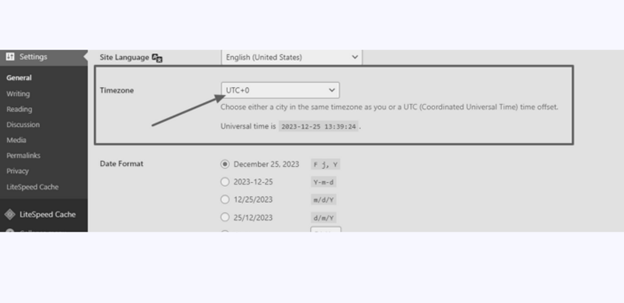
After that, click Save Changes to apply the new settings. Next, schedule a post to check if the issue is resolved.
- Delete WordPress Cache Data
Clearing your WordPress cache can help fix the error. If you’re using a caching plugin, make sure it’s set up correctly for your site.
If you don’t have one, install a caching plugin from your dashboard. After installing, activate the plugin and go to its settings. Adjust the settings based on your website’s needs.
Once done, use the Clear Cache button to remove stored cache files from your site.


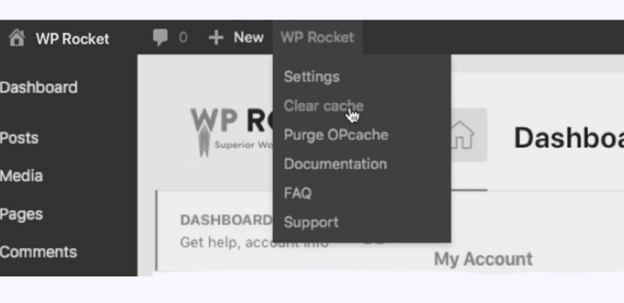
Once you’ve cleared the cache using the plugin, schedule a new post to check if the error is fixed.
3.Disable Plugins That Might Be Conflicting
Sometimes, plugin conflicts can stop scheduled tasks from working properly. To find the plugin causing the issue without affecting your live site, use the Health Check & Troubleshooting plugin.
Install and activate the plugin, then go to Tools → Site Health. Click the Troubleshooting tab, then select Enable Troubleshooting Mode to begin the check.
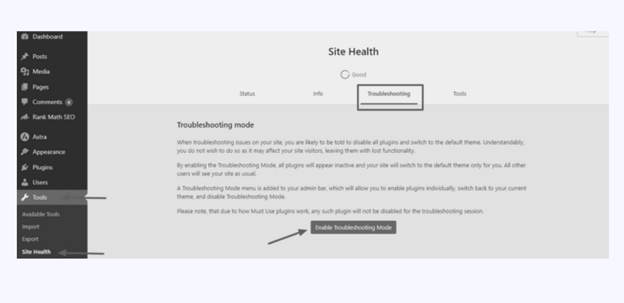
Turning on troubleshooting mode will temporarily disable all your plugins. You can then reactivate them one at a time to find the one causing the problem.

Some users have experienced the Missed Schedule error due to incorrect settings in cache plugins like W3 Total Cache.
If you’re using this plugin, try disabling it and then schedule a new post. If the post publishes correctly, you’ll need to review and adjust the plugin’s settings or consider switching to a different caching plugin.
- Increase WordPress Memory Limit
Another way to troubleshoot this issue is by increasing your WordPress site’s memory limit. Before making any changes, it’s a good idea to check the current PHP memory limit.
To check this, log in to your WordPress dashboard and go to Tools → Site Health. Click the ‘Info’ tab, then scroll down to the ‘Server’ section to view your memory details.
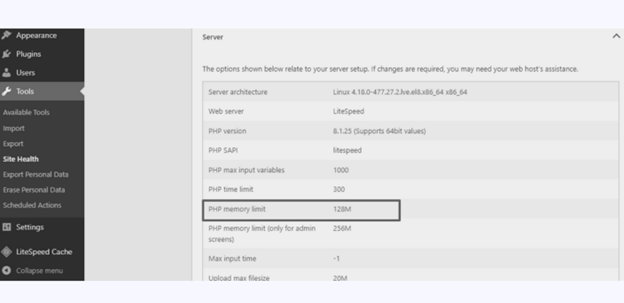
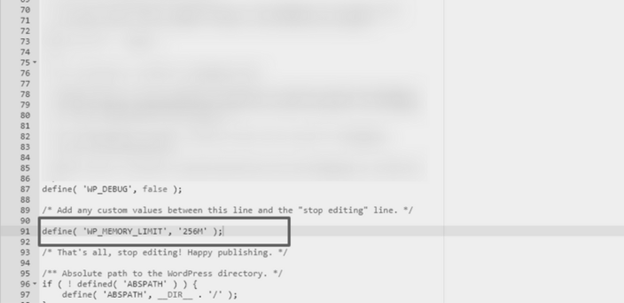
If your PHP memory limit is less than 256M, you should consider increasing it. To do this, access your wp-config.php file using an FTP client or the File Manager in your hosting cPanel. You’ll find this file in the root folder of your WordPress site.
Before making any changes, create a backup of the wp-config.php file. This will help you restore it if something goes wrong.
Next, open the file and add the code below just before the line that says:
‘That’s all, stop editing! Happy publishing.’
define( ‘WP_MEMORY_LIMIT’, ‘256M’ );
5. Install a Plugin to Fix Missed Schedule Posts
If the earlier methods don’t fix the issue, try using the Missed Scheduled Posts Publisher plugin.
Install and activate the plugin on your WordPress site. It automatically checks your site every 15 minutes for any scheduled posts that didn’t publish on time.
When it finds a missed post, it changes the status from “scheduled” to “published”—making sure all your scheduled content goes live as expected.
Once activated, the plugin works on its own and doesn’t need any setup.
6. Disable WordPress Cron and Configure a Real Cron Job
As explained earlier, WP-Cron depends on site visitors to run scheduled tasks. If your website doesn’t get regular traffic, these tasks may be delayed or completely missed.
You can put up a server-level cron job and disable WP-Cron to increase scheduling’s dependability. This ensures tasks run on time, even without visitors, giving you more control and consistency.
7. Contact Your Hosting Provider
If nothing else works, contact your hosting provider for support. Explain that you’re facing the wordpress scheduled post failed issue. Ask if there are restrictions on cron jobs or background tasks. They might help you adjust server settings or enable proper cron support.
How to Prevent the WordPress Missed Schedule Post Error in the Future
- Always set the correct time zone
Go to Settings → General and choose your local time zone. An incorrect time zone can delay posts. This simple step helps keep your post schedule accurate and avoids future WordPress missed schedule post error problems.
- Use a reliable missed schedule plugin
Install a plugin like Scheduled Post Trigger or Missed Scheduled Post Publisher. These tools find missed posts and publish them without manual work. They prevent the wordpress scheduled post not publishing issue before it happens again.
- Keep your plugins and themes updated
Old plugins or themes may conflict with WP-Cron. Regular updates fix bugs and improve compatibility. This lowers the chance of a wordpress scheduled post failed problem in future content scheduling.
- Don’t overload your server with tasks
Too many background jobs can delay scheduled posts. Clean up unused plugins and reduce cron jobs. A lighter system helps prevent the WordPress post missed schedule Error from occurring due to slow server response.
- Set up a real cron job
For better reliability, replace WP-Cron with a server cron job. It doesn’t rely on visitors to run. This method offers a stronger wordpress missed schedule fix for long-term post publishing accuracy.
- Use a quality hosting provider
Cheap or shared hosting may delay scheduled tasks. Upgrade to a host with better performance. A strong server helps avoid the WordPress Missed Schedule Error and improves overall WordPress reliability.
- Monitor your scheduled posts regularly
Check your WordPress dashboard often for missed or stuck posts. Early checks allow quick fixes. This habit helps you fix a Missed Post Schedule Publishing Error before it affects your content schedule.
- Avoid using too many cache layers
Heavy caching can block cron jobs. Configure cache plugins properly and clear them regularly. This prevents missed publishing and avoids common wordpress scheduled post error issues linked to cache settings.
Conclusion
The WordPress missed schedule post error may seem like a minor issue, but it can create serious problems for your website. It stops scheduled posts from publishing, which can disrupt your content strategy, lower SEO rankings, and reduce user trust.
This error usually happens because of WP-Cron failures, incorrect time zone settings, plugin conflicts, or server-related issues. If not fixed, it can impact your entire publishing flow. That’s why it’s important to address it quickly and prevent it from happening again.
Start by clearing your cache and verifying your WordPress time zone. Use tools like Scheduled Post Trigger or Missed Scheduled Post Publisher to automatically publish missed posts. If your site needs more control, consider setting up a server-level cron job for better reliability.
Fixing the error ensures your posts go live on time, keeps your SEO performance strong, and improves your overall website experience. By providing content at the right time, it also helps you gain your readers’ confidence.
If you need expert help to resolve this issue, our team at WooHelpDesk is ready to assist you.We can assist in getting your website back on track and are experts in WordPress and WooCommerce support.
📞 Call us at +1 888 602 0119 (US & Canada) for fast and friendly support.



