How to Fix the ERR_CONNECTION_RESET Error in WordPress (Step-by-Step Guide)
Table of Contents
- Introduction
- What Is the “ERR_CONNECTION_RESET” Error?
- What Causes the “ERR_CONNECTION_RESET” Error in WordPress Sites?
- What Is the Impact of the “ERR_CONNECTION_RESET” Error in WordPress?
- How to Fix the ERR_CONNECTION_RESET Error in WordPress
- How to Prevent the ERR_CONNECTION_RESET Error in WordPress
- Conclusion
Introduction
Many WordPress users face sudden connection issues on their websites. One of the most frustrating among them is the WordPress err_connection_reset error. This error can make your site unreachable and confuse both site owners and visitors.
It usually appears in browsers like Chrome and Firefox. The message may say “This site can’t be reached” or “Connection reset.” For someone managing a WordPress site, this error can hurt traffic, user experience, and even sales.
What Is the “ERR_CONNECTION_RESET” Error?
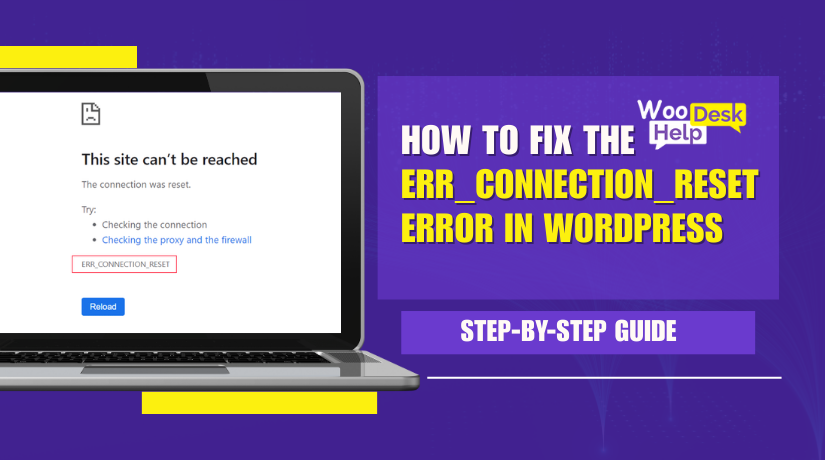
The ERR_CONNECTION_RESET error means your browser couldn’t connect to the website. It tried to reach the server, but the connection was suddenly stopped. Think of it like a phone call that was cut off before anyone picked up.
This error mostly appears in Google Chrome, but others show it too. Firefox says “The connection was reset.” Edge says “Can’t reach this page.” In Safari, the message reads “Can’t establish a secure connection.”
The error happens when the server can’t send data to your browser. As a result, the web page won’t load. It might happen while accessing a WordPress homepage, dashboard, or even the login page.
The message may look confusing, but it simply means this—your browser and the website server failed to connect. Something in between caused that session to stop. This could be a firewall, antivirus, VPN, proxy, or even your browser itself.
For WordPress users, this issue may appear after an update, migration, or plugin change. That’s why it’s often seen as a WordPress err_connection_reset error. It’s common on sites with dynamic content, where multiple tools work together in the background.
Sometimes your WordPress site shows err_connection_reset only in certain browsers. For example, the page works fine in Firefox but fails in Chrome. In that case, browser settings or cache might be the problem.
Whether you’re using Windows or macOS, this error can occur. It doesn’t point to a single problem. Instead, it’s a sign that something is blocking the usual data exchange.
What Causes the “ERR_CONNECTION_RESET” Error in WordPress Sites?
The ERR_CONNECTION_RESET error in WordPress means the server broke the connection before it could fully load the page. It’s like the server refused to talk after your browser started the conversation. This is common on WordPress sites due to how they use dynamic scripts, themes, plugins, and redirects. Below are the most common technical causes.
- Unstable Internet Connection
If your connection drops during page load, the server breaks the session. This reset stops WordPress from sending data to your browser. It can happen when using mobile hotspots or shared Wi-Fi. Restarting your router or switching to a stable connection may solve this.
- VPN or Proxy Interference
VPNs and proxies reroute traffic through other servers. If they block certain ports or timeout during handshake, the browser resets the connection. This happens especially when VPNs are slow or misconfigured. Disable VPN or proxy and test the site without them.
- Firewall or Antivirus Blocking Connection
Firewalls or antivirus software may wrongly identify your site as a threat. They can silently block incoming or outgoing server requests. This leads to the WordPress firewall err_connection_reset issue. Temporarily disable these tools to test if they cause the reset.
- Corrupt Browser Cache or Cookies
Old or corrupted cache files can prevent proper communication with the server. Cookies may also expire or mismatch login sessions. This disrupts loading and causes the err_connection_reset message. Clear your browser cache and cookies, then reload the WordPress site.
- Plugin Conflicts in WordPress
Bad plugins may overload server memory, break redirects, or disrupt scripts. If a plugin triggers an invalid call, the server might reset the session. This results in a WordPress plugin err_connection_reset error. Disable all plugins and reactivate one at a time to find the issue.
- Theme Errors or Incompatibility
A poorly coded theme can break JavaScript, cause redirect loops, or overload requests. This can force the server to reset the connection. The WordPress theme err_connection_reset problem usually appears after activating a new or custom theme. Revert to a default theme to test.
- Broken or Misconfigured .htaccess File
The .htaccess file controls redirects and access rules in WordPress. A single wrong line may block requests or redirect in a loop. This causes the WordPress htaccess err_connection_reset error. Reset the file or replace it with a default version to test.
- Expired or Invalid SSL Certificate
An outdated or misconfigured SSL certificate can break secure HTTPS sessions. Browsers will block data transfer for security reasons. This results in the WordPress SSL err_connection_reset error. Use online SSL checkers to verify and renew your certificate.
- Redirect Loops or HTTPS Conflicts
Forcing HTTPS through both plugins and the server may cause endless redirects. These loops overload the browser’s redirect limit and break the session. That triggers the WordPress redirect err_connection_reset issue. Check for duplicate HTTPS settings in plugins and .htaccess.
- Failed WordPress Core Update
Sometimes, an incomplete or faulty update to WordPress core breaks compatibility. Certain scripts stop loading properly, and requests fail. This leads to the WordPress update err_connection_reset error. Reverting to a previous version or checking update logs may help fix it.
- Improper WordPress Migration
During migration, broken file paths, wrong URLs, or missing configs can affect loading. If the server doesn’t recognize the request structure, it may reset the session. This is known as the WordPress migration err_connection_reset error. Recheck your wp-config and permalink settings post-migration.
- Server Misconfiguration or Firewall Rules
Hosting providers may limit memory, block IP ranges, or misroute requests. These restrictions can silently terminate browser-server communication. The result is a WordPress server err_connection_reset error. Ask your host to check mod_security logs and firewall settings.
- DNS Issues or Wrong Server IP Resolution
If DNS resolves your domain to the wrong IP, your request may get blocked. A DNS mismatch may trigger a failed connection attempt. Flushing DNS or using Google DNS (8.8.8.8) can solve this. Always check if your domain points to the correct host.
- Browser or Extension Conflicts
Sometimes the problem is inside your browser. Extensions like ad blockers or browser flags can interfere with requests. This is a known issue behind WordPress Chrome err_connection_reset errors. Try using incognito mode or switching to another browser.
What Is the Impact of the “ERR_CONNECTION_RESET” Error in WordPress?
The WordPress err_connection_reset error may look like a simple connection problem. But in reality, it has far-reaching effects on your website’s performance and user experience. When your WordPress site shows err_connection_reset, it becomes unavailable for visitors. This hurts your reputation, revenue, and rankings.
Let’s explore the direct and indirect effects this error can cause.
- Loss of Access to Admin Dashboard
When you get an err_connection_reset when accessing WordPress, you may lose access to the admin panel. This means you can’t manage posts, update plugins, or make design changes. A blocked WordPress admin err_connection_reset issue can freeze all your site activities until fixed. Admins may also lose control of backups and user management.
- Visitors Can’t View Your Website
If a WordPress website err_connection_reset issue occurs on the homepage or key pages, your visitors will see an error message. This damages first impressions. A user landing on your WordPress homepage will immediately bounce off when they see “This site can’t be reached.” This happens during a WordPress page err_connection_reset, and it causes a drop in engagement.
- Login Failures and User Access Problems
Users and admins may face a WordPress login err_connection_reset when trying to access their accounts. This prevents users from logging into your membership, eCommerce, or content-restricted areas. Even if credentials are correct, the server rejects the session before it starts.
- Revenue Loss on WooCommerce or Business Sites
If your site runs on WooCommerce or sells digital services, this error can affect sales. During a WordPress page err_connection_reset, your products won’t load. Visitors can’t proceed to checkout or complete orders. For subscription websites, this may lead to canceled services or refunds.
- Broken Admin Tasks and Workflows
Even if the front end loads, the backend may break due to a WordPress dashboard err_connection_reset. This stops essential tasks like publishing posts, updating plugins, or checking analytics. It affects productivity, especially for teams managing client websites.
- Poor User Trust and Increased Bounce Rates
If visitors see an error instead of content, they quickly leave. This increases bounce rate and affects user trust. In many cases, repeated WordPress error err_connection_reset messages will convince users the site is unsafe or abandoned.
- Negative SEO and Search Engine Rankings
When Google crawlers visit and get an err_connection_reset WordPress site, they treat it like a broken page. If this happens too often, your site may be deindexed or ranked lower. Search engines rely on uptime and speed as part of ranking algorithms.
- Compatibility Failures After Updates or Migrations
Sometimes, a WordPress update err_connection_reset occurs after core updates. Your updated WordPress version may conflict with outdated themes or plugins. Similarly, a WordPress migration err_connection_reset can happen after moving to a new host. These errors usually appear when the database or file paths aren’t configured properly.
- Impact of Plugin and Theme Conflicts
The most common cause of downtime is a plugin or theme issue. A WordPress plugin err_connection_reset or WordPress theme err_connection_reset causes critical features to break. It may happen after installing a new plugin or switching themes. Incompatibility with server settings or memory limits leads to dropped connections.
- SSL and HTTPS Errors Affecting Security Perception
A misconfigured SSL certificate can make your site look insecure. When this happens, your browser resets the connection due to failed HTTPS verification. This is known as a WordPress SSL err_connection_reset error. Visitors see warnings about your site not being secure. This severely impacts conversion rates and user trust.
- Redirect and .htaccess Failures Block Site Access
Incorrect redirect rules or .htaccess file changes can lead to looping or denied access. A WordPress redirect err_connection_reset or WordPress htaccess err_connection_reset means your server is confused. It gets stuck in a loop or denies access, resulting in dropped connections and blocked pages.
- Long-Term Damage if Left Unresolved
If you ignore repeated errors, it leads to long-term damage. You lose ranking, traffic, sales, and trust. Also, repeated connection errors can result in bots removing your site from their indexes. That’s why applying a WordPress err_connection_reset fix as soon as possible is important.
How to Fix the ERR_CONNECTION_RESET Error in WordPress
The ERR_CONNECTION_RESET error appears when your browser is unable to establish a stable connection with the website server. This can be caused by network problems, server misconfigurations, or WordPress-related issues. Below is a complete, point-wise guide designed to help beginners and technical users fix the problem with ease.
Step 1: Restart Your Internet Connection
Sometimes, your internet connection may become unstable or slow. This can interrupt communication between your browser and the server. Restart your router or modem. If you’re using Wi-Fi, try switching to a wired connection. This step helps rule out local connectivity issues as the cause of the error.
Step 2: Turn Off VPN or Proxy
VPNs and proxies reroute your network traffic through external servers. If they are misconfigured or too slow, the connection may be dropped. Disable any VPN or proxy services on your device. Try loading your site again to see if the issue disappears after removing the extra network layer.
Step 3: Clear Your Browser Cache and Cookies
Corrupted or outdated browser cache can interfere with the connection process. Cookies may also expire or conflict with new sessions. Go to your browser settings and clear both cookies and cached data. Refresh the site to see if it loads correctly. This is one of the easiest fixes to try.
Step 4: Try a Different Browser or Device
Your current browser might be causing the problem. Sometimes, browser extensions or internal flags interfere with connections. Open your website in another browser, like Firefox or Safari. Alternatively, test the site on a different device or mobile network. This helps isolate browser-level or device-level issues.
Step 5: Disable Firewall and Antivirus Software Temporarily
Firewalls and antivirus programs sometimes block certain scripts or server requests. Temporarily disable them to test if they are causing the connection reset. If the site loads after turning off the protection, add your site to the allowlist before re-enabling the software to ensure continued security.
Step 6: Flush DNS and Reset Network Settings
Sometimes your computer stores outdated or incorrect domain data. Flushing your DNS resets this. Open your command line tool and run a DNS flush command. Restart your device afterward. This step ensures that your computer is correctly resolving the domain name to the right server address.
Step 7: Deactivate All WordPress Plugins
Faulty or conflicting plugins can break server requests and stop the site from loading. Access your WordPress dashboard or use FTP to disable all plugins. Then, check your site. If it loads properly, reactivate plugins one at a time to find the one causing the problem.
Step 8: Switch to a Default Theme
Themes may have built-in scripts or code that causes connection issues. Switch to a default theme like Twenty Twenty-One. If the site starts working, your theme might need an update or debug. This step helps separate design-related issues from deeper server or plugin errors.
Step 9: Rename the .htaccess File


The .htaccess file controls key settings like redirects and security rules. A misconfiguration can block access to the site. Use FTP or File Manager to rename this file. Then log into WordPress and reset your permalinks. This generates a fresh .htaccess file and fixes common rule errors.
Step 10: Check Your SSL Certificate
Secure connections rely on a valid SSL certificate. If your certificate has expired or is misconfigured, the browser might reset the connection. Use an SSL checker tool to verify your certificate’s status. Renew or reinstall it as needed. Also, make sure you’re not forcing HTTPS from multiple sources.
Step 11: Remove Redirect Loops
Too many redirects or conflicting HTTPS rules can overwhelm the browser. Review any redirect plugins or .htaccess entries. If your site is stuck in a loop, simplify your rules. Use only one method—either a plugin or server config—to handle HTTPS redirection. This reduces confusion and prevents connection drops.
Step 12: Roll Back Recent Updates
Sometimes a plugin, theme, or core update may trigger errors. If your site stopped working after an update, roll it back. Use a backup or version control to return to the previous state. Then, update items one by one, checking each time for the error to reappear.
Step 13: Recheck Migration or Server Settings
If the error appeared after moving to a new host, something may have gone wrong in the migration. Check your wp-config.php file for correct database and URL settings. Also, make sure your domain points to the right server. These steps help restore server communication and prevent connection resets.
Step 14: Contact Your Hosting Provider
If none of the above steps work, the problem may be on the server. Contact your web hosting support and ask them to check error logs, firewall rules, and memory limits. They can verify if any server-level rule is interfering with connections and help resolve it from their side.
Step 15: Monitor Specific Pages
Sometimes, the issue appears only on one or two pages. Check if the error is limited to the homepage, contact page, or admin panel. It might be caused by a shortcode, embedded script, or form plugin. Disable elements one by one until the issue is resolved.
How to Prevent the ERR_CONNECTION_RESET Error in WordPress
Once you’ve applied a successful WordPress err_connection_reset fix, the next step is prevention. A single occurrence may be manageable, but repeated errors can damage your website’s trust, traffic, and SEO. This guide outlines the best practices to reduce the chances of your WordPress website facing the issue again.
- Keep WordPress Core, Plugins, and Themes Updated
Running outdated WordPress components is a common cause of site instability. Sometimes an update includes security patches or compatibility fixes. Skipping these can lead to browser and server conflicts.
For example, a plugin not updated for months might cause a WordPress plugin err_connection_reset if it conflicts with the latest WordPress version.
Update all plugins, themes, and core files regularly. Always test updates in a staging environment before applying them to a live site.
- Avoid Using Too Many Plugins
Each active plugin adds load to your server. The more plugins you have, the higher the chance of conflicts. Poorly coded plugins are especially risky.
One faulty plugin can result in a WordPress error err_connection_reset or crash your WordPress dashboard completely. Stick to reliable, well-maintained plugins with positive reviews.
Deactivate and delete unused plugins. This reduces resource usage and minimizes conflict risks.
- Use a Stable and Lightweight WordPress Theme
Themes with too many built-in features often rely on external scripts. These scripts may fail to load or create redirect loops, triggering a WordPress theme err_connection_reset error.
Choose lightweight, responsive, and well-supported themes. Avoid pirated themes or custom builds from unreliable sources.
If your WordPress site shows err_connection_reset after a theme switch, return to a default theme and review the issue.
- Monitor Your SSL Certificate Status
Expired or misconfigured SSL certificates are a major reason users see connection errors. This causes browsers to drop the session due to security violations, resulting in a WordPress SSL err_connection_reset.
Set reminders to renew your SSL certificate before it expires. Use automatic renewal with Let’s Encrypt or similar services where possible.
Also, avoid forcing HTTPS from multiple layers like plugins and server configuration together.
- Review Your Redirect Rules
Redirect loops or invalid redirect conditions confuse the browser and cause connection failures. The result is often a WordPress redirect err_connection_reset.
Make sure you are not applying conflicting redirects through .htaccess, plugins, and CDN at the same time. Use only one redirect tool.
Always test redirects after applying them. Remove old or unused redirect rules to prevent unnecessary browser load.
- Maintain a Clean .htaccess File
This file controls many critical server behaviors like URL rewrites and redirects. A single incorrect line can create a WordPress htaccess err_connection_reset error.
Keep a backup of the default .htaccess configuration. Avoid manual edits unless you’re confident. If needed, use WordPress to regenerate the file by resetting permalinks.
- Use a Quality Hosting Provider
Poor hosting environments often lead to server errors. Low resources or strict firewall rules can block legitimate requests, causing a WordPress server err_connection_reset.
Invest in a reputable WordPress-optimized host that supports PHP, MySQL, SSL, and caching. Ask your host to monitor mod_security rules or server logs when you face unexplained errors.
- Use a Security Plugin with Whitelisting Options
Firewalls and security layers protect your site but can sometimes block valid users or scripts. This may result in a WordPress firewall err_connection_reset issue.
Install a well-supported security plugin that allows you to whitelist trusted IPs. This ensures admin access isn’t blocked by mistake.
If you’ve faced a WordPress admin err_connection_reset before, this step is crucial.
- Avoid Unstable VPNs or Proxies When Managing Your Site
If you manage your site using a VPN or proxy, make sure it’s stable. Some VPNs drop requests, causing session failures and WordPress VPN err_connection_reset issues.
Use trusted VPN services and disable them temporarily when troubleshooting. Always check the site from a standard network before making changes.
- Monitor Login and Admin Access
Connection reset errors often show up on the login or admin pages. This can prevent you from making updates or checking orders. A WordPress login err_connection_reset or WordPress admin err_connection_reset should be taken seriously.
Enable two-factor authentication (2FA) for login protection. Also, ensure your admin panel is not blocked by server-level security tools.
- Test Site Access After Every Major Change
Sometimes, a plugin or update doesn’t break the whole site but affects a page. A WordPress page err_connection_reset can occur while everything else works.
After making any changes, test your homepage, contact page, and login page. This helps catch issues early.
- Use a CDN with Caution
CDNs help improve performance but sometimes cache broken redirects or expired scripts. This can lead to a WordPress Chrome err_connection_reset when the browser receives incorrect data.
If using a CDN, clear its cache after site updates. Disable it temporarily to rule it out when errors persist.
- Create Regular Site Backups
If an update or configuration causes errors, a backup can save you. Restore your site to a working version without downtime.
This is especially important when troubleshooting WordPress update err_connection_reset issues. Use automated backup tools like UpdraftPlus, Jetpack, or your hosting panel.
- Perform Routine Site Health Checks
Use WordPress’s built-in Site Health tool to detect background issues. Look for recommendations related to PHP version, SSL, or scheduled tasks.
Regularly checking site health can help prevent unexpected WordPress website err_connection_reset issues by identifying problems early.
Conclusion
The WordPress err_connection_reset error is more than just a technical glitch—it directly affects user experience, website performance, and even your business revenue. Whether it appears on the homepage, admin panel, or login page, this error blocks vital connections between your browser and server, making your website inaccessible at critical moments.
As this guide explained, the causes can range from internet issues and browser settings to plugin conflicts, SSL misconfigurations, and server-side rules. The good news? Most of these problems can be resolved with step-by-step troubleshooting—even by non-developers.
Prevention is just as important. Keeping your WordPress installation clean, updated, and free from conflicting code will help reduce the risk of this error in the future. Regular backups, careful updates, and reliable hosting go a long way in maintaining stability.
If you’re still struggling to fix the issue or want peace of mind, expert help is just a click away.
📞 Call our WordPress support team at +1 888 602 0119 (US & Canada)
🌐 Or visit www.woohelpdesk.com for instant help via live chat.
At WooHelpDesk, we specialize in solving WordPress and WooCommerce problems—fast, reliable, and 24×7.



