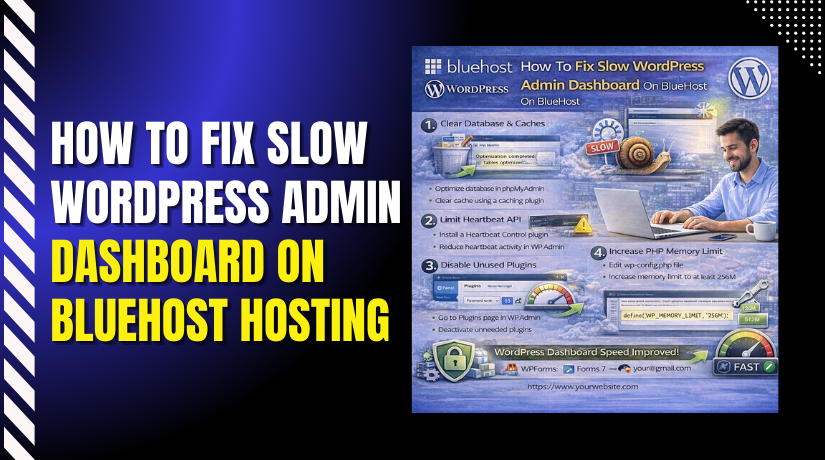
How To Fix Slow WordPress Admin Dashboard On BlueHost Hosting
Introduction
A slow WordPress admin dashboard can significantly impact productivity, making simple tasks like editing content, managing plugins, or updating themes frustrating and time-consuming. On Bluehost WordPress hosting, this issue commonly occurs due to overloaded server resources, outdated PHP versions, heavy or unused plugins and themes, database bloat, or inefficient caching configurations. In this guide, we explain why the WordPress admin dashboard becomes slow and walk you through proven solutions to fix it. You’ll learn how to optimize your hosting environment by updating PHP, cleaning unused themes and plugins, and improving performance using the WP Rocket plugin. Following these steps will help restore speed, stability, and efficiency to your WordPress admin panel.
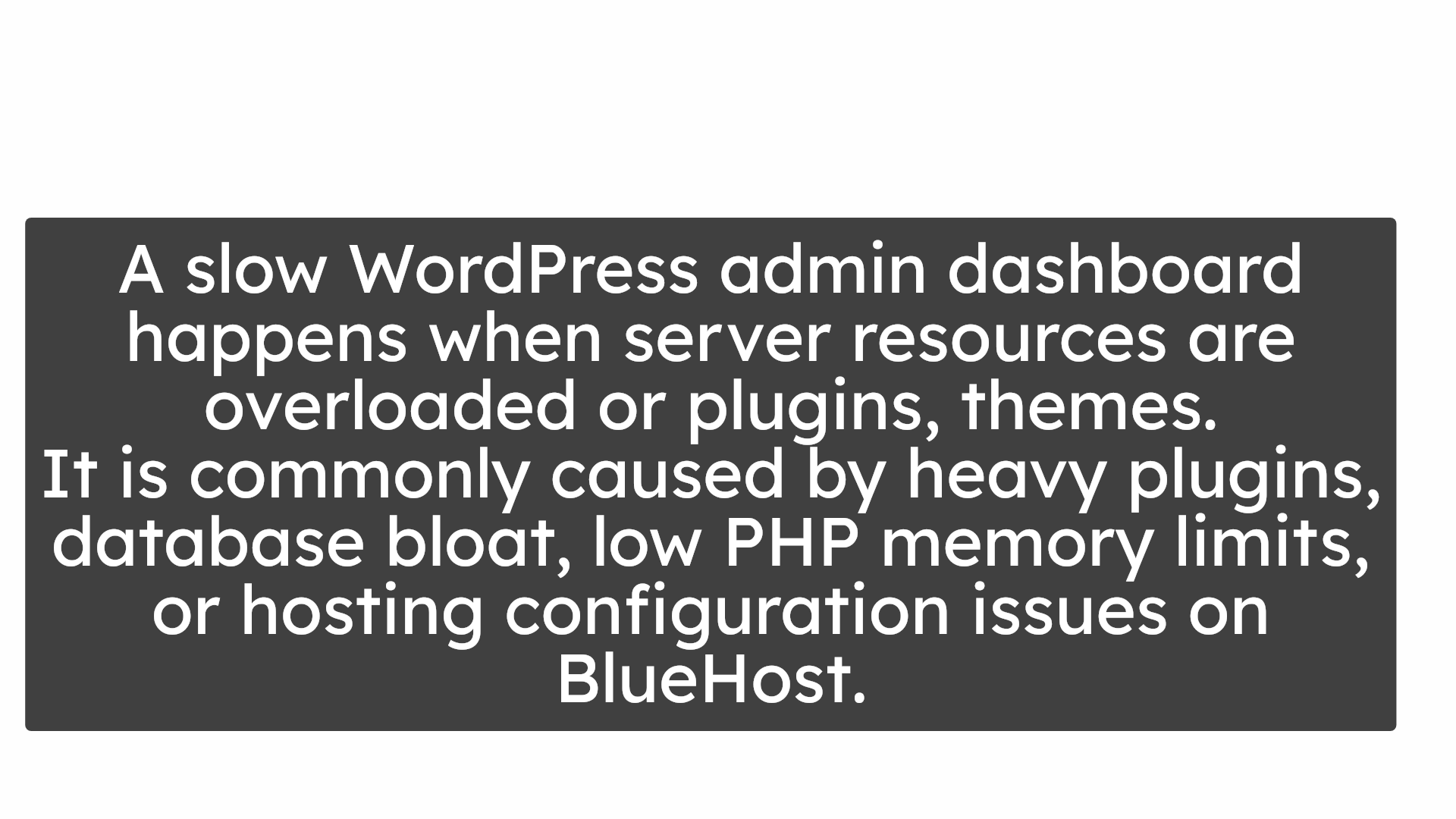
1. why this happens?
A slow WordPress admin dashboard happens when server resources are overloaded or plugins, themes.It is commonly caused by heavy plugins, database bloat, low PHP memory limits, or hosting configuration issues on BlueHost.
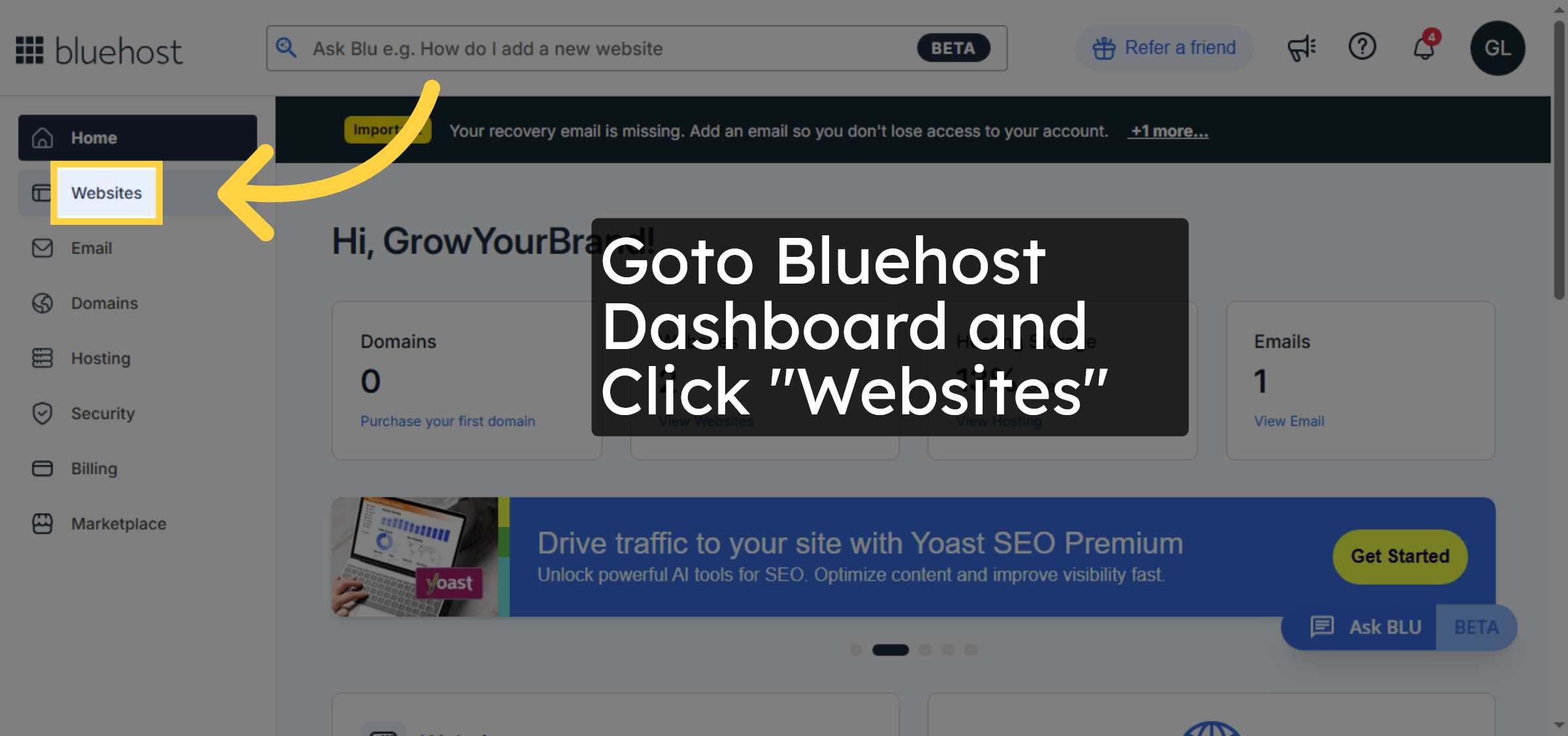
2. Click Websites Tab
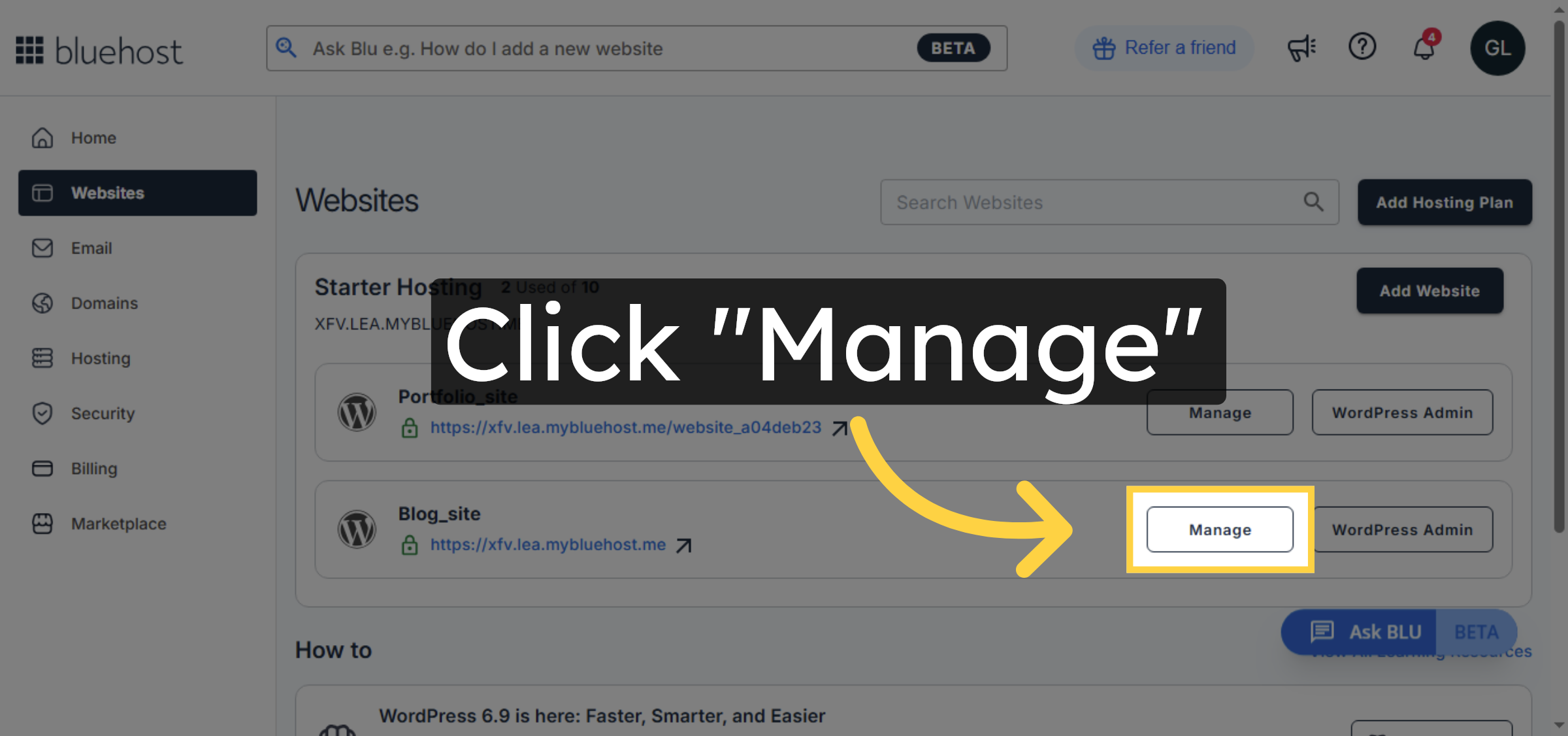
3. Click Manage Website
4. Access Advanced Settings
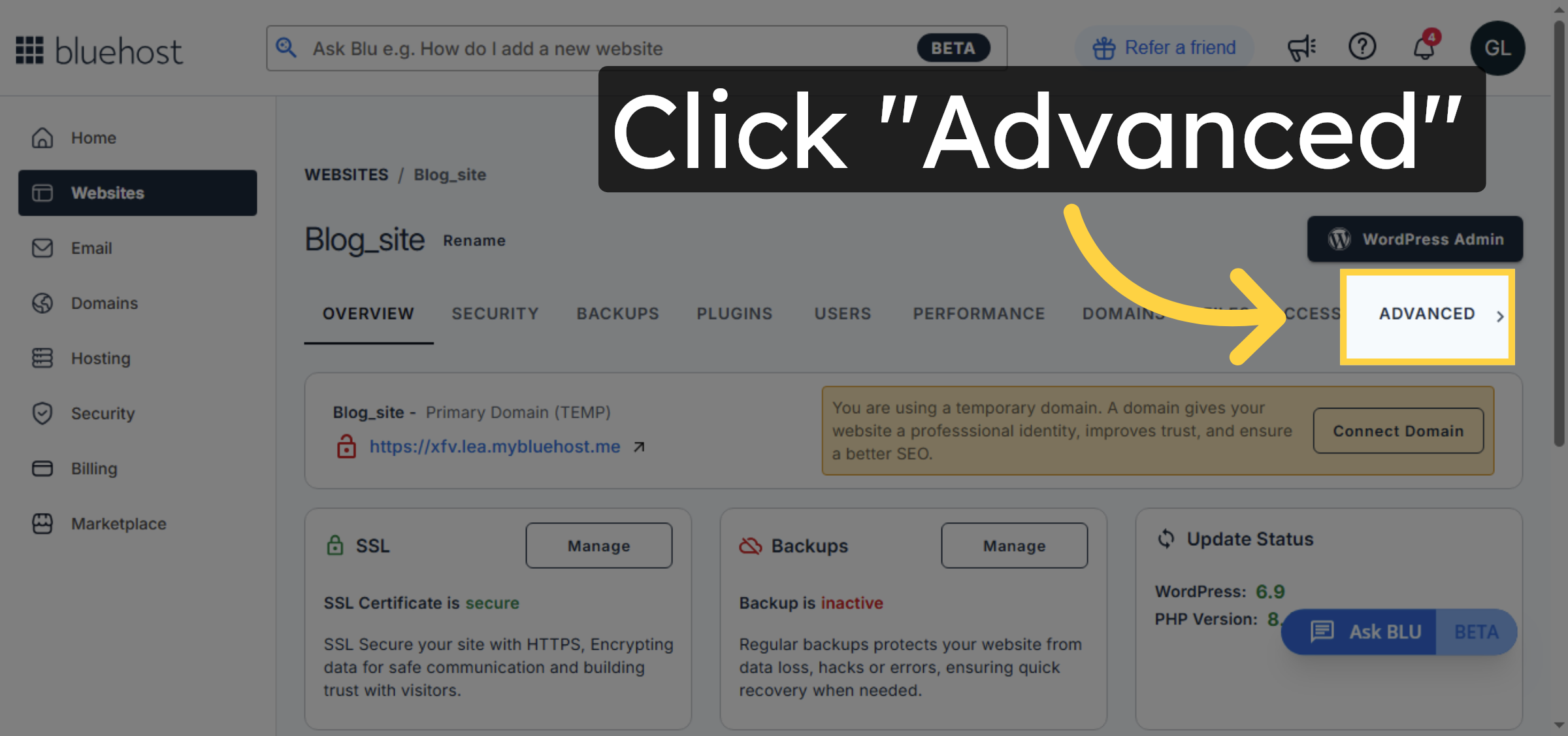
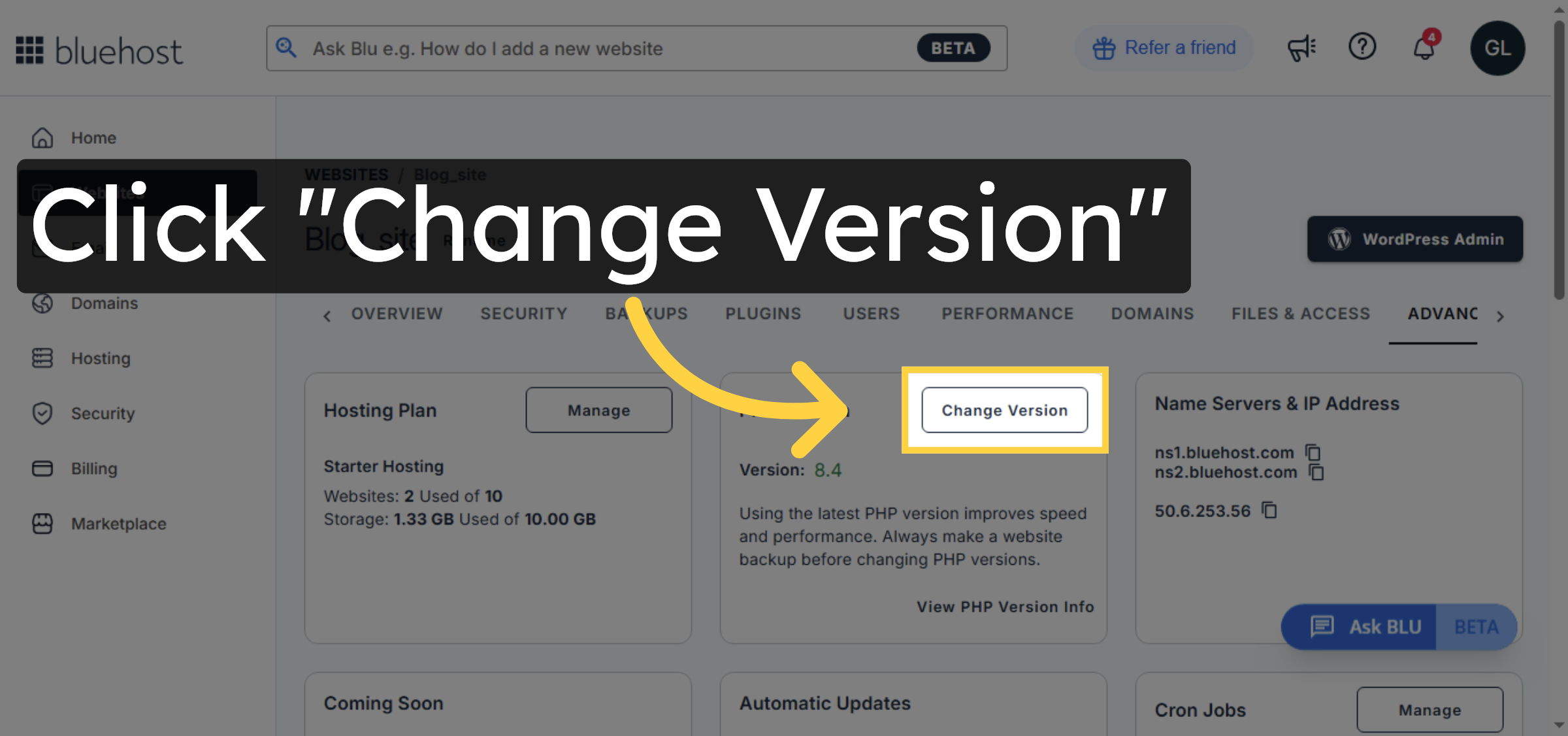
5. Select Change PHP Version
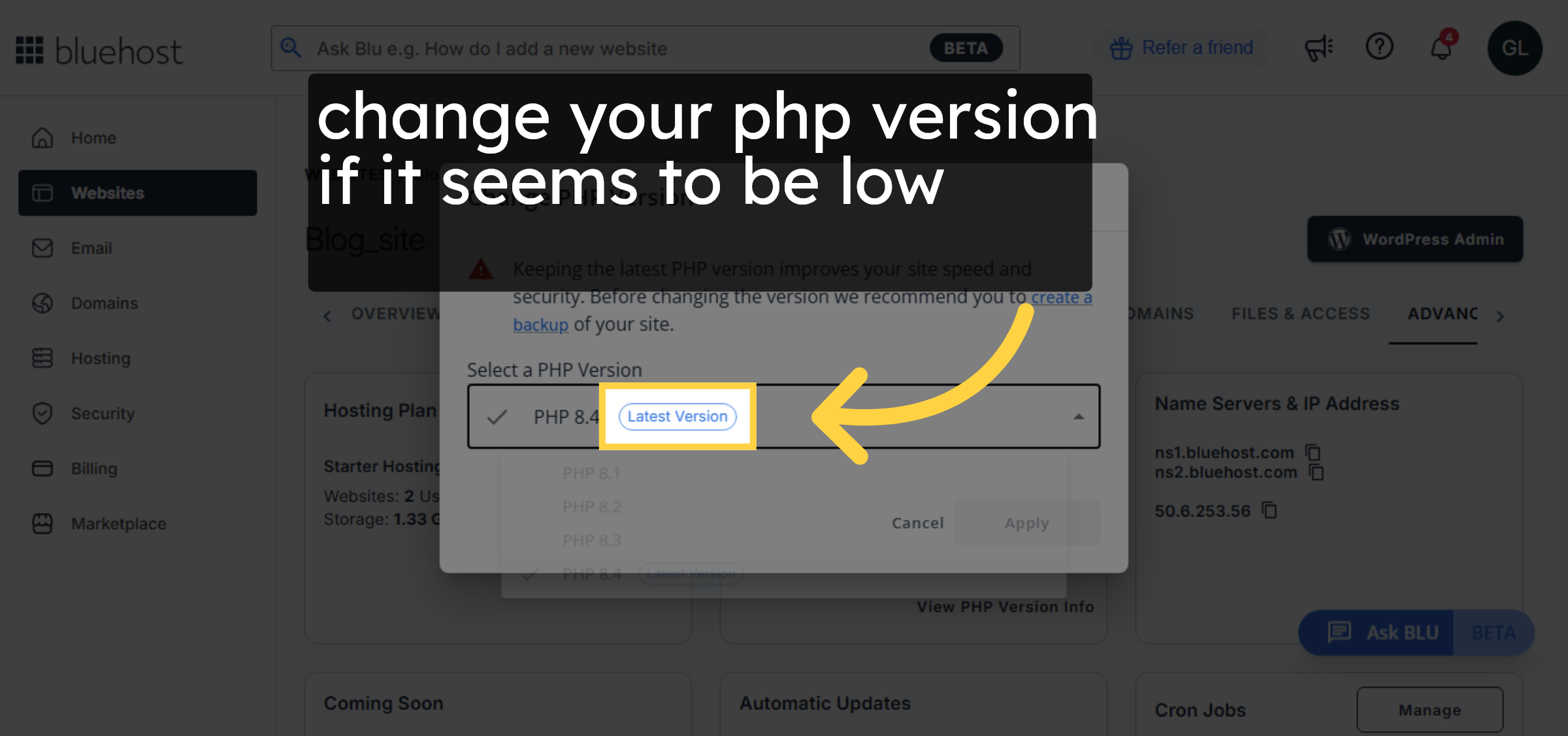
6. Choose Latest PHP Version
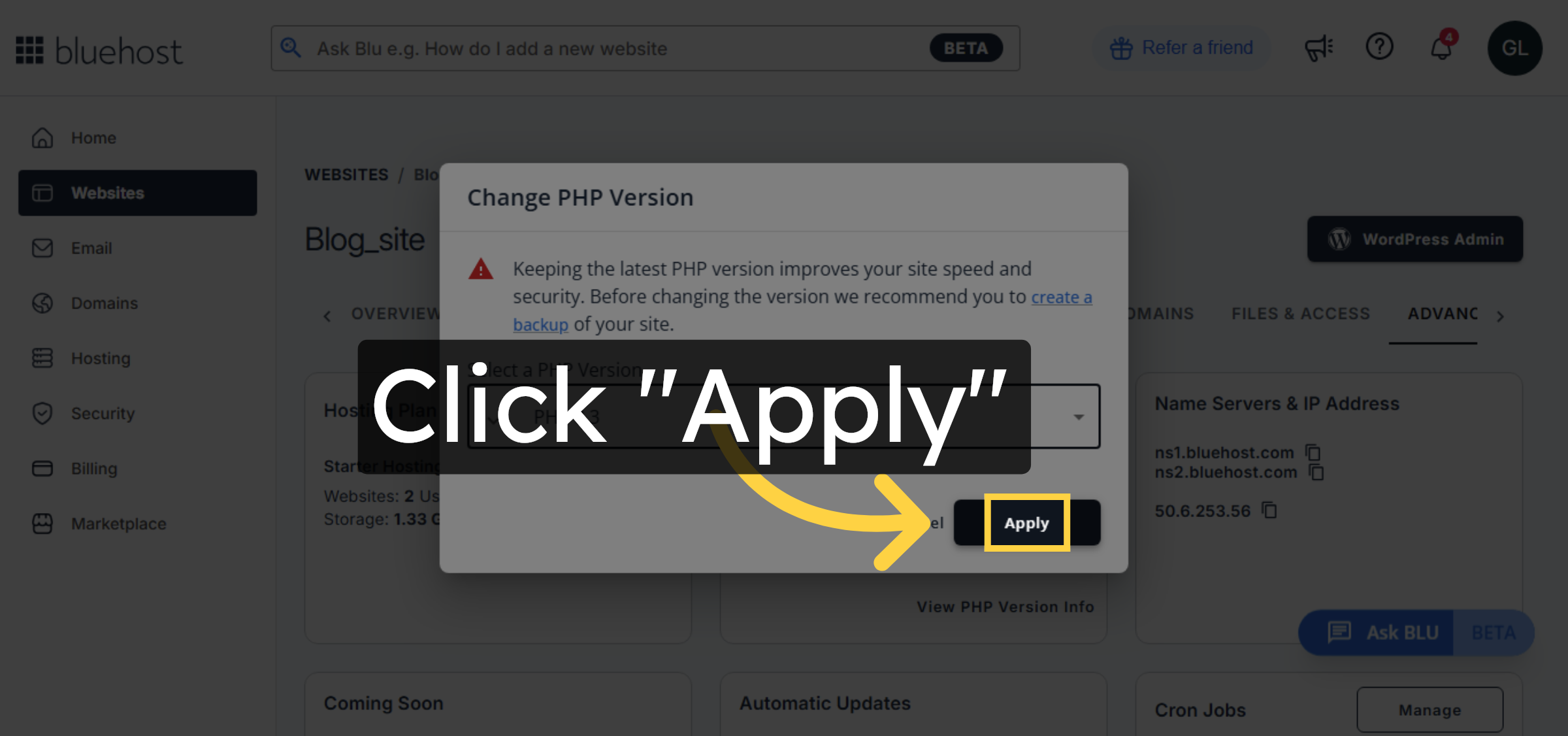
7. Apply PHP Version Change
8. Open WordPress Admin
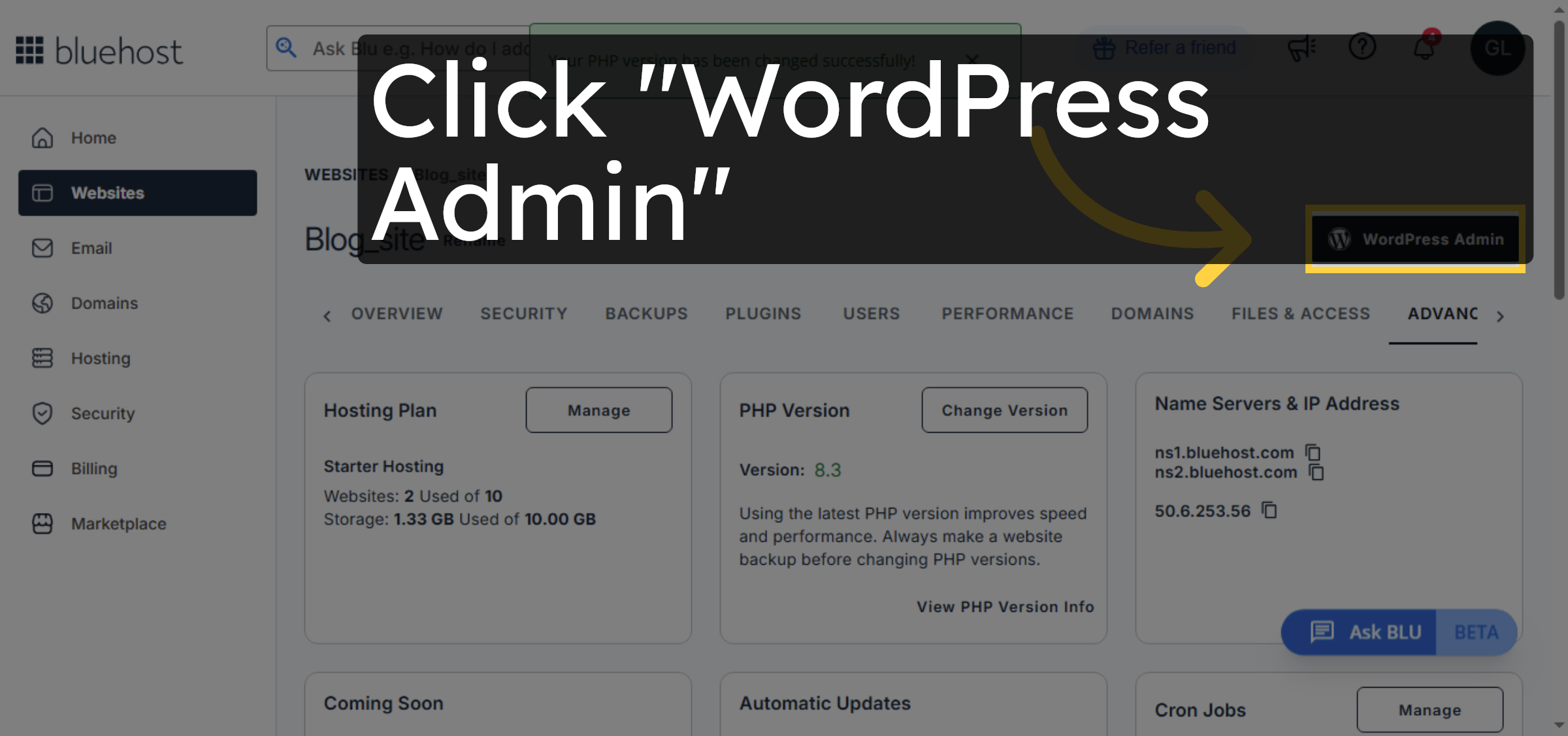
9. Navigate To Appearance
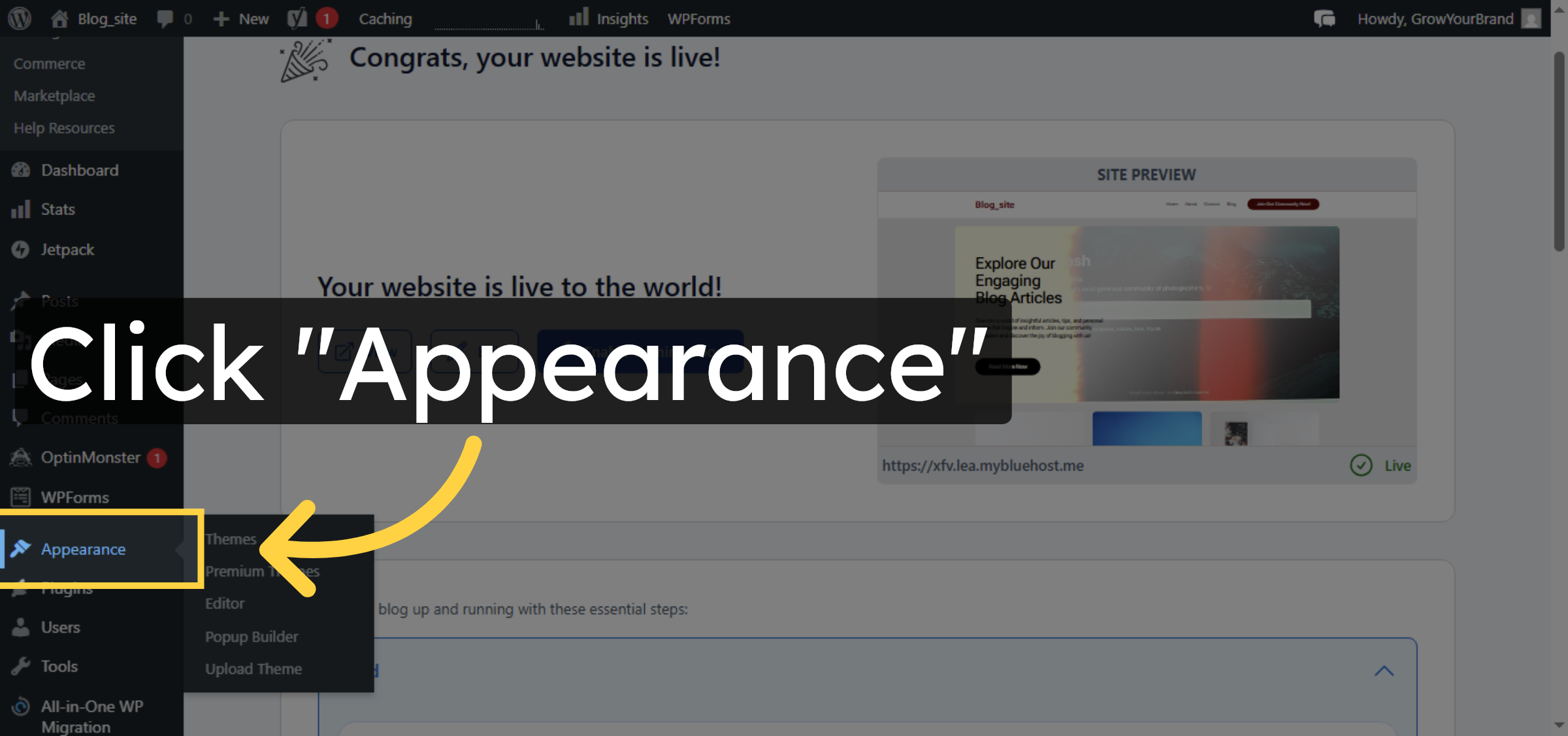
10. View Theme Details
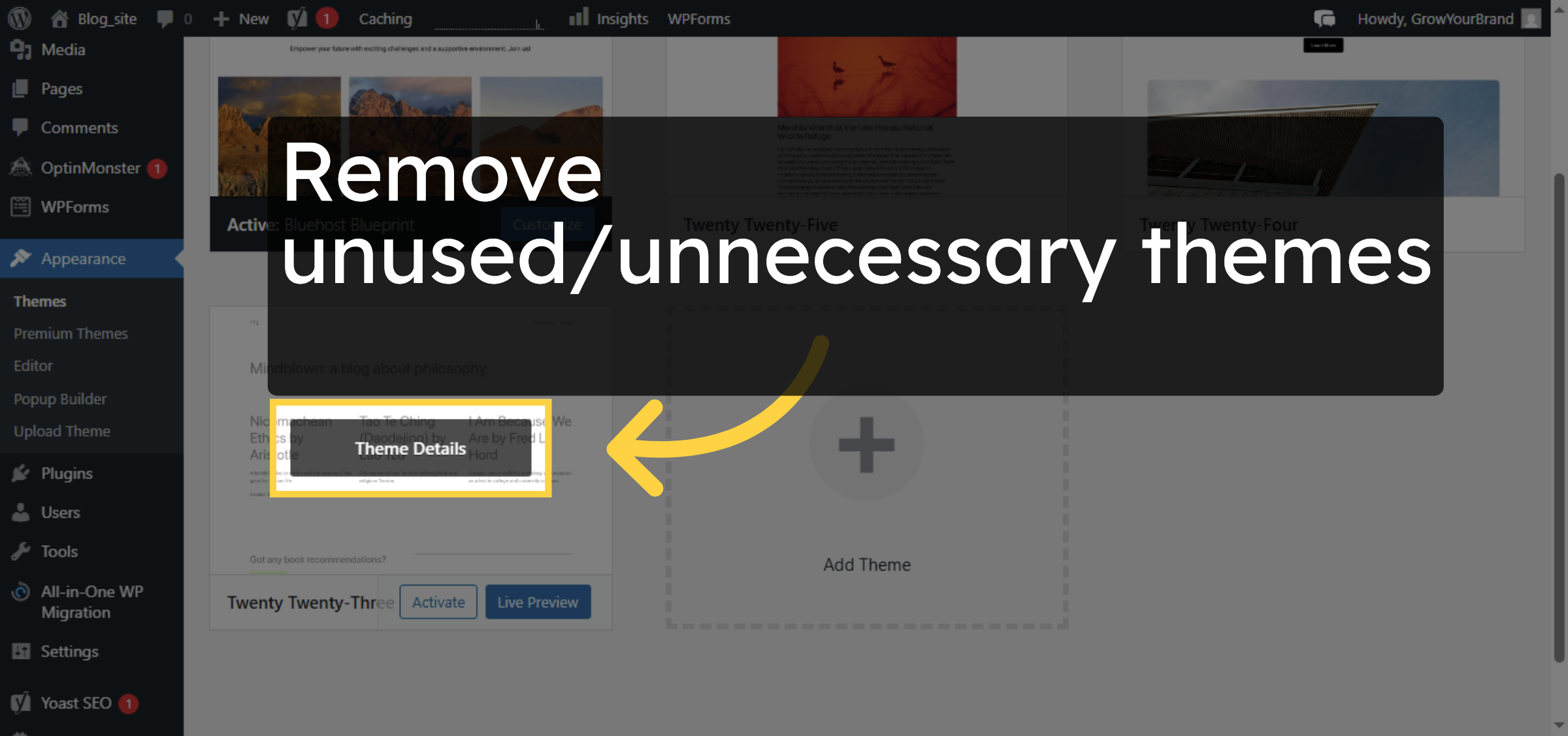
11. Delete Unused Theme
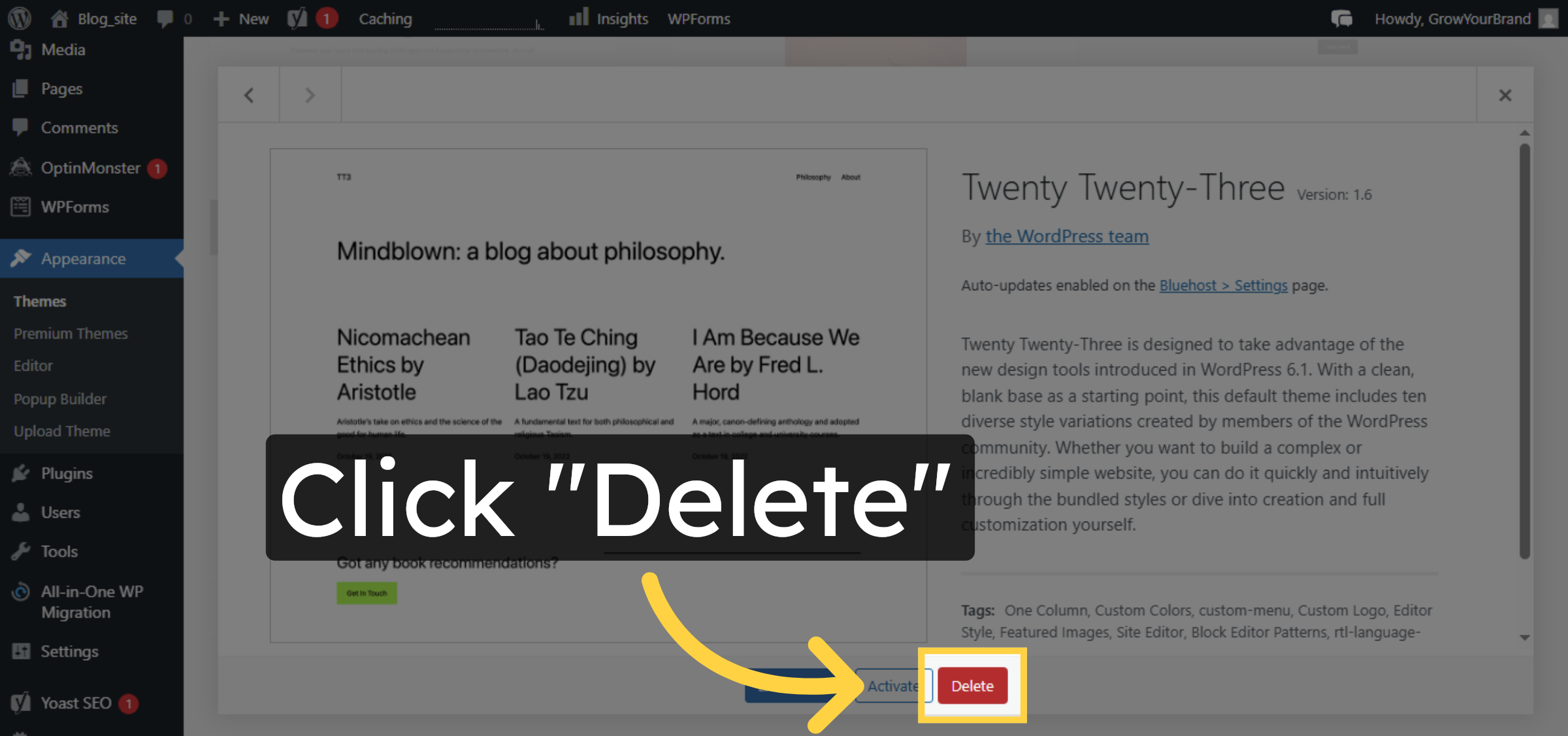
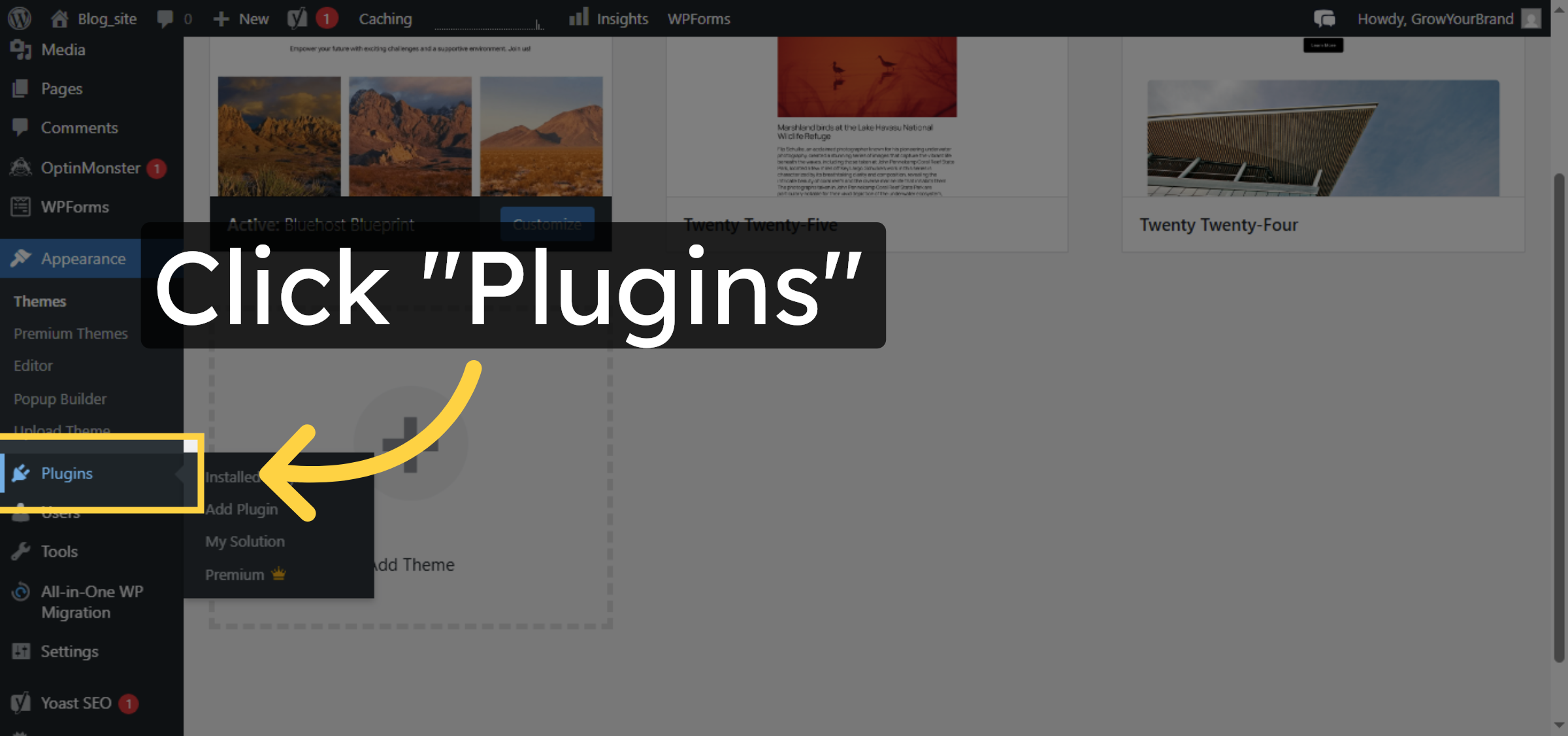
12. Open Plugins Menu
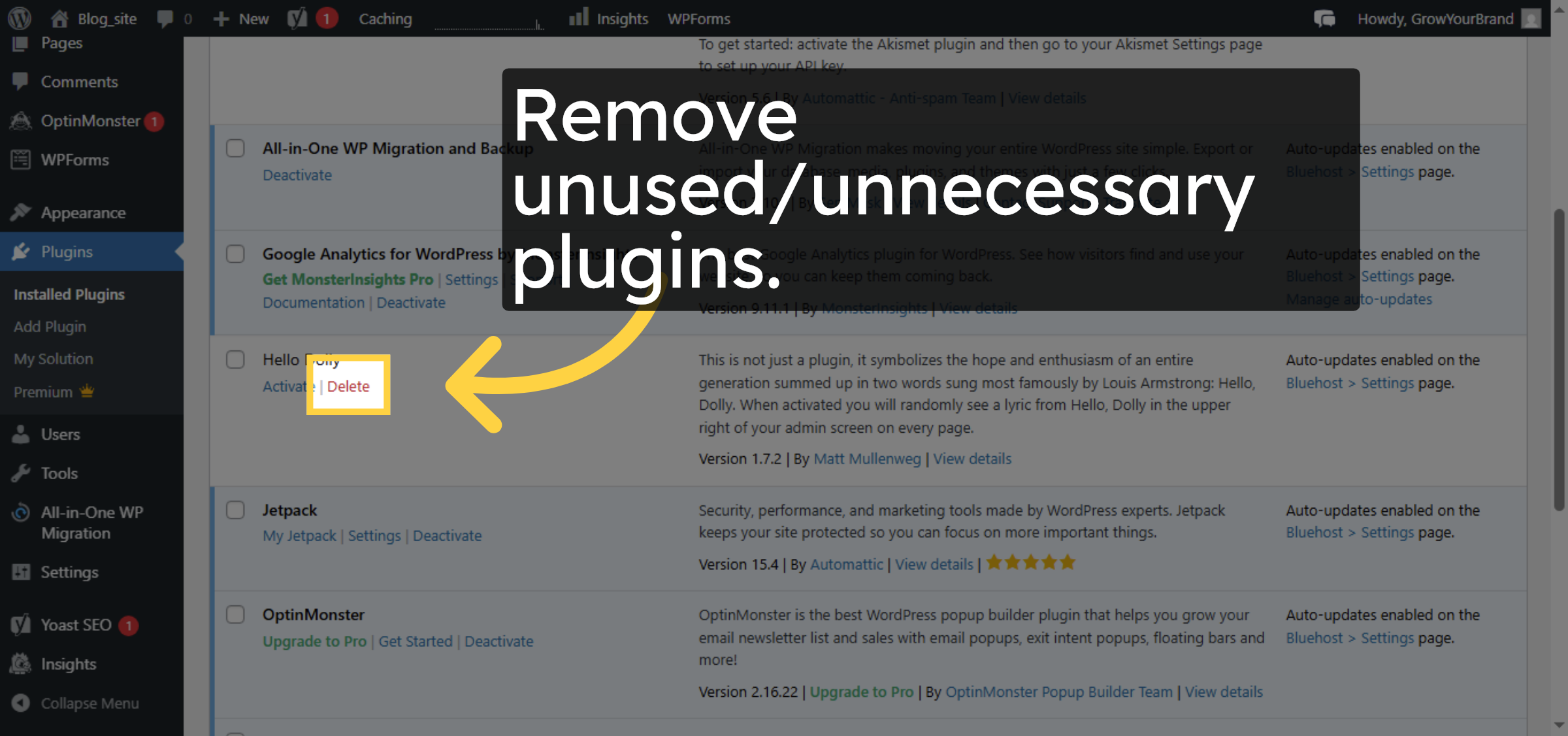
13. Delete Unused Plugin
14. Another Method
Method 2 : fix Slow WordPress Admin Dashboard through wp-rocket plugin“Using the WP Rocket plugin, we can improve and fix a slow WordPress Admin Dashboard by optimizing the database, controlling the Heartbeat API, and reducing server load.”
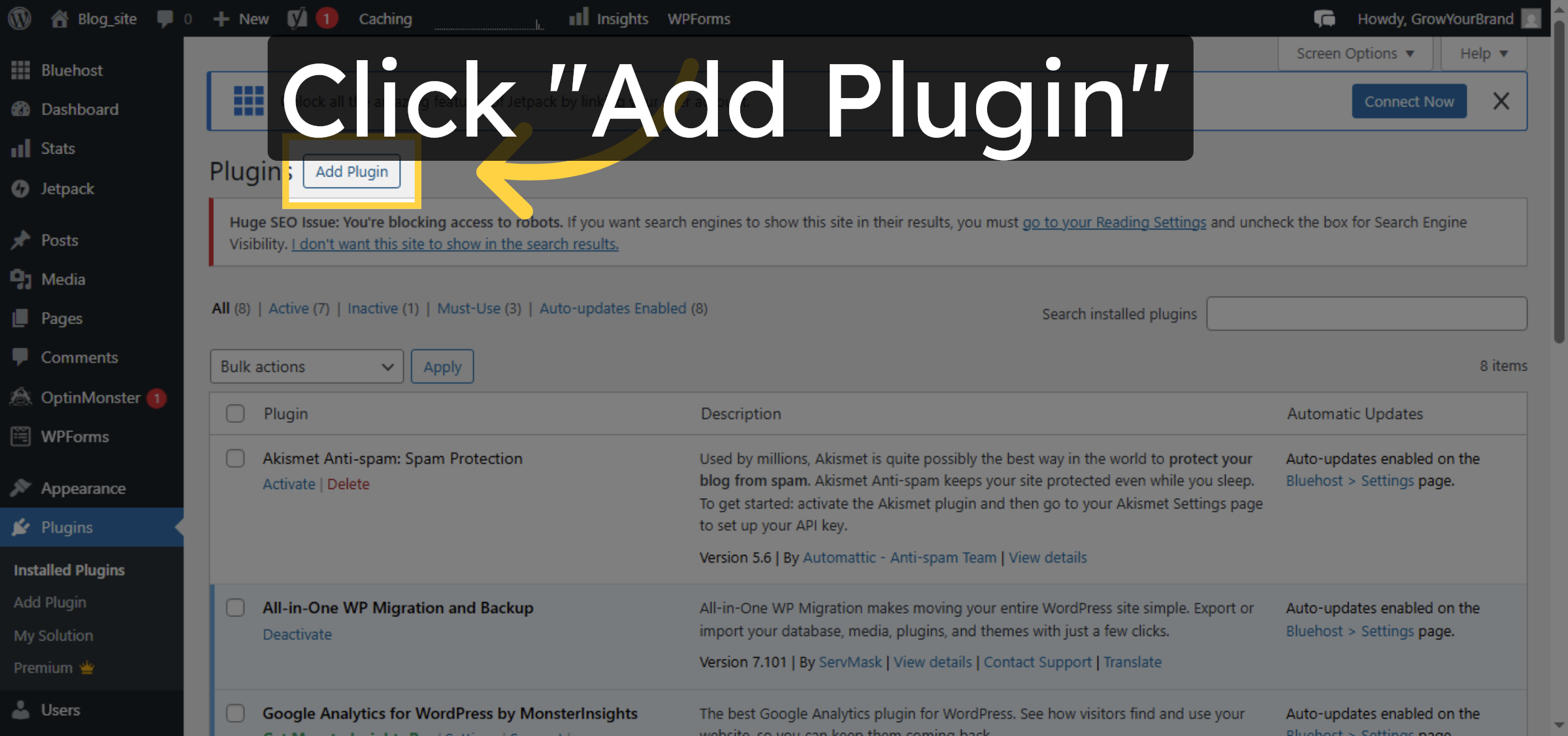
15. Add New Plugin
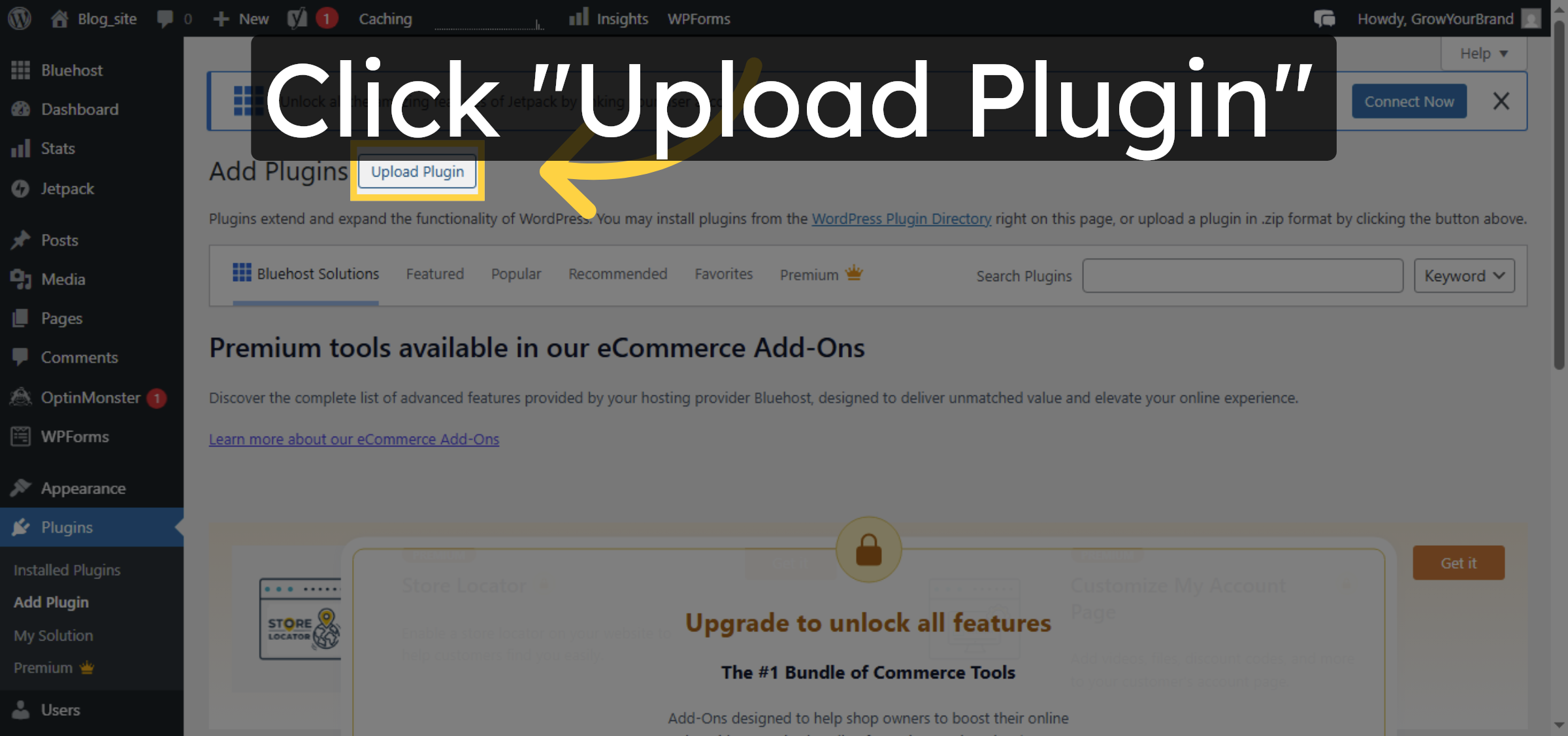
16. Upload Plugin File
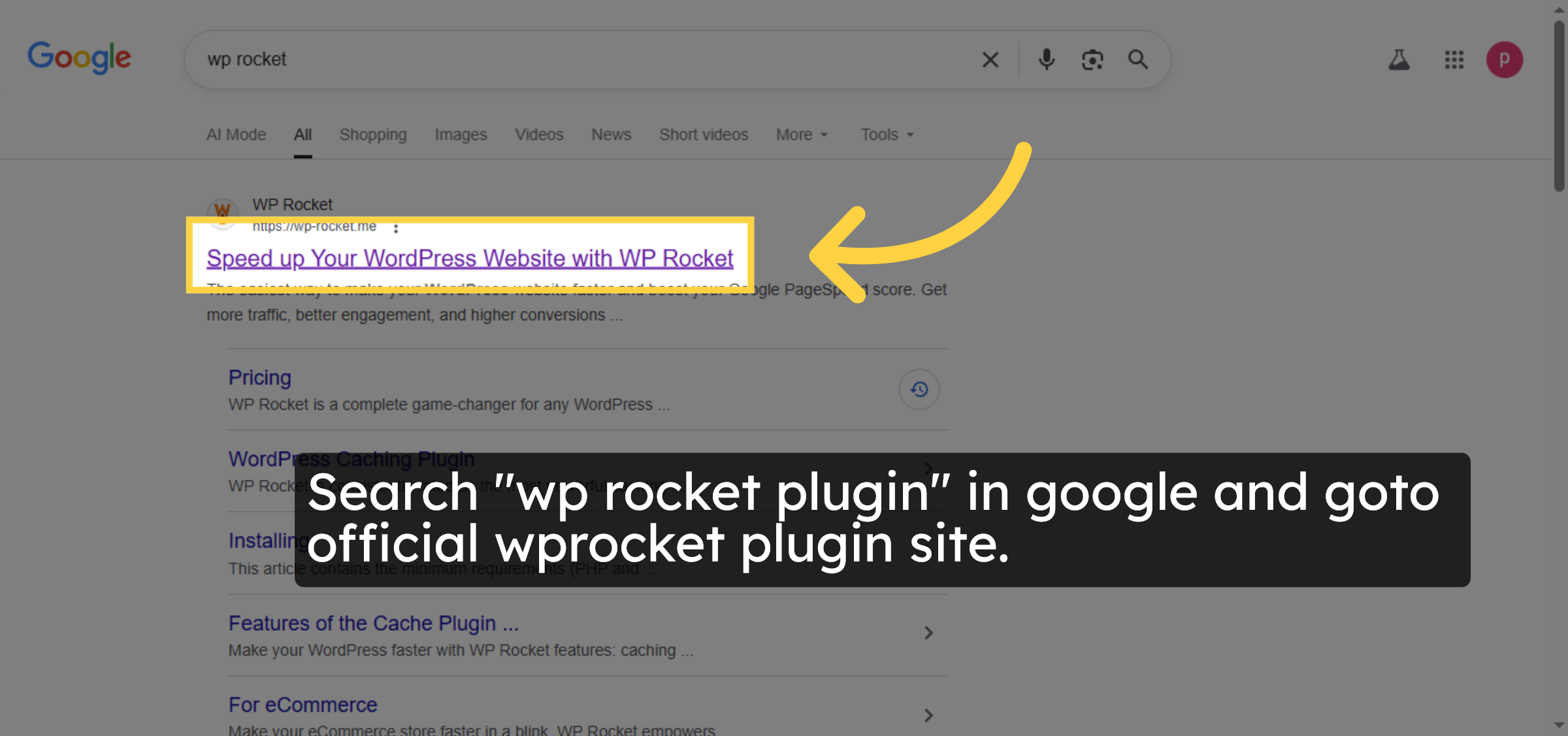
17. Select WP Rocket Website


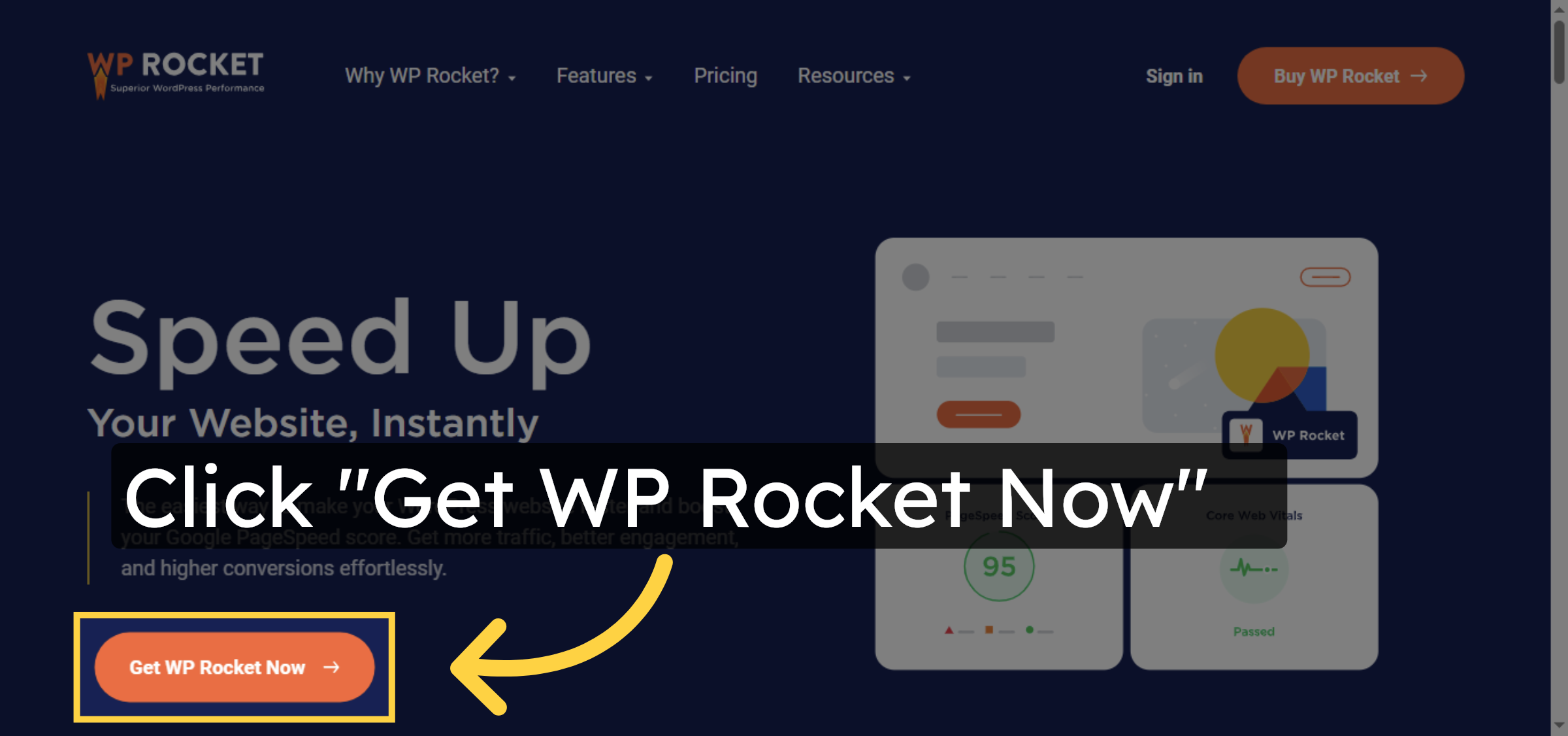
18. Get WP Rocket Plugin
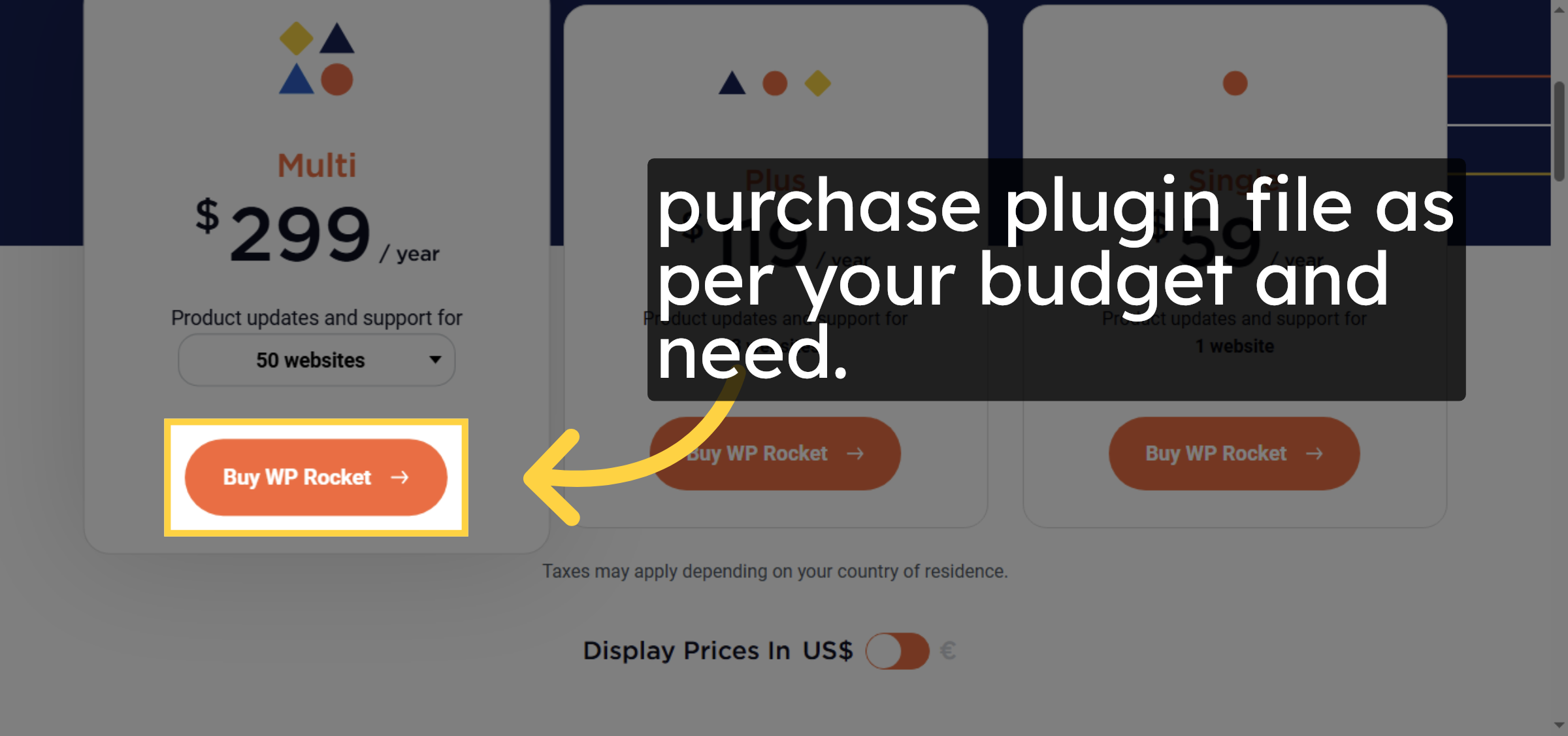
19. Purchase WP Rocket
20. Install Plugin
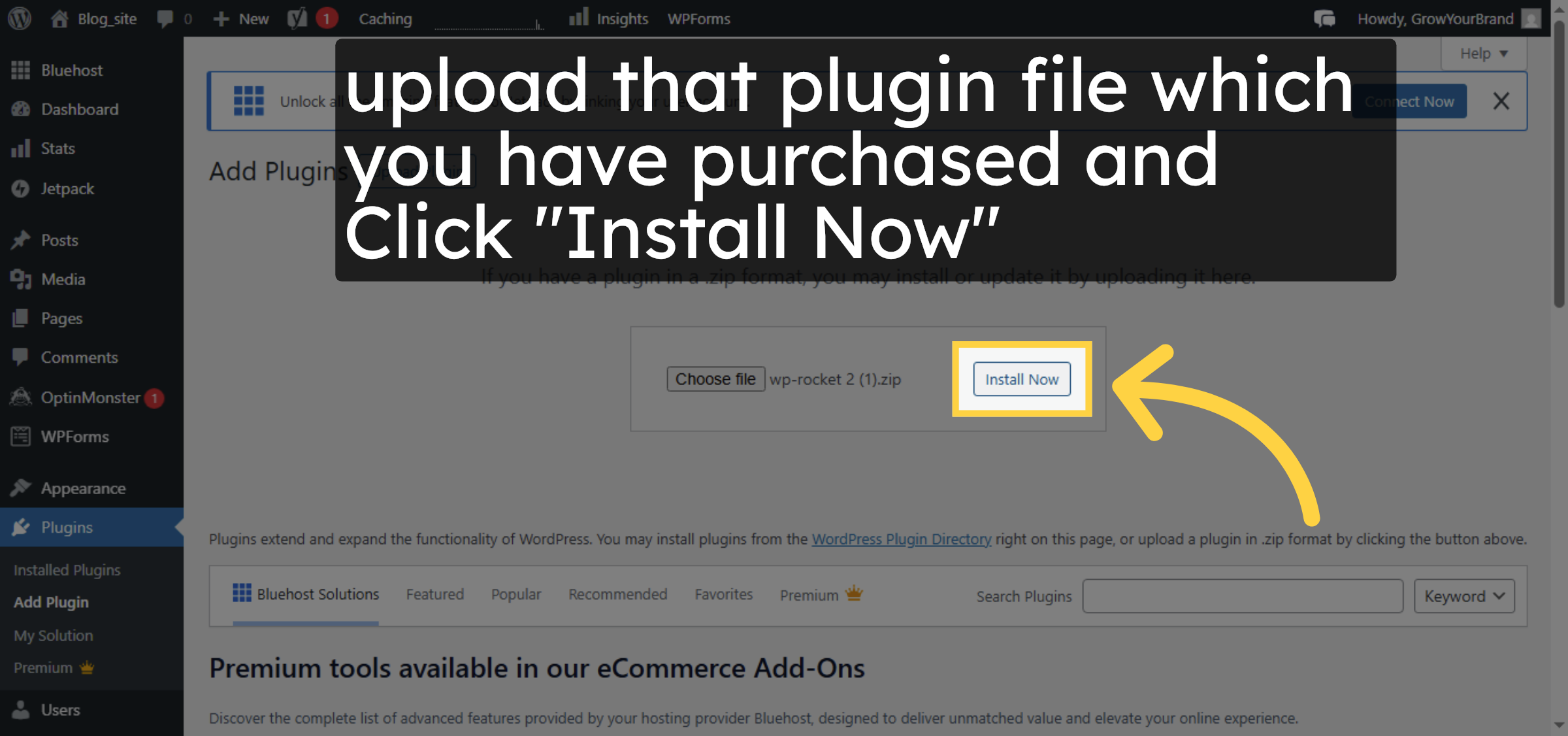
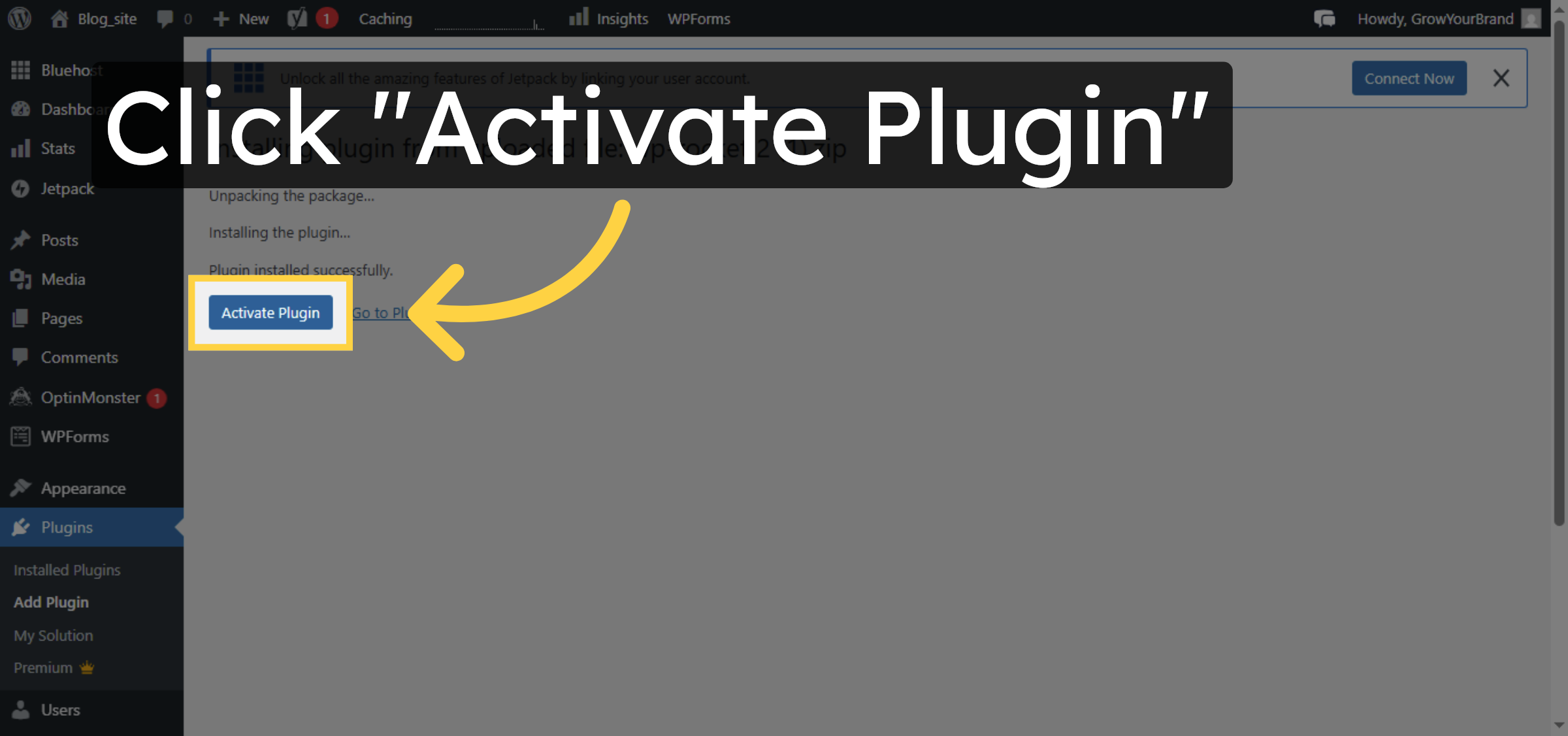
21. Activate Plugin
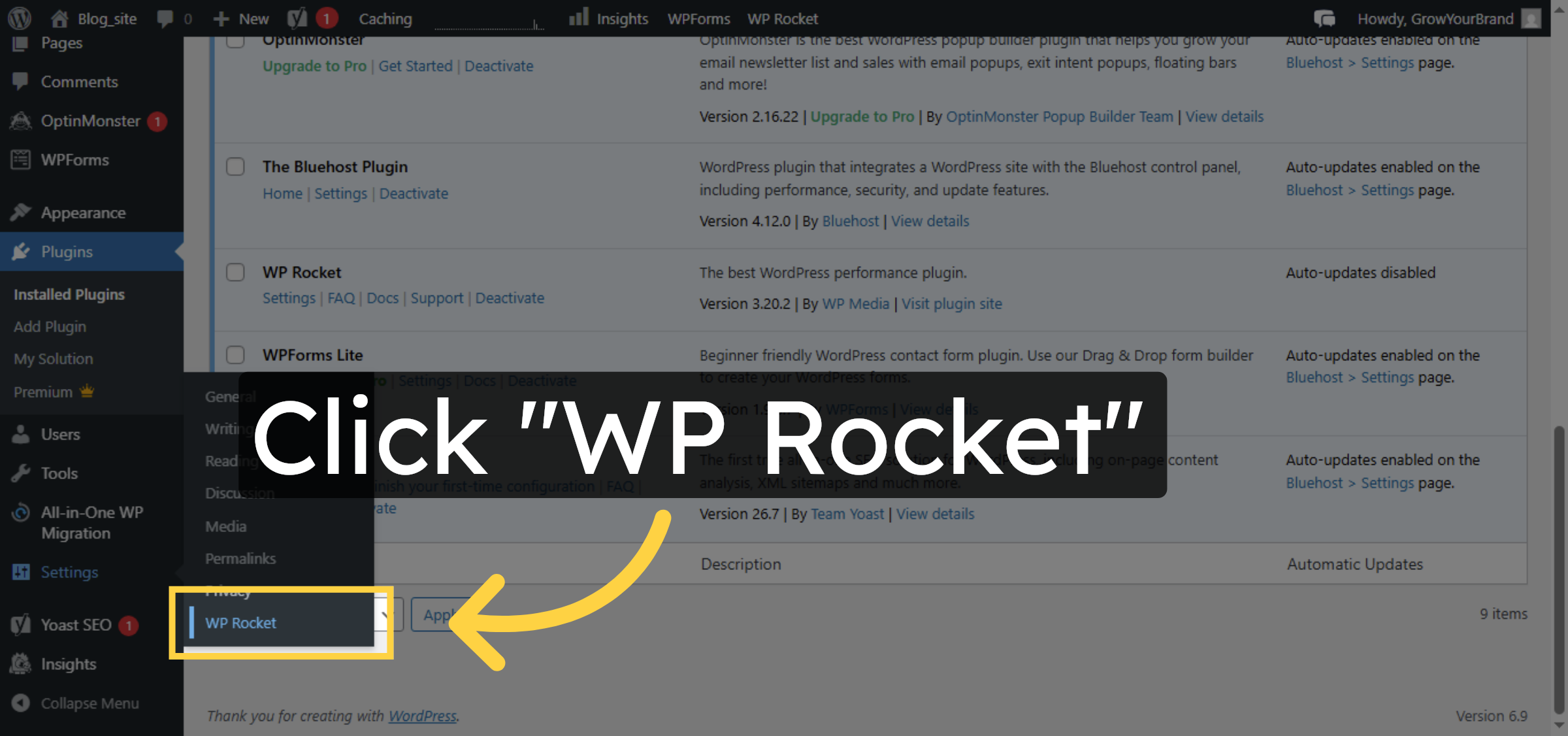
22. Open WP Rocket Settings
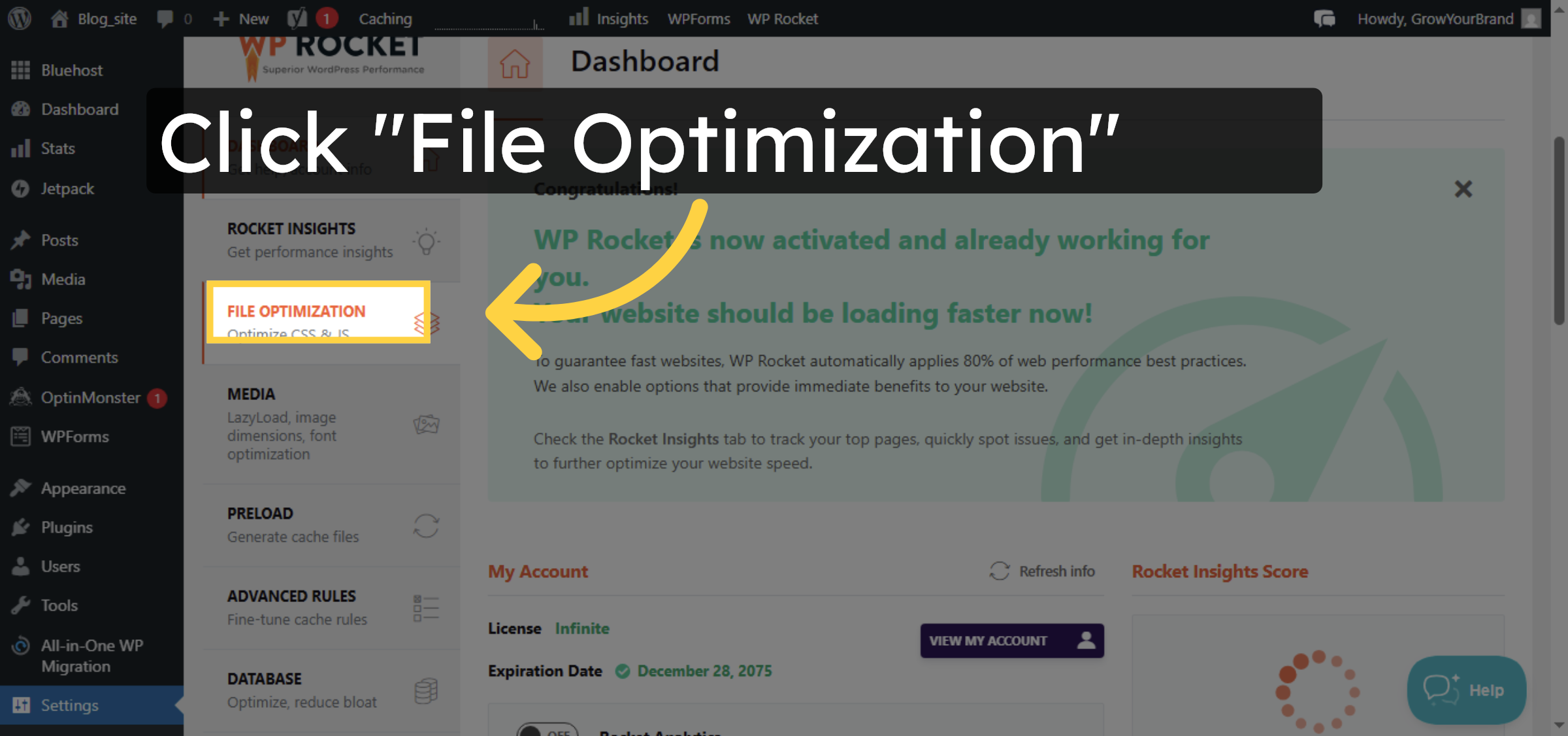
23. Access File Optimization
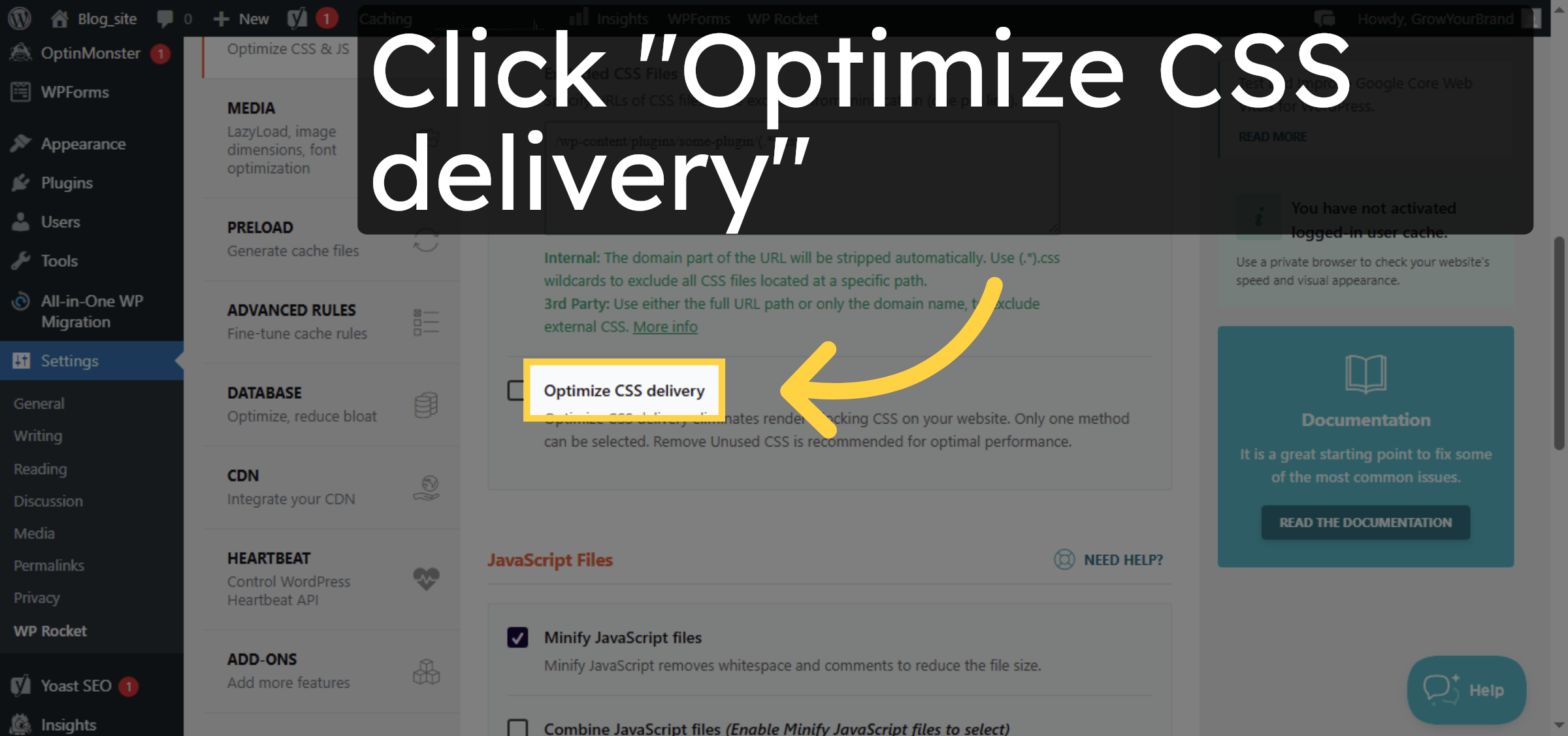
24. Enable CSS Optimization
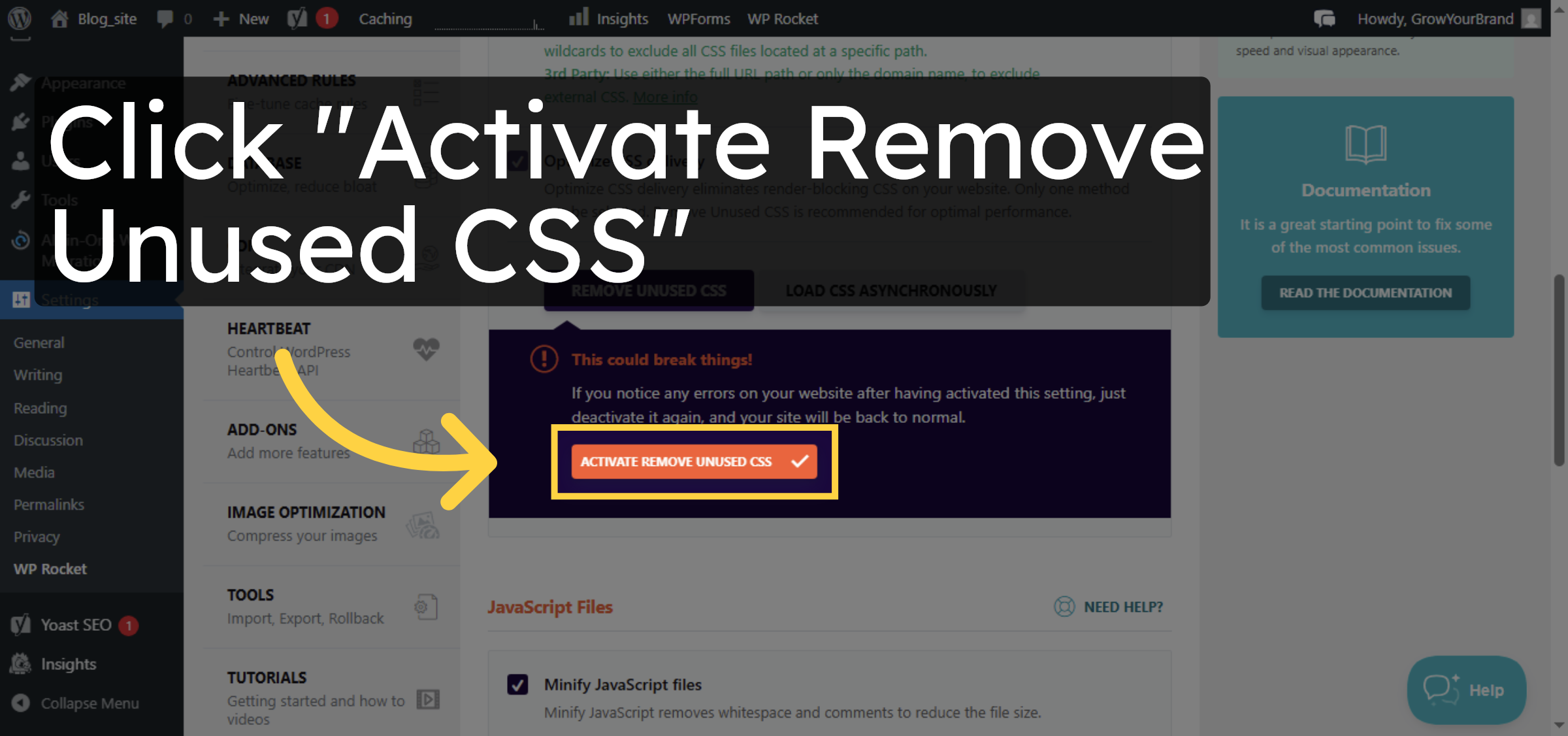
25. Activate Remove Unused CSS
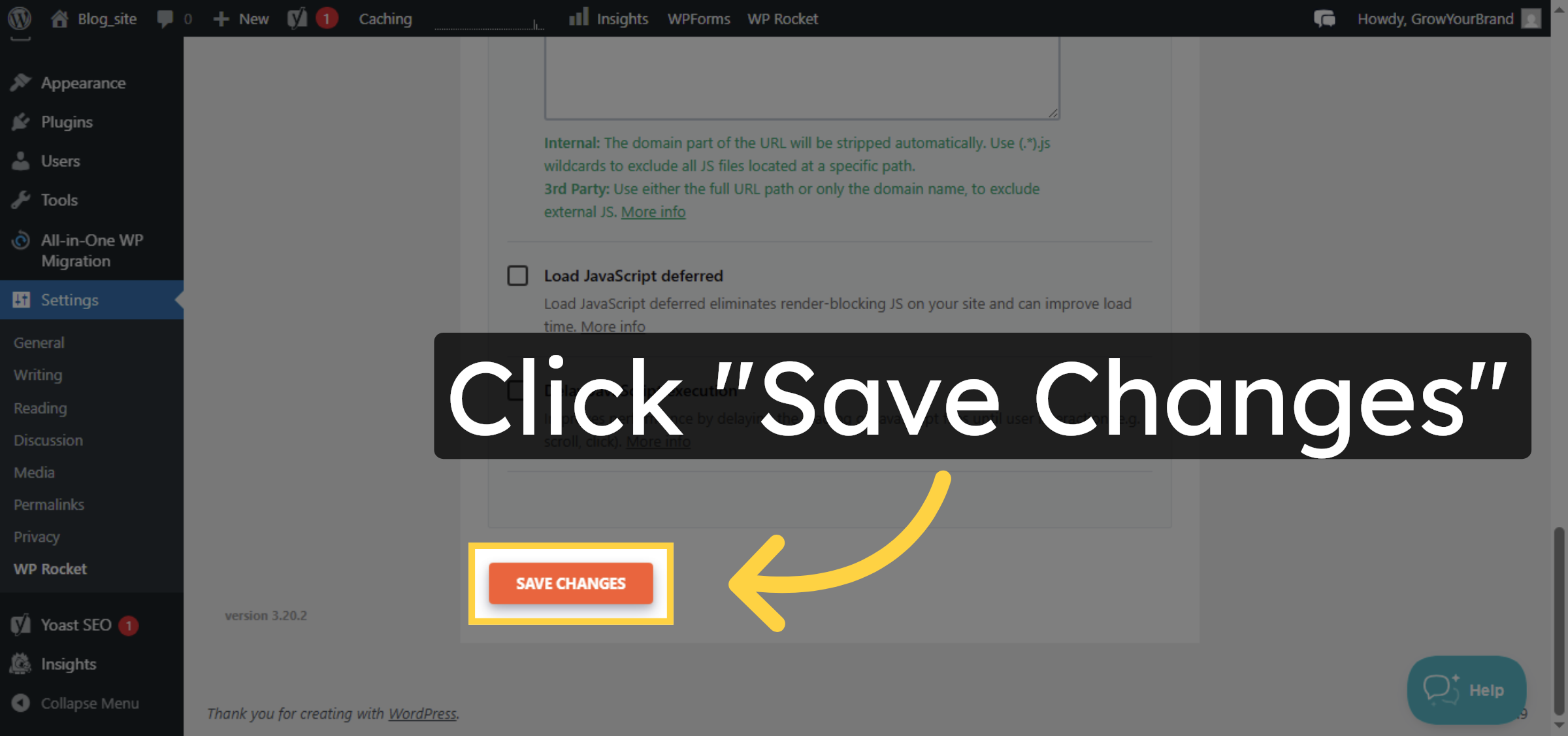
26. Save CSS Settings
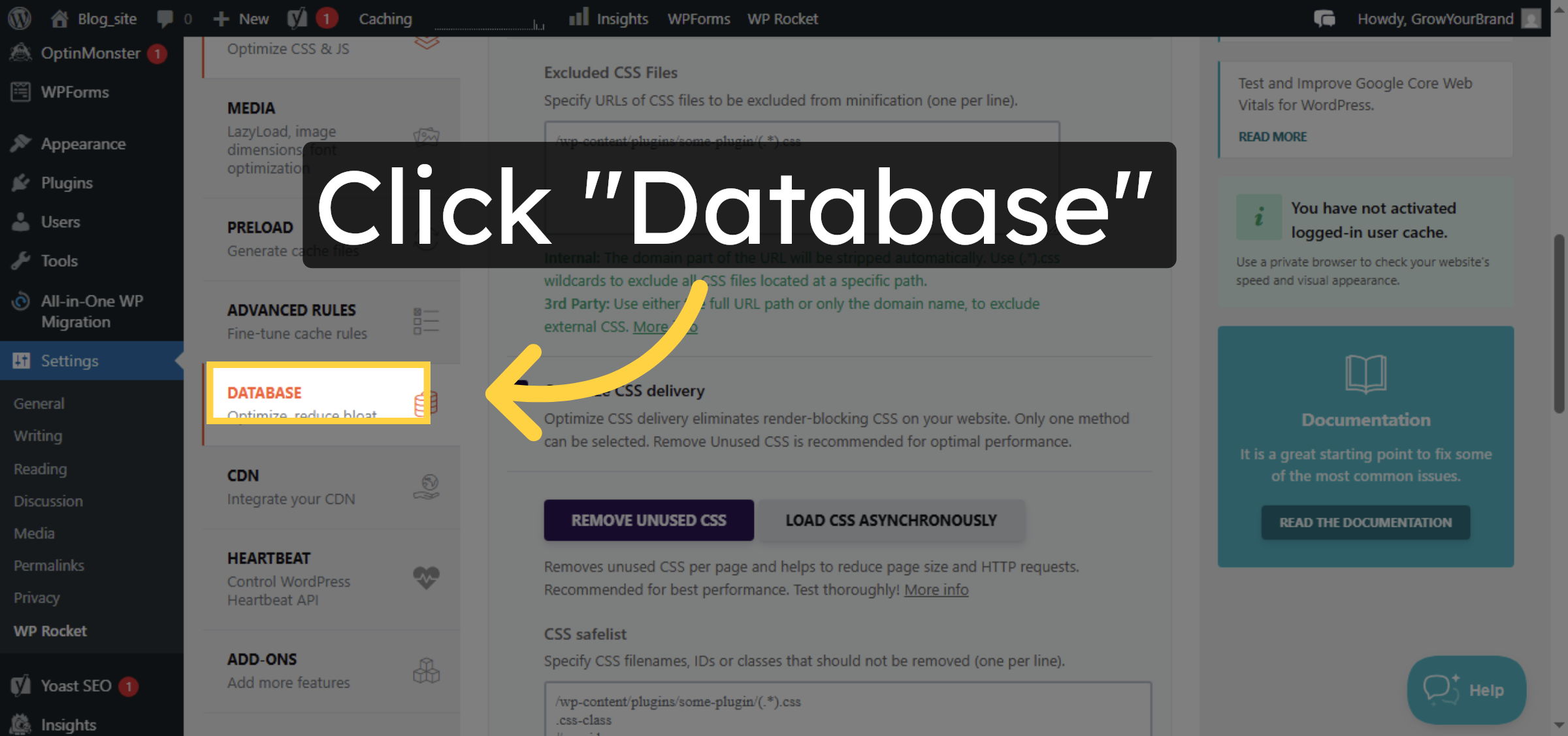
27. Open Database Settings
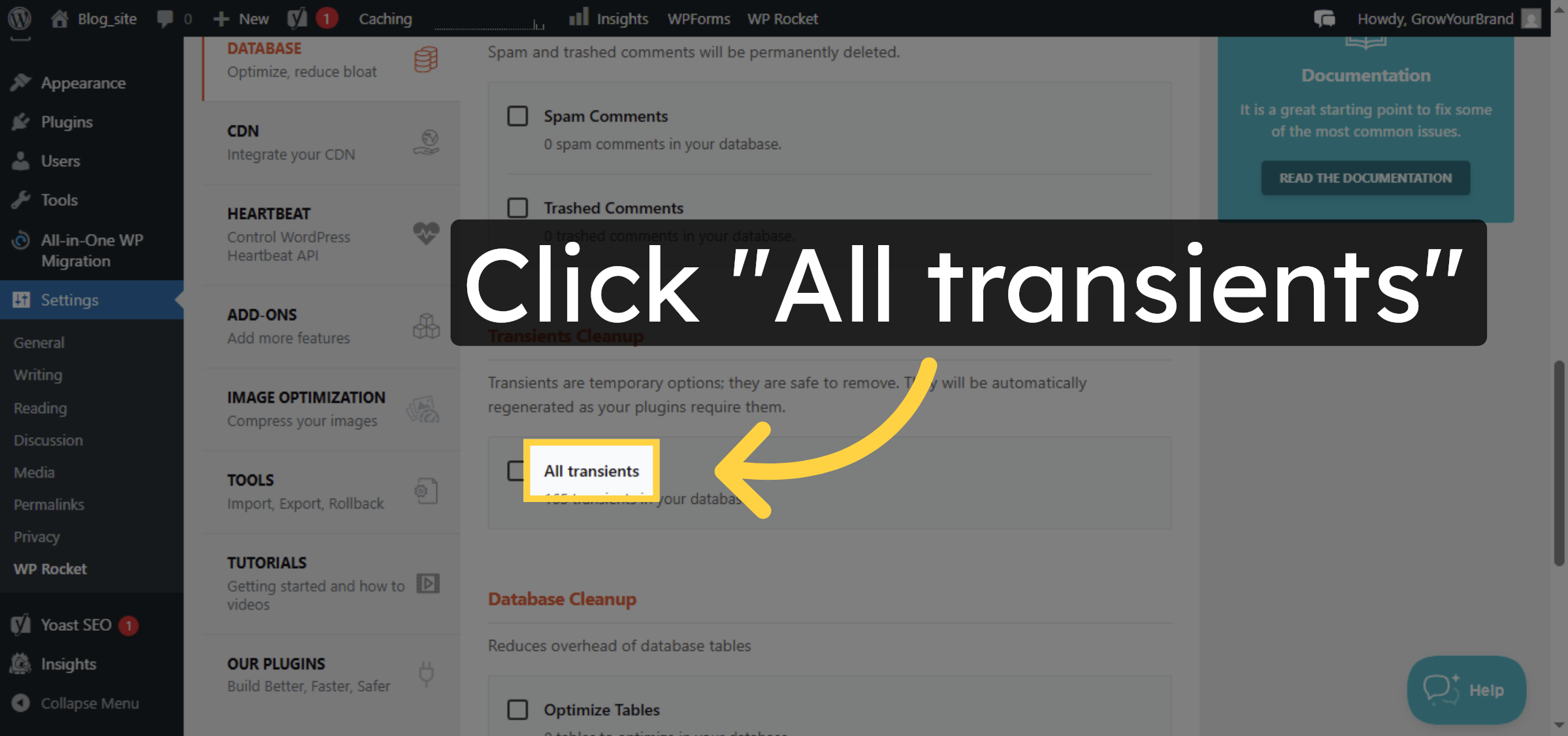
28. Select All Transients
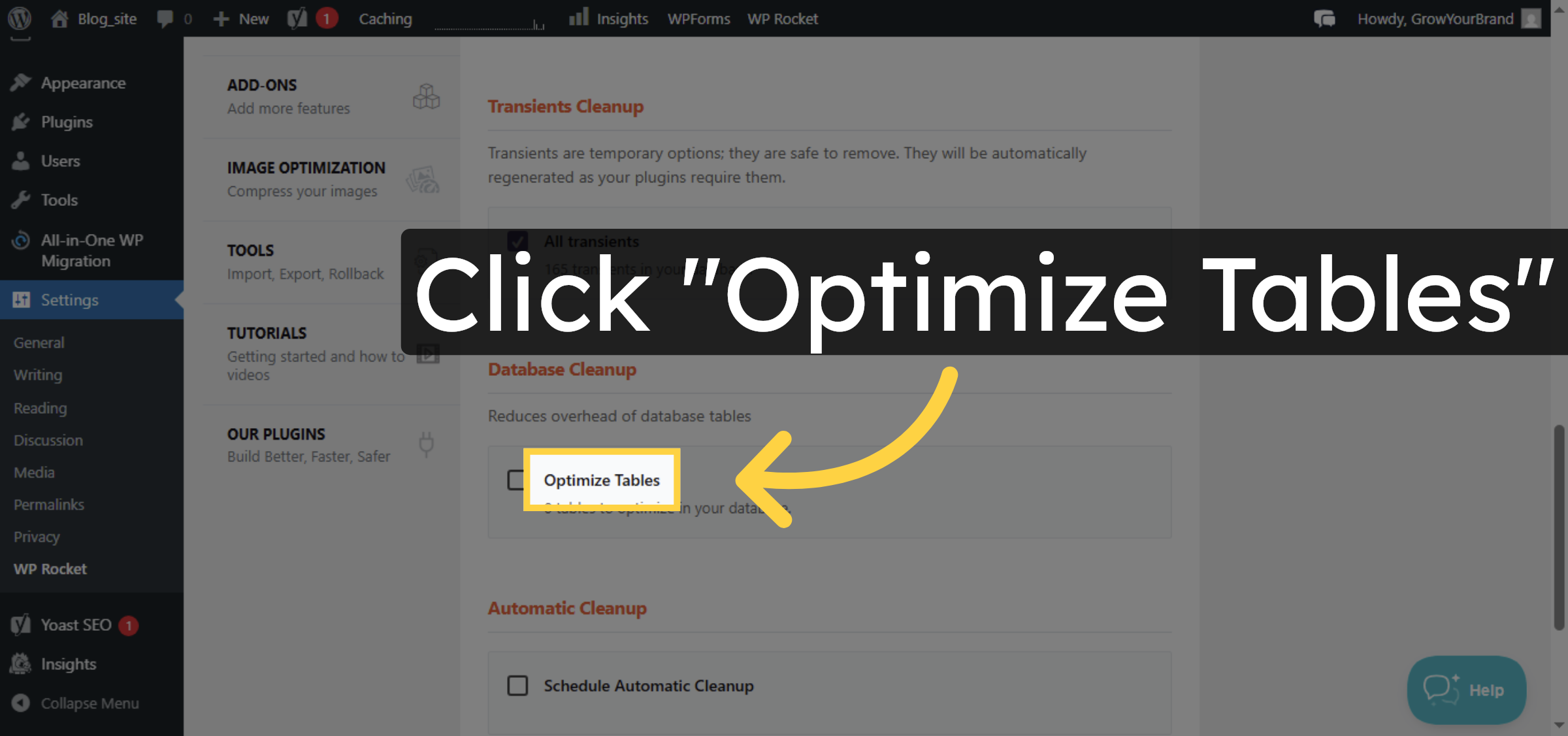
29. Optimize Database Tables
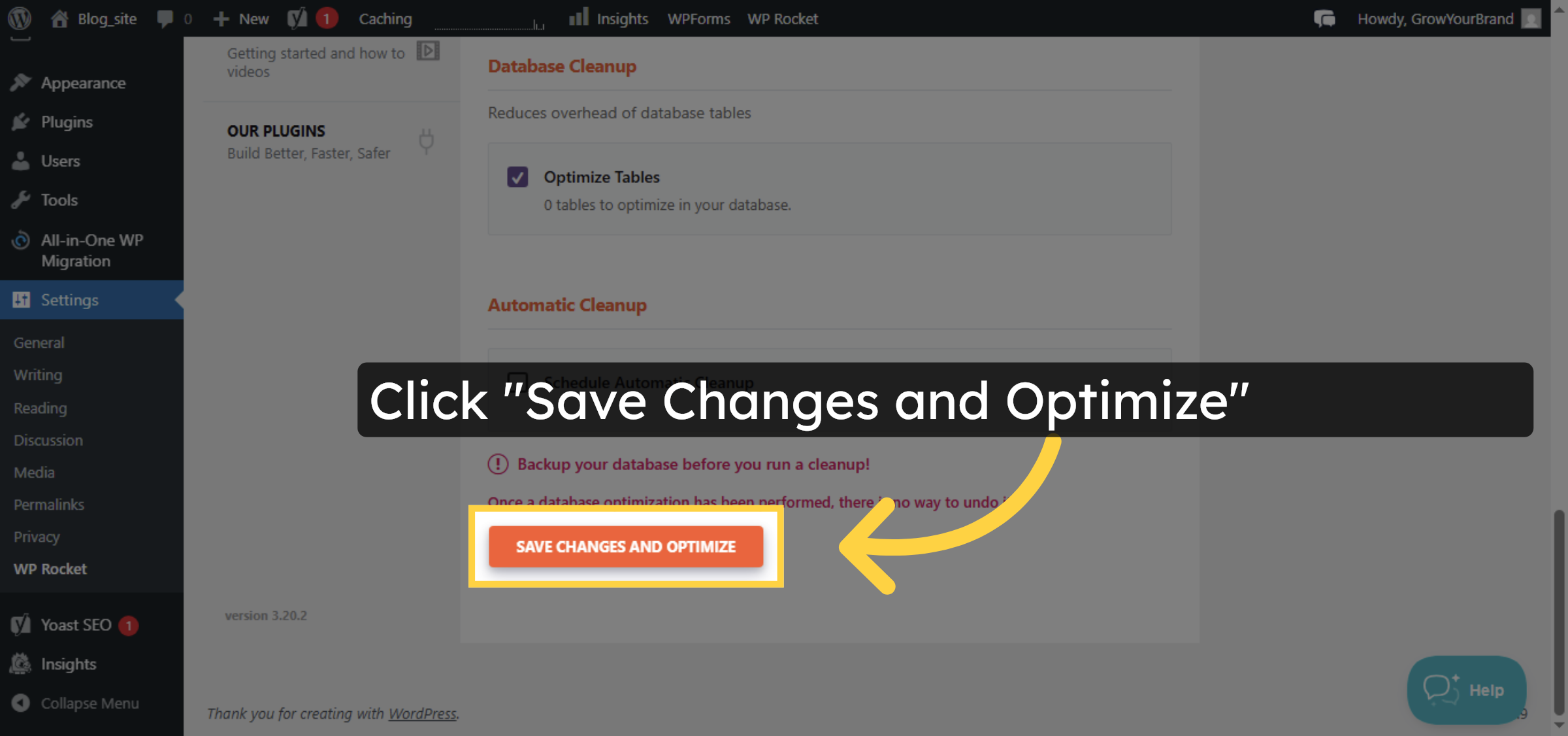
30. Save And Optimize Database
31. Problem fixed
Conclusion
By following the steps in this guide, you have successfully resolved the slow WordPress admin dashboard issue on Bluehost hosting. Updating the PHP version, removing unused themes and plugins, and optimizing the website using performance tools helps reduce server load and improve dashboard responsiveness. Regular optimization and maintenance can help keep the WordPress admin area fast and efficient.
-
Visit: https://www.woohelpdesk.com
-
Call Us Toll-Free: +1 888 602 0119 (US & Canada)
-
Get professional support for: fixing slow WordPress admin dashboard issues, Bluehost performance optimization, PHP configuration, database optimization, and WooCommerce solutions



