Google Business Profile Suspended? Here’s How to Fix It Fast
Table of Contents
- Introduction
- Why Is My Google Business Profile Suspended?
- Types of Google Profile Suspensions
- First Steps to Take After Suspension
- How to Reinstate Your Google Business Profile
- How to Prevent Future Suspensions
- Conclusion
Introduction
Imagine searching your business name on Google—and nothing shows up. No location pin. No star ratings. No phone number. It’s all gone. You check your account and see it: Google Business Profile Suspended.
This is a nightmare for any small business. Your customers won’t be able to find you if your profile is suspended. You lose traffic, calls, and trust—all at once.
Previously known as Google My Business, Google Business Profile helps with your internet visibility. It shows your location, hours, reviews, and contact info. When suspended, your listing disappears or becomes uneditable. This can cause a big drop in leads and sales.
Don’t panic, though. You can restore a suspended Google listing, and you’re not alone.
This guide will take you step-by-step through the entire process. Whether your listing was disabled by mistake or flagged for violations, we’ll help you get it back online.
We’ll help you recognize and prevent errors that lead to suspension. You’ll learn how to stay within Google’s rules and keep your profile safe.
Why Is My Google Business Profile Suspended?
Getting a “Google Business Profile Suspended” notice can be overwhelming. Google doesn’t always tell you the exact reason. But there are common triggers that lead to a suspended listing. Understanding them can help you fix a suspended Google listing faster and avoid future issues.
- Violation of Google’s Business Guidelines
For company listings, Google has stringent guidelines. If your profile breaks these rules, it may get suspended.
Some common violations include:
- Adding fake or misleading business names
- Using virtual offices or P.O. Boxes as your company’s address
- Choosing wrong business categories
- Creating multiple listings for the same location or service
- Posting false or keyword-stuffed descriptions
Even small mistakes can raise red flags. Google uses automated systems to check listings. These systems flag anything that seems suspicious.
- Inconsistent or Incorrect Business Information
Google wants accurate and up-to-date details. You risk having your Google business profile suspended if your company name, address, or phone number (NAP) is incorrect.
Watch out for these issues:
- Business name doesn’t match your storefront or official documents
- Your address is incomplete or not a real location
- Phone number is missing or not working
- You change details too often within a short period
These may seem small, but they signal unreliability to Google.
- Keyword Stuffing in Your Business Name
Many businesses try to cheat the system by adding extra keywords. For example, naming your business “Joe’s Plumbing – Best Emergency Plumber in New York”. This is not permitted by Google.
Your profile should only contain your actual company name. Any extra words can cause your Google My Business to get suspended.
- Listing a Service Area Without Proper Address
Even if your firm is located in a service area, you still need a physical address. Google often suspends listings that hide their address or use co-working spaces.
Make sure to:
- Make use of an address where mail can be delivered.
- Avoid UPS stores, Regus offices, and similar setups
- Mark your listing as “Service Area Business” only if that applies
Failing to do this can get your Google listing disabled or flagged.
- Sudden Changes to Your Profile
Making too many edits in a short time can look suspicious. Changes like updating the name, category, phone number, or address all at once might trigger Google’s automated filters.
To stay safe:
- Make changes slowly and only when needed
- Always update your website and business documents to match
- Multiple Listings for the Same Business
Each location should only have one listing. Creating duplicates to get more visibility is a clear violation.
This often leads to:
- Hard suspensions (your profile is completely removed)
- Flagging as a spammy or fake business
Make sure only one active profile exists per business location.
Google doesn’t always explain the cause of the suspension. That’s why reviewing these areas is so important. The first step in resolving the issue is to understand why your Google Business Profile has been suspended.
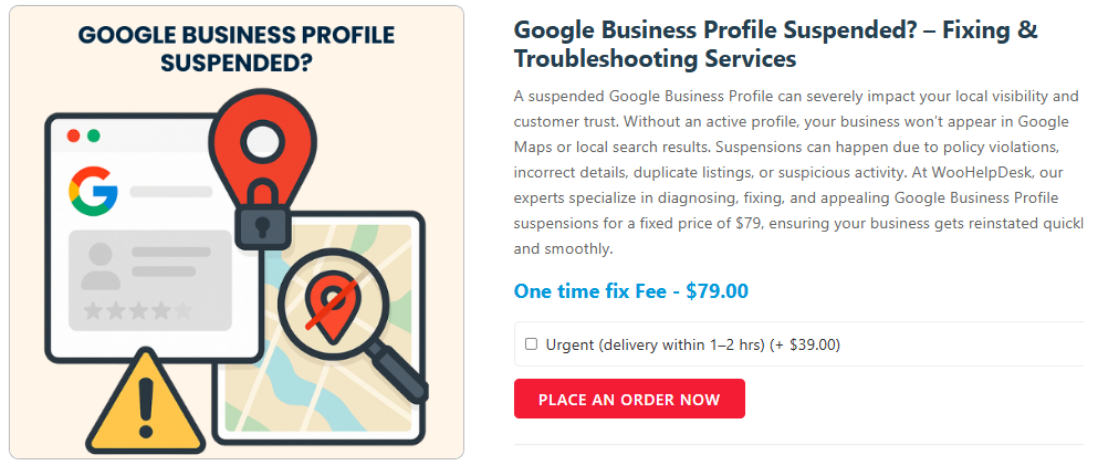
Types of Google Profile Suspensions
Not all suspensions are the same. The behavior of your suspended Google Business Profile indicates the type of suspension you are facing. Knowing the type helps you take the right steps to fix it.
There are mainly three types of suspensions you may face:
- Soft Suspension
If you have a soft suspension, your Google profile remains active. People can find your business listing, see reviews, and even call you. But you’ve lost control from your end.
You’ll see a red banner in your account that says “Suspended”. This means you can no longer manage or edit the profile.
Here’s what usually causes a soft suspension:
- Business name violations (e.g., keyword stuffing)
- Incomplete business info
- Wrong category selection
In most cases, your profile remains visible, but you can’t update or verify anything until it’s resolved.
- Hard Suspension
More serious is a hard suspension. Your Google listing has been completely disabled. Google Maps and search results no longer display it.
When this happens:
- Your business disappears from public view
- You get zero calls or directions from Google
- You must go through full reinstatement to return
Common causes of hard suspensions include:
- Fake or misleading business address
- Making use of a shared workspace or virtual office
- More than one listing for a single business
Hard suspensions affect your visibility and traffic. Fixing them requires strong documentation and a clear appeal.
- Verification Required (Not a True Suspension)
Sometimes Google flags your profile for re-verification. Google might prompt you to complete the verification process again. This is not a true Google business profile suspension, but it limits your profile functions.
Here’s why it might happen:
- Recent major changes (name, address, or phone)
- Changes to business categories
- Suspicious activity or login alerts
If you delay verification, your profile might later get suspended. Therefore, it’s critical to confirm immediately.
The first thing is to know what kind of suspension you are facing. A google listing disabled profile (hard suspension) needs more effort than a soft one. If you can identify the issue correctly, you’ll avoid wasting time on the wrong steps.
First Steps to Take After Suspension
Receiving the notice of suspension can be extremely upsetting. But don’t panic. The most important thing is to take the right steps quickly. Rushing or guessing can make things worse. This section will outline the precise steps you should take as soon as your Google Business Profile is suspended.
- Stay Calm and Avoid Making Quick Edits
It may be your initial impulse to make changes to your profile. Stop right there. Making sudden edits after suspension can confuse Google’s system more.
Avoid doing the following:
- Editing your business name or address
- Changing categories
- Deleting and recreating the listing
Google has already flagged your listing. Any changes now could delay or block reinstatement.
- Check the Suspension Message in Your Dashboard
Log in to your Google Business Profile. You should see a red or yellow banner across the top. This usually says “Suspended” or “Disabled”.
Click on the banner to see if more details are provided. In most cases, Google doesn’t say exactly what caused the issue. But you’ll still know your profile status and what type of suspension it is.
- Review Google’s Guidelines Carefully
Visit Google’s official business representation guidelines. Read every section. Most suspensions happen due to:
- Fake addresses
- Keyword stuffing
- Wrong categories
- Duplicate listings
Review your own profile and see if anything breaks these rules. Fixing these small issues before filing a request helps your case later.
Here’s the link to the official guidelines (you can add this as a hyperlink on your blog):
https://support.google.com/business/answer/3038177
- Gather Documents That Prove You’re a Real Business
Before filing a reinstatement, prepare your business documents. These assist Google in confirming the legitimacy of your company.
You may need:
- Utility bills with your business name and address
- Documents pertaining to business registration or licensing
- Pictures of your shop (with signs)
- A screenshot of your website showing the same address
Make sure all documents match the info in your profile.
If your company provides services (such as an electrician or plumber):
- Provide a lease, tax form, or utility bill
- Add photos of your vehicle with branding (optional but helpful)
- Avoid Deleting the Listing
Some business owners delete their suspended listing thinking they can start over. This is a big mistake. Google keeps records. Deleting your profile does not clear the suspension history.
Instead, keep the listing as it is. Follow the right steps to reinstate it properly.
- Note Any Recent Changes You Made
Try to remember any updates you made in the last few days. Did you:
- Change your address?
- Add keywords to your name?
- Edit your phone number or category?
Google may have flagged the listing based on those changes. Write down what you changed. You’ll need this info when filling out the reinstatement form.
These actions will get you ready for the most crucial stage, which is to restore your suspended Google Business Profile.


How to Reinstate Your Google Business Profile
So your profile is suspended. You’ve taken the first steps. Now it’s time to get your listing back online. This section will walk you through the process of restoring your Google Business listing.
It’s important to follow each step carefully. A rushed or weak request can get denied. Google reviews every appeal manually, so it must be done right.
Step 1: Review and Fix Any Obvious Issues
Before you send your reinstatement form, double-check your profile. Look for anything that breaks Google’s rules.
Common problems include:
- Stuffing keywords into the company name
- Office addresses that are shared or fake
- Incorrect service locations or categories
- Several listings for the same address
Navigate to the dashboard for your Google Business Profile. Anything that seems suspicious should be removed. Be honest and clean up your listing before you submit your appeal.
Step 2: Gather Proof of Business Ownership
Google wants to confirm that your business is real. To do that, you must provide clear and matching documents.
Examples of what you would require are as follows:
- A recent utility bill with the name and address of your company
- A tax registration or company license
- If your company has a physical presence, a leasing agreement
- Photos of your storefront that are clear and have permanent lettering
- Screenshots of your website showing the same name and address
If your company provides services, such as landscaping or plumbing:
- Use a home address that matches your legal documents
- Add photos of branded vehicles or uniforms (optional but helpful)
- Don’t hide your address unless you qualify as a service-area business
All submitted documents should match the exact name and address on your Google profile.
Step 3: Go to the Reinstatement Request Form
Once your listing is clean and you’ve gathered proof, visit Google’s official form:
Form for Restoring a Google Business Profile
The Google account that controls the profile must be logged in.
Pay close attention to each question. Give a truthful and concise response.
Step 4: Fill Out the Form – Step by Step
Here’s how to fill out the reinstatement form properly:
- Select the suspended profile
- Choose the exact listing from your account.
- Confirm your business info is correct
- Verify that every detail corresponds with your documentation.
- Describe what your business does
- Write a simple, honest description.
Example: “We are a local HVAC company serving homes in Dallas, Texas.”
- Write a simple, honest description.
- Explain any recent changes
- Be transparent about updates you made.
Example: “We updated our phone number and fixed the business category.”
- Be transparent about updates you made.
- Attach documentation
- Upload your files as proof of ownership.
- Make sure everything is easy to read and clearly labeled.
- Write a polite and clear appeal message
Use this format:
“Hello Google Team,
Our business profile was recently suspended. We reviewed all Google guidelines and fixed the issues. We’ve attached the required documents below. Please let us know if anything else is needed. Thank you.”
Avoid long stories or blaming Google. Keep it short, professional, and respectful.
Step 5: Submit and Wait
You will receive a confirmation email after submitting the form. Google will review your case manually.
Average response time is 3–7 business days. Sometimes it may take longer, depending on volume.
Do not submit multiple forms. It can slow down your case or cause confusion.
While waiting:
- Do not edit your profile
- Do not create a new listing
- Monitor your email for updates from Google
Step 6: Respond to Any Follow-Up Requests
In some cases, Google might ask for more details. If this happens:
- Respond quickly
- Be clear and polite
- Attach any new documents they ask for
If your reinstatement is approved, your listing will return to Google Search and Maps. You’ll regain full access to your profile.
Step 7: What to Do If Your Request Is Denied
Sometimes, Google may reject your appeal. If that happens:
- Double-check all documents
- Review the business profile again
- Make any final corrections
- Resubmit the form with a better explanation
In the Google Business Profile Help Community, you may also seek assistance.
Reinstating a suspended Google listing takes patience and care. However, you may increase your chances of getting your business back online by following this methodical strategy.
How to Prevent Future Suspensions
Once you’ve recovered your profile, your next goal is to keep it safe. A second Google business profile suspension can be harder to reverse. That’s why it’s smart to follow best practices from the start.
Here’s how to protect your listing and avoid getting Google My Business suspended again.
- Follow Google’s Business Guidelines at All Times
Google expects all profiles to follow its quality guidelines. Even small violations can trigger a suspension.
To stay compliant:
- Only use your real business name
- Never add keywords or extra phrases to the name
- Choose the correct business category
- Don’t list a location you don’t actually operate from
- Avoid using P.O. Boxes, virtual offices, or co-working spaces
Visit Google’s official policy page often. Make sure you stay updated with any changes.
- Keep Your Information Consistent
Everywhere you go, your company’s name, address, and phone number (NAP) should be the same.
Check these:
- Google Business Profile
- Website Contact Page
- Local directories (like Yelp, Bing, Facebook)
If Google finds mismatched info, it may see your listing as untrustworthy.
- Avoid Making Frequent or Major Edits
Making too many changes in a short time can confuse Google’s system. It may flag your profile for review.
Here’s what to avoid:
- Changing both your name and address simultaneously
- Changing business hours every few days
- Switching categories too often
Make updates only when needed. If changes are required, space them out.
- Don’t Create Multiple Listings for the Same Business
Many business owners create duplicates to reach more customers. But Google sees this as spam.
Stick to one profile per location. Use the service-area function if you provide services in more than one area.
- Monitor Access to Your Google Business Profile
Access should only be granted to reliable team members. If someone makes unauthorized edits, it can trigger suspension.
To manage access:
- Log in and go to “Users”
- Remove old employees or unknown users
- Keep your account secure with two-factor login
- Keep Your Profile Active and Updated
Google favors active, well-maintained profiles. Keep yours up to date.
Here’s how:
- Respond to reviews quickly
- Post regular updates or offers
- Add new photos every few weeks
In addition to increasing trust, an active profile lowers the likelihood of being detected.
You can prevent bans in the future and increase your visibility over time by doing these things. Treat your Google Business Profile like your front door online. Make sure it’s up to date, active, and legal.
Conclusion
Your online shop is your Google Business Profile. When it gets suspended, your visibility and trust take a hit. However, you are not alone in the reinstatement process. At WooHelpDesk, we specialize in helping businesses just like yours restore their online presence quickly and correctly. Whether your profile is hard suspended or flagged for review, our team knows how to fix it the right way. Don’t waste time guessing or risking another denial. Get expert help that works.
📞 Call WooHelpDesk now at +1 888 602 0119 (US & Canada)
Let’s restore your profile to its proper location on Google, where your clients can locate you.