How to Fix “Blocked Due to Other 4xx Issue” in Google Search Console
Table of Contents
- Introduction and Problem Overview
- What Does This Error Mean?
- What Are 4xx Errors in Google Search Console?
- Common 4xx Error Types You Should Know
- Where to See These Errors in Google Search Console
- What Is “Blocked Due to Other 4xx Issue”?
- Common Causes Behind “Blocked Due to Other 4xx Issue”
- How to Fix “Blocked Due to Other 4xx Issue” in Google Search Console
- Monitor Fixes and Prevent Future 4xx Errors
- Conclusion
Introduction and Problem Overview
Google Search Console (GSC) is one of the most important tools for website owners. It displays how well your website does in Google Search. More importantly, it helps you find issues that prevent pages from being indexed.
One of the newer issues that many site owners are seeing is:“Blocked due to other 4xx issue.”
This message appears under the Pages section in GSC, specifically in the Not Indexed tab. Your page won’t be indexed by Google if it can’t crawl it. A page will not show up in search results if it is not indexed. That means potential traffic and revenue are lost.
What Does This Error Mean?
The error means that Googlebot received a 4xx status code when trying to crawl a page. But instead of a clear message like “404 not found,” it saw something else—like a 403 (forbidden) or 401 (unauthorized). GSC simply logs it as “Blocked due to other 4xx issue.”
This makes it difficult to identify the issue without further investigation.
Why It Matters
If important product, blog, or landing pages are blocked, you’re losing visibility. This can:
- Lower your keyword rankings
- Drop your organic traffic
- Hurt your SEO performance over time
What Are 4xx Errors in Google Search Console?
Googlebot searches for legitimate answers when it scans your page. If a page responds with a 4xx error, it means something went wrong on your site’s end. These are called client-side errors, and they block Google from accessing the page.
In Google Search Console (GSC), these errors are now shown under the Pages section → Not Indexed tab. When a 4xx error is logged, Google won’t index that page. This leads to a drop in search visibility and traffic.
Let’s examine the most typical 4x errors that you may encounter.
Common 4xx Error Types You Should Know
There are several 4xx errors, but here are the most common:
- 404 Not Found – The page doesn’t exist or was deleted
This is the most common 4xx error. It means the URL no longer exists on the server. It could happen if the page was removed, renamed, or the link was mistyped. Google can’t find the content, so it skips indexing the page. - 403 Forbidden – The server blocks access to the page
This error indicates that people or Googlebots are unable to access the page. It could be caused by server rules, firewall settings, or plugin restrictions. Even if the page exists, Google can’t access it, which stops indexing. - 401 Unauthorized – Login is required to access the page
A 401 error means the page is protected behind a login screen. This is common for admin areas, membership pages, or private content. Googlebot can’t log in, so it treats the page as blocked and does not index it. - 400 Bad Request – The request is malformed or broken
This happens when something is wrong with how the request is sent to the server. It may be due to bad code, browser errors, or server misconfigurations. Google receives an invalid response and skips the page entirely. - 410 Gone – The page was removed and won’t return
A 410 tells Google that the page is intentionally gone forever. Unlike a 404, which might be temporary, a 410 is a permanent removal signal. Google usually removes these pages from its index quickly.
Each of these tells Google something different. However, they all prevent the page from being indexed.
Where to See These Errors in Google Search Console
To find 4xx-related indexing issues in Google Search Console:
- Google Search Console → Pages → Not Indexed
- Look for “Blocked due to other 4xx issue”
To view the impacted URLs, click on the problem.These are the pages where Google encountered one of the 4xx errors listed above.
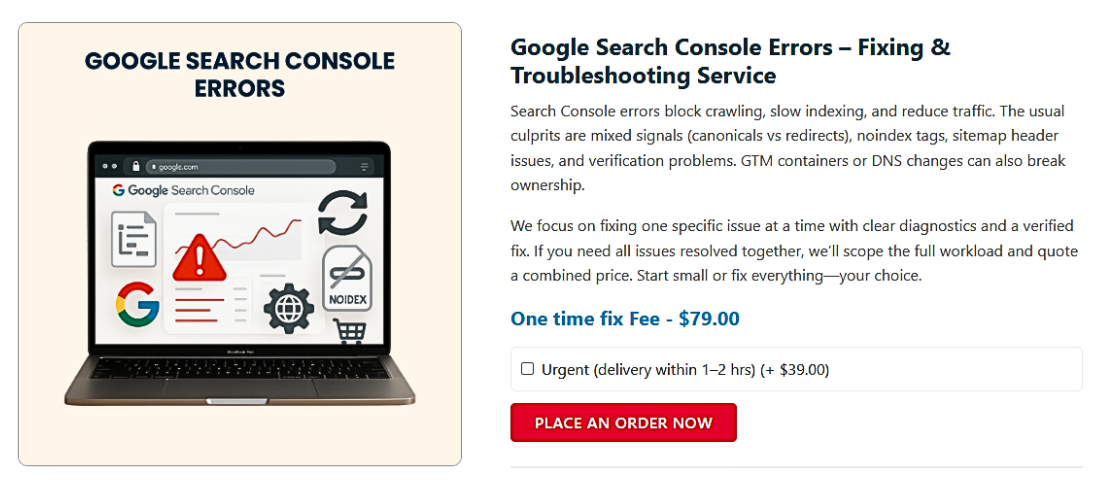
Sometimes, Google doesn’t tell you exactly which 4xx code it saw. It only shows that “another 4xx error” occurred. This makes the issue harder to diagnose without using other tools.
Why You Must Fix These Errors
These 4xx issues can lead to big SEO problems. Here’s why you shouldn’t ignore them:
- Google won’t crawl or index those pages
- Important content may vanish from search results
- Internal links to these pages may also break
- You may lose authority and ranking on certain keywords
If you’re running a WooCommerce store, missing product pages could hurt sales. For bloggers or service sites, your best posts or landing pages may disappear from Google.
What Is “Blocked Due to Other 4xx Issue”?
Google Search Console shows many types of page indexing issues. “Blocked due to other 4xx issue” is one of the less obvious notifications. This error can confuse even experienced site owners. This message does not specify the exact issue, in contrast to a typical 404 or 403 error.
Instead, it means that Googlebot tried to crawl a page but received a 4xx status code that isn’t directly labeled, like 404 or 403. Because Google can’t fully understand the response or doesn’t find the page valid, it decides not to index the page.
What Does “Other 4xx” Mean?
The “other” part simply means it’s not a common or clearly defined 4xx error. Google knows a 4xx happened but doesn’t name which one. The issue could be:
- A custom error set by your server or plugin
- A restricted URL requiring login
- A broken or malformed request
- A temporary redirect that’s misbehaving
- A firewall blocking Googlebot’s access
In many cases, the error comes from something you didn’t set intentionally—like a plugin rule, CDN restriction, or .htaccess rule.
How It’s Different From a Standard 4xx Error
Let’s say you remove a page. That usually returns a 404 error, and GSC labels it as such. But when Google can’t figure out exactly what type of error happened—or if it receives an uncommon 4xx response—it logs it as “Blocked due to other 4xx issue.”
The result is the same:
- The page will not be indexed
- It may disappear from search results
- Internal links to that page may show crawl issues
Why Google Uses This Message
Google wants to show there is a problem, even if it’s unclear. Instead of marking the page as indexed, it flags it so you can take action. This gives you the chance to check your website and correct the issue before it affects your traffic.
Common Causes Behind “Blocked Due to Other 4xx Issue”
Understanding what triggers the “Blocked due to other 4xx issue” is the first step to fixing it. This error doesn’t give a direct explanation, which makes it harder to resolve without checking several areas
Let’s go over the most common reasons this issue appears in Google Search Console.
- Security Plugins Blocking Googlebot
Many WordPress sites use security plugins to block harmful traffic. Tools like Wordfence, iThemes Security, or similar can sometimes mistakenly block Googlebot. This causes pages to return a 403 (forbidden) or a custom 4xx status code.
These tools may think Google is a bot attempting to access restricted content. As a result, the plugin sends back a blocked request, even if the page exists.
Check your plugin settings and make sure Googlebot is whitelisted. Disable strict rules temporarily and test again.
- Firewall or CDN Restrictions (Cloudflare, Sucuri, etc.)
If you use services like Cloudflare, Sucuri, or hosting-level firewalls, these can block certain requests based on IP or user-agent.
Googlebot may get blocked if the firewall believes it’s a threat. This results in a 403 or other non-standard 4xx code being returned to Google. The page then fails to get indexed.
Make sure your firewall settings allow Googlebot and don’t block crawler traffic.
- Custom Rules in .htaccess File
Your .htaccess file controls access and redirects on your server. If misconfigured, it can return 4xx errors to search engines.
For example:
- Incorrect redirect loops
- IP or region-based blocking
- Denied access to certain folders
These hidden errors may block pages without showing clear messages. Before making any modifications, always make a backup of your.htaccess file.
- Login-Restricted or Private Pages
Pages that require login (401 errors) or are restricted behind a membership system can’t be crawled.
Examples include:
- Account pages
- Checkout or dashboard pages
- Private blog content or premium areas
Googlebot won’t have login access, so it sees a 4xx error and flags the page.
- Deleted or Moved URLs Without Proper Redirects
If a page is deleted or moved but not redirected, the server may return a 400 or 410 code instead of a 404.
These less common responses often confuse Google. It doesn’t know if the page is permanently gone or blocked.
How to Fix “Blocked Due to Other 4xx Issue” in Google Search Console
The “Blocked due to other 4xx issue” must be fixed step-by-step. Since Google Search Console does not tell you the exact 4xx code, you’ll need to investigate different areas of your site.
This section will walk you through every possible course of action. Even if you’re not technical, these steps are simple and effective.
Step 1: Find Affected Pages in Google Search Console
Start by identifying which pages are triggering the error.


- Go to Google Search Console
- Click on Pages in the left menu
- Go to the Not Indexed tab
- Look for “Blocked due to other 4xx issue”
To see all of the impacted URLs, click on the problem. Download the list so you can audit each page.
Step 2: Test URL Status with Online Tools
Check the HTTP status of each affected URL. Use tools like:
- httpstatus.io
- curl in browser or terminal
- SEO tools such as Ahrefs Site Audit and Screaming Frog
You’re looking for one of the following:
- 403 (Forbidden)
- 401 (Unauthorized)
- 400 (Bad Request)
- 410 (Gone)
- A non-standard or custom 4xx status
Knowing the exact response code helps identify the root problem.
Step 3: Disable or Adjust Security Plugins
Security plugins are often the cause of blocked Googlebot access.
If you use tools like Wordfence, iThemes Security, or All In One WP Security, follow these steps:
- Open the plugin settings
- Look for firewall or bot-blocking rules
- Whitelist Googlebot
- Disable rate limiting or aggressive crawl rules
After making changes, recheck the affected URLs using a header checker. If the response is now 200 OK, the issue is fixed.
Step 4: Review CDN or Firewall Settings
If you use Cloudflare, Sucuri, or your host has server-level security:
- Log into your CDN/firewall dashboard
- Check for blocked bot traffic or security events
- Add Googlebot IP ranges to the allowlist
- Set bot protection to Low or Off during testing
Sometimes CDNs may block crawlers based on patterns or country rules. Make sure that’s not affecting your URLs.
Step 5: Check .htaccess for Errors
Your .htaccess file can cause hidden access issues.
Common problems include:
- Redirect loops
- IP blocking rules
- Disallowed folders or file types
- Incomplete rewrite rules
To fix this:
- Backup your current .htaccess file
- Regenerate a fresh version via WordPress permalinks settings
- Or use plugins like Rank Math to edit `.htaccess** safely
After changes, recheck the status of your affected pages.
Step 6: Review robots.txt and Sitemap Entries
Although not directly linked to 4xx errors, your robots.txt file can restrict crawling.
Make sure it does not block the affected URLs. Also, ensure all valid pages are included in your sitemap.
You can test robots.txt in GSC or edit it through SEO plugins like Rank Math.
Step 7: Set Up Redirects for Missing or Moved Pages
If the issue is due to deleted or renamed pages:
- Set a 301 redirect to a relevant page
- Use a plugin like Rank Math or Redirection
- Avoid redirect chains or loops
Redirecting broken URLs tells Google where the content now lives. This helps regain index status faster
Step 8: Request Validation in GSC
Once all fixes are done:
- Go back to GSC
- Select the error group
- Click “Validate Fix”
Google will start rechecking your pages. It may take a few days to update the status.
Monitor Fixes and Prevent Future 4xx Errors
Fixing the “Blocked due to other 4xx issue” is not the end of your work. It’s critical to keep an eye on the solution and stop the problem from recurring. Regular site checks can help you avoid future errors and protect your search rankings.
Here are some tips for monitoring the fix and lowering the likelihood of further issues.
Monitor Validation in Google Search Console
After submitting your validation request in GSC, Google will begin reviewing your changes. It could take a few days to a few weeks to complete.
To monitor progress:
- Open Google Search Console
- Go to Pages → Not Indexed
- Find the issue labeled “Blocked due to other 4xx issue”
- Click on “Validate Fix” if not already done
- Check back regularly for status updates
If the validation passes, GSC will mark the issue as fixed. If not, the error may still exist or need further investigation.
Set Up Regular URL Checks
Regularly inspect your website with crawl tools. These tools help detect 4xx errors early.
You can use:
- Screaming Frog SEO Spider
- Ahrefs Site Audit
- Rank Math Analytics (Pro version)
- Google Search Console reports
Create a habit of scanning your site weekly or monthly. This way, you can catch errors before Google does.
Maintain Clean URL Structures and Redirects
Always update or redirect URLs when removing or renaming pages. Avoid broken links or pages that return 404 or 410 errors without a plan.
To prevent redirect issues:
- Use 301 redirects for moved or deleted content
- Avoid redirect loops or chains
- Keep your sitemap updated
Plugins like Rank Math or Redirection can help manage this process.
Keep Plugins and Security Settings Updated
Outdated security plugins or misconfigured firewalls can trigger 4xx errors. Keep all themes, plugins, and your WordPress core updated.
Also:
- Review plugin settings after updates
- Recheck firewall rules periodically
- After a security change, use crawl tools to test access.
Regular maintenance and proactive monitoring are essential. They keep your site crawlable, indexable, and healthy for long-term SEO success.
Conclusion
Technical errors like “Blocked due to other 4xx issue” can silently harm your website’s visibility. These issues often go unnoticed until rankings and traffic drop. If you’re unsure where the problem lies or need help troubleshooting deeper server or security settings, professional assistance can save time and prevent long-term SEO damage. At WooHelpDesk.com, we specialize in diagnosing and resolving search console errors that affect site performance. Whether it’s plugin conflicts, firewall settings, or indexing problems, our experts are ready to assist. Don’t let hidden crawl errors hold your site back. Reach out to our support team today at +1 888 602 0119 (US & Canada) and let’s get your website back on track and fully indexable by Google.