
How to Fix the “Are You Sure You Want to Do This?” Error in WordPress
Table of Contents
- Introduction
- What the “Are You Sure You Want to Do This?” Error Is
- What Causes of the “Are You Sure You Want to Do This” Error
- Impact of the “Are You Sure You Want to Do This?” Error
- How To Fix “Are You Sure You Want to Do This?” Error in WordPress
- Best Practices to Prevent the “Are You Sure You Want to Do This?” Error in WordPress
- Conclusion
Introduction
If you’ve ever encountered the “Are You Sure You Want to Do This?” error in WordPress, you’re not alone. This message can appear unexpectedly and often leaves users puzzled. It typically happens when you attempt certain actions in the admin area, such as updating a plugin or uploading a theme. This guide will help you understand the error, what causes it, and how you can prevent it in the future.
What the “Are You Sure You Want to Do This?” Error Is
The “Are You Sure You Want to Do This?” error in WordPress is a general warning. It commonly appears when you perform certain actions in the admin area. Unlike other WordPress error messages, this error does not provide a clear explanation. Rather, it just shows that something went wrong.
This message often relates to WordPress admin area problems and how WordPress handles authentication. WordPress verifies that a user’s actions are authentic by using security tokens known as nonces. If these tokens are missing or fail to validate, an error appears.
The error can be caused by a variety of issues. For example, WordPress plugin conflicts may prevent proper nonce verification. Outdated or incompatible themes can also lead to WordPress theme compatibility problems, which in turn trigger the error. Even uploading files that don’t fully transfer can result in a WordPress security token error.
In some cases, the error occurs because of expired or missing nonces, also known as a WordPress nonce verification failure. If WordPress can’t confirm the action is valid, it will display this error message.
Ultimately, the “Are You Sure You Want to Do This?” error indicates that WordPress cannot verify a specific action. It’s designed to protect your site from unauthorized changes, even though it can be frustrating to troubleshoot.
What Causes of the “Are You Sure You Want to Do This” Error
The “Are You Sure You Want to Do This?” error in WordPress is a common issue that can disrupt your workflow. This error typically arises when WordPress cannot verify a request due to various reasons. Understanding the causes can help in effectively resolving and preventing this error.
- Plugin Conflicts
Incompatible or poorly coded plugins often lead to WordPress plugin conflicts. When multiple plugins interfere with each other or with WordPress’s core functionality, it can prevent proper request verification, triggering the error.
- Theme Compatibility Issues
Themes that are outdated or not adhering to WordPress standards can cause WordPress theme compatibility problems. Such themes may disrupt the normal operation of WordPress, leading to verification failures and the subsequent error message.
- Incorrect File Permissions
Improper file or directory permissions result in WordPress permissions issues. When WordPress lacks the necessary permissions to access certain files, it cannot verify requests properly, causing the error to appear.
- Security Token Errors (Nonce Verification Failure)
WordPress uses security tokens called nonces to protect against unauthorized actions. An expired or invalid nonce leads to a WordPress security token error, resulting in a WordPress nonce verification failure and triggering the error message.
- Uploading Incorrect File Formats
WordPress may behave unexpectedly if you try to upload file formats that aren’t supported. WordPress may fail to process these files, leading to the error. Ensuring that all uploads are in supported formats is crucial.
- PHP Memory Limit Exhaustion
Exceeding the allocated PHP memory limit can lead to WordPress update error. When WordPress lacks sufficient memory to perform tasks, it may fail to verify requests, causing the error to manifest.
- User Role and Capability Issues
Misconfigured user roles can result in WordPress user role issues. If a user lacks the necessary capabilities to perform an action, WordPress cannot verify the request, leading to the error message.
Understanding these causes is essential for troubleshooting and preventing the “Are You Sure You Want to Do This?” error in WordPress. By addressing these issues, you can enhance your site’s stability and user experience.
Impact of the “Are You Sure You Want to Do This?” Error
The “Are You Sure You Want to Do This?” error in WordPress can significantly disrupt your website’s functionality and user experience. Understanding its impacts is crucial for effective troubleshooting and maintaining a seamless site operation.
- Disruption of Administrative Tasks: This error can prevent access to essential admin features, hindering tasks like updating plugins or themes. Such disruptions can delay critical site maintenance and content management activities.
- Interruption of Content Management: Encountering this error during content creation or editing can lead to loss of unsaved work, causing frustration and inefficiency for content creators and editors.
- Impediment to Plugin and Theme Management: The error may block the installation or activation of plugins and themes, limiting the ability to enhance site functionality or update its appearance.
- Negative User Experience: Site visitors may experience broken features or inaccessible content due to this error, leading to dissatisfaction and potential loss of audience trust.
- Security Vulnerabilities: Frequent occurrences of this error might indicate underlying security issues, such as WordPress authentication problems or WordPress permissions issues, potentially exposing the site to unauthorized access.
- Loss of Data: If the error occurs during data input or form submissions, it can result in the loss of important information, affecting both site operations and user interactions.
- Reduced Site Performance: Persistent errors can degrade overall site performance, leading to slower load times and decreased responsiveness, which can negatively impact search engine rankings and user retention.
- Complications in Site Updates: The error can obstruct the process of updating WordPress core files, plugins, or themes, leaving the site outdated and potentially incompatible with newer web technologies.
- Increased Maintenance Efforts: Regular occurrences necessitate additional time and resources for troubleshooting and resolving the error, diverting attention from other critical site development tasks.
- Potential Revenue Loss: For e-commerce sites, this error can disrupt transaction processes, leading to abandoned carts and a direct impact on sales and revenue.
How To Fix “Are You Sure You Want to Do This?” Error in WordPress
The “Are You Sure You Want to Do This?” problems in WordPress can be fixed with the help of this guide. This error is a generic WordPress error message that often appears in the WordPress admin area when something goes wrong. It usually means WordPress could not verify an action you tried to perform due to issues like expired login sessions, missing permissions, or security nonce failures.
Don’t panic; you can resolve this issue and restore regular functionality to your website by following the instructions below.
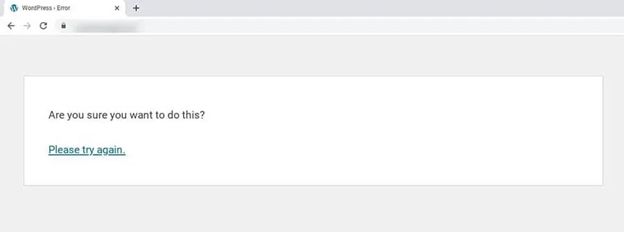
Step-by-Step Solutions for Fixing “ Are You Sure You Want to Do This?” Error in WordPress
Here are all of the main fixes (troubleshooting procedures) for the “Are You Sure You Want to Do This” problem in WordPress. Test your website after completing each step to determine whether the fault has been fixed.
1. Log Out and Log In (Refresh Your Session):
Log out of WordPress, then log back in using an administrator account. This ensures you have the proper user role to perform admin actions. Sometimes, a session timeout or WordPress authentication problem causes this error. A fresh login will reset your session and security tokens (nonces) and can fix permission issues. This simple step addresses any WordPress user role issues or expired sessions that might trigger the error.
2. Clear Your Browser Cache and Cookies:
Clear your web browser’s cache and WordPress cookies. Old cache data or an expired cookie can lead to unexpected behavior in the WordPress admin area. Removing these ensures your browser fetches fresh data and obtains a new login token. After clearing the cache and cookies, log in again and try the action. This often resolves strange WordPress error messages that result from stale data.
3. Clear WordPress Cache (if using a Caching Plugin):
If you have a caching plugin (e.g., WP Super Cache, W3 Total Cache) or your host provides caching, clear the WordPress cache from your site’s dashboard. Cached pages might be storing an expired security token or old nonce, causing the error. Clearing the cache forces WordPress to generate new cached files with up-to-date tokens, which can eliminate the error. After clearing the cache, refresh the page and attempt the action again.
4. Ensure Correct File Format for Uploads:


If the error appeared while uploading a theme or plugin, make sure you selected the correct file format. WordPress requires plugin and theme uploads to be in .zip format. For example, if you try to upload a plugin in .RAR or another unsupported format, WordPress will throw this error. Always upload the ZIP file for plugins/themes (not an extracted folder). Also, verify the file isn’t too large or beyond your hosting’s upload limits. Using the proper file type and size ensures WordPress can process the upload without issues.
5. Disable All Plugins (Check for Plugin Conflicts):
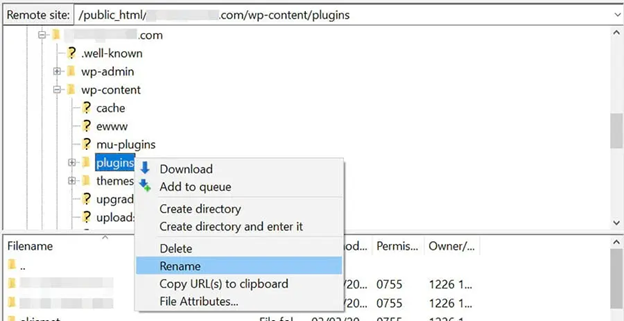
Incompatible or poorly coded plugins are a common cause of this WordPress error . Temporarily deactivate all plugins to see if the error goes away. You can do this from the Plugins page by deactivating each plugin, or if you can’t access WP Admin, use FTP/File Manager to rename the /wp-content/plugins folder (e.g., to deactivated). This makes WordPress ignore all plugins. If the error disappears, then one of the plugins was causing a conflict. Reactivate your plugins one by one, testing after each, to find the culprit. Once identified, you can replace that plugin with an alternative or contact the developer for a fix.
Using an FTP client to rename the plugins folder will deactivate all plugins at once. This is a quick way to troubleshoot WordPress plugin conflicts – if the error stops after this, a plugin was to blame.
6. Switch to a Default Theme (Check for Theme Issues):
If plugins weren’t the issue, your theme might be. Sometimes a theme’s code or theme compatibility problem with the WordPress version can trigger the error. Switch to a default WordPress theme (like Twenty Twenty-Three or Twenty Twenty-Four) to test. If you cannot access the dashboard, use FTP to rename your /wp-content/themes folder (e.g., to backup). WordPress will revert to a default theme automatically. Now try to reproduce the action that caused the error. If the error no longer occurs, your previous theme was likely the cause. You should update the theme to the latest version or contact the theme developer about the issue. You can also consider using a different theme if an update isn’t available.
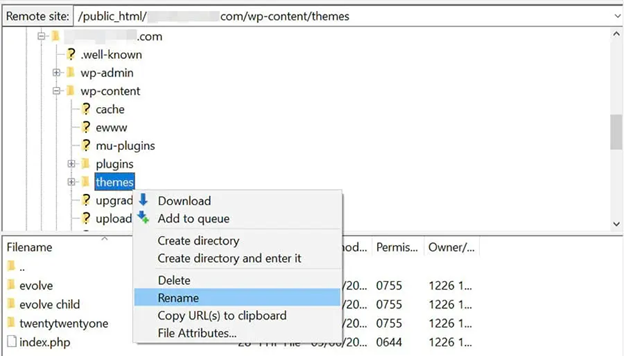
Renaming the themes folder forces WordPress to fall back to a default theme. If the error disappears after switching themes, it indicates your custom theme was causing the problem
7. Update WordPress, Plugins, and Themes:
Running outdated code can lead to errors. Ensure that your WordPress core, all plugins, and your theme are fully updated to the latest versions. Developers often fix bugs (including nonce and permission issues) in updates. An older plugin or theme might not be fully compatible with your current WordPress version, causing a nonce verification failure or other conflicts. Go to Dashboard > Updates and install any available updates. After updating, clear the caches and test if the error persists. Keeping everything updated reduces the chance of hitting unknown bugs or WordPress update errors that trigger this message.
8. Increase the PHP Memory Limit:
Low server memory can sometimes interrupt processes and result in the “Are you sure?” error. If your site is hitting the PHP memory limit, WordPress might not complete actions properly. Increase the PHP memory limit by editing your wp-config.php file or php.ini. For example, in wp-config.php, add:
define(‘WP_MEMORY_LIMIT’, ‘256M’);
This allocates 256 MB of memory to WordPress (you can adjust the value higher if needed). After increasing the memory, try the action again. If memory exhaustion was the cause, the error should no longer occur. (Note: Not all hosts allow manual memory increases, so you may need to contact your host if this doesn’t take effect.)
9. Refresh WordPress Core Files:
Some core WordPress files may be corrupted or missing, especially if the error started after an update or a site move. Refreshing the core files can fix unknown issues. Backup your site (database and files) before this step. Then download a fresh copy of WordPress from the official site. Using FTP or your hosting file manager, delete everything in the wp-admin and wp-includes folders on your server, and upload fresh copies from the new WordPress download. Also, replace all loose files in the root (except wp-config.php and the wp-content folder). Do not delete the wp-content or the wp-config.php file on your server since those contain your content and settings. By replacing core files, you ensure that the corrupted file is causing the error. Afterward, log back in and see if the error is resolved. (If you prefer, you can also reinstall WordPress via Dashboard > Updates > Re-install Now, which does a similar core file refresh.)
10. Generate New Security Keys (Salts) in wp-config.php:
WordPress uses security keys (salts) in wp-config.php to secure login sessions and nonces. If these keys are compromised or outdated, they could contribute to authentication problems. You can generate a fresh set of secret keys from the WordPress Secret Key service. Open your wp-config.php file and replace the old AUTH_KEY, SECURE_AUTH_KEY, LOGGED_IN_KEY, NONCE_KEY (and their corresponding “SALT” values) with the new keys provided by that service. Save the file. This will log out all users and force new secure tokens to be used. Then log in again and test the action. New security keys ensure that any potential WordPress security token error due to compromised tokens is eliminated.
11. Scan for Malware or Security Issues:
If none of the above solves it, consider that the error might be a symptom of a deeper security problem. In rare cases, a malicious plugin or hacked files can cause nonce and permission failures. Scan your site for malware using a security plugin (like Wordfence or MalCare) and ensure your site is clean. Also, check that file permissions on your server are set correctly (generally 644 for files, 755 for folders). Incorrect file permissions could disrupt WordPress’s ability to verify actions, although they more often cause specific permission denied errors. Ensuring your site is secure and that your files are intact will rule out any interference from hacks. If an infection is found, clean it and then generate new security keys again. Finally, try the action once more.
12. Contact Support if Needed:
If you’ve tried everything and the error still persists, reach out for help. You can post on the WordPress support forums or contact your hosting provider. Describe the troubleshooting steps you took and ask for guidance. Sometimes hosting security settings or uncommon issues can cause this error, and the host’s support might identify the problem. As a last resort, consider restoring your site from a backup taken before the issue began (if available), then updating components one at a time to pinpoint the trigger.
Best Practices to Prevent the “Are You Sure You Want to Do This?” Error in WordPress
The “Are You Sure You Want to Do This?” error in WordPress can be disruptive. Implementing preventive measures ensures smoother site operations.
- Regularly Update WordPress Core, Themes, and Plugins: Keep your WordPress core, themes, and plugins updated. Updates often include security patches and bug fixes. Outdated components can cause compatibility issues, leading to errors. Regular updates help maintain site stability.
- Use Trusted Themes and Plugins: Only install themes and plugins from reputable sources. Poorly coded or malicious add-ons can introduce vulnerabilities. Check reviews and ratings before installation. Reliable sources reduce the risk of conflicts and errors.
- Limit the Number of Active Plugins: Reduce the number of plugins that are currently active on your website. The likelihood of conflicts increases with each extra plugin. Deactivate and delete plugins that are unnecessary. A leaner setup reduces the risk of errors.
- Ensure Proper File Permissions: Set correct file and directory permissions. Improper permissions can hinder WordPress operations. Typically, directories should have 755 and files 644 permissions. Proper settings prevent unauthorized access and errors.
- Increase PHP Memory Limit: Allocate sufficient PHP memory for WordPress processes. Low memory can cause various issues, including this error. Increasing the limit supports better performance. Consult your hosting provider for assistance.
- Regularly Clear Cache: Clear your site’s cache periodically. Conflicts might arise from cached data becoming out of date. Use caching plugins with care and clear caches after updates. This ensures that users see the latest content without errors.
- Monitor and Manage User Roles: Assign appropriate roles and permissions to users. Erroneous assignments may result in illegal activity. Make sure user roles correspond with responsibilities by reviewing them on a regular basis. Proper management prevents accidental errors.
- Regular Backups: Schedule regular backups of your website. In case of errors, backups allow quick restoration. Utilize trustworthy backup tools and ensure that copies are stored safely. Consistent backups are critical for efficient disaster recovery.
Conclusion
The “Are You Sure You Want to Do This?” error in WordPress is a protective mechanism that ensures unauthorized changes do not occur. Although it can be frustrating, understanding the underlying causes—such as plugin conflicts, theme compatibility issues, or nonce verification failures—allows for effective troubleshooting. The outlined solutions, from updating your WordPress installation to refreshing security keys, provide practical steps to fix this issue and maintain a secure, functional website. By taking care of these issues and adhering to preventive best practices, you can stop problems from happening again and make sure WordPress runs more smoothly.



