How to Find Your Default WordPress Login URL and Access wp-admin
Table of Contents
Introduction: Why Knowing the Login URL Matters
If you use WordPress, you need to access the admin dashboard. This is where you manage everything — pages, posts, themes, plugins, and settings. To reach it, you must log in using the correct login URL.
“Where is the WordPress login page?” is a common question from new users. This confusion is common, especially after installing WordPress for the first time. Some forget the login URL. Others try the wrong address and get stuck.
Knowing your WordPress admin login URL saves time and avoids frustration. It also helps you secure your website by understanding how it works.
This information is essential whether you’re a beginner or managing multiple websites. Let’s begin by understanding the default login URLs WordPress uses.
What Is the Default WordPress Login URL?
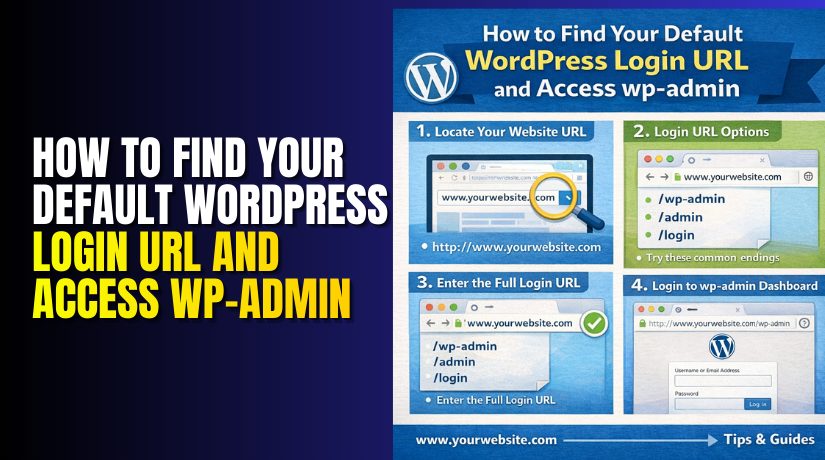
By default, WordPress provides two main ways to access the login page:
- com/wp-login.php
- com/wp-admin
Both URLs take you to the WordPress login screen. The difference is simple:
- /wp-login.php is the actual login page.
- /wp-admin if you’re not logged in, it takes you to the login page.
Once you log in, /wp-admin takes you directly to your admin dashboard.
Here are examples of what your login URL might look like:
- https://example.com/wp-login.php
- https://example.com/wp-admin
Your URL could be this if WordPress is installed in a subfolder:
- https://example.com/blog/wp-login.php
Or, if it’s installed on a subdomain:
- https://blog.example.com/wp-login.php
Make sure you use HTTPS to keep your login page secure.
For security concerns, website owners occasionally change the login URL. But if you’re using a fresh install or haven’t changed anything, the URLs above are your default.
Remember:
- /wp-login.php is the login page.
- /wp-admin is the admin area after login.
How to Locate Your WordPress Login URL (If You Forgot It)
It’s common to forget your WordPress login link, especially if you’re new. Maybe you didn’t bookmark it. Or you installed WordPress in a subfolder or subdomain. In some cases, the login page was changed by a plugin for security.
Here are effective ways to find your login URL again:
- Check Your Hosting Dashboard
Most web hosts like Bluehost, SiteGround, or Hostinger show your WordPress login details after setup. Navigate to the section of your website after logging into your hosting panel. There, you’ll usually see a quick link to your WordPress dashboard.
- Look in Your Installation Email
After installing WordPress, the system often sends you an email. It contains important details like:
- Admin username
- Website URL
- Login URL (typically ending in /wp-admin or /wp-login.php)
Search your inbox for keywords like “WordPress Installed” or “New Site Setup.”
- Check for Menu or Footer Login Links
Some WordPress themes include a login link in the navigation menu or footer. Visit your homepage and scan the top and bottom areas for:
- “Admin”
- “Login”
- “Dashboard”
These often lead directly to the login screen.
- Use Known URL Patterns
Try these common patterns in your browser:
- com/wp-admin
- com/wp-login.php
- com/blog/wp-login.php (for subfolder installs)
Try opening each in a private/incognito window to bypass any caching issues.
- Use FTP or File Manager (Advanced Users)
Use FTP or log into your cPanel. Check if WordPress is installed in a subfolder like /blog/ or /site/. This will help you know how the login URL is structured.
How to Login to WordPress Admin Dashboard
Once you find the login URL, logging in is quick. Two fields will be visible:
- Username or Email Address
- Password
Click Log In after entering the proper login information.
You can check the “Remember Me” box to stay logged in longer.
After login, you’ll be redirected to the WordPress dashboard at:
- https://yourdomain.com/wp-admin
This is where you can manage your website.
To reset your password via email if you can’t remember it, click “Lost your password?”
That’s it! You now know how to find and use your WordPress login URL and access the admin area.
What to Do If the WordPress Login URL Is Not Working
The login URL may occasionally not function as intended. You may see a 404 error, a redirect loop, or a blank page. This can be frustrating, especially if you urgently need access to your dashboard. There are multiple ways to solve it, so don’t worry.


Let’s look at the most common reasons why your WordPress login URL is not working and how to fix them.
- Security Plugins Changed the Login URL
Many WordPress users set up security plugins such as:
- WPS Hide Login
- iThemes Security
- All In One WP Security & Firewall
For increased security, these plugins let you modify the default login URL. If you installed one and forgot the new login path, the usual /wp-login.php or /wp-admin will no longer work.
What to do:
- Try to remember the custom slug you created (e.g., /mylogin)
- Check your plugin settings in the database or deactivate the plugin via FTP or cPanel to restore default URLs
- Theme or Plugin Conflicts
A broken plugin or theme can block your login page. This might cause errors, white screens, or redirects.
How to fix it:
- Access your File Manager or FTP
- Navigate to wp-content/plugins
- Rename the plugin folder to plugins_backup to deactivate all plugins
- Try going to the login page once more.
- Reactivate each plugin individually to identify the problem if it works.
For themes:
- Rename the theme folder under wp-content/themes
- WordPress will change to its default theme (such as Twenty Twenty-Four).
- Browser Cache or Cookie Issues
Old cache or cookies may block proper access to the login page.
Steps to try:
- Delete the cookies and cache from your browser.
- Try logging in using incognito/private mode
- Test the login on another browser or device
- Corrupted .htaccess File
A corrupted .htaccess file may cause redirect issues or 500 errors.
To reset it:
- Access your root WordPress folder
- Rename .htaccess to .htaccess_old
- Login again
- Then go to Settings > Permalinks and click “Save” to regenerate the file
Tips to Secure Your WordPress Login Page
Your website’s front door is your WordPress login page. If it’s not secure, hackers can try to break in using brute force attacks. In order to get access, these assaults attempt thousands of username and password combinations. You should take easy precautions to secure your login page in order to safeguard your website.
Here are the most effective ways:
- Change the Default Login URL
The default login URLs for all WordPress websites are /wp-login.php or /wp-admin. Hackers are aware of this and frequently target it. It becomes more difficult for them to even locate the login screen when the login path is changed.
How to do it:
- Install a plugin like WPS Hide Login
- Choose a unique URL like /mylogin or /site-login
- Save the new URL and bookmark it for future use
This change doesn’t affect your dashboard. It just hides the door from attackers.
- Enable Two-Factor Authentication (2FA)
An additional step is added to the login procedure using two-factor authentication. You have to input a code from your phone or email after entering your password.
Benefits of 2FA:
- Blocks access even if someone knows your password
- Adds strong protection to your admin account
Plugins like WP 2FA or Google Authenticator make this easy to set up.
- Limit Login Attempts
WordPress by default permits an infinite number of login attempts. That’s risky. Hackers can use bots to keep guessing.
Solution:
- Install a plugin such as Limit Login Attempts Reloaded.
- Set a limit for failed attempts (e.g., 3 tries)
- Lock out users after too many failed attempts
This stops brute-force attacks before they begin.
- Use a Strong Password
A weak password is simple to figure out. Make sure your password is strong by using:
- Uppercase and lowercase letters
- Numbers
- Special symbols
Don’t use “admin123” or common names or birthdates.
Another option is to use a password manager such as Bitwarden or LastPass.
Conclusion
Now you know how to find and access your WordPress login URL. Additionally, you learnt how to safeguard your login page and resolve typical login problems. These easy measures will ensure that your website is always secure and usable.
Bookmark your login URL. Use strong passwords. And apply security tips regularly.
Want more WordPress tips? Explore more tutorials on WooHelpDesk.com.