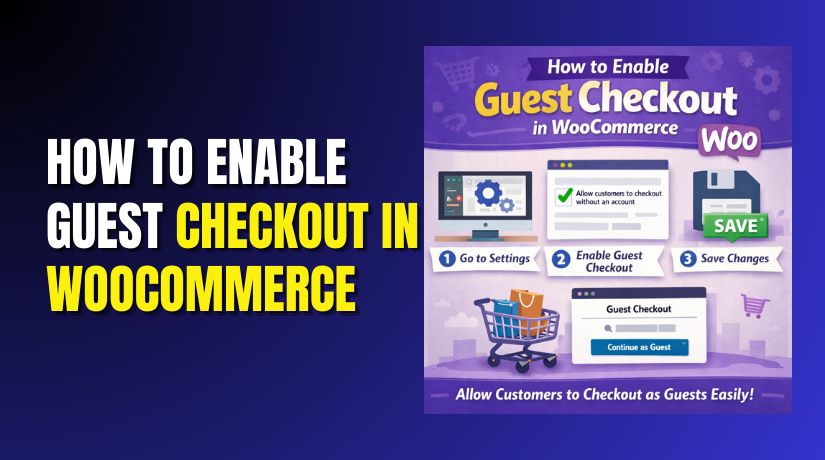
How to Enable Guest Checkout in WooCommerce Step by Step?
Table of Contents
- Introduction
- What is a Guest Checkout in WooCommerce?
- What are the Key Features of Guest Checkout in WooCommerce?
- What are the Benefits of Enabling Guest Checkout in WooCommerce?
- What are the Reasons to Enable Guest Checkout in WooCommerce?
- Why is the Guest Checkout Option Missing in WooCommerce?
- How to Enable Guest Checkout in WooCommerce Step by Step?
- Recommended Settings for a Better Guest Checkout Flow
- Final Verdict
Introduction
Online shoppers want fast checkout with fewer steps and delays. Many buyers leave when they must create an account first. WooCommerce guest checkout solves this problem for many stores. It lets customers place orders without registering an account. This improves speed and reduces friction during checkout. It also supports more completed orders from first time visitors.
Guest checkout removes one of the biggest checkout barriers today. Users do not want extra forms and password creation. They also avoid sharing data when they feel uncertain. A shorter flow helps mobile buyers complete payments faster. This can reduce cart abandonment and increase revenue. It also improves the first impression of your store.
This guide explains how to Enable guest checkout WooCommerce properly. It also covers WooCommerce checkout settings that affect guest orders. You will learn how to allow WooCommerce checkout without an account safely. You will also learn how to Allow guest orders WooCommerce without breaking taxes, emails, or shipping.
What is a Guest Checkout in WooCommerce?
Guest checkout means customers can buy without creating an account. They enter billing and shipping details and place the order. They do not need a username or password for checkout.
This is called WooCommerce checkout without an account in many stores. It is controlled from WooCommerce checkout settings in the admin. When enabled, it supports faster checkout for first time buyers.
How WooCommerce guest checkout works during an order?
- The customer adds products to the cart and goes to checkout.
They see the checkout form without a forced login step. - The customer enters billing details like name and address.
This is required for shipping, taxes, and payment validation. - The customer enters shipping details if shipping is required.
If billing and shipping match, they can use the same address. - The customer selects the shipping method and payment option.
This depends on your shipping zones and gateways settings. - The customer places the order and receives confirmation emails.
WooCommerce sends order emails even without an account.
What happens after a guest order is placed?


- WooCommerce creates the order with customer details.
The order includes email, address, and phone if collected. - The customer can track the order using emails.
Order emails include order number and status updates. - WooCommerce can still offer account creation later.
Some stores show a “Create account” checkbox at checkout. - The customer can contact support using order details.
Support can locate orders using email or order number.
What are the Key Features of Guest Checkout in WooCommerce?
The main features are controlled by checkout and account settings. They decide whether buyers must log in or register. They also control whether accounts are created automatically. These features shape the entire WooCommerce guest checkout flow.
1. Allow customers to place orders without an account
- This is the core guest checkout toggle in WooCommerce.
- Customers can complete checkout using email and address only.
- This feature works best for mobile and ad traffic buyers.
2. Optional account creation during checkout
- WooCommerce can show a “Create an account” option.
- Buyers can choose account creation based on their needs.
- Optional accounts support better customer retention long term.
3. Account creation can be automatic or manual
- You can allow account creation automatically using email.
- You can require manual account creation only after checkout.
- You can control password creation rules for new accounts.
4. Guest checkout still supports all payment gateways
- Most gateways work with guest checkout without problems.
- Some gateways may require phone or email verification steps.
- You can still use fraud tools even with guest orders.
5. Guest checkout supports taxes, shipping, and coupons
- Taxes are still calculated using billing and shipping addresses.
- Shipping rates still apply based on shipping zones settings.
- Coupons still apply normally for guest customers.
6. Guest customers still receive all order emails
- Order confirmation emails work for guest orders too.
- Customers can use emails for order details and tracking.
- Admin emails still notify your store team as usual.
What are the Benefits of Enabling Guest Checkout in WooCommerce?
1. Lower cart abandonment during checkout
- Customers do not face forced account creation.
- They complete checkout with fewer form fields.
- This helps mobile buyers finish payment quickly.
- It improves conversion rates for first time visitors.
2. Faster checkout experience for new customers
- Buyers enter only required billing and shipping details.
- They skip username and password creation steps.
- This reduces hesitation during the last buying stage.
- It supports smoother WooCommerce checkout settings flow.
3. Better performance for paid ads and cold traffic
- Ad visitors want quick purchases with minimal friction.
- Guest checkout improves results from Facebook and Google ads.
- It reduces wasted clicks from users who dislike registrations.
- It supports more sales from new audiences consistently.
4. Fewer login issues and password related failures
- Some customers forget passwords and stop checkout attempts.
- Guest checkout removes login failures from the purchase path.
- It reduces support tickets about login and reset emails.
- It keeps checkout focused on payment and shipping only.
5. More orders from one time buyers and gift shoppers
- Gift buyers often do not want an account.
- One time buyers prefer quick checkout and confirmation emails.
- Guest checkout supports WooCommerce checkout without an account.
- It increases completed orders from casual store visitors.
6. Easier A B testing for checkout optimization
- You can test guest checkout and account prompts.
- You can measure conversion changes by traffic source.
- This helps you optimize checkout fields and messaging.
- It supports smarter store improvement decisions over time.
7. Still collects customer email for follow ups
- Guest checkout still requires email at checkout.
- You can send receipts, tracking, and status updates.
- You can use email for marketing with consent settings.
- You keep customer communication even without an account.
What are the Reasons to Enable Guest Checkout in WooCommerce?
1. You want more sales from first time visitors
- First time visitors often avoid account creation steps.
- Guest checkout removes a major checkout barrier quickly.
- This helps you Allow guest orders WooCommerce easily.
- It supports stronger conversion results for new traffic.
2. Your store sells low to mid priced products
- Buyers decide quickly and want a fast checkout.
- Account creation feels unnecessary for small purchases.
- Guest checkout improves speed and reduces drop offs.
- It works well for impulse purchase product types.
3. You run heavy mobile traffic to your store
- Mobile buyers hate long forms and password fields.
- Guest checkout reduces typing and boosts completion rates.
- It supports quick payments using wallets and cards.
- This improves mobile conversion performance significantly.
4. You want fewer support requests about accounts
- Forced accounts create password reset and login tickets.
- Guest checkout reduces account related support workload.
- Support teams can focus on delivery and product questions.
- This improves store operations and response speed.
5. You want smoother checkout with fewer distractions
- Checkout should focus on shipping and payment only.
- Guest checkout reduces optional steps and confusion.
- It improves the buying flow and reduces hesitation.
- It supports cleaner WooCommerce guest checkout experience.
6. You want to support guest buyers while still building accounts
- You can keep registration optional at checkout.
- You can prompt account creation after successful order.
- You can offer benefits like faster reorders and tracking.
- This balances speed and long term customer retention.
Why is the Guest Checkout Option Missing in WooCommerce?
1. You are checking the wrong settings page
- Guest checkout is under Accounts and Privacy section
- It may not appear under older Checkout tabs in some setups
2. Store policies or plugins force account creation
- Membership plugins may require accounts for access control
- Subscription plugins may require accounts for renewals
- B2B plugins may force accounts for pricing visibility
3. Checkout page is not set correctly
- WooCommerce → Settings → Advanced → Page setup
- Confirm Checkout page is assigned properly
- Missing checkout page can break checkout settings behavior
4. Theme overrides checkout templates
- Some themes add forced login blocks on checkout pages
- Test with Storefront theme to confirm theme override
- Remove forced login template edits if causing problems
How to Enable Guest Checkout in WooCommerce Step by Step?
Step 1: Confirm WooCommerce is installed and active
- WordPress Dashboard → Plugins → Installed Plugins
- Check WooCommerce → Must show Active status
- Update WooCommerce if it is outdated or unsupported
- Guest checkout works best on stable WooCommerce versions
Step 2: Open WooCommerce settings from dashboard
- WordPress Dashboard → Left Sidebar → WooCommerce → Settings
- This opens the main settings area for checkout behavior
- Keep this screen open for the next settings changes
Step 3: Open the Accounts and Privacy settings
- WooCommerce → Settings → Accounts and Privacy
- This is the main location for guest checkout controls
- These settings control login, registration, and account creation
Step 4: Enable guest checkout option
- WooCommerce → Settings → Accounts and Privacy → Guest checkout
- Enable this checkbox option
- Allow customers to place orders without an account
- This is the core setting to Enable guest checkout WooCommerce
Step 5: Save changes
- Scroll down → Click Save changes
- Saving applies the guest checkout setting storewide
- Do not skip saving or settings will not apply
Recommended Settings for a Better Guest Checkout Flow
- Keep account creation optional at checkout
- WooCommerce → Settings → Accounts and Privacy
- Enable “Allow customers to create an account during checkout”
- This keeps checkout fast and still supports account growth
- It supports both guest orders and repeat buyer retention
- Decide how passwords should work
- Choose whether customers set password during checkout
- Or allow WooCommerce to generate password automatically
- Generated passwords reduce checkout steps for new users
- Manual passwords help customers remember their login later
- Do not force login before checkout
- Avoid forcing users to log in to continue checkout
- Forced login blocks WooCommerce checkout without account
- Guest checkout must be allowed for smooth conversions
Final Verdict
Enabling WooCommerce guest checkout is a smart move for most stores. It reduces friction and helps buyers complete purchases faster. It also supports WooCommerce checkout without account for first time visitors. This improves conversions, especially for mobile users and ad traffic. Use WooCommerce checkout settings to keep registration optional, not forced.
To Enable guest checkout WooCommerce correctly, use Accounts and Privacy settings. Then test checkout in an incognito browser window. Clear cache if you still see login prompts after changes. Check theme templates and plugins if guest orders still fail. This setup helps you Allow guest orders WooCommerce while keeping checkout smooth.
Have questions before starting with WooCommerce & WordPress? Get support here at WooHelpDesk.
