How to Enable Ajax Add to Cart in WooCommerce for Faster Shopping Experience
Table of Contents
- Introduction
- What is AJAX in WooCommerce and How It Works?
- Before You Start Quick Checklist to Avoid Issues
- How to Enable AJAX Add to Cart in WooCommerce (Step By Step)
- How to Add an AJAX Add to Cart Link in WooCommerce (Anywhere)
- Common Problems and Step-by-Step Fixes You Can Follow Fast
- Conclusion
Introduction
Shoppers want quick actions without waiting for page reloads. AJAX add to cart makes this possible on many pages. It keeps users browsing while the cart updates instantly. This improves flow and reduces user drop-offs during shopping. It also helps when customers add several items quickly. Many store owners enable AJAX to improve the buying experience.
Some owners search solutions after a button issue appears. They see add to cart button missing in woocommerce suddenly. Others face woocommerce add to cart button not showing on shop pages. Some report add to cart button not visible woocommerce after updates. This guide helps you understand AJAX before making changes. It also helps you avoid errors on the live store.
What is AJAX in WooCommerce and How It Works?
AJAX means actions happen without reloading the whole page. In WooCommerce, it can add products to the cart instantly. The cart count updates near the cart icon quickly. The mini cart also refreshes without a full page load. You may also see a small success message after adding. This smooth flow feels modern and fast for shoppers. WooCommerce uses this on many product archive pages. These include shop pages and category listing pages.
When enabled, the “Add to cart” button triggers AJAX. WooCommerce sends a request and updates cart fragments. Cart fragments are small parts like mini cart and totals. If fragments fail, the cart icon may not update. Many issues feel like a missing button problem. Some users think woocommerce product page add to cart missing is AJAX. Often it is a theme or plugin layout issue. Still, AJAX can expose issues when scripts stop loading. That is why knowing the basics helps a lot.
Before You Start Quick Checklist to Avoid Issues
Before enabling AJAX, make sure your store is stable first. Small issues can break buttons and cart updates fast. Many people enable settings without checking theme behavior first. Then they see woocommerce add to cart button not showing suddenly. Some also report add to cart button missing in woocommerce on archives. This checklist helps you prevent those common problems early. Follow these checks in order for the best results.
WooCommerce and Theme Checks You Should Do First
Start by confirming WooCommerce is updated and active properly. Outdated files can cause script errors and layout issues. Update your theme if a safe update is available. Old themes may not support modern WooCommerce features well. Check if your theme supports WooCommerce templates correctly.
Many themes override shop buttons using custom template files. If those files are old, buttons may break after updates. This can look like add to cart button not visible woocommerce. Also confirm your theme shows a mini cart icon. AJAX feels incomplete if cart updates are not visible.
Now test using a default theme for quick confirmation. Switch to Storefront on a staging site if possible. If buttons appear again, your theme is the cause. If buttons still fail, WooCommerce or plugins are involved. This quick test saves hours during debugging later. It also helps you plan the safest fix path.
Product and Store Behavior Checks That Avoid Confusing Results
AJAX works best for simple products on archive pages. So first test with a simple product in stock. Confirm the product is purchasable and not restricted. Check inventory settings and stock status for that product. If it is out of stock, the button may disappear. That can look like woocommerce product page add to cart missing. Also check if the product is external or affiliate type. Those products use a different button and behavior.
Next, check variable products on shop and category pages. Variable products usually show “Select options” instead. That is normal and not an AJAX failure. Many store owners think this is a missing cart button. They search fix add to cart button missing woocommerce after seeing this. Explain this clearly to your team and clients. It helps reduce false alarms during testing.
Also check this WooCommerce setting before enabling AJAX. If “Redirect to the cart page after successful addition” is enabled, AJAX may feel broken. Redirect behavior can override smooth adding on some pages. For a clean AJAX test, keep redirects disabled temporarily. You can enable it later if your store needs it.
Plugin, Cache, and Speed Tool Checks That Often Break AJAX
Caching can break AJAX add to cart in many stores. Page cache can serve old HTML for cart fragments. JS minify and combine can break script loading order. CDN caching can delay updated scripts after recent changes. So pause these tools during testing and first setup. After it works, enable them one by one carefully.
Use this simple testing approach for faster results. Disable cache plugin and clear all site cache first. Clear your CDN cache if you use Cloudflare or similar. Disable JS optimization like defer, delay, or combine. These settings often cause click actions to stop working. When scripts break, buttons may look unresponsive or missing. Users then report woocommerce add to cart button not showing again.
Also check common plugin conflicts before enabling AJAX. Side cart plugins may replace default add to cart actions. Product add-ons can change the add to cart form behavior. Bundle and composite plugins add extra steps before adding. Membership or role pricing plugins can hide buttons by role. Catalog mode plugins can disable purchasing store-wide. Each of these can cause add to cart button missing in woocommerce. If you need these plugins, keep them active. Just test each one with AJAX enabled later.
Quick Testing Checklist You Should Follow Before Any Final Change
Use this fast checklist before you enable AJAX settings. It keeps your testing clean and easy to repeat later. Test everything in an incognito window for accurate results. Also test as a guest user and a logged-in user. Guest testing matters most for store revenue and conversions.
- Open your shop page and click add to cart once.
- Confirm cart count changes near the cart icon.
- Confirm mini cart updates without a full page reload.
- Check browser console for errors after clicking the button.
- Test a simple product and one variable product separately.
- Test on mobile view using responsive mode or real phone.
- Confirm no redirects happen after clicking add to cart.
If anything fails in these checks, do not enable more changes. Fix the base issue first before moving forward. This avoids deeper problems across templates and scripts. It also prevents add to cart button not visible woocommerce complaints. In Part 3, we will enable AJAX using built-in settings. We will also verify the button markup is AJAX-ready.
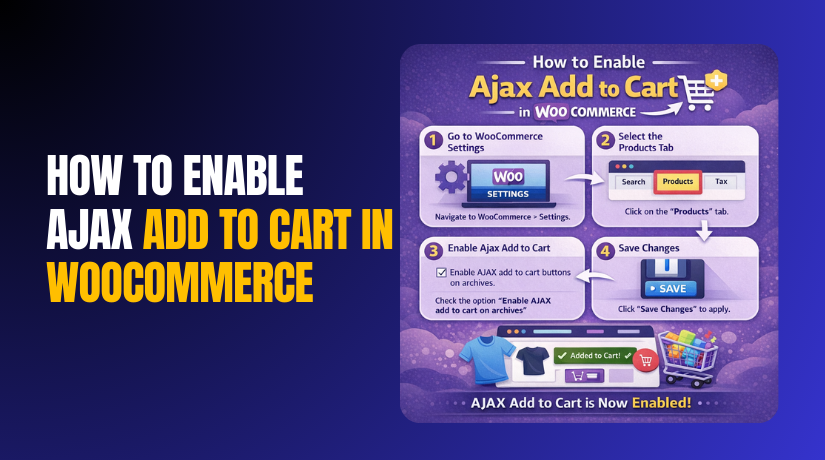
How to Enable AJAX Add to Cart in WooCommerce (Step By Step)
Step 1: Open WooCommerce Product Settings in WordPress
- Log in to your WordPress admin dashboard.
- Click WooCommerce in the left sidebar menu.
- Click Settings to open WooCommerce settings.
- Click the Products tab on the top.
- Stay on the General section for display settings.
Step 2: Turn On the Built-In AJAX Add to Cart Option
- Find Enable AJAX add to cart buttons on archives.
- Tick the checkbox to enable this option.
- Scroll down and click Save changes.
- This enables AJAX on shop and category listing pages.
- It does not change single product page behavior.
Step 3: Test AJAX Add to Cart on the Shop Page
- Open your shop page in a new browser tab.
- Use an incognito window for clean testing.
- Click Add to cart for a simple product.
- Confirm the page does not reload after clicking.
- If it reloads, note the issue for troubleshooting.
Step 4: Confirm Cart Count and Mini Cart Updates
- Look at the cart icon count after clicking.
- Confirm the count increases without refreshing the page.
- Open the mini cart if your theme shows it.
- Confirm the new product appears in the mini cart.
- If it fails, you may see woocommerce add to cart button not showing.
Step 5: Test on Category Pages and Search Results Too


- Open a category page that shows multiple products.
- Click Add to cart on a simple product again.
- Test the same action on a search results page.
- Confirm cart count updates in every location.
- This confirms AJAX works across archive areas.
Step 6: Check Product Type Before Calling It a Button Issue
- Test only simple products for first AJAX confirmation.
- Variable products need options before adding to cart.
- “Select options” is normal for variable products.
- Do not confuse it with add to cart button missing in woocommerce.
- If the button is hidden, it may be add to cart button not visible woocommerce.
Step 7: If It Still Fails, Do These Quick Checks
- Clear all site cache and CDN cache once.
- Disable JS minify, combine, and delay temporarily.
- Disable one plugin at a time to find conflicts.
- Switch to a default theme on staging for testing.
How to Verify AJAX Add to Cart Works Correctly After Enabling
Verification should focus on user experience and cart updates. Open the shop page and add one simple product. The page should stay on the same scroll position. You should see a message like “added to cart” quickly. The cart count should update without refreshing the page. Now open the cart page and confirm the item appears. Then repeat the test on a category page and search page. This confirms AJAX works across key browsing locations.
If something does not update, use these quick tests.
- Refresh only once, then test again in incognito mode.
- Clear cache and disable JS minify during testing.
- Disable one plugin at a time to find conflicts.
- Switch to Storefront theme on staging for confirmation.
If you still see woocommerce add to cart button not showing, check console errors. Broken scripts can stop AJAX requests from firing properly. If the button is missing, verify product purchasable rules. Stock, catalog mode, and role pricing can hide buttons. If needed, you can fix add to cart button missing woocommerce by removing conflicts.
How to Add an AJAX Add to Cart Link in WooCommerce (Anywhere)
AJAX links help you add products from any page quickly. This works well for landing pages and blog CTAs. It also helps on custom sections built inside templates. The goal is simple and fast adding without reload. You should still test with a simple product first. Variable products need selection, so links may not add them.
Step 1: Use a Simple AJAX Add to Cart Link Format
- Use a simple product ID for your first test.
- Use a clean link that points to add-to-cart.
- Keep quantity simple until it works fine.
- Test link in incognito to avoid cache issues.
- Confirm cart count updates after the click.
Step 2: Add the AJAX Link Inside Custom Content Areas
- Add the link inside a landing page section.
- Add it inside a blog post CTA area.
- Add it inside a custom HTML block safely.
- Keep the link near product summary for better UX.
- Use clear button text that matches your theme.
Step 3: Add AJAX Add to Cart Links Using Hooks
- Use hooks when you want consistent placement everywhere.
- Add links below products in loops if needed.
- Add links inside related products sections carefully.
- Keep styles consistent with your theme buttons.
- Test after every change to avoid layout breaks.
Step 4: Add AJAX Links in Page Builders Like Elementor
- Use a button widget with a proper product link.
- Avoid heavy script loaders that delay click actions.
- Do not add duplicate click events to the same button.
- Test on mobile view because builders add extra layers.
- If it fails, you may see woocommerce add to cart button not showing.
Common Problems and Step-by-Step Fixes You Can Follow Fast
AJAX Add to Cart Not Working on Shop Page
- Open the shop page and click add to cart once.
- If nothing happens, check browser console for errors.
- Disable cache and JS minify tools for testing.
- Disable plugins one by one to find the conflict.
- Switch to a default theme on staging for confirmation.
If it works on a default theme, your theme is the cause. If it fails on default theme too, a plugin is likely blocking scripts. This issue often looks like add to cart button missing in woocommerce. It can also look like add to cart button not visible woocommerce. Fix the conflict first before adding more custom links.
Cart Count or Mini Cart Not Updating After AJAX
- Clear page cache and CDN cache once and test again.
- Disable JS combine, delay, and defer temporarily.
- Check if your theme uses a mini cart widget.
- Test again with only WooCommerce active if possible.
- Re-enable tools one at a time after it works.
Cart fragments are responsible for mini cart refresh updates. When fragments fail, cart count may stay unchanged. Users then think the cart action failed completely. This is a common reason behind woocommerce add to cart button not showing complaints. Fix fragments and cache behavior before changing button templates.
Add to Cart Redirecting Instead of AJAX
- Go to WooCommerce settings and product options.
- Check if redirect to cart is turned on.
- Turn it off during AJAX testing for clean results.
- Check theme options that force cart redirect behavior.
- Check side cart plugins that may override clicks.
Redirects can make AJAX feel disabled even when enabled. Some themes force redirect for “better conversions” settings. Some plugins add redirect rules for special campaigns. If you want AJAX, keep redirects off for archives. If you need redirects, use them only on product pages.
Simple Products Working but Variable Products Failing
- Confirm the product is a variable product type.
- Variable products need size or color selection first.
- Archive pages may show “Select options” instead.
- Use a product page link for variable product purchases.
- Use quick view if you want selection from archives.
Many store owners think this is a missing button issue. They search fix add to cart button missing woocommerce for this case. It is normal WooCommerce behavior for variable products. You can improve UX using quick view or swatches. Keep testing simple products first to confirm AJAX.
Add to Cart Button Missing on Product Pages
- Check if the product is in stock and purchasable.
- Check if catalog mode is enabled anywhere.
- Check role pricing rules that hide purchase buttons.
- Check theme template overrides for single product pages.
- Disable plugins and test to find the exact cause.
If the button is missing only on product pages, focus on templates. This is where owners report woocommerce product page add to cart missing. If the button exists but is hidden, CSS may be the reason. That can look like add to cart button not visible woocommerce. Fix the root cause before adding custom link workarounds.
Conclusion
AJAX add to cart improves speed and shopping flow quickly. Use built-in settings first and test with simple products. Add AJAX add to cart links only after core AJAX works. If issues happen, check cache, scripts, theme, and plugins. Many problems look like missing buttons but have clear causes. If you need expert help for your store setup, WooHelpDesk can help. We can fix theme conflicts, plugin issues, and AJAX updates safely. We can also improve cart UX to boost conversions and sales.
