How to Edit CSS on WordPress Website
Table of Contents
- Introduction
- What CSS Means in a WordPress Website
- Why You May Need to Edit CSS in WordPress
- Common Design Problems You Can Fix With CSS
- Things to Check Before Editing CSS in WordPress
- How to Edit CSS Using the WordPress Customizer
- How to Edit CSS in a Theme File
- How to access theme files from the dashboard
- How to Edit CSS Using a Child Theme
- How to Edit CSS Using FTP or File Manager
- How to Edit CSS With a Page Builder or Theme Panel
- How to Inspect Elements Before Editing CSS
- Best Practices for Editing CSS on a WordPress Website
- How to Check If Your CSS Changes Are Working
- Conclusion
Introduction
Editing CSS on a WordPress website is one of the simplest ways to change the look of your site without changing the main content. You can use CSS to adjust colors, spacing, fonts, buttons, menus, layouts, and many other design parts. This makes it very useful when you want small design fixes or custom styling that your theme settings do not offer.
Many WordPress users feel confused when they first hear about CSS. It may sound technical, but the basic idea is simple. CSS controls how website elements look on the screen. WordPress uses themes, plugins, blocks, and page builders, but CSS helps shape the final design that visitors see.
The good thing is that WordPress gives you different ways to edit CSS. Some methods are beginner-friendly. Others are better for advanced changes. The right method depends on your goal, your skill level, and how safely you want to manage future updates.
This guide explains how to edit CSS on a WordPress website step by step. It also covers the safest methods, common mistakes, and best practices so you can make design changes with more confidence.
What CSS Means in a WordPress Website
CSS stands for Cascading Style Sheets. It controls the appearance of your website content. HTML gives structure to a page, while CSS controls how that structure looks.
For example, CSS can control:
- Text color
- Font size
- Button shape
- Background color
- Page spacing
- Image alignment
- Menu style
- Mobile layout behavior
In WordPress, CSS works with your theme and other site elements. Every theme has its own CSS rules. Plugins and page builders may also add their own styles. When you edit CSS, you are often changing or overriding those existing rules.
That is why CSS is powerful. A few lines can create a visible design change across one page or even the whole website.
Why You May Need to Edit CSS in WordPress
There are many reasons to edit CSS on a WordPress site. Sometimes the theme settings are too limited. Sometimes you want a small visual change without changing the full theme setup. In other cases, a plugin or page builder may create a style issue that needs a quick fix.
You may need CSS editing for tasks like these:
- Change button colors or hover effects
- Reduce extra space between sections
- Align images or text properly
- Adjust heading sizes
- Hide an unwanted element
- Improve mobile appearance
- Match your brand colors and font style
- Fix a theme design issue
CSS is often the best solution when the change is visual and does not require changing website functions. It gives you more control over design without editing the content itself.
Common Design Problems You Can Fix With CSS
Many website design issues can be fixed with custom CSS. This is one reason WordPress users often rely on it.
Here are some common examples:
Fix uneven spacing
Sometimes themes add too much margin or padding around text, images, or sections. CSS can reduce or increase that spacing.
Change font appearance
If your heading is too large or your paragraph text looks too small, CSS can fix it quickly.
Adjust button style
You can update button background color, border radius, text size, and hover style.
Improve menu look
You may want to change menu alignment, spacing, colors, or active link style.
Correct mobile layout issues
Some elements may look fine on desktop but break on mobile. CSS can help adjust them for smaller screens.
Hide unwanted items
You can hide page titles, extra labels, or certain theme elements when needed.
These examples show how CSS helps solve design issues that theme settings may not cover.
Things to Check Before Editing CSS in WordPress
Before you edit CSS, take a few safety steps first. This reduces the chance of errors and makes it easier to undo changes later.
Check if the change is really visual
Make sure the problem is related to design only. CSS changes appearance, not deeper functions.
Backup your website
This is very important if you plan to edit theme files or use FTP. A backup helps you restore the site if something goes wrong.
Test on a staging site if possible
If your website is large or active, testing on a staging version is safer than editing a live site first.
Clear cache before and after changes
WordPress caching, plugin caching, CDN caching, and browser cache can prevent you from seeing the latest CSS updates.
Inspect the element first
Use your browser inspect tool to find the correct class or ID before adding CSS. This makes your changes more accurate.
These checks save time and help you avoid confusion later.
How to Edit CSS Using the WordPress Customizer
One of the easiest ways to edit CSS in WordPress is through the Customizer. This method is simple and safe for many small design changes.
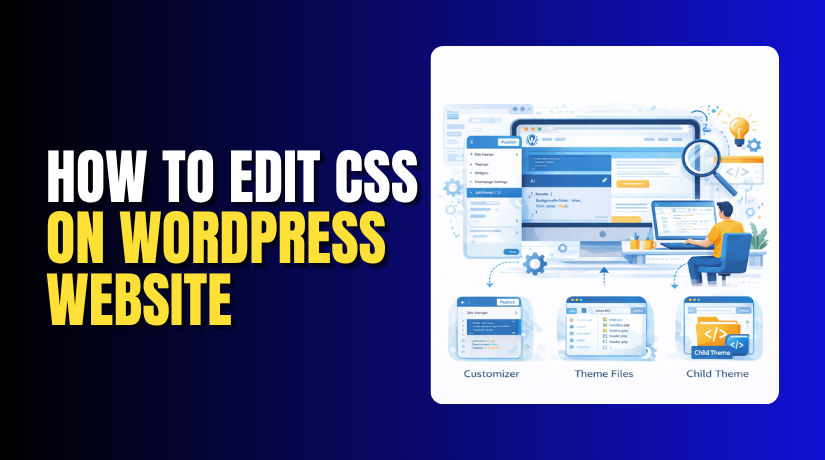
In many WordPress themes, you can go to Appearance > Customize and then open the Additional CSS section. This area lets you add custom CSS without editing the main theme files.
Where to find the Additional CSS section
After opening the Customizer, look for a menu item called Additional CSS. In some themes, the layout may look slightly different, but the option is usually easy to find.
This section includes a code box where you can paste your CSS. It also gives a live preview in many cases, which helps you see changes before publishing them.
How to add simple CSS changes safely
This method is good for short design changes. For example, you can add CSS to change a heading color or update button styling.
You simply paste the CSS into the box and review the preview. If it looks correct, you publish the changes. If not, you can remove the code easily.
When to use the Customizer for CSS editing
The Customizer is best when:
- You want small design changes
- You do not want to touch theme files
- You want easy rollback
- You want a simple and built-in method
This is often the best starting point for beginners.
How to Edit CSS in a Theme File
Another method is editing the actual theme CSS file, usually called style.css. This file is part of the active theme and stores many of its main style rules.
You may access it through Appearance > Theme File Editor or through hosting file access tools. This method is more direct but also riskier.
What the style.css file does
The style.css file holds core design rules for the theme. It affects many front-end elements across the website. Changing it can create wide design effects.
How to access theme files from the dashboard
Some WordPress installations allow access through the Theme File Editor in the dashboard. If enabled, you can open style.css and edit it directly there.
However, this method must be used carefully. A wrong edit can cause styling problems or break the theme layout.
Risks of editing CSS directly in the theme
The biggest risk is theme updates. If you edit the parent theme’s style.css file directly, your changes may disappear during the next theme update.
This is why direct theme editing is usually not the best long-term method for custom CSS unless you fully control the theme workflow.
How to Edit CSS Using a Child Theme
A child theme is one of the safest long-term methods for custom CSS changes in WordPress. It lets you keep your custom styles separate from the parent theme.
What a child theme is
A child theme is a secondary theme that inherits the design and functions of the parent theme. It allows you to add your own CSS and other changes without editing the original theme files.
Why a child theme is safer for CSS changes
When the parent theme updates, your child theme changes stay in place. This protects your custom design work and reduces the risk of losing edits.
How CSS works between parent and child themes
The parent theme provides the base styling. The child theme loads on top of it and can override selected rules. This means you can change specific design parts without rebuilding everything.
A child theme is a strong option when:
- You plan to make ongoing design changes
- You want update-safe customization
- You need better long-term control
For advanced or growing websites, this method is often the better choice.


How to Edit CSS Using FTP or File Manager
You can also edit CSS by using FTP or your hosting File Manager. This method gives direct access to theme files on the server.
Where CSS files are usually located
Theme CSS files are commonly found inside the wp-content/themes/your-theme-folder/ path. The main file is often style.css, though some themes use extra CSS files too.
How to open and edit CSS files safely
Download the file first if possible. Then open it in a code editor, make the needed changes, save it, and upload it back. This method is safer than editing blindly in the dashboard because you can keep a backup copy.
Why backup is important before saving changes
If you make a syntax mistake or save the wrong version, a backup copy helps you restore the previous file quickly.
FTP or File Manager editing is useful when:
- Dashboard access is limited
- You want direct file control
- You prefer offline editing
- You manage multiple file changes
Still, it requires more care than the Customizer method.
How to Edit CSS With a Page Builder or Theme Panel
Some WordPress themes and page builders offer their own custom CSS areas. This is common in tools like Elementor, Divi, and other visual builders.
CSS options in popular page builders
Many page builders let you add custom CSS to a page, section, column, or widget. This is useful when the style change is only needed in one area rather than the full site.
Theme-based custom CSS areas
Some themes include a custom CSS box inside their theme options panel. This works similarly to Additional CSS but may be linked to theme-specific settings.
When this method is useful
This method works well when:
- You want page-level styling
- You use a builder-based design workflow
- You need location-specific CSS
- You want to keep builder styles close to the layout
The main thing to remember is that page builder CSS can become harder to track if too many custom rules are added in different places.
How to Inspect Elements Before Editing CSS
Before writing CSS, it is smart to inspect the exact element you want to style. This helps you target the correct class, ID, or HTML tag.
Using browser inspect tool
Most modern browsers let you right-click an element and choose Inspect. This opens the developer panel and shows the HTML and CSS linked to that item.
Finding the correct class or ID
When you inspect the element, look for unique selectors such as class names or IDs. These help you write more accurate CSS rules.
Testing CSS before adding it to WordPress
You can test changes directly inside the browser’s developer tools. These changes are temporary, but they help you confirm whether the CSS works before adding it to WordPress.
This step saves a lot of time and reduces guesswork.
Best Practices for Editing CSS on a WordPress Website
Good CSS editing is not only about making the site look right. It is also about keeping your changes clean, manageable, and safe.
Keep your code organized
Add comments when needed. Group similar rules together. Clean code is easier to manage later.
Use update-safe methods
Try to use Additional CSS, a child theme, or another safe area rather than editing the parent theme directly.
Test on desktop and mobile
A style change that looks good on desktop may cause issues on smaller screens. Always check both views.
Avoid too many unnecessary overrides
Too many CSS overrides can make future edits harder. Keep changes focused and intentional.
Clear all caches after saving
If the change does not appear, cache is often the reason. Clear your browser cache, plugin cache, theme cache, and CDN cache if used.
These habits make CSS editing smoother and more reliable.
Common CSS Editing Mistakes to Avoid
Some CSS mistakes are very common in WordPress, especially for beginners.
Editing the parent theme directly
This can cause your custom CSS to disappear after theme updates.
Targeting the wrong selector
If you use the wrong class or ID, your CSS will not work or may affect the wrong element.
Forgetting semicolons or brackets
Even a small syntax error can stop the rule from working properly.
Using !important too often
This can solve some conflicts, but overusing it makes your CSS harder to manage.
Ignoring responsive design
A layout fix on desktop is not always a fix on mobile. Always test both.
Avoiding these mistakes saves time and prevents design confusion.
How to Check If Your CSS Changes Are Working
After adding CSS, check the affected pages carefully. Review the part you changed and compare it across devices if possible.
You should also:
- Refresh the page fully
- Clear cache
- Check mobile view
- Review similar elements on other pages
- Inspect the element again if the change failed
Sometimes CSS works but is being overridden by another rule. Inspecting the element helps you find that conflict.
What to Do If CSS Changes Do Not Show
If your CSS changes do not appear, do not panic. This happens often, and the cause is usually simple.
Here are common reasons:
- Browser cache is showing an older version
- A caching plugin is delaying updates
- CDN cache is active
- The selector is incorrect
- Another CSS rule is overriding yours
- The CSS was added in the wrong place
- The theme or builder uses more specific rules
Start by clearing all cache layers. Then inspect the element again and confirm that your selector matches the correct item. If needed, increase selector specificity carefully.
Should You Edit CSS Yourself or Ask for Help?
You can edit CSS yourself if the changes are small and you feel comfortable testing them carefully. Many WordPress users handle simple CSS updates on their own once they understand the basics.
However, you may want expert help if:
- The website has custom theme development
- The CSS issue affects many pages
- The layout breaks on mobile
- You are unsure where the conflict is coming from
- The design issue may involve code beyond CSS
There is no problem in asking for help when the change becomes more technical. A small mistake in the wrong file can create a bigger issue than expected.
Conclusion
Editing CSS on a WordPress website is one of the most useful skills for making design changes without changing the full website structure. It helps you control fonts, spacing, colors, layouts, buttons, menus, and many other visual details.
WordPress offers several ways to edit CSS. The safest and easiest method for many users is the Additional CSS section in the Customizer. For more advanced or long-term work, a child theme is often the better choice. FTP, File Manager, theme files, and page builder CSS options can also be useful depending on the situation.
The most important thing is to work carefully. Always inspect the correct element, back up your site before major edits, use update-safe methods, and test your changes on both desktop and mobile. When done properly, CSS editing gives you strong design control and helps you make your WordPress website look exactly the way you want.