How to Edit an Email Template in WordPress Easily (Step-by-Step Guide)
Table of Contents
- Introduction
- What an Email Template in WordPress Really Means for Your Website
- Why You May Need to Edit an Email Template in WordPress
- Important Things You Should Check Before Editing a WordPress Email Template
- How to Edit an Email Template in WordPress (Step-by-Step)
- How to Edit an Email Template in WordPress Using Default WordPress Email Templates
- How to Add Branding to WordPress Email Templates
- Common Problems You May Face While Editing WordPress Email Templates
- How to Test Your Edited WordPress Email Templates the Right Way
- Best Practices That Help You Edit WordPress Email Templates More Safely
- Conclusion
Introduction
Emails are a small part of a website, but they matter a lot. Every WordPress site sends emails for different user actions and updates. These emails may go to customers, members, admins, or subscribers. Some emails confirm actions, while others share important website details. That is why many site owners want to edit email templates in WordPress. A better email can look more trusted, clear, and useful. It can also help users understand your message faster.
When you edit email template WordPress settings correctly, your emails feel more professional. This also improves the full experience people have with your site. Many site owners focus only on pages and design. But email messages also represent the brand behind the website. A plain and basic email may look weak or confusing. A well-edited email feels clean, branded, and easy to follow.
This is where WordPress email template customization becomes very useful. It helps you send better emails without changing your whole website. WordPress emails can include account details, password reset links, order updates, and form messages. If these emails look better, users trust your website more. That is one strong reason to customize WordPress email templates from the start.
What an Email Template in WordPress Really Means for Your Website
An email template in WordPress is the layout and message sent by email. It controls how the email looks and what it says. This includes the subject line, heading, text, links, and branding. Some templates are very basic and only show plain text. Others include logos, colors, buttons, and a better layout. In simple words, the template is the design and structure of your email. WordPress uses these templates when certain actions happen on your site. For example, a new user may get a welcome email. A customer may receive an order message after payment. An admin may also get a notice about site activity. These messages do not appear by accident. They come from built-in systems or active plugins on your website. That is why understanding email templates is very important.
Before you change email layout WordPress settings, you must know where the email comes from. Some emails are sent by WordPress core features. Others are sent by plugins like contact forms or ecommerce tools. This means not every email is edited the same way. Some can be changed from plugin settings very easily. Others may need extra tools or a WordPress email template editor. Once you know the email source, editing becomes much easier. This helps you avoid mistakes and saves time during setup.
Why You May Need to Edit an Email Template in WordPress
Match Your Brand Identity
Your emails should look like part of your website and business. If your site uses a logo, colors, and a clear tone, your emails should follow the same style. This makes your brand look more trusted and more professional. When you edit an email template in WordPress, you can add your logo, business name, brand colors, and preferred wording. This helps users recognize your emails quickly.
Make Your Emails Look More Professional
Default WordPress emails often look very plain and basic. They may send the message, but they do not always leave a strong impression. A better design can make the email look cleaner and more polished. When you customize WordPress email templates, you can improve headings, spacing, buttons, and layout. This makes your emails look more business-ready.
Improve Message Clarity for Users
Many default emails use simple text that may feel too short or unclear. Users may not fully understand what happened or what they should do next. Editing the email helps you write better and clearer instructions. This is useful for registration emails, password reset emails, and other important notices. Good clarity reduces confusion and improves the user experience.
Add Important Business Information
A good email should do more than deliver one message. It should also help users contact you when needed. You may want to add your support email, website link, phone number, or help page. This makes the email more useful after it reaches the inbox. With proper WordPress email template customization, your messages can support both branding and customer service.
Replace Basic Default WordPress Content
The default wording in WordPress emails may not fit your business style. It may sound too general, too plain, or too limited. By editing the template, you can change the wording to match your tone and purpose. This gives you better control over how your business speaks through email. A custom message often feels more personal and more effective.
Create a Better User Experience
Every email is part of the user journey on your website. A better email can make users feel informed, supported, and confident. It can guide them clearly after signup, reset, purchase, or contact form action. When you use a proper WordPress email template editor, you improve both design and communication. This helps create a smoother and more trusted experience for every user.
Important Things You Should Check Before Editing a WordPress Email Template
Before you edit an email template in WordPress, you should check a few important things first. This step helps you avoid errors, lost changes, and email problems later. Many website owners start editing too quickly and then face broken layouts or missing updates. A careful start saves time and keeps your website safer. It also helps your WordPress email template customization work in the right place. Not every email on a WordPress site comes from the same source. That is why you should first understand how your site sends each email.
First Identify Which System or Plugin Is Sending the Email
The first thing you should check is the email source. Some emails come from WordPress itself. Other emails come from plugins like contact forms, membership tools, or store plugins. For example, a password reset email may come from WordPress core. A form reply may come from a form plugin. An order email may come from your ecommerce plugin. If you edit the wrong place, your changes will not appear. This is why source checking is very important. Before you edit email template WordPress settings, confirm which system controls that email. Once you know the source, editing becomes easier and more accurate. This also helps you choose the correct WordPress email template editor if needed.
Always Take a Full Backup Before Making Email Template Changes
A backup is one of the safest steps before editing anything. Even a small change can create an issue if done wrongly. A missing tag, wrong file edit, or bad setting can affect email output. In some cases, it can even affect plugin behavior. That is why a full backup is a smart habit. You should back up files and the database before changing anything important. This gives you a safe restore point if something goes wrong. When you customize WordPress email templates, you should always protect the live site first. A backup gives peace of mind and makes testing less risky.
Never Edit WordPress Core Files Directly for Email Template Changes
Many beginners try to change core files directly because it looks quick. This may work for a short time, but it is not safe. Core file changes are often lost after updates. That means your edited email may return to the default version later. Direct editing can also create bigger problems during plugin or WordPress updates. This is why you should avoid editing core files directly. A better method is using settings, safe overrides, or trusted plugins. If you want long-term results, use the proper method from the start. Good WordPress email template customization should stay safe after updates. That is only possible when you avoid risky direct edits.
Use a Child Theme If Email File Editing Is Required
Some email changes may require file-level edits. In that case, a child theme is a safer option. A child theme lets you make changes without touching the main theme files. If the parent theme updates later, your custom edits stay safe. This is very useful when template files are copied into the theme. It helps you keep your changes organized and easier to manage. If your site setup needs file-based editing, do not skip this step. A child theme gives better control and reduces future problems. It is a smart way to change email layout WordPress settings safely when code or template files are involved.
Test Every Email Template Change Before Using It on a Live Website
Testing is very important before using email changes on a live site. An email may look fine in settings but fail in real inboxes. Images may break, links may fail, or text may appear wrong. Some changes may also affect mobile displays badly. That is why you should test every update before final use. A staging site is the safest place for this work. It lets you review your changes without affecting real users. When you edit email templates in WordPress, always test design, wording, and function together. Good testing helps you catch problems early and protect the user experience.
How to Edit an Email Template in WordPress (Step-by-Step)
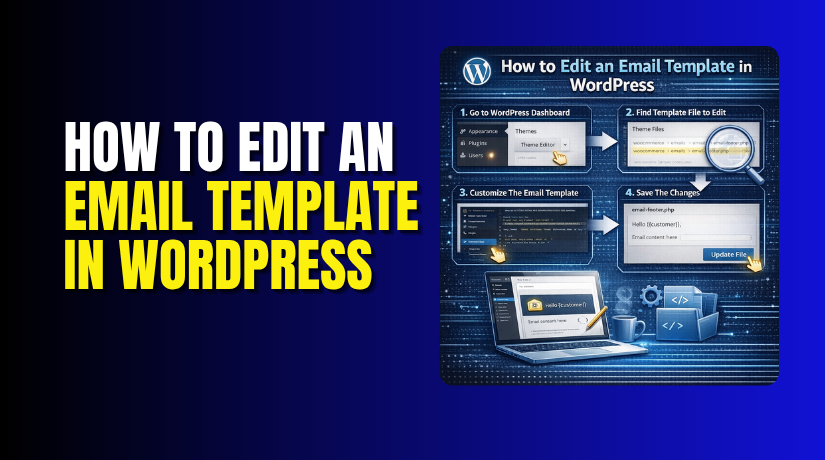
Editing a WordPress email template becomes easier when you follow a clear process. The safest approach is to first identify the exact email, then find the system sending it, make your changes, and test everything before using it on your live site. WordPress sends many emails through wp_mail(), and WooCommerce stores can manage built-in store emails from WooCommerce > Settings > Emails.
Step 1: Choose the Exact WordPress Email You Want to Edit
- Start by picking one email only. This can be a password reset email, a new user email, a form reply, or an order message.
- This step matters because different emails come from different parts of your site.
- If you try to edit everything at once, you may change the wrong template.
- A focused start makes WordPress email template customization easier and cleaner.
Step 2: Find Out Which System Is Sending That Email
- Next, check where the email comes from.
- Some emails come from WordPress core.
- Others come from plugins such as WooCommerce, form builders, membership tools, or LMS plugins.
- WooCommerce has its own email settings area, while core WordPress emails often need a plugin or developer-level filters for deeper changes.
- This step is the real base of editing email templates in WordPress work.
Step 3: Take a Full Backup Before You Start Editing
- Always create a backup before making template changes.
- Even a small change can break layout, remove placeholders, or cause message errors.
- A backup gives you a safe restore point if something goes wrong.
- This step is simple, but it protects your live website from avoidable issues.
- It is one of the smartest parts of safe customized WordPress email templates work.
Step 4: Open the Email Settings or Template Area
- Now open the place where that email is controlled.
- If the email comes from WooCommerce, go to WooCommerce > Settings > Emails.
- If it comes from another plugin, open that plugin’s settings and look for sections like Email, Notifications, Messages, or Templates.
- This is usually where you can edit email template WordPress settings without touching code.
Step 5: Edit the Subject Line and Main Email Message
- Once you find the correct template, edit the subject line first. Then update the heading and body text.
- Keep the wording short, clear, and helpful. If the template supports placeholders, use them carefully so names, links, or order details load correctly.
- Good edits improve trust and make your WordPress email template editor work more effectively.
Step 6: Improve the Design and Add Your Brand Details
- After editing the message, improve the look of the email.
- Add your logo, brand name, support details, and brand colors if the system allows it.
- WooCommerce includes template settings for email appearance and sender details.
- Also, keep your sender address on your branded domain, because WooCommerce recommends branded-domain sending for better trust and sender alignment.
- This step helps you change email layout WordPress emails in a more professional way.
Step 7: Check Whether the Email Uses Plain Text or HTML
- This step is very important for layout changes.
- WordPress wp_mail() uses text/plain by default, which does not support HTML design.
- HTML emails need the content type changed through the proper filter.
- So, if your email still looks plain after editing, the content type may be the reason.
- This is a key part of deeper WordPress email template customization work.
Step 8: Save the Changes and Send a Test Email
- After editing, save everything and send a test email.
- Check the subject, message, links, images, and placeholders.
- Review the email on desktop and mobile.
- Also remember this: a successful wp_mail() result only means WordPress processed the request.
- It does not fully guarantee inbox delivery.
- That is why real testing is always necessary after you edit an email template in WordPress.
Step 9: Review Delivery Settings if Emails Still Look Wrong or Do Not Arrive
- If the email is not reaching inboxes, check your mail setup next.
- WooCommerce notes that SMTP providers and email authentication play a major role in reliable delivery.
- If your design looks right but messages still fail, the issue may be with sending setup rather than template editing.
- This final check helps complete the full edit email template WordPress process.
Step 10: Repeat the Same Process for Other WordPress Email Templates
- Once one template works well, repeat the same steps for other emails.
- Edit one email at a time. Test each one properly.
- This method keeps your work organized and reduces mistakes.
- It also helps you build consistent branding across all messages sent from your site.
- That is the safest way to customize WordPress email templates for long-term use.
How to Edit an Email Template in WordPress Using Default WordPress Email Templates
Step 1: Identify the Default WordPress Email You Want to Change
- Start with one email only. Pick the exact message first. It may be a password reset email. It may be a new user registration email.
- It may also be another core WordPress notice.
- This step matters because WordPress uses different hooks for different emails.
- Choosing one email first keeps your work clear and organized.
Step 2: Confirm That the Email Comes from WordPress Core
- Before editing anything, confirm the email source.
- Some emails come from WordPress core. Other emails come from plugins or custom code.
- Core WordPress emails are usually sent through wp_mail(). WordPress also provides filters for several default email messages.
- This is why source checking should always come first.
Step 3: Take a Full Backup Before Making Changes
- Create a full backup before you start editing.
- This protects your site from mistakes.
- A small change can break the message.
- It can also affect links or email formatting.
- A backup gives you a safe restore point.
- This makes your WordPress email template customization work much safer.
Step 4: Use a Plugin or Safe Custom Method Instead of Editing Core Files
- Do not edit WordPress core files directly.
- Core edits can disappear after updates. A safer method is using a plugin.
- Another safe option is adding code through a child theme or a custom plugin.
- This keeps your edits easier to manage later.
- It is the best way to edit email templates in WordPress without losing changes.
Step 5: Edit the Password Reset Email Message
- If you want to change the password reset email, open the tool or code area you are using.
- Then update the subject or message text.
- WordPress supports changing reset-related email content through filters used in its core email flow.
- This allows you to improve the wording and make the message clearer for users.
- This is one of the most common default email edits in WordPress.
Step 6: Edit the New User Registration Email Message
- Next, edit the new user email if needed.
- WordPress has a filter for the new user notification email.
- This makes it possible to change the subject and message content.
- You can use this to write clearer text.
- You can also improve the tone and instructions.
- This helps you customize WordPress email templates in a more useful way.
Step 7: Rewrite the Email Content in a Clear and Helpful Way
- Now improve the message itself. Use short and direct sentences. Tell the reader what happened.
- Tell them what to do next.
- Remove confusing wording where needed. Add helpful instructions when needed.
- This makes the email easier to understand.
- It also improves trust in your website. This is a key part of strong WordPress email template customization.
Step 8: Add Your Business Name and Support Details
- After the main message, add useful business details.
- You can add your business name. You can add a support email or website link.
- This makes the email feel more complete. It also helps users contact you later.
- WordPress lets developers filter the sender email and sender name too.
- That helps your email look more professional.
How to Add Branding to WordPress Email Templates
Check Whether the Email Is Plain Text or HTML


Before adding branding, check the email format. This step is very important. WordPress wp_mail() uses text/plain by default. Plain text emails do not support logos or rich design. If you want layout styling or images, the email must use HTML. WordPress supports this through the wp_mail_content_type filter.
Change the Email Content Type to HTML Only When Needed
If your branding needs a logo or styled layout, use HTML format. This can be done with the proper content type filter. WordPress also warns that the content type should be reset after sending. Otherwise, it may affect other emails unexpectedly. This step matters when you want to change email layout WordPress emails in a stronger way.
Add Your Logo Carefully
Once the email supports HTML, add your logo carefully. Keep the size clean and simple. Do not make the design too heavy. A logo helps users recognize your brand quickly. It makes the message look more trusted. This is a smart step when using a WordPress email template editor or a plugin-based email tool.
Use Brand Colors in Small and Clear Areas
Now add your brand colors carefully. Use them for buttons, headings, or small accents. Do not overuse strong colors. Emails should stay easy to read. A clean design works better than a crowded one. This helps you edit email template WordPress settings without hurting readability.
Improve the Layout So the Main Action Is Easy to See
A good email layout should guide the reader fast. The heading should be clear. The main message should come early. The button or link should be easy to find. This matters most in registration and reset emails. A stronger layout improves the user experience and supports better WordPress email template customization.
Update the Sender Name and Email Address
Your sender details also affect trust. WordPress allows developers to filter the “from” email and the “from” name. WooCommerce also includes sender name and sender address settings in its email settings area. Even when you are working on WordPress email templates generally, branded sender details help emails look more real and more professional.
Send a Test Email and Check the Final Result
After all edits, send a test email. Check the subject line first. Then check the logo, text, links, and layout. Open it on desktop and mobile. Make sure the placeholders and actions work properly. WordPress notes that wp_mail() returning true only shows that the mail process was accepted, not that delivery definitely happened. That is why inbox testing is always necessary.
Review and Repeat for Other Default WordPress Emails
Once one email works properly, move to the next one. Follow the same process each time. Edit one template at a time. Test each change before going live. This keeps your email system clean and consistent. It is also the safest way to customize WordPress email templates across your site.
Common Problems You May Face While Editing WordPress Email Templates
Editing email templates looks simple at first, but small issues can appear quickly. A template may save correctly but still look wrong later. In some cases, the email reaches users with broken layout or missing details. In other cases, the email may not arrive at all. WordPress sends mail through wp_mail(), and WordPress notes that a successful return value only means the request was processed without error. It does not fully confirm inbox delivery.
Changes Do Not Show Even After You Save the Email Template
This is one of the most common problems. You may edit one template, but the site may be using another email source. A plugin may control the email instead of WordPress core. On WooCommerce sites, email settings are managed from WooCommerce > Settings > Emails, and each email can be edited from its own manage screen. If you change the wrong area, your update will not appear in the final email.
The Email Layout Looks Broken After You Add Design Changes
A broken layout often happens when HTML styling is added without the right email format. WordPress says the default content type for wp_mail() is text/plain, and plain text does not support HTML design. If you want logo, colors, or styled sections, the content type must be changed properly. WordPress also warns that the content type should be reset after sending, or it may affect other emails later.
Emails Reach Spam Instead of the Main Inbox
Spam placement is another common problem. Sometimes the template looks fine, but delivery quality is weak. WooCommerce explains that SMTP providers help improve email delivery, and it also has separate guidance for email authentication and sender requirements. This means good template editing alone is not enough. Your sending setup also matters a lot.
Template Changes Disappear After Theme or Plugin Updates
This usually happens when someone edits the wrong files directly. Direct edits can be replaced during updates. That is why safe editing methods matter from the start. When possible, use settings screens, safe overrides, or controlled customization methods instead of direct core edits. WooCommerce itself separates email settings, individual email management, and template appearance settings to support safer customization.
Test Emails Do Not Send Even After the Template Looks Correct
Sometimes the design is correct, but the email still does not send. In that case, the problem is often with mail delivery, SMTP setup, or sender requirements instead of the template itself. WooCommerce explains that SMTP providers are important for reliable delivery, and it also provides troubleshooting guidance for email sending issues. So, if the message is not arriving, check the sending system and not only the content.
How to Test Your Edited WordPress Email Templates the Right Way
Testing is the step that proves whether your work is really complete. A template may look correct in settings but fail in a real inbox. That is why every change should be checked after saving. You should test the subject line, content, links, design, and overall appearance before relying on that email on a live site. This is especially important because wp_mail() success does not fully prove delivery.
Send a Test Email to Yourself First
Start with your own inbox. Read the full message as a normal user would. Check the subject line, message flow, and final action link. If you use WooCommerce, you can review and manage built-in store emails from WooCommerce > Settings > Emails, which makes it easier to confirm you edited the correct template. Testing your own inbox first helps you catch easy mistakes early.
Check the Email on Mobile and Desktop Devices
An email may look fine on desktop but feel crowded on mobile. This matters more when you add branding or layout styling. Since WordPress plain text is the default, richer formatting depends on correct HTML email setup. So, once you add styled content, test the final email on more than one screen size. This helps you catch spacing and readability issues before users do.
Review Every Image, Link, and Button Carefully
Check every clickable part inside the email. Make sure the main button works. Make sure the support link opens correctly. Make sure your logo appears if the email uses HTML. If the message still behaves like plain text, review whether the content type has been set properly. A small broken link can make the whole email less useful.
Check the Subject Line and Sender Details
The subject line affects how clear the email feels. The sender name and sender address affect trust. WooCommerce lets store owners set sender information inside its email settings, and WooCommerce has also published sender requirement guidance because sending from the right domain matters for deliverability. So, testing should always include the subject and sender details, not only the body content.
Confirm That the Email Really Arrives and Not Just Sends
Do one final check after all edits. Confirm the email arrives in the inbox, and also check spam or promotions folders if needed. This matters because a processed mail request is not the same as successful delivery. WooCommerce also points users toward SMTP providers and troubleshooting steps when delivery is weak. So, testing should always include real inbox confirmation.
Best Practices That Help You Edit WordPress Email Templates More Safely
A good email template should look clear, trusted, and useful. It should also be easy to maintain later. The safest method is to keep the message simple, use the correct sender setup, and test every change after saving. WooCommerce email settings are designed around sender details, template appearance, and individual email controls, which supports a structured editing process.
Keep the Design Clean and Easy to Read
Do not overload the email with too many design elements. WordPress uses plain text by default, so extra styling should only be added when needed. If you use HTML, keep the layout simple and readable. A clean email usually performs better than a crowded one. This also makes your WordPress email template customization easier to manage.
Use a Proper Sender Address and Reliable Delivery Setup
Your sender details should match your website branding. WooCommerce includes sender settings, and its delivery guides explain why authentication and SMTP support matter. This means a strong template should be paired with a strong sending setup. Good delivery settings help your edited email reach real inboxes more reliably.
Test Every Change Before Using It on the Live Site
Never trust a template change without testing it. Check the message in a real inbox. Check the mobile view. Check the main action link. This is one of the best habits when you edit email templates in WordPress. It protects both your site and your users from avoidable mistakes.
Conclusion
Editing email templates can improve both branding and user experience. It can make your emails clearer, stronger, and more professional. But the best results come when you first identify the email source, edit the correct template, and test the final message carefully. WordPress email behavior and WooCommerce delivery guidance both show that template design and delivery setup must work together.
If you want help editing email template WordPress settings the right way, If you want help editing email template WordPress settings the right way, WooHelpDesk can help. From WordPress email template customization to sender setup and testing, the team can help you customize WordPress email templates safely and professionally.
can help. From WordPress email template customization to sender setup and testing, the team can help you customize WordPress email templates safely and professionally.