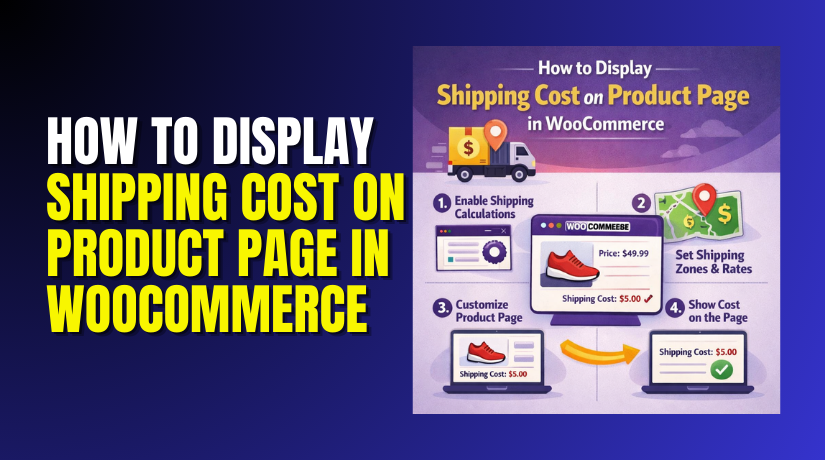
How to Display Shipping Cost on Product Page in WooCommerce
Table of Contents
- Introduction
- Why Displaying Shipping Cost on the Product Page In WooCommerce is Important
- How to Display Shipping Cost on WooCommerce Product Page (Step By Step)
- Common Shipping Cost Display Issues on WooCommerce Product Pages
- Conclusion
Introduction
In any online store, WooCommerce is a popular e-commerce platform for selling products. While WooCommerce offers various features, one essential aspect that many store owners overlook is displaying shipping costs. Shipping costs often surprise customers at checkout, leading to cart abandonment. This is where displaying shipping costs on the product page in WooCommerce becomes crucial. By showing the shipping costs early in the shopping process, you provide customers with transparency. This builds trust, enhances their shopping experience, and can ultimately lead to higher conversion rates.
Why Displaying Shipping Cost on the Product Page In WooCommerce is Important
Increased Transparency
Customers appreciate knowing the total cost of their purchase upfront. When you display shipping cost on the product page in WooCommerce, customers can see the full price, including shipping, before they add the product to their cart. This reduces the chances of any surprise fees at checkout, which can lead to frustration or cart abandonment.
Reduced Cart Abandonment
One of the leading causes of cart abandonment is unexpected shipping costs. If customers see the shipping costs only at checkout, they may abandon their cart when they see the total price. Showing shipping costs earlier, such as on the product page, helps customers make informed decisions and can reduce cart abandonment rates.
Better User Experience
Displaying shipping costs before checkout enhances the overall user experience. Customers prefer a smooth, straightforward shopping process without hidden costs. When shipping costs are visible on the product page, it helps customers feel more in control of their purchase, which improves their shopping experience.
Helps with Decision Making
Some customers might decide to purchase a product based on its shipping cost. When you show shipping costs per product on the product page, it allows customers to make better decisions based on their budget and preferences. Additionally, if you offer free shipping, displaying this information on the product page can attract more buyers.
Displaying shipping costs upfront is a small change that can make a significant impact on your WooCommerce store’s sales. In the next section, we’ll explore how to display shipping cost on WooCommerce product pages and why this approach can boost your store’s performance.
How to Display Shipping Cost on WooCommerce Product Page (Step By Step)
Displaying shipping costs directly on the product page in WooCommerce can be done in a few simple steps. Using a plugin is the easiest way to implement this feature without needing to write custom code. Here’s how you can do it step by step:
Step 1: Choose the Right Plugin
There are several plugins available that make it easy to display shipping costs on the product page. Some popular options include:
- WooCommerce Shipping Calculator on Product Page
- WooCommerce Advanced Shipping
- WooCommerce Shipping Zones and Rates
Each of these plugins offers different features, so be sure to choose one that fits your specific needs. In this guide, we’ll walk through using WooCommerce Shipping Calculator on the Product Page.
Step 2: Install the Plugin
- Go to your WordPress dashboard.
- Navigate to Plugins > Add New.
- Search for “WooCommerce Shipping Calculator on Product Page”.
- Click Install Now, and then click Activate once the plugin is installed.
Step 3: Configure the Plugin
After installing the plugin, you need to configure it to display shipping costs on the product page. Here’s how to do it:
- Go to WooCommerce > Settings in your WordPress dashboard.
- Click on the Shipping tab.
- You should now see a new section related to the shipping calculator plugin.
- Enable the Shipping Calculator on Product Page option. This will ensure that the shipping calculator is shown directly on the product page.
- Customize the display options to fit your store’s theme. You can choose where on the page you want the calculator to appear, such as under the product title or after the product description.
Step 4: Set Up Shipping Zones and Rates
For the shipping calculator to work correctly, you must have shipping zones and rates set up in WooCommerce. Here’s how to configure them:
- Navigate to WooCommerce > Settings > Shipping.
- Set up your Shipping Zones based on geographical regions (e.g., United States, Europe, etc.).
- Under each zone, you can configure the shipping methods you offer, such as flat rate, free shipping, or table rate shipping.
- Make sure each zone has the correct shipping rates configured, as these will be used to calculate shipping costs.
Step 5: Customize the Shipping Cost Display
After setting up the plugin, you can customize how the shipping cost is displayed on the product page. The plugin will usually allow you to choose the format for the shipping cost display, such as a simple text box or a button that reveals the cost.
You can also change the appearance of the shipping cost display by modifying CSS styles. Here’s an example of how you might style the shipping cost container:


Step 6: Test the Shipping Calculator
Before going live, be sure to test the shipping calculator to ensure it works correctly.
- Visit a product page on your site.
- Enter a shipping address (or choose from pre-configured options) to see if the shipping cost is calculated and displayed correctly.
- Make sure the correct rates are applied based on the customer’s location and selected shipping method.
Step 7: Display Free Shipping Information (Optional)
Many stores offer free shipping on certain products or orders over a specific amount. You can configure the plugin to display a “Free Shipping Available” message if applicable.
To do this, you can create a custom message in the plugin’s settings or add a message in your product description. For example:
- “Free Shipping on Orders Over $50!”.
- This message can appear dynamically when the cart reaches the required threshold for free shipping.
By using a plugin, you can quickly and easily display shipping costs on the product page in WooCommerce, enhancing the shopping experience for your customers and improving transparency. This method is simple, and requires minimal setup, making it ideal for store owners who want a quick solution without needing custom coding.
Common Shipping Cost Display Issues on WooCommerce Product Pages
While displaying shipping costs on the product page in WooCommerce is a great way to improve transparency and enhance the user experience, it can sometimes lead to issues. Below, we’ll discuss some common problems you might face while implementing this feature and how to troubleshoot them.
- Shipping Costs Not Displaying Correctly
The shipping cost may not display on the product page, or it may display an incorrect amount.
Solution
- Check Shipping Zones and Rates: First, ensure that the shipping zones and rates are properly configured in WooCommerce > Settings > Shipping. If the zones aren’t set up correctly, WooCommerce might not be able to calculate the shipping cost.
- Test Shipping Methods: Verify that the correct shipping methods are enabled and assigned to the correct zones. If you’re using custom shipping methods, ensure that they are functioning as expected.
- Plugin Conflicts: Sometimes, a conflict between plugins can cause shipping costs to display incorrectly. Deactivate other shipping-related plugins and check if the issue persists. If the issue is resolved, reactivate plugins one by one to identify the conflicting plugin.
- Shipping Calculator Not Working
The shipping calculator does not work, and users cannot calculate the shipping cost.
Solution
- Check JavaScript Errors: Shipping calculators often rely on JavaScript to function properly. Use your browser’s developer tools (press F12) to check for JavaScript errors on the page. If there are any errors, try disabling other plugins or switching to a default theme like Storefront to see if the problem is related to your theme or another plugin.
- Enable Shipping Calculator on Product Page: If you’re using a plugin to display the shipping cost, make sure the shipping calculator is enabled in the plugin settings. If you added custom code, ensure it’s implemented correctly and that the hook used is placed in the right part of the product page template.
- Clear Cache: If you’re using a caching plugin, clear the cache after making changes. Cached versions of the page might not show the updated shipping calculator.
- Shipping Cost Displaying as $0 or Incorrect Rate
The shipping cost displays as $0 or an incorrect rate, even though you’ve set up shipping methods and zones.
Solution
- Check Shipping Settings: Ensure that the shipping methods and rates are correctly configured in WooCommerce > Settings > Shipping. A common mistake is forgetting to set a default shipping rate or leaving shipping zones blank.
- Correct Product Weight and Dimensions: Shipping rates are often based on the weight and dimensions of products. If your products don’t have proper weight or dimensions set, shipping costs might not be calculated correctly. Go to each product in Product Settings > Shipping and make sure the correct weight and dimensions are added.
- Test with Different Addresses: The shipping cost is calculated based on the customer’s address. Make sure to test with different shipping addresses to ensure the rate is calculated properly based on the customer’s location.
- Shipping Costs Not Updating After Adding Products to Cart
The shipping cost doesn’t update when products are added to the cart, or it remains static.
Solution
- Enable AJAX Update for Cart: Some themes or customizations may prevent the shipping cost from updating automatically when the cart contents change. You can enable AJAX updates in WooCommerce > Settings > Shipping to automatically update the shipping rates when the cart is updated.
- Check for Theme Issues: If the problem persists, test the site with a default theme like Storefront to rule out any theme-related issues. Some themes may not handle AJAX updates correctly, which could prevent shipping costs from updating dynamically.
- Plugin Conflict: Another common issue is conflicts between plugins. Deactivate all other plugins except WooCommerce and check if the issue persists. If the shipping cost updates correctly, reactivate each plugin one by one to identify the one causing the issue.
- Shipping Method Not Displaying Properly on Product Page
The specific shipping method or rate you want to display isn’t showing on the product page, even though it’s configured in WooCommerce.
Solution
- Check Shipping Method Settings: Make sure that the desired shipping method (e.g., free shipping, flat rate) is set up and available for the correct shipping zones. Go to WooCommerce > Settings > Shipping Zones and ensure that the method is activated for the customer’s location.
- Add Custom Shipping Methods: If you need a custom shipping method displayed, you may need to modify the code or use a plugin to show it. For example, you can add custom shipping rules that display different rates for specific products.
Conclusion
Displaying shipping costs on the product page in WooCommerce is a powerful way to improve customer transparency and boost conversions. By implementing the right methods, whether through plugins or custom code, you ensure your customers have a smooth and informed shopping experience. This not only helps reduce cart abandonment but also builds trust with your customers. However, it’s important to keep an eye out for common issues such as incorrect shipping rates or shipping calculators not working, and address them promptly to maintain a seamless shopping experience.
If you need help setting up shipping cost displays or troubleshooting any WooCommerce issues, WooHelpDesk is here to assist you. Our expert team can guide you through the setup process or resolve any challenges you encounter with WooCommerce. Contact us today at Call Us Toll-Free: +1 888 602 0119 or visit our website to get professional WooCommerce support tailored to your needs. Let us help you enhance your online store’s performance and customer experience!
