How to Customize WooCommerce Blocks?
Table of Contents
- Introduction
- What are WooCommerce Blocks?
- What are the Core Types of WooCommerce Blocks?
- Why Customize WooCommerce Blocks?
- How to Customize WooCommerce Blocks?
- Final Verdict
Introduction
WooCommerce blocks changed how store pages get built in WordPress. They replace old shortcodes with visual, flexible layout pieces. You can drag, edit, and preview changes in real time. This makes store design faster for non technical site owners.
In this guide, you will master customized WooCommerce blocks workflows. You will learn WooCommerce block editor customization without breaking layouts. You will also learn how blocks affect speed and conversions.
We will cover what blocks are and why customization matters. Later, we will cover step by step editing methods too. This content is written to compete strongly in search results. We will keep every sentence short, clear, and action focused.
What are WooCommerce Blocks?
WooCommerce blocks are ready made ecommerce elements for WordPress. They work inside the Gutenberg block editor and Site Editor. These blocks show products, categories, filters, carts, and checkouts. Each block has settings for layout, content, and styling options. WooCommerce blocks can be used on pages and templates too.
They support modern store building without heavy coding requirements. They also improve design consistency across devices and screen sizes. WooCommerce blocks are part of the WooCommerce Blocks project. Newer WooCommerce versions bundle many of these blocks by default.
You can use them for landing pages and conversion focused sections. You can also use them for your shop archive and category pages. Many store owners now prefer blocks over old shortcode layouts. Blocks also integrate better with block themes and patterns. This is why WooCommerce Gutenberg blocks customization is important today.
What are the Core Types of WooCommerce Blocks?
WooCommerce provides several block types for different store needs. Each block supports a specific stage of the buying journey.
1. Product Display Blocks
These blocks help shoppers see products and click into details.
- All Products block shows a grid of products with settings.
You can control columns, rows, sorting, and visible product info. This is the base block for many store pages. - Featured Products block highlights products you mark as featured.
It supports curated picks and helps push high value products. This works well for homepages and category landing sections. - Handpicked Products block lets you choose exact products manually.
This helps you build curated bundles or themed product collections. It also improves control when you want fixed product selection. - Products by Category block shows items from selected categories.
This supports category spotlight sections and improves store navigation. It also helps large catalogs feel easier to explore. - Products by Attribute block filters products by attributes like color.
This works well for fashion, size based items, and variants. It also supports clean landing pages for specific attribute groups.
2. Category and Navigation Blocks
These blocks help shoppers find product groups and browse faster.
- Product Categories block shows category cards or lists.
It helps shoppers choose a department without scrolling long catalogs. It also improves store structure for first time visitors. - Filter blocks support refining products by price and attributes.
Filters reduce browsing time and improve product discovery speed. This matters for stores with many similar items. - Search block helps shoppers find products using keywords quickly.
Search reduces frustration when shoppers know what they need. Better search also improves conversion for high intent visitors.
3. Cart and Checkout Blocks
These blocks control the shopping cart and checkout experience.
- Cart block controls the cart layout and totals sections.
It displays items, quantities, coupons, and cart totals information. It also supports extensions that add fees and shipping messaging. - The checkout block controls the checkout layout and form fields.
It shows billing, shipping, payment, and order summary sections. It can also support express payments and address validations. - Mini Cart block shows a small cart panel in headers.
It helps shoppers review cart items without leaving the page. This can reduce abandoned carts during browsing sessions.
Why Customize WooCommerce Blocks?
Customizing WooCommerce blocks helps you control how your store looks. It also helps you control how shoppers move through pages. Default block layouts often look generic and less conversion focused. Custom layouts can highlight your best products more effectively. They can also reduce confusion during browsing and checkout. This is why customized WooCommerce blocks improve both design and sales.
1) Improve Store Design and Branding
- Match your brand colors, fonts, and spacing across pages.
Consistent styling makes your store look professional and trustworthy. - Create cleaner layouts that feel modern and easy to scan.
Clean design reduces stress and keeps users browsing longer. - Make product sections look consistent on all screen sizes.
Consistency improves mobile browsing and reduces layout break issues.
2) Improve Product Discovery and Navigation
- Show products in better grids with clear categories and filters.
Shoppers find the right items faster and click more often. - Highlight featured, sale, or best seller products effectively.
This pushes proven items and improves conversion on homepage sections. - Create focused landing pages for campaigns and seasonal products.
Landing pages convert better when they show only relevant products.
3) Increase Conversions and Reduce Checkout Friction
- Place stronger calls to action using better block placement.
Better placement increases add to cart clicks and product visits. - Reduce clutter by hiding unnecessary elements in product blocks.
Less clutter makes prices and buttons easier to notice quickly. - Improve cart and checkout block layouts for faster completion.
Cleaner checkout layouts reduce drop offs and payment hesitation.
4) Improve Speed and Performance When Done Correctly
- Use fewer plugins by relying on native block features.
Fewer plugins reduce bloat and lower conflict risk. - Build lighter pages by avoiding heavy builders and scripts.
Lighter pages load faster and improve mobile user experience. - Keep block layouts focused to reduce database load.
Focused layouts improve stability during traffic spikes and sales.
5) Make Store Updates Faster and Easier
- Edit layouts visually without touching theme files or templates.
This makes updates safer and faster for non technical users. - Use reusable blocks to update many pages at once.
One update can refresh trust sections across the full store. - Test layout changes quickly using previews and patterns.
Fast testing helps you keep improvements and remove weak sections.
6) Support Better SEO and On Page Structure
- Use clear headings and sections that improve content structure.
Better structure helps search engines understand your page clearly. - Add helpful text above product grids to avoid thin pages.
Intro text improves relevance and supports better indexing results. - Improve internal links using category and product blocks.
Internal links help crawling and improve ranking for store pages.
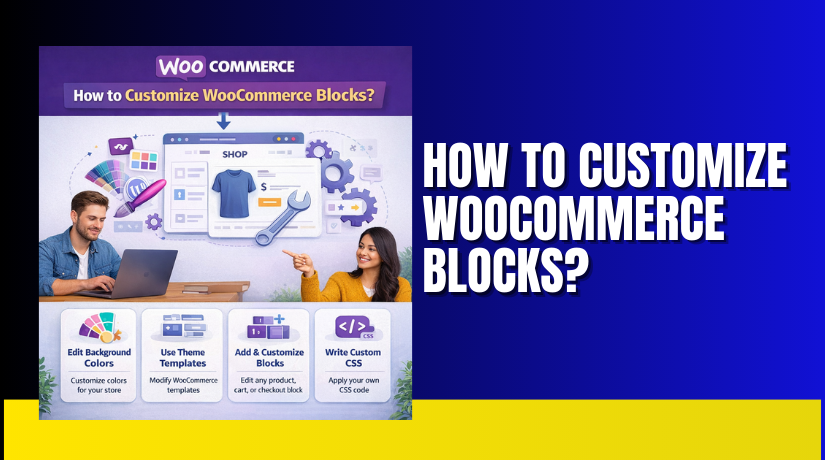
How to Customize WooCommerce Blocks?
WooCommerce blocks can be customized using the WordPress block editor. You can change layouts, styling, and what shoppers see. You can do most changes without writing any code. The steps below follow a safe and clear workflow. This helps you do WooCommerce block editor customization correctly.
Step 1: Confirm Where You Need to Edit Blocks
Some blocks are inside pages, while others are inside templates. First, confirm what you are editing to avoid wrong changes.
Dashboard → Appearance → Themes → Check theme type
- Check if you are editing a normal page section.
Homepages and landing pages usually use page editor blocks. - Check if you are editing a template based shop layout.
Shop pages often use templates in block themes. - Check if your theme is block theme or classic theme.
Block themes use Site Editor, while classic themes use pages.
Step 2: Customize Blocks Inside a Page Editor
This method is best for homepage sections and custom store pages. It is also best for product showcase landing pages.
Dashboard → Pages → All Pages → Select Page → Edit


- Click the block you want to customize on the page.
The settings panel opens on the right side automatically. - Use layout settings to change columns, rows, and alignment.
This controls how products appear in grids and collections. - Toggle product elements like price, rating, and button display.
This helps you keep product cards clean and conversion focused. - Use spacing controls to improve padding and section readability.
Better spacing reduces clutter and improves scanning on mobile. - Add headings above product blocks for better structure.
Headings improve clarity and help SEO structure on the page.
Step 3: Customize WooCommerce Shop Page Blocks Using Templates
If your shop page is template based, edit the template in Site Editor. This is the best way to modify shop grids and filters.
Dashboard → Appearance → Editor → Templates → Product Catalog
- Find the Product Grid or Product Collection block first.
This is the main catalog block controlling product display. - Adjust product grid columns and spacing for clean browsing.
Test desktop and mobile views before saving changes. - Add or edit sorting block for better product ordering.
Sorting helps shoppers find products by price or popularity. - Add filters like price and attributes for faster product finding.
Filters reduce scrolling and improve product discovery speed. - Save the template and test shop browsing flow end to end.
Test pagination, sorting, and filters together for stability.
Step 4: Customize WooCommerce Product Blocks on Product Pages
Product pages can use blocks in descriptions and extra sections. Use blocks to add trust, FAQs, and related products.
Dashboard → Products → All Products → Select Product → Edit
- Add FAQ blocks inside the product description area.
FAQs answer questions and reduce hesitation during buying. - Add a Handpicked Products block for cross sells and upsells.
This increases order value and improves product discovery. - Add trust blocks like shipping, returns, and secure payments.
Trust messaging reduces drop offs and improves buyer confidence.
Step 5: Customize Cart and Checkout Blocks Carefully
Cart and checkout blocks are sensitive and must be tested. Even small layout changes can affect purchases and payments.
Dashboard → Pages → Cart → Edit
Dashboard → Pages → Checkout → Edit
- Avoid removing the main Cart or Checkout block accidentally.
Removing it can break checkout and stop orders completely. - Adjust section order and spacing for better readability.
Better readability reduces confusion and lowers abandonment. - Add a short trust text near the payment section for reassurance.
This reduces payment fear and improves checkout completion. - Test checkout using a real payment method in sandbox mode.
Always test shipping, taxes, coupons, and confirmations too.
Step 6: Use Reusable Blocks for Faster Storewide Updates
Reusable blocks save time and keep designs consistent everywhere. They are great for banners, trust rows, and policy notices.
Select Block Group → Three Dots Menu → Create Reusable Block
- Create one trust section and reuse across shop pages.
This keeps messaging consistent and reduces update workload. - Update once, and it updates everywhere automatically.
This prevents outdated policy text on older pages later.
Step 7: Preview and Test Before Publishing Every Change
Testing prevents layout mistakes and checkout problems in live stores. Always preview on multiple devices and clear cache.
View Site → Add Product → Cart → Checkout → Place Order
- Preview mobile, tablet, and desktop before saving changes.
Mobile issues can reduce sales and increase exit rates quickly. - Clear cache and check pages in private mode after saving.
Cache can hide changes and create false troubleshooting steps. - Place a test order after the checkout block changes always.
This confirms payment, shipping, emails, and order creation work.
Final Verdict
WooCommerce blocks give you modern control over store design and layout. They help you build product sections without heavy coding work. When you customize WooCommerce blocks properly, browsing becomes easier. Shoppers find products faster and trust the store more quickly. This improves clicks, add to cart actions, and checkout completion rates. Use block settings first, then add small styling only if needed.
For shop pages, modify WooCommerce shop page blocks using templates safely. For product pages, edit WooCommerce product blocks with consistent images and cards. Always test changes on mobile and place a test order after updates. This approach keeps your store fast, stable, and conversion focused.
Have questions before starting with WooCommerce & WordPress? Get support here at WooHelpDesk.