How to Customize Product Pages in WooCommerce (Complete Step-by-Step Guide)
Table of Contents
- Introduction
- Understand the Parts of a WooCommerce Product Page Before You Change It
- Pick the Right Customization Method for Your Needs and Skill Level
- How to Customize Product Pages in WooCommerce With Different Methods
- How to Choose the Right Method for Your Store
- Conclusion
Introduction
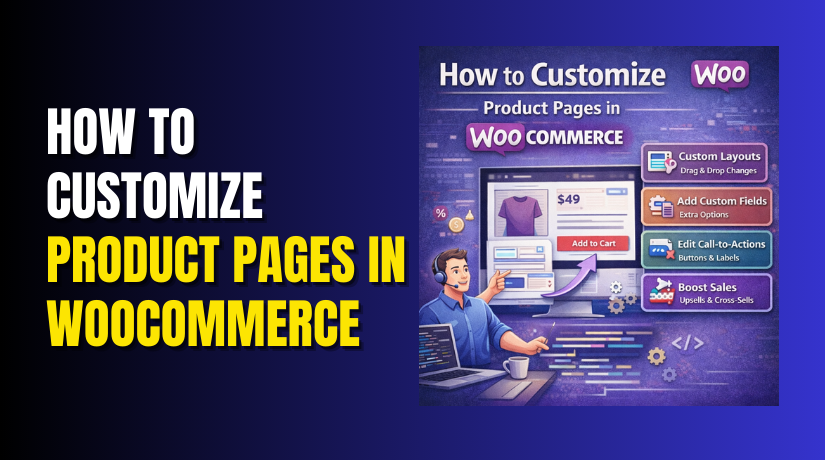
Your product page is your store’s main sales pitch. It answers questions and removes doubt for buyers. Many stores lose sales because pages look crowded or confusing. That is why you should Customize WooCommerce product pages with purpose. You do not need a complex setup to start improving.
Small changes can raise trust and increase add to cart clicks. Good WooCommerce product page design also improves mobile shopping experience. Many shoppers decide fast, so your page must feel clear. Your theme gives a default layout, but you can improve it. WooCommerce product page customization helps you match your brand style. It also helps you highlight key details buyers care about most.
This guide explains how to customize product pages in WooCommerce safely. You will learn what each product section does on-page. You will also learn what WooCommerce controls by default. You will learn what your theme usually controls as well. Once you know the parts, you can edit with confidence. That is how you avoid breaking important purchase features.
Understand the Parts of a WooCommerce Product Page Before You Change It
Before you Edit WooCommerce product page layout, learn its structure. WooCommerce product pages follow a common and predictable layout. Most pages start with the product title at top. Right near it, you see the product image gallery. The gallery may include zoom, slider, and thumbnails.
Next, shoppers look for price and sale pricing details. They also scan the short description for quick benefits. This area should feel simple and easy to scan. The Add to Cart area is the most important section. It includes quantity, stock status, and purchase button. If your product has options, you will see variations. Variations include size, color, and other dropdown choices. A variable product may also show a price range. Below the main area, WooCommerce shows long details. This usually includes the full description and extra data.
Many stores show these details inside tabs by default. Tabs often include Description, Additional Information, and Reviews. Reviews add trust, so many stores keep them visible. Additional Information shows attributes like weight and dimensions. Some themes show these details as a table. After that, shoppers see related product suggestions below. WooCommerce may show related products, upsells, or both. Upsells are upgrades you want shoppers to pick instead. Related products help shoppers keep browsing within your store.
Some themes also add breadcrumbs near the top. Breadcrumbs help users move back to categories fast. Some stores also show product meta under the cart button. Meta includes SKU, categories, and tags for easy browsing.
Now understand what WooCommerce controls versus your theme controls. WooCommerce controls core data and core purchase actions. This includes price logic, cart behavior, and variation rules. It also controls stock status and product types behind the scenes. Your theme controls how these parts look and where they appear. It controls spacing, fonts, colors, and layout width. Many themes also control gallery style and tab styling. That means two stores can look very different on WooCommerce.
When you change the theme, the layout can change instantly. When you add plugins, new blocks may appear too. Knowing this split helps you plan changes safely. It also saves time when something looks “wrong” suddenly. If a layout changes after an update, check theme options. If cart actions fail, check WooCommerce settings and plugins. Once you know the page parts, your edits stay focused. Then WooCommerce product page design becomes easier to manage.
Pick the Right Customization Method for Your Needs and Skill Level
You can customize WooCommerce product pages in several safe ways. The best method depends on your goal and your skills. Some changes are simple and need no coding at all. Other changes need light code for clean layout control. A few changes need advanced work for full layout freedom. Choosing the right path saves time and avoids broken pages. It also keeps your store stable during theme updates. This section helps you pick the best method confidently.
Option 1: No-Code Customization for Fast and Safe Changes
No-code methods are best for most store owners. They work well when you want simple layout improvements. They also help when you want better spacing and cleaner styling. You can change many things using WooCommerce and theme options. This approach is low risk and easy to reverse later. It is also great for beginners and busy store teams. If your goal is basic WooCommerce product page customization, start here. This option can improve WooCommerce product page design quickly. You can adjust layout width, sidebar, and gallery style often. You can also change typography and button colors in themes. You can manage reviews and product data in WooCommerce settings. Many stores can achieve a strong product page with no code.
Option 2: Light Code Changes for Better Control Without Complexity
Light code is best when you need small layout edits. It is also useful when your theme options feel limited. This method usually means small CSS changes or small snippets. CSS helps you adjust spacing, fonts, and button styles. Small snippets can add text blocks in key locations. For example, you may want a trust line under price. You may also want a message near the Add to Cart button. Light code can help Edit WooCommerce product page layout carefully. It gives more control than theme settings alone. It still keeps the page stable if done correctly. You should add small code using safe locations only. Use a child theme or a custom plugin for snippets. Use the Customizer for simple CSS changes. This keeps your edits safe during theme updates.
Option 3: Advanced Customization for Full Layout Freedom
Advanced customization is for full design control and custom layouts. It is best when you need a unique product experience. This includes custom sections, custom templates, and new layouts. Some stores need custom designs for high-ticket products. Some stores need special layouts for subscriptions or bundles. This approach may involve template changes and deeper settings. It may also involve custom logic for product data display. It can support deep WooCommerce product page design changes. It can also create a custom shopping flow on-page. This method has higher risk if done without testing. Updates can overwrite changes if not handled correctly. That is why advanced changes need careful planning. If you need this route, test on staging first.
How to Customize Product Pages in WooCommerce With Different Methods
There are multiple ways to customize a WooCommerce product page. The best method depends on your theme, your skills, and your goal. In this blog, you will learn How to customize product pages in WooCommerce using five simple methods.
First, you can use WooCommerce built-in settings for safe changes. Second, you can use your theme options to adjust layout and styling. Third, you can use WooCommerce Blocks to build modern product templates. Fourth, you can use a page builder to design a custom product page layout. Fifth, you can use CSS to polish spacing, fonts, and button design.
Each method supports better WooCommerce product page customization without breaking checkout features. You can start with the easiest method and upgrade later. This approach helps you Customize WooCommerce product pages step by step. It also helps you create a clean WooCommerce product page design that converts better.
Method 1: Customize WooCommerce Product Pages Using WooCommerce Built-In Settings
Step 1: Open the main product settings
- Go to your WordPress Dashboard and click WooCommerce → Settings.
- Open the Products tab and review the options carefully.
Step 2: Enable or disable reviews for the product page
- Find the Reviews settings and turn them on or off.
- This choice changes trust signals on your WooCommerce product page design.
Step 3: Choose the best Add to Cart flow
- Enable Redirect to the cart page after successful addition if you want faster checkout.
- Disable it if you want smoother browsing and more product views.
Step 4: Edit product content that buyers actually read first.
- Go to Products → All Products and click Edit.
- Update the short description to highlight benefits in clear words.
Step 5: Improve product images and gallery display basics.
- Set a clear Product image and add clean gallery photos.
- Strong images make WooCommerce product page customization feel more professional.
Step 6: Set pricing, stock, and purchase details correctly.
- In Product data → General, add regular and sale price.
- In Inventory, set stock status and quantity rules.
Step 7: Add upsells and cross-sells for smart selling.
- Open Linked Products and add upsells and cross-sells carefully.
- This supports better WooCommerce product page design without extra tools.
Step 8: Add attributes to show product details clearly.
- Open Attributes and add size, color, or material.
- Mark them visible so buyers understand the product quickly.
Step 9: Save and test like a real customer.
- Click Update and open the product page in incognito mode.
- Test Add to Cart, variations, and checkout to avoid surprises.
This method is the safest answer to How to customize product pages in WooCommerce for most stores. It helps you Customize WooCommerce product pages without touching code or files.
Method 2: Edit WooCommerce Product Page Layout Using Theme Options
Step 1: Open your theme customization panel.
- Go to Appearance → Customize or your theme settings panel.
- Look for WooCommerce or Product Page options.
Step 2: Choose the product page layout style.
- Select Full Width for more space and cleaner sections.
- Choose Sidebar only if it helps shoppers browse better.
Step 3: Adjust the product gallery style if available
- Switch between thumbnails, slider, or stacked images if your theme supports it.
- Better gallery layout improves WooCommerce product page design fast.
Step 4: Update colors and typography for brand consistency


- Set button colors, fonts, and heading styles inside the Customizer.
- Keep contrast strong so buttons stay easy to spot.
Step 5: Control spacing for a cleaner product page view
- Increase white space around price and Add to Cart area.
- Clean spacing makes WooCommerce product page customization feel premium.
Step 6: Change tab styling if your theme provides options
- Some themes let you switch tabs to accordion style.
- Accordion often looks better on mobile product pages.
Step 7: Publish changes and test on mobile view
- Click Publish and check a product page on phone size.
- Make sure layout stays stable and Add to Cart stays visible.
This method helps you Edit WooCommerce product page layout without plugins or coding. It is ideal when your goal is improved WooCommerce product page design and brand styling.
Method 3: Customize WooCommerce Product Pages Using WooCommerce Blocks
WooCommerce Blocks help you build cleaner layouts with less risk. This method is great when your theme supports block templates. It also works well when you want simple section control. You can Customize WooCommerce product pages while keeping core features stable. You are not rewriting files, so updates stay safer. This approach improves WooCommerce product page design with a visual editor.
Step 1: Open the Site Editor or template area.
- Go to Appearance → Editor if your theme supports it.
- If you do not see it, your theme may not be block based. In that case, skip to the page builder method below.
Step 2: Find the Single Product template.
- In the editor, open Templates and look for Single Product.
- If your theme uses template parts, open the product template part.
Step 3: Arrange key product blocks in the right order.
- Place the product title, price, and images near the top.
- Keep the Add to Cart area above long descriptions.
- This keeps the buying action visible and clear.
Step 4: Keep WooCommerce functions working while editing layout.
- Do not remove critical elements like Add to Cart.
- Do not hide variations on variable products.
- Test with one simple product and one variable product.
Step 5: Improve clarity with clean spacing and sections.
- Add a short benefits section near the short description.
- Add a trust section near the Add to Cart area.
- These small changes support WooCommerce product page customization.
This method is a clean answer to How to customize product pages in WooCommerce. It helps you Edit WooCommerce product page layout without heavy plugins. It also keeps your product pages easier to maintain over time.
Method 4: Edit WooCommerce Product Page Layout Using a Page Builder Template System
A page builder works best when you need full visual control. It is also useful when your theme options feel limited. Many builders offer a product template builder feature. This lets you design once and apply to many products. It supports WooCommerce product page design for marketing focused stores.
Step 1: Confirm your builder supports product templates
- Open your builder settings and look for template tools.
- Check for WooCommerce widgets or product elements support.
- If product widgets do not exist, avoid this route.
Step 2: Create a single product template inside the builder
- Go to the builder’s theme builder or templates area.
- Create a new template for WooCommerce single products.
- Set display rules for all products or selected categories.
Step 3: Build the page using product elements, not normal text
- Add product title, price, images, and Add to Cart widgets.
- Add a short description and product meta where it helps.
- Use real WooCommerce elements so cart actions work.
Step 4: Add conversion focused sections in the right places
- Add a shipping note below the price area.
- Add returns and support info near Add to Cart.
- Add a FAQ style section below the description area.
- This supports WooCommerce product page customization with better clarity.
Step 5: Keep the design clean and fast for mobile
- Avoid too many animations and heavy sliders.
- Keep buttons large and easy to tap on phones. Make the Add to Cart section visible without scrolling too much.
Step 6: Test your template on different product types
- Test simple products, variable products, and sale products.
- Check variation dropdowns and price changes carefully. Then check the cart and checkout flow again.
This method helps you customize WooCommerce product pages with strong design freedom. It can also help you match brand style across your store. Use it when you need more than theme settings can provide.
Method 5: CSS Styling Changes for WooCommerce Product Page Customization
CSS is best for styling changes, not major layout changes. It helps you adjust spacing, fonts, and button styling. It also helps fix small design issues fast. This is a practical part of WooCommerce product page customization. It improves WooCommerce product page design without adding heavy tools.
Step 1: Add CSS in the safest location first
- Go to Appearance → Customize → Additional CSS.
- This is the safest place for small styling updates. Your changes stay even if you update WooCommerce.
Step 2: Start with simple styling goals, not big redesigns
- Focus on button size, spacing, and font clarity.
- Improve line height so text is easier to scan. Add space around the Add to Cart area for cleaner focus.
Step 3: Use your browser inspect tool to target elements
- Right click and choose Inspect on the element you want.
- Copy the class name and use it carefully in CSS. Keep selectors simple so they do not break later.
Step 4: Apply changes in small batches and test often
- Add a few CSS rules, then refresh the product page.
- Check desktop view and mobile view right after. This avoids long debugging later.
Step 5: Make sure your changes do not hide key actions
- Do not hide variation dropdowns or stock messages.
- Do not reduce button contrast too much. Add to Cart should stay clear and easy to notice.
CSS is a great way to Edit WooCommerce product page layout visually, but only in small ways. For big layout moves, use blocks or a builder instead. When used correctly, CSS makes your WooCommerce product page design look polished.
How to Choose the Right Method for Your Store
Start by writing your goal in one clear line. Decide what you want to improve on the product page. Do you want better design, better trust, or better clarity? If your goal is visual polish, start no-code first. If you need small position or style changes, use light code. If you need full control, use advanced customization. Your time and budget also matter for the decision.
No-code is fastest and easiest for most store owners. Light code offers strong value with low complexity. Advanced work is best for bigger stores and custom needs. This guide will show how to customize product pages in WooCommerce step by step. You will learn safe ways to adjust layout and design. You will also keep core purchase features working correctly. That is the real goal of WooCommerce product page customization.
Conclusion
Custom product pages help shoppers trust your store faster. They also make your products easier to understand and buy. Start with WooCommerce settings to control reviews and product details. Then use your theme options to improve layout and styling. If you need more control, use WooCommerce Blocks for modern layouts. If you want full design freedom, use a page builder template system. For styling fixes, use CSS for clean and safe adjustments. Always test Add to Cart, variations, and checkout after changes. This keeps WooCommerce product page customization stable and stress free. When you customize WooCommerce product pages with a clear plan, you improve sales and user experience. You also build a strong WooCommerce product page design that matches your brand.
If you want expert help, WooHelpDesk can handle it for you. We can Edit WooCommerce product page layouts the right way. We can improve your WooCommerce product page design for conversions. We can also fix layout issues caused by themes or plugins. Visit WooHelpDesk to get professional WooCommerce support today.