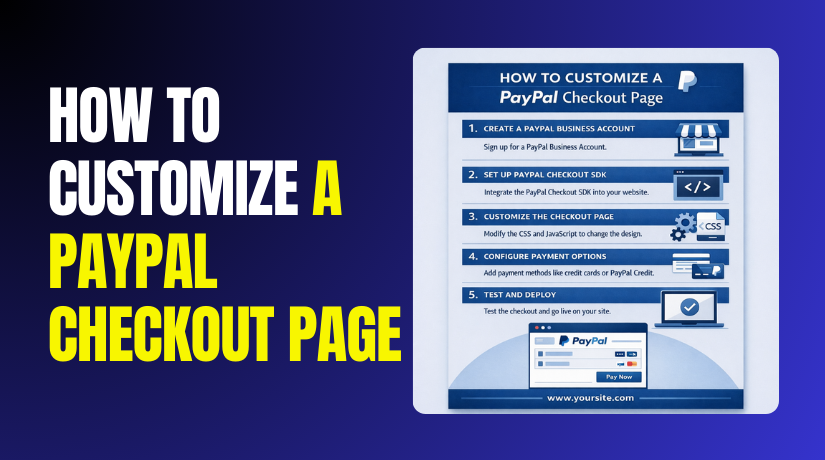
How to Customize a PayPal Checkout Page: Step-by-Step Guide for Beginners
Table of Contents
- Introduction
- What Is a PayPal Checkout Page?
- What You Can and Cannot Customize in PayPal Checkout
- What You Can Customize in PayPal Checkout Without Issues
- What You Cannot Fully Customize Inside PayPal Hosted Checkout
- Things to Check Before Changing Anything to Prevent Checkout Issues
- How to Customize a PayPal Checkout Page in Simple Steps
- Common PayPal Checkout Customization Problems and Fixes
- Conclusion
Introduction
A smooth checkout helps buyers trust your store faster. A confusing checkout can reduce sales and increase doubts. That is why PayPal checkout page customization matters for most businesses. Many store owners want to customize the PayPal payment page to match their brand. They also want a cleaner flow that feels simple. A better checkout can reduce cart drop-offs quickly. It can also improve how your store looks and feels. The good news is you can improve the buyer experience. You just need to know what PayPal allows you to change. This guide explains the basics in a clear way. It also prepares you for the next steps in this series.
What Is a PayPal Checkout Page?
A PayPal checkout page is the payment step powered by PayPal. It appears when a buyer selects PayPal during checkout. The buyer then confirms payment and completes the order. Many people call this PayPal checkout page design, but it varies by setup. Some stores send buyers to PayPal for the final payment step. Some stores show PayPal buttons inside the site checkout. The experience depends on the PayPal option you use. It also depends on your store platform and settings. Your PayPal checkout page settings decide what buyers see next.
What You Can and Cannot Customize in PayPal Checkout
PayPal offers useful options, but it also has clear limits. Knowing those limits helps you plan PayPal checkout page customization. It also prevents wasted time on impossible design changes. Many users want full control over PayPal checkout page design. In most cases, PayPal only allows safe branding changes. It also allows button styling and a few flow settings. Your control depends on the checkout method you use.
What You Can Customize in PayPal Checkout Without Issues
You can adjust PayPal checkout branding in several simple ways. You can set your business name for buyer-facing screens. You can add a logo where your PayPal setup supports it. You can also review key PayPal checkout page settings for buyers. These can include address and shipping preferences in some setups. If you use Smart Buttons, you can style them. You can pick button shape, label, and layout placement.
This helps you change PayPal checkout layout around your website content. You can also set return and cancel pages for clarity. Those pages live on your website, not inside PayPal. That is why they are easier to customize safely. You can also add trust text near the PayPal button. This supports buyers before they leave your checkout page.
What You Cannot Fully Customize Inside PayPal Hosted Checkout
A PayPal hosted page has fixed layouts and fixed flow steps. You cannot change fonts, spacing, and full page sections there. You cannot redesign the entire PayPal page like your theme. You also cannot remove security text or required policy messages. PayPal controls the buyer flow for safety and compliance. So, you cannot fully customize PayPal payment page designs in redirect mode. If someone promises full control, that claim is often incorrect. Your best approach is improving what PayPal allows officially. Then improve your own checkout page around PayPal elements.
Things to Check Before Changing Anything to Prevent Checkout Issues
- Identify Your Current PayPal Checkout Type
- Test changes in a sandbox before touching your live checkout. This keeps real buyers safe during PayPal checkout page customization.
- Back up your plugin settings and checkout settings first today. If something breaks, you can restore your old setup quickly.
- Confirm your PayPal account email matches your store account exactly. Wrong account links can stop payments or send money wrong.
- Check currency and country settings in your PayPal checkout page settings. Mismatch can show wrong totals and confuse buyers at checkout.
- Review, return and cancel URLs after every PayPal change carefully. Send buyers back to a clear thank-you page each time.
- Keep branding updates small, and follow PayPal checkout branding rules. Avoid copying PayPal logos in ways that look fake online.
- Avoid random code snippets when you customize PayPal payment page. Use trusted plugins or official options to change PayPal checkout layout.
- Test on mobile and desktop to confirm buttons stay visible. Small layout issues hurt PayPal checkout page design quickly today.
How to Customize a PayPal Checkout Page in Simple Steps
Step 1: Confirm Which PayPal Checkout Type Your Site Uses
- Place a small test order and choose PayPal at checkout.
- If PayPal opens on a new PayPal page, it is redirect.
- If PayPal opens inside your checkout, it is on-page. This decides how much you can change PayPal checkout layout.
Step 2: Update PayPal Checkout Branding for a More Trusted Look
Start with PayPal checkout branding inside your PayPal account. This helps buyers recognize your business during payment.
- Update your business name to match your store name exactly. This reduces doubt when buyers see PayPal screens.
- Login to your PayPal Business account using your main browser.
- Open Settings and find Business Profile or Profile settings.
- Update your public business name to match your store name.
- Upload a clear logo if that option is available there.
- Add a support email and phone number for buyer trust.
- Save changes and refresh your checkout for visible updates. This step improves PayPal checkout branding and basic trust signals.
Step 3: Style Smart Payment Buttons to Match Your Checkout Layout
If you use PayPal buttons on your site, style them next. This is where you can change PayPal checkout layout around content.
- Go to your PayPal payment settings inside the website dashboard.
- Find button style options like layout, shape, and label.
- Choose a layout that fits your checkout space well. Keep the label clear, like “Checkout” or “Buy Now”.
- Place PayPal buttons near the order total for faster decisions.
- This improves PayPal checkout page design on your website. This is the safest way to customize PayPal payment page experience.
Step 4: Set PayPal Checkout Page Settings for Return and Cancel


Return flow is a key part of PayPal checkout page settings. It controls where buyers land after payment decisions.
- Open your store PayPal settings inside your payment plugin area.
- Find options for Return URL and Cancel URL behavior.
- Set the Return URL to your order thank-you page.
- Set the Cancel URL back to cart or checkout page.
- Enable auto-return only if your store supports it well. This improves PayPal checkout page settings and reduces buyer confusion.
Step 5: Improve Your Website Checkout Page Around PayPal Elements
Most customization happens on your own checkout page. This is the safest place for strong improvements.
- Keep the checkout form short and remove unnecessary fields.
- Add a short trust line near PayPal, like secure payment.
- Show shipping time and refund policy near the order summary.
- Keep spacing clean so the PayPal area looks professional.
- This helps PayPal checkout page customization without breaking PayPal rules.
Step 6: Test Everything Before You Make Changes Live
Test on mobile and desktop using a real checkout flow. Test both success and cancel flows using PayPal buttons. Confirm totals, currency, and order status update correctly. Fix small layout issues before running paid traffic to checkout.
Common PayPal Checkout Customization Problems and Fixes
Many issues happen after PayPal checkout page customization changes. Most fixes are simple when you check the basics first. Use the points below and test after each small change.
- Logo not showing on PayPal screens. Check your PayPal business profile logo settings again. Use a clear square logo and save changes properly. Some checkout types do not show logos every time. This can limit PayPal checkout branding results in redirect mode.
- Business name looks wrong or outdated. Update the business name in PayPal profile settings again. Make sure the name matches your website and invoices. Sometimes PayPal takes time to refresh cached profile data.
- Button style changes do not apply on the website. Clear your website cache and plugin cache after changes. Also clear CDN cache if you use one for speed. Check if your plugin overrides PayPal checkout page settings on updates.
- PayPal button not showing on mobile screens. Check if another plugin hides buttons on small screens. Disable minify options and test again on mobile view. Keep enough spacing so the button area stays visible. This helps improve PayPal checkout page design on phones.
- Return page goes to the wrong place after payment. Check return URL settings inside your PayPal plugin settings. Confirm your thank-you page URL is correct and active. Also test cancel URL to avoid buyer confusion.
- Currency mismatch between store and PayPal. Match currency in store settings and PayPal account settings. If you sell in multiple currencies, confirm your plugin supports it. Currency mismatch can break totals and stop checkout.
- Buyer sees wrong shipping address or cannot change it. Review shipping address rules in your store checkout settings. Some PayPal flows use the PayPal saved address by default. Test both guest and logged-in buyer flows carefully.
- Order marked pending even after successful payment. Check IPN or webhooks settings in your PayPal plugin. Make sure your site can receive PayPal status updates. Firewall rules can block PayPal calls on some hosting.
- Checkout feels off-brand and does not match your theme. Focus on styling your own checkout page around PayPal. Add clean spacing, trust text, and clear totals. Do not try to redesign PayPal hosted screens fully. Use safe ways to change PayPal checkout layout only on your site.
Conclusion
PayPal checkout customization works best when you keep goals realistic. You can improve trust with clean PayPal checkout branding. You can also style buttons and improve layout on your website. This helps your PayPal checkout page design look more professional. Remember, PayPal hosted screens cannot be fully redesigned. So, focus more on your checkout page and thank-you page.
These areas give you the most control and best results. Always review your PayPal checkout page settings after each change. Test return and cancel flows to avoid buyer confusion. Keep the payment section simple, clear, and easy to scan. Remove extra distractions that slow buyers during checkout. When you follow these steps, PayPal checkout page customization becomes easier and safer.
If you need expert help to customize PayPal payment page flow correctly, WooHelpDesk can help. We can adjust settings, fix errors, and change PayPal checkout layout cleanly. Contact WooHelpDesk to improve checkout trust and complete more sales.
