How to Create Custom Form in WordPress?
Table of Contents
- Introduction
- Understanding Custom Forms in WordPress
- Prerequisites Before You Start
- Advanced Customization
- Conclusion
Introduction
Custom forms play a key role on WordPress sites. They let visitors connect with you fast. You can collect names, emails, feedback, or orders with ease.
Think about it. A good form boosts user experience. Visitors feel heard when they submit questions or sign up. This builds trust and keeps people on your site longer.
Forms also gather important data. You learn what visitors need. This helps you improve content, products, or services. Many site owners see higher engagement and leads thanks to smart forms.
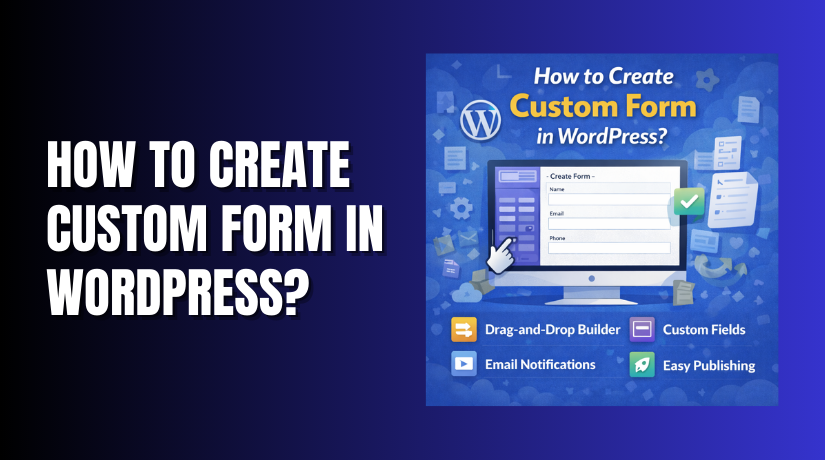
Best of all, you do not need coding skills today. Plugins make it simple. Tools like WPForms and Contact Form 7 handle everything. They offer drag-and-drop builders and ready templates.
WPForms stands out for beginners. It has a free version and thousands of templates. You create professional forms in minutes. Contact Form 7 is free too. It works well for basic needs.
Learning how to create a custom form in WordPress opens new doors. You turn a static site into an interactive one. Start with a plugin. Watch your site grow.
Understanding Custom Forms in WordPress
Custom forms are special contact or input boxes on your site. You design them to fit your goals. They go beyond plain text fields.
Why do they matter? Every WordPress website needs ways to interact. Custom forms collect data directly from users. This data drives decisions and growth.
Here are common types of custom forms:
- Contact forms — Visitors send messages or ask questions.
- Surveys and polls — Gather opinions or feedback quickly.
- User registration forms — Let people create accounts.
- Order or booking forms — Handle payments or appointments.
- Newsletter sign-up forms — Build your email list.
- Feedback or review forms — Improve products based on input.
These forms improve user engagement. People stay longer when they can take action. A quick form reduces bounce rates.
Forms help collect valuable data too. You see who visits and what they want. Use this info to send targeted emails or fix issues.
Plugins make custom forms easy. No code required. How to create a custom form in WordPress becomes simple with the right tool. WPForms offers smart features like conditional logic. It shows or hides fields based on answers. This keeps forms clean and user-friendly.
Contact Form 7 is lightweight. It suits simple sites. Both plugins add spam protection and email alerts.
In short, custom forms turn visitors into leads. They make your site active and helpful. Pick a plugin. Build what you need.
Prerequisites Before You Start
You need a few basics to begin. First, have a working WordPress site. Log in to your dashboard with admin access.
Choose a good plugin. WPForms works great for beginners. It offers a free version called WPForms Lite. This version covers most needs like contact forms.
Contact Form 7 is another free option. It suits simple sites but needs more setup.
Here are key tools you need:
- Active WordPress installation (version 5.5 or higher works best).
- Admin login details.
- A plugin like WPForms for easy form building.
- Optional: A page or post ready for the form.
These steps make how to add a custom form to a WordPress page simple. Plugins handle the hard parts. You focus on your content.
Pick WPForms if you want drag-and-drop ease. It saves time and looks professional. Start with the free Lite version. Upgrade later if needed.
Step 1: Installing a Custom Form Plugin
Follow these clear steps to install WPForms. The process takes under two minutes.
- Log in to your WordPress dashboard.
- Click Plugins in the left menu.
- Click Add New at the top.
- In the search box, type “WPForms”.
- Find “WPForms – Contact Form & Surveys Plugin” (free Lite version appears first).
- Click Install Now on that plugin.
- Wait a moment until the button changes.
- Click Activate.
After activation, you see WPForms added to the left menu.
This plugin makes WordPress custom form for users very easy and friendly. Most people use the free search method above. It is safe and quick.
If you have WPForms Pro (paid version):
- Download the .zip file from your WPForms account.
- Go back to Plugins > Add New.
- Click Upload Plugin at the top.
- Choose your .zip file.
- Click Install Now.
- Activate the plugin once installed.
Keep plugins updated. Check Plugins > Installed Plugins regularly.
Installation complete. You are ready to build your form.
Step 2: Creating Your First Custom Form Using a Plugin
Now create your form inside WPForms. Use these exact steps for a clean result.
- Go to your dashboard.
- Click WPForms in the left menu.
- Click Add New at the top.
- Enter a name for your form (example: “Contact Us Form”).
- Scroll down to see template options.
- Choose “Simple Contact Form” (it includes name, email, and message fields).
- Click Use Template or Create Form.
The drag-and-drop builder opens. Form preview shows on the right. Fields list appears on the left.
Add and adjust fields like this:
- Drag Single Line Text from the left to add a name field.
- Drag Email field for email collection.
- Drag Paragraph Text for longer messages.
- Drag Dropdown if you want users to pick options (like “General Inquiry” or “Support”).
- Click any field to edit its label, placeholder text, or make it required.
- Scroll to the bottom and customize the Submit Button text (change to “Send Message”).
For a basic contact form example:
- Keep only Name, Email, and Message fields.
- Make Email and Message required.
- Add a short description above the form if needed.
WPForms keeps how to create a custom form in WordPress simple and visual. Watch the live preview update as you work. Click Save at the top often to avoid losing changes.
Your first custom form is now ready. It looks neat and functions well.
Step 3: Customizing Your Form
Now that you have your basic form created, it’s time to make it perfect. WPForms gives you many easy ways to customize your form and enhance its functionality. Customizing your form is an important step to ensure it meets your needs and provides the best user experience.
Notifications
First, set up notifications so you can be alerted whenever someone submits the form. To do this:
- Open your form in the builder.
- Click on Settings at the top of the page.
- Go to Notifications.
- Set the email that will receive submissions.
- Change the subject line to something clear, such as “New Contact Form Message”.
- Add a reply-to email so you can reply directly from your inbox.
Confirmations
Next, set up confirmations to notify users that their submission was successful. You can choose one of the following options:
- Go to Settings > Confirmations.
- Select Message to show a thank-you note after the user submits the form. An example message could be, “Thanks! We will reply soon.”
- Alternatively, you can redirect users to a custom thank-you page for a smoother experience.
Spam Protection


Protect your form from spam submissions by adding hCaptcha or reCAPTCHA. Follow these steps:
- Go to Settings > Anti-Spam.
- Turn on hCaptcha or reCAPTCHA.
- Follow the quick setup link to get your keys and enter them into the form.
Form Styling
You can also style your form to match your website’s theme. To do this:
- Go to Settings > Style.
- Choose the colors, fonts, and spacing that suit your website’s design.
Conditional Logic
WPForms also supports conditional logic, which allows you to show or hide certain fields based on user responses. For example:
- Select a field (e.g., Phone Number).
- Go to Advanced > Conditional Logic.
- Set the condition, such as: “Show Phone Number only if the user selects Call Me.”
These customizations help make how to add a custom form to a WordPress page more polished and professional. Clean and user-friendly forms are trusted more by users, leading to higher conversion rates.
Save your changes and preview the form often to check how it looks. Once you’re satisfied, your form will feel personal and secure, ready to be placed live on your site.
Step 4: Embedding the Form on Your WordPress Page
Now that your form is ready and customized, it’s time to show it to your visitors. WPForms makes it easy to embed the form on any page or post on your WordPress site.
Copying the Shortcode
First, copy the form’s shortcode:
- In the form builder, look at the top of the page.
- You will see a shortcode like this: [wpforms id=”123″ title=”false”].
- Copy the shortcode to use it on your page.
Adding the Form to a Page or Post
Now that you have the shortcode, here’s how you can add the form to a page or post:
- Go to Pages > Add New (or edit an existing page like “Contact Us”).
- Give the page a clear title, such as Contact Us.
- In the block editor (Gutenberg), click the + button to add a new block.
- Search for WPForms.
- Select the WPForms block.
- From the dropdown list, select the form you created.
Classic Editor or Shortcode Method
If you are using the classic editor:
- Paste the copied shortcode anywhere on the page.
- Save or update the page.
Best Places to Place Your Form
Here are some of the best places to put your form on your site:
- Dedicated Contact Page: This is the most common spot for contact forms.
- Sidebar Widget: Add via Appearance > Widgets.
- Popup: Use the WPForms Popup Addon (Pro feature) or another popup plugin.
- Footer Section: A quick and easy way to get sign-ups.
- Blog Posts: Add at the end for reader feedback.
Preview your page to make sure the form looks good and is mobile-friendly. Test the form submission to confirm it works as expected.
Now your form is live, and visitors can easily reach out to you. This step completes how to add a custom form to a WordPress page.
Step 5: Testing Your Custom Form
Testing is a crucial step in making sure everything works perfectly before your form goes live. Skipping this step can lead to frustration later if users encounter issues with form submissions.
Follow these checks one by one to ensure your form functions smoothly:
- Enter valid data in every field, and use your email address for testing.
- Write a short message in the text area.
- Click the submit button and look for the on-screen confirmation message. It should match what you set earlier.
- Open your email inbox within a minute to check for the new submission notification.
- If you don’t see it, check your spam or promotions folder.
- Try submitting the form with one required field left empty. Error messages should appear next to the blank field.
- Enter an invalid email format on purpose. The form should block submission and show a warning message.
Testing Across Devices
- Mobile Testing: View the page on your phone. Make sure the form fields are easy to tap and text is readable.
- Tablet/Other Browser: Try submitting the form from a tablet or different browser. The form should display correctly and function smoothly.
- Test from Mobile Again: Submit from mobile to confirm the emails are being received.
Common Problems and Fast Fixes:
- No Email Received: Double-check your Notification Settings in WPForms. Verify the email address is correct.
- Form Shows Server Error: Try refreshing the page or clearing your browser’s cache.
- Spam Protection Stops You: Confirm your captcha keys are active and entered correctly.
Thorough testing ensures that your WordPress custom form for users works smoothly. This step avoids potential issues and guarantees that your visitors will have a positive experience when submitting the form.
Advanced Customization
You already have a fully functional form, but what if you need more advanced features? WPForms provides several powerful customization options that can take your forms to the next level.
Here are some advanced features to explore:
- Conditional Logic
Hide or show fields based on answers. For example, show a “Budget” field only if the user selects “Request Quote”.- Go to Smart Logic > Enable Conditional Logic to set up simple rules.
- Multi-Page Forms
Split long forms into steps to reduce user overwhelm. Users see one part at a time.- In Settings > General, enable multi-page support. Use Page Break fields between sections.
- File Uploads
Allow users to upload documents or images.- Drag the File Upload field into your form.
- Set allowed file types (e.g., PDF, JPG) and limit file size to avoid server overload.
- Email Marketing Connections
Automatically add form submissions to your email list.- Go to WPForms > Integrations to connect tools like Mailchimp, Constant Contact, or ActiveCampaign.
- Entry Storage
Store form submissions inside WordPress.- Visit WPForms > Entries to view, search, or export submissions. Even the free version saves entries for basic tracking.
Start with one feature at a time and test after each change. These features make how to create a custom form in WordPress even more powerful. You can collect exactly the data you need without extra plugins.
Conclusion
You’ve now completed the entire journey of creating custom forms in WordPress. From installation to advanced tweaks, every step is designed to be simple and easy to follow. WPForms makes it easy to create forms with just a few clicks—no coding skills required.
Custom forms add value to your site by converting passive visitors into active contacts, feedback providers, and subscribers. As engagement rises, your business benefits directly.
Start by creating one simple contact form. Then, build more for surveys, bookings, or registrations. Every form you create adds value and strengthens your WordPress site.
Need help with WooCommerce forms, support tickets, or advanced WooCommerce integrations? Check out WooHelpDesk – it offers ready-made solutions and expert support to handle complex forms, customer queries, and store-specific needs.
Thank you for reading this guide. Now go ahead and build your custom form. Your visitors are ready to connect!