What is Catalog Mode In WooCommerce and How to Enable & Create a Catalog Mode In WooCommerce?
Table of Contents
- Introduction
- What is Catalog Mode In WooCommerce?
- What catalog mode changes in a normal store?
- What catalog mode does not change?
- What are the Key Features of WooCommerce Catalog Mode?
- When Should You Enable Catalog Mode WooCommerce?
- What are the Benefits of WooCommerce Catalog Mode?
- How to Enable a Catalog Mode In WooCommerce?
- How to Create a Catalog Mode In WooCommerce?
- How to Convert WooCommerce to Catalog Mode?
- Best Practices to Create WooCommerce Catalog That Converts
- Final Verdict
Introduction
Many stores do not want online buying all the time. Some stores want inquiries, quotes, or offline orders only. Some stores sell to dealers, not direct customers. Some stores also pause sales during stock changes.
This is where WooCommerce catalog mode becomes useful. It lets you show products like a product brochure. It hides pricing, hides cart buttons, or disables checkout. It keeps your site clean and easy to browse. It also helps when you want leads instead of instant sales.
Catalog mode supports many modern selling models today. It works well for wholesale and B2B businesses. It also helps service sellers who use product packages. It helps brands that take orders on WhatsApp or phone. It helps vendors who sell only after approval. It also supports seasonal stores and limited stock sellers. You can keep products visible and disable buying. You can also collect leads without losing traffic.
This guide explains how catalog mode works in WooCommerce. It also explains how to Enable catalog mode WooCommerce safely. You will learn how to create WooCommerce catalog pages and layouts. You will also learn how to convert WooCommerce to catalog mode correctly.
What is Catalog Mode In WooCommerce?
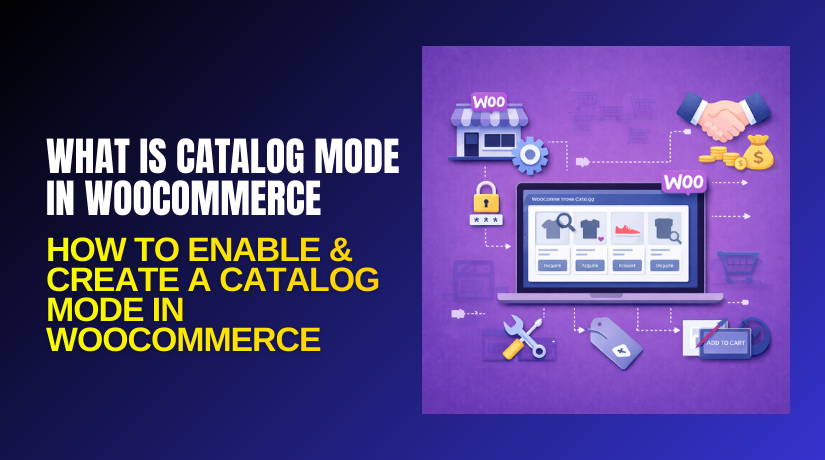
Catalog mode means your store works like a catalog. Customers can view products but cannot purchase online. The cart, checkout, or add to cart can be disabled. Prices can also be hidden if you want that. You can replace buy buttons with inquiry buttons. You can also redirect users to a contact form. In short, it turns your store into a WooCommerce store catalog.
This is not a default WooCommerce setting by itself. You enable it using settings, code, or a plugin. Most store owners use a plugin for easier control.
What catalog mode changes in a normal store?
WooCommerce normally supports a full buying flow. Users add products to cart and checkout online. Catalog mode changes this flow completely. It removes cart actions and purchase steps. It keeps product browsing and search working normally. It keeps category pages and product pages active. It focuses on product display and lead capture.
What catalog mode does not change?
Catalog mode does not delete your products. Catalog mode does not remove product SEO pages. Catalog mode does not stop product search and filtering. Catalog mode also does not break your theme design. It only changes buying actions and price visibility.
What are the Key Features of WooCommerce Catalog Mode?
WooCommerce catalog mode offers control over buying actions. It helps you decide what visitors can see and do. Below are the key features you can set using plugins. These features also apply if you use custom code.
- Disable Add to Cart buttons
Hiding Add to Cart blocks customers from starting checkout. Shop page hiding keeps product grids clean and focused. Product page hiding prevents buying from the main product page. Quantity removal reduces confusion when selling is disabled. Replacing buttons helps you collect leads and calls easily.
- Disable Cart and Checkout pages
Redirecting cart avoids empty cart and broken user paths. Disabling checkout stops users from placing orders accidentally. A message explains the store is in catalog mode now. Hiding the cart icon prevents users clicking useless links.
- Hide product prices
Price hiding is common in B2B and wholesale stores. Shop page hiding keeps your catalog clean and consistent. Product page hiding supports quote based selling models. Guest only hiding supports member pricing strategies too. Login messages encourage account creation and lead capture.
- Role based rules
Role rules let you run both catalog and store together. Guests can browse but cannot purchase online. Approved users can still buy using normal checkout flow. Price rules support wholesale tiers and partner pricing. This is useful for B2B stores with private pricing.
- Inquiry and quote options
Inquiry forms turn product pages into lead pages. WhatsApp buttons improve response speed and conversions. Quote requests work well for custom and bulk pricing. Email routing helps sales teams track leads and respond fast.
When Should You Enable Catalog Mode WooCommerce?
- You should Enable catalog mode WooCommerce when selling is not required.
- You should also use it when prices must stay private.
- You should use it for wholesale lead generation and quoting.
- You should use it for product showcases and portfolios.
- You should use it when you accept orders only offline.
- You should use it when inventory is unstable temporarily.
- You should also use it when your store is under rebuild.
What are the Benefits of WooCommerce Catalog Mode?
WooCommerce catalog mode gives you more control over selling. It helps you show products without forcing online checkout. It supports lead generation, quoting, and private pricing strategies. It also helps when your store is under maintenance or relaunch. Below are the key benefits you should understand clearly.
- You can collect leads instead of instant orders
Inquiry buttons keep visitors engaged and ready to contact you. Contact forms and WhatsApp reduce friction and improve responses. Capturing needs helps you quote correctly and avoid confusion. A pipeline approach improves follow-ups and increases conversion later.
- You can hide prices for private or B2B selling
Guest price hiding supports members-only and wholesale business models. Quote text keeps pricing flexible for custom products and services. Dealer pricing stays protected from competitors and random visitors. Bulk pricing becomes easier because you can confirm quantity first.
- You can keep your store visible during sales pause
Searchable products keep visitors browsing even without checkout. SEO remains strong because pages stay live and indexable. Availability notes reduce confusion and set correct buyer expectations. Relaunch becomes faster because your catalog is already ready.
- You can reduce refunds and wrong orders
Complex products often need consultation before purchase is allowed. Requirement confirmation prevents wrong orders and chargeback complaints. Custom services require details that checkout cannot capture properly. Stock protection prevents overselling and reduces support pressure.
- You can improve user experience for browse-only visitors
Less distraction improves browsing and increases time on site. Showroom layouts work well for furniture, machinery, and B2B. Spec focused browsing helps buyers compare products more clearly. Inquiry CTAs guide visitors toward the next business step.
- You can run hybrid stores with role based rules
Guest-only rules protect pricing and prevent random order attempts. Approved roles support controlled selling and verified customer onboarding. Wholesale price visibility supports dealer networks and locked pricing tiers. Hybrid models reduce extra store management and reduce maintenance work.
How to Enable a Catalog Mode In WooCommerce?
There is no one default switch inside WooCommerce core. You can Enable catalog mode WooCommerce using a plugin approach. You can also enable it using custom code if needed. Most store owners choose plugins for faster control. Below are the safest methods in order of simplicity.
Method 1: Enable catalog mode using a catalog plugin
This is the easiest method for most store owners. Plugins offer toggle settings for cart, price, and checkout. They also offer role based control and button replacements.
WordPress Dashboard → Plugins → Add New → Search “catalog mode” → Install → Activate
- Install a catalog mode plugin that supports your store needs.
- Enable settings to hide Add to Cart buttons everywhere.
- Disable cart and checkout access across the store pages.
- Hide prices if you want private pricing or quote selling.
- Replace buttons with inquiry, call, or WhatsApp action buttons.
- Save settings and test changes on shop and product pages.
Choose a plugin that supports prices, buttons, and role rules. Hiding add to cart prevents visitors from entering the purchase flow. Disabling cart and checkout removes buying actions from your site. Price hiding supports private selling and B2B price protection. Button replacement keeps conversions by guiding visitors to inquiry. Testing ensures every page behaves correctly on desktop and mobile.
Method 2: Enable catalog mode using theme or builder settings
Some themes include catalog mode style settings internally. Some builders also support hiding cart and buttons visually. This method is useful for simple catalog-only requirements. It is not ideal for role based selling models.
WordPress Dashboard → Appearance → Customize → WooCommerce Settings
- Check theme settings for shop button and price controls.
- Hide add to cart buttons on archives and single products.
- Remove cart icon from header and menu areas.
- Add inquiry buttons using theme button elements if needed.
- Test checkout access because themes may not block it.
Theme controls can hide elements without changing WooCommerce logic. Hiding buttons improves display but may not block direct URLs. Removing cart icon reduces confusion for catalog visitors. Inquiry buttons help visitors contact you without buying online. Checkout should be tested because visual hiding is not real disabling.
Method 3: Enable catalog mode using custom code safely
Code gives full control without relying on plugin settings. This method is best for developers and technical teams. It is also useful when you want lightweight changes. Always use a child theme or a small custom plugin.
WordPress Dashboard → Appearance → Theme File Editor → functions.php
A better path for safety is using a small custom plugin file.
- Remove add to cart buttons using WooCommerce hooks.
- Disable cart and checkout access using redirect logic.
- Hide prices using filters for price HTML output.
- Replace add to cart areas with inquiry form shortcodes.
- Test behavior for guests and logged users after changes.
Hooks can remove buttons on shop and product templates. Redirects can block checkout pages and prevent order placement. Price filters hide numbers while keeping product pages indexable. Inquiry replacement keeps conversions by guiding visitors to contact. Testing prevents unexpected issues with other plugins and caching.
How to Create a Catalog Mode In WooCommerce?
Creating catalog mode means building the right browsing experience. You will hide purchase actions and guide visitors to inquiry. You will also improve catalog browsing using clean categories and filters. This section helps you create WooCommerce catalog properly. Each step includes arrow paths, bullet points, and full explanations.
Step 1: Decide what type of catalog mode you want
There are multiple catalog styles, so plan first. Your plan decides which settings to apply later.
- Choose if you want to hide prices or show prices.
- Choose if you want to hide add to cart everywhere.
- Choose if you want to disable checkout for all users.
- Choose if you want role based buying for approved users.
- Choose if you want inquiry, quote, or WhatsApp ordering.
Price hiding is common for wholesale and negotiated selling models. Button hiding is needed for full catalog only experiences. Checkout disabling prevents direct order placement through checkout URLs. Role rules help hybrid stores that sell to approved customers. Inquiry options help you capture leads instead of losing visitors.
Step 2: Create clean categories and attributes for browsing
A catalog is useful only when browsing is easy. Categories and attributes make the WooCommerce store catalog easy to navigate.
WordPress Dashboard → Products → Categories
WordPress Dashboard → Products → Attributes
- Create main categories that match buyer intent clearly.
- Create subcategories for product types and variations.
- Create attributes like size, color, brand, and material.
- Use clear attribute terms that shoppers understand quickly.
- Assign categories and attributes to each product properly.
Clear categories help users scan your catalog faster. Subcategories reduce overload and improve product discovery. Attributes support filtering and better product comparisons. Clear terms reduce confusion and improve the browsing experience. Proper assignment improves your filters and improves SEO structure.
Step 3: Build a strong shop and category page layout
Your catalog should look like a showroom listing. Clean product grids help users browse and compare quickly.
WordPress Dashboard → Appearance → Customize → WooCommerce
WordPress Dashboard → Appearance → Widgets
WordPress Dashboard → Appearance → Menus
- Choose grid columns that fit product images and names well.
- Show product image, title, and short key detail consistently.
- Add filters and category links for faster navigation.
- Remove cart icons and mini cart widgets from menus.
- Add catalog navigation links in header and footer menus.
Grid columns should keep text readable and images sharp. Consistent listing data improves user trust and reduces confusion. Filters support faster browsing and reduce bounce rates. Cart icons confuse visitors when buying is disabled. Navigation links guide visitors and improve internal linking paths.
Step 4: Set catalog mode rules using plugin settings
This is the main step where you create the catalog behavior. You will hide cart actions and block checkout access.


WordPress Dashboard → Plugins → Installed Plugins → Catalog Mode Plugin → Settings
The exact menu name depends on the plugin you choose.
- Enable WooCommerce catalog mode in plugin settings.
- Hide add to cart buttons on shop and product pages.
- Disable cart and checkout pages and related menu links.
- Hide prices or replace them with quote messaging.
- Add inquiry buttons and choose where they show.
- Save settings and clear cache if caching is active.
Enabling mode activates the core catalog behavior sitewide. Button hiding removes the purchase start action for visitors. Disabling cart and checkout prevents order placement through direct URLs. Price messaging explains how customers can buy and inquire. Inquiry buttons keep conversion pathways open for leads. Cache clearing ensures visitors see the updated store behavior instantly.
Step 5: Add inquiry and contact options across product pages
Catalog mode should never feel like a dead end. Visitors need a clear next action for contact and quote.
WordPress Dashboard → Pages → Add New
WordPress Dashboard → Contact Form Plugin Settings
WordPress Dashboard → Appearance → Menus
- Create a contact page with a simple inquiry form.
- Add WhatsApp link or call button for faster leads.
- Add product inquiry button on product pages when possible.
- Send inquiry emails to a sales inbox for quick response.
- Add a message explaining catalog mode near inquiry buttons.
A contact page provides a central place for lead capture. WhatsApp and call buttons improve response time and conversion. Product inquiry buttons keep the user on product pages longer. Sales inbox routing helps teams handle leads without missing details. Clear messaging prevents confusion and sets correct buyer expectations.
Step 6: Create a product catalog page for PDF or print needs
Some businesses want a downloadable catalog too. This supports offline sales teams and field marketing.
- Create a page called Product Catalog or Our Catalog.
- Add top categories and best sellers for quick browsing.
- Add links to categories and featured products for discovery.
- Add a download button if you offer a PDF catalog file.
- Keep the page fast and clean for mobile browsing.
A catalog landing page helps users browse with purpose. Top categories reduce search effort and improve conversion signals. Featured links improve internal linking and product discovery paths. PDF downloads support offline sharing and sales teams. Mobile speed is important because many buyers browse catalogs on phones.
Step 7: Test the full catalog experience like a visitor
Testing confirms your store works like a catalog everywhere. It also confirms there are no hidden paths to checkout.
- Open shop and confirm no add to cart buttons show.
- Open product pages and confirm price rules are correct.
- Try opening /cart and confirm it redirects or blocks properly.
- Try opening /checkout and confirm checkout is not accessible.
- Click inquiry buttons and confirm forms and WhatsApp work.
- Test on mobile and confirm layouts stay consistent.
Shop testing confirms global catalog rules apply to archives. Product testing confirms buttons and price messaging are correct. Cart testing confirms the buying flow cannot start anywhere. Checkout testing confirms orders cannot be placed through direct URLs. Inquiry testing confirms lead capture is working smoothly. Mobile testing ensures your catalog works for all devices.
How to Convert WooCommerce to Catalog Mode?
You can Convert WooCommerce to catalog mode using safe, repeatable steps. The goal is simple: remove buying actions and keep browsing active. You will disable add to cart, cart, and checkout everywhere. You will also add inquiry paths so visitors can contact you. Follow the steps below in the same order for stability.
Step 1: Choose your catalog mode conversion style
Your conversion style decides which settings you must apply. You can hide prices, or keep prices visible for browsing. You can disable checkout for everyone, or only guests. You can also allow approved roles to purchase normally.
WordPress Dashboard → WooCommerce → Settings → Decide catalog rules
- Decide if prices should be hidden across your whole store.
- Decide if add to cart should be removed from all pages.
- Decide if checkout should be blocked for all visitors always.
- Decide if catalog mode is for guests only.
Step 2: Back up your site before conversion changes
Catalog changes are easy, but mistakes can confuse customers. A backup lets you revert quickly if anything breaks. Always back up before plugin, theme, or code changes.
Hosting Panel → Backup Manager → Full Backup
WordPress Dashboard → Tools → Export
- Take a full site backup including files and database.
- Create a restore point inside your hosting control panel.
- Export WooCommerce settings if your host supports it.
Step 3: Enable catalog mode using a plugin for fastest conversion
Plugins are the easiest way to convert store behavior quickly. They usually include toggles for buttons, prices, and checkout access. They also provide role rules for hybrid store requirements.
WordPress Dashboard → Plugins → Add New → Search “catalog mode” → Install → Activate
WordPress Dashboard → Plugins → Installed Plugins → Catalog Plugin → Settings
- Open plugin settings and enable global catalog mode first.
- Hide add to cart buttons on shop and product pages.
- Disable cart page access and hide cart icon everywhere.
- Disable checkout access and redirect checkout to contact page.
- Hide prices or replace prices with inquiry messaging text.
- Replace buttons with WhatsApp, call, or inquiry form links.
Step 4: Convert WooCommerce to catalog mode using code safely
Code conversion is lightweight and avoids extra plugin overhead. It is best for technical teams and developer managed stores. Use a child theme or a small custom plugin always.
WordPress Dashboard → Appearance → Theme File Editor → functions.php
- Remove add to cart buttons using WooCommerce hook filters.
- Block cart and checkout URLs using redirect rules.
- Hide prices using price HTML filters in WooCommerce.
- Replace purchase areas with inquiry shortcodes or contact button.
Step 5: Remove purchase elements from theme menus and headers
Many themes show cart icons in headers by default. Some themes show mini cart widgets and cart totals. These elements must be removed for a clean catalog feel.
WordPress Dashboard → Appearance → Menus
WordPress Dashboard → Appearance → Widgets
WordPress Dashboard → Appearance → Customize → WooCommerce
- Remove cart links from header menus and footer menus.
- Disable mini cart widgets from sidebar and header areas.
- Remove cart counter badges from mobile navigation menus.
Step 6: Add inquiry workflows for catalog conversion success
Catalog mode fails when visitors cannot contact you easily. You must add simple inquiry paths on every product page. This is how you create WooCommerce catalog experiences that convert.
WordPress Dashboard → Pages → Add New → Contact Page
WordPress Dashboard → Plugins → Contact Form Plugin → Settings
WordPress Dashboard → Appearance → Menus → Add Contact Link
- Add a contact page with a short inquiry form.
- Add WhatsApp and call buttons on key product pages.
- Add “Request a quote” buttons for expensive or custom items.
- Show a catalog notice explaining how ordering works now.
Step 7: Adjust caching and performance for catalog mode
Cart and checkout scripts may still load if not adjusted. You should reduce unnecessary scripts and keep browsing fast. Performance supports SEO and improves catalog browsing satisfaction.
WordPress Dashboard → Cache Plugin → Settings → Exclusions
Hosting Panel → Cache Manager → Purge Cache
- Exclude cart, checkout, and account pages from page caching.
- Clear all caches after enabling catalog mode settings changes.
- Optimize images and lazy load product thumbnails carefully.
Step 8: Confirm SEO settings after converting to catalog mode
Catalog mode should not destroy organic traffic from products. Your product pages should remain indexable and valuable. Only purchase flow pages should stay out of search results.
WordPress Dashboard → SEO Plugin → Search Appearance → Content Types
WordPress Dashboard → SEO Plugin → Advanced → Noindex Pages
- Keep product pages indexable with complete descriptions and images.
- Keep category pages indexable with short helpful category text.
- Keep cart, checkout, and account pages set to noindex.
- Add internal links from catalog pages to contact page.
Step 9: Test conversion like a real visitor on all devices
Testing proves your store is now a WooCommerce store catalog. It also proves checkout cannot be accessed accidentally. Always test guest users and logged users separately.
Website Frontend → Shop → Product Pages → Contact Page
Direct URL Test → /cart → /checkout → /my-account
- Open shop pages and confirm the add to cart is hidden.
- Open product pages and confirm price rules match your plan.
- Try opening /cart and confirm it redirects or blocks access.
- Try opening /checkout and confirm it is fully inaccessible.
- Click inquiry buttons and confirm forms and WhatsApp work.
- Test on mobile screens and confirm the layout remains clean.
Best Practices to Create WooCommerce Catalog That Converts
A catalog mode store should still generate inquiries and leads. You must guide visitors toward the next business action. Use these best practices to create WooCommerce catalog pages that convert.
- Add a clear inquiry CTA above the fold on product pages.
Above the fold CTAs get more clicks and reduce scrolling friction. Visitors take action faster when the button is visible early. - Use WhatsApp and call buttons for fast contact options.
Fast contact reduces drop-offs and increases lead response speed. Buyers often prefer WhatsApp for quick price and stock questions. - Add product specifications and use-case details on every product.
Specs reduce low quality inquiries and improve buyer confidence. Better details also improve SEO relevance for long-tail searches. - Add trust signals like address, email, and response time promise.
Trust signals reduce hesitation and increase inquiry submissions. They also improve business credibility for new visitors from Google. - Add a short message explaining why checkout is disabled.
Clear messaging reduces confusion and lowers support tickets. It also prevents visitors thinking your site is broken.
Final Verdict
WooCommerce catalog mode is the best option for browse-only stores. It helps you show products without allowing online checkout. It supports quotes, inquiries, and private pricing models. It also supports B2B and wholesale selling workflows.
To Enable catalog mode WooCommerce, use a plugin for best control. You can also use code for lightweight and custom rules. To Create WooCommerce catalog, focus on categories, specs, and inquiry CTAs. To Convert WooCommerce to catalog mode, disable cart and checkout fully. Then remove cart icons and replace buy buttons with inquiry options. When done correctly, your WooCommerce store catalog can rank well and generate leads consistently.
Have questions before starting with WooCommerce & WordPress? Get support here at WooHelpDesk.