How to Create a New Product in WooCommerce: Step-by-Step Guide
Table of Contents
- Introduction
- Before You Create a Product in WooCommerce: Key Points You Must Check First.
- Understanding WooCommerce Product Types
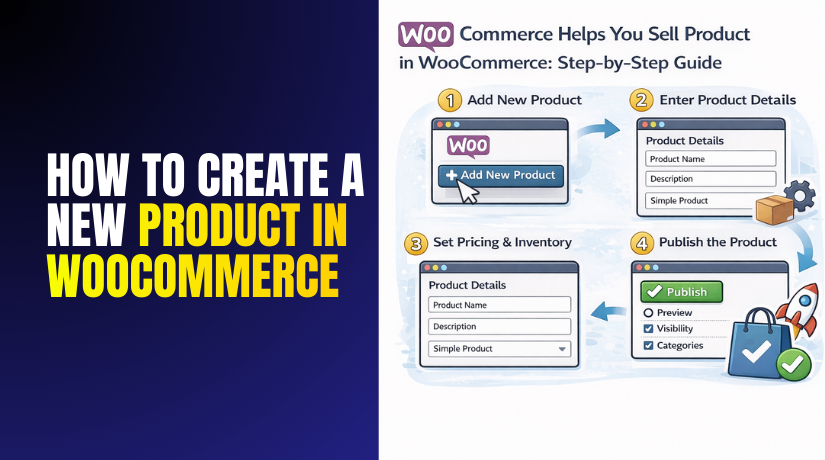
- How to Create a New Single Product in WooCommerce (Step-by-Step)
- Conclusion
Introduction
WooCommerce helps you sell products using your WordPress dashboard. It gives you a full product editor where you control pricing, images, stock, and shipping settings. When you create product in woocommerce, you are building a complete product page that customers will see and buy from. A proper start matters because it reduces mistakes later. Many beginners rush and publish without checking settings. That often causes wrong prices, missing images, or shipping errors. This guide is written for USA store owners and beginners who want a clear process. It focuses on the early steps that build a strong base. Once you learn the basics, every woocommerce new product becomes easier to publish and manage.
Before You Create a Product in WooCommerce: Key Points You Must Check First.
1) Update WordPress, WooCommerce, and Your Theme
Before you woocommerce add new product, update your website first. Go to Dashboard and install WordPress core updates. Update WooCommerce and all needed WooCommerce add-ons too. Update your theme and child theme to avoid layout issues. Updates fix bugs inside the product editor and checkout pages. Also check your PHP version inside Tools → Site Health. Use a supported PHP version for better speed and safety. Clear cache after updates and reload your site once.
2) Check Store Address, Currency, and Basic Settings
Open WooCommerce settings and confirm your store address details. Set your country, state, and currency for USA customers. Check timezone settings so sale dates work correctly. Confirm your Cart, Checkout, and My Account pages exist. Add to cart actions can be broken by improper page configuration. Review your tax settings and customer location method. Check email settings for order alerts and customer emails. This helps your woocommerce product setup stay stable. It also avoids issues after you create product in woocommerce
3) Prepare Product Details Before Using the Editor
Before you add product in woocommerce, collect all product details. Write your product name and main description in advance. Create a short description for the add to cart area. Decide your regular price and any sale pricing plan. Prepare SKU and stock quantity if you track inventory. Note weight and size for shipping and carrier rates. Choose category and tags for clean navigation. Planning first makes every woocommerce new product faster. It also reduces mistakes during setup.
4) Set Shipping Zones and Shipping Rules Early
Shipping should be ready before publishing your first product. Go to WooCommerce shipping and create a USA shipping zone. Add flat rate, free shipping, or live carrier rates. If you use live rates, install the correct carrier plugin. Set up shipping classes for heavy or oversized products.. Assign classes later to control shipping costs better. Test shipping using a USA address in the cart. This prevents surprise costs at checkout. Good shipping setup improves woocommerce product setup and conversions.
4) Set Shipping Zones and Shipping Rules Early
Shipping should be ready before publishing your first product. Go to WooCommerce shipping and create a USA shipping zone. Add flat rate, free shipping, or live carrier rates. If you use live rates, install the correct carrier plugin.Create separate shipping classes for heavy or oversized items.. Assign classes later to control shipping costs better. Test shipping using a USA address in the cart. This prevents surprise costs at checkout. Good shipping setup improves woocommerce product setup and conversions.
6) Prepare Images for Speed and Clean Product Display
Product images must look sharp and load fast. Use consistent image sizes for all catalog product photos. Compress images before upload to improve loading speed. Use WebP format when your site supports it. Add a clear featured image for the product main view. Add gallery images to show angles, details, and variations. Use clean file names and add alt text for each image. Good images increase trust and reduce returns. This helps every woocommerce new product perform better.
7) Test Payments, Emails, and Checkout Flow Once
Before publishing products, test your checkout process end-to-end. Enable Stripe or PayPal in test mode for safe testing. To ensure that the checkout process functions correctly, place a test order. Confirm order emails are delivered to your inbox. Check spam folders if emails do not arrive quickly. Verify order status updates after payment is completed. Also test refunds if your gateway supports test refunds. A working checkout prevents lost sales and support issues. This step supports smooth add product in woocommerce results.
8) Review Theme Product Page Layout on Mobile and Desktop
Your theme controls how the product page looks to users. Open a sample product and check the layout carefully. Check image gallery, price area, and add to cart button. Test on mobile screens because most traffic is mobile. Confirm fonts, spacing, and buttons are easy to tap. If you use variations, confirm dropdowns display correctly. Check that tabs and reviews sections load properly. Fix layout issues before adding many products. This keeps woocommerce product setup stable and user-friendly.
Understanding WooCommerce Product Types
WooCommerce offers different product types, each designed to serve specific needs in your store. Understanding these product types is essential for efficiently managing your inventory and offering a seamless shopping experience to your customers. From simple, straightforward products to complex variable items, each type has its place in the store. In this section, we will break down the most common product types in WooCommerce and explain when to use each one.
1) Simple Product
A simple product is the most basic product type in WooCommerce. It is ideal for products that do not have variations like size or color. Examples of simple products include books, single-item tools, or other standalone products. When you add a simple product, you set the price, stock, weight, and dimensions in the product data section. Additionally, you can mark the product as virtual or downloadable, which removes shipping settings. Simple products are the easiest to set up and are best for a straightforward product listing.
2) Variable Product
A variable product is used when you want to offer different options for the same product. Common examples are clothing (with different sizes and colors) or accessories (with multiple materials). When creating a variable product, you first define attributes (such as size, color, or material) in the product settings. Then, WooCommerce generates variations based on these attributes. Each variation can have its own price, stock, image, and shipping rules. This product type requires a more detailed setup, but it allows you to offer multiple choices without creating separate listings for each option.
3) Grouped Product


A grouped product is a collection of simple products that are related to one another. This product type is ideal for displaying multiple products on the same page, allowing customers to choose quantities for each item separately. For example, a grouped product might include a table with matching chairs and cushions. Each item in the group is sold individually, but they are shown together on one product page. Grouped products are useful for upselling or cross-selling items that customers often buy together. However, it’s essential to keep the group small to avoid clutter.
4) External or Affiliate Product
An external or affiliate product in WooCommerce is a product that you list on your site, but the actual purchase happens on another website. This product type is ideal for affiliate marketing, where you earn commissions by referring customers to other online stores. Instead of using the Add to Cart button, the external product shows a custom button like “Buy Now” that links to the external site. This product type doesn’t handle shipping or taxes, as the sale occurs outside your store. It’s a great option for businesses focused on promoting third-party products.
5) Downloadable Product
A downloadable product is used for digital products that can be delivered instantly after purchase. Examples include eBooks, software, PDFs, or music files. Once a customer completes the purchase, they can download the product directly from your site. You can also restrict the number of downloads and set an expiration date for the download link. WooCommerce also allows you to make the product virtual, which removes shipping fields. Downloadable products are popular in stores that sell digital goods or provide content downloads.
6) Virtual Product
A virtual product is a service or product that does not require shipping, such as consultations, memberships, or subscriptions. When creating a virtual product, WooCommerce automatically removes the shipping options from the product page. You can still set pricing, tax, and inventory if necessary. Virtual products are often used for services like online classes, downloadable content access, or digital subscriptions. They are beneficial because they simplify the checkout process and reduce the complexity of managing shipping and physical inventory.
How to Create a New Single Product in WooCommerce (Step-by-Step)
Creating a new product in WooCommerce is easy when you follow the right steps. Here’s a detailed, step-by-step guide to help you add a new single product to your WooCommerce store. If you follow these instructions, you will be able to create a produc1) Log into Your WordPress Dashboard
- Go to your website’s login page.
- Enter your admin credentials (username and password).
- Once logged in, you will be directed to your WordPress Dashboard.
- In the left sidebar, hover over Products and click on Add New.
2) Enter Product Title and Description
- Product Title: Enter the name of the product at the top.
- Product Description: In the main editor below the title, enter a detailed description of your product.
- Describe features, benefits, and key selling points.
- Make the description clear and engaging to attract customers.
3) Set Product Data (Price, SKU, Stock)
- Scroll down to the Product Data section.
- General Tab:
- Enter the Regular Price and Sale Price (if applicable).
- Set the Sale Price for discounts.
- Inventory Tab:
- Enable Manage Stock if you want to track inventory.
- Enter SKU (Stock Keeping Unit) for your product.
- Set Stock Quantity and choose Stock Status (In Stock, Out of Stock, or On Backorder).
- Shipping Tab:
- Add Weight and Dimensions if the product requires shipping.
- Select a Shipping Class if necessary.
4) Add Product Images and Gallery
- On the right side of the screen, find the Product Image section.
- Click on Set product image to upload the main image for the product.
- This image will appear as the featured image on the product page.
- Scroll down to Product Gallery to add additional images.
- These images will be displayed in the gallery slider on the product page.
5) Choose Product Categories and Tags
- On the right side, find the Product Categories box.
- Select the most relevant category for your product.
- If needed, click on Add New Category to create a new one.
- Below categories, add Tags to describe your product further (e.g., “red,” “large,” “handmade”).
- Tags help customers filter products on your store.
6) Set Product Type (Simple or Variable)
- In the Product Data section, make sure the Simple product option is selected.
- This is ideal for products with no variations like size or color.
- If your product has multiple variations, such as size or color, select Variable Product and set attributes in the Attributes tab.
7) Configure Additional Product Options (Attributes and Variations)
- If you selected Variable Product:
- Go to the Attributes tab and click Add to define product attributes (e.g., color, size).
- Set the attribute values (e.g., “Red, Blue, Green” for color).
- Check the box Used for variations and click Save Attributes.
- After saving attributes, go to the Variations tab to create different combinations based on the attributes.
- For each variation, you can set a unique price, stock level, image, and SKU.
8) Add Shipping Information (If Applicable)
- If your product requires shipping, go to the Shipping tab under Product Data.
- Set the Weight, Length, Width, and Height to calculate shipping rates.
- Select the correct Shipping Class if necessary (e.g., for bulky or heavy items).
9) Publish Your Product
- After filling out all necessary fields, click the Preview button at the top to see how your product will appear on your site.
- If everything looks good, click Publish on the right side of the page to make your product live.
- Your product is now visible to customers on your WooCommerce store.
10) Test Your Product Page
- After publishing, visit your website and check the product page.
- Ensure the product title, description, images, and price are displayed correctly.
- Test the Add to Cart button and check if it works.
- Make sure the checkout process is functioning properly.
Conclusion:
Creating a product in WooCommerce is straightforward, but following the right steps is essential for smooth setup and customer experience. From logging into your WordPress dashboard to publishing your product, each step ensures that the product is accurately displayed, priced, and easy to purchase. By taking the time to check all the settings before publishing, you avoid common mistakes such as incorrect pricing, missing images, and improper shipping settings.
Make sure you update your WordPress, WooCommerce, and theme regularly for a stable setup. Prepare all the product details in advance, such as the title, description, price, and shipping information. Properly selecting product types—whether simple or variable—helps organize your products effectively.
Lastly, test everything! After your product is live, check the page, make sure the checkout process works, and confirm the customer experience is smooth from start to finish. By following these steps, you ensure that your WooCommerce store is set up for success, and your products are ready for customers to buy.
If you need any help during the setup process, call us toll-free at +1 888 602 0119 (US & Canada). We’re happy to assist you with any WooCommerce-related questions or concerns!