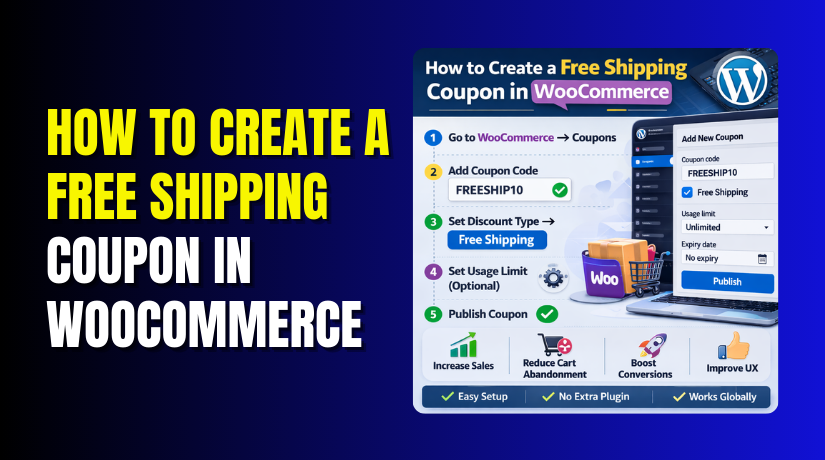
How to Create a Free Shipping Coupon in WooCommerce
Table of Contents
- Introduction
- What Is a Free Shipping Coupon in WooCommerce?
- Important Things You Should Check Before Creating a Free Shipping Coupon in WooCommerce
- Step-by-Step Guide: How to Create a Free Shipping Coupon in WooCommerce
- Common Problems with WooCommerce Free Shipping Coupons and How to Fix Them
- Conclusion
Introduction
Shipping cost is one of the biggest reasons shoppers leave a store. Many customers add products to the cart, see the shipping fee, and leave without buying. That is why many store owners use a free shipping coupon WooCommerce strategy to improve sales. It gives buyers one more reason to complete the order. It also makes the offer feel more valuable without changing the product price. If you run an online store, this can be a smart way to attract more customers and increase conversions. In this guide, you will learn the basic idea behind this coupon type and why many sellers use it in their store promotions.
A free shipping offer can do more than lower checkout friction. It can also support your wider WooCommerce marketing strategies. For example, you can use it during holiday sales, first-order offers, weekend campaigns, or customer reward programs. Many buyers respond quickly when they see shipping charges removed. This is because free shipping feels simple and direct. A discount on the product is helpful, but free shipping often feels easier to understand. It creates a stronger buying signal for many users. That is why a well-planned WooCommerce free shipping promotion can work better than a standard offer in some cases.
This setup is also useful because it is flexible. You can create a code for all users or selected buyers. You can use it for one product, one category, or a limited sale. You can also combine it with other campaign goals. This makes it an important part of any practical WooCommerce store coupon guide. When used correctly, it helps improve user experience and supports better cart completion rates. It can also help you move seasonal stock or reward repeat customers in a simple way.
What Is a Free Shipping Coupon in WooCommerce?
A free shipping coupon in WooCommerce is a coupon code that removes shipping charges when a customer applies it at checkout or on the cart page. This is different from a normal WooCommerce discount code, which usually reduces the product price by a fixed amount or percentage. A free shipping coupon focuses only on the delivery charge. In simple words, the customer still pays for the products, but the shipping fee becomes free when the coupon works correctly.
WooCommerce includes a built-in option for this type of offer. During your WooCommerce coupon setup, you can create a coupon and enable the free shipping option inside the coupon settings. After that, you must also make sure your shipping zone includes the Free Shipping method. These two settings work together. The coupon alone is not enough. The shipping method must also be active in the correct shipping zone. This is an important point many beginners miss while creating a shipping-based promotion.
Important Things You Should Check Before Creating a Free Shipping Coupon in WooCommerce
Make Sure Coupons Are Enabled in WooCommerce Settings
Before starting your WooCommerce coupon setup, confirm that coupons are enabled in your store settings. If this option is turned off, customers cannot apply any coupon at checkout or on the cart page. That means your WooCommerce discount code will not work at all. This is the first setting you should check because every coupon depends on it. A simple missed checkbox can stop the whole offer from working.
Check That Your Shipping Zones Are Set Correctly
Shipping zones control which shipping methods appear for customers in different locations. If the wrong zone is set, your free shipping coupon WooCommerce offer may never show. For example, if a customer belongs to a region not covered by the right zone, WooCommerce will not display the expected free shipping method. That is why you should review all active zones carefully before creating any coupon-based shipping offer.
Confirm That the Free Shipping Method Is Already Added
A coupon alone does not create a shipping method. WooCommerce also needs the Free Shipping method added inside the correct shipping zone. If this method is missing, the coupon may apply successfully, but shipping charges will still appear. This is one of the most common setup mistakes. In every proper WooCommerce store coupon guide, this step is very important because the coupon and shipping method must work together.
Review the Free Shipping Requirement Option Carefully
WooCommerce lets you decide how free shipping should be triggered. You can allow it through a valid coupon, a minimum order amount, or both. This setting matters because it tells WooCommerce when to show the free shipping method. If the wrong option is selected, your WooCommerce free shipping promotion may fail during testing. Always review this setting before launch so your coupon matches the shipping rule exactly.
Understand How the Coupon and Shipping Method Work Together
Many store owners think checking the free shipping box in the coupon is enough. In reality, WooCommerce checks both the coupon settings and the shipping zone setup. If only one side is correct, the offer may not work as expected. This is why understanding the full connection is important. A successful WooCommerce coupon setup depends on both the coupon configuration and the active shipping method in the matching zone.
Check for Conflicts With Other Shipping Plugins or Rules
Some WooCommerce stores use extra shipping plugins, custom cart rules, or theme-based checkout edits. These tools can change how shipping methods appear. In some cases, they can hide or override the free shipping method. This can break your campaign even when the coupon looks correct. If you use advanced shipping tools, review them before starting your WooCommerce marketing strategies so the coupon works smoothly for customers.
Test Whether Other Coupons or Offers Affect the Same Cart
If your store already uses discounts, bundle offers, or automatic coupons, they may affect how free shipping works. Some coupon combinations can change cart totals or block other offers. This can create confusion during testing. Before going live, check whether your new WooCommerce discount code can be used together with existing offers. This step helps you avoid unexpected results and keeps your WooCommerce free shipping promotion clear and effective.
Decide the Goal of Your Free Shipping Offer Before Creating It
Before making the coupon, decide why you want to offer free shipping. You may want to reward first-time buyers, increase cart value, or support a seasonal sale. A clear goal helps you set the right rules later. It also makes your campaign more useful. Good WooCommerce marketing strategies always start with a purpose, not just a coupon code. When the goal is clear, the coupon performs better and supports real store growth.
Step-by-Step Guide: How to Create a Free Shipping Coupon in WooCommerce
Step 1: Go to the Coupons Section in WooCommerce
- First, log in to your WordPress dashboard.
- Then go to Marketing > Coupons or WooCommerce > Coupons, based on your setup.
- This is the place where you can create and manage every WooCommerce discount code for your store.
- Your full WooCommerce coupon setup starts from this section.
Step 2: Click to Add a New Coupon
- Now click Add Coupon or Create Your First Coupon.
- After that, enter a coupon code in the box.
- This is the code customers will use at checkout.
- Keep it short and simple. A clear code is easier to remember and use.
Step 3: Write a Small Description


- Below the coupon code, you can add a small note.
- This note is for your own use. It helps you remember why the coupon was created.
- For example, you can write “Free shipping for summer sale” or “Offer for first-time buyers.”
- This keeps your WooCommerce store coupon guide more organized.
Step 4: Open the Coupon Data Section
- Now scroll down to the Coupon Data
- This section has all the important settings.
- Here, you can control how the coupon works.
- You will see tabs like General, Usage Restriction, and Usage Limits.
- These tabs help you set the coupon properly.
Step 5: Enable the Free Shipping Option
- In the coupon settings, find the checkbox for Allow free shipping.
- Tick that box. This is the main setting for a free shipping coupon WooCommerce
- If you miss this option, the coupon will not remove shipping charges.
- So this step is very important.
Step 6: Add Restrictions if Needed
- Now open the Usage Restriction
- Here, you can set rules for the coupon. You can add a minimum spend if needed.
- You can also choose specific products or categories.
- This helps you control where the coupon should work.
- It also supports better WooCommerce marketing strategies.
Step 7: Add Usage Limits
- Next, open the Usage Limits
- Here, you can decide how many times the coupon can be used.
- You can set a total limit for all users. You can also set a limit per customer.
- This is useful if you want to control your WooCommerce free shipping promotion.
Step 8: Publish the Coupon
- After checking all settings, click Publish.
- Your coupon is now active. But one more setup is still needed.
- The coupon is only one part.
- You also need to make sure free shipping is added in your shipping settings.
Step 9: Check the Free Shipping Method in Shipping Zones
- Go to WooCommerce > Settings > Shipping.
- Open the correct shipping zone.
- Then make sure the Free Shipping method is added there.
- Also check that its rule is set for a valid coupon.
- This step is needed for the free shipping coupon WooCommerce setup to work properly.
Step 10: Test the Coupon on Your Store
- Now go to your store’s front end.
- Add a product to the cart.
- Apply the coupon code.
- Then check if the shipping cost becomes free.
- If it works, your setup is complete.
- If not, review the coupon and shipping zone settings again.
Common Problems with WooCommerce Free Shipping Coupons and How to Fix Them
Coupon Applies but Free Shipping Does Not Show
This is one of the most common issues in WooCommerce. The coupon may apply correctly, but the shipping cost still appears. In most cases, the Free Shipping method is not added in the correct shipping zone. Sometimes the free shipping rule is also set wrong. Check both settings carefully. Your free shipping coupon WooCommerce setup needs the coupon and shipping method to work together. If one part is missing, the offer will not work.
Free Shipping Option Is Missing at Checkout
Sometimes customers apply the coupon, but no free shipping option appears. This usually happens because the customer address does not match the shipping zone. WooCommerce only shows shipping methods from the matching zone. So if the zone is wrong, the method will stay hidden. This can affect your full WooCommerce free shipping promotion. Review your shipping zones and make sure the right country, state, or region is added.
Coupon Code Works but Shipping Charges Still Remain
In this case, the coupon is active and can be used. But the shipping amount does not become free. This often happens when the Allow free shipping box is not checked inside the coupon settings. Many store owners create the code but miss this one option. As a result, the WooCommerce discount code works like a normal coupon only. Open the coupon again and confirm that free shipping is enabled properly.
Free Shipping Method Is Not Linked With the Coupon
WooCommerce needs a matching shipping rule for the coupon to work. If the shipping method is set to minimum order only, the coupon may not trigger free shipping. The requirement should support a valid coupon if that is your goal. This is an important part of every WooCommerce coupon setup. Check the Free Shipping method settings and make sure the selected requirement matches your coupon-based offer.
Other Plugins or Theme Settings Are Causing Conflicts
Some stores use extra shipping plugins or custom checkout tools. These can change how shipping methods appear. In some cases, they can hide the free shipping option or replace WooCommerce rules. This can break your campaign during testing. If your setup looks correct but still fails, test it with unnecessary plugins disabled for a moment. A clean test helps you find conflicts faster and improves your WooCommerce marketing strategies.
Old Cache or Cart Session Is Showing Wrong Results
Sometimes the settings are correct, but the cart still shows old shipping data. This can happen because of caching or session issues. If your store uses a cache plugin, clear the cache first. Then empty the cart and test again. You can also test in a private browser window. This simple step often solves many testing problems and helps your WooCommerce store coupon guide work the right way for real users.
Conclusion
Creating a free shipping coupon in WooCommerce is not very hard. You just need to follow the right steps in the correct order. First, create the coupon. Then enable the free shipping option. After that, make sure the Free Shipping method is active in the correct shipping zone. Finally, test everything on the cart page before using the offer live. When each setting is done properly, your free shipping coupon WooCommerce setup can work smoothly and help improve customer interest, cart completion, and store sales.
If you need help with WooCommerce coupon setup, shipping rules, or checkout issues, WooHelpDesk can support you. Our team can help fix free shipping problems, coupon errors, shipping method conflicts, and other store issues. Whether you want to launch a new WooCommerce free shipping promotion or solve an existing problem, WooHelpDesk can help make your store work better.
