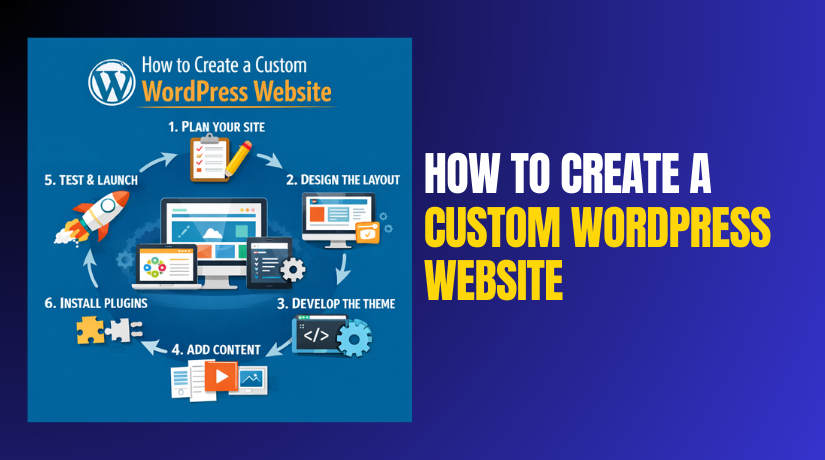
How to Create a Custom WordPress Website (Step by Step)
Table of Contents
- Introduction
- What Is Custom WordPress Development?
- Custom WordPress development usually includes these building blocks:
- Custom WordPress Website vs Theme: What’s the Real Difference?
- Step-by-Step: Start Building Your Custom WordPress Website
- Conclusion
Introduction
A custom WordPress website is built for your exact business needs. It does not rely only on a ready theme setup. It gives you better control over layout and features. It also helps your site feel unique and more professional. Many businesses choose custom work for long-term growth plans. You can still use WordPress as the core system. But the design and functions are tailored to your goals. The entire procedure is explained in easy steps in this guide. You will learn what “custom” really means in WordPress. You will also learn how custom work differs from themes.
What Is Custom WordPress Development?
Building components of WordPress your own is known as custom WordPress development. Custom plugins, a custom theme, or both may be included. A custom theme controls how your website looks and behaves. Custom plugins add features that normal plugins cannot handle well. This work is done using WordPress coding standards and hooks. It focuses on stable results, clean code, and better performance. It also avoids extra features you do not need. Many sites fail because they use too many heavy plugins. Custom development reduces that risk in a smart way. It also improves site speed when done correctly. Custom work helps you scale your website later. It makes future updates easier and more controlled.
Custom WordPress development usually includes these building blocks:
- Custom layout structure for pages and templates
- Custom header, footer, and navigation menus
- Custom post types for special content needs
- Custom fields for structured data entry
- Custom functions for advanced business workflows
This approach is best for serious business websites. It is also best for long-term content growth websites. You have complete control over features and design.
Custom WordPress Website vs Theme: What’s the Real Difference?
A theme-based site starts with a ready-made design package. You install it and change colors, fonts, and sections. This can work well for small websites and quick launches. But themes often come with many unused features and scripts. That extra load can slow down your pages over time. Some themes also lock you into their own builder system. That makes future changes harder and more costly.
Your needs are taken into consideration when designing and developing a custom WordPress website. Your layout is designed for your audience and business goals. Your features are chosen based on real requirements. You avoid extra code that you never plan to use. This usually improves speed and reduces conflict issues later. You also get better control over SEO structure and content flow.
Here is the simple difference you should remember:
- Themes are faster to start with limited control.
- Custom builds take effort but give full control.
Step-by-Step: Start Building Your Custom WordPress Website
Custom WordPress Website vs Theme
A theme is a ready design you install and adjust. It works well for small sites and quick needs. Many themes include demo pages and pre-made layouts. You may launch more quickly and with less planning time thanks to this. But themes often add extra code you never use. That extra code can slow pages and increase errors. Some themes also depend on many bundled plugins. If one plugin breaks, your design may break too.
Your specific plan is the foundation of a custom WordPress website. You choose the layout, blocks, and features with purpose. You avoid heavy elements that add no real value. You also get cleaner design control across every page. This helps keep the site consistent and easy to manage. Custom builds also support stronger growth later. You can add features without rebuilding everything again.
Choose a theme-based setup when these points match you:
- You need a simple site with basic pages only.
- You have a tight budget and a limited amount of time.
- You do not need custom features or special workflows.
Choose a custom build when these points match you:
- A distinctive layout that complements your brand is what you want.
- You need special features beyond normal plugin options.
- You want better speed, control, and long-term stability.
This choice decides your build path from the start. It also decides your costs and timeline later.
Step 1: Plan Your Website Structure and Requirements
Planning is the most important step in custom website work. It saves time, cost, and rework during development. Start by writing your main website goal in one line. Your goal should match what users must do on pages. You might want calls, reservations, or sales, for instance. Then list the pages your visitors will expect to find. Keep it simple and clear for first-time visitors.
Create a basic page list like this:
- Home page with clear value and strong call to action
- About page with trust and story details
- Services page with clear packages and benefits
- Blog page for search traffic and updates
- Contact page with form, phone, and business hours
Now plan the menu and user flow for each page. Decide where buttons should lead users next. A clear flow improves user action and reduces bounce rate. Then write your feature list based on real needs. Do not add features “just in case” you need them. Every extra feature adds time, cost, and risk.
Your planning checklist should include these items:
- Brand items like logo, colors, and font style
- Content items like text, images, and service details
- Website tools like forms, chat, and email integration
- Lead tracking needs like analytics and event tracking
- Security needs like backups and login protection
This planning stage helps build a WordPress website from scratch. It also supports a clean custom WordPress website structure. When planning is strong, the build becomes smooth.
Step 2: Choose Domain and Hosting for a USA Audience
Hosting impacts site speed, uptime, and daily stability. For USA users, choose hosting with fast US-based servers. This reduces loading time for most visitors in the country. Also check if the host supports modern PHP versions. A slow server can ruin even a great custom design.
Select a short and simple domain name. Avoid hyphens and hard spelling when possible. Use a .com if it fits your business plan. Then connect the domain to your hosting using DNS settings. Many hosts provide simple DNS guides for setup.
When selecting hosting, check these must-have features:
- Free SSL for secure HTTPS connection
- Daily backups with easy restore option
- Staging site option for safe testing
- Good support with chat or ticket help
- Strong uptime history and fast server response
Also think about email needs for your domain. Some hosting plans include email, some do not. Google Workspace is another option for business email. A proper setup here avoids future email delivery issues.
This step sets the base for your WordPress website from scratch. It also helps you build a stable custom WordPress website. Once hosting is ready, WordPress install becomes simple.
Step 3: Install WordPress and Set the Basics Correctly
After hosting is ready, install WordPress on your domain. For beginners, the majority of hosts provide one-click WordPress installation. Manual install also works, but it takes more steps. Choose one-click install if you want a faster setup. Use a strong admin username and a strong password. Avoid using “admin” as your main login name. This protects your site from simple login attacks.
After installation, set the important WordPress settings first. These settings control how your website behaves and looks. Go to Settings and update the basics before design work. Set the site title and tagline based on your brand. Make sure your timezone matches your business location. For USA audience sites, use your target USA timezone. Also check the site language and date format.
Now set permalinks for clean and SEO-friendly URLs. Permalinks control your page and blog link format. Use the “Post name” permalink option in most cases. URLs are kept clear and easy to read as a result. Additionally, it helps search engines in comprehending the subject of your page. Next, enable HTTPS with your SSL certificate. Many hosts enable SSL automatically for your domain. After SSL is active, force HTTPS site-wide for safety.
You should also create the right user roles early. Do not use one admin account for every task. Create roles based on team responsibilities and access levels. This improves security and reduces human mistakes.
Basic setup checklist you should complete now:
- Configure permalinks so your page links display only the post title.
- Enable SSL and confirm HTTPS works on all pages
- Remove default sample pages and default plugins
- Create Editor role for content tasks and updates
- Limit admin access only to trusted team members
This setup creates a strong base for your WordPress website from scratch. It also reduces future errors during custom development work.
Step 4: Pick Your Build Approach (Theme, Builder, or Custom)
Before design work starts, choose the right build approach. This decision controls how you customize WordPress website design. It also affects speed, cost, and long-term maintenance. Many site owners choose a builder for quick results. Some choose themes for low cost and fast launch. Others choose a custom build for full control and unique design.
A theme approach works when you need a simple website. You can change colors, fonts, and page sections quickly. But themes can limit layout freedom and feature changes. A builder approach gives more layout control and section design. But builders may add extra load and slow down pages. Custom builds offer the best control and best scaling. They also help reduce extra code and plugin conflicts.
Use these points to choose the best method:
- Choose a theme if you need basic pages and simple updates
- Choose a builder if you need flexible design without coding
- Choose custom if you need unique features and better control
If your goal is a true custom WordPress website, plan for custom work. This may include a custom theme and custom plugin support. It also supports better stability and better SEO structure.
Step 5: a) Create a Custom WordPress Theme (Foundation)
A custom WordPress theme controls the design of your site. It defines how pages, posts, and layouts appear to users. You can create a custom WordPress theme in two ways. First, you can build a child theme from a base theme. Second, you can build a custom WordPress theme from scratch. The best option depends on your budget and skill level.
A child theme is safer for beginners and faster builds. It uses a base theme and overrides design parts cleanly. A theme from scratch gives full design freedom and clean output. It also reduces unwanted code and heavy theme features. This is useful for business sites needing strong performance. Additionally, you can make templates for every kind of page. For example, Home, Blog, About, and Services templates.


Theme foundation planning should include these items:
- Header and footer layout with clear navigation
- Typography system for headings and body text
- Button style rules for normal and hover states
- Page template plan for main pages and blog pages
- Mobile layout rules for menus and spacing
This foundation makes your custom WordPress theme stable. It also keeps your custom WordPress website consistent.
Step 5: b) Custom WordPress Theme From Scratch (Practical Build Plan)
A custom WordPress theme from scratch starts with a clear plan. You do not start by designing random pages first. You start by listing templates your site will actually need. Templates control how each page type will display content. This keeps your site consistent across all sections. It also helps you avoid messy layout changes later.
Begin with your main template list and global layout rules. Most business sites need a small set of core templates. You can expand later when your content grows. Keep your first build stable and easy to manage. Plan your header and footer first before any page sections. These parts appear on every page and set the style. Then plan your typography rules for headings and body text.
A practical template plan usually includes these templates:
- Home template for main sections and primary call actions
- Page template for About, Services, and Contact pages
- Blog archive template for listing posts in clean layout
- Single post template for blog reading and sharing flow
- Search and 404 template for better user experience
Now plan reusable sections and blocks for faster development. Reusable sections save time and keep design consistent. For example, a service grid can be reused on many pages. A testimonial block can be reused on Home and Services pages. This is a smart way to keep design clean and stable.
Use checkpoints while building the theme to avoid surprises. Test after each major change so errors are easier to find. Keep a staging site for testing before any live changes. This makes your custom WordPress theme from scratch safer.
Step 6: Customize WordPress Website Design (Brand + Layout)
Once your theme base is ready, design customization starts. Your goal is to match your brand across every page. A strong design system keeps your website professional and trusted. Start by setting your global colors and typography rules. Use one heading style system for all headings. Use one body text size for most content blocks. Keep spacing consistent across sections and pages.
Your header should be clean and easy to use. It should show your logo and main menu clearly. Add a call button if your business needs calls or quotes. Your footer should support trust and navigation for users. Add contact details, service links, and social links if needed. Keep footer layout simple for mobile screens.
Focus on layout clarity and mobile-first design checks. Many users visit from phones in the USA market. Your layout must work well on smaller screens. Check buttons, menus, and forms on mobile devices. Make sure spacing is enough for easy tapping.
Design checklist you should apply during customization:
- Keep headings clear and match brand voice
- Use enough white space for clean reading flow
- Keep buttons consistent in size and style
- Ensure images fit well without stretching issues
- Test mobile menu, forms, and page speed often
This step helps you customize WordPress website design correctly. It also improves user trust and on-page actions.
Step 7: Add Custom Features (Plugins vs Custom Development)
After design is stable, start adding website features carefully. Custom WordPress development becomes crucial in this situation. Many site issues happen due to plugin overload and conflicts. You should add features based on real business needs only. Test the most crucial elements first. Avoid adding many plugins at the same time.
Use plugins for common features that are stable and trusted. Examples include SEO, caching, backups, and basic forms. Use custom development when you need special workflows and logic. For example, custom pricing rules or custom user dashboards. Custom code is also better when plugins are too heavy. It can reduce load and improve long-term stability.
Use this simple rule to decide feature approach:
- Use plugins for standard and common features
- Use custom code for unique and business-specific features
Always test features on staging before pushing live changes. Check for layout breaks, slow pages, and error logs. This keeps your custom WordPress website stable and secure.
Step 8: Build Core Pages That Convert
Now build the pages users expect and trust quickly. Every page should have a single, distinct goal and flow. Your Home page should explain what you offer fast. It should guide users toward one main action goal. Add a strong headline, clear sections, and simple navigation. Keep the layout clean and focused for busy visitors.
Your About page should establish credibility and foster confidence. Add your story, mission, and what makes you different. Your Services page should list offers in a simple structure. Use clear service names, short details, and visible call buttons. You should be easily reachable through your Contact page. Add a contact form, phone number, and business hours.
Use these conversion blocks on key pages when needed:
- Clear call to action button near the top section
- Short trust points like reviews and client logos
- Simple contact form with spam protection enabled
- Location or service area details for local service sites
Also set up tracking early for better marketing decisions. Add Google Analytics and Search Console for data tracking. Track clicks on call buttons and contact form submits.
Step 9: Configure SEO, Performance, and Security
After pages are ready, optimize the site for real use. SEO makes your pages show up in user search results. Use clean page titles and clear meta descriptions for pages. Keep URLs short and based on page topics and intent. Make sure search engines can index your important pages. Check your robots settings and sitemap configuration carefully.
Performance is important for user trust and better rankings. A slow site loses visitors and reduces conversions fast. Use caching to improve page load time across devices. SEO makes your pages show up in user search results. Enable lazy load for images when it fits your layout. Remove unused plugins and heavy add-ons from the setup.
Security protects your site from common attacks and damage. Use SSL and keep WordPress core updated regularly. Add login protection to stop repeated login attempts. Use backups so you can restore the site quickly.
Use this practical setup checklist for stability:
- Install SEO plugin and enable sitemap generation
- Set caching and test speed on mobile devices
- Compress images and avoid huge image uploads
- Enable firewall and limit admin login attempts
- Schedule daily backups and test restore once monthly
These steps keep your custom WordPress website stable and fast.
Step 10: Test, Launch, and Maintain
Before launch, test everything like a real visitor would. Visit your website on desktop, tablet, and mobile devices. Check menus, buttons, and forms on every main page. Test contact forms and confirm emails are delivered correctly. Test checkout and payments if the site uses WooCommerce. Check all links to avoid broken pages and errors.
Run a basic speed test and fix major slow issues. Check for large images, heavy scripts, and unused plugins. Also test key pages for layout issues across browsers. Use Chrome and Safari testing for better coverage. Make sure your site loads with HTTPS on every page.
Launch should be done after final checks are complete. Publish the final version and monitor early traffic behavior. Watch error logs and fix issues before they grow bigger.
Post-launch maintenance is not optional for WordPress websites. Updates maintain the long-term security and functionality of your website. Set a simple routine that you can follow every week.
A simple maintenance routine includes these tasks:
- Update WordPress, theme, and plugins on a fixed schedule
- Check backups and confirm storage is working properly
- Scan for security issues and remove unused plugins
- Review speed and fix new heavy elements quickly
- Monitor Search Console for indexing and site errors
This process helps you build a WordPress website from scratch correctly. It also supports long-term growth with fewer problems later.
Conclusion
Building a custom WordPress website is a planned and structured process. Each step plays an important role in long-term success. From planning and setup to design and launch, every decision matters. A custom approach gives better control, speed, and flexibility. It also helps your website grow without future limitations. When done correctly, WordPress becomes a powerful business platform. If you need expert help at any stage, WooHelpDesk is here to support you. Our team helps with custom design, development, fixes, and maintenance. Visit WooHelpDesk to get professional WordPress help and keep your website running smoothly.