How to Convert an HTML Website to WordPress (Static to Dynamic Guide)
Table of Contents
- Introduction: Why Many Website Owners Move from HTML to WordPress
- What It Means to Convert an HTML Website to WordPress
- What You Should Prepare Before Starting the Conversion
- Review the Structure of the Existing HTML Website First
- Create a Custom WordPress Theme from the HTML Design
- Convert Static HTML Content into WordPress Dynamic Content
- Add WordPress Features That the HTML Site Did Not Have
- Test the Converted WordPress Website Carefully
- Common Problems You May Face During HTML to WordPress Conversion
- Conclusion
Introduction: Why Many Website Owners Move from HTML to WordPress
A static website works well for small and simple projects. It loads fast and looks clean. But it becomes harder to manage over time. Every small update needs manual editing. That takes more time and effort.
This is why many site owners now convert HTML website to WordPress. WordPress makes website management easier. You can edit pages from the dashboard. You do not need to open every file for small changes. This saves time and reduces mistakes.
Many businesses also move from static HTML to WordPress because growth becomes easier. You can add new pages, blog posts, forms, and plugins without rebuilding the full site. This gives your website more flexibility for future needs.
In simple words, HTML to WordPress conversion helps turn a fixed site into a manageable platform. It is a smart step for businesses that want easier updates, better content control, and long-term website growth.
This guide explains the process in a simple way. It helps you understand what changes during conversion and why the move matters.
What It Means to Convert an HTML Website to WordPress
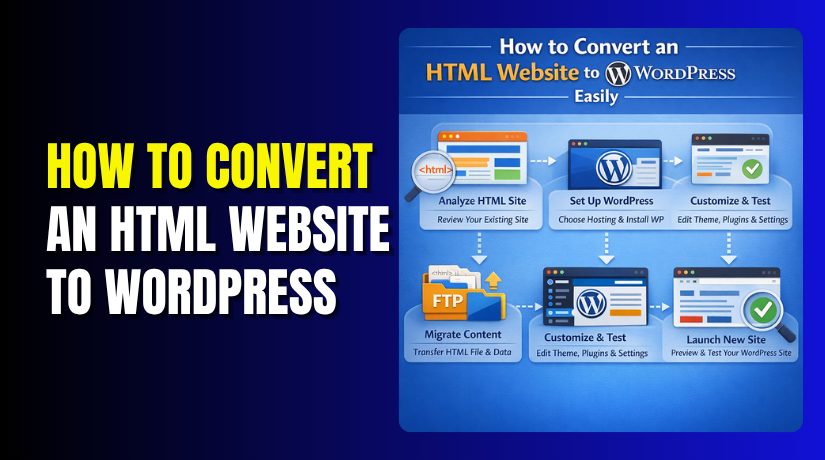
When you migrate HTML site to WordPress, you do more than move design files. You turn a static layout into a dynamic website system. Your old HTML pages may look good, but they do not offer easy content control. WordPress changes that.
A static site stores content inside fixed files. A WordPress site separates design and content more efficiently. This means you can update text, images, menus, and posts from the admin panel.
When you convert HTML to dynamic WordPress, you also make the website more useful. Features like blogs, contact forms, media handling, and plugin support become easier to add.
In many cases, developers convert HTML page into WordPress theme so the original design stays familiar. The look can remain close to the old site, but the backend becomes much easier to manage.
So, the main goal is not only design transfer. The real goal is better control, easier updates, and stronger website flexibility. That is why many website owners choose WordPress when their HTML site starts feeling limited.
What You Should Prepare Before Starting the Conversion
Before you start the HTML to WordPress process, prepare everything properly. Good preparation saves time later. It also reduces errors during theme creation and content migration. A clear setup makes the full conversion smoother and easier.
Start by making a complete backup of your current website. Save all HTML files, CSS files, JavaScript files, images, fonts, and forms. If something breaks during development, your backup will protect the original site.
Next, review every important part of the website. This includes:
- Main pages
- Navigation menu links
- Images and icons
- Contact forms
- JavaScript features
- Footer details
- Sidebar content, if used
This step matters because many people try to convert HTML website to WordPress without checking what the site already contains. That often leads to missing sections after migration.
You should also make sure you have:
- Hosting login access
- Domain access if needed
- A fresh WordPress installation
- File manager or FTP access
- Basic theme folder planning
If you want to migrate HTML site to WordPress correctly, you must know where the new WordPress site will be built. Some users build it on a staging site first. That is often the safer choice.
It also helps to plan how the content will move. Decide which pages will stay as pages, which sections may become posts, and which parts should remain fixed inside the theme layout. This simple planning helps when you later convert HTML to dynamic WordPress.
Review the Structure of the Existing HTML Website First
Before coding begins, study the layout of your current site carefully. Break the design into reusable sections. Most websites already have common parts that repeat across pages.
Look closely at:
- Header
- Footer
- Main content area
- Sidebar
- Navigation bar
You should also check all CSS, scripts, and image paths. This is important when moving from static HTML to WordPress because broken paths can damage the layout.
When you understand the full structure early, it becomes easier to convert HTML page into WordPress theme without confusion. This step gives your project a clean starting point.
Create a Custom WordPress Theme from the HTML Design
This is the stage where your static layout starts becoming a real WordPress theme. If you want to convert HTML website to WordPress, this is the core step. Here, you take your existing design and place it inside the WordPress theme structure.
Start by creating a new folder inside the wp-content/themes directory. Give it a clean and simple name. This folder will hold all theme files needed for the conversion.
Next, add the main files needed for a functional WordPress theme:
- style.css
- index.php
- header.php
- footer.php
- functions.php
- sidebar.php if your layout uses one
These files help split your design into reusable parts. This is important when moving from static HTML to WordPress, because WordPress does not use one full HTML file for every page. Instead, it loads shared parts separately. Note that only style.css and index.php are strictly required, but the additional files make the theme well-organized and easier to maintain.
Add Theme Details in the style.css File
Your style.css file should begin with theme information. This tells WordPress that the folder is a valid theme. It usually includes the theme name, version, author, and description.
After that, move your main CSS code into this file or connect your existing stylesheet correctly. Clean styling helps preserve the old design after the HTML to WordPress conversion.
Split the HTML Layout into Theme Files
Now break your original HTML file into parts. Move the top section into header.php. Move the bottom section into footer.php. Keep the middle page structure inside index.php. Put sidebar content into sidebar.php if needed.
A simple structure looks like this:


| Theme File | Main Purpose |
| header.php | Top site area, logo, menu, head section |
| footer.php | Bottom area, footer links, closing tags |
| index.php | Main content output |
| style.css | Theme details and styling |
| functions.php | Load styles, scripts, and theme support |
This method helps you convert HTML page into WordPress theme in an organized way.
Load CSS and JavaScript Properly
Do not hard-code styles and scripts the old way. Use functions.php to register and load them correctly. This is the right WordPress method. It keeps the theme clean and stable.
When done properly, your design keeps its old look, but the backend becomes ready for dynamic use. This is how developers begin to convert HTML to dynamic WordPress without losing structure.
Convert Static HTML Content into WordPress Dynamic Content
After the theme structure is ready, the next step begins. Now you move beyond design and start making the website editable. This is the main point where static HTML to WordPress becomes a real working change.
A static HTML site keeps text, links, and sections inside fixed files. That setup works, but editing takes more effort. In WordPress, content can come from the dashboard. This makes updates faster and much easier.
To convert HTML website to WordPress correctly, replace hard-coded parts with WordPress functions. These functions pull content dynamically instead of showing fixed text every time.
Important areas to convert include:
- Site title and tagline
- Navigation menu
- Page content
- Blog post content
- Sidebar widgets
- Footer details where needed
For example, a hard-coded menu should not stay inside plain HTML. WordPress lets you create and manage menus from the admin area. This helps when you later add or remove pages.
The same rule applies to page content. Instead of placing all text directly in template files, connect the layout to WordPress pages and posts. This is how you convert HTML to dynamic WordPress without losing control of the original design.
If your old website includes a news or article section, convert that area into WordPress posts. That gives you a proper blog system. You can publish, edit, and organize content without editing code again.
You should also make reusable sections easier to manage. Items like sidebars, widgets, and some homepage blocks can become dynamic based on the site’s needs. This gives the website more room to grow later.
When done properly, the design still looks familiar. But the content now works in a smarter way. This is the real value of HTML to WordPress conversion.
Add WordPress Features That the HTML Site Did Not Have
Once the site becomes dynamic, WordPress opens more options. Your old HTML site may have looked fine, but WordPress adds practical tools that improve daily management.
Useful features include:
- Custom menus
- Widget areas
- Media library
- Plugin support
- Contact form setup
- Easier page editing
These features help you migrate HTML site to WordPress for long-term use. They also make the site easier for business owners, editors, and teams to manage.
Many developers convert HTML page into WordPress theme not only to keep the design, but also to unlock these built-in website tools. This makes the final website more flexible, useful, and easier to maintain.
Test the Converted WordPress Website Carefully
After the main conversion work is complete, testing becomes very important. A website may look fine at first, but hidden issues can still remain. That is why every HTML to WordPress project should end with a full review.
Start by checking the design on different screen sizes. Open the website on desktop, tablet, and mobile devices. Make sure the layout stays clean and readable on each screen.
Then test the most important website elements:
- Navigation menus
- Internal links
- Buttons
- Contact forms
- Images
- Sliders or scripts
- Page loading behavior
This step matters because when you convert HTML website to WordPress, some old paths may stop working. Images may not load. CSS files may break. JavaScript may fail if it was not connected properly in the theme.
You should also compare the new site with the original HTML version. Check whether the header, footer, spacing, colors, and content blocks still match the expected design. This helps confirm that the move from static HTML to WordPress did not damage the user experience.
If your site includes blog or page templates, test those too. Make sure content appears correctly from the dashboard. A dynamic site should not only look right. It should also work properly when edited.
Common Problems You May Face During HTML to WordPress Conversion
Even a careful conversion can produce small errors. Most problems happen because the old static structure does not fully match WordPress theme rules.
Common issues include:
- Broken CSS file paths
- Missing JavaScript files
- Images not loading
- Old HTML links still active
- Menus not showing correctly
- Template files split in the wrong way
These problems often appear when developers convert HTML page into WordPress theme too quickly. A good review usually catches them early.
Another common issue appears when trying to convert HTML to dynamic WordPress without planning content placement. Some text stays hard-coded, so future editing becomes difficult. That defeats the purpose of using WordPress.
Conclusion
If your website needs easier updates, WordPress is a smart upgrade. It helps you manage content, expand features, and save time. That is why many businesses choose to migrate HTML site to WordPress for long-term growth.
When done properly, the old design stays familiar, but the site becomes much easier to manage. If you need expert help with HTML to WordPress conversion, WooHelpDesk can help you move your site safely and correctly.