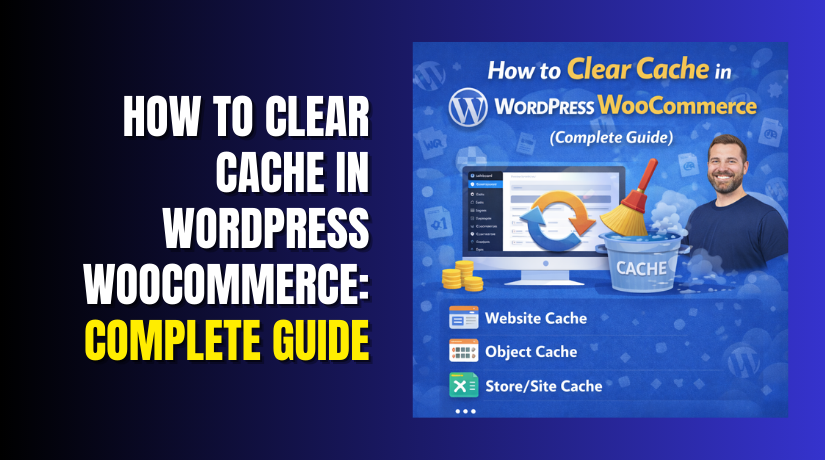
How to Clear Cache in WordPress WooCommerce: Complete Guide
Table of Contents
- Introduction
- What is Cache in WooCommerce?
- Why to Clear Cache in WordPress WooCommerce?
- How to Clear Cache in WordPress WooCommerce?
- Final Verdict
Introduction
Your WooCommerce store loads slowly. Products take seconds to appear. Customers grow impatient. They leave before buying.
The culprit is often outdated cache. Cached data accumulates over time. Old product information conflicts with new updates. Session data becomes corrupted. Your store grinds to a halt.
Clearing cache solves these problems instantly. It removes old data. Forces fresh content generation. Restores normal performance.
But the cache in WooCommerce is complex. There is page cache, browser cache, object cache, and database transients. Each type stores different data. Each needs different clearing methods.
Many store owners do not know where to start. They install cache plugins. They click random buttons. They hope for the best.
This guide changes that. You will learn exactly what cache means in WooCommerce. You will understand why clearing it matters. You will discover multiple methods to clear every type of cache.
By the end, you will confidently manage your store’s cache. Your site will load faster. Your customers will stay longer. Your sales will increase.
What is Cache in WooCommerce?
Cache is temporary data storage that helps your site load faster. Instead of generating pages from scratch each time, WooCommerce saves copies. Returning visitors receive these saved copies instantly.
Types of Cache in WooCommerce?
- Page Cache stores complete HTML copies of your pages. Product pages, category pages, and the shop page are common examples. When inventory changes, these cached pages become outdated.
- Browser Cache stores files on the visitor’s device. Images, CSS, and JavaScript remain locally. Returning visitors load your site faster. Updates require browser cache clearing.
- Object Cache stores database query results. WordPress and WooCommerce use this heavily. Complex product queries run once. Results saved for later use.
- WooCommerce Transients are temporary data with expiration times. Product pricing, sale status, and shipping calculations use transients. They automatically expire but sometimes linger.
- Fragment Cache stores parts of pages. Cart fragments update dynamically. Checkout sections remain personalized. These require special handling.
Why WooCommerce Cache Is Different?
- Ecommerce sites have unique caching needs. Product pages change when inventory updates. Cart pages must never be cached. Checkout requires real-time processing.
- Generic caching plugins often break WooCommerce. They cache dynamic pages incorrectly. Customers see empty carts. Prices show wrong values. Checkout fails.
- WooCommerce-aware caching solutions handle this properly. They exclude critical pages automatically. They clear relevant cache when products update. They respect customer sessions.
Where Cache Is Stored?
- Server disk stores page cache files. Fast SSD drives improve performance. Cache files have .html extensions.
- Database holds transient data. The wp_options table contains thousands of rows. Expired transients bloat this table.
- Memory like Redis or Memcached stores object cache. This is the fastest option. Memory clears when the server restarts.
- CDN edge servers cache your content globally. Visitors receive files from nearby locations. CDN cache requires separate purging.
- Visitor browsers store local copies. Images and scripts remain after leaving. Hard refresh bypasses this cache.
Why to Clear Cache in WordPress WooCommerce?
Cache improves performance but causes problems when outdated. Regular clearing prevents these issues.
- Outdated Product Information Appears
- You update a product price from $19 to $24. Customers still see $19. They add to cart. The higher price surprises them at checkout. They abandon the purchase.
- Inventory updates face the same problem. You sell out of an item. Cached pages still show it available. Customers order but cannot receive it.
- Customers See Empty Carts
- Caching plugins sometimes cache the cart page. One customer’s cart shows to another visitor. Worse, returning customers find empty carts. Their items disappeared.
- This happens because cart fragments update via AJAX. Cached pages may load before JavaScript runs. Users see stale data.
- Checkout Process Fails
- Checkout requires real-time processing. Payment gateways need current data. Cached checkout pages break this flow. Customers cannot complete purchases.
- Admin Dashboard Slows Down
- Thousands of expired transients bloat your database. Each admin page queries this data.
- Slow queries make editing products painful. Your team wastes time waiting.
- Analytics Reports Show Wrong Data
- WooCommerce reports rely on transient data. Expired transients cause incorrect numbers. You make business decisions based on bad information.
- Stock Levels Cause Overselling
- Multiple customers see cached stock counts simultaneously. They all add the remaining item to the cart. One succeeds. Others receive “out of stock” errors. Frustration follows.
- Security Updates Require Fresh Cache
- You update WooCommerce to the latest version.
- Old cached files may conflict with new code. Strange errors appear. Functionality breaks.
- Performance Degrades Over Time
- Database bloat from expired transients slows everything.
- Queries take longer. Pages load slower. Server resources strain.
- Customer Experience Suffers
- Nothing frustrates shoppers more than incorrect information.
- Wrong prices. Empty carts. Failed checkouts. They leave and never return.
- SEO Rankings Drop
- Google considers page speed in rankings.
- Slow database queries hurt Core Web Vitals. Your search visibility decreases. Organic traffic falls.
How to Clear Cache in WordPress WooCommerce?
Multiple methods exist for clearing different cache types. Use the right method for your situation.
Method 1: Clear Cache Using a Caching Plugin
Most stores use caching plugins. Each plugin has its own clearing method.
WordPress Dashboard → Plugin Name → Clear Cache
For WP Rocket:
- Go to Settings → WP Rocket
- Click the “Clear cache” button at the top
- Or use admin bar: hover WP Rocket icon → “Clear cache”
For W3 Total Cache:
- Go to Performance → Dashboard
- Click “Empty all caches” button
- Or use admin bar: hover Performance → “Empty all caches”
For LiteSpeed Cache:
- Go to LiteSpeed Cache → Dashboard
- Click “Purge All” button
- Or use admin bar: hover LiteSpeed Cache → “Purge All”
For WP Super Cache:
- Go to Settings → WP Super Cache
- Click “Delete Cache” button
- Or use admin bar: hover Delete Cache → “Delete Cache”
For Autoptimize:
- Go to Settings → Autoptimize
- Click “Delete cached files” button
- Note: Autoptimize caches CSS and JS only
For Cache Enabler:
- Go to Settings → Cache Enabler
- Click “Clear Cache” button
- Or use admin bar: hover Cache Enabler → “Clear Cache”
For Flying Press:
- Go to Settings → Flying Press
- Click “Clear Cache” button
Method 2: Clear WooCommerce Transients
Transients are WooCommerce-specific temporary data. They accumulate over time and require regular clearing.
Using WP CLI (Recommended for Large Stores):
Command Line → Server SSH → WP CLI Commands
- Connect to your server via SSH
- Navigate to your WordPress installation
- Run the following command:
wp wc tool run clear_transients –user=1
- Success message confirms completion
- This clears product and shop transients
Using PHP Code Snippet:
WordPress Dashboard → Plugins → Code Snippets → Add New
- Install Code Snippets plugin
- Click Add New
- Name your snippet “Clear WooCommerce Transients”
- Paste the following code:
// Clear all expired WooCommerce transients
function custom_clear_woocommerce_transients() {
if ( function_exists(‘wc_delete_expired_transients’) ) {
wc_delete_expired_transients();
}
}
add_action(‘init’, ‘custom_clear_woocommerce_transients’);
- Set to run only once, or schedule with WP-Cron
- Activate the snippet
Using Database Cleanup Plugin:
WordPress Dashboard → Plugins → Add New → Search “Advanced Database Cleaner”
- Install and activate Advanced Database Cleaner
- Go to Tools → Database Cleaner
- Select “Transients” tab
- Check expired WooCommerce transients
- Click “Delete Selected”
Method 3: Clear Object Cache (Redis/Memcached)
Object cache stores database queries in memory. Clearing it forces fresh queries.
Using Redis Dashboard:
Server Control Panel → Redis Manager
- Log in to your hosting control panel
- Find Redis Manager or similar tool
- Click “Flush Database” or “Flush All”
- Confirm action
Using WP CLI:
wp cache flush
Using Plugin (if applicable):
- Some object cache plugins add admin bar buttons
- Click “Flush Object Cache” from admin bar
Method 4: Clear CDN Cache
Content Delivery Networks cache your files globally. Clearing requires CDN dashboard access.
For Cloudflare:
Cloudflare Dashboard → Caching → Configuration
- Log in to Cloudflare
- Select your domain
- Go to Caching → Configuration
- Click “Purge Everything”
- Or use “Custom Purge” for specific URLs
For Fastly:
Fastly Dashboard → Purge
- Log in to Fastly
- Select your service
- Use purge options for URL, tag, or all
For Bunny CDN:
Bunny CDN Dashboard → Pull Zones → Purge Cache
- Log in to Bunny CDN
- Select your pull zone
- Click “Purge Cache”
Method 5: Clear Browser Cache for Testing
Sometimes issues persist due to your own browser cache.
Browser Settings → Privacy → Clear Browsing Data
For Chrome:
- Click three dots in top right
- Go to More Tools → Clear Browsing Data
- Select “Cached images and files”
- Time range: “All time”
- Click “Clear data”
Keyboard Shortcut: Ctrl + Shift + Delete (Windows) or Cmd + Shift + Delete (Mac)
Hard Refresh:
- Hold Shift while clicking refresh button
- Or press Ctrl + F5 (Windows) or Cmd + Shift + R (Mac)
Method 6: Clear Cache via WP-CLI (Advanced)
WP-CLI provides powerful cache management commands. Mamba Cache plugin offers extensive CLI options.
Command Line → Server SSH → WP CLI
Basic Cache Purge:
wp cache flush
Mamba Cache Commands (if installed):
# Purge all cache
wp mamba purge
# Purge only page cache
wp mamba purge page
# Purge specific product URL
wp mamba purge url https://yourstore.com/product/sample
# Purge by product ID
wp mamba purge product 123


# Purge by category slug
wp mamba purge category clothing
WooCommerce Tool Commands:
# List all available tools
wp wc tool list –user=1
# Clear transients specifically
wp wc tool run clear_transients –user=1
# Clear expired transients
wp wc tool run clear_expired_transients –user=1
# Clear customer sessions (use with caution)
wp wc tool run clear_sessions –user=1
Method 7: Schedule Automatic Cache Clearing
Regular clearing prevents buildup. Most caching plugins offer scheduling.
Using WP Rocket:
Settings → WP Rocket → Cache → Cache Lifespan
- Enable “Cache Lifespan” option
- Set hours or days between automatic clears
- Save changes
Using Mamba Cache:
Mamba Settings → Cache → Automatic Purge
- Configure purge frequency
- Set to run during low-traffic hours
- Enable auto-warmup after purge
Using Custom WP-Cron:
Code Snippets → Add New → Schedule Cron Job
- Add code to schedule transient cleanup :
// Schedule transient cleanup every 2 hours
function setup_scheduled_transient_cleanup() {
if ( ! wp_next_scheduled( ‘clean_woocommerce_transients_hook’ ) ) {
wp_schedule_event( time(), ‘2hours’, ‘clean_woocommerce_transients_hook’ );
}
}
add_action(‘wp’, ‘setup_scheduled_transient_cleanup’);
// Add custom schedule
function add_two_hours_schedule( $schedules ) {
$schedules[‘2hours’] = array(
‘interval’ => 2 * 60 * 60,
‘display’ => __(‘Every 2 Hours’),
);
return $schedules;
}
add_filter(‘cron_schedules’, ‘add_two_hours_schedule’);
// Cleanup function
function run_scheduled_transient_cleanup() {
if ( function_exists(‘wc_delete_expired_transients’) ) {
wc_delete_expired_transients();
}
}
add_action( ‘clean_woocommerce_transients_hook’, ‘run_scheduled_transient_cleanup’ );
Method 8: Clear Cache After Specific Events
Smart invalidation clears only affected pages. This preserves cache for unrelated content.
After Product Updates:
- Modern plugins detect product saves
- Only that product page and related categories clear
- Rest of site remains cached
After Inventory Changes:
- Stock updates trigger targeted purges
- Product page clears immediately
- Category pages refresh on next view
After Order Processing:
- Stock reductions from orders invalidate affected pages
- Ensures customers see accurate availability
- Prevents overselling
Method 9: Manual Database Transient Cleanup (Advanced)
For developers comfortable with SQL, direct database cleanup works.
phpMyAdmin → Database → SQL Tab
View Transient Count:
SELECT COUNT(*) FROM wp_options WHERE option_name LIKE ‘_transient_wc_%’;
SELECT COUNT(*) FROM wp_options WHERE option_name LIKE ‘_transient_timeout_wc_%’;
Delete Expired Transients Safely:
DELETE FROM wp_options WHERE option_name LIKE ‘_transient_wc_%’ AND option_value < UNIX_TIMESTAMP();
DELETE FROM wp_options WHERE option_name LIKE ‘_transient_timeout_wc_%’ AND option_value < UNIX_TIMESTAMP();
Delete All WooCommerce Transients (Use Carefully):
DELETE FROM wp_options WHERE option_name LIKE ‘_transient_wc_%’;
DELETE FROM wp_options WHERE option_name LIKE ‘_transient_timeout_wc_%’;
Important: Always back up your database before running manual queries.
Final Verdict
Clearing cache in WooCommerce is essential for store health. Outdated cache causes incorrect prices, empty carts, and failed checkouts. Regular clearing prevents these issues. Cache exists in multiple forms. Page cache stores HTML copies. Object cache holds database queries. Transients cache temporary WooCommerce data. Each type needs different clearing methods.
Use caching plugins for page cache. WP Rocket, Mamba Cache, and LiteSpeed Cache offer one-click clearing. Always exclude cart, checkout, and account pages. Clear WooCommerce transients regularly. WP CLI commands provide the fastest method. Run wp wc tool run clear_transients for immediate results . Schedule automated cleanup to prevent buildup.
Monitor object cache if using Redis or Memcached. Flush after major updates. Clear when troubleshooting unusual behavior. CDN cache requires separate handling. Use CDN dashboards for global purging. Purge specific URLs for surgical updates.
Browser cache affects your testing only. Use incognito mode or hard refresh for verification. Schedule automatic clearing during low-traffic periods. Most caching plugins include this option. Set appropriate cache lifetimes based on update frequency.
Smart invalidation improves performance. Modern plugins clear only affected pages. Product updates purge that product only. Category pages refresh when inventory changes. The best approach combines multiple methods. Use caching plugins for page cache. Schedule transient cleanup via WP-Cron. Monitor database health regularly. Test after every update.
Your customers deserve accurate information. Your store needs fast loading times. Proper cache management delivers both. Start with your caching plugin today. Verify exclusions. Schedule automatic clearing. Monitor results. Your store will run better immediately.
Have questions before starting with WooCommerce & WordPress? Get support here at WooHelpDesk.