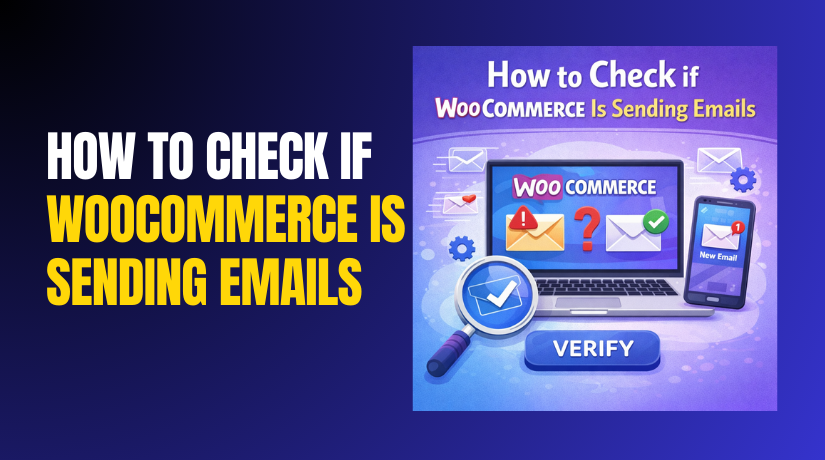
How to Check if WooCommerce Is Sending Emails (Step-by-Step Guide)
Table of Contents
- Introduction
- Does WooCommerce Send Emails or Receipts to Customers?
- What a WooCommerce Receipt Means for Customers in Real Life
- What Triggers WooCommerce Customer Emails and When They Send
- How Do I Check If WooCommerce Is Sending Emails?
- How to Find the WooCommerce Email?
- Why WooCommerce Emails Are Not Sending (Common Causes)
- Conclusion
Introduction
WooCommerce emails confirm orders and reduce customer support tickets. Customers expect instant proof after placing a paid order. These emails also build trust and improve repeat purchases. WooCommerce triggers emails, but WordPress delivers them from hosting. That is why settings and delivery both matter. Many store owners search how to check WooCommerce emails quickly. This guide starts with the basics and clears confusion early. You will also understand WooCommerce email status in simple terms. You will learn what WooCommerce sends and when it sends. Later parts will cover WooCommerce email settings and fixes.
Does WooCommerce Send Emails or Receipts to Customers?
Yes, WooCommerce sends emails to customers by default settings. It sends customer emails after important order updates. These emails look like receipts for most buyers. They include order details, totals, and payment information. Store owners often think WooCommerce not sending emails is common. In most cases, emails are enabled but not delivered. The trigger works, but the sending system fails. That is why you must understand both parts clearly.
What a WooCommerce Receipt Means for Customers in Real Life
WooCommerce does not use the word “receipt” everywhere clearly. Customers treat the order email as their purchase receipt. The Processing Order email usually acts like that receipt. It contains order number, products, and price totals. It also shows billing details and payment method used. Some stores add tax details and extra store information. If you need a true invoice format, use invoice tools. But for most stores, default emails are enough.
What Triggers WooCommerce Customer Emails and When They Send
WooCommerce emails depend on order status changes in checkout. If an order stays Pending, fewer emails will send. When payment is successful, it often becomes Processing. That status change triggers the Processing Order email automatically. When you mark the order Completed, another email triggers. Payment methods affect these changes and email timing. Some manual methods keep orders On-hold until review. Guest checkout still receives emails at the entered address. Logged-in customers also get emails to their account email. If WooCommerce email status is not moving, emails may not trigger. This is why understanding status flow matters from day one.
How Do I Check If WooCommerce Is Sending Emails?
Checking emails is important before you change any settings. You need proof that emails are triggering correctly. This helps you fix the right issue faster. Many users search how to check WooCommerce emails for this reason. The goal is to confirm WooCommerce email status at each step. If emails trigger but do not arrive, delivery fails. If emails do not trigger, settings or status is wrong. Follow the steps below in the same order.
Step 1: Review WooCommerce Email Settings to Confirm Emails Are Enabled
- Go to the WordPress Dashboard and open WooCommerce settings.
- Click the Emails tab to view all email notifications.
- Open “Processing order” and check it is enabled.
- Open “Completed order” and check it is enabled.
- Review sender name and sender email in email settings.
- Save changes to keep WooCommerce email settings updated.
Step 2: Place a Real Test Order to Confirm Email Trigger Works
- Place a small test order using your own email address.
- Complete the checkout using a real payment method.
- Check Orders and confirm the status becomes Processing.
- Check inbox, spam, and promotions for the customer email.
- If nothing arrives, WooCommerce not sending emails may be delivered.
Step 3: Resend the Order Email from the Order Page for Quick Proof
- Open WooCommerce and go to the Orders screen.
- Open the test order and find the Order actions dropdown.
- Select “Resend processing order” or “Resend completed order.”
- Click Update to resend the email to the customer.
- If it does not arrive, email delivery is likely blocked.
Step 4: Use Email Logs to Confirm Emails Are Generated and Sent
- Install an email log plugin and enable logging.
- Repeat the resend action for the same test order.
- Open logs and check if the email was generated.
- Review the result and confirm WooCommerce email status.
- Errors in logs often explain WooCommerce not sending emails.
How to Find the WooCommerce Email?
Finding the right email helps you test and fix faster. WooCommerce stores email controls inside one main area. You can also find emails linked to specific orders. Customers can find emails in their inbox and account area. Use the steps below to locate the exact email quickly.
Find WooCommerce Email Templates and Settings from the Emails Tab
- Go to your WordPress dashboard and open WooCommerce settings.
- Click the Emails tab to view all email types. This is the main area for WooCommerce email settings.
- Click any email, like Processing Order or Completed Order.
- You will see the subject, heading, and template format. You can also see the email type and trigger details.
This area shows what email content customers should receive. It does not show the email inbox result directly. Still, it helps confirm the email is enabled and configured. If settings are off, WooCommerce not sending emails becomes likely.
Find the Exact WooCommerce Email for a Specific Order from Order Actions
- Open WooCommerce and go to the Orders page list.
- Click the order that needs the email resend. Look at the status shown on the order screen.
- Status affects which customer email can be sent. On the right, open the Order actions dropdown menu.
- Select the email option to resend to the customer. Click update to trigger sending again from WooCommerce.
This is also a smart way for how to check WooCommerce emails. If the email triggers but does not arrive, delivery may fail. If no email triggers, your WooCommerce email settings may be disabled. This method also helps confirm WooCommerce email status changes correctly.
Find WooCommerce Emails from the Customer Side Without Admin Access
Ask customers to search their inbox using your store name. They can also search by order number in subject lines. Tell them to check Spam, Junk, and Promotions tabs. Some email systems move store emails into those folders. If the email is missing, check their checkout email address. A wrong email can look like WooCommerce not sending emails. If customers have accounts, use the My Account page. They can open Orders and view order details anytime. This view is a backup when email delivery fails. It also reduces support tickets during busy sales days.
Why WooCommerce Emails Are Not Sending (Common Causes)
If emails do not arrive, the issue has a clear cause. Most problems come from delivery and server settings. Some problems come from disabled email notifications. Some happen due to order status not changing correctly. Plugin conflicts can also block email sending quietly. Use the causes below to pinpoint the real issue.


Email Notifications Are Disabled or Configured Wrong
Sometimes email types get disabled by mistake during setup. Processing or Completed emails may be turned off. Admin recipient emails may also be set to wrong address. This makes it look like WooCommerce not sending emails at all. Always review enabled toggles for each email type. This is the first check in WooCommerce email settings.
Wrong “From” Email and Sender Details Reduce Delivery
Many hosts block emails with fake sender addresses. Using a free email as sender can cause failures. If sender domain does not match your website domain, issues happen. Emails may go to spam or get rejected fully. Update sender email to a domain-based address for best results. This improves trust and fixes many delivery problems fast.
Hosting Server Blocks Outgoing Emails or Limits Sending
Some hosting plans block PHP mail for security reasons. Some plans limit how many emails you can send. When limits hit, emails stop sending without warning. This causes sudden WooCommerce email status failures during busy times. If you recently changed hosting, this may be the reason. Many users face this after a server migration.
No SMTP Setup Makes WordPress Emails Unreliable
WordPress often uses basic mail sending methods by default. This method fails often and lacks delivery confirmation. SMTP makes sending stable and more trusted by providers. Without SMTP, WooCommerce not sending emails becomes common. SMTP also helps emails avoid spam folders more often. Many store owners fix issues after enabling SMTP properly.
Order Status Does Not Change So Emails Never Trigger
WooCommerce sends emails when order status changes. If orders stay Pending, customer emails may not trigger. If orders stay On-hold, completed email will not send. Payment gateway issues can stop status changes silently. Manual payment methods can also hold orders for review. Always check the order timeline and status changes.
Plugin or Theme Conflicts Can Block Emails Quietly
Some plugins override WooCommerce emails or templates. Email customizer plugins can break email triggers sometimes. Security plugins can block sending or block REST actions. Cache plugins can delay order actions and status updates. A theme with old templates can also cause issues. If problems started after updates, suspect conflict first.
Conclusion
WooCommerce sends customer emails and receipt style messages by default. You can find templates inside WooCommerce email settings easily. You can locate order emails using order actions and resend tools. Customers can also check inbox folders and My Account orders. When WooCommerce not sending emails happens, check settings and delivery. Confirm WooCommerce email status and order status changes first. Then improve delivery using SMTP and a proper sender address. These steps keep email flow stable and reduce support requests.
Get fast, reliable WooCommerce and WordPress help from WooHelpDesk, with expert fixes, clear solutions, and ongoing support that keeps your store running smoothly.