How to Change the Default Login Page in WooCommerce (Step-by-Step Guide)
Table of Contents
- Introduction
- What Is a Default Login Page in WooCommerce and How Does It Work?
- Why Many Store Owners Need to Change the Default WooCommerce Login Page
- Important Things You Should Check Before Changing the Default WooCommerce Login Page
- How to Change the Default WooCommerce Login Page Using Page Settings
- How to Create a WooCommerce Custom Login Page Using a Plugin in an Easy Way
- Common Problems That Can Happen After Changing the Default WooCommerce Login Page
- How to Test the New WooCommerce Login Page Properly Before You Keep It Live
- Conclusion
Introduction
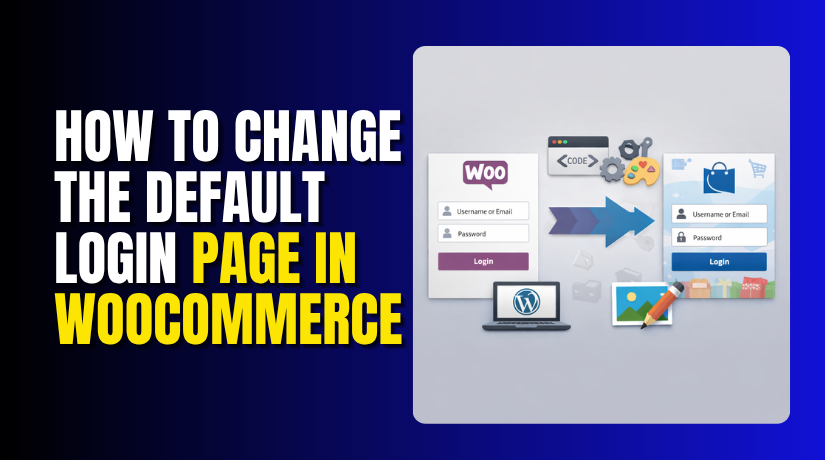
Your login page is one of the most important parts of your store. It is the place where returning customers sign in, check orders, manage addresses, and track account details. In many stores, the default WooCommerce login page works well at the start. But as your store grows, you may want more control over its design and function. That is where the need to Change WooCommerce login page becomes clear. A better login page can improve trust, branding, and customer experience.
It can also help users move through your store with fewer problems. Many store owners start looking for ways to create a WooCommerce custom login page when the default layout feels too basic. Some also want better design control through proper WooCommerce login page customization.
What Is a Default Login Page in WooCommerce and How Does It Work?
WooCommerce gives store owners a built-in customer login area. This login form usually appears on the My Account page. Customers use this page to sign in, register, reset passwords, and manage account details. This page is different from the WordPress admin login page. The admin login page is for site owners, store managers, and admins. The WooCommerce customer login page is only for shoppers and users of your store.
When someone visits the My Account page, they can access their profile and order details after login. If registration is enabled, new users can also create an account from the same page. This setup is simple, but it may not match your brand or user needs. That is why many people choose to edit WooCommerce on my account page to make it more useful and attractive. In some cases, store owners even plan a full WooCommerce login URL change for better user flow.
Why Many Store Owners Need to Change the Default WooCommerce Login Page
Better Branding Control for a More Professional Store Look
The default WooCommerce login page is simple and functional. But it often does not match your full website design. Your store may have custom colors, fonts, and page layouts. The login page may still look plain and generic. This creates a design gap for users. When you change WooCommerce login page, you can match it with your brand style. This helps your store look more polished and complete. A branded login page also builds stronger trust with customers.
Easier Customer Login Experience for Daily Store Use
Customers want a login page that feels easy and clear. They do not want extra steps or confusing layouts. The default page works, but it may not always feel smooth. This is more common in busy stores with many account features. A better layout can make login faster and easier. You can improve form spacing, button text, and account links. This is one of the biggest reasons for WooCommerce login page customization. A better login experience helps users stay in your store.
More Control Over the My Account Page Layout
The My Account page is not only for login. It also shows orders, addresses, downloads, and account details. Many store owners want to organize this area better. They may want custom sections, banners, or support links. The default layout may not support all these goals. That is why many users choose to edit WooCommerce on my account page. With better layout control, you can make the account area more useful. This also helps customers find important options without confusion.
Better Mobile Experience for Phone and Tablet Users
A large number of customers shop using mobile devices today. If the login page is not clean on smaller screens, users may leave. Small buttons, poor spacing, and weak alignment can hurt the user experience. A custom page gives you more design control for mobile screens. You can improve text size, form placement, and button visibility. When you create a WooCommerce custom login page, you can make it easier for mobile users. This leads to smoother access and fewer login problems.
Cleaner Navigation for Different User Journeys
Not every store has the same customer flow. Some stores want login before checkout. Some want login after product selection. Others want separate pages for members or wholesale buyers. The default WooCommerce login location may not fit these needs. A custom setup gives you more flexibility. You can place login forms where they make the most sense. You can also plan a WooCommerce login URL change if needed. This helps users follow a cleaner and more direct path.
More Space for Helpful Content and Store Messages
The default login page usually only shows the form. It does not give much room for extra content. Many store owners want to add helpful details on that page. They may want to show support links, return customer notes, offers, or account benefits. A custom page makes this possible. You can use that space in a smart way. When you customize WooCommerce my account page, you can turn a basic login screen into a more useful page. This can improve both engagement and trust.
Better Conversion Opportunities From a Custom Login Page
A login page can support more than account access. It can also support sales and conversions. For example, you can guide returning users toward recent offers or key products. You can also add messages that encourage account creation. The default page gives very limited control here. But a custom layout can support your business goals better. This is another strong reason to Change WooCommerce login page. A better page can support both customer service and store growth.
Improved Trust and Security Feel for Customers
Customers often enter personal details on the login page. They want to feel safe while doing that. A page that looks too plain or broken may reduce confidence. This is especially true for first-time buyers. A well-designed login page feels more secure and reliable. It shows that the store is active and professionally managed. Good WooCommerce login page customization helps build that feeling. Even simple design improvements can make customers feel more comfortable.
Better Flexibility for Special Business Needs
Some stores have unique login needs based on their business model. A membership store may need custom fields. A B2B store may want role-based login pages. A service site may need support details near the form. The default WooCommerce page may not fit these cases well. A custom solution gives more room to grow. A WooCommerce custom login page works better when your store has special account needs. It helps your website support your full business process.
Stronger Long-Term Control as Your WooCommerce Store Grows
A new store may be fine with the default login page. But growing stores often need more control later. More users, more features, and more design changes can create new needs. If your account area becomes more important, the default setup may feel limited. That is why many store owners decide to edit WooCommerce on my account page early. It gives them better control for future changes. This makes the store easier to manage over time.
Important Things You Should Check Before Changing the Default WooCommerce Login Page
You should never change the login page without checking a few basics first. A login page controls access to customer accounts. So even a small mistake can create login problems. It can affect orders, password reset, account access, and registration. That is why preparation matters. These checks can save time and help you avoid common errors later.
Take a Full Website Backup Before Editing Anything Important
Always start with a full backup of your website. This includes files and database data. If something goes wrong, you can restore the old version quickly. Login pages connect with user accounts, so changes should be done carefully. A backup gives you safety before testing anything new. This is a simple step, but it is very important.
Check If Your Theme Supports WooCommerce Page Changes Properly
Some themes work very well with WooCommerce pages. Others may create layout issues after changes. If your theme uses custom account templates, the login form may behave differently. So, you should test how the page looks before and after editing. This is helpful when you plan to edit WooCommerce my account page or build a new custom page. Theme support affects both design and function.
Review the Current WooCommerce My Account Page Settings
WooCommerce allows you to assign the My Account page inside settings. You should check that page first. Make sure the correct page is already selected. Also check whether the form is loading correctly there. If the wrong page is linked, customer login may fail or open the wrong layout. Many login issues start from this basic setting, so it should be checked early.
Make Sure Registration and Password Reset Features Are Working
A login page does more than sign users in. It also supports account creation and password recovery. Before making changes, test these options properly. See if users can register without errors. Check whether the forgot password link works correctly. If these features are already broken, changing the page may not solve the real issue. It is better to test everything before starting design work.
Check Redirect Behavior After Login and Logout
Many stores use redirect settings after login or logout. For example, users may go to My Account, checkout, or another page. Before you make changes, test this current flow. If you later do a WooCommerce login URL change, redirect settings become even more important. A bad redirect can create a loop or send users to the wrong page. It is better to understand the current flow first.
Test the Login Page on Mobile and Desktop Devices
A page may look fine on desktop and still fail on mobile. That is why device testing matters. Check form spacing, buttons, input fields, and text size. This helps you see if the current page already has user issues. It also helps you plan better improvements later. Good WooCommerce login page customization should work well on both large and small screens.
How to Change the Default WooCommerce Login Page Using Page Settings
Changing the default WooCommerce login page through page settings is one of the easiest methods. This method is good for beginners. It does not need hard coding. It works well when you want to use a different My Account page for customer login. Follow these steps in the right order.
Step 1: Log in to Your WordPress Dashboard
- First, open your WordPress website dashboard.
- Use your admin login details and enter the backend area.
- From there, you can manage WooCommerce settings and pages.
- Make sure you have admin access before starting these changes.
Step 2: Open the Pages Section and Check Your Current My Account Page
- From the dashboard menu, click Pages and look for the page named My Account.
- Open that page and check its content.
- WooCommerce usually uses this page for customer login, registration, and account details.
- This helps you understand what is already active.
Step 3: Create a New Page for the Login Area
- If you want a fresh page, click Add New Page.
- Give the page a clear name like My Account, Customer Login, or Login.
- Keep the title simple so users can understand it quickly.
- This new page will become your updated WooCommerce login page.
Step 4: Add the WooCommerce My Account Shortcode
Inside the new page content area, add this shortcode:
[woocommerce_my_account]
- This shortcode is very important.
- It tells WooCommerce to show the login form, registration form, and account area on that page.
- Without it, the page will not work as a proper customer login page.
Step 5: Publish the New Login Page


- After adding the shortcode, click Publish.
- Now your page is live, but WooCommerce is not using it yet.
- You still need to assign this page inside WooCommerce settings.
- Do not skip that next step.
Step 6: Open WooCommerce Advanced Settings
- Now go to WooCommerce in your dashboard.
- Then click Settings. After that, open the Advanced tab.
- In this section, you will see page setup options for WooCommerce pages.
Step 7: Assign the New Page as the My Account Page
- Find the option called My Account Page.
- Click the dropdown and select the new page you just created.
- This tells WooCommerce to use your new page for customer login and account access.
- Then click Save Changes.
Step 8: Open the New Page on the Front End
- Visit your website and open the page you assigned.
- Check if the login form is showing correctly.
- If registration is enabled, you should also see the registration section.
- Make sure the page looks clean and works properly.
Step 9: Test Login, Logout, and Registration
- Now test the page with a customer account.
- Try logging in and logging out. Also test account registration if your store allows it.
- If password reset is active, test that too.
- This step helps you confirm the page works without errors.
Step 10: Style the Page if Needed
- Once the page is working, you can improve its design.
- You can change the page title, spacing, colors, and layout using your theme settings or page builder.
- This is a simple way to Change WooCommerce login page without using extra plugins.
If your old My Account page already works fine, you can keep it and only improve its design. But if it is broken or messy, creating a fresh page is often the better choice.
How to Create a WooCommerce Custom Login Page Using a Plugin in an Easy Way
Using a plugin is another easy method. This option is helpful when you want better design control without writing code. A plugin can help you build a WooCommerce custom login page faster. It is also useful for beginners who want simple settings and better styling options.
Step 1: Log in to Your WordPress Dashboard
- Start by opening your WordPress admin area.
- You need full access to install and manage plugins.
- Make sure your WooCommerce plugin is already active before moving ahead.
Step 2: Go to the Plugins Section
- From the dashboard menu, click Plugins and then click Add New Plugin.
- This area lets you search for tools that can help with login page design and account page changes.
Step 3: Search for a WooCommerce Login or My Account Plugin
- In the search bar, look for plugins that support WooCommerce login page editing or My Account page design.
- Choose a plugin that has good ratings, active support, and recent updates.
- This helps you avoid broken or outdated plugins.
Step 4: Install and Activate the Plugin
- Once you find a suitable plugin, click Install Now and then click Activate.
- After activation, the plugin will add its own settings or builder options inside your dashboard.
- These settings help you control the login page.
Step 5: Open the Plugin Settings
- Go to the plugin settings page.
- Some plugins place their settings under WooCommerce.
- Others create a separate menu.
- Open the settings and look for options related to login form, My Account page, or customer account layout.
Step 6: Choose Where You Want the Login Form to Appear
- Most plugins let you choose the page where the login form will show.
- You can use the existing My Account page or create a new page.
- Some plugins also allow popup login forms or custom login sections on other pages.
Step 7: Build or Select Your Custom Login Page
- Now create or select the page you want to use.
- Some plugins work with shortcodes.
- Some use blocks or drag-and-drop builders.
- Follow the plugin steps and place the login form on the page.
- Keep the page layout simple and clear.
Step 8: Customize the Login Form Design
- After placing the form, start adjusting the look.
- Change button text, form width, colors, spacing, and labels if the plugin allows it.
- You can also add a heading, logo, or welcome message.
- This makes the page look more professional.
Step 9: Save the Settings and View the Page
- Once your design is ready, save the plugin settings.
- Then open the page on the front end.
- Check if the form is loading correctly. Make sure the page design matches the rest of your website.
Step 10: Test the Full Login Process
- Now test everything carefully. Log in with a customer account.
- Test logout, registration, and password reset.
- Open the page on both desktop and mobile.
- This helps you confirm the plugin setup works properly.
Do not install too many login plugins together. They can conflict with each other. Use one reliable plugin and test it well before keeping it on the live site.
Common Problems That Can Happen After Changing the Default WooCommerce Login Page
Even small login page changes can create issues. Some problems are simple. Others can affect customer access. That is why you should know the common problems before going live. This helps you find and fix errors faster.
Login Page Not Opening Properly After Page Changes
Sometimes the new page does not load the login form. This usually happens when the page is not assigned correctly. It can also happen if the right shortcode or block is missing. In some cases, another plugin blocks the form. This is one of the first things to check after a page update.
Redirect Loop Problems That Keep Sending Users Back
Redirect issues are very common after a WooCommerce login URL change. A user may log in and get sent back to the login page again. This usually happens because of wrong redirect rules. A plugin conflict can also cause it. If users cannot reach their account page after login, check redirect settings first.
Registration Form Missing From the Login Page
Some stores want both login and registration on one page. But after editing, the registration form may disappear. This may happen because registration is disabled in WooCommerce settings. It can also happen because of theme or plugin settings. If new users cannot create accounts, review registration options before checking design issues.
Broken Design or Bad Styling on the Account Page
A page may work but still look broken. Form boxes may have bad spacing. Buttons may look too small. Text may overlap on mobile devices. This often happens after theme changes or plugin-based edits. Good WooCommerce login page customization should always be tested on different screens.
My Account Page Features Not Working Correctly
The My Account page does more than login. It also shows orders, addresses, downloads, and account details. If you edit WooCommerce’s account page badly, some of these sections may stop working. A custom layout should not remove the main account functions. Always check the full account page, not only the login form.
How to Test the New WooCommerce Login Page Properly Before You Keep It Live
Testing is one of the most important parts of this process. A login page must do more than look good. It must also work in real use. Before keeping the new page live, test every important action carefully.
Test Customer Login With a Real User Account
Use a normal customer account for testing. Enter the email and password on the new page. Make sure the login works without delay. After login, check whether the user reaches the correct page. If login fails, review the page setup and account settings first.
Test Logout and Login Again to Check the Full Flow
After logging in, log out from the account. Then log in again from the same page. This helps you test the full cycle. It also shows whether redirect settings are working properly. A page may allow login once but fail in repeat use. So this check is very useful.
Test the Forgot Password Option Without Skipping It
Many store owners forget to test password reset. But customers use this option often. Click the lost password link and follow the reset steps. Make sure the page opens correctly and the email flow works. If this feature fails, users may contact support instead of solving the issue themselves.
Test New User Registration If Your Store Allows It
If your store allows user signup, test that too. Create a fresh customer account and check the process. Make sure the registration form shows correctly. See whether the new account is created without errors. This test is very important for stores that want to grow customer accounts quickly.
Test the Page on Desktop, Tablet, and Mobile Devices
A page can work on desktop and still fail on mobile. Check the page on different screen sizes. Review button spacing, text size, and form layout. Make sure users can tap fields and buttons without trouble. Good testing helps your WooCommerce custom login page work well for all visitors.
Conclusion
Changing the default WooCommerce login page can improve both design and user experience. It helps your store look more professional and makes customer access easier. You can use page settings for a simple update. You can use a plugin for easier design control. You can also use custom code for deeper changes. The right method depends on your store needs, skill level, and future plans. No matter which option you choose, always test login, logout, registration, and password reset properly. A clean and well-planned login page can build trust, reduce confusion, and support better customer engagement.
Need help to Change WooCommerce login page the right way? WooHelpDesk can help you with WooCommerce custom login page setup, WooCommerce login page customization, My Account page changes, redirects, styling fixes, and full account page support. Whether you want a simple update or a fully custom login experience, our team can make the process smooth and safe for your store. Visit WooHelpDesk to get expert WooCommerce support.