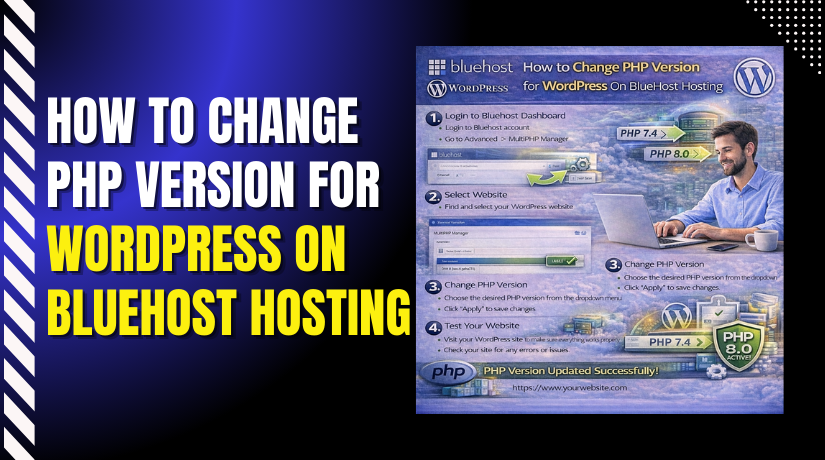
How to Change PHP Version for WordPress On BlueHost Hosting
Introduction
Keeping your PHP version up to date is essential for maintaining the performance, security, and compatibility of your WordPress website. BlueHost makes it easy to change the PHP version directly from your hosting dashboard without requiring technical expertise. This article explains how to update the PHP version for a WordPress site hosted on BlueHost by navigating through the Websites section, accessing advanced site settings, and selecting the desired PHP version. Updating PHP ensures your site runs smoothly with the latest WordPress features and plugins while reducing the risk of security vulnerabilities and performance issues.
1. Navigate to Websites Section
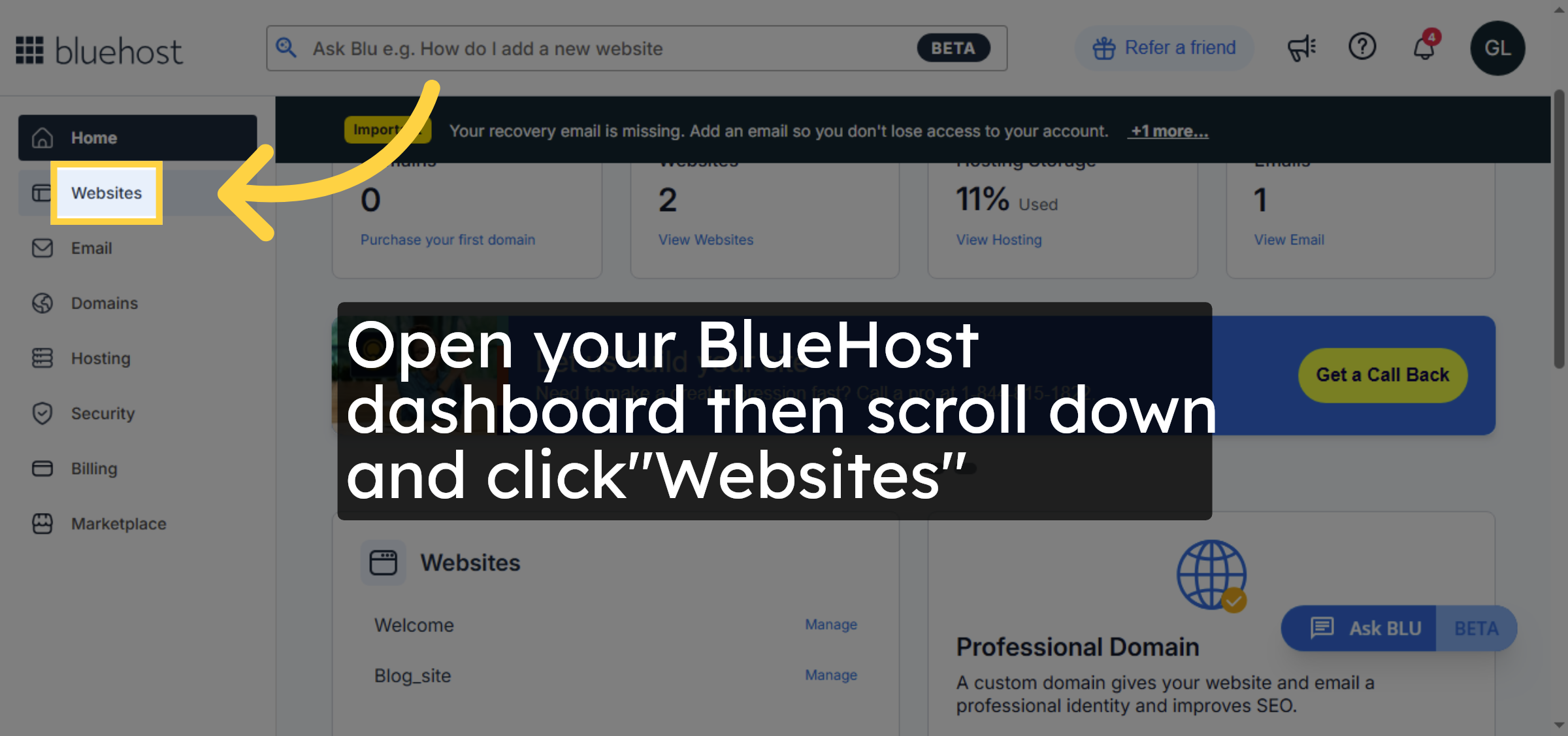
Open your BlueHost dashboard then scroll down and click “Websites”.
2. Access Site Management
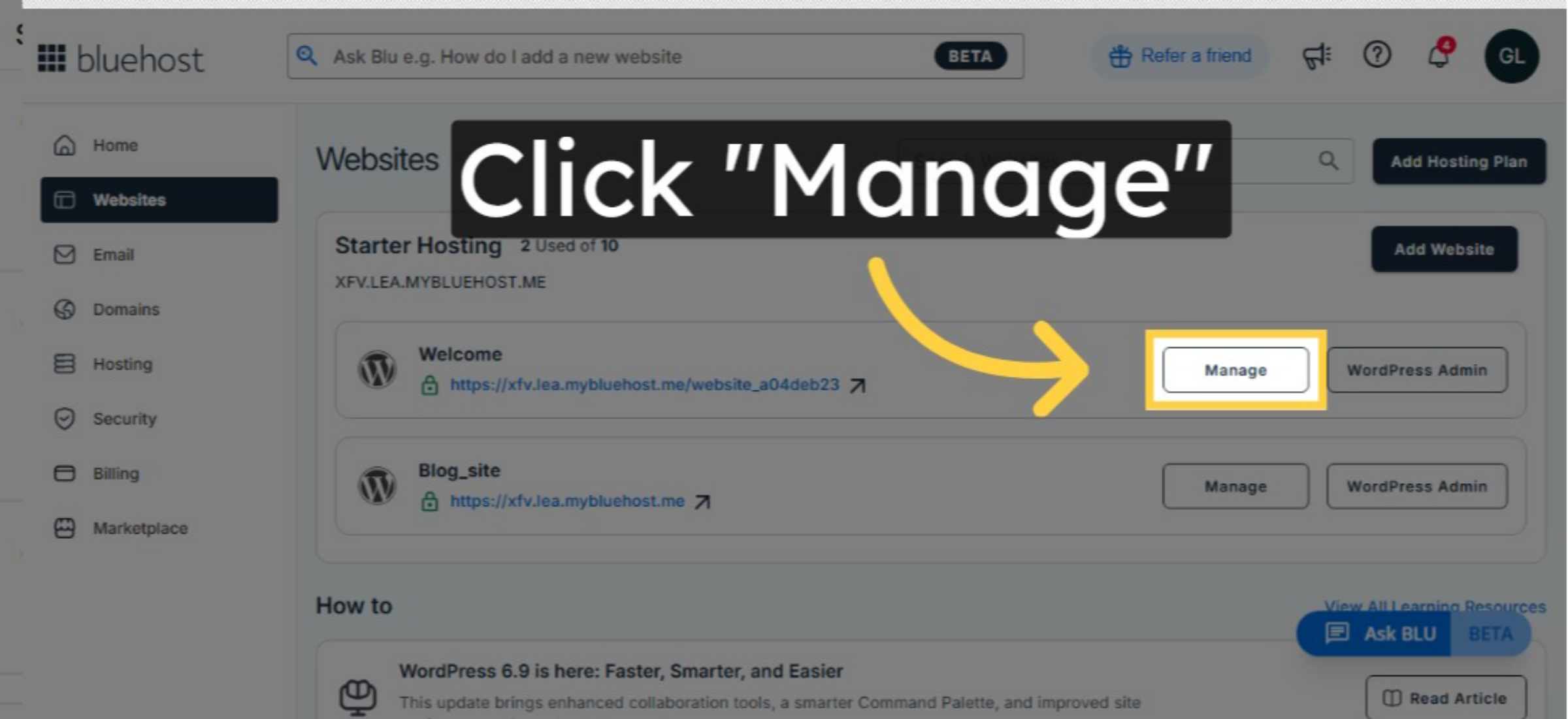
Click the Manage button next to your website to open the site management options.
3. Access Advanced Settings
Click the Advanced tab within your site management area to view additional configuration options.
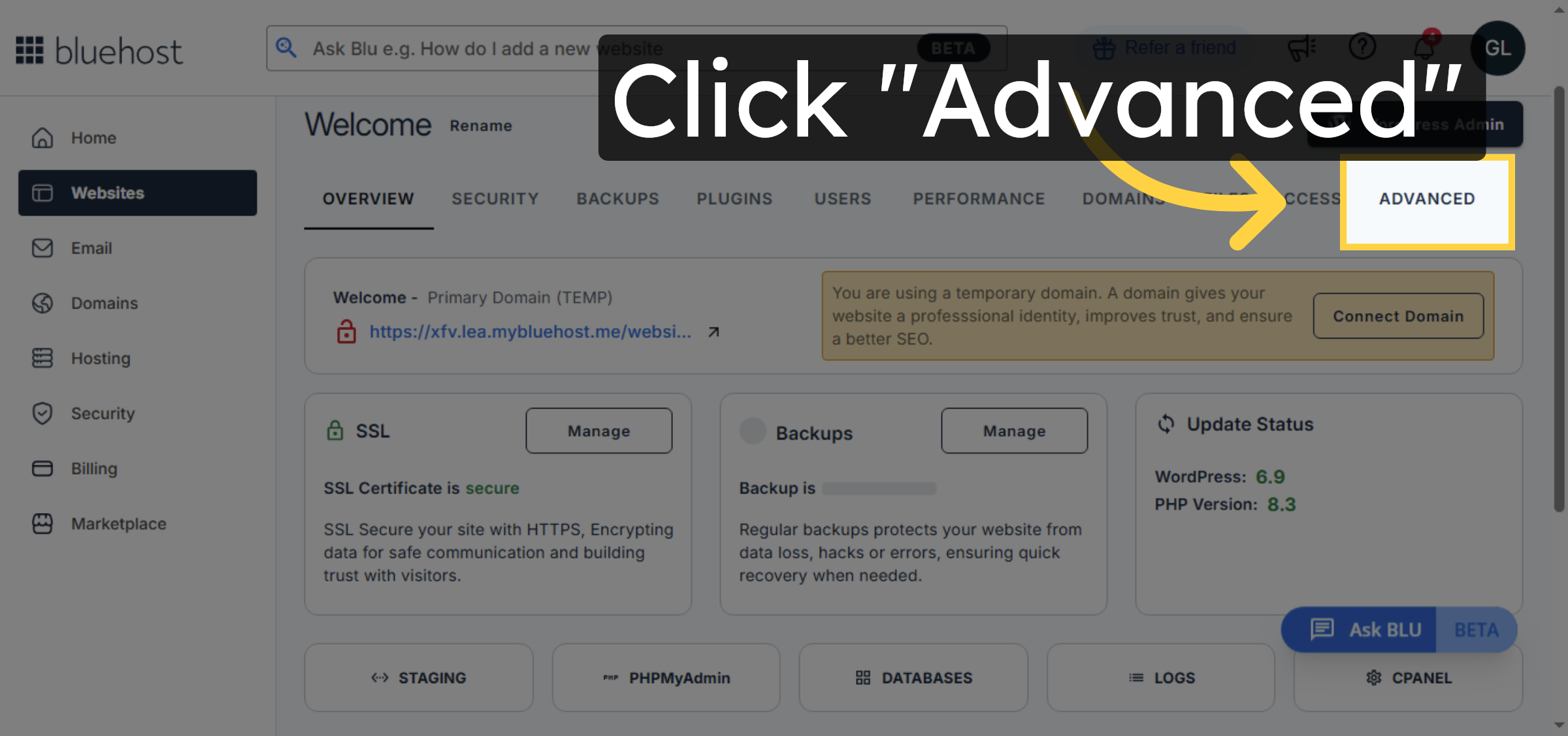
4. Select Change PHP Version
Click the Change Version option to begin updating your site’s PHP version.
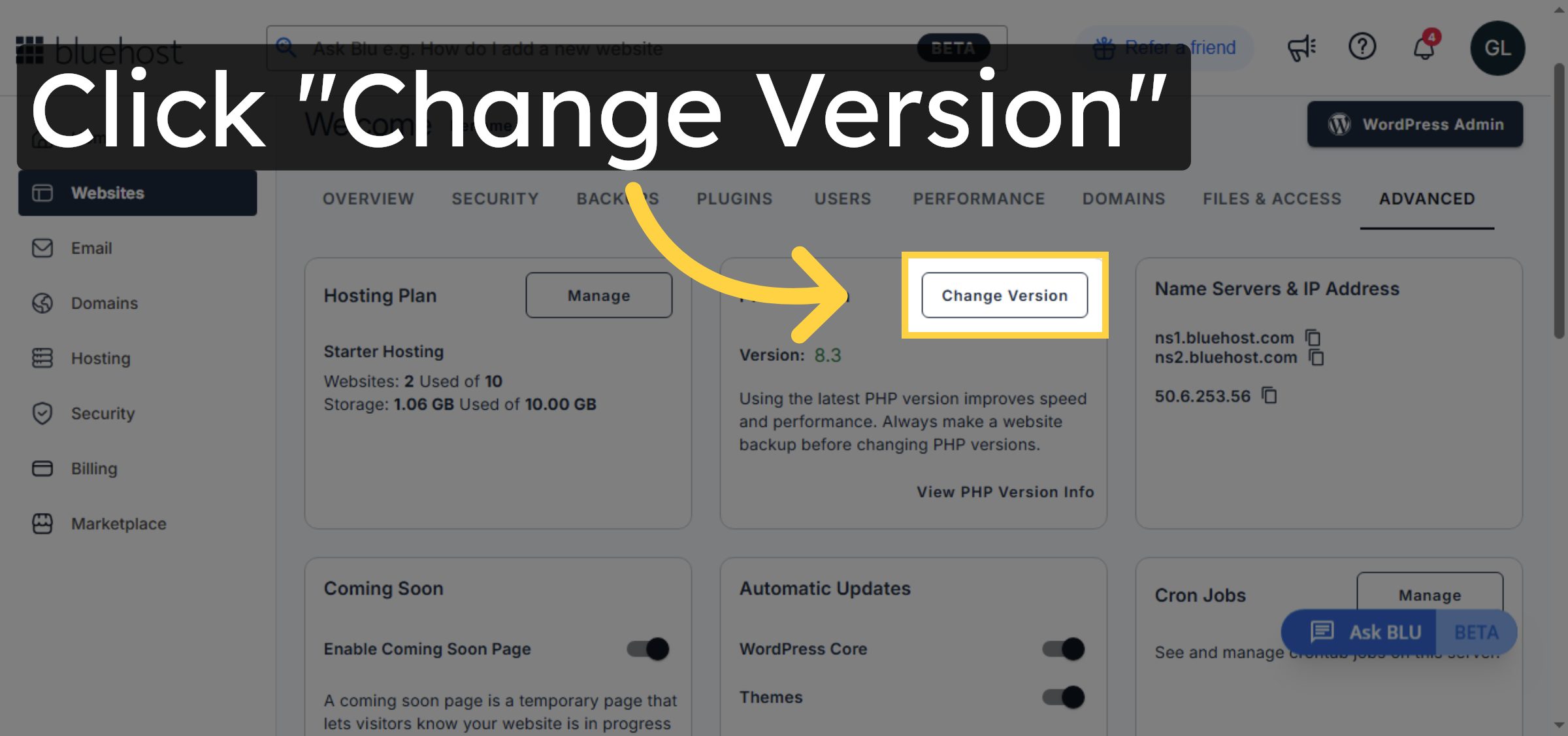
5. Choose PHP Version
Click on dropdown and select your desired php version
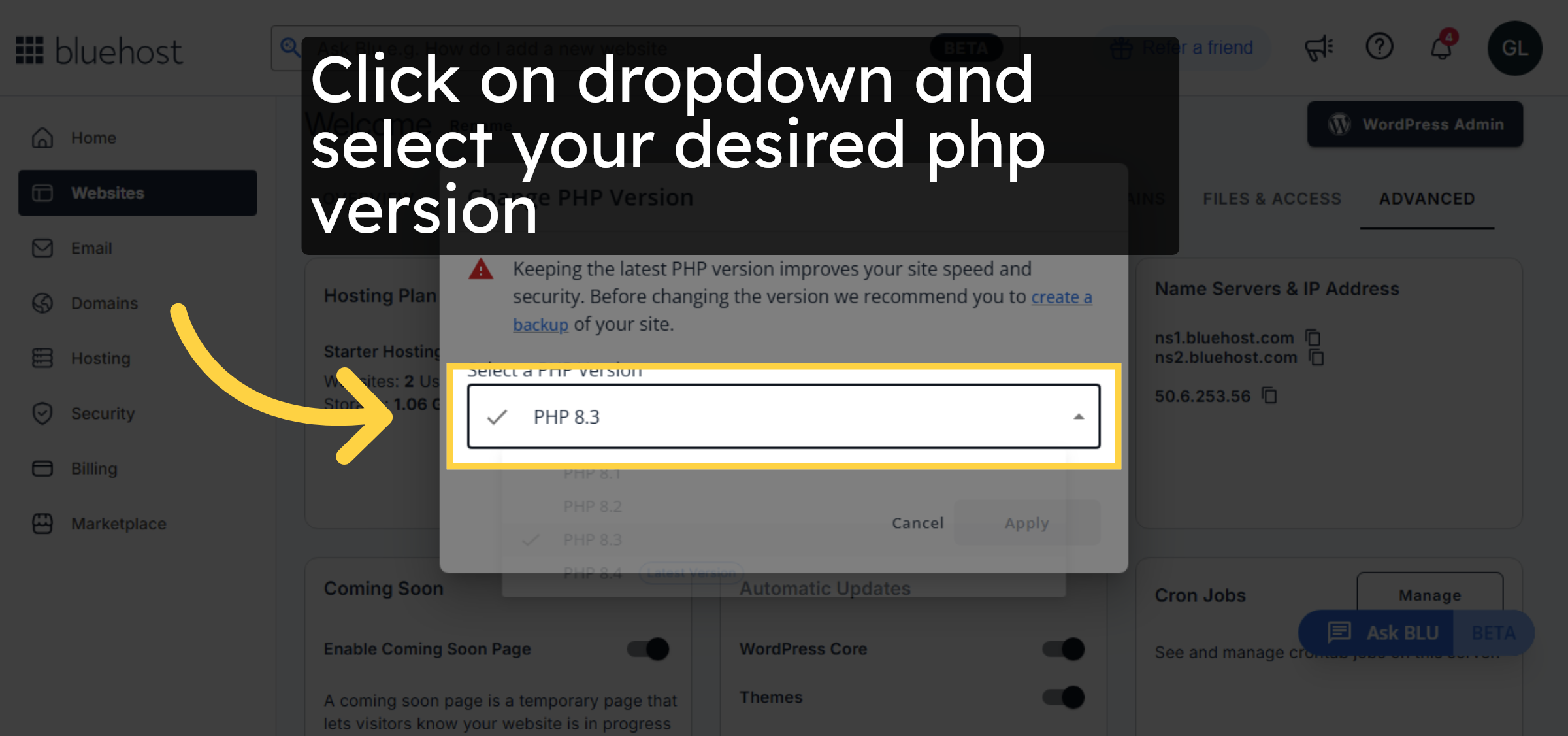
6. Apply PHP Version Change
Click the Apply button to save your PHP version selection and update your site configuration.
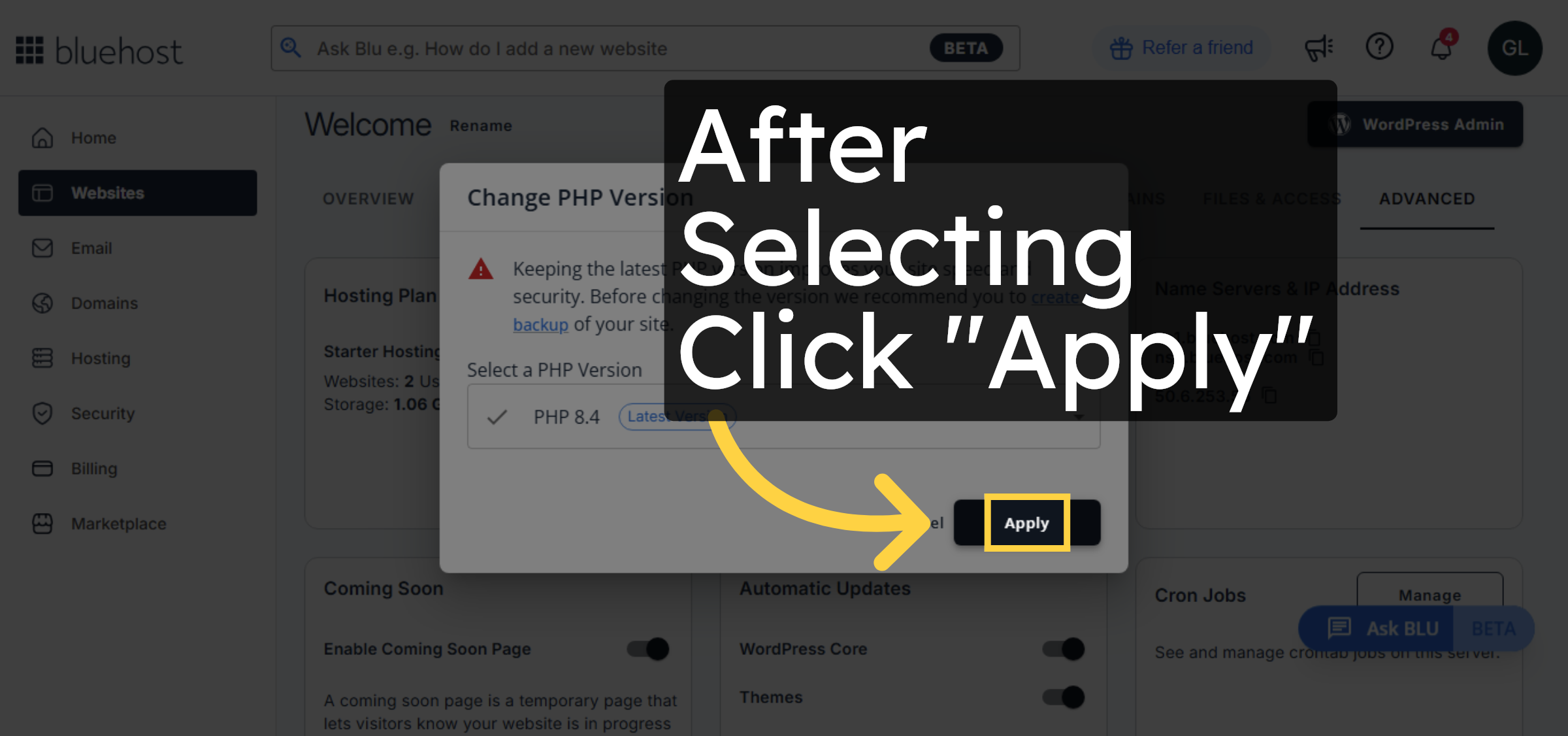


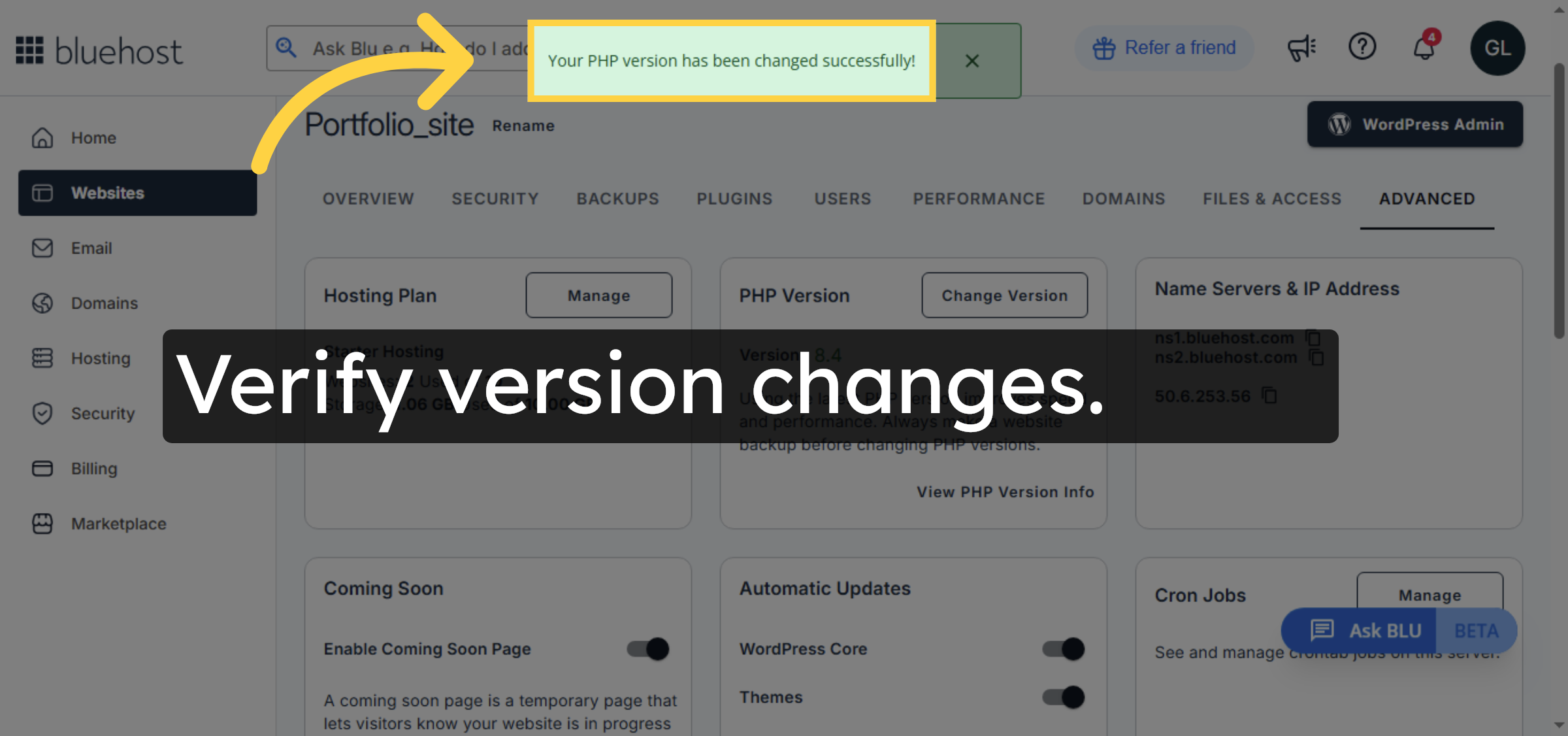
7. Confirm Version Change Success
You will see a confirmation message stating your PHP version has been changed successfully.