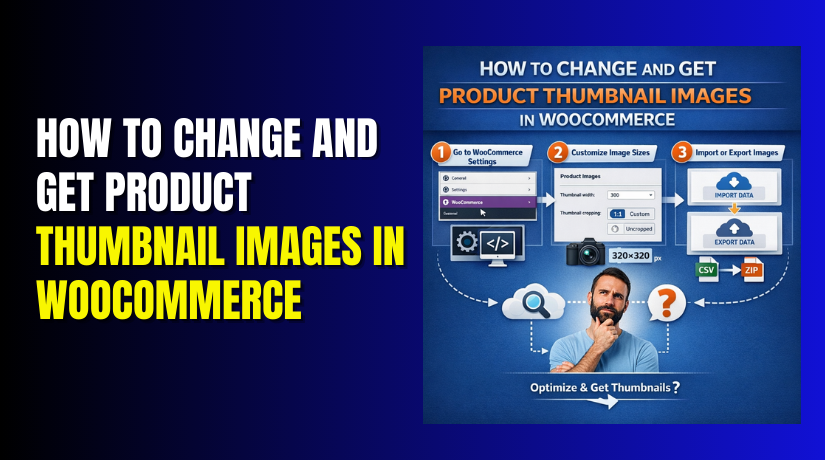
How to Change and Get Product Thumbnail Images in WooCommerce (Step-by-Step Guide)
Table of Contents
- Introduction
- What Are Product Thumbnail Images in WooCommerce?
- Why Need to Change Product Thumbnail Images in WooCommerce
- Important Things to Check Before Changing Thumbnail Images in WooCommerce
- How to Change Product Thumbnail Images in WooCommerce from the Product Edit Page
- How to Get Product Thumbnail Images in WooCommerce Manually
- Conclusion
Introduction
When people visit your store, images help them judge products quickly. A small image often creates the first impression before they open the product page. That is why WooCommerce product thumbnail images matter so much for store design and product clicks. These images appear in many places across the store and support faster browsing for shoppers. WooCommerce also separates image types by purpose, so your main image, catalog image, and thumbnail image do not all work the same way. In this guide, you will learn what these thumbnail images are, where they appear, and how they differ from other product images before you change product thumbnail WooCommerce settings in later steps.
What Are Product Thumbnail Images in WooCommerce?
Product thumbnail images are the smallest product images used in a WooCommerce store. Their job is to give shoppers a quick visual preview without loading the biggest image first. WooCommerce uses different image types for different parts of the store, and thumbnail images are meant for small display areas. In core WooCommerce, these small images are commonly used in the cart, widgets, and as the small gallery images below the main product image on single product pages. This is why WooCommerce thumbnail size and cropping settings matter for both store design and user experience.
Thumbnail images are important because they support clean product presentation. When your thumbnails look sharp and equal in size, the store feels more trusted and easier to scan. When they look blurry, stretched, or uneven, the layout can feel broken. WooCommerce lets store owners manage product image behavior through its product image controls, including cropping choices for catalog and thumbnail images. These controls are part of the broader WooCommerce product image settings that help shape how products look across your website.
Why Need to Change Product Thumbnail Images in WooCommerce
Your product images shape how people judge your store in seconds. Small image problems can make good products look weak or untrustworthy. WooCommerce also lets themes and store settings affect how images appear, so many store owners need to review WooCommerce product thumbnail images before they improve the store design or fix image display issues. Official WooCommerce guidance also notes that catalog and thumbnail cropping choices can change how products look across the shop, and theme support can limit which image widths a store owner can control.
To Improve Product Image Quality Across Shop and Category Pages
Many stores change thumbnails because the first image view does not look strong enough. If the image is too small, soft, or unclear, shoppers may skip the product without opening it. WooCommerce product images help build customer confidence and make product presentation more appealing, so better thumbnails can support more clicks and better browsing. This is one of the biggest reasons store owners review WooCommerce thumbnail size and overall image quality early.
To Fix Blurry, Cropped, or Stretched WooCommerce Product Thumbnails
A thumbnail may look bad even when the uploaded file looks fine. WooCommerce explains that crop settings can force images into square, custom ratio, or uncropped formats, and the wrong choice can create awkward product shapes. Developer guidance also explains that front-end image display can still depend on theme CSS and declared image sizes. That is why many users try to change product thumbnail WooCommerce settings when thumbnails look blurry, cut off, or stretched.
To Keep All Product Images the Same Size and Shape in WooCommerce
A store looks more professional when product images follow one clear style. When one item is tall, another is wide, and another is cropped badly, the product grid feels uneven. WooCommerce warns that using uncropped images can result in non-uniform image displays, while square or custom ratio settings help create a cleaner layout. This is why store owners often update WooCommerce product image settings before they redesign the shop page.
To Match the WooCommerce Store Design and Theme Layout Better
Sometimes the image itself is not the real problem. The issue may come from the theme, because WooCommerce developer documentation explains that themes can define image widths and influence how images are rendered. If a theme declares image sizes, the store owner may not be able to change those widths from the usual settings area. That is why a store owner may plan a WooCommerce change product image update, but later learn the theme controls much of the visual result.
To Improve Product Display on Mobile Devices and Smaller Screens
Product thumbnails need to work well on phones, not only on desktops. WooCommerce documentation recommends testing image crop choices on different devices because the same image can look acceptable on desktop and poor on mobile. A thumbnail that feels balanced on a large screen may look too tight or badly cropped on a narrow screen. That makes mobile testing an important reason to review WooCommerce thumbnail size and cropping behavior.
To Make the Full Store Look More Trusted and More Professional
Customers notice visual consistency even when they do not talk about it. Clean thumbnails, balanced product grids, and sharp gallery previews make the store feel cared for. WooCommerce’s product documentation says images help showcase products, build confidence, and make presentations more visually appealing. This means changing WooCommerce product thumbnail images is not only a design task. It also supports trust and a better shopping experience.
Important Things to Check Before Changing Thumbnail Images in WooCommerce
Changing images is easier when you check the right basics first. Many image problems come from theme rules, crop settings, old generated files, or weak source images. WooCommerce’s own guidance points to crop options, theme-declared image widths, and device testing as key parts of image setup. Checking these items first can save time and stop repeat image issues later.
Backup Your WooCommerce Website Before Making Product Image Changes
Always protect the store before editing products or media files. A backup gives you a safe rollback point if the design changes look wrong or product images are replaced by mistake. Even simple media edits can create extra cleanup work when many products are involved. A backup is not a WooCommerce image feature, but it is still a smart first step before changing any WooCommerce product image settings on a live store.
Check Whether Your Current Theme Controls WooCommerce Image Sizes
This is one of the most important checks. WooCommerce developer docs explain that themes can declare image sizes such as thumbnail, gallery thumbnail, and single image widths. When that happens, the store owner may not be able to change those widths directly from the normal controls. So before you try to change product thumbnail WooCommerce settings, confirm whether your theme is controlling the image widths already.
Review Your Existing Image Sizes and Aspect Ratios Carefully
Look at the images you already use across the store. If some are square, some are portrait, and some are wide, the grid may never look fully balanced. WooCommerce supports square crop, custom crop ratio, and uncropped display, and each choice affects how mixed image shapes appear. Checking your current aspect ratio pattern helps you avoid new layout problems later.
Use High-Quality Source Images Before Uploading New Product Photos
A weak image cannot become sharp just because you change a setting. WooCommerce recommends good-quality product images, and its product image docs note that images help drive better presentation and confidence. Developer performance guidance also recommends choosing the right format and compressing images properly before upload. This means the best result starts with a strong original file, not only with a new WooCommerce thumbnail size setting.
Check How Product Thumbnails Look on Desktop, Tablet, and Mobile
Do not judge the image from one screen only. WooCommerce directly recommends testing product image crop choices on different devices. A thumbnail may look fine on desktop but may hide important product details on mobile. This check matters even more if your products have text, labels, patterns, or close-up details that can disappear in smaller preview areas.


Clear Cache and Watch for Old Thumbnail Files Still Showing
Old image files can make you think your changes did not work. WooCommerce documentation around product image changes explains that old thumbnails may need regeneration after image setting changes, and theme behavior can also affect what appears on the front end. If you are dealing with a WooCommerce thumbnail not showing an issue or an image that refuses to update, cached files or old generated sizes may be part of the problem.
How to Change Product Thumbnail Images in WooCommerce from the Product Edit Page
Step 1: Log in to your WordPress dashboard
- Open your website admin area and sign in with your account.
- This is where WooCommerce lets you manage products, images, and store content.
Step 2: Go to Products and open the product you want to edit
- From the left menu, go to Products > All Products.
- Find the product whose image you want to change, then click Edit.
- WooCommerce says the product editor is opened from Products > All Products by editing the product you want to modify.
Step 3: Find the Product image section on the right side
- On the product edit screen, look at the right-side column.
- You will see a panel named Product image.
- WooCommerce includes this panel in the product editor for setting or changing the main product image.
Step 4: Click Set product image or remove the old image
- If no image is added yet, click Set product image.
- If an image is already there, remove the old one first and then choose a new one.
- WooCommerce confirms that you can add, remove, and edit the product image from this panel.
Step 5: Select an image from the Media Library or upload a new one
- A media popup will open after you click the image option.
- Choose an existing file from the Media Library, or upload a new image from your computer.
- WooCommerce supports both methods from the same screen.
Step 6: Set the selected image as the product image
- After choosing the correct file, click the button to set it as the product image.
- This image becomes the main product image, and WooCommerce reuses it in different sizes across the store.
Step 7: Update the Product gallery if you also want to change extra images
- If your product has more images, use the Product gallery section nearby.
- You can add new gallery images, remove old ones, and reorder them by drag and drop.
- WooCommerce provides these controls directly in the product edit screen.
Step 8: Click Update to save your changes
- Once the image is changed, click Update to save the product.
- Without updating the product, your new image will not appear on the live store.
- WooCommerce uses the publish or update action to save product image changes.
Step 9: Check the product on the front end
- Open the product page and confirm the new image appears correctly.
- Then also check the shop page or category page because WooCommerce uses the main product image in different store areas and sizes.
Step 10: Review thumbnail crop settings if the image still looks wrong
- If the image looks stretched, too tight, or uneven, go to Appearance > Customize > WooCommerce > Product Images and review the crop settings.
- WooCommerce provides square, custom ratio, and uncropped options for product image display.
Step 11: Regenerate thumbnails if the old image still appears
If the old thumbnail still shows after the change, you may need to regenerate thumbnails. WooCommerce notes that image setting changes can require thumbnail regeneration so old generated sizes are updated.
How to Get Product Thumbnail Images in WooCommerce Manually
Sometimes you do not need custom code or a plugin. You only need to find the correct image, check its source, and copy its details. This method works well when you want to review WooCommerce product thumbnail images, confirm the assigned file, or fix a simple image issue from the dashboard.
WooCommerce keeps the main product image and product gallery inside the product editor, and those image areas can be managed from the right side of the product edit screen.
Get Product Thumbnail Images from the WooCommerce Product Edit Page
You do not need code to find product thumbnail images in WooCommerce. The easiest way is to check the product from the dashboard.
- Go to Products > All Products and open the product you want to review.
- On the right side, look at the Product image This area shows the main image attached to that product.
In many cases, this image is also used to create smaller thumbnail versions across the store. If you want extra product images, check the Product gallery box below it. This helps you confirm which images belong to the product.
Get Product Thumbnail Images from the WordPress Media Library
You can also find product images from the Media Library. Open Media from the WordPress dashboard and search for the product image. Click the image to open its details. Here, you can check the file, preview the image, and copy the image URL if needed. This is useful when you want to use the image link somewhere else or confirm that the correct image file exists.
Before using the image, make sure it belongs to the right product. Sometimes similar products have similar images, which can cause confusion. So always compare the image in the Product image box, the Product gallery, and the Media Library before making changes. This simple method helps you review WooCommerce product thumbnail images quickly without plugins or custom code.
Conclusion
Manual image checking is often enough for many store tasks. You can open the product editor, review the Product image box, inspect the Product gallery, search the file in the Media Library, and copy the correct image URL when needed. This process helps you manage WooCommerce product thumbnail images with less confusion and fewer mistakes. It also helps you understand whether the issue comes from the image file, the assigned product image, or the store’s WooCommerce product image settings.
If the image source is correct but the storefront still looks wrong, review your crop settings next. WooCommerce allows square, custom ratio, and uncropped options for thumbnail display, and it also recommends testing the result on desktop, tablet, and mobile before publishing changes. If older image versions still appear, you may also need to regenerate shop thumbnails. These checks can help solve many WooCommerce thumbnails not showing uneven image problems without complex changes.
If your store images still look wrong after these steps, expert help can save time. WooHelpDesk can help you review image issues, fix display problems, adjust store image settings, and handle safe WooCommerce image changes for your shop. Whether you need help with WooCommerce change product image tasks, gallery cleanup, or thumbnail display fixes, the team can help you make the store look clean and professional.