How to Categorize Products in WooCommerce (Step-by-Step Guide for Better Store Organization)
Table of Contents
- Introduction
- Why Categorizing Products in WooCommerce Is Essential for Your Online Store
- Plan Your Category Structure Before You Start To Avoid Future Problems
- How to Categorize Products in WooCommerce (Complete Guide)
- Common Category Problems In WooCommerce And How To Fix Them Fast
- Best Practices For Long-Term WooCommerce Category Management That Works
- Conclusion
Introduction
Running an online store gets messy without proper product grouping. Customers want quick browsing and fast product finding. That is why you must categorize products in WooCommerce correctly. When your store categories stay clean, shoppers feel confident. They can move from one product type to another easily. This improves shopping flow and reduces confusion on pages. It also helps you manage products without wasting time. Good WooCommerce product organization saves effort every week.
Many store owners start adding products without any category plan. Later, the store becomes hard to navigate and update. A customer may search for one item and leave fast. This happens because product pages feel unlinked and random. With strong WooCommerce product categories, your shop feels structured and clear. Your menu looks better, and filters work more smoothly. This also helps you plan subcategories for larger product ranges.
In this guide, you will learn a simple method to build categories. You will see how to plan your structure before adding anything. You will also learn how to add product categories in WooCommerce step by step. We will cover common problems and quick fixes too. You will also learn long-term WooCommerce category management tips. By the end, you will have a clean store layout. You will be ready to scale without category confusion later.
Why Categorizing Products in WooCommerce Is Essential for Your Online Store
Better Shopping Experience For Every Store Visitor
A well-structured store feels easy from the first click. When you categorize products in WooCommerce, shoppers find items quickly. They do not waste time scrolling through unrelated products. Clear WooCommerce product categories reduce confusion during browsing. Visitors also feel more confident when options look well grouped. This simple setup can increase time spent in your store. It can also reduce bounce rate from the shop page. When categories feel logical, users explore more products naturally. That is the base of a strong WooCommerce product organization for growth.
Improved Navigation And Filters For Faster Product Finding
Categories help you build clean menus and simple store paths. Your main menu can show top product groups clearly. Subcategories can help users go deeper without extra clicks. Many themes also use categories for sidebar filters and blocks. This makes filtering easier for users with specific needs. Clear category links also support breadcrumbs on product pages. Breadcrumbs help shoppers understand where they are shopping now. This improves movement between related products and shop areas. With smart WooCommerce category management, your store stays easy to browse.
Better SEO Value From Category Pages Over Time
Category pages can rank well when they are well built. Google understands category pages as product group landing pages. A clean category name and slug helps search engines more. When you categorize products in WooCommerce, you also build better URLs. These URLs can match what users search on Google. You can also add short category descriptions for more context. This helps your category page feel useful, not empty. Strong WooCommerce product categories can bring steady traffic over time. This traffic often converts better because it matches shopping intent.
Easier Store Management When Your Catalog Gets Bigger
Store management becomes hard when products are not grouped. You waste time searching products for simple updates. Categories make it easier to manage products in batches. You can filter products by category and edit faster. You can also run better stock and sales reviews by category. Reports become clearer when products are placed correctly. Bulk editing becomes safer when categories are already planned. This is the practical side of WooCommerce product organization for owners. It also supports smoother WooCommerce category management every month.
Higher Conversions With Better Product Flow And Related Items
Categories help users see more items they may want. A shopper lands on a category and sees many options. They compare products without leaving your website too soon. Many stores also show related products from the same category. This keeps users moving forward in the buying process. A clean category layout also makes your shop look trustworthy. Trust helps visitors add items to the cart faster. When categories are clear, decisions feel easier for buyers. That is why WooCommerce product categories can improve sales flow.
Plan Your Category Structure Before You Start To Avoid Future Problems
Pick Your Main Category Groups With Simple Customer-Friendly Names
Start by listing your main product groups on paper first. Most stores work well with five to ten main groups. These groups should match how customers think and search. Use names that describe the product type clearly. Avoid internal names that only your team understands. Keep names short so menus look clean on mobile. This planning step supports better WooCommerce product organization from day one. It also makes later growth easier without changing everything. A strong base helps you categorize products in WooCommerce correctly later.
Decide Where Subcategories Make Sense For Large Product Ranges
Subcategories help when one category has many product types. For example, “Shoes” can have “Running” and “Formal” types. This makes browsing easier and keeps pages more focused. Use subcategories only when they add real value for users. Do not add subcategories just to look more detailed. Too many subcategories can make menus confusing and long. Keep the subcategory count small under each main group. This keeps WooCommerce product categories simple and easy to manage. It also improves WooCommerce category management for long-term updates.
Keep Category Names And Slugs Clean For Better URLs
Category names should be readable and easy to scan fast. Slugs should be short and match the category name closely. Avoid adding years, random words, or extra separators in slugs. Clean slugs help create better category page URLs for SEO. They also look more trustworthy when users copy links. If you rename a category later, plan it carefully. Slug changes can affect old links and search visibility. So choose a clean structure early to avoid changes. This planning step supports WooCommerce product organization and SEO together.
Avoid Common Planning Mistakes That Create Store Confusion
Many owners create too many categories in the beginning. This makes shopping feel like a long list of options. Another mistake is deep nesting with too many category levels. Users get lost when clicks keep going deeper each time. Duplicate category names can also cause slug conflicts later. This can create wrong URLs and category page errors. Some owners also mix brands and product types in categories. That makes browsing confusing for most shoppers. Choose one clear style and follow it everywhere. This is a core rule for solid WooCommerce category management.
Create A Simple Category Map Before Adding Anything In WooCommerce
A category map is a basic chart of your store structure. It shows main categories and their subcategories clearly. You can create it in a note, sheet, or simple list. This map helps you see missing groups and extra groups. It also helps you plan where new products will go later. When your map looks clean, start building categories in WooCommerce. After that, start assigning products based on your map rules. This approach makes adding product categories in WooCommerce much easier. It also keeps your WooCommerce product categories clean as you scale.
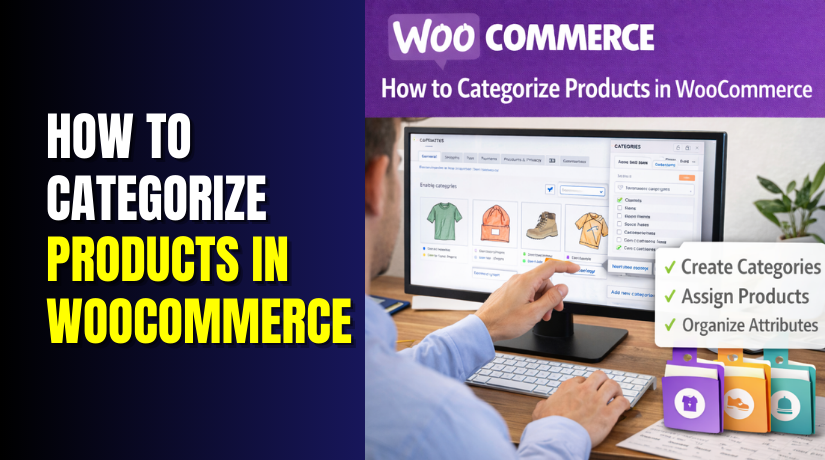
How to Categorize Products in WooCommerce (Complete Guide)
A clean category setup makes your store easier to browse. It also helps you manage products faster every day. If your catalog is growing, categories become a must. This guide shows the exact steps to build and apply WooCommerce product categories. You will also learn a simple workflow for a clean WooCommerce product organization.
Step 1: Open WooCommerce Product Categories Screen First
- Log in to your WordPress dashboard using an admin account.
- Go to Products from the left sidebar menu.
- Click Categories to open the category management screen.
- You are now ready to create WooCommerce product categories.
Step 2: Create A New Category The Correct Way
- Find the Add new category form on the left.
- Enter a simple category name customers understand at first glance.
- Add a short slug that matches the category name clearly.
- Keep the Parent category as None for main categories.
- Add a short description to support better store browsing.
- Click Add new category to save your category.
Step 3: Create Subcategories Under The Right Parent Category
- Stay on Products → Categories in the same screen.
- Enter the subcategory name in the Name field.
- Add a clean slug that matches the subcategory name.
- Choose the correct parent from the Parent category dropdown.
- Add a short description to explain what the subcategory contains.
- Click Add new category to save the subcategory.
Step 4: Assign Categories To One Product While Editing It


- Go to Products → All Products from your dashboard.
- Click Edit under the product you want to organize.
- Find the Product categories box on the right side.
- Tick the correct category for that product type.
- Tick a subcategory too, if you created one earlier.
- Avoid selecting too many categories without a clear reason.
- Click Update to save changes and keep product data safe.
- This is the core way to categorize products in WooCommerce.
Step 5: Assign Categories Faster Using Bulk Edit Options
- Go to Products → All Products for the product list.
- Select multiple products using the checkbox beside each item.
- Open Bulk actions, then choose Edit from the dropdown.
- Click Apply to open the bulk edit settings panel.
- Find the Categories option inside the bulk edit panel.
- Add the right categories to improve WooCommerce product organization.
- Click Update to apply category changes to selected products.
- Open one product and confirm the categories saved correctly.
Step 6: Categorize Variable And Grouped Products The Right Way
- Open the parent product, not the variation item, for editing.
- Select the category inside the Product categories sidebar box.
- Click Update so all variations stay under the same category.
- For grouped products, edit the grouped parent product first.
- Assign the correct category to the grouped product page
- Keep child products in matching categories for clean browsing.
Step 7: Show Categories On Your Store Front For Easy Browsing
- Go to Appearance → Menus to edit your main store menu.
- Add product categories to the menu if your theme supports it.
- Drag categories to arrange them in a clear order.
- Place subcategories under the parent category for easy navigation.
- Save the menu and check the front end quickly.
- Add a Product Categories block on the shop page.
- Use a grid layout to highlight top categories for shoppers.
- This improves WooCommerce category management and user navigation.
You now know how to add product categories in WooCommerce correctly. You also learned how to apply categories using single and bulk methods. Keep your structure simple and update it as your catalog grows. This approach keeps WooCommerce product organization clean and scalable. If you want expert help with setup, structure, and store optimization, contact WooHelpDesk for professional WooCommerce support.
Common Category Problems In WooCommerce And How To Fix Them Fast
Categories Not Showing On The Shop Page Even After You Create Them
Sometimes categories do not appear on your shop page at all. This usually happens due to display settings or empty categories. Follow these steps to fix WooCommerce product categories display issues.
- Check your Shop page display settings in Customizer or theme panel.
- Make sure the category has products assigned and published already.
- Open Products → Categories and confirm the category is not hidden.
- Check your shop layout block and enable category grid display.
- Clear your site cache and refresh the shop page once.
Category Page Showing 404 Error When You Open The Category Link
A 404 error means the category link is not resolving correctly. It often happens after slug edits or permalink conflicts. Use these steps for quick recovery and clean WooCommerce product organization.
- Go to Settings → Permalinks and click Save Changes once.
- Check the category slug and remove duplicate or extra words.
- Ensure no page uses the same slug as your category.
- Clear cache from plugins, server cache, and any CDN too.
- Test the category link again in an incognito browser window.
Duplicate Category Names Or Wrong Category URLs Creating Confusion
Duplicate names can create slug conflicts and messy category links. This makes WooCommerce category management harder during future updates. Fix it using a clean naming and slug method.
- Go to Products → Categories and find the duplicate category.
- Rename one category and set a unique slug for it.
- Keep slugs short and match the category name closely.
- Update menu links if they still point to old slugs.
- Add a redirect if the old link was used publicly.
Products Missing From Category Pages Even After Assignment
Sometimes products do not show due to visibility settings issues. This is common when catalog visibility or stock rules hide items. Follow these steps to categorize products in WooCommerce correctly.
- Edit the product and confirm the correct categories are checked.
- Check Product catalog visibility and set it to Shop and search.
- Ensure the product status is Published, not Draft or Private.
- Check stock status and disable “Hide out of stock” temporarily.
- Clear cache and recheck the category page after updates.
Category Images Not Displaying Or Showing The Wrong Size
Category images may not show due to theme settings or caching. Some themes also need a specific image size to display. Use these steps to keep WooCommerce product categories looking clean.
- Open Products → Categories and edit the category image again.
- Upload a clean square image with clear text-free visuals.
- Check theme options for category image display settings.
- Regenerate thumbnails if your images look stretched or blurry.
- Clear cache and reload the category page to confirm changes.
Best Practices For Long-Term WooCommerce Category Management That Works
Review And Clean Categories Every Month To Keep Things Simple
A monthly review keeps your store structure clean and useful. It also improves WooCommerce product organization for daily management. Remove unused categories and merge similar ones when needed. Keep only categories that shoppers actually use for browsing.
Keep Subcategories Limited So Browsing Feels Easy On Mobile
Deep category trees make menus long and hard to use. Try to keep only one subcategory level in most stores. Use subcategories only when they improve product discovery clearly. This keeps WooCommerce category management stable as you add products.
Use SEO-Friendly Names, Slugs, And Descriptions For Category Pages
Category pages can bring traffic when they are well structured. Use simple names that match what customers search online. Keep slugs short and avoid extra filler words in URLs. Add a short description that explains the category in plain words. This supports how to add product categories in WooCommerce correctly.
Follow One Naming Style Across Your Whole Store For Consistency
Choose singular or plural names and stay consistent everywhere. Use “T-Shirts” or “T-Shirt,” but do not mix both. Avoid random spelling changes that create duplicate category names. Consistency makes WooCommerce product organization easier for your team.
Track Category Performance So You Know What To Improve Next
Check sales reports and find categories that drive real revenue. Improve weak categories by adding better products and descriptions. Move products if they sit in the wrong category often. Small fixes over time keep WooCommerce category management strong.
Conclusion
A clean category setup keeps your store easy to browse and manage. When you categorize products in WooCommerce properly, shoppers find items faster. Your menus look cleaner and your shop feels more trusted. It also becomes easier to bulk edit, track sales, and grow your catalog. If you follow a simple structure and review it regularly, your WooCommerce product categories stay stable. This is the easiest way to maintain a strong WooCommerce product organization. It also makes long-term WooCommerce category management much smoother.
Want a clean category structure that improves browsing and sales? Let WooHelpDesk set up your WooCommerce product categories the right way. We can organize your catalog, fix category display issues, and optimize your store layout. Contact WooHelpDesk today for expert WooCommerce support and faster store growth.