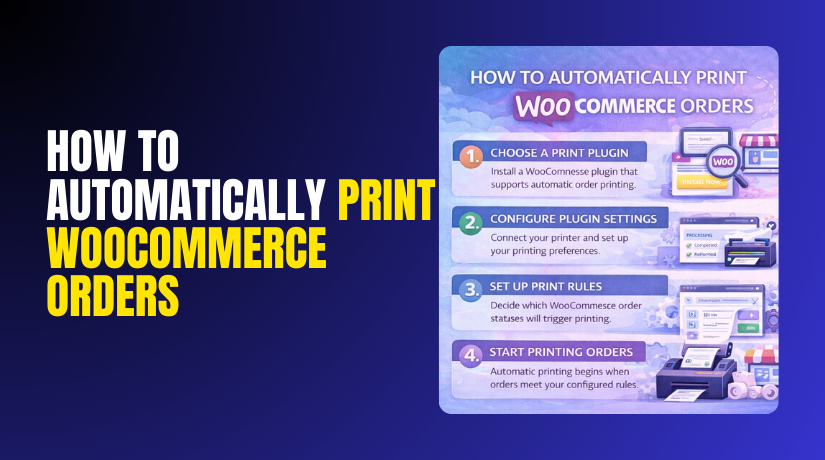
How to Automatically Print WooCommerce Orders Step by Step?
Table of Contents
- Introduction
- What is WooCommerce?
- What are the Key Features of Printing WooCommerce Orders Automatically?
- What are the Benefits of Printing WooCommerce Orders Automatically?
- How to Automatically Print WooCommerce Orders Step by Step?
- What are the Top 3 Best WooCommerce Plugins for Printing Orders Automatically?
- Final Verdict
Introduction
Printing orders manually wastes time and creates avoidable mistakes. Many store owners still open each order and click print. That workflow slows packing, shipping, and daily operations quickly. With automation, printing can happen the moment an order arrives. This is why many stores want to Automatically print WooCommerce orders.
Automated printing supports faster fulfillment and fewer packing errors. It also helps teams process more orders with less stress. You can print packing slips, invoices, and shipping documents automatically. You can also trigger printing by order status changes for control.
This guide explains WooCommerce order printing in a clean way. It also explains how WooCommerce prints orders automatically without confusion.
You will also learn how to Print WooCommerce invoices automatically for accounting needs. The steps are written for stable WooCommerce order automation workflows.
What is WooCommerce?
WooCommerce is an eCommerce plugin for WordPress websites. It turns a WordPress site into a full online store. It supports products, cart, checkout, and order management tools. You can sell physical products, digital products, and services.
WooCommerce also supports taxes, shipping, coupons, and inventory control. It supports payment gateways like Stripe and PayPal easily. It also supports extensions for subscriptions, bookings, and memberships.
WooCommerce stores manage orders inside the WordPress dashboard. Store owners can update order status and add tracking notes. They can also email customers and manage refunds as needed.
WooCommerce is flexible and works with many themes and plugins. This flexibility is why automation tools are so popular with it.
What are the Key Features of Printing WooCommerce Orders Automatically?
Automatic printing works when your store can trigger documents consistently. The best tools let you print based on order status events. They also support different document templates for different needs. They also support printer routing for different workstations. Strong WooCommerce order printing depends on these core features.
When these features are present, WooCommerce can print orders automatically with fewer manual steps.
1. Automatic printing triggers based on order events
Automation depends on triggers like new order or status change. This allows printing at the exact stage you prefer. Many stores print when an order becomes Processing. Some stores print when payment is confirmed as Completed.
- Trigger print when order becomes Processing for immediate packing. This prints as soon as the order is ready to fulfill.
- Trigger print when order becomes Completed for final documentation. This supports stores that complete orders after shipment.
- Trigger print for specific payment methods if needed. This avoids printing for failed or pending payments.
2. Template based documents for consistent formatting
Templates make every document look the same across orders. This reduces confusion for packers and accounting teams. Templates also support branding like logos and business details. Templates help you Print WooCommerce invoices automatically with a professional look.
- Invoice templates show totals, taxes, and payment information clearly. Clear invoices reduce customer questions and billing disputes.
- Packing slip templates focus on items, quantities, and variations. Packing slips prevent wrong item shipping mistakes.
- Custom fields support order notes and product attributes printing. Attributes help staff pack correct size and color options.
3. Printer routing and location based printing
Some stores have different printers for different tasks. For example, one printer for invoices and one for slips. Routing sends the right document to the right printer automatically. This supports fast workflows for warehouse and office teams.
- Route packing slips to the warehouse packing station printer. Warehouse staff get documents instantly without searching orders.
- Route invoices to the office printer for records and filing needs. Office teams can manage accounting documents more easily.
- Support multiple printers for multiple store locations if needed. Multi location printing supports distributed fulfillment operations.
4. PDF generation with automatic print commands
Most tools generate a PDF first and then print it. This ensures the document format stays consistent across devices. Some solutions push PDFs to cloud printing services too. PDF workflow is stable for WooCommerce order automation setups.
- Generate PDF documents with consistent layout across browsers. PDF keeps fonts and spacing consistent for every print.
- Support silent printing through desktop agents or cloud printing tools. Silent printing reduces clicks and speeds the fulfillment process.
- Store PDFs for reprints, audits, and customer support needs. Stored files help when customers ask for invoice copies.
5. Rules and filters for controlled automation
Not every order should print automatically in every store. You may want to print only specific shipping zones. You may want to skip virtual products or local pickup orders. Rules prevent unnecessary printing and wasted paper.
- Print only for physical products and shippable orders. This avoids printing for virtual and downloadable orders.
- Print only for certain shipping methods like UPS or FedEx. It supports different packing and label requirements by carrier.
- Skip printing for test orders and admin created manual orders. This prevents clutter and wasted paper during testing.
What are the Benefits of Printing WooCommerce Orders Automatically?
1. Faster order processing from payment to packing
Manual printing forces staff to open each order individually. That process becomes slow when orders increase during sales days. Automated printing gives staff documents immediately after checkout. This keeps the packing line moving without unnecessary pauses.
- Print instantly when order becomes Processing or Completed. Instant printing removes waiting time and speeds packing start.
- Reduce clicks by removing manual download and print steps. Fewer steps means faster output and fewer staff errors.
- Keep the packing table ready with documents as orders arrive. Ready documents reduce idle time and improve throughput.
2. Fewer packing mistakes and fewer wrong shipments
Wrong shipments often happen because staff miss variation details. Manual workflows increase mistakes when staff are rushed. Automated prints show clear item lists and important attributes. This reduces wrong size, wrong color, and missing add ons.
- Show product variations like size and color on packing slips. Clear variations reduce wrong item selection mistakes quickly.
Print quantities clearly for multi item and bundle orders. Clear quantities prevent missing items and partial shipments. - Include product SKUs to help warehouse picking accuracy. SKU printing always makes picking faster and more precise.
3. Better workflow consistency for teams and new staff
Automation standardizes the same steps for every order. New team members can follow printed documents without guessing. This reduces training time and improves quality during busy periods. It also helps keep every shift aligned with the same process.
- Use one template so every packing slip looks identical. Consistent layout reduces confusion and speeds staff scanning.
- Print order notes for special instructions and gift messages. Notes help staff follow customer requests without mistakes.
- Create repeatable steps for every order regardless of staff. Repeatable steps improve control and reduce human variability.
4. Stronger customer trust through faster dispatch and updates
Customers often judge stores by shipping speed and reliability. Faster fulfillment improves delivery dates and review ratings naturally. When your workflow is quick, customers receive tracking sooner. That reduces support emails asking about order status.
- Ship faster by starting packing immediately after order payment. Faster packing shortens dispatch time and improves satisfaction.
- Reduce delays that cause cancellations and refund requests. Delays increase cancellations, especially for time sensitive orders.
- Support better review ratings by meeting delivery expectations. Better reviews can improve conversions and brand trust.
5. Cleaner accounting records with automatic invoices
Invoices are important for customers and internal bookkeeping. Manual invoice printing creates gaps and missing records. Automated invoice creation keeps documentation consistent for every order. This supports smoother audits and faster customer support responses.
- Print WooCommerce invoices automatically for every paid order. Automatic invoices prevent missing invoices and reduce follow ups.
- Store invoice PDFs for reprints and tax record needs. Stored invoices help when customers request copies later.
- Keep invoice numbering and formatting consistent across all orders. Consistency supports bookkeeping and reduces accounting confusion.
6. Reduced support tickets and fewer customer questions
Many customer questions come from missing documents or unclear packing. When documents are clear, customers understand what they received. When invoices are included, customers can track charges easily. This reduces your inbox load and support handling time.
- Include clear invoice details so customers understand the charge. Clear invoices reduce payment disputes and confusion quickly.
- Include contact details on documents for quick resolution paths. Contact details reduce frustration and improve support experience.
- Print return policy message on invoices when appropriate. Policy clarity reduces disputes and avoids refund conflicts.
7. Better scaling during peak sales and seasonal demand
Peak periods reveal weak workflows quickly for stores. Manual printing becomes a bottleneck during flash sales. Automation helps you process higher order volume without hiring fast. It also helps you keep quality consistent under pressure.
- Handle higher order volume without slowing packing operations. Automation removes printing delays and supports fast throughput.
- Reduce overtime caused by slow manual back office tasks. Less manual work means fewer late hours for staff.
- Keep the same workflow even during sales and promotions. Stable workflows reduce panic and reduce mistake rates.
8. More control using rules, filters, and printing conditions
Automation does not mean printing everything without control. Rules help you print only what matters for fulfillment. Filters help you skip downloads and virtual product orders. Conditions reduce wasted paper and keep printers available.
- Print only for physical products and shippable orders. This avoids printing for virtual products and digital downloads.
- Print based on shipping method or shipping zone rules. This supports different carriers and different packing workflows.
- Skip printing for test orders and admin created orders. Skipping tests prevents printer clutter and wasted supplies.
How to Automatically Print WooCommerce Orders Step by Step?
You can Automatically print WooCommerce orders using a clean and stable workflow. The main goal is simple: generate order documents automatically and print them.
In most cases, WooCommerce plugins generate PDFs first for safety. True silent printing usually needs a print bridge or desktop agent. You will set up documents, set triggers, then connect printing.
Follow the steps below in the same order for fewer issues:
Step 1: Decide what you want to print automatically
Start by choosing document types and print timing. This keeps your setup clean and prevents unnecessary printing. Most stores begin with packing slips and invoices first. Some stores also print picking lists for warehouse teams.
WordPress Dashboard → WooCommerce → Orders
WordPress Dashboard → WooCommerce → Settings
- Choose whether to print packing slips, invoices, or both. Packing slips help fulfillment, while invoices help accounting and customers.
- Choose when printing should happen using order status triggers. Status triggers control printing after payment or during fulfillment.
- Choose if printing should be global or only for some orders. Rules help avoid printing for virtual products or test orders.
Step 2: Install a PDF invoice and packing slip plugin
WooCommerce does not auto print documents by default. You need a plugin to create invoices and packing slips reliably. A good plugin should create PDFs and support templates. This is the base for WooCommerce order printing automation.
WordPress Dashboard → Plugins → Add New → Search “PDF invoice packing slip WooCommerce” → Install → Activate
- Install a plugin that supports invoices and packing slips in PDF. PDF output keeps formatting stable and easy to reprint later.
- Confirm the plugin can add order details and variation attributes. Variation details reduce wrong packing and support accurate picking.
- Confirm the plugin supports automatic email attachment if needed. Email attachment improves customer experience and reduces invoice requests.
Step 3: Configure invoice and packing slip templates
Templates decide how documents look and what data appears. You should keep templates clean and easy to scan. Include only the details your team actually uses. Add your logo and store contact details for professionalism.
WordPress Dashboard → WooCommerce → PDF Invoices or Documents → Template Settings
- Add your logo, store name, and store address in templates. Branding improves trust and helps customers verify store identity.
- Show SKUs, variations, quantities, and item totals on documents. These fields support accurate packing and reduce order errors.
- Add invoice number format and keep numbering consistent always. Consistent numbering helps accounting and reduces record confusion.
- Add a short policy line for returns or support contact details. Clear support info reduces tickets and prevents disputes later.
Step 4: Set rules for when documents should generate
Document generation rules control when PDFs are created automatically. Some plugins generate PDFs after payment completion. Some generate on demand but can be automated using triggers. You should link PDF generation to order status for reliability.
WordPress Dashboard → WooCommerce → Settings → Emails
WordPress Dashboard → Document Plugin → Automation or Status Rules
- Generate invoices when orders reach Processing or Completed. This ensures paid orders always have invoices created automatically.
- Generate packing slips when orders reach Processing for fulfillment. Processing is usually the best status for packing workflows.
- Skip document creation for failed, canceled, and pending orders. Skipping avoids wasting paper and keeps records clean.
Step 5: Choose your automatic printing method
This is the most important decision for real automation. PDF generation alone does not guarantee silent printing. Browsers block silent printing for security reasons. You need a print bridge for true WooCommerce order automation printing. Choose the method that fits your store environment.
WooCommerce Document Plugin Settings → Printing Options
Print Bridge Service Website or Desktop App Setup → Printer Connection


- Use browser printing if you only need quick manual printing. This still saves time because documents are ready instantly.
- Use a print bridge service for silent printing to printers. Print bridges send PDFs directly to network printers automatically.
- Use a desktop agent on a packing computer for local printing. Agents auto print when orders match triggers and rules.
Step 6: Connect printers and set printer routing rules
If you have one printer, routing is simple and direct. If you have multiple printers, routing improves workflow speed. You can send packing slips to warehouse printers and invoices elsewhere. Routing keeps the team organized and reduces printer confusion.
Print Bridge Dashboard → Printers → Add Printer
Print Bridge Dashboard → Rules → Create Rule
WordPress Dashboard → Plugin Settings → Printing Integration
- Connect your printer as a network printer for stable printing. Network printers reduce disconnections and support multiple staff devices.
- Create routing rules for different document types if needed. Routing prevents invoices printing at packing stations by mistake.
- Test printer permissions and default paper size settings carefully. Wrong paper size creates cut off prints and wasted paper.
Step 7: Set automation triggers to print on new orders
Now you will connect order events with print actions. Most stores print on new paid orders or Processing status. Some stores print on Completed if they mark completed after shipping. Use one trigger first, then expand gradually for safety.
WordPress Dashboard → WooCommerce → Settings → Advanced
Print Bridge Dashboard → Triggers → WooCommerce Orders
WooCommerce Plugin Settings → Automation → Order Status Trigger
- Trigger printing when order status changes to Processing. This prints right when the order is ready to pack.
- Trigger printing only for physical products and shippable orders. This avoids printing for virtual items and subscriptions renewals.
- Trigger printing only when payment is confirmed as successful. This prevents printing unpaid orders and payment failures.
Step 8: Add fallbacks for failed prints and reprints
Even good printers fail sometimes due to paper or network issues. You should have an easy way to reprint quickly. Your plugin should support reprinting from the order screen. This keeps fulfillment stable even during printer downtime.
WordPress Dashboard → WooCommerce → Orders → Open Order → Print Documents
Print Bridge Dashboard → Print History → Reprint
- Enable manual reprint buttons inside WooCommerce orders screen. Reprint buttons prevent delays when something fails unexpectedly.
- Store PDF copies for each invoice and packing slip generated. Stored PDFs support audits and future customer requests easily.
- Set alerts for print failures if your print bridge supports it. Alerts help you fix issues fast and avoid missed shipments.
Step 9: Test the full order to print workflow end to end
Testing is required before you rely on automation daily. You should create a test product and place a test order. Then confirm that the document generates and prints correctly. You should test different order statuses and different shipping methods.
WooCommerce → Settings → Payments → Enable Test Mode
WordPress Dashboard → WooCommerce → Orders → Place Test Order
WordPress Dashboard → WooCommerce → Orders → Change Status
- Place a test order and confirm the invoice PDF is created. Invoice creation confirms document plugin rules are working properly.
- Move order to Processing and confirm packing slip prints correctly. This confirms the print trigger and printer connection is stable.
- Check that variation details and SKUs appear as expected. Correct details prevent wrong packing and shipping mistakes later.
- Test on the real printer paper size you will use daily. Paper size testing prevents layout cutoffs and unreadable prints.
What are the Top 3 Best WooCommerce Plugins for Printing Orders Automatically?
The right plugin stack makes WooCommerce order printing fast and reliable. You need two parts for real automation in many stores. One part creates documents like invoices and packing slips.
The second part sends prints to a printer automatically. This is the cleanest path for WooCommerce order automation in fulfillment.
Below are three trusted plugin options for different needs.
1. WooCommerce PDF Invoices & Packing Slips
This plugin focuses on document creation and PDF stability. It helps you generate invoices and packing slips automatically. It also supports reprints and clean PDF layouts for staff. It is ideal when you want consistent documents every time. It helps you print WooCommerce invoices automatically with minimal setup.
WordPress Dashboard → Plugins → Add New → Search “PDF Invoices Packing Slips” → Install → Activate
WordPress Dashboard → WooCommerce → PDF Invoices → Settings → Documents
WordPress Dashboard → WooCommerce → Orders → Open Order → Print PDF
Key features
- Automatic PDF invoice generation for paid orders and statuses. PDF invoices are created consistently without manual document steps.
- Packing slip generation with item lists and variation details. Variation details reduce wrong packing and shipping mistakes.
- Custom invoice numbering and date formats for record stability. Numbering helps accounting match documents with store orders.
- Email attachment options for customer invoices and admin copies. Attachments reduce invoice requests and improve buyer trust.
- One click reprints from the order screen for quick recovery. Reprints reduce downtime when printers fail unexpectedly.
Pros
- Very stable PDF output across most WooCommerce themes. Stable output reduces layout surprises during daily printing work.
- Works well for both small stores and growing teams. It scales with volume using templates and automation rules.
- Helps standardize invoices and packing slips across all orders. Standardization improves staff training and fulfillment consistency.
Cons
- This plugin does not guarantee silent printing by itself. Browsers block silent printing without a print bridge.
- You may need extra tools for printer routing automation. Routing needs a connector that can target printers reliably.
- Advanced template edits may need basic styling knowledge. Simple edits are easy, but complex designs take time.
Download Link: PDF Invoices & Packing Slips for WooCommerce
2. PrintNode Integration for WooCommerce Auto Printing
This option is built for true automatic printing workflows. It connects WooCommerce with printers using a printing service. It can print silently when orders reach chosen statuses. It is excellent when you want to Automatically print WooCommerce orders without clicks. It also supports multi printer routing for warehouse workflows.
WordPress Dashboard → Plugins → Add New → Search “PrintNode WooCommerce” → Install → Activate
WordPress Dashboard → WooCommerce → Settings → Printing or PrintNode
PrintNode Account → Printers → Add Printer → Confirm Online
WooCommerce Printing Settings → Triggers → Select Order Status
Key features
- Silent printing to connected printers using a print connector. Silent printing removes manual clicking and speeds fulfillment work.
- Order status triggers like Processing to start printing automatically. Status triggers align printing with your packing workflow.
- Printer routing rules for invoices, slips, and other documents. Routing sends each document to the correct workstation printer.
- Print logs and history for tracking what printed and when. Logs help you audit misses and fix problems quickly.
- Rules to skip printing for virtual items or test orders. Rules prevent wasted paper and reduce printer clutter.
Pros
- Best option for WooCommerce print orders automatically at scale. It handles high volume printing with fewer manual steps.
- Supports multiple printers and multiple staff packing stations easily. Multi printer support improves speed and reduces staff movement.
- Reduces missed orders because printing starts on order events. Printing becomes a visible alert for new paid orders.
Cons
- Requires a connector setup and sometimes a paid service. Silent printing needs infrastructure beyond a basic WordPress plugin.
- Needs reliable network printers and stable internet connectivity. Weak networks can cause delayed prints and confusion.
- Initial setup takes testing for paper size and templates. Testing prevents cut offs and unreadable printed documents.
Download Link: WooCommerce Automatic Order Printing (PrintNode)
3. WooCommerce Print Invoice and Delivery Note
This plugin is popular for simple invoice and slip printing. It adds print buttons inside the order screen quickly. It also supports packing slips for warehouse staff workflows. It is useful when you want a lightweight document tool. It supports WooCommerce order printing with fewer settings.
WordPress Dashboard → Plugins → Add New → Search “Print Invoice Delivery Note” → Install → Activate
WordPress Dashboard → WooCommerce → Orders → Open Order → Print
WordPress Dashboard → WooCommerce → Settings → Documents → Customize
Key features
- Print invoices and delivery notes from the order screen quickly. Staff can print documents without searching for PDF downloads.
- Basic template controls for header, footer, and store details. Branding makes documents look professional and trustworthy.
- Print packing slip style lists for picking and packing tasks. Lists help reduce wrong items and missing quantities.
- Works well with most themes and standard WooCommerce layouts. Compatibility reduces styling conflicts and display issues.
- Supports bulk printing for multiple orders in some workflows. Bulk printing helps during peak sales order processing.
Pros
- Easy setup for beginners and non technical store owners. Simple setup reduces time and avoids configuration mistakes.
- Lightweight approach for printing documents during daily work. Lightweight tools reduce overhead on small hosting plans.
- Good for teams that still want manual control over print timing. Manual control helps when you pack in scheduled batches.
Cons
- Silent printing is not automatic without a print connector. Browsers still require a print action for security reasons.
- Advanced automation triggers may not be built in by default. Automation needs extra tools or workflow customization support.
- Template styling may be limited for complex branded invoices. Deep design changes may need custom template edits.
Download Link: Print Invoice & Delivery Notes for WooCommerce
Final Verdict
If you want to Automatically print WooCommerce orders, start with a stable document workflow first. Use a PDF invoice and packing slip plugin to generate consistent documents. Then connect a printing connector if you need silent printing without clicks. Set printing triggers on the Processing status for faster fulfillment.
Keep templates simple so staff can scan them quickly. Add SKUs, variations, and order notes for packing accuracy. This approach makes WooCommerce order printing predictable and easy to manage.
For true WooCommerce order automation, focus on reliability over complexity always. Use one document plugin and one print connector to avoid conflicts. Test paper size, margins, and printer routing before going live.
Keep manual reprint options ready for printer failures and urgent orders. Review print logs and update templates only when needed. With the right setup, you can WooCommerce print orders automatically and ship faster daily. You will also Print WooCommerce invoices automatically and reduce support requests.
Have questions before starting with WooCommerce & WordPress? Get support here at WooHelpDesk.
