How to Add WooCommerce Products to Google Shopping (Step-by-Step Guide)
Table of Contents
- Introduction
- What is Google Shopping?
- Benefits of Using Google Shopping for WooCommerce
- Essential Requirements to Add WooCommerce Products to Google Shopping
- How to Add WooCommerce Products to Google Shopping Easily (Step By Step)
- Common Issues While Adding WooCommerce Products to Google Shopping
- Conclusion
Introduction
Google Shopping is a powerful tool that allows merchants to showcase their products directly in Google search results. By listing your products on Google Shopping, you increase your store’s visibility to a broader audience, making it easier for potential customers to find and purchase your products. For WooCommerce store owners, integrating with Google Shopping can drive more traffic, enhance sales, and improve overall business growth. In this guide, we will walk you through the process of how to add WooCommerce products to Google Shopping, from setup to optimization, ensuring you get the best results possible.
What is Google Shopping?
Google Shopping is a product listing service offered by Google that shows products directly in search results and Google Shopping ads. It allows users to compare products based on key information such as price, availability, and reviews. This service is a fantastic way for online store owners to display their products and attract customers. For WooCommerce store owners, getting products listed on Google Shopping can help reach a vast number of potential customers who are actively searching for similar products. When you add WooCommerce products to Google Shopping, you increase the likelihood of showing up when users are looking to make a purchase.
Benefits of Using Google Shopping for WooCommerce
Integrating Google Shopping for WooCommerce offers several significant advantages that can help your business grow. Below are some of the key benefits explained in detail:
Increased Visibility and Exposure
Google Shopping allows your products to appear directly in Google search results, significantly increasing their visibility. When users search for products related to what you’re selling, your products are more likely to show up as part of the shopping carousel or ads. This gives your store exposure to millions of potential customers, leading to increased website traffic. For WooCommerce store owners, this means that products are more likely to be discovered by people who are actively looking to purchase, rather than just browsing.
Targeted Advertising
With Google Shopping, your products are shown to customers who are actively searching for products like yours. This is a huge advantage because you’re targeting users who already have the intent to buy, as opposed to general advertising that reaches a broader audience. The Google Shopping WooCommerce products can be displayed with precise targeting, ensuring they appear for relevant queries and to the right customers. This targeted approach increases the likelihood of conversions and reduces the cost of acquisition.
Cost-Effective Advertising
Unlike traditional advertising, where you pay for impressions or clicks regardless of conversion, Google Shopping uses a pay-per-click (PPC) model. This means you only pay when someone clicks on your product ad, which makes it a more cost-effective option. For WooCommerce store owners, this is a great way to keep advertising costs manageable while maximizing the return on investment (ROI). Additionally, since Google Shopping targets users who are closer to making a purchase decision, the chances of conversion are higher.
Comprehensive Product Information
Google Shopping allows you to display detailed product information, including product titles, descriptions, prices, images, and customer ratings. This comprehensive view gives potential buyers all the information they need to make an informed purchasing decision right on the search page. This detailed product display helps your products stand out, providing more context and clarity to customers. For WooCommerce stores, this means you can easily showcase your products with all the necessary details that attract customers and drive more sales.
Seamless Integration with WooCommerce
Setting up Google Shopping for your WooCommerce store is a seamless process with the right plugins and tools. WooCommerce offers a variety of plugins, like Product Feed PRO for WooCommerce, to easily integrate your product feed with Google Merchant Center. Once set up, the integration helps sync your store’s product data with Google Shopping, allowing your WooCommerce products to appear in Google Shopping ads automatically. This saves time and ensures that your store’s inventory is always up-to-date on Google Shopping.
Boosts Brand Awareness
Even if users don’t click on your product ads immediately, seeing your products in Google Shopping helps build brand recognition. As customers frequently come across your products while browsing for alternatives, they start associating your brand with the product category. Over time, this repeated exposure can result in increased brand trust and a higher likelihood of customer loyalty. For WooCommerce store owners, this is a long-term benefit that helps in creating a strong brand presence in the marketplace.
Easy to Track Performance and Optimize
Google Shopping campaigns come with built-in analytics tools that allow you to track the performance of your product ads. Metrics like impressions, clicks, conversions, and cost-per-click (CPC) help you understand which products are performing well and which ones need improvement. This data is essential for Google Shopping WooCommerce products optimization. You can adjust bids, modify product data, or even experiment with ad creatives to maximize your campaign’s performance. For WooCommerce store owners, this continuous optimization ensures that your ads remain effective and profitable.
Enhanced Mobile Shopping Experience
With the increasing number of shoppers using mobile devices, Google Shopping’s mobile-friendly interface ensures that your products are easily accessible on smartphones and tablets. Since Google Shopping is designed to work well across different devices, your WooCommerce Google Shopping integration ensures a smooth shopping experience for mobile users. This is crucial as more customers turn to their phones for product research and purchases, meaning your products are more likely to be seen and bought by mobile users.
Competitive Advantage
By listing your WooCommerce products on Google Shopping, you’re not only reaching a larger audience, but you’re also staying competitive in the market. Many businesses are already utilizing Google Shopping, and if you’re not doing the same, you might be missing out on valuable leads and customers. By leveraging Google Shopping, your WooCommerce store has a chance to compete directly with other businesses in your niche, giving you a strong advantage in capturing consumer attention.
Increase in Sales and Revenue
All the benefits above lead to one major outcome: increased sales and revenue. By listing your WooCommerce products on Google Shopping, you are exposing them to a larger and more targeted audience, which increases the chances of conversions. Additionally, the visibility and product information you provide help persuade customers to choose your products over competitors’. For WooCommerce store owners, this is the ultimate goal – driving sales through effective product advertising on one of the most popular platforms on the web.
Essential Requirements to Add WooCommerce Products to Google Shopping
Before you can add WooCommerce products to Google Shopping, there are a few essentials you need to set up. Follow these steps to ensure you are ready to begin your WooCommerce Google Shopping integration.
A Fully Functional WooCommerce Store
The first step is having a fully functional WooCommerce store with products listed and ready to be shown on Google Shopping. Ensure that your WooCommerce store is set up properly and that all product data, such as titles, descriptions, prices, and images, are accurate and up-to-date. The more detailed and accurate your product information is, the better it will perform on Google Shopping. This includes properly categorizing products and ensuring they meet Google’s requirements for shopping ads.
A Google Merchant Center Account
Google Merchant Center is the platform where you upload and manage your product feed. To get started with Google Shopping, you’ll need to create a Google Merchant Center account. This is where you’ll submit your WooCommerce product feed Google Shopping, which contains all the product information you want to display. Signing up for Google Merchant Center is simple and free. Once you have your account set up, you’ll need to verify and claim your website URL within the Merchant Center to ensure your store’s products can be listed.
A Google Ads Account
Once you’ve set up your Google Merchant Center account, the next step is linking it to your Google Ads account. Google Ads allows you to create and manage campaigns for your Google Shopping WooCommerce products. Without a Google Ads account, you won’t be able to run paid ads for your products. If you don’t already have a Google Ads account, you can create one for free. This account will allow you to run Google Shopping campaigns and track performance metrics like clicks and conversions.
How to Add WooCommerce Products to Google Shopping Easily (Step By Step)
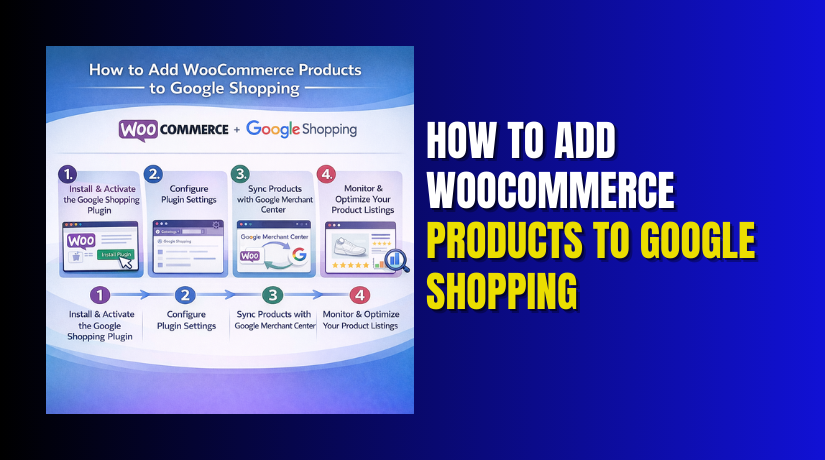
Step 1: Install a Google Shopping Plugin for WooCommerce
To get started with the WooCommerce Google Shopping integration, the first step is to install a suitable plugin. Several plugins can help you create and manage your product feed, which is essential for getting your WooCommerce products listed on Google Shopping.
Recommended Plugins
- WooCommerce Google Product Feed – A popular plugin that automatically generates a product feed and submits it to Google Merchant Center.
- Product Feed PRO for WooCommerce – Another powerful plugin that offers advanced features for creating and managing product feeds for various marketing channels, including Google Shopping.
How to Install and Activate the Plugin
- Go to your WooCommerce store’s admin panel.
- Navigate to Plugins > Add New.
- Search for the plugin you want to use (e.g., “WooCommerce Google Product Feed”).
- Click on Install Now, and once the installation is complete, click Activate.
Once activated, the plugin will guide you through the setup process, allowing you to configure essential settings, such as currency, product categories, and custom attributes. This will ensure that your product feed is correctly formatted and ready to be submitted to Google Merchant Center.
Step 2: Set Up Google Merchant Center Account
Now that you’ve installed the plugin, the next step is to set up your Google Merchant Center account. Google Merchant Center is where your product feed will be submitted and managed. You’ll need to have a Merchant Center account to list your WooCommerce products on Google Shopping.
- Visit the Google Merchant Center website.
- Sign in with your Google account or create a new one.
- Complete the setup process by entering basic details about your business, such as the name of your store, business location, and website URL.
- Verify and Claim Your Website:
- You need to verify that you own the website that will display the products.
- Google will provide several methods for verification, including adding a meta tag to your site’s HTML or uploading an HTML file.
After verifying your website, you’ll be able to submit your WooCommerce product feed Google Shopping directly to Google Merchant Center.
Step 3: Create and Submit a Product Feed to Google Merchant Center


With your Merchant Center account set up and linked to your WooCommerce store, the next task is to generate your product feed. This feed will contain all the necessary information about your products, such as title, description, price, and image, allowing Google to display your products on Google Shopping.
- Go to the plugin settings page within your WooCommerce store.
- Select Generate Feed or Create Feed from the plugin options.
- Customize your feed settings, ensuring all product data is included, such as:
- Product titles
- Descriptions
- Prices
- Images
- Availability
- Product categories (as per Google’s requirements)
Once your feed is ready, download it as a .xml or .txt file, which you’ll upload to Google Merchant Center.
Submitting the Feed to Google Merchant Center:
- In Google Merchant Center, navigate to the Products > Feeds section.
- Click on + Add Feed and select the type of feed you’ve created (e.g., Google Shopping feed).
- Follow the instructions to upload your feed file.
- You can choose to schedule your feed to automatically update at regular intervals (e.g., daily or weekly) to keep product information up to date.
Step 4: Set Up Google Ads for Product Listings
Once your product feed is submitted to Google Merchant Center, the next step is linking it to your Google Ads account. This allows you to run paid shopping campaigns and advertise your WooCommerce products on Google Shopping.
- In Google Merchant Center, go to Tools and Settings and select Linked Accounts.
- Choose Google Ads and click Link Account.
- Follow the steps to sign in to your Google Ads account and link it to the Merchant Center.
Creating a Google Shopping Campaign
- In Google Ads, navigate to the Campaigns tab and select Create Campaign.
- Choose Sales as the goal for your campaign and select Shopping as the campaign type.
- Select your linked Merchant Center account and configure other campaign settings, such as budget, targeting, and bid strategy.
- Once your campaign is set up, your Google Shopping ads will start displaying your WooCommerce products to potential customers.
Step 5: Optimize Your Product Feed for Maximum Effectiveness
To ensure your Google Shopping WooCommerce products perform well and drive traffic to your store, it’s essential to optimize your product feed. Optimizing your feed can help improve visibility and click-through rates.
Add Structured Data to Your Products:
Structured data (also known as schema markup) helps search engines understand and display your product information in rich snippets. Add structured data for products on your WooCommerce store to ensure that Google can read and display this information accurately.
Optimize Product Titles and Descriptions:
Product titles and descriptions are crucial for visibility. Make sure your titles are clear, concise, and include relevant keywords. Your product descriptions should be informative and reflect the key features of the product.
Use Accurate Product Images and Pricing:
Ensure that your product images are high quality and meet Google’s guidelines. Your pricing should also be consistent across your website and Google Merchant Center. Google will flag discrepancies in pricing, which could result in disapproved products.
In this guide, we’ve covered the essential steps to set up your WooCommerce Google Shopping setup. You’ve learned how to install a Google Shopping plugin, create a Google Merchant Center account, generate and submit your product feed, and link it with Google Ads to run shopping campaigns. With these steps completed, you’re now ready to start listing your WooCommerce products on Google Shopping.
Common Issues While Adding WooCommerce Products to Google Shopping
Even after setting up your Google Shopping WooCommerce products, issues may arise during the process. Here, we’ll address some of the most common problems and provide solutions to ensure your campaigns run smoothly.
- Product Disapprovals in Google Merchant Center
Google may disapprove of your products for various reasons. This can prevent your WooCommerce products from appearing on Google Shopping. Understanding why products are disapproved and how to fix them is crucial for keeping your ads live.
Common Reasons for Product Disapproval
- Incorrect or missing product information: Google requires specific details like product titles, descriptions, and prices. If any of these are missing or inaccurate, your product may be disapproved.
- Policy violations: Google has strict policies regarding acceptable products. If your product violates these policies, it will be flagged.
- Inconsistent pricing or availability: If the price or availability of a product in your feed does not match the actual website, Google will disapprove the product.
How to Resolve Product Disapprovals
- Check for errors: Go to Google Merchant Center > Products > Diagnostics to view any issues.
- Fix product data: Ensure your product feed contains all required information, such as correct prices, titles, and images.
- Adhere to Google’s policies: Familiarize yourself with Google’s policies and make sure your products comply.
- Resubmit the feed: After making necessary corrections, resubmit your product feed.
- Feed Errors and Warnings
Your product feed can sometimes run into issues that affect the quality of your listings. Feed errors may be related to data formatting, missing attributes, or incorrect fields.
Common Feed Errors
- Missing required attributes: Google requires attributes like GTIN (Global Trade Item Number), brand, and product category. If these fields are missing, Google may flag the feed.
- Incorrect file format: Google supports XML, CSV, or TSV file formats. Using the wrong format could lead to issues when submitting your feed.
- Price discrepancies: The price listed in your feed must match the price on your website. Any discrepancies will cause the product to be disapproved.
How to Fix Feed Errors
- Check the Diagnostics Section: In Google Merchant Center, go to Products > Feeds and check for errors or warnings related to your feed.
- Correct Missing Attributes: Review your feed and ensure all required fields are populated.
- Re-upload the Feed: After fixing the issues, re-upload the feed to Google Merchant Center for reprocessing.
- Data Mismatch Between Website and Merchant Center
A data mismatch between your website and Google Merchant Center can cause products to be disapproved or underperform. Google uses the product data from your feed, so it’s crucial that this data matches exactly what’s on your site.
Why Data Mismatch Happens
- Inconsistent product titles or descriptions: If the titles or descriptions in the feed do not match the ones on your website, it could lead to disapproval.
- Price inconsistency: If the price in the feed differs from the price listed on the website, Google will flag it.
- Stock availability issues: If the stock status is incorrectly listed in the feed, it could result in errors.
How to Ensure Consistency
- Regularly update your product feed: Make sure that the information in your feed is always up-to-date with your website.
- Automate feed updates: Set up automatic updates for your feed if your plugin supports it. This helps keep your product data in sync with your website.
- Performance Issues with Shopping Campaigns
Once your Google Shopping WooCommerce products are live, you may notice performance issues such as low click-through rates (CTR) or poor conversion rates. These issues can be attributed to several factors, including campaign settings, ad structure, and product feed quality.
Why Shopping Campaigns Might Underperform:
- Low bids or poor bidding strategy: If your bids are too low, your ads may not appear as often, or they may be outbid by competitors.
- Broad targeting settings: Targeting a wide audience without narrowing it down may result in irrelevant clicks and low conversions.
- Poor product data: If your product titles, descriptions, or images are not optimized, potential customers may not be drawn to your ads.
How to Improve Campaign Performance:
- Adjust bids: Increase your bids for high-performing products or set up Target ROAS (Return on Ad Spend) to maximize your campaign’s efficiency.
- Narrow down targeting: Target specific regions, demographics, or customer segments to reach a more relevant audience.
- Optimize product data: Ensure your product titles, descriptions, and images are high-quality and optimized for Google Shopping.
- Final Considerations
By now, you have set up your Google Shopping WooCommerce products, created campaigns, and addressed common issues. However, running successful Google Shopping campaigns is an ongoing process that requires continuous optimization. Here are a few final considerations to help you maintain and improve your results:
Monitor Performance Regularly:
- Keep a close eye on metrics like Click-through Rate (CTR), Conversion Rate, and Return on Ad Spend (ROAS).
- Use the insights from your Google Ads and Merchant Center accounts to adjust your bids, targeting, and product data.
Update Your Product Feed Frequently:
- Make sure your product information is up to date, including stock, pricing, and product details. Use automatic feed updates to save time.
Test Different Campaigns:
- Experiment with different bidding strategies, targeting settings, and ad creatives to find the best combination for your store.
Optimize for Mobile:
- A significant amount of Google Shopping traffic comes from mobile devices. Ensure that your product pages are mobile-friendly and load quickly.
Adhere to Google’s Policies:
- Regularly review Google’s policies and make sure your products comply. Google’s guidelines evolve, and staying updated is key to maintaining a smooth operation.
Conclusion
Adding WooCommerce products to Google Shopping is a powerful way to increase the visibility of your store and drive more targeted traffic. Throughout this guide, we’ve covered the essential steps—from setting up Google Merchant Center and creating product feeds to optimizing your campaigns and troubleshooting common issues. By following these steps and continuously optimizing your product data, you can significantly improve your product listings’ performance, resulting in higher visibility, more clicks, and increased sales.
Running successful Google Shopping campaigns for WooCommerce requires ongoing attention, regular updates, and a willingness to test new strategies. By staying up-to-date with Google’s requirements and refining your ads based on performance data, you can ensure that your WooCommerce Google Shopping integration delivers the best possible results.
Need assistance? Contact us today at WooHelpDesk or call us at +1 888 602 0119 for expert support! Let us help you make the most of your Google Shopping WooCommerce products and drive more sales to your store.