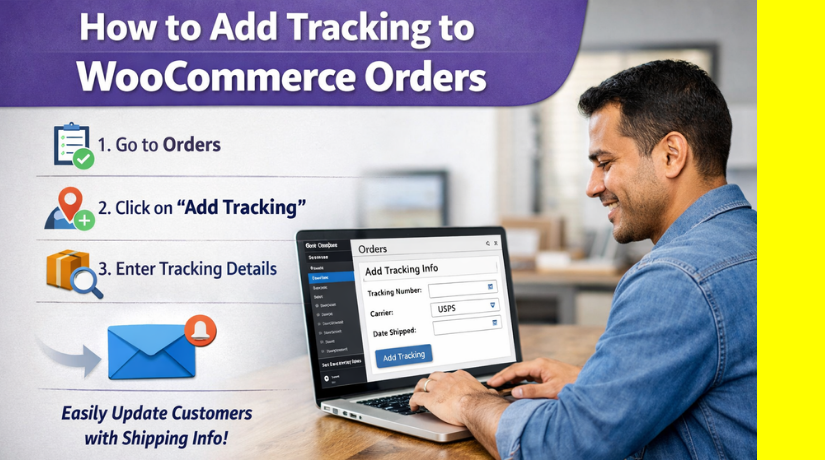
How to Add Tracking to WooCommerce Orders (Step-by-Step Guide)
Table of Contents
- Introduction
- What Is Tracking in WooCommerce Orders
- What You Need Before Adding Tracking to WooCommerce Orders
- How to Add Tracking Information to WooCommerce Orders Easily
- Method 1: Add Tracking Manually in WooCommerce Orders
- Method 2: Add Tracking Using a WooCommerce Order Tracking Plugin
- Method 3: Add Tracking Automatically for Faster Shipping Workflows
- Which WooCommerce Order Tracking Method Should You Choose for Your Store
- Conclusion
Introduction
WooCommerce stores often ship orders through many courier partners. Customers want updates the moment a parcel leaves your store. That is why woocommerce order tracking matters for every shop. It helps buyers feel calm after they pay. It also reduces “Where is my order” messages daily. When you set up order tracking in woocommerce, you give clear shipment updates. Customers can click a link and see live progress. This improves trust and helps repeat sales later.
It also helps you manage support faster. You can answer tracking questions in seconds. You can also stop refund requests caused by shipping worry. Many store owners think tracking is hard to add. In reality, it is simple with the right steps. You can add details manually for a small order volume. You can also use automation for faster work. Some stores prefer a woocommerce order tracking plugin for better flow. Others keep it simple and do manual updates.
In this guide, you will learn the basics first. You will learn what you need before adding tracking. You will also learn how to add tracking numbers in woocommerce manually. This method works on any store setup. It also helps you understand the full tracking process. Once you know the manual steps, you can scale later. You can then choose advanced woocommerce shipment tracking options. You can also improve woocommerce shipping tracking emails and order pages. By the end, you will confidently track woocommerce orders with clear updates.
What Is Tracking in WooCommerce Orders
Tracking in WooCommerce means adding shipment details to customer orders. It helps buyers know where their package is after purchase. With tracking, you can share the courier name and tracking number. You can also share a tracking link for live status updates. This process is called woocommerce order tracking and it builds trust fast. Customers can open the link and track woocommerce orders anytime.
It also reduces support messages like “Where is my order.” You can add tracking number in woocommerce manually using order notes. You can also use a woocommerce order tracking plugin for better tracking fields. Many plugins show tracking inside emails and My Account pages. This improves woocommerce shipment tracking for repeat customers. Good woocommerce shipping tracking keeps order updates clear and professional. It also helps your store look reliable and organized.
What You Need Before Adding Tracking to WooCommerce Orders
Working Woocommerce Orders Page In Admin
You must see orders inside WooCommerce without errors. Go to WooCommerce, then Orders, and open any recent order. If orders are missing, fix that before tracking setup. Tracking depends on order data saving properly for customers. This supports smooth woocommerce order tracking from day one.
Valid Tracking Number From Your Courier Partner
Always use the final tracking number from the courier. Some couriers update tracking after the first scan. So wait for the correct number before sending updates. This number becomes the customer’s woocommerce tracking number reference. It helps customers track woocommerce orders without contacting you.
Correct Courier Tracking Link Format For Customers
Each courier uses a different tracking page link. Copy the tracking link directly from the courier dashboard when possible. Test the link once in a new tab before sharing. A working link improves woocommerce shipment tracking for every buyer. It also strengthens your woocommerce shipping tracking experience.
Admin Or Shop Manager Access To Edit Orders
You must edit the order and add customer notes. You should also be able to change the order status. If you cannot edit orders, ask for proper permissions. Without access, you cannot add tracking numbers in woocommerce safely.
Clear Method Choice: Manual Now, Plugin Later, Automation Later
Manual tracking works best for low daily orders. A woocommerce order tracking plugin helps when orders increase. Automation fits stores with label printing and bulk shipping. Start manual first to learn the workflow clearly.
Basic Email Delivery Check For Customer Updates
Tracking updates work best through email notifications. Place a test order and confirm emails arrive quickly. If emails fail, set up SMTP before sending tracking. Email delivery makes order tracking in woocommerce more reliable.
How to Add Tracking Information to WooCommerce Orders Easily
In this guide, you will learn three methods for woocommerce order tracking. First, we show how to add tracking numbers in woocommerce manually. Second, we cover a woocommerce order tracking plugin for better automation. Third, we explain automatic woocommerce shipment tracking using shipping tools.
Each method improves woocommerce shipping tracking emails and account pages. You will also learn how customers track woocommerce orders easily. By the end, every woocommerce tracking number is shared clearly. This makes order tracking in woocommerce simple for you and buyers.
Method 1: Add Tracking Manually in WooCommerce Orders (Step by Step)
Step 1: Open the Correct WooCommerce Order From the Orders List
- Go to WordPress Dashboard → WooCommerce → Orders.
- Search the order using order number or customer name.
- Click the order to open the full order details page.
- Check shipping address and items to avoid wrong updates.
This step ensures your woocommerce order tracking starts correctly. It also prevents sending the wrong woocommerce tracking number to another customer.
Step 2: Add a Customer Note to Include Tracking Number and Courier Name
- Scroll down to Order Notes on the order page.
- Type a clear message with courier name and tracking number.
- Select “Note to customer” from the note type dropdown.
- Click Add to save and send the note.
This is the easiest way to add tracking numbers in woocommerce manually. It also helps customers understand order tracking in woocommerce clearly.
Step 3: Paste the Tracking Link So Customers Can Track WooCommerce Orders
- Copy the tracking link from your courier tracking page.
- Paste the tracking link inside the same customer note.
- Keep the link short and clickable for mobile users.
- Open the link once to confirm it works correctly.
A working link improves woocommerce shipment tracking and supports better woocommerce shipping tracking for customers.
Step 4: Update the Order Status After Adding the WooCommerce Tracking Number
- Find the Order Status dropdown on the order page.
- Set status to Completed or keep Processing, as needed.
- Click Update to save the order changes properly.
Order status updates make your woocommerce order tracking flow clearer. It also supports customer communication after shipping.
Step 5: Confirm Tracking Was Sent and Stored in the Order History
- Check the note appears in the order notes list below.
- Confirm it shows as a customer note, not a private note.
- Place a test order to confirm emails deliver correctly.
- Ask the customer to refresh My Account order view if needed.
This confirmation avoids tracking confusion and helps customers track woocommerce orders faster. It also prepares you for using a woocommerce order tracking plugin later.
Method 2: Add Tracking Using a WooCommerce Order Tracking Plugin Step by Step
A plugin gives you a proper tracking field inside orders. It also shows tracking in emails and accounts. This makes woocommerce order tracking easier for growing stores. It also reduces mistakes when you ship many orders daily. A good woocommerce order tracking plugin saves time and improves customer trust.
Step 1: Install a WooCommerce Order Tracking Plugin That Fits Your Store Needs


- Go to Dashboard → Plugins → Add New.
- Search for a shipment or order tracking plugin.
- Click Install Now, then click Activate.
- Keep WooCommerce active while you set it up.
This step creates a tracking section inside every order page. It helps you add tracking numbers in woocommerce using a clean field. It also supports better order tracking in woocommerce for customers.
Step 2: Configure Plugin Settings for Couriers and Tracking Link Format
- Open the plugin settings from WooCommerce or the plugin menu.
- Add or enable the couriers you commonly use.
- Set the tracking URL format if the plugin needs it.
- Enable tracking display in order pages and emails.
Correct settings make woocommerce shipment tracking links work every time. It also improves woocommerce shipping tracking for mobile customers. Always save settings after each change to avoid issues.
Step 3: Add a Tracking Number and Courier Inside the WooCommerce Order Screen
- Go to WooCommerce → Orders, then open an order.
- Find the plugin tracking box on the order page.
- Select the courier name from the dropdown list.
- Enter the woocommerce tracking number in the field.
- Add shipped date if the plugin supports this option.
This is the cleanest way to store tracking details per order. It also makes it easier to track woocommerce orders later. Your staff can read tracking data without searching notes.
Step 4: Send Tracking Details Automatically Through WooCommerce Emails
- Enable tracking details in customer emails from plugin settings.
- Choose which emails should include tracking information.
- Confirm the tracking link appears as clickable text.
- Send a test email using a test order process.
Email is the main place customers look for tracking updates. Plugin emails make woocommerce order tracking feel professional and clear. It also reduces delivery questions and refund requests later.
Step 5: Show Tracking in My Account So Customers Can Track WooCommerce Orders
- Enable tracking on My Account → Orders → View Order.
- Confirm the tracking button or link appears clearly.
- Test with a real customer account or a test account.
- Check on mobile view for better customer experience.
Account tracking helps customers find updates without emails. It improves order tracking in woocommerce for repeat buyers. It also reduces support tickets during peak shipping seasons.
Step 6: Fix Common Plugin Problems That Break WooCommerce Shipment Tracking
- Wrong courier selected creates wrong tracking link for customers.
- Wrong tracking number format causes “not found” status.
- Cache may hide changes on My Account pages.
- Email templates may be disabled by theme settings.
- Conflicts can happen with shipping or email plugins.
When tracking fails, test with one order step by step. First check the tracking link and tracking number together. Then check email delivery and My Account display carefully. This approach keeps woocommerce shipping tracking working with fewer issues.
Method 3: Add Tracking Automatically for Faster Shipping Workflows
Automation is best when your order volume grows fast. It reduces manual work and cuts human errors. It also keeps tracking updates consistent every day. Automatic woocommerce order tracking usually comes from label tools. It can also come from shipping dashboards or fulfillment systems.
Step 1: Decide If Automatic Tracking Is the Right Option
- Choose automation if you ship many orders daily.
- Choose automation if you use multiple couriers regularly.
- Choose automation if you print labels in bulk.
- Choose automation if you want fewer manual order updates.
Automation helps you add tracking numbers in woocommerce without typing. It also helps your team ship faster with less stress. It improves woocommerce shipment tracking speed and accuracy.
Step 2: Connect a Shipping Tool That Pushes Tracking Back to WooCommerce
- Use a label tool that supports WooCommerce integration.
- Connect your store using the tool’s WooCommerce connection.
- Map order status updates to your shipping workflow.
- Confirm courier names and tracking link formats match.
Many shipping tools can push tracking into WooCommerce orders. This means the woocommerce tracking number appears automatically. Customers can then track woocommerce orders without delay.
Step 3: Enable Auto Email and Auto Status Updates After Shipment
- Turn on auto status update when label is created.
- Turn on auto status update when pickup scan happens.
- Enable auto tracking email after tracking sync completes.
- Keep email wording simple and clear for customers.
This flow keeps customers informed without extra effort daily. It improves order tracking in woocommerce for every shipped order. It also reduces customer worry during shipping delays.
Step 4: Test the Full Automation Flow Before Using It Live
- Place a test order using your own email address.
- Create a label and check tracking sync inside order.
- Confirm the tracking link opens the correct courier page.
- Confirm the customer email contains the tracking details.
- Confirm My Account shows the same tracking information.
Testing prevents live order issues and unhappy customers later. It ensures woocommerce shipping tracking works across emails and accounts. It also confirms your woocommerce order tracking plugin settings align properly.
Which WooCommerce Order Tracking Method Should You Choose for Your Store
Choosing the right tracking method depends on your daily shipping volume. It also depends on how your team ships orders today. The goal is simple customer updates with less manual work. A good setup helps you track woocommerce orders faster and avoid support load. Use the points below to pick the best option quickly.
Option 1: Choose Manual Tracking When You Ship Few Orders Daily
- Best for new stores and small order volume.
- Best when you ship 1 to 10 orders daily.
- Best when you use one courier most of the time.
- Best when you want setup without extra plugins.
Manual notes work, but they do not create a tracking field. You can still add tracking number in woocommerce using customer notes. This method is easy but becomes slow as orders grow. It is still useful as a backup for urgent shipments.
Option 2: Choose a WooCommerce Order Tracking Plugin for Better Control
- Best when you ship 10 to 50 orders daily.
- Best when you want tracking shown in My Account.
- Best when you want tracking added in a structured field.
- Best when you want better emails with tracking buttons.
A woocommerce order tracking plugin makes tracking cleaner and faster. It helps you store the woocommerce tracking number in the right place. It also improves woocommerce shipment tracking display for customers. This option is ideal for growing stores with regular shipping.
Option 3: Choose Automatic Tracking When You Ship in Bulk Every Day
- Best when you ship 50+ orders daily.
- Best when you print labels in bulk workflows.
- Best when you use many couriers or a shipping tool.
- Best when you want fewer manual updates and errors.
Automation adds tracking back to WooCommerce automatically after labels. It keeps woocommerce order tracking consistent and fast. It also reduces wrong tracking mistakes from manual typing. This is ideal for busy stores and fulfillment teams.
Conclusion
Manual tracking works well for small stores and few orders. A plugin works best when you want cleaner tracking fields. Automation works best for bulk shipping and faster fulfillment. No matter the method, always test tracking links first. Always confirm emails deliver and My Account shows updates. This keeps woocommerce order tracking reliable and professional. If you want, share your courier names and shipping tool used. I can tailor the plugin and automation steps for your setup.