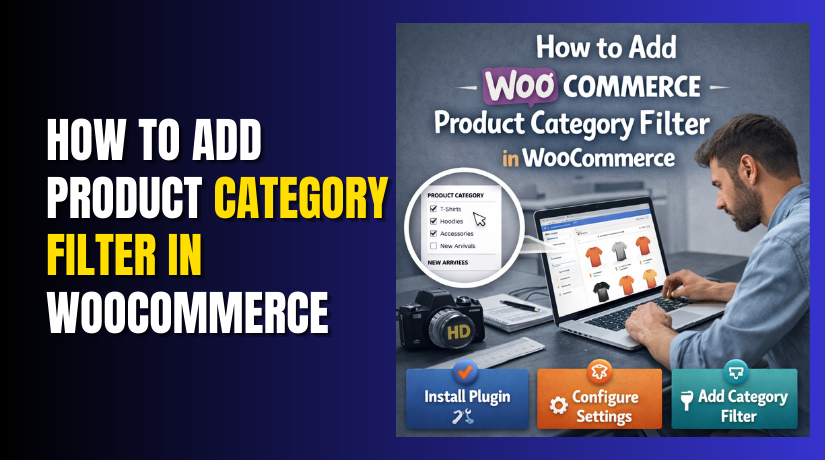
How to Add Product Category Filter in WooCommerce Step by Step?
Table of Contents
- Introduction
- What is the Product Category Filter in WooCommerce?
- Why Do You Need Product Category Filters?
- How Does Filtering Products by Category Help?
- Where Should You Place Category Filters?
- What You Need Before Adding Category Filters?
- Different Ways to Add Category Filters in WooCommerce
- Steps to Add Product Category Filter in WooCommerce
- Method 1: Add a Category Filter Using Built-in Blocks or Widgets
- Method 2: Add Category Filter Using the Site Editor
- Method 3: Use WooCommerce Product Filters Blocks for Layered Filtering
- Optional Method for Live Category Filtering Using Product Filter Categories Blocks
- Final Verdict
Introduction
A clean filter system helps shoppers find products faster. It also reduces frustration on busy category pages. A Product Category Filter WooCommerce setup improves browsing for large catalogs. It also increases conversions by shortening the product discovery path. This guide explains how to Add Category Filter in WooCommerce step by step. You will learn built-in options and better placement strategies. You will also learn which method suits your theme type best.
Many stores rely only on menu links for categories. That works, but it is not always enough. Shoppers often want category choices beside the product grid. They want quick switches without opening new menus. That is where WooCommerce Product Filters help the most. A good filter layout also improves internal linking structure. It helps search engines understand category relationships more clearly.
This WooCommerce Category Filter Tutorial covers practical setups. It supports classic themes and block-based themes. It also explains how to combine filters with navigation correctly. You will see where category filters work best on shop pages. You will also see how filters affect user experience and store growth. Use this guide as your complete setup reference.
What is the Product Category Filter in WooCommerce?
A product category filter is a visible category selector for shoppers. It lets users narrow products by selecting a category quickly. It can appear as a list, dropdown, or clickable buttons. It usually appears on the shop page or category archives. It can also appear on search results pages for products.
In WooCommerce, categories are product taxonomies used for organization. Each category has its own archive page and URL. A category filter exposes these categories in a shopper-friendly way. It helps users jump to the right category instantly. It also helps users explore subcategories with less effort.
A category filter is different from attribute filters. Attribute filters include size, color, brand, and material. Those often use WooCommerce Layered Navigation for filtering by attributes. Category filtering focuses on product grouping, not product variations. Both can work together for faster product discovery. Stores with many items benefit from combining both intelligently.
Why Do You Need Product Category Filters?
Category filters solve a common store browsing problem. Shoppers land on a broad shop page and feel lost. They see too many products and too many choices. A category filter gives them an immediate starting point. It reduces scrolling and improves product findability.
Category filters also reduce bounce rate on shop pages. Users leave quickly when they cannot find relevant products. A visible category filter adds clarity and direction. It makes the catalog feel more organized and predictable. That trust improves shopping comfort and checkout confidence.
Category filters also support better mobile browsing. Many mobile users do not open menus frequently. They prefer a visible filter button or a list. A category filter can guide them without extra taps. This improves navigation for small screens and touch users.
Category filters also help store owners guide buyers strategically. You can highlight best-selling categories at the top of lists. You can show only important categories on certain pages. You can also hide categories that confuse users. This makes browsing more focused and conversion-friendly.
How Does Filtering Products by Category Help?
Filtering by category improves user experience and shopping speed. It reduces the time to reach relevant products. It also helps shoppers compare similar products within one category. That often increases add-to-cart actions and product views. Category filtering also supports stronger browsing behavior and session depth.
It also improves the structure of product discovery journeys. Shoppers start with a broad page, then narrow quickly. This matches how buyers shop in real ecommerce stores. They usually decide a category before deciding on a product. A category filter supports that natural decision order. That makes your store feel easier and more professional.
Category filtering can also strengthen SEO signals indirectly. Better category navigation improves internal linking distribution. It helps category pages receive more user interactions and visits. Stronger category pages can rank for commercial category keywords. That can bring high-intent traffic consistently over time.
Category filtering also helps reduce analysis paralysis for shoppers. Too many products create choice overload quickly. Filters reduce visible options to a manageable set. This improves decision confidence and reduces cart abandonment. It also helps shoppers feel in control during browsing.
Where Should You Place Category Filters?
Category filters work best where product lists appear. That usually means the Shop page and category pages. It can also mean custom product landing pages with grids. Filter placement impacts both usability and conversion rates. You should place filters where users expect quick navigation.
Best placement options for category filters
- Sidebar on desktop screens for continuous visibility. Sidebars keep filters visible while scrolling product lists. This reduces back-and-forth navigation between categories. It also feels familiar to shoppers from major marketplaces.
- Top bar above product grid for fast category switching. A top filter bar is easy to notice immediately. It works well when you have fewer categories displayed. It also keeps the layout clean for modern designs.
- Mobile filter drawer for small screens and better space usage. Mobile screens cannot hold wide sidebars comfortably. A drawer keeps the grid readable while preserving filters. It improves usability and avoids clutter on mobile.
- Category page header area for subcategory navigation. Subcategories are best shown on parent category pages. This guides users into specific product groups quickly. It also reduces the need for deep menu navigation.
What You Need Before Adding Category Filters?
Before you add filters, your category structure must be clean. A messy category tree creates confusing filter lists quickly. You should also ensure products have correct category assignments. This prevents empty categories and broken browsing experiences. A good category foundation makes filters work properly.
Prerequisites for a clean category filter setup
- Create meaningful categories that match real buyer intent. Use categories that shoppers would choose naturally. Avoid too many tiny categories with only one product. Strong categories improve both SEO and user navigation.
- Assign every product to the correct primary category. Products must appear in expected category filters reliably. Wrong assignments cause missing products and shopper confusion. Correct assignments improve filter trust and usability.
- Use subcategories only when they add real browsing value. Too many subcategories can overwhelm shoppers quickly. Keep subcategories focused and easy to understand. This improves the clarity of the filter experience.
- Decide which categories must be visible in the filter. Some categories are internal and should stay hidden. Some categories are seasonal and should appear temporarily. Planning visibility prevents clutter and confusion.
Different Ways to Add Category Filters in WooCommerce
There are multiple ways to add category filters in WooCommerce. The best method depends on your theme and store needs. Some stores need simple category lists only. Other stores need AJAX filtering for faster experiences. Choose a method that matches your catalog size and budget.
Common category filter approaches
- Built-in category list using blocks or widgets. This is the simplest and most stable option. It works well for most stores without extra plugins. It also keeps maintenance easier over time.
- Menu-based category navigation for header and mega menus. Menus work well for top-level category browsing. They are useful for branding and store structure visibility. They are less flexible for deep filtering beside grids.
- Advanced filter plugins for AJAX and combined filtering. Plugins can filter by category, price, and attributes together. They can also support filter drawers and better mobile layouts. This suits large catalogs and complex stores.
- Custom shop pages with category filter blocks and grids. Block-based templates can create modern filter layouts easily. You can build category-focused shop experiences by design. This helps conversion on targeted category landing pages.
Steps to Add Product Category Filter in WooCommerce
This section starts the step-by-step implementation. Part 1 focuses on the easiest built-in method first. You can set it up without code and without paid plugins. This method supports most themes used with WooCommerce. It is the best starting point for most store owners.
Method 1: Add a category filter using built-in blocks or widgets
Step 1: Confirm your product categories are ready
- → WP Admin → Products → Categories
- Check category names are clear and readable.
- Remove duplicate names that can confuse shoppers.
- Keep slugs short and consistent for clean URLs.
- Add descriptions only if your theme shows them.
Step 2: Decide where the category filter should appear
- → Shop page sidebar for most WooCommerce stores.
- → Category page sidebar for deeper browsing journeys.
- → Top filter bar if your theme supports it.
- Pick one primary location to avoid duplicated filters.
- Too many filter locations can confuse shoppers quickly.
Step 3: If you use a block theme, open the Site Editor
- → WP Admin → Appearance → Editor
- → Templates → Shop / Product Catalog / Product Archive
- Look for a sidebar area or a template part.
- Click + where you want filters to appear.
- Block themes let you place filters visually and cleanly.
Step 4: Add a Product Categories list block
- → Editor → Click + → Search “Product Categories List”
- Insert the block in the sidebar or filter column.
- Enable hierarchy if you use parent and child categories.
- Decide if product counts should display beside categories.
- Keep the list short for faster browsing decisions.
Step 5: If you use a classic theme, open Widgets
- → WP Admin → Appearance → Widgets
- → Open Shop Sidebar / WooCommerce Sidebar widget area.
- Add the Product Categories widget into that sidebar.
- Set options like dropdown and hierarchy as needed.
- Save, then refresh your Shop page to confirm the display.
Step 6: Configure category display for better usability
- → Widget / Block settings → Turn ON “Hierarchy” when needed.
- Avoid showing too many levels to keep it readable.
- Use Dropdown if you have many categories.
- Use List view if quick scanning matters most.
- Hide internal categories shoppers should not browse.
Step 7: Test the category filter on shop and category pages


- → Open Shop page → Test category clicks in incognito mode.
- Confirm the correct products appear after each click.
- Test small categories to confirm filtering works properly.
- Remove or hide empty categories that waste clicks.
- Test mobile view for spacing, taps, and readability.
Step 8: Improve category names and order for better conversions
- → WP Admin → Products → Categories → Edit
- Rename confusing categories using buyer-friendly words.
- Put top categories first using your menu or ordering options.
- Keep naming consistent across menus and filter lists.
- Remove categories that should not appear in browsing.
Method 2: Add Category Filter in WooCommerce Using the Site Editor
This method is best for block themes and store editing setups. It uses WooCommerce blocks inside templates and patterns. It helps you place filters in the perfect position. It also reduces reliance on classic widget areas. WooCommerce includes blocks you can insert in the editor.
Step 1: Confirm your theme supports WooCommerce blocks
- → WP Admin → Appearance → Editor (if you see Editor, you’re likely on a block theme).
- Block themes let you edit Shop templates visually.
- This makes filter placement easier and more consistent.
- WooCommerce supports block-based catalog and shop layouts.
Step 2: Open the Shop or Product Catalog template
- → Appearance → Editor → Templates
- → Search for Shop (or Product Catalog / Product Archive).
- Open the template that shows your product grid.
- This is where the category filter should be placed.
- Keep a backup plan before editing core templates.
Step 3: Create a dedicated filter area beside the product grid
- → Editor → Templates → Shop template → Select the layout area
- Add a Columns layout with two columns.
- Use the left column for filters and the right for products.
- Keep the filter column narrow and easy to scan.
- This layout improves browsing speed and product discovery.
Step 4: Add a category list block for navigation filtering
- → Editor → Click + (Add block) → Search “Product Categories”
- Insert the category list block inside your filter column.
- Enable Hierarchy to show parent and child categories.
- Enable Counts only if the layout stays clean.
- This builds a stable Product Category Filter WooCommerce setup.
Step 5: Add a “Filter” toggle layout for mobile screens
- → Editor → Select filter column → Add a Group / Details / Collapsible pattern
- Put the category list block inside the collapsible container.
- This keeps mobile layouts clean and faster to browse.
- It reduces scroll fatigue on small screens.
- It also keeps the product grid more visible on mobile.
Step 6: Add a search or sorting block near the filter area
- → Editor → Click + (Add block) → Search “Product Search”
- Place Product Search above the category list if possible.
- → Editor → Click + (Add block) → Add sorting controls (if your theme provides).
- Filters + search + sorting work as one browsing system.
- This improves product discovery and shopping comfort.
Step 7: Save changes and test template behavior carefully
- → Editor → Save (top-right)
- → Open your Shop page in a new tab.
- Click categories and confirm navigation works correctly.
- Test subcategories and confirm results match expectations.
- Test mobile view and ensure filters stay easy to access.
Step 8: Improve category ordering for faster choices
- → WP Admin → Products → Categories
- Move top revenue categories higher in your preferred order.
- Keep low priority categories lower or hidden from shoppers.
- Use consistent naming across menus and filter lists.
- Predictable names improve clicks and browsing speed.
Method 3: Use WooCommerce Product Filters blocks for layered filtering
This method is for stores that need stronger filtering experiences. It works best with modern block-based shop designs. It supports layered filtering behavior when combined with attributes. It also supports price filtering and active filter display. WooCommerce includes “Filter Products” blocks for shop pages.
Step 1: Decide which layered filters you want beside categories
- → Plan your filter stack first: Categories → Attributes → Price → Active Filters.
- Category filters handle broad product grouping and navigation.
- Attribute filters refine choices inside selected category results.
- Price filters help buyers match budget during browsing.
- Active filters show selections and allow quick removal.
Step 2: Add a Filter by Attribute block when you use attributes
- → WP Admin → Appearance → Editor → Templates → Shop/Product Catalog.
- → Click the filter column area → + Add block → WooCommerce → Filter by Attribute.
- Choose the attribute to show, like Color or Size.
- Keep it to one or two attributes for simpler decisions.
- Too many filters can overwhelm shoppers and slow choices.
- Set display style as List or Dropdown if needed.
Step 3: Add a Filter by Price block for budget-driven browsing
- → Shop template → Filter column → + Add block → WooCommerce → Filter by Price.
- Place it below the category list for a natural flow.
- Use sliders for speed and quick browsing decisions.
- Use editable fields when buyers need precise ranges.
- Keep price filtering visible but not too dominant.
Step 4: Add an Active Filters block for clarity and control
- → Shop template → Top of filter column → + Add block → WooCommerce → Active Filters.
- It shows selected filters and allows removal quickly.
- It prevents confusion when multiple filters are selected.
- It reduces “no results” dead ends during browsing.
- Active filters improve layered navigation flow and usability.
Step 5: Use “Show on shop pages only” for sidebar filter blocks
- → WP Admin → Appearance → Widgets (Block Widgets Editor).
- → Add your filter blocks in the shop sidebar area.
- → In the block settings, enable Show on shop pages only.
- This prevents filters showing on posts and landing pages.
- It keeps filtering focused on product archive pages.
Step 6: Test layered filtering behavior and reset flows
- → Open Shop page in an incognito browser window.
- Test selecting a category first, then an attribute.
- Test selecting price range after selecting a category.
- Confirm product grid updates without confusion or delays.
- Confirm filters clear quickly using Active Filters controls.
- Fix layout overlaps and spacing issues inside templates.
Step 7: Keep layered navigation limited for better conversions
- → Use categories for grouping and attributes for refining.
- Use the most important attributes only, not every attribute.
- Keep filter lists short to reduce decision fatigue.
- This matches how buyers browse and shop online.
- It improves conversions and improves time-on-site signals.
Optional Method For Live Category Filtering Using Product Filter Categories Blocks
Some stores want live category filtering without page reloads. This is useful for large catalogs and heavy filtering use. A live category filter updates results as users click. It creates a smoother browsing experience for impatient shoppers. A common approach uses a product search extension with filter blocks.
Step 1: Add a live Product Filter Categories block or widget
- → WP Admin → Appearance → Editor → Templates → Shop / Product Catalog (block theme method).
- → Shop template → Sidebar/Filter column → + Add block → “Product Filter – Categories”.
- → OR → WP Admin → Appearance → Widgets → Shop Sidebar → Add widget “Product Filter – Categories” (classic sidebar method).
- Place the category filter block in your shop sidebar area.
- Configure it to show your main category structure clearly.
- Enable hierarchy if your store has subcategories.
- Keep the list short for faster browsing decisions.
- The block updates product results as categories change.
Step 2: Combine live categories with attribute filtering blocks
- → Appearance → Editor → Templates → Shop → Filter column → + Add block → “Product Filter – Attributes” (block method).
- → OR → Appearance → Widgets → Shop Sidebar → Add widget “Product Filter – Attributes” (widget method).
- Add the live attribute filter block below categories if needed.
- Choose only one key attribute for each product family.
- This reduces noise while still supporting quick refinement.
- Live filtering helps customers explore more without frustration.
Step 3: Ensure filters display only where they should
- → Select the filter block → Block settings → Enable “Show on shop pages only”.
- Enable “Shop pages only” if your block has that option.
- This prevents filter blocks showing in unrelated sidebars.
- It keeps filters clean and relevant across your site.
- It also reduces layout issues on content-heavy pages.
- This aligns with good UX and better conversions.
Final Verdict
A category filter improves browsing speed and buyer confidence quickly. It also helps shoppers navigate large catalogs without frustration. For most stores, start with the simplest stable method first. Add a sidebar category list using blocks or widgets. Then test real browsing on desktop and mobile carefully.
If you need faster filtering, use modern product filter blocks wisely. Pair category filters with one strong attribute filter for refinement. Keep filters limited so shoppers do not feel overwhelmed. This creates practical WooCommerce Product Filters that customers actually use. WooCommerce provides filter blocks for attributes, price, and stock.
If your catalog is large, live filtering can help a lot. Use WooCommerce Product Search category filter blocks for live updates. Add active filters and clear reset options for usability. Use shop-only display options to avoid clutter outside shop pages. WooCommerce Product Search documents these filtering blocks and settings.
For SEO, treat categories as your main ranking pages always. Keep filter combinations controlled to avoid crawl traps and duplicates. Use noindex and canonical strategies when filter URLs are unavoidable. Use robots.txt for crawl traffic control, not indexing guarantees. This keeps your store clean and ready for growth.