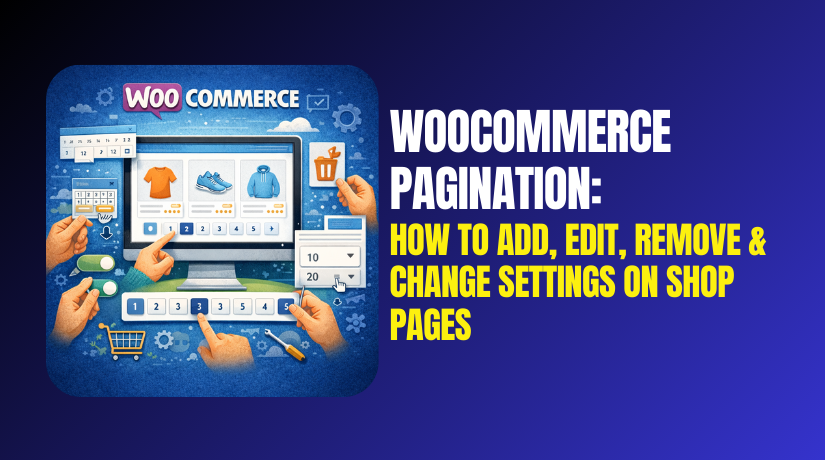
WooCommerce Pagination: How to Add, Edit, Remove & Change Settings on Shop Pages
Table of Contents
- Introduction
- What is Pagination in WooCommerce?
- What are Key Features of Pagination in WooCommerce?
- Why WooCommerce Pagination Matters for UX and SEO?
- Where WooCommerce Pagination Appears by Default?
- What are the Types of WooCommerce Pagination?
- What are the Best Practices for Effective Pagination in WooCommerce?
- What are the Common WooCommerce Pagination Mistakes to Avoid?
- How to Add or Edit Pagination on a WooCommerce Shop Page Step by Step?
- How to Remove Pagination from a WooCommerce Shop Page Step by Step?
- How to Change WooCommerce Pagination Settings?
- Final Verdict
Introduction
WooCommerce pagination controls how products appear across multiple shop pages. It helps customers browse faster without endless scrolling. It also improves layout clarity for large product catalogs. Good pagination supports better navigation and cleaner category pages. It also reduces loading time on heavy shop grids.
Many themes include pagination by default on shop archives. Some stores still need to add pagination WooCommerce manually. Some stores want to edit WooCommerce shop page pagination for design. Some stores want to remove pagination WooCommerce for infinite scroll. Your best option depends on product count and shopper behavior.
Pagination also affects crawl depth for search engines indirectly. It can improve user flow when categories have many items. It can also reduce bounce rate when pages load quickly.
In this guide, you will learn types and best practices. You will also learn settings changes and safe editing methods.
What is Pagination in WooCommerce?
Pagination is a navigation system for product listing pages. It splits products into multiple pages on shop archives. It shows numbered links like 1, 2, 3, and Next. It can also show previous and next buttons for browsing.
WooCommerce uses theme templates to render pagination output. Pagination appears on shop, category, tag, and search pages. It usually appears below the product grid by default. Pagination works with sorting and filtering when configured correctly. When users change sorting, pagination refreshes the result pages. When users apply filters, pagination updates the filtered product pages.
WooCommerce pagination settings often depend on WordPress reading settings. Many themes override default behavior using custom shop templates. Some plugins also replace pagination with load more buttons.
What are Key Features of Pagination in WooCommerce?
WooCommerce pagination includes several features that control browsing flow. These features depend on theme templates and archive settings. They also depend on how many products show per page.
Pagination can be numeric, button based, or infinite scrolling. It can include current page highlighting for better navigation clarity. It can include Next and Previous links for sequential browsing. It can keep query strings for filters and sorting controls. It can also support accessibility with focus and keyboard navigation.
Some themes add icons and spacing for better UI. Some themes add load more behavior using AJAX requests. Pagination can also be styled using theme CSS settings. Plugins can change pagination markup for custom designs.
- Numeric page links and navigation controls
Numeric links help users jump to a specific page quickly. Next and Previous buttons help sequential browsing very smoothly. Current page highlighting helps users track browsing progress clearly.
- It shows numbered page links for direct page jumping. Users can reach deeper pages without repeated clicking.
- It shows Next and Previous buttons for simple navigation. Buttons help users browse without counting page numbers.
- It highlights the active page for clear browsing context. Active states reduce confusion during long browsing sessions.
- Works with sorting, search, and layered navigation
Pagination should work with sorting like price and popularity. It should also work with search result pages correctly. It should also work with filters from layered navigation widgets.
- It preserves sorting selection while moving between pages. Customers keep the same sorting as they browse.
- It keeps search query results paginated across multiple pages. Users review more results without losing their query.
- It supports filter parameters for categories and attributes. Filters remain applied when users change pages.
- Theme controlled output and styling flexibility
Most pagination output is theme template driven for archives. Themes can change spacing, alignment, and styles easily. Some themes replace pagination with infinite scroll functionality.
- Theme templates control how pagination appears on shop pages. Template overrides can change markup and placement.
- CSS styling controls colors, spacing, and hover interactions. Styling helps match brand design across shop pages.
- Some themes enable load more or infinite scroll options. This changes browsing behavior and reduces page clicks.
- Performance impact and page size control
Pagination reduces load by splitting products into smaller chunks. Smaller pages usually load faster on mobile networks. It can also reduce server strain on busy stores.
- It limits products per page for faster archive loading. Smaller grids render quicker and reduce resource usage.
- It improves browsing on slow connections and older phones. Users avoid long waits and heavy scroll lag.
- It helps stabilize layout when many products exist. Stable grids prevent layout shift and jumping content.
Why WooCommerce Pagination Matters for UX and SEO?
Pagination helps users find products with fewer unnecessary clicks. It keeps the shop layout stable across device sizes. It reduces page weight compared to loading everything together. It also keeps category grids easier to scan and compare. Search engines can crawl paginated pages when linked properly. Clean pagination improves internal linking across deeper product listings.
- It improves browsing speed on large product archives. Smaller pages load faster and feel smooth on mobiles.
- It keeps shop grids readable and consistent for shoppers. Clean grids reduce confusion and improve product discovery.
- It supports better site structure for category and tag pages. Structured pages create predictable navigation paths for crawlers.
Where WooCommerce Pagination Appears by Default?
Pagination usually appears on the main Shop page archive. It also appears on product category archive pages. It also appears on product tag archive pages often. It can appear on product search results pages too. It can also appear on attribute archive pages if used.
- The shop archive page shows pagination under the product grid. This helps users jump to later product pages quickly.
- Category pages show pagination when product count exceeds limits. It keeps category browsing fast and easier to navigate.
- Search results use pagination when queries return many matches. It helps users review more results without slowing pages.
What are the Types of WooCommerce Pagination?
WooCommerce stores use several pagination styles for shop pages. Each type has different UX and performance tradeoffs. Some types are better for catalogs with many products. Some types are better for small stores and mobile browsing. Your theme may support one or multiple types already.
Plugins can add new types without custom coding changes. You should pick one type and keep it consistent. Consistency improves usability and reduces customer confusion.
- Standard numeric pagination
This is the classic numbered pagination under product grids. It shows page numbers and previous and next links too. It works well for large catalogs and deep browsing paths. It is also the most SEO friendly and predictable option.
- Users see page numbers and can jump to any page. It reduces effort when customers browse deeper product lists.
- It works well with category pages and sorting controls. The structure remains stable across many browsing sessions.
- It is easy to style using theme CSS settings. You can match colors and spacing with your brand.
- Previous and Next button pagination
This type shows only Next and Previous navigation buttons. It is simpler and reduces clutter on small screens. It works best when total pages are not too many.
- It keeps the interface clean with fewer visible links. This can improve mobile usability and reduce clutter.
- It guides users step by step through product pages. Sequential browsing feels simple for casual shoppers.
- It can slow deep browsing when many pages exist. Users need many clicks to reach far pages.
- Load more button pagination
This type loads more products with a single button click. It often uses AJAX to fetch the next products. It keeps users on the same page while adding products.
- It loads more products without a full page refresh. This feels smooth and reduces waiting between pages.
- It keeps users focused within the same shop context. Shoppers keep position and continue scanning products.
- It needs good caching and script optimization for speed. Poor scripts can slow browsing and increase errors.
- Infinite scroll pagination
This type loads products automatically as users scroll down. It reduces clicks and encourages continuous browsing behavior. It can work well for mobile browsing and discovery.
- It loads products automatically as users reach page bottom. Customers browse longer without clicking next links.
- It can reduce footer visibility and navigation access. Users may struggle reaching footer links and widgets.
- It needs careful tracking for analytics and conversions. Events must record product impressions and scroll depth.
What are the Best Practices for Effective Pagination in WooCommerce?
Good WooCommerce pagination improves browsing, reduces frustration, and supports conversions. It also keeps your shop pages fast and easy to scan. Pagination becomes more important when your catalog grows quickly. If pagination feels confusing, customers exit the shop page early. If pagination is too slow, customers stop browsing deeper products.
The goal is simple: make browsing smooth and predictable. You should also keep pagination consistent across shop and category pages. Consistency builds trust and reduces learning effort for customers. You should also make pagination work with filters and sorting. This keeps the shopping flow stable and avoids reset behavior. You should also keep the shop grid lightweight for speed. Speed improves user experience and supports better search visibility too.
- Keep products per page balanced for speed and browsing
You should not show too many products on one shop page. Too many products increase load time and page size quickly. Too few products increase clicks and reduce browsing comfort. A balanced count keeps pages fast and still useful. Many stores use 12, 16, 24, or 36 products per page. The best number depends on product image size and theme layout.
- Choose a product count that loads fast on mobile devices. Mobile visitors need fast grids with fewer heavy images.
- Avoid very high product counts that slow shop pages. Slow pages cause higher bounce rates and fewer page views.
- Avoid very low product counts that create too many pages. Too many clicks reduces browsing depth and discovery.
- Use clear pagination design and strong visibility
Pagination should be easy to find and easy to use. It should sit below the product grid on every archive page. It should have enough spacing for mobile tap targets. It should have clear active page highlighting for context. It should also show Next and Previous for easy sequential browsing.
- Place pagination directly below the product grid always. Users expect it after the last visible product row.
- Use strong contrast and clear active page highlighting. Active states help customers track progress across pages.
- Ensure pagination buttons have large tap size on mobile. Small links cause misclicks and user frustration quickly.
- Keep pagination consistent across shop, category, and search
Shoppers move between shops, categories, and search results often. Pagination should behave the same across all listing pages. If behavior changes, users feel the site is broken. Consistency also reduces support tickets and confusion.
- Use the same pagination style on all product archives. Consistency improves usability and reduces learning friction.
- Keep the same products per page count across archives. This makes browsing predictable and stable for users.
- Match pagination styling with your theme design system. A consistent look increases trust and brand feel.
- Make pagination work smoothly with filters and sorting
WooCommerce sorting and filters change the product query results. Pagination must preserve those query parameters between pages. If parameters reset, users lose selected filters and sorting. That breaks the browsing flow and reduces conversions.
- Test pagination after applying attribute and price filters. Filters must stay active across page numbers and links.
- Test pagination after changing sorting like price or popularity. Sorting must stay consistent across all paginated pages.
- Avoid conflicting filter plugins that rewrite URLs incorrectly. Conflicts can break pagination links and cause empty pages.
- Avoid index bloat and duplicate content issues
Pagination can create many archive pages and URLs. This is normal for large product catalogs and categories. You should still avoid unnecessary duplicates from sorting parameters. You should also avoid indexing thin pages with no value. Use SEO plugin settings carefully if needed.
- Avoid creating many URL variants using sorting parameters. Too many variants can dilute crawl budget and signals.
- Use clean links and stable permalink structure for archives. Clean URLs improve trust and reduce tracking confusion.
- Ensure category pages have helpful text and clean headings. Helpful text makes paginated archives more valuable for users.
- Optimize product images and lazy loading behavior
Shop pages are image heavy and can become slow quickly. Pagination helps, but image optimization still matters a lot. You should compress images and serve correct sizes. You should also use lazy loading for product thumbnails. This keeps the first screen loading fast and stable.
- Compress product images and use modern formats when possible. Smaller images reduce load time and improve browsing flow.
- Use proper image dimensions to avoid layout shifts. Layout shifts reduce trust and harm user experience.
- Enable lazy loading for product thumbnails where supported. Lazy loading speeds up initial rendering on shop pages.
- Track pagination clicks and browsing depth for decisions
You should know how users browse your catalog in real life. Some stores need deeper browsing and better filters. Some stores need fewer pages and stronger sorting options. Analytics helps you choose the best pagination type and count.
- Track which shop pages get the most visits and exits. Exit rate shows where browsing breaks and needs improvement.
- Track filter usage and sorting usage across paginated pages. Usage data shows what shoppers care about most.
- Track conversions from deeper pages to improve discovery strategy. Deep page conversions show catalog browsing success clearly.
What are the Common WooCommerce Pagination Mistakes to Avoid?
Many stores break pagination while changing themes or adding plugins. Many stores also forget mobile spacing and tap size needs. Some stores set too many products per page and slow everything. Some stores use infinite scroll and lose navigation control. Avoid these common mistakes for stable performance.
- Do not overload shop pages with too many products per page. Heavy pages load slowly and reduce purchases significantly.
- Do not use conflicting pagination and filter plugins together. Conflicts cause broken URLs and missing product results.
- Do not hide pagination without adding an alternate browsing method. Users must still reach deeper products without friction.
How to Add or Edit Pagination on a WooCommerce Shop Page Step by Step?
You can Add pagination WooCommerce using safe theme and settings checks. Many themes already include pagination on shop archives by default.
If pagination is missing, it is usually a theme override issue. You can also edit WooCommerce shop page pagination by changing layout, style, or product count. The safest workflow is always settings first, then theme settings, then code last. This avoids breaking templates and keeps updates safe.
Follow the steps in the same order for stability.
Step 1: Confirm pagination is not hidden by theme settings
Some themes hide pagination when infinite scroll is enabled. Some themes hide pagination when a “load more” option is active. You should confirm what your theme is currently using.
WordPress Dashboard → Appearance → Customize → WooCommerce → Product Catalog
WordPress Dashboard → Appearance → Customize → Shop Settings
WordPress Dashboard → Theme Options → WooCommerce → Shop
- Open theme shop settings and look for pagination options. Many themes offer numeric, load more, or infinite scroll.
- Disable infinite scroll if you want classic numbered pagination. Infinite scroll often removes page numbers automatically.
- Save changes and refresh your shop page in an incognito tab. This confirms changes without cached session effects.
Step 2: Set products per page using WordPress reading settings
Some themes follow WordPress reading settings for archive counts. This can influence how many products appear per shop page. It is a good first setting to confirm.
WordPress Dashboard → Settings → Reading
- Check “Blog pages show at most” value in reading settings. Some themes map this value to WooCommerce archives.
- Set a balanced number like 12, 16, or 24 for speed. Balanced counts keep shop pages fast and readable.
- Save changes and recheck shop page pagination behavior. Pagination updates when archive counts change properly.
Step 3: Use WooCommerce product catalog settings for display control
WooCommerce provides catalog display controls that affect shop layouts. Some stores use category display rules and default sorting. These settings can change how archives behave visually.
WordPress Dashboard → WooCommerce → Settings → Products → General
- Confirm the shop page display option matches your store goal. Shop can show products, categories, or both together.
- Confirm default sorting matches your browsing strategy. Sorting impacts how users browse paginated products.
- Save settings and test pagination with sorting dropdown changes. Sorting should preserve pagination across page changes.
Step 4: Add missing pagination by testing theme template compatibility
If pagination is still missing, your theme may have removed it. Some themes override WooCommerce archive templates incorrectly. Your goal is to ensure WooCommerce templates are not broken.
WordPress Dashboard → Appearance → Theme File Editor
WooCommerce template checks inside theme folder overrides
- Check if your theme overrides archive product template files. Incorrect overrides can remove pagination output completely.
- Update theme to a stable version and update WooCommerce too. Outdated overrides often break pagination with new updates.
- Switch to Storefront temporarily to confirm pagination works. Storefront confirms if the issue is theme related.
Step 5: Add pagination using a safe code snippet in a child theme
If your theme removed pagination, you can re add it safely. Use a child theme or custom plugin for code changes. This keeps changes safe during theme updates.
WordPress Dashboard → Appearance → Themes → Add New → Search “Child Theme”
Or use your existing child theme files for edits
- Add a pagination hook inside the archive product template properly. WooCommerce uses template hooks for pagination output.
- Use WooCommerce default pagination function for compatibility. Default functions avoid markup conflicts across updates.
- Test on category pages and search pages after changes. Pagination should appear on all product archives consistently.
Step 6: Edit pagination style using CSS without breaking templates
Styling is the safest way to change pagination appearance. It does not change WooCommerce logic or templates. It only changes how pagination looks on the frontend.
WordPress Dashboard → Appearance → Customize → Additional CSS
WordPress Dashboard → Appearance → Theme File Editor → style.css
- Change spacing and alignment for the pagination container. Better spacing improves mobile usability and clarity.
- Style active page link for stronger visibility and context. Active styling helps users track browsing position.
- Keep hover effects clean and consistent with theme buttons. Consistency improves trust and reduces interface confusion.
Step 7: Edit pagination behavior using a plugin for shop controls
If you need product count selectors or custom pagination types, plugins help. Plugins allow changing pagination without coding in most cases. Choose stable plugins and avoid overlap with theme options.
WordPress Dashboard → Plugins → Add New → Search “products per page WooCommerce”
WordPress Dashboard → Plugins → Add New → Search “pagination WooCommerce”


- Use a plugin to control products per page and selectors. Selectors let shoppers choose 12, 24, or 48 easily.
- Use a plugin to add load more or infinite scroll options. Plugins can replace pagination with modern browsing tools.
- Test with caching and minification plugins to avoid conflicts. Script optimization can break AJAX pagination features.
Step 8: Test pagination from a customer workflow perspective
Testing confirms your pagination is working correctly for real shoppers. You should test page switching, sorting, and filters together. You should also test on mobile devices and different browsers.
Shop Page → Click Page 2 → Change Sorting → Click Next Page
Category Page → Apply Filter → Click Page 2 → Remove Filter
- Test numeric page links and Next and Previous links behavior. Links must load correct products without duplication errors.
- Test pagination after changing sorting and applying filters. Sorting and filters must persist across pages reliably.
- Test on mobile for spacing, tap size, and layout stability. Mobile usability affects conversions and browsing depth.
How to Remove Pagination from a WooCommerce Shop Page Step by Step?
You can remove pagination WooCommerce when you want a different browsing style. Some stores prefer an infinite scroll or a load more button. Some stores want a single long shop page for small catalogs.
Removing pagination must be done carefully to avoid blank pages. You also must avoid loading too many products at once. If your catalog is large, removal can slow the page badly. Use the safest method that matches your goal and theme options.
Follow the steps below in the same order for stability.
Step 1: Decide what will replace pagination before removing it
Removing pagination without a replacement hurts usability quickly. Users need a way to reach deeper products easily. You can replace pagination with load more or infinite scroll. You can also increase products per page for small catalogs.
Shop Page → Scroll to bottom → Check current pagination behavior
- Choose infinite scroll if you want continuous browsing. Continuous browsing reduces clicks and keeps users engaged longer.
- Choose a load more button if you want controlled loading. Load more is lighter than infinite scroll for performance.
- Choose higher products per page only for small catalogs. Large catalogs will make shop pages slow and heavy.
Step 2: Remove pagination using theme settings first
Many modern themes include built-in pagination controls. They can disable page numbers and enable alternative loading styles. This is the safest option because it keeps templates intact.
WordPress Dashboard → Appearance → Customize → WooCommerce → Product Catalog
WordPress Dashboard → Appearance → Customize → Shop Settings
WordPress Dashboard → Theme Options → WooCommerce → Shop
- Find the pagination type option in theme shop settings. Themes often provide numeric, load more, or infinite scroll.
- Select infinite scroll or load more to hide numeric pagination. This removes pagination while keeping product loading active.
- Save changes and refresh the shop page in incognito mode. Incognito testing avoids caching and session confusion.
Step 3: Remove pagination using a plugin if your theme lacks controls
Some themes do not offer pagination type options. In that case, a plugin can manage shop page pagination output. Plugins also allow selective behavior for categories and tags.
WordPress Dashboard → Plugins → Add New → Search “infinite scroll WooCommerce”
WordPress Dashboard → Plugins → Add New → Search “load more WooCommerce”
- Install a stable pagination replacement plugin with good updates. Updated plugins reduce conflicts with WooCommerce updates.
- Enable the plugin only for shop archives and category pages. This avoids changing unrelated pages like blog archives.
- Test with filters and sorting to confirm it stays stable. Some AJAX loaders break sorting and layered navigation.
Step 4: Increase products per page if you want a single page view
If your catalog is small, you can show more products per page. This reduces page switching without using infinite scroll. It works best when products are under fifty or so. It can become slow if you have many products and filters.
WordPress Dashboard → Settings → Reading
WordPress Dashboard → Appearance → Customize → WooCommerce → Product Catalog
- Set products per page to a higher number carefully. Higher counts reduce pagination but increase page load weight.
- Keep image sizes optimized to avoid heavy shop loading. Large thumbnails can slow down page rendering quickly.
- Test the page on mobile data to confirm real speed. Mobile speed issues hurt conversions and SEO signals.
Step 5: Hide pagination using CSS when you only need visual removal
CSS removal hides pagination links from view only. It does not change how many products are loaded. This method is useful when a plugin handles loading. It is not a complete pagination removal method by itself.
WordPress Dashboard → Appearance → Customize → Additional CSS
- Hide pagination container using theme custom CSS rules. This removes visible page numbers without template changes.
- Use CSS only when another system loads more products. Otherwise users lose access to deeper pages completely.
- Recheck footer spacing so layout does not break visually. Removing pagination can change bottom spacing unexpectedly.
Step 6: Remove pagination using a safe code method in a child theme
Use code only when theme settings and plugins do not fit. Always use a child theme or custom plugin for code changes. Code can remove the pagination hook from archives. It must be tested carefully on all archive types.
WordPress Dashboard → Appearance → Themes → Open Child Theme
Or use your custom plugin file for WooCommerce tweaks
- Remove pagination action hook from WooCommerce archive output. Hooks control whether pagination renders after product loops.
- Do not edit WooCommerce core plugin files for this change. Core edits get overwritten during WooCommerce updates.
- Test shop, category, tag, and search archives after changes. Pagination removal must behave consistently everywhere.
Step 7: Prevent slow shop pages after removing pagination
Removing pagination can increase page size and script execution. You must protect performance so browsing stays fast. This is critical for mobile visitors and large catalogs.
WordPress Dashboard → Plugins → Installed Plugins → Caching Plugin Settings
WordPress Dashboard → Performance Tools → Image Optimization
- Enable lazy loading for product thumbnails and gallery images. Lazy loading improves speed when many products display.
- Optimize product images and use correct thumbnail sizes. Smaller images keep grid loading fast and stable.
- Limit heavy widgets on shop pages like sliders and videos. Extra widgets increase load time and reduce smooth scrolling.
Step 8: Test removal like a customer across devices
Testing confirms the shop still works without pagination. You must confirm users can still reach more products. You must also confirm sorting and filters still work correctly.
Shop Page → Scroll → Confirm more products load or appear
Category Page → Apply Filter → Scroll → Confirm results remain stable
- Scroll to confirm all products are reachable without page links. Users must reach deeper products without dead ends.
- Apply sorting and filters and confirm they still behave correctly. Broken filtering makes the catalog unusable quickly.
- Test on mobile and desktop to confirm smooth performance. Mobile performance issues are the most visible in scrolling.
When to Not Remove WooCommerce Pagination?
Removing pagination is risky for large catalogs and complex filtering. It can slow pages and reduce navigation control. It can also make it harder to return to earlier items. Use removal only when it improves real browsing behavior.
- Avoid removal if you have hundreds of products per category. Large grids become heavy and reduce browsing comfort.
- Avoid removal if you rely on layered navigation and many filters. Infinite scroll can break filter state and URLs.
- Avoid removal if your theme cannot handle smooth loading scripts. Poor scripts cause flicker, duplication, and errors.
How to Change WooCommerce Pagination Settings?
You can change WooCommerce pagination settings to control product count, style, and behavior. The safest workflow is settings first, then theme options, then plugins, then code. This keeps your WooCommerce pagination stable across updates. You should also test changes with filters and sorting each time.
Pagination settings usually involve three areas, WordPress reading settings, theme shop settings, and WooCommerce catalog behavior. Some stores also use a products per page selector for better UX.
Follow the steps below in the same order for best results.
Step 1: Change products per page using WordPress reading settings
Some themes read the WordPress reading value for shop archives. This can change pagination page count immediately. It is a quick change and safe for most stores.
WordPress Dashboard → Settings → Reading
- Update “Blog pages show at most” to your target count. Some themes map this value to product archive pages.
- Use a balanced number like 12, 16, 24, or 36. Balanced counts improve speed and scanning on shop pages.
- Save changes and refresh shop and category pages to verify. You must confirm the archive count is actually updated.
Step 2: Change products per page using theme shop settings
Many WooCommerce themes include a product count option. This setting overrides reading settings in many cases. This is often the most reliable way for modern themes.
WordPress Dashboard → Appearance → Customize → WooCommerce → Product Catalog
WordPress Dashboard → Appearance → Customize → Shop Settings
WordPress Dashboard → Theme Options → WooCommerce → Shop
- Find products per page or shop grid count option. Themes often control grid size and archive product count.
- Adjust columns and rows carefully for clean layout balance. Too many columns can break mobile grid readability.
- Save settings and test shop pagination on mobile screens. Mobile tap targets and spacing must remain usable.
Step 3: Change pagination type using theme pagination options
If you want numbered pages, load more, or infinite scroll, theme settings are best. This avoids extra plugins and keeps templates consistent. Not every theme supports all pagination types though.
WordPress Dashboard → Appearance → Customize → WooCommerce → Product Catalog
WordPress Dashboard → Theme Options → WooCommerce → Shop → Pagination
- Switch between numeric pagination, load more, or infinite scroll. This changes how users reach deeper product listings.
- Enable Next and Previous buttons if your theme supports them. Buttons improve navigation for simple browsing sessions.
- Save changes and test category pages for the same behavior. Shop and category pages should match for consistency.
Step 4: Add a “products per page” selector for customer control
Many stores improve UX by letting shoppers choose the grid size. A selector can show 12, 24, 36, or 48 per page. This helps power users browse large catalogs faster. Use this only if your theme supports clean layout scaling.
WordPress Dashboard → Plugins → Add New → Search “WooCommerce products per page”
WordPress Dashboard → Plugins → Install → Activate → Settings
- Install a lightweight products per page selector plugin. This avoids heavy pagination plugins and keeps speed stable.
- Offer a few options only, like 12, 24, and 36. Too many options create inconsistent browsing expectations.
- Test selector with sorting, filters, and pagination page switching. Selector must not reset filters or sorting values.
Step 5: Change pagination appearance using CSS styling
You can edit pagination design without changing logic. This is the safest method for visual editing. It helps match pagination to your brand buttons and fonts. Use custom CSS in the theme customizer for quick updates.
WordPress Dashboard → Appearance → Customize → Additional CSS
- Style the pagination container spacing and alignment. Better spacing improves readability and touch accuracy on mobile.
- Style active page link with stronger contrast and background. Active states help users track the current page quickly.
- Style hover and focus states for accessibility and clarity. Focus states support keyboard navigation and usability.
Step 6: Change pagination behavior using a custom code filter safely
Use code only if settings and plugins do not meet your needs. Code can change products per page and pagination output. Always use a child theme or custom plugin for code. Never edit WooCommerce core files for this change.
WordPress Dashboard → Appearance → Themes → Child Theme Files
Or your custom plugin file for WooCommerce adjustments
- Use a filter to set products per page for shop archives. Filters control query results and page counts reliably.
- Keep conditions limited to shop and product category archives. You should not affect blog archives or admin screens.
- Test after updates to ensure hooks remain compatible. Updates can change templates and require retesting logic.
Step 7: Fix pagination issues after changing settings
Pagination changes can appear broken due to caching or old templates. You should clear caches and rebuild permalinks if needed. Theme overrides can also cause missing pagination output.
WordPress Dashboard → Plugins → Caching Plugin → Clear Cache
WordPress Dashboard → Settings → Permalinks → Save Changes
- Clear all caches after changing shop pagination settings. Cache can show old pagination layout and product counts.
- Save permalinks once to refresh and rewrite rules when needed. This fixes odd archive URL behavior on some setups.
- Update theme and WooCommerce to stable versions for template fixes. Outdated overrides can remove pagination markup.
Step 8: Test your new pagination settings like a shopper
Testing confirms your new pagination settings are stable. You should test shop, category, and search pages. You should test with filters, sorting, and mobile screens. This prevents conversion loss after changes.
Shop Page → Page 2 → Change Sorting → Page 3
Category Page → Apply Filter → Page 2 → Remove Filter
Search Page → Page 2 → Open Product → Back to Results
- Confirm the correct product count appears on each shop page. This confirms your products per page setting is active.
- Confirm pagination links work with sorting and filtering rules. Sorting and filters must persist across page switches.
- Confirm mobile pagination is easy to tap and clearly visible. Mobile usability directly affects shop browsing conversions.
Final Verdict
WooCommerce pagination is essential for clean product browsing and faster shop pages. It improves catalog navigation and helps users explore more items. It also supports a consistent shopping experience across archives.
If you want stability and SEO clarity, use numeric pagination. If you want modern browsing, use load more with good optimization. If you remove pagination, always add a replacement browsing path.
For best results, keep products per page balanced for speed. Keep pagination consistent across shop and category pages. Test changes after each update and clear cache when needed. This approach helps you add pagination WooCommerce, edit WooCommerce shop page pagination, and remove pagination WooCommerce safely.
Have questions before starting with WooCommerce & WordPress? Get support here at WooHelpDesk.