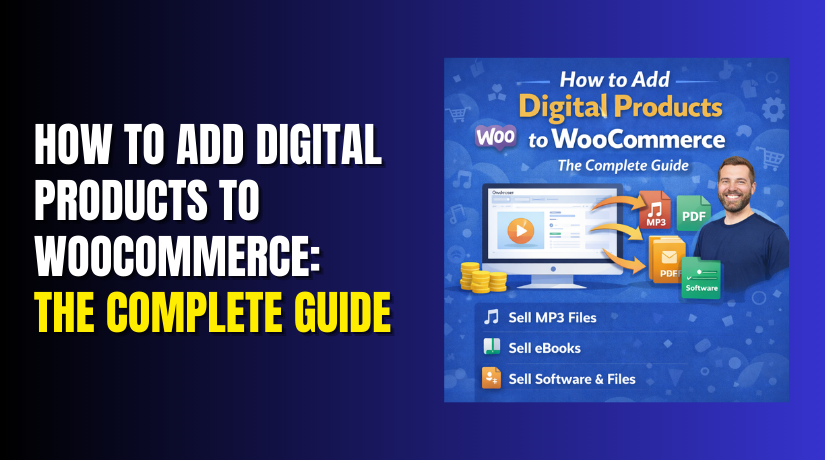
How to Add Digital Products to WooCommerce: The Complete Guide
Table of Contents
- Introduction
- What are Digital Products in WooCommerce?
- What are Key Features, Pros and Cons of Digital Products?
- What are the Benefits of Adding Digital Products in WooCommerce?
- How to Add Digital Products to WooCommerce?
- Final Verdict
Introduction
Digital products are everywhere today. E-books, online courses, music, stock photos, design templates, and software files dominate online commerce. They are completely virtual and deliver straight to your customer’s device in seconds.
The digital goods market is set to be worth over $416 billion by 2030. This massive growth creates enormous opportunities for store owners.
Selling digital products offers distinct advantages. There is no shipping to manage. No storage costs. No concerns about physical inventory. When someone clicks buy, they get their download instantly.
WooCommerce handles digital products beautifully out of the box. It supports digital downloads and virtual products without needing extra plugins. Businesses and creators can operate a fully digital store immediately.
However, challenges exist too. You need secure file delivery. Smooth checkout flows matter greatly. File size limitations can cause problems. Licensing for digital assets requires attention.
This comprehensive guide walks you through everything. You will learn what digital products are. You will understand their key features. You will discover the benefits of selling them. Most importantly, you will follow step-by-step instructions to add your first digital product.
By the end, you will have a fully functional digital store ready to generate passive income.
What are Digital Products in WooCommerce?
Digital products are intangible items that customers purchase and download electronically. They have no physical form and require no shipping.
In WooCommerce, digital products are items that customers receive as files instead of physical packages. When a product is marked as virtual and downloadable, it means the item is not physically shipped and can be downloaded digitally.
These settings work for both purely digital items and hybrid products. A hybrid product might include a physical item plus a digital download. For example, a smart device could ship with a printed manual but also offer a downloadable digital version.
What are the Types of Digital Products?
- E-books and written content: Digital books readable on computers, phones, tablets, and dedicated e-readers like Kindle. This category includes novels, guides, reports, and whitepapers.
- Online courses and educational content: E-learning platforms offer courses as downloadable packages or streaming access. Students purchase and consume educational material digitally.
- Software and applications: Programs are now distributed digitally instead of on CDs or DVDs. Customers download installation files immediately after purchase.
- Graphics and design assets: Logos, banners, templates, and fonts require downloading in multiple resolutions and formats. Designers purchase these assets for their projects.
- Music and audio files: Songs, albums, audiobooks, and podcasts are delivered as downloadable files. Customers can enjoy them offline without internet connection.
- Stock photos and videos: Photographers and videographers sell licenses to use their visual content. Buyers download high-resolution files for their projects.
- Templates and themes: Website templates, resume designs, and presentation themes sell as downloadable packages. Customers customize them for their own use.
- Membership and subscription content: Some stores offer ongoing access to digital content through subscription models. Members download new content regularly.
What are Key Features, Pros and Cons of Digital Products?
Understanding the characteristics of digital products helps you decide if this business model fits your goals.
Key Features of Digital Products
- No physical inventory: Digital products exist as files on your server or cloud storage. You never count boxes or track physical stock.
- Instant delivery: Customers receive their purchases immediately after payment. No waiting for shipping. No delivery delays.
- Unlimited copies: Digital files can be sold unlimited times. You do not run out of stock. Each sale costs nothing to produce.
- Global accessibility: Customers anywhere in the world can purchase and download. No shipping restrictions. No customs delays.
- Secure file delivery: WooCommerce provides secure download links. Files are protected from unauthorized access.
- Download limits and expirations: You control how many times customers can download. You set expiration dates for links.
- No returns or refunds complexity: Digital products are generally non-returnable. Policies differ from physical goods.
- Scalable business model: Sell one copy or one million copies. Infrastructure requirements scale gracefully.
Pros of Digital Products
- Zero inventory costs: You never pay for storage space or warehouse fees. No unsold stock gathering dust.
- No shipping expenses: Customers download directly. You pay nothing for packaging or postage.
- High profit margins: After initial creation, each sale costs almost nothing. Margins approach 100 percent.
- Passive income potential: Create once, sell forever. Automated delivery means you earn while sleeping.
- Instant gratification for customers: Buyers get products immediately. No waiting increases satisfaction.
- Environmentally friendly: No packaging waste. No shipping carbon footprint. Green business model.
- Easy to update and improve: Update files anytime. All future customers receive the improved version.
- Global market reach: Sell to anyone with internet access. No geographic limitations.
- Low startup costs: No manufacturing required. No minimum order quantities. Start with one product.
- Simple returns management: Most digital products are non-returnable by nature. Fewer customer service headaches.
Cons of Digital Products
- Piracy concerns: Digital files can be shared illegally. Unauthorized distribution reduces revenue.
- High competition: Low barriers to entry mean many sellers. Standing out requires effort.
- Customer trust issues: Buyers worry about file quality and delivery. Building a reputation takes time.
- Technical challenges: File hosting, download speed, and security require attention. Server issues frustrate customers.
- Refund disputes: Some customers demand refunds after downloading. Policies must be clear.
- File size limitations: Large files strain servers. Downloads may timeout on slow connections.
- No physical connection: Customers cannot touch or feel products. Marketing must overcome this.
- Platform fees: Payment processors charge per transaction. High volume means significant fees.
- Requires ongoing marketing: Products do not sell themselves. Promotion remains essential.
- Version control complexity: Updating files affects all future sales. Managing multiple versions requires systems.
What are the Benefits of Adding Digital Products in WooCommerce?
WooCommerce specifically offers advantages for digital sellers. The platform is built with digital commerce in mind .
1. Built-in Digital Product Support
WooCommerce includes native functionality for digital downloads. You do not need separate plugins to start selling. The core platform handles file delivery, download limits, and access restrictions.
2. Versatility for Mixed Catalogs
Many stores sell both physical and digital items. WooCommerce handles this seamlessly. You might sell cameras physically and offer downloadable manuals digitally. The platform distinguishes between both.
3. Scalable Architecture
WooCommerce is the most popular WordPress ecommerce plugin. It benefits from thousands of compatible plugins. As you grow, you can add membership functionality, software licensing, or subscription features.
4. Customization Flexibility
Thousands of WooCommerce themes exist in the WordPress library. Page builders work seamlessly. You can design every store element without coding.
5. Low Startup Costs
The core WooCommerce plugin is entirely free. You pay only for hosting and domain name initially. Additional features cost only when you need them.
6. Large Community Support
WooCommerce’s active community makes learning easier. Forums, tutorials, articles, and documentation abound. Help is always close at hand.
7. Comprehensive Analytics
WooCommerce includes built-in reporting for digital downloads. Track bestsellers, repeat customers, and sales trends. Google Analytics integration provides deeper insights.
8. Secure File Delivery
Multiple download methods protect your files. Force downloads use PHP to serve files securely. X-Accel-Redirect or X-Sendfile methods let servers handle downloads directly for better performance.
9. Customer Account Integration
Customers access downloads from their account pages. Order confirmation emails include download links. This multi-channel delivery ensures customers never lose access.
10. Recurring Revenue Potential
With subscription plugins, digital products become recurring revenue streams. Charge monthly for ongoing content access. This model builds predictable income.
How to Add Digital Products to WooCommerce?
Follow these comprehensive steps to add your first digital product. Each step includes exact navigation paths and bullet points for clear instructions.
Step 1: Configure Global Downloadable Product Settings
Before adding products, configure your global download settings. These settings apply to all digital products in your store.
WordPress Dashboard → WooCommerce → Settings → Products → Downloadable products
- Click on WooCommerce in your left admin menu
- Select Settings from the dropdown menu
- Click on the Products tab at the top of the settings page
- Click on the Downloadable products sub-tab
Configure File Download Method:
- Locate the “File download method” dropdown menu
- Select “Force downloads” for most stores (PHP delivers files securely)
- Choose “X-Accel-Redirect” or “X-Sendfile” only if your server supports these
- Avoid “Redirect only” as it exposes direct file URLs
Set Access Restrictions:
- Check the box for “Downloads require login” to ensure only registered users access files
- Check the box for “Grant access to downloadable products after payment” for immediate access
- Leave unchecked if you want access only after order completion
Configure Security Settings:
- Check the box for “Append a unique string to filename for security”
- This adds random characters to filenames, making download links harder to guess
Set Download Behavior:
- Check “Allow using redirect mode (insecure) as last resort” if needed for large files
- Enable “Count partial downloads” for large files that may resume
- Enter a number in “Download limit” to restrict downloads (leave blank for unlimited)
- Enter days in “Download expiry” before links expire (leave blank for no expiry)
Save Settings:
- Click the blue “Save changes” button at the bottom
- Verify settings are saved correctly
Step 2: Add Your First Simple Digital Product
Now create your first digital product with basic settings.
WordPress Dashboard → Products → Add New
Set Product Title and Description:
- Click in the “Add title” field at the top
- Enter your product name (e.g., “Complete E-Book Guide”)
- Click in the main content editor below
- Write your product description highlighting benefits and features
- Use bullet points for key features
- Include persuasive language that convinces visitors to buy
Configure Product Data:
- Scroll down to the “Product Data” metabox
- Click the dropdown menu that says “Simple product”
- Select “Simple product” if not already selected
- Check the box labeled “Virtual”
- Check the box labeled “Downloadable”
Set Pricing:
- Click the “General” tab in Product Data
- Locate the “Regular price” field
- Enter your price (e.g., 29.99)
- Enter “Sale price” if offering a discount
- Set schedule by clicking “Schedule” next to sale price
- Choose start and end dates for promotional pricing
Add Downloadable Files:
- Click the “Downloadable files” section to expand it
- Click the “Add file” button
- In the “Name” field, enter what customers will see (e.g., “E-Book PDF”)
- Click “Choose file” to upload from your computer
- Alternatively, enter a file URL in the “File URL” field
- Repeat for multiple files if needed (e.g., PDF and EPUB versions)
Set Download Limits:
- Locate “Download limit” field
- Enter a number to restrict downloads (e.g., 5)
- Leave blank for unlimited downloads
Set Download Expiry:
- Locate “Download expiry” field
- Enter number of days before links expire (e.g., 30)
- Leave blank for no expiration
Add Product Image:
- Click on the “Product Image” box on the right
- Click “Set product image”
- Choose an image from your media library
- Click “Upload files” to add a new image
- Click “Select” to confirm your choice
Add Product Gallery (Optional):
- Click on “Product gallery” below product image
- Click “Add product gallery images”
- Select multiple images showing different angles or examples
- Click “Add to gallery”
Categorize Your Product:
- Locate the “Product Categories” box on the right
- Check existing categories or click “Add new category”
- Enter category name and click “Add new category”
- Assign tags in the “Product tags” box
Set Catalog Visibility:
- Locate “Catalog visibility” dropdown
- Choose “Shop and search results” for normal visibility
- Select “Hidden” for private products
Publish Your Product:
- Click the blue “Publish” button on the right
- Wait for confirmation message
- Click “View product” to see your live digital product
Step 3: Add Variable Digital Products (Multiple Formats)
Some digital products need variations like PDF, EPUB, or different license types.
WordPress Dashboard → Products → Add New
Set Basic Information:
- Enter product title in the “Add title” field
- Write comprehensive description in the editor
- Upload featured image as described in Step 2
Configure Product Type:
- Scroll to “Product Data” metabox
- Click the dropdown menu
- Select “Variable product”
- Check both “Virtual” and “Downloadable” boxes
Create Attributes:
- Click the “Attributes” tab in Product Data
- Click “Add” button
- In the “Name” dropdown, select “Create new attribute”
- Enter attribute name (e.g., “Format” or “License”)
- In the “Value(s)” field, enter terms separated by pipe (e.g., “PDF | EPUB | MOBI”)
- Check the box “Used for variations”
- Check the box “Visible on the product page”
- Click “Save attributes”
Generate Variations:
- Click the “Variations” tab in Product Data
- Click the dropdown menu that says “Add variation”
- Select “Create variations from all attributes”
- Click the “Go” button
- Wait for WooCommerce to generate all combinations
Configure Each Variation:
- Click on each variation row to expand it
- Check both “Virtual” and “Downloadable” boxes
- Enter “Regular price” for this specific format
- Enter “Sale price” if applicable
- Click “Choose file” to upload the specific format file
- Set “Download limit” and “Download expiry” for this variation
- Click “Add image” if this format needs unique image
- Repeat for all variations
Set Default Variation:
- Scroll above the variations list
- Locate “Default Form Values” dropdowns
- Select default format (e.g., “PDF”)
- Click “Save changes”
Bulk Edit Variations (Optional):
- Select all variations using checkboxes
- Click the “Bulk actions” dropdown
- Choose “Edit”
- Set common prices or stock status
- Click “Update”
Publish:
- Click blue “Publish” button
- Verify product displays correctly with all format options
Step 4: Optimize Checkout for Digital Products
Remove unnecessary shipping fields to reduce friction.


WordPress Dashboard → Plugins → Add New → Search → Install → Activate
Install Optimization Plugin:
- Click “Plugins” in left admin menu
- Click “Add New” at top
- In search field, type “Digital Download Goods Checkout for WooCommerce”
- Press Enter to search
- Find the plugin in results
- Click “Install Now”
- Click “Activate”
Configure Plugin Settings:
- Navigate to WooCommerce → Settings
- Look for new plugin tab (varies by plugin)
- Check option to remove shipping fields for digital-only carts
- Save changes
Alternative: Manual Code Method (Advanced Users)
- Navigate to Appearance → Theme File Editor
- Click on functions.php in right sidebar
- Add custom code at the end of file
- Use code snippet to conditionally hide shipping fields
- Click “Update File”
Test Optimized Checkout:
- Add digital product to cart
- Proceed to checkout
- Verify shipping address fields are gone
- Complete test purchase
- Confirm everything works smoothly
Step 5: Customize Thank You Page
Make the post-purchase page more engaging and clear.
WordPress Dashboard → Plugins → Add New → Search → Install → Activate → Configure
Install Thank You Page Plugin:
- Go to Plugins → Add New
- Search for “Custom Thank You Page for WooCommerce”
- Install and activate the plugin
- Navigate to plugin settings (usually under WooCommerce or Settings)
Design Your Thank You Page:
- Click “Add New” in the plugin’s interface
- Enter page title (e.g., “Thank You for Your Purchase”)
- Use block editor to design your page
- Add order summary block
- Add download links block prominently
- Add social media follow buttons
- Add email newsletter signup
- Add related product suggestions
Set as Default Thank You Page:
- In plugin settings, select your custom page
- Choose to replace default WooCommerce Thank You page
- Save settings
Test Custom Page:
- Place another test order
- Verify redirect goes to your custom page
- Check that download links still appear
- Ensure all elements display correctly
- Test on mobile devices
Step 6: Secure Your Digital Files
Implement security measures to protect your products.
WordPress Dashboard → WooCommerce → Settings → Products → Downloadable products
Verify Security Settings:
- Navigate to WooCommerce → Settings → Products → Downloadable products
- Ensure “Force downloads” is selected
- Confirm “Append a unique string to filename” is checked
- Verify “Downloads require login” is enabled
Set Download Limits:
- Edit each digital product
- Scroll to Downloadable files section
- Enter reasonable download limit (e.g., 3 or 5)
- This prevents link sharing
- Save changes
Set Download Expiry:
- In same product section
- Enter days before expiry (e.g., 30 or 60)
- Links automatically expire after this period
- Protects old links circulating
Consider Server-Level Protection (Advanced):
- Contact your hosting provider
- Ask about hotlink protection
- Request server-level download restrictions
- Implement .htaccess rules for Apache
- Configure Nginx rules if applicable
Monitor Download Logs:
- Install activity log plugin
- Monitor for suspicious download patterns
- Watch for multiple downloads from same IP
- Investigate unusual activity
Step 7: Troubleshoot Common Issues
Fix problems when they arise.
Issue: Files Not Downloading
WooCommerce → Settings → Products → Downloadable products
- Change “File download method” to “Force downloads”
- Save changes and test again
- Contact hosting provider if issues persist
- Check file permissions (should be 644)
Issue: Download Links Not Appearing
WooCommerce → Orders → Click Specific Order
- Verify order status is “Completed” or “Processing”
- Click on order to open details
- Scroll to “Downloadable product permissions” section
- Click “Revoke access” if granted
- Click “Grant access” to regenerate
- Test again
Issue: Customers Report Broken Links
Products → All Products → Edit Specific Product
- Scroll to Downloadable files section
- Click on existing file link to test
- If broken, click “Choose file” to re-upload
- Update file path if URL changed
- Save changes
- Notify affected customers
Issue: Email Not Sending Download Links
Plugins → Add New → Search “WP Mail SMTP”
- Install and activate WP Mail SMTP plugin
- Run setup wizard
- Configure with your email service (Gmail, SendGrid, etc.)
- Send test email
- Place test order to verify email delivery
Issue: Variable Product Variations Not Showing
Products → All Products → Edit Variable Product
- Click “Attributes” tab
- Verify attributes have “Used for variations” checked
- Click “Variations” tab
- Check if variations exist
- If empty, select “Create variations from all attributes”
- Click “Go”
- Set prices for each variation
- Save changes
Step 8: Test Complete Purchase Flow
Final verification before launching to customers.
Your Store → Product → Checkout → Account
Test as Guest Customer:
- Open incognito browser window
- Find your digital product
- Add to cart
- Proceed to checkout
- Enter test customer details
- Complete purchase
- Verify download on order confirmation page
- Check email for links
Test as Registered Customer:
- Create new customer account
- Repeat purchase process
- Log in to account after purchase
- Navigate to “My Account” → “Downloads”
- Verify files appear
- Test downloads
Test on Multiple Devices:
- Use desktop computer
- Test on smartphone
- Test on tablet
- Ensure download links work on all devices
- Check responsive design
Test Download Limits:
- Download file repeatedly until limit reached
- Verify access stops
- Attempt additional downloads
- Check error message is clear
Test Expiry (If Set):
- Note expiry date
- After date passes, test links
- Verify access denied
- Check error message
Test Refund Scenario:
- Process refund for test order
- Verify download access revoked
- Check customer email notifications
Step 9: Launch and Monitor
Your digital products are ready for customers.
WordPress Dashboard → Products → All Products
Final Review:
- Navigate to Products → All Products
- Review each digital product
- Verify all settings are correct
- Check prices are accurate
- Confirm files are uploaded
Enable Analytics:
- Navigate to WooCommerce → Settings → Integrations
- Connect Google Analytics
- Set up ecommerce tracking
- Enable conversion tracking
Monitor Initial Sales:
- Check WooCommerce → Reports regularly
- View sales by product
- Monitor download activity
- Watch for issues
Gather Customer Feedback:
- Send follow-up emails
- Request reviews
- Ask about download experience
- Use feedback to improve
Update Products as Needed:
- Improve files based on feedback
- Upload updated versions
- Existing customers can re-download
- Notify customers of updates
Scale Your Catalog:
- Create more digital products
- Bundle related items
- Offer subscriptions
- Expand to new niches
Final Verdict
Adding digital products to WooCommerce opens enormous opportunities. The platform handles everything out of the box. You can start selling today with minimal investment.
Digital products eliminate traditional retail headaches. No inventory storage. No shipping costs. No physical returns. Products sell infinitely without restocking. Margins approach 100 percent after creation .
WooCommerce provides robust security features. Force downloads protect file locations. Download limits prevent sharing. Expiration dates secure old links. Login requirements capture customer emails .
The checkout process can be optimized for digital goods. Remove shipping fields to reduce friction. Customize Thank You pages for better engagement. Improve email templates for clear delivery .
Tax considerations matter for international sales. EU VAT requires customer-location calculation. Set up appropriate tax classes. Stay updated on changing regulations .
Advanced strategies increase revenue further. Membership models create recurring income. Subscriptions build predictable revenue streams. Bundles increase average order value .
Marketing digital products requires consistent effort. Exit-intent popups capture abandoning visitors. Email campaigns nurture leads. Social proof builds trust. Free versions demonstrate value .
Troubleshooting knowledge prevents customer frustration. Understanding common issues helps you respond quickly. Test everything before launch. Monitor systems regularly.
The digital products market continues growing rapidly. Over $416 billion by 2030 means massive opportunity . Early movers capture market share. Quality products build lasting brands .
Start with one product today. Configure settings correctly. Test thoroughly before promoting. Learn from customer feedback. Expand your catalog gradually.
Have questions before starting with WooCommerce & WordPress? Get support here at WooHelpDesk.