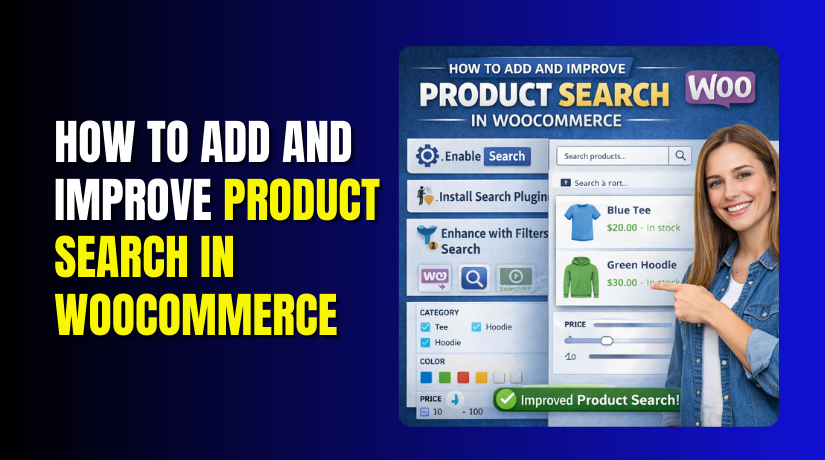
How to Add and Improve Product Search in WooCommerce
Table of Contents
- Introduction
- Why You Should Add Product Search in WooCommerce for Better Sales
- Quick Checklist Before Adding Product Search in WooCommerce
- How to Add a Product Search in WooCommerce (Step By Step Guide)
- How to Improve Product Search in WooCommerce (Complete Guide)
- Troubleshooting and Common Issues With WooCommerce Product Search
- Conclusion
Introduction
Most shoppers use search when they want fast answers. They do not want to click many categories. That is why WooCommerce product search matters for every store. It helps visitors find the right item quickly. It also helps you sell more with less effort. WooCommerce includes a basic search option by default.
But default search often feels limited for real stores. It may miss SKUs, attributes, or product variations. It may also show weak results for common keywords. That is why many store owners focus on WooCommerce search customization early.
This guide will help you search the right way. It will also show how to improve product search in WooCommerce step by step. You will learn how to place search in the best spots. You will also learn what improves speed and accuracy. You can later add WooCommerce live product search for better user experience. You can also use a WooCommerce search plugin for smarter results. The goal is simple. Help customers find products faster and buy sooner.
Why You Should Add Product Search in WooCommerce for Better Sales
Adding search is not just a design choice. It is a direct sales improvement for most stores. When users search, they show strong buying intent. They already know what they want to find. A strong search bar helps them reach it fast. This is one of the easiest ways to improve WooCommerce store search results.
Product search helps shoppers find items faster than menus
Menus work well for browsing and discovery. But many users do not browse for long. They want quick product results for simple terms. Search gives them the fastest path to products. It reduces time spent clicking category pages. This is the base of advanced product search WooCommerce improvements.
Product search improves user experience and reduces exits
A shopper leaves when they feel stuck. Poor results create frustration quickly. A better search makes browsing feel smooth and easy. Users can search, refine, and add to cart faster. This is where product filter and search in WooCommerce becomes useful. Filters help users narrow results with less effort.
Product search can increase add-to-cart and conversion rates
Search users often buy more than browsing users. They use search because they want a specific product. When results are accurate, they trust your store more. They also reach checkout faster with fewer distractions. This is why store owners invest in WooCommerce search customization.
Product search is critical for large catalogs and many variations
Small stores can work with basic navigation. But large stores need strong search to stay usable. More products means more chances for confusion. Variations add more complexity like size, color, and pack types. A smarter search keeps results relevant and clean. It also supports advanced product search WooCommerce needs.
Product search helps users search by SKU, brand, size, and color
Many buyers search using product codes and brand terms. Some users type size and color directly in search. Default WooCommerce search may not match these terms well. That is where a WooCommerce search plugin can help. Many plugins add SKU and attribute searching. Some also add WooCommerce live product search with suggestions. Live search shows results as users type. It makes the store feel faster and more modern. This also reduces typing errors and wrong searches. When done right, search becomes a sales tool, not just a box.
Quick Checklist Before Adding Product Search in WooCommerce
Before you add WooCommerce product search, check a few basics first. These checks prevent broken results and missing products later. They also make WooCommerce search customization smoother and more stable. Use this checklist before adding a new search bar or plugin.
Confirm Your Product Visibility Settings Are Correct First
If products are hidden, search results will look incomplete. Fix visibility first, then improve search features.
- Open a product and confirm the status is Published.
- Check Catalog visibility and allow search for that product.
- Make sure the product is not set as Private.
- Check if the product is excluded from search results.
- Confirm the product category is visible for normal shop browsing.
Check Stock Status and Product Data for Better Matching
Search works best when product data stays clean and clear. Good product data helps Improve WooCommerce store search accuracy.
- Confirm stock status is correct for every main product.
- Add clear product titles with real buyer search words.
- Add a SKU for products customers search by code.
- Use consistent attribute values like size, color, and brand.
- Keep tags relevant and avoid random or unused tag lists.
Fix Permalinks and Basic Site Health for Stable Search Pages
Bad permalinks can break search URLs and product links. This can block Product filter and search in WooCommerce pages.
- Go to Permalinks and click Save Changes once.
- Open the shop page and confirm it loads without errors.
- Open a product page and confirm it loads correctly.
- Clear cache after changes, but avoid aggressive cache rules.
- Check if your theme search page works for logged-out users.
Test Theme and Plugin Conflicts Before Adding New Search Tools
Conflicts can break live search and filter results fast. Test first if you plan WooCommerce live product search.
- Temporarily disable search and filter plugins for quick testing.
- Switch to a default theme to test search behavior.
- Disable minify settings that can break AJAX search scripts.
- Check console errors if live search suggestions never appear.
- Re-enable plugins one by one to find the conflict.
When these checks are done, your base search becomes reliable. Then you can move to how to improve product search in WooCommerce. You can also add a WooCommerce search plugin for smarter results. This sets the stage for Advanced product search WooCommerce features.
How to Add a Product Search in WooCommerce (Step By Step Guide)
Step 1: Decide Where You Want the Search Bar
- Pick the header for the best visibility on all pages.
- Use sidebar search for shop and category browsing.
- Use a page search when you want a dedicated search page.
- Keep mobile users in mind while choosing placement.
Step 2: Add Product Search in the Header (Best Option)
- Go to Appearance > Customize or your theme header builder.
- Find the Header section and open header elements.
- Add a Search element if your theme supports it.
- Choose product search if the option is available.
- Save changes and check search on desktop and mobile.
Step 3: Add Product Search in the Sidebar or Shop Page
- Go to Appearance > Widgets or Appearance > Editor.
- Open the sidebar area for Shop or Product Category pages.
- Add the Search block or widget in that sidebar.
- Move it near filters for easier browsing.
- Save changes and test search from shop pages.
Step 4: Add Product Search Using a Block on Any Page
- Open the page where you want search to appear.
- Click Add Block and select the Search block.
- Place it above product grids or near category content.
- Change placeholder text to “Search products…” for clarity.
- Update the page and test keywords in search.
Step 5: Add Product Search Using Shortcode (When Needed)
- Create a new page like “Search Products” if required.
- Add a product search shortcode in the page content.
- Publish the page and add it to the main menu.
- Test search with product names, tags, and SKUs.
- Use shortcode only when blocks are not available.
Step 6: Test Search Results and Fix Basic Issues
- Search for a product that you know exists.
- Test category keywords and brand-related terms too.
- Check if hidden products appear in results by mistake.
- Clear cache if results do not update after changes.
- Confirm search works for logged-out visitors as well.
How to Improve Product Search in WooCommerce (Complete Guide)
Store search can decide whether visitors buy or leave today. A stronger WooCommerce product search helps shoppers find items fast. It also reduces confusion on large catalogs and variations. This guide shows how to improve product search in WooCommerce using practical steps.
Step 1: Audit Your Current Search and Note Real Problems
Start by testing search like a real customer would do. Search common words, brand names, and category names too. Note where results feel wrong, slow, or incomplete.
- Test 15–20 common searches from your store niche.
- Check results for typos and partial product name searches.
- Search using SKU, size, color, and simple brand terms.
- Write down “no results” searches you see often.
Step 2: Fix Product Data First for Better Search Matching
Search quality depends on clean product data every time. If product data is weak, search will feel weak. This step alone can Improve WooCommerce store search a lot.
- Put key terms in titles, not only descriptions.
- Keep titles clear, and avoid extra words and symbols.
- Add SKUs for every product that needs code searching.
- Use attributes like size, color, and brand consistently.
- Use categories for grouping, and tags for quick keyword support.
Step 3: Enable Search for SKU, Attributes, and Key Fields
Default WooCommerce search can miss important product fields. You often need WooCommerce search customization for real stores. This is where a WooCommerce search plugin becomes useful.


- Choose a plugin that supports SKU and attribute searching.
- Enable searching in title, excerpt, and product content together.
- Turn on search for categories, tags, and product attributes.
- If you sell variations, ensure variation data is searchable.
Step 4: Add WooCommerce Live Product Search for Faster Results
People like instant results while typing in the search box. WooCommerce live product search improves speed and product discovery. It also reduces typing errors and wrong keyword attempts.
- Enable autocomplete and instant results on key pages.
- Show product image, price, and stock in suggestions.
- Add a “View all results” button below live suggestions.
- Keep live results limited to avoid slow dropdown loading.
Step 5: Add Filters to Refine Results and Reduce Scrolling
Search works best when users can narrow results quickly. This is where Product filter and search in WooCommerce helps. Filters reduce frustration and improve checkout chances for visitors.
- Add price, category, and stock status filters first.
- Add attribute filters like brand, size, and color next.
- Keep filters simple on mobile with an off-canvas panel.
- Avoid too many filters that slow pages or confuse users.
Step 6: Add Synonyms, Typo Support, and “Did You Mean”
Shoppers use many different words for the same product. Synonyms help search match real customer language better. Typo support helps when users misspell names or models.
- Add synonyms like “tee” and “t-shirt” for better matching.
- Enable typo tolerance if your search tool supports it.
- Turn on “Did you mean” suggestions for common mistakes.
- Add common short forms for brands, models, and product types.
Step 7: Improve Ranking So Best Products Show First
Not all results should rank the same way for shoppers. Ranking rules create a stronger Advanced product search WooCommerce experience. You can boost what matters for your store goals.
- Boost matches in titles over matches in long descriptions.
- Boost in-stock products above out-of-stock items always.
- Boost best sellers, high ratings, and newer products carefully.
- Demote products with poor margins, if your strategy needs it.
Step 8: Fix the “No Results” Page to Save Sales
A blank results page ends many buying journeys quickly. Use the no-results page to guide users back to products. This is a simple win for conversions and trust.
- Show popular categories and top products with no results.
- Suggest close matches and related product collections.
- Add a message explaining better search terms to try.
- Add a clear button to return to the shop page.
Step 9: Speed Up Search for Better UX and Faster Loading
Slow search feels broken, even when it technically works. Speed issues grow when your catalog becomes very large. Better speed makes every WooCommerce product search feel smoother.
- Use good hosting and update PHP for better performance.
- Limit heavy scripts on search pages and live search dropdowns.
- Use caching carefully, and exclude live search requests.
- Optimize your database and remove unused product revisions.
Step 10: Track Search Terms and Improve Every Month
Search improves when you follow real customer search behavior. Track what people type and what they fail to find. This turns WooCommerce search customization into a growth system.
- Review top searches and “no results” searches monthly.
- Add missing keywords into titles, tags, and short descriptions.
- Add new synonyms based on real customer search patterns.
- Watch conversion rates from search visitors versus browsing visitors.
Troubleshooting and Common Issues With WooCommerce Product Search
Even a good setup can face common issues. Use these fixes to keep search stable and accurate.
Search Shows No Products Even When They Exist
This usually happens due to visibility or status problems. Check product status and catalog visibility first. Also confirm products are not hidden from search results.
Quick fixes to try
- Set product status to Published and not Draft
- Check Catalog visibility is not set to hidden
- Clear cache and test again in an incognito window
Search Results Feel Irrelevant or Not Helpful
This happens when titles and attributes are not consistent. It also happens when search ranks content too strongly. Improve product data and adjust plugin ranking rules.
Quick fixes to try
- Add main terms into titles and short descriptions
- Use consistent attributes like size, color, and brand
- Boost title matches over content matches in plugin settings
Search Is Slow on Large Stores
Large catalogs can slow down default search systems. Live search can also feel slow with heavy scripts. Use fewer dropdown items and keep filters lighter.
Quick fixes to try
- Limit live search suggestions to a small number
- Avoid too many filters on the same results page
- Disable heavy scripts that load on every search request
WooCommerce Live Product Search Not Working
This often happens due to cache or script minify settings. Some themes also block AJAX requests by mistake. Test by disabling cache and minify features briefly.
Quick fixes to try
- Disable JS minify and test live search again
- Exclude live search requests from cache rules
- Switch theme temporarily to confirm a theme conflict
Search Cannot Find SKU or Attributes
Default search often does not include these fields. You need a plugin or custom setup for this. Use proper WooCommerce search plugin settings for SKU searching.
Quick fixes to try
- Enable SKU search in your plugin settings
- Enable attribute search for size, color, and brand
- Add SKUs for products where buyers use product codes
Search Page Shows 404 or Blank Page
This often links to permalink or rewrite rule issues. Re-saving permalinks fixes many cases quickly. Also check if a plugin changed the search URL.
Quick fixes to try
- Go to Permalinks and click Save Changes once
- Disable search plugins and test the search page again
- Check your theme search template for errors
Conclusion
Product search is a direct sales tool for WooCommerce stores. It helps shoppers find items faster and buy sooner. Start with a clean search bar in the right place. Then improve results with better product titles and attributes. Add WooCommerce live product search for instant suggestions and faster clicks. Use filters to reduce scrolling and improve product discovery. Track search terms monthly to fix “no results” problems quickly. If you want expert help with WooCommerce product search, setup, and tuning, WooHelpDesk can do it for you. Our team can improve speed, relevance, filters, and search accuracy.