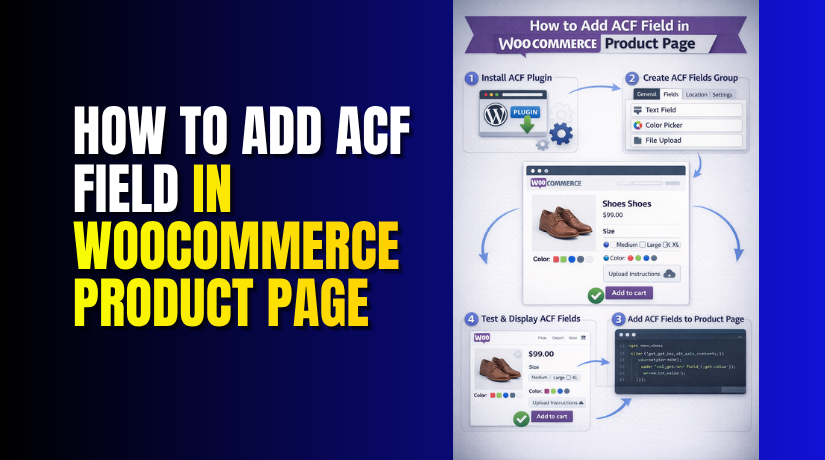
How to Add ACF Field in WooCommerce Product Page (Step-by-Step Guide)
Table of Contents
- Introduction
- What Is ACF Field in WooCommerce Product Pages?
- Why Adding ACF Fields Can Improve Your WooCommerce Product Page
- When You Should Use ACF on WooCommerce Products for Better Product Management
- What You Should Prepare Before Adding an ACF Field to a WooCommerce Product Page
- How to Create an ACF Field for WooCommerce Products (Step by Step)
- How to Assign the ACF Field to WooCommerce Products the Right Way
- Common Problems You May Face When Adding ACF Fields to WooCommerce Products
- Best Practices You Should Follow When Using ACF on WooCommerce Product Pages
- Conclusion
Introduction
If you want more control over your product content, ACF helps a lot. It lets you add extra product details without changing WooCommerce core files. This makes your store easier to manage and your product pages more useful. Many store owners use this method to add extra text, notes, labels, or product details. When you add the ACF field WooCommerce product page, you can show information that default WooCommerce settings do not include. This is helpful when your products need more explanation. It also helps customers understand what they are buying.
In many cases, better product information can improve trust and reduce confusion. That is why ACF WooCommerce integration is now a popular option for many online stores. In this guide, you will learn how ACF works with WooCommerce products, why it is useful, and when you should use it in your store.
What Is ACF Field in WooCommerce Product Pages?
ACF stands for Advanced Custom Fields. It is a WordPress plugin that helps you create extra fields for your content. In WooCommerce, this means you can add extra product information beyond the default fields. For example, WooCommerce already gives you the title, price, image, and description. But sometimes, that is not enough for your product page. You may want to add warranty details, material information, product care notes, or delivery points.
That is where advanced custom fields WooCommerce product setup becomes useful. These extra fields are called custom fields. They help you organize and show extra product data in a clean way. This is different from the default WooCommerce setup because you choose what information to add. Many store owners use custom fields in WooCommerce product page sections to make products clearer and more complete. This gives more flexibility and helps you build a better product page layout.
Why Adding ACF Fields Can Improve Your WooCommerce Product Page
It helps you show extra product details in a better way
WooCommerce includes basic product fields for common store needs. Still, many products need more useful details for buyers. You may want to show warranty terms, care tips, or materials. You may also want to add usage notes or shipping instructions. In such cases, ACF gives you better content control. It helps you add ACF field WooCommerce product page sections easily. This makes your product page more complete and more useful.
It makes your product information easier for customers to understand
Customers often leave a page when details look messy. Long product descriptions can confuse users very quickly. Important details may get lost inside large text blocks. ACF helps you separate information into clear custom fields. This improves the page layout and makes scanning easier. Clean content sections support better reading on every device. That is one reason custom fields WooCommerce product page setups are useful. They help customers understand products with less effort.
It gives you more control than default WooCommerce fields
WooCommerce default fields are helpful but still limited. They work well for standard product information only. Many stores need custom details that default fields cannot handle. ACF solves this problem with flexible field options. You can add text, numbers, links, images, or true-false values. This makes advanced custom fields WooCommerce product setups very practical. You get more control without changing the main WooCommerce system.
It keeps the product page clean and well organized
When every detail goes into one description box, pages become hard to manage. The front end may also look crowded and unplanned. ACF helps you keep each product detail in its place. You can separate technical points, notes, or highlights clearly. This gives the page a more structured and professional look. Good structure also supports better store presentation. That is where strong ACF WooCommerce integration becomes very useful.
It makes product editing easier in the admin area
Managing products becomes harder when content is not organized. Store owners often waste time finding the right text. ACF creates separate input areas for each custom detail. This makes editing faster and more accurate. You can update one field without touching the full description. It also helps team members work more clearly inside product settings. That is why many stores use WooCommerce to add custom fields to product methods.
It supports different product types with custom needs
Not every product needs the same kind of information. Clothing may need fabric and wash instructions. Electronics may need warranty and safety details. Beauty items may need ingredients and usage notes. ACF helps you handle these different needs properly. You can create fields based on your product type. This makes your store more flexible as it grows. Many users rely on WooCommerce product custom meta fields for this reason.
It helps you display saved field values where needed
Creating a field is only one part of the work. You also need to show that field on the product page. ACF helps store custom data in a structured way. That data can then be shown in useful locations. You can place it near descriptions, tabs, or product highlights. This improves the final layout for customers. That is why users search for ways to display ACF field WooCommerce product page content properly.
It improves the overall shopping experience
A clear product page helps customers feel more confident. When buyers understand the product, they decide faster. Better information can reduce confusion before checkout. It can also lower the number of basic product questions. ACF helps you build pages that look more complete. This supports trust and improves the overall user experience. In many cases, better product pages can also support better conversions.
When You Should Use ACF on WooCommerce Products for Better Product Management
Use ACF when you need to show warranty details clearly
Many products come with warranty terms or service coverage. WooCommerce does not always provide a clean field for this. If you place warranty details inside the main description, they may get missed. ACF helps you create a separate field for that purpose. This keeps the information clear and easier to update later. It is a smart use of advanced custom fields WooCommerce product setup. It also helps customers understand support terms before buying.
Use ACF when your products need usage instructions
Some products need clear steps for safe or correct use. This is common for tools, devices, beauty items, and care products. If usage instructions are mixed into long text, buyers may skip them. ACF lets you create a separate section for these details. That makes the content easier to read on the product page. This is one reason people choose ACF WooCommerce integration for product content. It helps store owners organize information in a better way.
Use ACF when you want to add extra product notes
Not every important detail fits into the short description area. Sometimes you need to show custom notes for selected products. These notes may include shipping limits, custom handling, or special offers. ACF helps you add those extra notes only where needed. This makes the page more flexible and more useful. It is a strong way to add ACF field WooCommerce product page content without making the layout messy. It also helps keep product information focused and relevant.
Use ACF when your products need technical specifications
Technical products often need more than simple descriptions and prices. Customers may want size, material, voltage, model details, or feature values. These details should appear in a clean and structured way. ACF helps you create separate fields for that information. This makes the product page more informative and easier to scan. Many stores use WooCommerce product custom meta fields for this exact reason. It gives better control over technical content on product pages.
Use ACF when you want custom sections for selected products
Some products need a unique content section that others do not. For example, one item may need an ingredients block. Another may need a care guide or fitting note. ACF is useful when product content changes by product type. You can create fields only for the details that matter. This keeps your store flexible as your catalog grows. That is why many users choose custom WooCommerce product page methods. It supports better content control across many product types.
What You Should Prepare Before Adding an ACF Field to a WooCommerce Product Page
You need WordPress admin access before starting this setup
You must have access to the WordPress dashboard first. Without admin access, you cannot install plugins or change settings. You also cannot create or manage product fields properly. This is the first requirement for any ACF WooCommerce integration setup. Make sure you can open the admin panel and manage plugins safely. This will help you complete the setup without permission issues.
WooCommerce should already be installed and active on your website
This guide works only for WooCommerce product pages. If WooCommerce is not active, product options will not appear. You need a working WooCommerce setup before creating custom product fields. This includes access to product edit pages in the dashboard. It is an important base for custom fields WooCommerce product page work. Always confirm WooCommerce is active before moving to the next step.
The Advanced Custom Fields plugin must be installed and active
You cannot create ACF fields without the ACF plugin. ACF stands for Advanced Custom Fields in WordPress. This plugin helps you build extra fields with better control. It is the main tool used to store custom product data. Many users choose it for advanced custom fields WooCommerce product customization. Install and activate it first so the Custom Fields menu appears.
You should know what kind of product information you want to add
Before creating a field, plan what data you need. Some stores need warranty details for products. Some need usage notes, materials, or shipping information. This step helps you choose the correct field type later. It also helps you avoid creating fields that are not useful. Good planning makes WooCommerce product custom meta fields more organized. It keeps your product page cleaner and easier to manage.
You should choose a safe method for adding code
Many users need code to show ACF values on products. For that reason, you should prepare a safe method first. Do not edit WooCommerce core files directly on the site. Plugin updates can remove your changes later. Use a child theme, custom plugin, or Code Snippets plugin instead. This is the safer way to WooCommerce add custom fields to product pages. It protects your changes and keeps the site more stable.
You should have at least one product ready for testing
It is better to test fields on a sample product first. This helps you check whether the field appears correctly. You can also test if the field saves the value properly. A test product makes the full setup easier to understand. It also helps you find small issues before using live products. This step is helpful when you want to add ACF field WooCommerce product page content safely.
You should understand where the field should appear on the page
It is smart to decide the field position early. Some users want the extra field near the description. Others want it under the price or added to the cart area. Planning the placement saves time during later steps. It also helps you build a better product page layout. Good placement makes it easier to display ACF field WooCommerce product page content clearly. This improves both design and customer experience.
You should clear cache when testing changes on the frontend
Sometimes your new changes may not appear right away. This often happens because of site or browser cache. If you test your field and see no update, clear the cache. Then reload the product page and check again. This simple step can avoid confusion during setup. It is very useful while testing ACF WooCommerce integration on live pages.
How to Create an ACF Field for WooCommerce Products (Step by Step)
Step 1: Install and activate the Advanced Custom Fields plugin
- First, log in to your WordPress dashboard.
- Go to Plugins > Add New from the left menu.
- In the search box, type Advanced Custom Fields.
- When the plugin appears, click Install Now.
- After installation, click Activate.
- This plugin is needed for proper ACF WooCommerce integration.
- Without it, you cannot create extra custom product fields.
Step 2: Open the Custom Fields section in WordPress
- After activation, a new menu named ACF or Custom Fields will appear.
- Click that menu from your dashboard sidebar.
- This is the area where you create field groups. A field group holds one or more custom fields together.
- It helps you manage extra product data clearly.
- This is the starting point when you want to add ACF field WooCommerce product page content.
Step 3: Create a new field group for WooCommerce products
- Now click the Add New button at the top.
- This will open a new field group screen.
- Give your field group a clear name.
- For example, you can use Product Extra Details. This title is only for admin use.
- It helps you identify the group later.
- A good title keeps your advanced custom fields WooCommerce product setup organized.
Step 4: Add a new custom field inside the field group
- Scroll down and click Add Field. A new field row will open on the screen.
- This is where you create your first custom field.
- You can add one field or many later. For now, start with one simple field.
- This makes testing easier and cleaner.
- It is a smart way to build WooCommerce product custom meta fields without confusion.
Step 5: Enter the field label carefully
- In the Field Label box, enter the name you want.
- This label will show on the product edit page.
- Use a simple and clear label. For example, use Warranty Details or Product Highlights.
- This name helps you understand the field in admin.
- A clear label makes custom WooCommerce product page editing much easier.
Step 6: Check the field name created by ACF


- After adding the label, ACF fills the Field Name
- This is the internal name used in code later. Keep this name short and clean.
- Do not use unnecessary words or symbols.
- For example, warranty_details is a good field name.
- This step matters when you later display ACF field WooCommerce product page content on the frontend.
Step 7: Choose the correct field type for your product data
- Now select the Field Type from the dropdown.
- Choose the type based on the data you want.
- Use Text for short content like a brand note.
- Use Textarea for longer product details.
- Use Number for values like weight or size.
- Use True/False for yes or no information.
- The right type makes WooCommerce add custom fields to product work better.
Step 8: Add extra field settings if needed
- Depending on the field type, more options may appear.
- You can add placeholder text, default values, or instructions.
- These settings are optional but useful.
- They help you and your team enter correct data. For example, you can write a short instruction under the field.
- This makes the product form easier to understand.
- It also improves your ACF WooCommerce integration workflow.
Step 9: Set the location rule for WooCommerce products
- Now scroll down to the Location rules section. This step is very important in the full setup.
- Set the rule like this: Post Type is equal to Product. This tells ACF to show the field on WooCommerce products only.
- If this rule is wrong, the field will not appear.
- Many advanced custom fields WooCommerce product issues happen because of this mistake.
Step 10: Review all settings before publishing
- Before saving, check your field details once again.
- Make sure the field label is correct.
- Confirm the field name is clean and readable.
- Check that the field type matches your needs.
- Also confirm the location rule is set to Product.
- This small review can prevent many simple errors later.
- It helps create better WooCommerce product custom meta fields from the start.
Step 11: Publish the field group
- Once everything looks correct, click the Publish
- Your field group is now live on the site.
- The custom field is created successfully for WooCommerce products.
- This is the main setup step completed.
- You can now move to the product edit screen.
- That is where you will test your new field. This is how you add ACF field WooCommerce product page fields properly.
Step 12: Open a WooCommerce product and test the field
- Go to Products > All Products in your dashboard.
- Open any existing product or create a new one.
- Scroll down on the product edit page. You should now see your new ACF field there. Enter sample data into the field.
- Then click Update or Publish on the product.
- This confirms the field is working correctly.
- Now your custom fields WooCommerce product page setup is ready for the next step.
How to Assign the ACF Field to WooCommerce Products the Right Way
Step 1: Open your ACF field group from the WordPress dashboard
- First, log in to your WordPress admin area.
- Go to Custom Fields from the left menu.
- You will see the field group you created earlier.
- Click Edit on that field group. This is where you control where the field appears.
- This step is very important in ACF WooCommerce integration.
- If the field group is not set correctly, it will not appear on product pages.
Step 2: Go to the location rules section in the field group
- Scroll down inside the field group settings page.
- Find the Location section below your fields.
- This section tells ACF where to show the field group. You need to connect it with WooCommerce products here.
- Without this rule, your custom field has no proper target.
- This is a key step when you add ACF field WooCommerce product page settings correctly.
Step 3: Set the rule to show the field on WooCommerce products
- In the first dropdown, select Post Type. In the second dropdown, keep is equal to
- In the third dropdown, choose Product. This tells ACF to show the field group on product edit pages.
- This is the correct rule for most product field setups.
- Many WooCommerce product custom meta fields do not appear because this setting is wrong.
Step 4: Check that the field group settings are saved properly
- After setting the location rule, review the page once.
- Make sure the field label and field name are correct.
- Also confirm the rule still says Post Type is equal to Product.
- A small mistake here can stop the field from loading.
- When everything looks correct, click Update or Publish.
- This saves the assignment to WooCommerce products.
Step 5: Open a WooCommerce product to check the field
- Now go to Products from your WordPress dashboard.
- Open any existing product for editing.
- Scroll down on the product edit screen and look for your ACF field group.
- It may appear below the main editor or near the bottom.
- Its position depends on your field group settings.
- If you see it, the setup is working properly.
- This confirms your custom fields WooCommerce product page setup is connected.
Step 6: Add sample data to test the assigned field
- Enter some sample text into the custom field.
- For example, you can add warranty details or product notes.
- Then click Update on the product page to save it.
- This checks whether the field stores data correctly.
- A saved value means the field is assigned and active.
- This is an important test in any advanced custom field WooCommerce product setup.
Step 7: Check more than one product for better confirmation
- Do not test only one product and stop there.
- Open two or three more WooCommerce products.
- Make sure the same field appears on those products too.
- This helps confirm the location rule works across the store.
- It also helps catch errors early.
- This is a smart step when you WooCommerce add custom field to product pages on many items.
Step 8: Recheck the field group if the field does not appear
- If the field is missing, go back to Custom Fields.
- Open the field group again and review the location rule.
- Make sure the Product is selected, not Post or Page.
- Also confirm the field group is active and published.
- In many cases, the wrong rule is the only problem.
- That is why this step matters before you try frontend code.
- It also helps later when you want to display ACF field WooCommerce product page values.
Step 9: Save your process before moving to frontend display
- Once the field appears and stores data correctly, your assignment is done. Now the field is ready for real product information.
- You can use it on all needed product pages.
- This creates a proper base for the next setup stage.
- After this, you can move to frontend display work safely.
- A correct assignment makes the full ACF WooCommerce integration process much easier.
Common Problems You May Face When Adding ACF Fields to WooCommerce Products
The ACF field does not appear on the product edit page
This is one of the most common problems in the setup process. In most cases, the location rule is not set correctly. The field group may be assigned to posts or pages instead of products. When that happens, the field will not show inside WooCommerce products. This issue is common during ACF WooCommerce integration and should be checked first.
The field appears in the backend but not on the frontend
Many users think ACF fields show automatically on live product pages. In most setups, that does not happen by default. The field may save correctly in the admin area but still stay hidden on the frontend. This happens when no output code is added in the right place. That is why many users search how to display ACF field WooCommerce product page content properly.
The wrong field name is used in the code
The field label and the field name are not always the same. The label is mainly for backend display. The field name is what code usually needs. If the wrong field name is used, the value will not show. This is a common mistake in advanced custom fields in WooCommerce product setup. Even a small spelling error can stop the field output.
The location rule is correct but the field group is not updated
Sometimes users set the right location rule but forget to save the field group. In that case, the old settings stay active. The field still may not appear on product pages. This creates confusion because the rule looks correct on screen. Always click Publish or Update after making changes. This simple step matters when you add ACF field WooCommerce product page settings.
The theme or template affects the field output
Some WooCommerce themes use custom product templates or special layouts. These changes can affect how custom fields behave on the frontend. A field may save correctly but still not show in the expected place. In some cases, the theme overrides standard WooCommerce areas. This can make custom WooCommerce product page display harder than expected. Theme-level changes should always be checked during testing.
Cached pages hide your latest changes
Sometimes the field works correctly, but you still cannot see updates. This often happens because of browser cache or plugin cache. Server caching can also delay visible changes on product pages. You may think the setup is broken when it is not. Clear all cache after saving field values or code changes. This is a basic but important step in WooCommerce product custom meta fields testing.
Too many custom fields make the product page hard to manage
ACF is powerful, but using too many fields creates new problems. The product edit page can become crowded and confusing. Team members may struggle to know what to fill. The frontend can also look overloaded with too much information. Good ACF WooCommerce integration should improve clarity, not reduce it. That is why field planning matters before full setup.
Product data is saved but not used in the right place
Sometimes the field works, and the value saves correctly, but the content placement feels wrong. The field may appear in a poor location on the product page. This can reduce readability and make the page look unplanned. The issue is not the field itself but where it is shown. Proper placement matters when WooCommerce adds a custom field to product pages for customers.
Best Practices You Should Follow When Using ACF on WooCommerce Product Pages
Use clear field labels and simple field names
Every field should be easy to understand from the start. The label should explain the purpose clearly in the backend. The field name should stay short and clean for code use. This reduces mistakes during setup and output. Clear naming improves the full advanced custom fields of WooCommerce product workflow. It also helps your team work faster inside the admin area.
Add only fields that give real value to the product page
Do not add extra fields just because ACF allows it. Every field should help the customer understand the product better. Useful fields improve the page, but unnecessary ones create clutter. A simple product page is easier to manage and easier to read. This is one of the best ways to keep custom fields WooCommerce product page setup effective.
Keep similar product data structured in a consistent way
If one product uses a warranty field, similar products should use it too. If one product has care instructions, the format should stay consistent. This makes the store look more professional and organized. It also helps customers compare products more easily. Consistency improves both editing and display in WooCommerce product custom meta fields usage.
Avoid editing WooCommerce core files directly
Direct edits in WooCommerce core files are risky. Those changes can disappear after the next plugin update. This creates more work and may break your custom setup. A safer option is using a child theme or code snippets plugin. This protects your work over time. It is the better method when you WooCommerce adds custom fields to product pages safely.
Test the field on real products before full use
Always test your field with sample product data first. Check whether it appears in the backend and saves correctly. Then check whether it shows on the live product page. Test on both desktop and mobile screens as well. This helps catch layout or display problems early. Good testing improves display ACF field WooCommerce product page results.
Choose the right field type for the right content
A short note does not need a large textarea. A yes or no option does not need a text field. A number should use a number field when possible. Using the correct field type keeps data clean and organized. It also makes backend entry easier for your team. This is a smart step in every ACF WooCommerce integration process.
Keep the product page clean and easy to scan
Custom data should improve the layout, not make it heavier. Place fields where they support the product content naturally. Avoid adding too much text in one small area. Separate important details clearly so buyers can scan faster. A clean layout supports better customer understanding. This is the main goal when you add ACF field WooCommerce product page content.
Review and improve your fields over time
Not every custom field stays useful forever. Some fields may become outdated as your catalog changes. Others may need better labels, cleaner content, or improved placement. Review your product fields from time to time. Remove what no longer helps and improve what still matters. This keeps your WooCommerce product custom meta fields setup useful and manageable.
Conclusion
Adding ACF fields to WooCommerce product pages is a smart way to improve product content. It helps you show extra details in a clear and organized way. You can use it for warranty details, usage instructions, product notes, and technical information. This makes the product page more useful for customers. It also makes product editing easier in the backend. When you use ACF properly, your store looks more professional and more informative. Start with one simple field first. Test it properly, then expand your setup as needed. This will help you manage custom product data without making the page messy.
Need help adding ACF fields to your WooCommerce product pages the right way? WooHelpDesk can help you with WooCommerce customization, product page improvements, custom field setup, and frontend display support. If you want your product pages to look cleaner, work better, and show the right information, WooHelpDesk is a good place to start.