How to Add a Tracking Number in WooCommerce: Step-by-Step Guide for Order Tracking
Table of Contents
- Introduction
- What a Tracking Number Means in WooCommerce and How It Works
- Why Adding Tracking Numbers to WooCommerce Orders Improves Customer Experience
- Things You Should Check Before Adding a Tracking Number in WooCommerce
- How to Add a Tracking Number to an Order in WooCommerce (Easy Way)
- How to Add a Tracking Number Using a WooCommerce Shipment Tracking Extension
- Common Problems When Adding Tracking Numbers in WooCommerce (Easy Fixes)
- Conclusion
Introduction
Running an online store is not only about getting orders. It is also about keeping customers informed after checkout. Once a package leaves your store, customers want updates. They want to know where the order is and when it may arrive. This is where a WooCommerce tracking number becomes very useful. It gives customers a simple way to follow their shipment after dispatch.
It also makes your store look more trusted and more organized. When you add tracking number WooCommerce orders properly, you improve the full buying experience. Customers feel more confident because they can check delivery progress on their own. This also helps your support team save time. Fewer buyers will ask where their package is. A clear WooCommerce order tracking process can improve trust, reduce confusion, and support smooth order handling.
In this guide, you will learn the basics in a simple way. You will understand what a tracking number means, why it matters, and how it supports better shipping communication for your store.
What a Tracking Number Means in WooCommerce and How It Works
A tracking number is a code given by the shipping company. This code helps identify a package during delivery. In WooCommerce, this number is added to an order after shipment. It allows the customer to check the package journey online. For example, they can see when the order was picked up, moved, or delivered.
This process is often called WooCommerce shipment tracking. The tracking number itself usually comes from the courier, not WooCommerce. WooCommerce stores this detail with the order when you add it correctly. In many cases, store owners use a WooCommerce tracking plugin to manage this step better. The plugin can add the carrier name, shipment date, and tracking link. That makes the order update more useful for customers. A proper WooCommerce tracking number setup helps customers stay informed without extra effort.
It also helps the store owner keep order records clear. In simple words, it is a delivery reference that connects the customer to shipment progress. When used properly, it becomes a key part of WooCommerce order tracking and post-purchase service.
Why Adding Tracking Numbers to WooCommerce Orders Improves Customer Experience
Customers Can Check Delivery Progress Without Contacting Support
Customers want clear updates after placing an order online. They do not want to wait without any shipping details. A WooCommerce tracking number helps them check package movement anytime. They can see when the parcel ships and where it is. This makes the buying process feel more open and reliable. When you add tracking number WooCommerce orders correctly, customers feel more informed and less stressed after checkout.
Tracking Updates Help Reduce Customer Confusion After Shipping
Many buyers start worrying when they do not see updates. They may think the package is delayed or missing. A working WooCommerce order tracking process removes much of this confusion. Customers can open the tracking link and view live updates. This gives them a better idea of delivery timing. It also helps them trust your shipping process more. Clear updates after dispatch make the order journey easier to understand.
A Tracking Number Makes Your Store Look More Professional
A store that shares shipping details looks more prepared and responsible. Customers notice these small service details very quickly. When you use WooCommerce shipment tracking, your store feels more organized. Buyers can see that you care about the full order process. This improves the overall image of your business. It also shows that your store is serious about customer support after payment and dispatch.
Customers Feel More Confident After the Order Is Shipped
Once an order leaves your store, customers want peace of mind. They want proof that the package is moving correctly. A WooCommerce tracking plugin helps provide that confidence in a simple way. It connects the order with carrier details and shipment status. This makes customers feel safer about their purchase. A clear WooCommerce tracking number gives them more confidence in your store and delivery process.
Tracking Details Can Reduce “Where Is My Order?” Messages
Support teams often get the same shipping questions every day. Many customers ask where their package is or when it will arrive. This creates extra work for your team. When you add tracking number WooCommerce orders on time, buyers can check updates themselves. That reduces repeated support messages and saves time. It also improves the customer experience because they get answers faster without waiting for a reply.
Customers Can Prepare for the Delivery More Easily
Some customers need to plan before receiving a package. They may want to be home, inform staff, or check delivery timing. A strong WooCommerce order tracking setup helps them do this. They can follow the package and stay ready for arrival. This is useful for urgent, costly, or time-sensitive orders. Good WooCommerce shipment tracking helps customers stay prepared and avoid missed deliveries.
Things You Should Check Before Adding a Tracking Number in WooCommerce
Make Sure the WooCommerce Order Is Already Packed or Shipped
Before you add shipping details, check the order status first. The product should be packed or ready for dispatch. Do not add a WooCommerce tracking number too early. If the item has not shipped yet, the customer may get confused. They may open the tracking link and see no updates. That can create doubt and support questions. Always add tracking details when the order is actually moving or ready to move.
Confirm That the Courier Has Given the Correct Tracking Number
You should always verify the tracking code before saving it. A small typing mistake can create a wrong tracking link. That can mislead the customer and hurt trust. When you add tracking number WooCommerce orders, accuracy matters a lot. Copy the number directly from the courier dashboard if possible. This reduces manual errors and keeps updates correct. A valid code is the base of a good WooCommerce order tracking process.
Keep the Shipping Carrier Name Ready Before Updating the Order
The carrier name is also an important part of tracking. Customers need to know which delivery company is handling the package. Many tracking tools ask you to choose the carrier first. Then they create the correct tracking link for the order. This makes WooCommerce shipment tracking easier for both store owners and buyers. If the carrier name is wrong, the tracking page may not open properly. So always confirm the courier before updating the order.
Check That the Customer Email Address Is Correct in the Order
Tracking details are often sent by email after saving. That is why the customer email must be correct. If the email address has an error, the buyer may miss updates. Then they may think the store never sent tracking details. This weakens trust and creates extra support work. A good WooCommerce tracking plugin can send tracking information automatically. Still, the email address must be correct for that to work well.
Review the Order Details Before You Add Shipping Information
You should also check the full order before saving tracking data. Make sure the customer name and order items are correct. Confirm that the shipping address is complete and accurate. Review the status of payment and order processing too. These checks help avoid problems later. If the wrong order gets updated, the wrong customer gets the tracking link. That can create a poor WooCommerce order tracking experience and confuse both customers.
Make Sure Your WooCommerce Tracking Plugin Is Active and Working
Most stores use a WooCommerce tracking plugin for this task. So the plugin must be active before you begin. Check that it is installed and working correctly. Open any test order and confirm the tracking section appears. If the tracking box is missing, the plugin may be disabled. It may also have a theme or plugin conflict. A working plugin makes it easier to add tracking number WooCommerce orders without manual errors.
Check Whether the Order Status Should Change After Adding Tracking Details
Some stores update the order status after shipment. Others use custom shipping or completed statuses. Before adding tracking, decide what status your workflow needs. This helps keep order handling clean and clear. Many WooCommerce shipment tracking tools work better when the right order status is used. Customers also understand progress more easily when tracking and order status match. A clear status update improves the full delivery experience.
How to Add a Tracking Number to an Order in WooCommerce (Easy Way)
Step 1: Open Your WordPress Dashboard
- First, log in to your WordPress website. Use your admin username and password.
- After login, you will see the main dashboard.
- This is where you manage your store. From here, you can open orders, products, and settings.
- Make sure you have admin access before starting. This will help you update the order without any issue.
Step 2: Go to the Orders Section in WooCommerce
- Now look at the left side menu in the dashboard.
- Click WooCommerce and then click Orders.
- This page will show all customer orders. You will see order numbers, customer names, dates, and statuses.
- This is the section where you manage shipping details.
- If you want to start WooCommerce order tracking, this is the right place to begin.
Step 3: Choose the Order You Want to Update
- Find the order that has already been packed or shipped.
- Click on that order to open it. Before adding anything, check the order number carefully. Also check the customer name and delivery address.
- This helps you avoid mistakes. You should always update the correct order.
- A wrong update can confuse the customer and create delivery problems later.
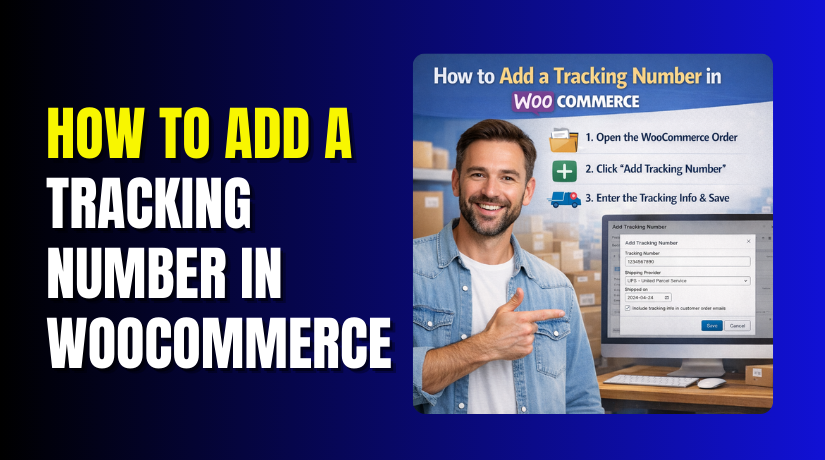
Step 4: Find the Tracking Section on the Order Page


- After opening the order, scroll down a little on the page.
- Look for the shipment tracking area. This area is usually added by your WooCommerce tracking plugin.
- Some plugins show a button like Add Tracking.
- Some show tracking fields directly. This is the section where you will enter the carrier name and WooCommerce tracking number.
- If you do not see it, check whether your tracking plugin is active.
Step 5: Select the Shipping Company Name
- Now choose the courier company from the list.
- Select the same shipping company that is handling the order.
- This may be DHL, FedEx, UPS, USPS, or another courier. Picking the correct carrier is very important.
- The plugin uses this name to create the tracking link.
- If you choose the wrong carrier, the customer may see the wrong tracking page.
Step 6: Enter the Tracking Number Carefully
- After selecting the carrier, enter the tracking code in the tracking field.
- This code is given by the courier company after shipment booking. Always copy and paste it if possible.
- This helps avoid typing mistakes. A small mistake can stop the link from working.
- When you Add tracking number WooCommerce orders, accuracy is very important.
- A correct WooCommerce tracking number keeps the tracking process smooth.
Step 7: Add the Shipping Date if the Option Is Available
- Some plugins also show a shipping date field.
- If your plugin has this option, add the date when the order was shipped. This gives extra clarity to the customer.
- They can understand when the package left your store.
- It also helps your team check delivery timelines later.
- This small step makes WooCommerce shipment tracking look more complete and professional.
Step 8: Save the Tracking Details in the Order
- Once you enter all details, click the Save, Update, or Add Tracking
- This step is very important.
- If you do not save the order, the tracking details will not be added.
- After saving, the order will now include the shipment details.
- Your WooCommerce tracking plugin will usually connect this information with the order page, email, or customer account section.
Step 9: Check If the Customer Can Receive the Tracking Update
- After saving the order, check how the customer will receive the update.
- Some stores send the tracking link by email.
- Some show it in the My Account
- Make sure the update is visible in at least one place.
- This helps customers follow the package easily.
- A proper WooCommerce shipment tracking setup reduces customer confusion and builds trust after the order is shipped.
Step 10: Open the Tracking Link and Test It Once
- Finally, click the tracking link yourself and test it.
- Make sure it opens the correct courier website.
- Also check that the tracking code is working properly.
- This final check is very useful. It helps you catch mistakes before the customer sees them.
- A working WooCommerce order tracking link makes your store look more reliable and gives customers a better delivery experience.
How to Add a Tracking Number Using a WooCommerce Shipment Tracking Extension
Many store owners prefer a plugin because it makes tracking easier. WooCommerce does not always manage shipment tracking in a full way by default. That is why a WooCommerce tracking plugin becomes very useful. It helps store owners add carrier details in a better format. It also makes the order page more organized. Customers can often see tracking information inside emails and account pages. This improves the full WooCommerce shipment tracking process for both sides.
Step 1: Install a Trusted WooCommerce Tracking Plugin
- First, log in to your WordPress admin panel.
- Go to the Plugins section from the dashboard menu.
- Click Add New and search for a trusted WooCommerce tracking plugin.
- Choose the plugin that fits your store needs.
- Install it and activate it properly.
- This plugin will help you manage WooCommerce shipment tracking in a simple way.
- It also adds the tracking section inside your order page.
Step 2: Open the WooCommerce Orders Section in Your Dashboard
- After activating the plugin, go to WooCommerce > Orders.
- This section shows all customer orders in your store.
- Find the order that has already been packed or shipped.
- Make sure you choose the correct order before updating anything.
- This step is important because the tracking number must match the right package.
- A correct order selection keeps the WooCommerce order tracking process clean and accurate.
Step 3: Open the Specific Order That Needs the Tracking Update
- Click on the order you want to update.
- This will open the full order details page. Here you can review customer information, shipping details, and product details.
- Scroll through the order page carefully.
- The tracking plugin usually adds a shipment tracking box here.
- This area is where you will add tracking number WooCommerce orders correctly.
- Always review the order before entering any shipment data.
Step 4: Find the Shipment Tracking Section Added by the Plugin
- Now look for the tracking area inside the order page.
- The exact location may vary by plugin. In most cases, it appears in the order details section.
- Some plugins show a button like Add Tracking. Others may show a tracking field directly.
- This section is where your WooCommerce tracking number will be added.
- If you do not see this box, check whether the plugin is active and working properly.
Step 5: Select the Shipping Carrier From the Available List
- Once the tracking section opens, choose the shipping company first.
- Many plugins provide a list of popular carriers.
- Select the one that matches the shipment.
- This step matters because the plugin uses the carrier to create the correct tracking link. A wrong selection can send customers to the wrong page.
- Good WooCommerce shipment tracking depends on both the tracking code and the correct carrier name.
Step 6: Enter the Correct Tracking Number Carefully
- After selecting the carrier, enter the tracking code in the field.
- This is the main WooCommerce tracking number for that order.
- Type it carefully or copy it from the courier dashboard.
- A small mistake can break the tracking process.
- The customer may not be able to follow the shipment correctly.
- When you add tracking number WooCommerce orders, always double-check the code before moving to the next step.
Step 7: Add the Shipping Date If the Plugin Supports It
- Some tracking plugins also include a shipping date field.
- If your plugin shows this option, add the correct dispatch date.
- This tells the customer when the package was shipped.
- It also makes the order record more complete.
- A shipping date adds extra clarity to WooCommerce order tracking.
- Customers can better understand the shipment timeline.
- This small detail can improve trust and reduce confusion after dispatch.
Step 8: Save the Tracking Details in the Order
- After entering the carrier, tracking code, and shipping date, save the details.
- Most plugins provide a Save, Update, or Add Tracking
- Click that button to store the shipment information.
- This step links the tracking details to the order.
- Once saved, the tracking data becomes part of your WooCommerce shipment tracking
- Do not leave the page before confirming that the changes were saved properly.
Step 9: Update the Order Status If Your Workflow Requires It
- After saving the tracking details, review the order status.
- Some store owners change it to Completed, Shipped, or another custom status.
- This depends on the store workflow and plugin settings.
- A matching order status makes tracking updates easier to understand. It also keeps your backend more organized.
- A clean status system supports better WooCommerce order tracking and helps customers know the current stage of the shipment.
Step 10: Check That the Customer Can See the Tracking Information
- The final step is testing the result.
- Confirm that the tracking details appear correctly in the order.
- Check whether the customer email includes the tracking link. Also review the My Account page if your plugin supports it.
- Click the link and make sure it opens the correct courier page.
- This final check helps confirm the WooCommerce tracking plugin is working well.
- It also ensures customers get a smooth tracking experience after shipment.
Common Problems When Adding Tracking Numbers in WooCommerce (Easy Fixes)
The Tracking Section Does Not Appear on the Order Page
Sometimes the tracking area does not show inside the order page. This usually happens when the WooCommerce tracking plugin is not active. It may also happen if the plugin was not installed correctly. First, go to the plugins section and check its status. Make sure the plugin is active and updated. Then open the order again and check the page. If the section still does not appear, test for a theme or plugin conflict.
The Tracking Number Is Added but the Customer Cannot See It
This is a common issue in many online stores. You may add the details correctly, but the customer still cannot find them. In most cases, the problem is in the plugin settings. Some plugins need extra setup for emails or account pages. Check whether the tracking option is enabled for customer view. Also test the order from the customer side. A good WooCommerce order tracking setup should show tracking details clearly after shipment.
The Wrong Courier Link Opens After Clicking the Tracking Link
This problem usually happens when the wrong carrier is selected. It can also happen when a custom tracking link is added incorrectly. If the carrier does not match the tracking code, the page may open the wrong courier website. This can confuse the customer very quickly. Always check the shipping company before saving the order. When you Add tracking number WooCommerce orders, the carrier name and tracking code must match properly.
The Customer Does Not Receive the Tracking Email
Some stores save the tracking details, but no email reaches the customer. This may happen because of WooCommerce email settings. It can also happen because of a mail delivery issue on the site. First, check whether order emails are enabled in WooCommerce settings. Then test your site email system using an SMTP setup. Many tracking plugins depend on email delivery to send updates. A working mail setup improves WooCommerce shipment tracking and customer communication.
The Tracking Number Was Entered Incorrectly
A small typing mistake can break the full tracking process. One wrong letter or number can stop the link from working. This makes the customer think the shipment is not real. That is why accuracy is very important. Always copy the code directly from the courier dashboard if possible. Do not type it manually unless needed. A correct WooCommerce tracking number helps customers follow the shipment without confusion or delay.
The Tracking Plugin Is Conflicting With Another Plugin or Theme
Sometimes the tracking plugin is active, but it does not work properly. The tracking box may not open, save, or display correctly. In many cases, this is caused by a plugin conflict. A custom theme can also create this issue. Start by updating all plugins and themes. Then disable other plugins one by one and test again. Switch to a default theme for testing if needed. This helps you find the cause of the WooCommerce tracking plugin problem.
The Order Status Is Not Updated After Adding Tracking Details
Some store owners add shipment details but forget the order status. This can create confusion for both customers and staff. The order may still show as processing even after dispatch. That makes the delivery stage unclear. After adding tracking, check whether the status should change. Some stores use completed status, while others use shipped status. A clear status update supports better WooCommerce order tracking and makes the order flow easier to understand.
Conclusion
Adding shipment details is a very important step after dispatch. It helps customers follow their orders without confusion. It also reduces support messages and improves trust in your store. A correct WooCommerce tracking number makes your shipping process look more organized. In most cases, the easiest method is using a good WooCommerce tracking plugin. Once the setup is done properly, WooCommerce order tracking becomes simple and useful. Just make sure the carrier, tracking code, and customer notification are all correct.
If you need help with tracking setup, WooHelpDesk is here. We can help you install the right WooCommerce tracking plugin for your store. We can also fix tracking display issues, email problems, and plugin conflicts. Whether you want to add tracking number WooCommerce orders manually or improve full WooCommerce shipment tracking, our team can help. Contact WooHelpDesk for expert WooCommerce support and tracking setup assistance.