How to Add a Thank You Page in WooCommerce Step by Step?
Table of Contents
- Introduction
- Who should follow this WooCommerce thank you page tutorial?
- What is a Thank you Page in WooCommerce?
- How does the WooCommerce thank you page work?
- What customers expect on an order confirmation page?
- What Are The Benefits of Thank You Page In WooCommerce?
- What Are The Common Elements of a High Converting WooCommerce Thank You Page?
- Why Do You Need To Optimize WooCommerce Thank You Page?
- What to Include on a WooCommerce Thank You Page for Higher Conversions?
- How to Add a Thank You Page in WooCommerce Step by Step?
- What are the Top 3 Plugins to Add Thank You Page in WooCommerce?
- Final Verdict
Introduction
A strong checkout flow does not end after payment success. The last page customers see shapes their final impression. That last page is the WooCommerce thank you page for most stores. It confirms the order and reduces customer doubt quickly. It also sets clear expectations for shipping and delivery.
Many store owners ignore this page and lose opportunities. A basic page often looks plain and lacks next steps. A better page can increase repeat purchases and trust. It can also reduce support tickets and refund requests. This guide explains how to build a better thank you page.
You will learn how to Add thank you page WooCommerce correctly. You will also learn what changes improve performance and conversions. You will also learn how to create a WooCommerce custom thank you page. This guide is written for store owners and beginners. It also helps agencies build client ecommerce websites.
Who should follow this WooCommerce thank you page tutorial?
- This guide is useful for new WooCommerce store owners.
- This guide is useful for stores selling physical products.
- This guide is useful for stores selling digital downloads.
- This guide is useful for subscription and membership stores.
- This guide is useful for multi product and single product stores.
- It is also useful for high ticket product stores. Every store can improve customer experience on this page.
What is a Thank you Page in WooCommerce?
A thank you page is the page shown after checkout completion. It appears when WooCommerce confirms a successful order. Many people also call it the WooCommerce order confirmation page. It shows key details like order number and payment status. It also shows billing and shipping details in many cases. It also shows the ordered items and totals for clarity. It can show customer notes and delivery updates too. This page reduces confusion after payment is processed. It reassures customers that the order was placed correctly.
How does the WooCommerce thank you page work?
WooCommerce sends customers to a default order received page. That page loads order details using the order ID. It also checks permissions to protect customer data. Logged in users can view their order details safely. Guests can view details using the order key in the URL. WooCommerce also triggers hooks on this page for tracking. Many plugins use these hooks for analytics and pixels. This makes the thank you page important for marketing too.
What customers expect on an order confirmation page?
- Customers expect clear confirmation after payment completion.
- Customers expect order number and payment status shown clearly.
- Customers expect a summary of items and totals.
- Customers expect shipping timelines and tracking instructions.
- Customers expect a way to contact support easily.
- Customers also expect next steps like account access for downloads. Meeting these expectations improves trust and reduces complaints.
What Are The Benefits of Thank You Page In WooCommerce?
A good thank you page does more than say thanks. It helps customers feel confident about their purchase. It also helps your store gain more value from each order. It reduces confusion and reduces support workload. It helps track conversions for ads and analytics. It can also increase repeat sales and referrals. Below are the most important benefits explained clearly.
- Builds trust and reduces buyer anxiety
Many buyers feel uncertain right after payment. A clear confirmation page removes that doubt quickly. It proves the order was placed and recorded correctly. It shows payment success and order number for proof. It also shows shipping and delivery expectations clearly. When trust increases, refunds and disputes often decrease. This is one direct reason to improve the WooCommerce thank you page.
- Reduces support tickets and order status questions
Customers often ask where the confirmation email is. Customers also ask if payment went through successfully. A good page answers these questions immediately after purchase. It can show email delivery notes and spam folder tips. It can show a clear support link and contact form. It can show expected processing times and tracking info. This reduces repetitive support tickets and saves time daily.
- Improves upsells and cross sells after purchase
The best time to suggest another product is after purchase. Customers are already in buying mode and feel satisfied. A thank you page can show related products and bundles. It can show discount codes for a second purchase. It can show subscription upgrades or warranty add ons. This increases average order value without extra ad spend. It also improves lifetime value for returning customers.
- Helps track conversions and marketing performance
Many ad platforms need a confirmation page trigger. The thank you page is used for pixels and conversion tags. WooCommerce hooks fire on this page for tracking scripts. That makes it a key page for marketing measurement. A better setup reduces missed conversions in ad dashboards. It also improves attribution for your ad campaigns. This supports smarter spending and better optimization later.
- Helps deliver digital products and next steps
Digital products require clear post purchase instructions. Customers need download links and account access directions. A strong page can guide users to download safely. It can also show license key steps and activation guides. It can show membership access and login instructions too. This improves product satisfaction and reduces refund requests.
- Encourages reviews and social sharing
Happy buyers are more open to leaving reviews. You can add a small review request section politely. You can add links to Google reviews or product reviews. You can add social share buttons for brand awareness. You can also add referral program links for incentives. This can create organic traffic and social proof over time.
What Are The Common Elements of a High Converting WooCommerce Thank You Page?
A high converting page has clear structure and helpful actions. It uses short sections that guide customers naturally. It avoids clutter and avoids too many distractions. It focuses on next steps and supports clarity.
- Order details section that removes confusion
- Show the order number and payment status clearly.
- Show item names and totals in an easy summary.
- Show shipping address and email address for confirmation. This reduces customer panic and prevents ticket creation.
- Clear next steps section for delivery and tracking
- Explain when the order will be processed and shipped.
- Explain where tracking details will appear for the customer.
- Explain how customers can update addresses if needed quickly. This improves customer experience and trust after checkout.
- Support and contact section that saves time
- Add a support link and a contact form link.
- Add your support email and support hours if possible.
- Add a short message about response time expectations. This reduces angry messages and repeated follow ups.
- Recommendations section that increases revenue
- Show related items that match the purchased products.
- Show bundles and add ons that feel relevant and helpful.
- Offer a small discount code for returning customers. Keep the section clean and not pushy for trust.
Why Do You Need To Optimize WooCommerce Thank You Page?
Many stores treat this page as a simple confirmation screen. That approach wastes a strong customer attention moment. The WooCommerce thank you page is the first page after purchase. Customers are calm and ready to follow the next instructions.
If the page is weak, customers feel confused quickly. If the page is clear, customers feel confident and satisfied. Optimization improves trust, reduces support, and increases revenue. It also improves tracking accuracy for ads and analytics.
It helps you measure sales and marketing performance better. It also helps improve repeat purchases and customer lifetime value. This is why you should optimize the WooCommerce order confirmation page.
- Customers need instant clarity after payment
- Customers want proof that payment was successful.
- They want a clear order number and purchase summary.
- They want confirmation that their order is recorded properly.
A strong page gives that confirmation without any confusion. It reduces anxiety and reduces payment dispute chances. It also reduces customer calls and email follow ups. Clarity is the first goal of optimization.
- It reduces order status and email delivery questions
- Many customers check email right after checkout completion.
- Sometimes confirmation emails are delayed due to server queues.
- Sometimes emails land in spam or promotions tabs.
A good page prepares customers for these cases. It can mention email delay possibilities and spam folder checks. It can also show a link to the My Account orders page. This reduces tickets and reduces support workload daily.
- It improves conversion tracking for paid ads
- Tracking relies on a reliable completion signal.
- The thank you page is that signal for many tools.
- Pixels and tags often fire on order confirmation.
If the page is not optimized, tracking may be incomplete. Missing tracking breaks ad optimization and reporting accuracy. A clean setup improves event firing and reduces duplicate events. This helps you spend smarter and improve ROAS over time.
- It increases post purchase revenue opportunities
- The best time to offer the next product is after purchase. Customers already trusted your store and completed payment.
- A better page can show related product suggestions.
- It can show warranty add ons or subscription upgrades.
- It can show a discount code for the next order.
- It can also show a bundle upgrade option. This can raise average order value without extra traffic.
- It improves customer experience and brand image
- A plain confirmation page feels generic and unfinished. A branded page feels professional and reliable to customers.
- Branding makes customers remember your store more easily.
- It also reduces fear of scam or fake checkout pages.
- It can show your logo, brand colors, and helpful messages.
Better experience often leads to better reviews and referrals.
- It helps guide customers to the right next step
- Every store has a next step after purchase.
- Physical products need shipping and delivery instructions.
- Digital products need download access and account steps.
- Subscriptions need account login and plan details.
A strong page guides customers without confusion. It reduces churn and reduces refund requests later.
What to Include on a WooCommerce Thank You Page for Higher Conversions?
The best pages follow a simple and helpful structure. Each section has a clear purpose and clear action. This improves user flow and reduces bounce after purchase. It also improves customer satisfaction and repeat visits.
- Include order confirmation details that feel trustworthy
- Show order number, status, and payment method clearly.
- Show billing email and shipping address for verification.
- Show product list and total amount in a clean layout. This reduces disputes and builds trust after purchase.
- Add delivery timeline and tracking expectations
- Explain processing time and shipping timeline simply.
- Explain where tracking details will be shared and when.
- Explain what to do if tracking does not arrive quickly. This reduces “where is my order” support tickets.
- Add a support area that customers can use quickly
- Add a support email or ticket link clearly.
- Add store hours or response time expectations if possible.
- Add a short message that support can help with issues. This makes customers feel safe and supported quickly.
- Add links that help customers manage their order
- Add a link to My Account page for logged in customers.
- Add a link to the Order details page when it is safe.
- Add a link to change address policy instructions if needed. These links reduce confusion and help customers self-serve.
- Add cross sell recommendations that feel relevant
- Show products that match the order category and use case.
- Show accessories or add ons that improve the main product.
- Keep recommendations limited so the page stays clean. This can increase revenue without harming trust.
- Add trust signals and store policies in a simple way
- Add a small note about returns and refunds policy.
- Add a small note about shipping and delivery policy.
- Add a small note about customer support availability. This sets expectations and prevents conflict later.
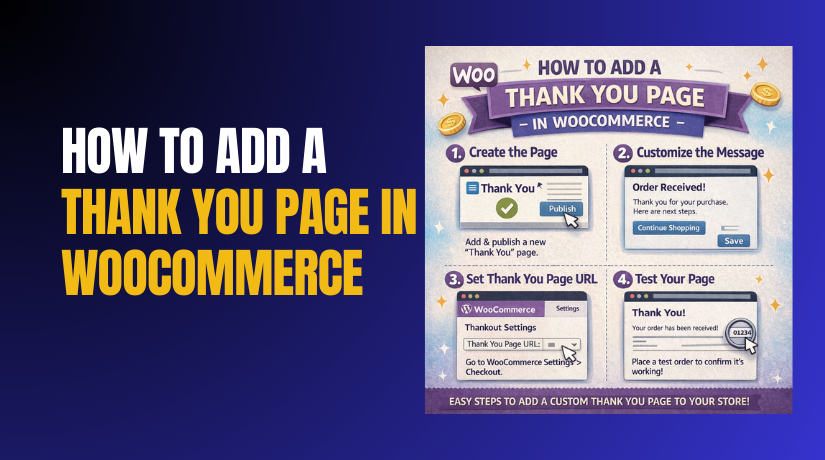
How to Add a Thank You Page in WooCommerce Step by Step?
A custom page gives you more control after checkout completion. WooCommerce shows a default order received screen by design. You can keep that flow and still customize the experience.


You can also redirect buyers to a custom page safely. This section explains a clean and repeatable setup process. It helps you build a better WooCommerce thank you page experience. It also helps you create a WooCommerce custom thank you page properly.
You will also learn how to Redirect to thank you page WooCommerce safely. You will use steps that work for most store setups.
Step 1: Decide what the thank you page should achieve
- Decide the main goal first:
- Fewer support tickets after checkout
- More repeat orders with a discount offer
- Better conversion tracking for ads
- Digital downloads and access instructions
- Reviews and social proof collection
- This keeps the WooCommerce thank you page focused and clean.
Step 2: List the exact information customers must see
- Include only needed details:
- Order confirmation and payment status
- Order number and purchased items summary
- Shipping timeline and delivery expectations
- Support contact links for quick help
- Download and login steps for digital products
- Next billing details for subscriptions
- This improves clarity on the WooCommerce order confirmation page.
Step 3: Create a new WordPress page for the custom thank you page
- WordPress Dashboard → Pages → Add New
- Create the page with these basics:
- Page title: Thank You or Order Confirmed
- Short and clean URL slug
- Heading and short confirmation message
- Next steps section for shipping and support
- FAQs section for common buyer questions
- Contact section for order help
- This becomes your WooCommerce custom thank you page.
Step 4: Design the page layout for fast readability
- Pages → Edit Page → Add Sections → Update
- Keep the structure simple:
- Confirmation message at the top
- Next steps section right below
- Help and support section with policies
- Small cross sell section if it fits
- Review request section if it feels natural
- This improves trust and reduces customer confusion.
Step 5: Add a clear order confirmation message that matches WooCommerce
- Pages → Thank You Page → Edit Content
- Add a message that includes:
- Order placed confirmation line
- Email confirmation is coming note
- Tracking details will follow later note
- What to do if email is missing
- How to contact support quickly
- This reduces stress after checkout completion.
Step 6: Choose how you want to route customers after checkout
- Choose one routing method:
- Option A: Keep default page and add custom content
- Option B: Redirect to thank you page WooCommerce after purchase
- Option C: Hybrid method for best results
- Best practice for selection:
- Need full order details shown safely, use default page
- Need branding and offers, use custom page redirect
- Want both, use hybrid and keep flow stable
What are the Top 3 Plugins to Add Thank You Page in WooCommerce?
Plugins make customization faster and safer for most store owners. They help you avoid custom code and theme edits. They also give simple controls for redirect and layout options. Many plugins support per product or per category routing. Many plugins also support dynamic order details blocks. This section lists three strong plugin options for this use case.
Each plugin is explained with use cases and clear setup steps. These plugins help you build a better WooCommerce thank you page. They also help you create a WooCommerce custom thank you page easily. Some of them also help you Redirect to thank you page WooCommerce safely.
1. NextMove Lite and NextMove Pro by XLPlugins
This plugin is built for thank you page optimization. It creates a new custom page experience for orders. It also supports offers, coupons, and product recommendations. It can show dynamic order data and customer details. It can also show different thank you layouts by conditions. This makes it strong for growth focused stores. It is also good for stores wanting upsell blocks.
Best use cases for this plugin
- Use it when you want marketing sections after checkout.
- Use it when you want product recommendations on the page.
- Use it when you want coupon offers for repeat purchases.
- Use it when you want clean layouts without a page builder.
- Use it when you want conditions based on product and category. It is a strong choice for improving conversions quickly.
Setup steps:
- Install the plugin
- WordPress Dashboard → Plugins → Add New → Search NextMove → Install → Activate
- Open plugin settings
- Dashboard → WooCommerce → NextMove
- Create a new thank you page template
- NextMove → Templates → Add New
- Add the required blocks on the page
- Add blocks like these:
- Order details block for confirmation trust
- Customer details block for verification
- Shipping information block for clarity
- Coupon block for repeat purchase incentive
- Product recommendations block for upsell
- Set display rules for when it should show
- Template → Rules → Choose Products or Categories
- Save changes and run one test order
- Confirm order received flow works on desktop and mobile
- Add blocks like these:
Common mistakes to avoid with this plugin
- Do not add too many offers and distract buyers.
- Do not show unrelated products and reduce trust.
- Do not change rules without testing one order immediately.
- Do not keep old redirect plugins active at the same time.
2. WooCommerce Thank You Page Customizer by VillaTheme
This plugin focuses on designing the thank you page layout. It helps customize the order received page content. It provides templates and blocks for details and messaging. It supports product based and category based conditions. It also supports adding custom text and banners. It is a good choice for stores wanting a cleaner order page.
Best use cases for this plugin
- Use it when you want to improve layout and clarity.
- Use it when you want better messaging and support sections.
- Use it when you want product specific content after purchase.
- Use it when you want a template based approach with less marketing. It works well for stores focused on support reduction.
Setup steps:
- Install the plugin
- Dashboard → Plugins → Add New → Search Thank You Page Customizer → Install → Activate
- Open the customizer area
- Dashboard → WooCommerce → Thank You Page
- Choose a template and start editing sections
- Add these important sections first:
- Order confirmation message section
- Order summary section for trust
- Shipping timeline section for clarity
- Support link section for quick help
- Set conditions for which orders use the template
- Rules → Product or Category Conditions
- Save changes and test guest checkout flow
- Confirm details show correctly for guest orders
- Add these important sections first:
Common mistakes to avoid with this plugin
- Do not remove core order details that buyers expect.
- Do not hide payment status and increase disputes.
- Do not add heavy images that slow down the page.
- Do not forget mobile testing after layout changes.
3. WooCommerce Custom Thank You Pages by SkyVerge
This plugin focuses on routing and redirect logic. It lets you assign custom thank you pages to products. It is great when you want different pages per product. It is also great for digital products with unique instructions. It supports a clean way to Redirect to thank you page WooCommerce. It also keeps the checkout flow stable for most setups.
Best use cases for this plugin
- Use it when you sell products needing special instructions.
- Use it when you sell downloads and want download steps.
- Use it when you sell services and want booking links.
- Use it when you run ads to specific products and want tailored messaging.
- Use it when you want per product thank you experiences.
Setup steps:
- Install the plugin
- Dashboard → Plugins → Add New → Upload Plugin → Install → Activate
- Create your custom thank you pages first
- Dashboard → Pages → Add New → Publish
- Assign thank you page at product level
- Dashboard → Products → Edit Product → Thank You Page Setting → Select Page → Update
- Repeat for other important products
- Use a unique page for each product type when needed
- Test each product flow with a real order
- Confirm correct redirect happens after payment
Common mistakes to avoid with this plugin
- Do not assign the wrong page to the wrong product.
- Do not use one page for all products with different needs.
- Do not forget guest buyer instructions on custom pages.
- Do not break conversion tracking by removing purchase events.
Final Verdict
A strong post purchase experience improves trust and boosts revenue. The WooCommerce thank you page is the best place for that. It confirms the order and reduces customer confusion quickly. It also supports tracking for ads and analytics systems. A better page can reduce support tickets and refund requests.
It can also increase repeat purchases using smart next steps. This is why stores should not ignore the WooCommerce order confirmation page. When you create a WooCommerce custom thank you page, you control messaging. You also control support links, delivery timelines, and helpful actions. When you Add thank you page WooCommerce correctly, buyers feel confident. When you Redirect to thank you page WooCommerce safely, campaigns work better.
Start with improving the default order received page first. Add clear next steps and support links for customers. Add delivery timeline and tracking expectation messaging clearly. Add a small review request only when it feels natural. Add one relevant product suggestion if it fits your brand. Keep the page clean and fast on mobile always. This method keeps order details visible and safe. It also keeps checkout flow stable for most setups.
Keep a backup before changing checkout or thank you pages. Test a real order after every change to confirm behavior. Check mobile view and page speed after adding new sections. Clear cache and CDN to avoid showing old content. Confirm emails, order status, and tracking scripts still work. Remove unused plugins to reduce security and performance risks. With these steps, your thank you page stays strong. Your checkout experience stays smooth and professional.
Have questions before starting with WooCommerce & WordPress? Get support here at WooHelpDesk.