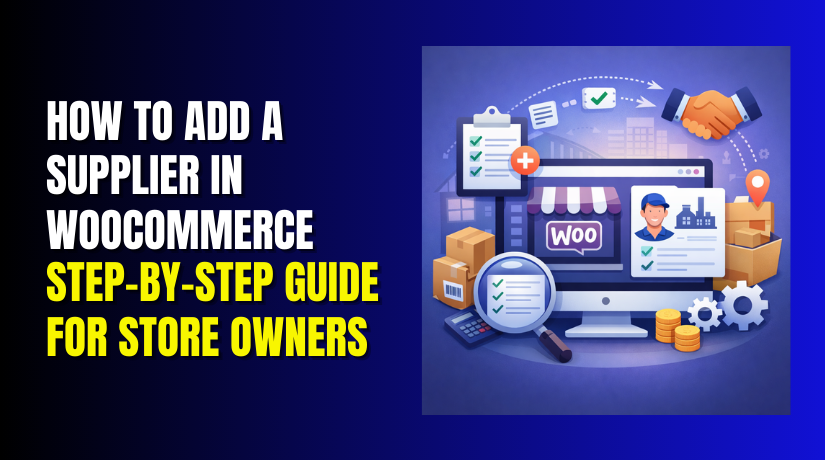
How to Add a Supplier in WooCommerce: Step-by-Step Guide for Store Owners
Table of Contents
- Introduction
- What Is A Supplier In WooCommerce?
- What Are The Uses Of Supplier In WooCommerce
- What Do You Need Before You Add Suppliers In WooCommerce
- How To Add A Supplier In WooCommerce Easily (Step-By-Step Guide)
- Best Practices For Managing Suppliers In WooCommerce
- Common Problems And Fixes When Adding Suppliers Using Plugins
- Conclusion
Introduction
Running a store gets harder as your product list grows. You may buy items from one or many suppliers. You may also work with dropshipping partners. Without a system, supplier details get lost quickly. That can delay restocks and cause order issues. This is where WooCommerce supplier management becomes useful. It helps you track supplier info in one place. It also helps you plan stock and reorder faster.
Many store owners want to add suppliers in WooCommerce to stay organized. Others want to manage suppliers in WooCommerce for better daily work. Some stores also need vendor access for product updates. In that case, WooCommerce vendor setup becomes important. This guide shows the basics before you pick tools. You will also learn how suppliers differ from vendors. You will then choose the best method for your store.
What Is A Supplier In WooCommerce?
A supplier is the person or company that provides products. You buy stock from them and sell it online. In simple terms, a supplier is your product source partner. WooCommerce does not include a supplier feature by default. That means you need a process or a plugin. Many owners use a WooCommerce supplier plugin for this. It can store supplier names, contacts, and notes.
Some plugins also add supplier fields on products. This makes reorder tasks much easier later. Supplier records can also help with cost tracking. They can support profit planning and stock decisions. If you want suppliers to log in, it changes things. Then you need vendor style access and controls. That is where WooCommerce multi vendor suppliers setups can help. These setups may offer a WooCommerce supplier dashboard too. The right setup depends on who manages products. It also depends on how your supply chain works daily.
What Are The Uses Of Supplier In WooCommerce
Track Product Sources To Avoid Confusion
A supplier link shows where each product comes from. This helps when you sell similar items from many sources. With WooCommerce supplier management, you can store supplier details safely. You can also manage suppliers in WooCommerce without messy spreadsheets. This reduces mistakes during restock and product updates.
Speed Up Restocking With Supplier Contact Details
Supplier details save time when stock runs low. You can quickly call, email, or reorder without searching. A WooCommerce supplier plugin can store contact info and notes. This makes it easier to add suppliers in WooCommerce and stay organized.
Plan Inventory Better Using Lead Times
Lead time tells how long restock delivery usually takes. When you save lead times, you reorder at the right time. This reduces out-of-stock problems during peak sales days. It also improves customer replies about expected availability.
Track Costs And Improve Profit Planning
Supplier cost tracking helps you understand true profit margins. You can notice cost changes and adjust prices quickly. This supports smarter discounts and better sale planning. It also reduces losses caused by outdated pricing.
Support Dropshipping Workflows With Supplier Records
Dropshipping needs fast supplier communication for each order. Supplier records help you send order details to the right partner. Some tools can email suppliers automatically after payment. A WooCommerce supplier plugin can support this workflow smoothly.
Understand When You Need Vendors Instead Of Suppliers
Suppliers provide products, but they do not need store access. Vendors need login access to manage products or orders. That is why people search how to add vendors in WooCommerce often. If you need vendor accounts, plan WooCommerce vendor setup first.
Use Multi Vendor Supplier Setup For Supplier Logins
If suppliers must manage products, use a marketplace setup. This is where WooCommerce multi vendor suppliers becomes useful. Many solutions offer a WooCommerce supplier dashboard for product updates. You can still control approvals and store rules as admin.
Collect Supplier Details Before You Start Setup
Before you add supplier in WooCommerce, collect correct information. Save supplier name, email, phone, and full address. Add payment terms, return rules, and support contacts too. This makes supplier work faster during urgent needs.
Prepare Product Mapping With Clean SKUs
SKUs help match products with supplier catalogs and invoices. Make sure every product has a unique WooCommerce SKU. Also store supplier SKU if it differs from your store SKU. This prevents wrong orders and import errors later.
Check WooCommerce Settings For Stock And SKUs
Enable stock management in WooCommerce settings before setup. Confirm SKU fields are visible and used on products. This supports better supplier tracking and reorder planning. It also keeps reports accurate for your store team.
Set Clear Roles If Vendors Will Access The Store
If vendors will log in, roles must be planned carefully. Use WooCommerce vendor setup to limit access and protect data. Only allow product editing if it is required for work. This avoids unwanted changes and security risks.
Fix Email Delivery Before Sending Supplier Notifications
Supplier order emails must reach inboxes without delay. Use SMTP to improve delivery and reduce missing emails. This is important for dropshipping and urgent restocks. It also helps suppliers respond faster with confirmations.
What Do You Need Before You Add Suppliers In WooCommerce
Collect Supplier Contact Details For Fast Communication
Before you add suppliers in WooCommerce, gather the correct supplier basics. Save supplier name, contact person, phone, and email address. Add the full billing and shipping address for records. Also save the website link and support email if available. This supports smooth follow-ups during restock or order issues.
Confirm Supplier Terms Like Pricing And Payment Rules


Ask the supplier about payment terms and billing cycles. Note advance payment rules, credit terms, and invoice timelines. Save minimum order quantity and bulk pricing conditions. Add return, refund, and replacement rules as supplier notes. This keeps your purchasing process clear and consistent.
Prepare Product Mapping With Store SKU And Supplier SKU
Make sure every product has a unique SKU in WooCommerce. If supplier SKUs are different, save them for each product. Also note product names, categories, and variation details clearly. This helps during import, reorder lists, and stock planning. It also reduces wrong item orders and duplicate listings.
Decide If You Need Supplier Tracking Or Supplier Login Access
If you only track suppliers, you do not need logins. If suppliers must manage products, they need vendor access. That is why many search how to add vendors in WooCommerce often. For vendor access, plan WooCommerce vendor setup rules first. This avoids permission mistakes and unexpected store changes.
Choose The Right Plugin Type For Your Supplier Workflow
For internal tracking, use a WooCommerce supplier plugin with product fields. For supplier logins, use WooCommerce multi vendor suppliers solutions. Many of these provide a WooCommerce supplier dashboard for product work. Pick based on who updates products and who controls inventory. This choice decides your full supplier workflow structure.
Enable Stock Management Settings In WooCommerce Before Setup
Turn on stock management inside WooCommerce product settings. Confirm SKU fields are enabled and used across products. Set low stock alerts and restock thresholds if needed. This supports better WooCommerce supplier management planning. It also makes supplier-based reorder work much easier.
Set A Clear Internal Process For Supplier Updates
Decide who adds and edits supplier records in your team. Keep one owner for supplier data to avoid mismatches. Use consistent supplier naming and note formats across products. This helps you manage suppliers in WooCommerce without confusion. It also keeps supplier reports clean and reliable.
Fix Email Delivery Using SMTP For Supplier Notifications
Supplier emails must reach inboxes without delay or spam issues. Configure SMTP before sending any supplier order alerts. Test email sending with a sample supplier email address. This avoids missed restock orders and dropshipping delays. It also improves response time from your suppliers.
How To Add A Supplier In WooCommerce Easily (Step-By-Step Guide)
Step 1: Pick The Right Supplier Plugin Type Based On Your Store Goal
Start by deciding what you need from supplier tracking. Some stores only want internal supplier records for reorders. Other stores want suppliers to log in and manage products. That second case is closer to vendor access and marketplaces. Many users search how to add vendors in WooCommerce for this reason. Your choice decides the full WooCommerce supplier management workflow.
- Choose an internal WooCommerce supplier plugin if you only need tracking.
- Choose a vendor solution if suppliers need a login dashboard.
- Choose a marketplace setup for full WooCommerce multi vendor suppliers
- Choose dropshipping tools if suppliers must receive order details fast.
Step 2: Install And Configure The Plugin Settings The Right Way
- Install the plugin from your WordPress dashboard and activate it.
- Run the setup wizard if the plugin provides one.
- Keep settings simple for the first setup run.
- Enable only the fields you truly need for supplier records.
- If the plugin adds roles, review them before creating accounts. This keeps your WooCommerce vendor setup clean and safe.
- Also check that your theme supports the plugin screens well. If something looks broken, switch to a default theme to test.
Step 3: Create A Supplier Record Or Supplier Account With Correct Details
- Now create your first supplier using the plugin options.
- Add the supplier name, contact email, and phone number first.
- Add address details and notes like lead time and payment rules.
- If your suppliers need login access, create a vendor-style account.
- Many vendor tools add a WooCommerce supplier dashboard for basic tasks.
- Set permissions carefully so suppliers see only required areas. This step helps you manage suppliers in WooCommerce without security risks.
Step 4: Assign The Supplier To Products And Save Supplier Data Properly
- Open a product in WooCommerce and find the supplier field.
- Select the supplier name from the dropdown or search field.
- Add supplier SKU if the plugin supports supplier product mapping.
- Add purchase cost fields if you track margins and costs.
- For variable products, assign supplier details for each variation.
- Save changes and confirm data stays after refresh. This is the key step to add suppliers in WooCommerce correctly.
Step 5: Test The Supplier Setup So Nothing Breaks Later
- Test the setup with one product and one sample order.
- Check that supplier details appear on the product edit screen.
- If you enabled dashboards, test supplier login and access limits.
- Confirm the WooCommerce supplier dashboard loads without errors.
- If supplier emails are enabled, test email delivery using SMTP.
- Finally, export a product list if your plugin supports exports. This confirms your WooCommerce supplier management system is working.
Best Practices For Managing Suppliers In WooCommerce
Keep supplier names consistent across all products and records. Use one naming style for every supplier you add. Save supplier phone, email, and address in one place. Use a WooCommerce supplier plugin to avoid scattered notes. Always store supplier SKU if it differs from your SKU. Track lead time so restock planning stays accurate. Update purchase costs whenever suppliers change their pricing.
Set reorder points so low stock alerts work correctly. Use tags or notes for supplier categories and priorities. Review supplier records every month for outdated details. If suppliers log in, limit access to required pages only. A clean WooCommerce vendor setup reduces mistakes and security risks.
If you run a marketplace, control approvals and product publishing rules. This keeps WooCommerce multi vendor suppliers workflows safe and stable. Use SMTP so supplier emails do not fail silently. This improves daily WooCommerce supplier management performance.
Common Problems And Fixes When Adding Suppliers Using Plugins
Supplier Field Does Not Show On Product Edit Screen
- This usually happens due to plugin settings or conflicts.
- Open your WooCommerce supplier plugin settings and enable product fields. Then clear your site cache and reload the product page.
- If it still fails, disable other field plugins temporarily. This helps you find the plugin causing the conflict.
Supplier Dropdown Is Empty Or Suppliers Are Missing
- This often happens when supplier records were not saved correctly.
- Recheck the supplier creation screen and save again carefully. Make sure you did not set the supplier status as inactive.
- Some plugins hide inactive suppliers from product selection. After saving, refresh the product page and test again.
Supplier Cannot Log In Or Access The Supplier Dashboard
- This is usually a role or permission issue in your setup.
- Review your WooCommerce vendor setup and confirm the correct role.
- If you use WooCommerce multi vendor suppliers, assign the vendor role properly. Also check if a security plugin blocks dashboard access.
- Whitelist the supplier dashboard URL if needed.
WooCommerce Supplier Dashboard Shows Errors Or Broken Layout
- This is often caused by theme or script conflicts.
- Switch to a default theme to test the dashboard quickly. If it works, your theme needs a compatibility fix.
- Clear cache and disable JS or CSS minify features. These optimizations often break dashboard pages.
Supplier Email Notifications Are Not Sending
- This is almost always an email delivery issue on WordPress.
- Configure SMTP to improve email delivery and tracking. Test by sending a sample supplier notification email. Also check if emails are going to spam folders.
- SMTP fixes most supplier email delivery failures.
Supplier Mapping Breaks After Product Import
- This happens when CSV columns do not match plugin requirements.
- Check the import file for correct column headings and formats.
- Ensure SKUs match and do not include extra spaces.
- Import a small file first to confirm mapping works. Then import the full file after successful testing.
Variable Products Do Not Keep Supplier Data Correctly
- Some plugins require supplier assignment on each variation level.
- Assign supplier fields for every variation manually if needed.
- Save the product and recheck variation values after refresh. If values reset, the plugin may not support variation mapping.
- In that case, use a plugin that supports variation suppliers.
Stock Numbers Do Not Match Supplier Expectations
- This is often caused by stock settings and backorder rules.
- Enable stock management in WooCommerce product settings properly. Check low stock thresholds and backorder configuration settings.
- Also confirm you are not using another stock sync plugin. Two stock tools together can cause mismatched stock values.
Supplier Costs Or Purchase Price Fields Are Not Updating
- This can happen due to caching or database saving conflicts.
- Save the product, clear cache, and reload the edit page. Check user permissions to ensure you can edit product meta fields.
- If the field is locked, your role may be limited. Update permissions in WooCommerce supplier management settings.
Orders Are Not Routed To The Correct Supplier In Multi Vendor Setup
- This issue appears when products are not assigned to the right vendor.
- Recheck product vendor assignment and save again carefully. In WooCommerce multi vendor suppliers, vendor rules control order routing.
- Also review shipping and commission settings for vendor orders. Test with one product order to confirm routing works.
Conclusion
Adding suppliers in WooCommerce makes your store easier to manage daily. You can track product sources, reorder faster, and avoid stock mistakes. Supplier records also help with lead times, purchase costs, and planning. If you need supplier logins, vendor tools can handle that too. The key is choosing the right plugin and keeping supplier data organized. Once your setup is clean, supplier work becomes simple and repeatable.
Need help setting up suppliers, vendor roles, or supplier dashboards correctly? WooHelpDesk can configure your full WooCommerce supplier management workflow, fix plugin conflicts, and improve email delivery using SMTP. Visit Woohelpdesk and contact the team to get expert WooCommerce support.