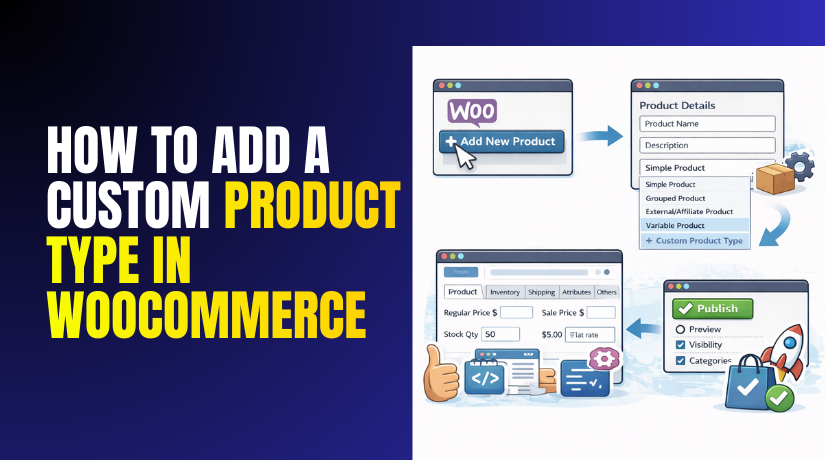
How to Add a Custom Product Type in WooCommerce
Table of Contents
- Introduction
- What Is a Product Type in WooCommerce?
- What Is a Custom Type in WooCommerce?
- When Should You Create a Custom Product Type?
- How to Add a Custom Product Type in WooCommerce (Step-by-Step)
- Conclusion
Introduction
WooCommerce supports different product types for different selling needs. Most stores use Simple or Variable products daily. But some stores need extra fields and rules. That is where a WooCommerce custom product type helps most. It lets you add your own product behavior safely. You can control pricing logic, checkout flow, and admin fields. Many USA stores need this for services, rentals, or bundles. If you want full control, you can create custom product type WooCommerce using code. You can also add custom product type WooCommerce using a plugin method. In this guide, you will learn the clean approach. You will also learn when you should avoid custom code. Part 1 will explain the base concepts clearly. Later parts will show step-by-step coding and testing.
What Is a Product Type in WooCommerce?
A product type decides how WooCommerce stores product data. It also decides what fields appear in the admin panel. Simple products show basic price, stock, and shipping fields. Variable products add attributes, variations, and variation pricing fields. Grouped and External products follow different purchase rules. A custom product type WooCommerce adds your own rules to this system. It usually connects to a custom PHP class. That class extends WooCommerce’s main product class design. WooCommerce then loads your class when that product type is selected. This affects how price is read and shown. It can also change add-to-cart behavior and validation rules. This is why a WooCommerce custom product type is powerful. It is not just a label in a dropdown. It becomes a real product object with custom logic.
What Is a Custom Type in WooCommerce?
A custom type in WooCommerce is a new product type you create. It works like Simple or Variable products but customized. You use it when default product types cannot fit your needs. A custom product type WooCommerce can add special rules and fields. It can also change how the product behaves in the cart. This gives you more control over selling logic and data.
In WooCommerce, each product type connects with a product class. Simple products use a default class for pricing and stock. When you create custom product type WooCommerce, you extend a WooCommerce class. This tells WooCommerce how your product should work. It decides what product data tabs should appear in admin. It can show custom fields like dates, sizes, or service options. It can also hide fields you do not need. This keeps the product edit screen clean and fast.
A WooCommerce custom product type is useful for unique store items. Service products may need an address and schedule field. Rental products may need start and end date fields. Custom print items may need file upload and approval notes. These features are hard to manage using many variations. A custom type can store these details in a better way. It can validate fields before the add to cart action. It can also update price based on selected options.
To add custom product type WooCommerce, you can use code in a custom plugin. A plugin is safer than editing theme files directly. Theme updates can remove your changes without warning. Plugin code stays stable during updates and maintenance. This also helps when you test changes on staging first. With a proper setup, a custom product type WooCommerce stays update safe. It also works better with long term store growth.
When Should You Create a Custom Product Type?
1) When You Need New Product Behavior, Not Just Extra Fields
Create a custom type when your product must behave differently. Simple and Variable types follow fixed purchase and pricing rules. Rentals often need date checks before add to cart works. Services may need slot rules and location rules per order. A custom product type WooCommerce can enforce these rules early. You can validate inputs before cart actions run. You can also block checkout when required data is missing. This gives cleaner orders and fewer failed payments.
2) When You Must Add Custom Tabs and Fields in Product Editor
Use a custom type when admins need dedicated product settings. You can add a new tab in the Product Data panel. Use woocommerce_product_data_tabs to show your custom tab. Use woocommerce_product_data_panels to render your fields in admin. Save data using woocommerce_process_product_meta with safe sanitizing. This keeps your data linked to the product ID. A WooCommerce custom product type also lets you hide tabs. You can hide Shipping for services and reduce admin mistakes.
3) When Pricing Must Be Calculated From User Inputs
Create a custom type when price depends on customer selections. Variations can explode into thousands of combinations very quickly. Custom fields can store inputs like size, duration, or add-ons. Use woocommerce_add_cart_item_data to store chosen values in cart. Use woocommerce_before_calculate_totals to update item price safely. This method keeps product setup simple for store staff. It also keeps pricing logic consistent across cart and checkout. You can create custom product type WooCommerce to own this pricing flow.
4) When You Need Custom Add to Cart Validation
Build a custom type when you must validate before cart add. For example, require a file upload or a service zip code. Use woocommerce_add_to_cart_validation to block invalid cart adds. Validate data server-side, not only with JavaScript checks. Store the clean value in cart item data after validation. Show selected values using woocommerce_get_item_data in cart. This prevents wrong orders and reduces refund requests. You can also add custom error messages for better user clarity.
5) When Order Data Must Store Your Custom Details
Create a custom type when order line items need extra data. Cart item data can be lost without proper order mapping. Use woocommerce_checkout_create_order_line_item to save item meta. Store values like date range, service address, or custom size. This makes data visible in admin order screens and emails. It also helps with shipping labels and fulfillment tasks. A custom product type WooCommerce keeps this data model clean. It becomes easier to export order data for CRM systems.
6) When You Need an Update-Safe, Maintainable Solution
Create a custom type when you want long term control. Avoid putting this logic inside a theme functions file. Theme updates or switches can break your store behavior. The safest path is a small custom plugin for your store. Register the type using woocommerce_product_type_selector filter. Load a custom product class that extends WooCommerce product classes. This is how you add custom product type WooCommerce safely. It keeps changes stable across WooCommerce updates and future growth.
How to Add a Custom Product Type in WooCommerce (Step-by-Step)
Step 1: Prepare a Safe Setup First
Create a staging site before changing WooCommerce store code. A small mistake can break checkout and orders quickly. Take a full backup of your database and site files. Keep a backup copy in cloud storage for safety. Work only on staging until everything passes testing checks. This keeps your live USA store stable during changes.
Step 2: Create a Small Plugin to Hold Your Code
Do not add custom type code inside your theme files. Theme updates can remove changes without any warning later. Open FTP or cPanel and go to plugins folder. Path is wp-content/plugins/ inside your WordPress installation. Create a folder named woo-custom-product-type for your plugin. Create a file inside named woo-custom-product-type.php for main code.


Step 3: Add Plugin Header and WooCommerce Check
Open your plugin file using a code editor tool. Add a plugin header so WordPress can detect it. Activate the plugin from your WordPress plugins screen. Add a WooCommerce active check before running any code. This avoids fatal errors if WooCommerce gets disabled accidentally. Use a simple check like WooCommerce class availability.
Step 4: Register the Custom Product Type in Admin
WooCommerce uses a product type dropdown in product editor. You must add your type to this dropdown list. Use the product_type_selector filter hook for registration. Add a slug and label for your new product type. Keep the slug lowercase, like custom_service for consistency. Now you can add custom product type WooCommerce inside admin easily.
Step 5: Create a Product Class for Your Type
A real custom product type WooCommerce needs a product class. Create an includes folder inside your custom plugin folder. Add a class file like class-wc-product-custom-service.php there. Extend WC_Product_Simple to reuse price and stock logic. Add a get_type() method returning your custom type slug. This creates a real WooCommerce custom product type object for WooCommerce.
Step 6: Load the Product Class at the Right Time
WooCommerce classes load after plugins start loading on pages. Use the plugins_loaded hook to load your class file. Check WooCommerce is active before loading your class file. Use require_once to include the class file safely. This prevents “class not found” errors in wp-admin pages. Now your class is ready for WooCommerce to use.
Step 7: Map the Type Slug to Your Product Class
WooCommerce must know which class matches your product type. Use the woocommerce_product_class filter hook for mapping. If the type slug matches, return your custom class name. This is required to create custom product type WooCommerce properly. Without mapping, WooCommerce may treat your type like Simple. Save changes and refresh the product editor screen again. Select your type and click Update to confirm it saves.
Step 8: Add Custom Fields for Your Product Type
Most custom types need extra fields for store logic. Add a new Product Data tab using woocommerce_product_data_tabs. Show the tab panel using woocommerce_product_data_panels hook. Add fields using WooCommerce admin field helper functions. Show these fields only for your custom product type. This makes the product editor easy for staff to use. It also reduces wrong product setup mistakes.
Step 9: Save Custom Fields with Security Checks
Custom fields must save safely on product update actions. Use woocommerce_process_product_meta hook for saving product meta. Add nonce and capability checks for admin user security. Sanitize every input before saving into database meta fields. Save values using update_post_meta with unique meta keys. This keeps your product data clean and safe for updates.
Step 10: Show Fields on Frontend and Store Cart Data
Show saved values on product page using WooCommerce hooks. Use woocommerce_single_product_summary to display important details. If customers enter values, validate them before add to cart. Store customer selections using woocommerce_add_cart_item_data filter. Show values in cart using woocommerce_get_item_data hook. This keeps order details clear during checkout for users.
Step 11: Test Everything Before Live Release
Create a test product using your custom product type selection. Save it and refresh to confirm type and fields stay saved. Add product to cart and complete a full test checkout. Check order admin screen and confirm fields show correctly. Test taxes, shipping methods, coupons, and payment gateway too. Disable caching plugins during testing to avoid false results. Fix issues on staging first, then move changes live.
Step 12: Quick Troubleshooting If Something Breaks
If type is missing, recheck product_type_selector filter code. If type resets after save, check slug and class mapping. If fields do not save, check save hook and meta keys. If admin shows errors, enable debug log on staging only. Disable minify and cache plugins while testing code changes. Always retest after each small change to confirm the fix.
Conclusion
A WooCommerce custom product type is the best choice for unique selling needs. It helps when Simple or Variable products feel limited. You can add special fields, custom tabs, and required validations easily. It also supports dynamic pricing based on user inputs. The safest method is building everything inside a small custom plugin. This keeps your store update safe and stable long term. Always use staging, backups, and full checkout testing before going live. If you need help with setup or troubleshooting, Call Us Toll-Free: +1 888 602 0119 (US & Canada).