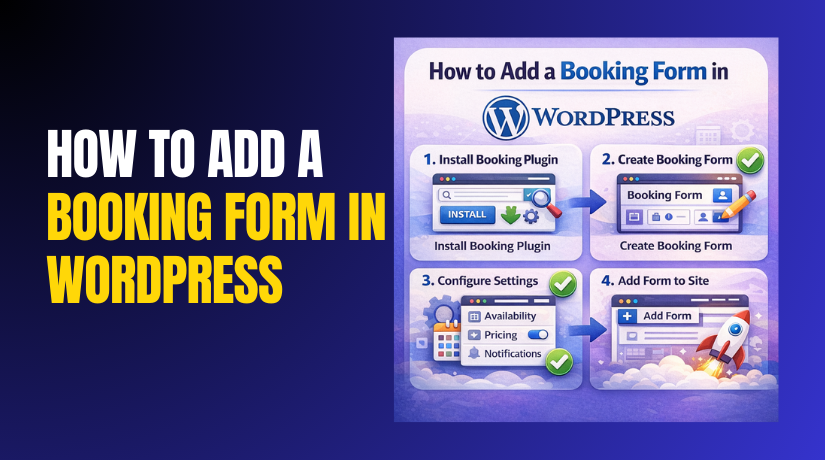
How to Add a Booking Form in WordPress Step by Step?
Table of Contents
- Introduction
- What is a booking form in WordPress?
- Why Do You Need a Booking Form on Your WordPress Site?
- What You Need to Set Up a Booking Form?
- How to Create A Booking Form in WordPress Step by Step?
- What Are The Top 5 Best Plugins to Create A Booking Form in WordPress?
- Which plugin should you choose for your booking goals?
- Final Verdict
Introduction
A booking system lets visitors reserve your services without calling you. It saves time, reduces errors, and improves the customer experience. A WordPress booking form works well on mobile and desktop devices. It can send emails, block time slots, and prevent double bookings. Many businesses need bookings, not just large service companies. Salons, clinics, tutors, and consultants use booking forms daily. Restaurants also use a WordPress reservation form for table bookings. This guide is a practical Create booking form WordPress tutorial. You will learn steps, tools, and plugin choices that fit you. You will also learn common mistakes and how to avoid them.
You will achieve these results after following this guide. You will Add a booking form in WordPress with correct settings and rules. You will pick a WordPress appointment form plugin that matches your workflow. You will reduce missed bookings with confirmations and reminders. You will improve trust with clear fields and clean time slots. You will manage bookings inside WordPress without extra tools.
What is a booking form in WordPress?
A booking form lets users choose a service and a time slot. It collects details like name, email, phone, and booking notes. It can also collect location, staff choice, and service add ons. A WordPress booking form connects to a calendar behind the scenes. It shows available times and hides unavailable time slots.
It can block a time slot after a booking is confirmed. Some forms accept payment before confirming the booking. Some forms keep bookings pending until you approve them. A WordPress reservation form can be simple or fully advanced. The best setup depends on your service and business process.
A contact form only sends a message to your email inbox. A booking form manages time, rules, and booking confirmations automatically. A contact form cannot prevent overlaps and double booking problems. A booking form can handle staff schedules and service durations well. A contact form usually cannot show available times and dates. A booking form can send reminders and follow ups to clients.
An appointment system often includes deeper scheduling features and controls. It may include staff panels, client dashboards, and reporting tools. Many plugins turn a form into an appointment system easily. So, the difference depends on the features you enable. A WordPress appointment form plugin can cover both needs.
Service businesses use bookings for time based sessions every day. Restaurants use bookings for tables, time windows, and party sizes. Rentals use bookings for items, dates, deposits, and returns. Events use bookings for tickets, seats, and attendance limits. Clinics use bookings for doctors, durations, and patient notes.
Why Do You Need a Booking Form on Your WordPress Site?
1) Faster Conversions From Visitors to Bookings
- A booking form converts visitors into booked customers faster.
- It reduces long email threads with clear time selection.
- It removes the need for calls during business hours.
- It gives users control and builds confidence quickly.
- It keeps every request stored in one organized place.
2) Less Drop Off During the Booking Process
- Visitors leave when booking feels slow and confusing.
- A fast form reduces delays and keeps visitors engaged.
- A clear layout helps users finish booking in fewer steps.
- You get more conversions from the same website traffic.
- That is why adding a booking form in WordPress improves results.
3) Clear Reasons People Avoid Manual Booking
- Users cannot see availability and stop trying quickly.
- Many users dislike phone calls during working hours.
- They fear slow replies and unclear confirmation messages.
- They do not trust email threads for booking accuracy.
- They want instant confirmation with a clear booking summary.
4) No More Double Bookings and Schedule Conflicts
- Manual bookings overlap when timing is not controlled.
- A WordPress booking form blocks booked times automatically.
- It can add buffers for preparation and cleanup time.
- It can limit bookings per day for staff capacity.
- It reduces chaos and improves service quality consistently.
5) Better Trust and a More Professional Experience
- A booking calendar looks professional and easy to use.
- Visitors see availability, pricing, and confirmations together.
- Emails confirm date and time clearly for the customer.
- Clear emails reduce confusion and support requests.
- A WordPress reservation form supports this experience well.
6) Automation Saves Time and Reduces Admin Work
- Booking tools send emails and reminders automatically.
- They can create calendar events in connected calendars.
- They store bookings in WordPress for quick viewing.
- Some tools assign staff automatically using smart rules.
- Automation helps you grow without extra admin work.
7) Collect the Right Details Before Appointments
- A booking form can ask questions before the appointment starts.
- It can request an address, meeting type, or communication method.
- It can collect consent, policies, and cancellation terms.
- This reduces surprises and prevents last minute issues.
- A WordPress appointment form plugin supports custom fields well.
8) Payments Reduce No Shows and Protect Your Time
- Payments reduce no shows and protect your schedule.
- Many booking plugins support Stripe, PayPal, and WooCommerce.
- You can charge deposits, full fees, or service based pricing.
- You can offer coupon codes for promotions and loyalty.
- This helps you run bookings like a proper system.
What You Need to Set Up a Booking Form?
1) Prepare Your Booking Structure First
- Plan the booking setup before you add any plugin.
- This prevents conflicts, poor experience, and booking errors.
- This keeps your Create booking form WordPress tutorial smooth.
- Define services, schedules, rules, and confirmations first.
- A clear plan makes your WordPress booking form more reliable.
2) Ensure Your Website Is Fast and Secure
- Your site should load fast on all devices.
- Your site must work well on mobile screens.
- SSL keeps booking data safe and builds trust.
- SSL prevents browser warnings during form submissions.
- Your booking system should always run on HTTPS.
3) Create a Clear List of Services
- List services users can book on your website.
- Each service needs a name and a clear description.
- Each service needs a duration and pricing rule.
- Add buffer time for setup and cleanup if needed.
- Add staff selection or location choice if required.
4) Set Your Availability and Working Hours
- Decide working hours for each weekday clearly.
- Set break times to avoid unwanted booking slots.
- Block holidays and closed days for better control.
- Set a booking window for future appointments.
- Set minimum notice and daily booking limits.
5) Choose a Confirmation Method That Fits You
- Instant confirmation works when availability is accurate.
- Manual approval works when you must validate requests.
- Some businesses keep bookings pending until payment clears.
- This choice changes how your WordPress booking form behaves.
- Pick the method that matches your workflow and risk level.
6) Define Cancellation and Rescheduling Rules
- Set cancellation rules to protect your schedule and revenue.
- Set rescheduling rules to keep operations consistent.
- Show policies near the booking button for clarity.
- Include policy details in confirmation emails for proof.
- Some plugins enforce rules using automatic restrictions.
7) Configure Email Notifications and Reminders
- Emails keep users informed and reduce missed appointments.
- Decide which emails go to customers and admins.
- Set reminders like one day and one hour before.
- Keep the tone consistent with your brand style.
- A WordPress appointment form plugin supports these settings.
8) Decide Payments and Payment Gateways
- Decide if payment is optional or required to confirm.
- Choose deposits, full fees, or free booking sessions.
- Stripe works best for cards and quick checkout flows.
- PayPal suits users who prefer wallet based payments.
- WooCommerce suits taxes and complex checkout logic.
9) Set the Right Form Fields and Questions
- Define fields you need before you launch bookings.
- Collect only required fields to keep booking fast.
- Ask for a phone only when urgent contact is needed.
- Ask for an address only for on site service visits.
- Ask for notes only when it improves preparation.
10) Select the Right Plugin for Your Use Case
- Your plugin must match your business type and workflow.
- Some plugins focus on appointments and staff scheduling.
- Some plugins focus on simple calendars and reservations.
- Some plugins focus on WooCommerce bookings and payments.
- We will compare top tools later with deep details.
How to Create A Booking Form in WordPress Step by Step?
In this part, you will build a working booking system. You will use a WordPress appointment form plugin for scheduling. You will create services, set availability, and publish the form. You will also test the full booking flow properly.
Step 1: Choose the right plugin for your booking needs
WordPress Dashboard → Plugins → Add New → Search Plugin
You need a plugin that matches your booking workflow. Choose a plugin with scheduling, emails, and calendar support. For this Create booking form WordPress tutorial, use Simply Schedule Appointments. It is beginner friendly and works well for many services. It is a solid WordPress appointment form plugin option. It also creates a clean WordPress booking form quickly.
What to check before you install the plugin
- Check if you need staff selection for multiple team members.
- Check if you need deposits or full payments at booking time.
- Check if you need Google Calendar sync for your schedule.
- Check if you need custom fields and booking questions.
- Check if you need manual approvals for each booking request.
Step 2: Install and activate the booking plugin
WordPress Dashboard → Plugins → Add New → Search “Simply Schedule Appointments” → Install Now → Activate
Go to your WordPress dashboard and open the Plugins menu. Click Add New and search the plugin name. Search for Simply Schedule Appointments in the directory. Click Install Now and then click Activate to enable it. Your WordPress booking form system is now ready to configure.
Step 3: Run the setup wizard and basic settings
WordPress Dashboard → Simply Schedule Appointments → Setup Wizard
Most booking plugins start with a setup wizard screen. Use the wizard because it saves time and prevents mistakes. Choose your business type and booking style during setup. Select appointment booking if you offer scheduled time slots. Select reservation style if you book tables or time windows. This creates a good base WordPress reservation form setup.
Key choices to select during the wizard
- Choose your timezone correctly for accurate booking times.
- Choose your default booking duration for standard appointments.
- Choose your basic availability for working days and hours.
- Choose your notification email address for admin alerts.
- Choose basic styling options to match your site theme.
Step 4: Create your first service or appointment type
WordPress Dashboard → Simply Schedule Appointments → Appointment Types → Add New
Open the plugin menu and find Appointment Types. Create a new appointment type for your main service. Add a clear service name that users understand quickly. Write a short description that sets expectations clearly. Set the appointment duration based on your real sessions. Set buffer time to protect breaks between appointments. This is the core of your WordPress booking form.
What to include inside your service settings
- Add a simple service name that matches user search intent.
- Add a short description that explains what users will receive.
- Set the duration to match how long your service really takes.
- Add a buffer before and after to avoid schedule pressure.
- Set a booking limit if you want fewer sessions daily.
Step 5: Configure your availability and weekly schedule
WordPress Dashboard → Simply Schedule Appointments → Appointment Types → Select Service → Availability
Availability controls when users can book your services. Open the availability settings for the appointment type. Select working days and set your available time ranges. Add breaks where you do not want bookings to appear. Block weekends if you do not operate on weekends. Add holiday blackout dates for planned closures and trips. This prevents double bookings and reduces admin stress.
Availability settings that keep your schedule clean
- Set a minimum notice time for same day bookings.
- Set a maximum booking window like thirty days ahead.
- Add breaks between sessions to reduce running late risks.
- Block lunch time to prevent awkward mid day bookings.
- Add blackout dates for holidays and unavailable weeks.
Step 6: Customize the form fields and booking questions
WordPress Dashboard → Simply Schedule Appointments → Appointment Types → Select Service → Booking Form Fields
Form fields collect details needed for your service delivery. Open the form fields settings for your booking type. Keep fields short to reduce drop offs on mobile. Ask for name, email, and phone for easy contact. Add a notes field for special requests and important details. Add a dropdown field for service variations if needed. A WordPress reservation form may also need party size.
Best field setup for a high converting booking form
- A full name helps you identify customers quickly and correctly.
- Email address enables confirmations and automated reminders easily.
- Phone numbers help with urgent updates and last minute changes.
- Notes field helps customers share details without long calls.
- Consent checkbox helps confirm policy acceptance and reduces disputes.
Step 7: Set confirmation messages and success behavior
WordPress Dashboard → Simply Schedule Appointments → Settings → Confirmation Messages
A clear confirmation screen builds trust after booking submission. Create a short confirmation message that confirms booking completion. Show date, time, and service name in the confirmation. Add instructions like arrival time or meeting link details. Add a link to reschedule if you allow changes. Add a link back to your services for additional bookings. This improves your WordPress booking form experience.
What your confirmation message should always include
- Confirm the booking status with a clear success message.
- Repeat the chosen time so users feel confident and sure.
- Share next steps like arrival time or online meeting link.
- Share policy summary for cancellations and rescheduling rules.
- Provide a support contact for booking changes and questions.
Step 8: Configure email notifications for admin and customer
WordPress Dashboard → Simply Schedule Appointments → Settings → Notifications or Emails
Email notifications reduce confusion and missed appointments. Open the Notifications or Emails section in plugin settings. Enable customer confirmations and add clear subject lines. Enable admin alerts so you never miss new bookings. Add reminder emails if available in your plugin plan. Keep emails simple and use short sentences for clarity. This supports your WordPress appointment form plugin workflow strongly.


Email settings you should enable immediately
- Customer confirmation email with service, date, and time details.
- Admin notification email for every new booking request received.
- Reminder email one day before to reduce missed appointments.
- Reminder email one hour before for last minute memory help.
- Cancellation email for changes to prevent confusion and disputes.
Step 9: Create a dedicated booking page on your website
WordPress Dashboard → Pages → Add New → Create Booking Page
A dedicated booking page improves conversions and SEO clarity. Go to Pages and click Add New for a booking page. Name it clearly using user intent and service keywords. Use titles like Book an Appointment or Reserve a Slot. Write a short intro explaining how the booking works. Mention your policy briefly and link to the full policy page. This page is where users will Add booking form in WordPress.
Booking page content that improves conversions quickly
- Add a short headline that matches what users want to do.
- Add a short explanation of how bookings work on site.
- Add a short policy summary for cancellations and rescheduling rules.
- Add trust signals like reviews or service guarantees if available.
- Add contact options for users who cannot book online.
Step 10: Embed the booking form using block or shortcode
WordPress Dashboard → Pages → Edit Booking Page → Add Block or Shortcode → Publish
Most booking plugins provide a block or shortcode option. Click inside your booking page content editor area. Add the plugin booking block if it is available. Choose your appointment type from the block settings panel. If blocks are unavailable, use the plugin shortcode instead. Paste the shortcode and preview the page for layout checks. Your WordPress booking form is now visible for visitors.
Common embedding mistakes you should avoid
- Do not place the form inside a hidden tab section.
- Do not add multiple booking widgets on one page.
- Do not forget to publish the page after changes.
- Do not skip mobile testing after embedding the form.
- Do not hide the booking button below too much content.
Step 11: Test the full booking flow like a real customer
Booking Page URL → Select Service → Select Date and Time → Fill Form → Submit Booking
Testing prevents booking failures and lost customer trust. Open the booking page in an incognito browser window. Book a slot and fill out the form fields completely. Check if the confirmation message shows correct time details. Check if admin and customer emails are delivered correctly. Try booking a used slot and confirm it blocks properly. This validates your WordPress booking form setup.
Testing checklist you should complete before going live
- Confirm availability shows correct hours and correct timezone settings.
- Confirm form fields save correctly and appear in booking details.
- Confirm confirmation page shows booking time and service name.
- Confirm emails deliver and do not go into spam folders.
- Confirm double booking is blocked for the same time slot.
What Are The Top 5 Best Plugins to Create A Booking Form in WordPress?
These plugins help you create a WordPress booking form quickly. Each option fits a different business size and booking style. Choose based on workflow, payments, staff needs, and integrations. This section supports your Add booking form in WordPress decision. It also supports your WordPress reservation form requirements.
1. Amelia Booking Plugin
Plugin Overview
- Amelia is a WordPress appointment form plugin for service based bookings.
- It helps you create a WordPress booking form with a real scheduler.
- It is best for appointments, staff schedules, and service management.
- It supports payments, reminders, and automated booking confirmations.
- It also works well for a WordPress reservation form style setup.
Key Features Explained
- Booking wizard for faster customer booking
- Customers choose service, date, and time in a simple flow.
- The booking steps feel clean and reduce booking drop offs.
- It works well on mobile devices and small screens.
- Multiple employees with separate schedules
- Each staff member can have different working hours.
- You can assign services to specific employees easily.
- Customers can pick a staff member during booking if needed.
- Multiple locations for local service businesses
- You can add different branches and service locations.
- Each location can have separate staff and service settings.
- This helps businesses manage multi city operations clearly.
- Service categories, add ons, and booking questions
- You can group services into categories for easy selection.
- You can add extra services as add ons during booking.
- You can ask custom questions to collect needed details.
- Coupons, deposits, and full payments
- You can accept deposits to block slots and reduce no shows.
- You can accept full payment during booking for premium services.
- You can use coupons to run offers and seasonal promotions.
- Google Calendar sync for staff and admin
- Bookings can be added to Google Calendar automatically.
- Busy events can help block slots and prevent conflicts.
- Staff can track appointments without logging into WordPress.
- Email notifications and reminders
- Customers get instant booking confirmation emails.
- Reminder emails reduce no shows and late arrivals.
- Admin emails alert you about new bookings quickly.
- Customer panel for booking management
- Customers can view, cancel, or reschedule bookings.
- This reduces support work and improves user experience.
- It keeps booking updates organized and clear.
- Admin dashboard and reports
- Admins can see all bookings in a calendar view.
- Staff workload becomes easier to track and manage.
- Reports help you understand booking trends over time.
Pros Explained
- Modern booking interface
- The design looks professional and improves user trust.
- The booking wizard feels smooth and easy for customers.
- Strong staff scheduling control
- It handles busy teams and complex schedules well.
- It reduces double bookings with reliable time rules.
- Structured service setup
- Services, categories, and add ons stay easy to manage.
- It supports growth without breaking your booking workflow.
- Payments reduce cancellations
- Deposits and full payments reduce last minute cancellations.
- It improves revenue predictability for service businesses.
- Automation saves admin time
- Email reminders and confirmations reduce manual follow ups.
- Customer self management reduces admin support tasks.
Cons Explained
- Setup can feel heavy for small sites
- Small businesses may not need all advanced features.
- Too many options can slow initial setup decisions.
- Configuration takes time
- Staff schedules, services, and policies need careful setup.
- Testing is needed to avoid small booking flow issues.
- Pricing can be higher
- It may cost more than simple form based booking tools.
- Extra features can be unnecessary for basic bookings.
- Requires careful testing
- Payments, emails, and staff rules must be tested fully.
- Incorrect settings can cause booking conflicts and confusion.
Download Link: Booking for Appointments and Events Calendar – Amelia
2. Bookly Booking Plugin
Plugin Overview
- Bookly is a flexible WordPress appointment form plugin for bookings.
- It helps you create a WordPress booking form with clean scheduling.
- It fits service businesses that need staff and appointment control.
- It supports add ons for payments, reminders, and integrations.
- It works for appointment style bookings more than table reservations.
Key Features Explained
- Step based booking form for simple customer flow
- Bookly shows booking steps in a clear order for users.
- Users pick service, date, time, and details without confusion.
- This reduces drop offs and improves booking completion rates.
- Staff profiles, schedules, and service management
- You can create staff members with separate working hours.
- You can assign services to specific staff for better control.
- Customers can choose staff if you allow that option.
- Service durations and buffer times control
- You can set service duration based on real session needs.
- You can add buffer time to avoid back to back bookings.
- This reduces delays and improves service quality daily.
- Notifications, reminders, and follow up emails
- Customers get confirmation emails after booking submission.
- Reminder emails reduce no shows and missed appointments.
- Follow up emails help you drive rebooking and feedback.
- Admin calendar view for daily booking management
- Admins can manage bookings from a calendar style dashboard.
- You can quickly view slots, staff load, and day schedules.
- You can edit bookings and update statuses from one screen.
- Custom fields for extra booking details
- You can collect details like location, preferences, and notes.
- You can create dropdowns and checkboxes for quick answers.
- This improves booking intake quality and service preparation.
- Payment add ons for online payments and deposits
- You can take deposits to block slots and reduce no shows.
- You can accept payments online depending on add on setup.
- This makes the booking flow more reliable for paid services.
- Google Calendar sync for schedule updates
- Bookings can sync to Google Calendar for staff visibility.
- Calendar busy times help prevent booking conflicts.
- It improves planning for teams and multi booking schedules.
Pros Explained
- Simple booking flow for customers
- The step flow reduces confusion and feels easy to follow.
- Customers book faster with fewer mistakes and questions.
- Strong admin calendar view
- The calendar view makes daily booking management faster.
- It helps admins spot gaps, conflicts, and busy hours quickly.
- Useful custom fields for better intake
- Custom fields collect important details before appointments.
- Better intake reduces support calls and last minute changes.
- Works well for many service businesses
- It suits salons, clinics, tutors, and consulting businesses.
- It supports booking types where time slots matter most.
- Scales with add ons and extra features
- Add ons help you expand as your business grows.
- You can add only what you need for your workflow.
Cons Explained
- Many advanced features need paid add ons
- Payments and some integrations often require extra purchases.
- Your cost rises as you add more business requirements.
- Total cost can increase with feature needs
- Teams often need several add ons for full functionality.
- This can become expensive compared to all in one tools.
- Complex configurations may need support help
- Staff, rules, and integrations can take time to configure.
- Some users need guidance for smooth setup and testing.
- Styling may need extra effort
- Theme matching may need small design adjustments.
- Some layouts require extra work for perfect branding.
Download Link: Online Scheduling and Appointment Booking System – Bookly
3. Simply Schedule Appointments
Plugin Overview
- Simply Schedule Appointments is a beginner friendly WordPress appointment form plugin.
- It helps you create a clean WordPress booking form with simple scheduling.
- It is best for small teams, solo businesses, and service providers.
- It supports fast setup without heavy settings and long configurations.
- It is a strong choice when you want quick booking with clear steps.
Key Features Explained
- Appointment types with duration and availability
- You can create appointment types for each service you offer.
- You can set duration and working hours for each service.
- You can control what times appear as available to customers.
- Booking pages using blocks and shortcodes
- You can add the booking form using a WordPress block.
- You can also embed it with shortcodes on any page.
- This makes Add booking form in WordPress easier and faster.
- Basic form fields and custom intake questions
- You can collect names, email, phone, and booking notes.
- You can add custom questions to prepare for the appointment.
- This improves lead quality and reduces follow up messages.
- Admin and customer notifications after booking
- Customers get confirmation emails after booking submission.
- Admins receive alerts when new bookings are created.
- This reduces missed bookings and improves response time.
- Google Calendar sync depending on plan
- Bookings can sync to Google Calendar for schedule visibility.
- Busy calendar events can help prevent booking conflicts.
- Staff can track appointments without opening WordPress often.
- Simple rules like minimum notice and booking windows
- You can set a minimum notice to stop last minute bookings.
- You can set booking windows like thirty days in advance.
- These rules keep your schedule realistic and manageable.
- Multiple appointment types for different services
- You can create separate booking forms for different services.
- Each service can have its own duration and availability rules.
- This helps you manage several services without confusion.
Pros Explained
- Quick setup with a manageable learning curve
- Most users can create a booking form in minutes.
- The settings are simple and do not feel overwhelming.
- Clean interface for smaller teams
- The dashboard feels simple and easy to navigate.
- It works well for solo businesses and small teams.
- Fast loading and simple booking page
- The booking page stays lightweight for visitors.
- A simple page reduces drop offs and increases conversions.
- Best fit for coaches and small service providers
- It suits consultants, tutors, coaches, and local providers.
- It works well when scheduling needs to stay basic and clear.
- Fewer steps to Add booking form in WordPress
- Blocks and shortcodes make embedding very easy.
- You can publish a booking page without extra complexity.
Cons Explained
- Advanced features may need paid upgrades
- Some integrations and automation features require premium plans.
- Costs increase when you want deeper business workflows.
- Multi staff scheduling can feel limited
- Larger teams may need deeper staff and resource scheduling.
- Complex staff availability can become harder to manage here.
- Deep customization may need extra tools
- Styling changes may require theme settings or custom CSS.
- Complex layouts may need page builders for better design.
- Some businesses may outgrow it
- As services grow, you may need more advanced automation.
- Bigger operations may need stronger controls and reporting.
Download Link: Appointment Booking Calendar — Simply Schedule Appointments Booking Plugin
4. WPForms With Booking Style Setup
Plugin Overview
- WPForms is a form builder, not a full booking system.
- It works best for booking requests, not time slot scheduling.
- It helps you create a WordPress booking form for manual handling.
- It is useful when you confirm time later by phone or email.
- It fits basic WordPress reservation form style request workflows.
Key Features Explained
- Drag and drop form builder for quick setup
- You can build booking request forms without any coding.
- You can add fields by dragging and placing them easily.
- You can edit forms fast when your business needs change.
- Conditional logic for smarter booking requests
- You can show questions based on user selections.
- You can ask different questions for different service types.
- This improves lead quality and reduces follow up messages.
- Payment fields for deposits and simple charges
- You can accept payments for basic deposits if needed.
- You can charge fixed amounts for simple booking requests.
- This helps reduce fake requests and low intent leads.
- Admin and customer notifications after submission
- Admins get alerts when a new form is submitted.
- Customers can get a confirmation message or email reply.
- This keeps communication clear and reduces missed requests.
- File uploads for documents and booking requirements
- You can collect files like IDs, forms, or reference images.
- This helps businesses that need documents before confirming.
- It improves preparation and reduces back and forth emails.
- Integrations with email tools and CRM platforms
- You can send leads to email marketing tools automatically.
- You can connect with CRM tools for lead tracking workflows.
- This helps teams manage booking requests at scale.
- Embed using blocks and shortcodes
- You can embed forms inside any page using a block.
- You can also use shortcodes for flexible placement.
- This makes Add booking form in WordPress easier and faster.
Pros Explained
- Easy form creation without coding
- The builder is simple and beginner friendly for most users.
- You can create forms quickly without technical skills.
- Conditional logic improves booking request quality
- It collects better information before you respond.
- It reduces wasted time with incomplete or unclear requests.
- Flexible for many industries and use cases
- It works for service requests, inquiries, and lead forms.
- It fits businesses that do not need scheduling automation.
- Works well for manual scheduling workflows
- You can collect requests and confirm time manually later.
- This is helpful when availability changes often during the day.
- Good for basic WordPress reservation form requests
- It suits table request forms and simple reservation requests.
- It works when you prefer manual confirmation for each request.
Cons Explained
- No real time slot selection scheduling
- Users cannot pick live available time slots in the form.
- It does not work like a true WordPress appointment form plugin.
- Cannot block time automatically
- It does not reserve time slots on a calendar system.
- Double booking prevention depends on your manual checks.
- Manual follow up and calendar updates are required
- You must respond and confirm time after every request.
- You must update your calendar manually for each booking.
- Best for requests, not instant confirmed bookings
- It is not ideal for businesses needing instant confirmations.
- It fits request based workflows more than booking automation.
Download Link: WPForms – Easy Form Builder for WordPress – Contact Forms, Payment Forms, Surveys, & More
5. WooCommerce Bookings
Plugin Overview
- WooCommerce Bookings turns services into bookable WooCommerce products.
- It is best for paid bookings, rentals, classes, and time based sales.
- It works best when your site already uses WooCommerce payments.
- It helps you manage bookings, orders, and customers in one system.
- It is a strong option for a paid WordPress booking form workflow.
Key Features Explained
- Convert services into bookable products
- You can sell appointments like products inside WooCommerce.
- Each service becomes a bookable item with pricing rules.
- This keeps booking and selling in one store flow.
- Time slots, date ranges, and duration controls
- You can offer fixed time slots for appointments and classes.
- You can allow date range bookings for rentals and stays.
- You can control duration rules for hourly or daily booking types.
- Resources and persons for staff and capacity
- You can assign staff members as persons for bookings.
- You can assign resources like rooms, cars, or equipment.
- Capacity rules help prevent overbooking during busy hours.
- Deposits using compatible add on tools
- You can take deposits using supported WooCommerce deposit add ons.
- Deposits reduce no shows and protect your schedule time.
- You can also charge full payment for confirmed bookings.
- Cart checkout, coupons, and tax calculation
- Bookings go through the WooCommerce cart and checkout process.
- Coupons and promotions can apply like normal WooCommerce products.
- Taxes can be calculated using your store tax settings.
- Availability rules and blackout dates
- You can block dates for holidays and unavailable times.
- You can set booking windows and minimum notice rules.
- Availability rules help control peak time slots properly.
- Order emails, invoices, and receipts
- Customers receive order emails like a normal WooCommerce purchase.
- You can generate invoices and payment receipts automatically.
- Admins can track payment and booking status in one place.
Pros Explained
- Consistent checkout and payment experience
- Customers pay using the same store checkout flow.
- Payments feel familiar and reduce trust issues during booking.
- Great fit for rentals, classes, and paid reservations
- It supports pricing rules that match rental and class models.
- It works well for time based products and booked services.
- Advanced pricing and availability control
- You can manage complex schedules and booking rules easily.
- You can set different rules for different products and resources.
- Payment before confirmation reduces no shows
- Paid booking prevents fake bookings and wasted time.
- It helps protect limited slots and premium availability.
- One dashboard for bookings and payments
- Bookings and orders stay inside the WooCommerce dashboard.
- Admins manage everything without switching systems often.
Cons Explained
- Setup can feel complex for new WooCommerce users
- You must understand products, checkout, and store settings.
- Booking setup can take time during first configuration.
- Add ons may be needed for deposits and workflows
- Deposits often require extra WooCommerce extensions.
- Advanced workflows can increase overall plugin cost.
- Heavier than simple appointment plugins
- It loads more store related features for booking workflows.
- Small service sites may not need the full WooCommerce stack.
- Overkill for free booking and simple appointments
- If you do free bookings, it may feel too complex.
- Simple booking needs often fit smaller booking plugins better.
Download Link: Bookings for WooCommerce – Create Booking Calendar, Start Scheduling, Manage Bookings And Appointments
Which plugin should you choose for your booking goals?
Choose based on your business type and your booking complexity. Use the best match to avoid switching plugins later. This guidance supports your WordPress booking form decisions.
- Best choice for simple appointment booking
Simply Schedule Appointments is great for fast setup and clarity. It fits solo consultants, coaches, and small service businesses. It supports clean schedules without heavy configuration requirements.
- Best choice for service businesses with staff schedules
Amelia is strong for teams, services, and multi location setups. It fits salons, clinics, and busy service providers with staff. It supports automation, payments, and professional booking flow.
- Best choice for add on flexibility and modular growth
Bookly fits many businesses and scales with add ons later. It fits businesses that want control and expandable capabilities. It works well when you need a strong admin calendar view.
- Best choice for booking requests without scheduling time slots
WPForms fits when you want request collection and manual scheduling. It fits businesses that confirm time later by phone or email. It fits custom intake forms and lead qualification workflows.
- Best choice for paid bookings with eCommerce checkout
WooCommerce Bookings fits rentals, classes, and paid reservations well. It fits stores needing taxes, coupons, and order management features. It fits businesses already using WooCommerce for payments.
Final Verdict
A booking system improves conversions and reduces admin workload. The right plugin makes your booking flow simple and professional. Your WordPress booking form should match your real workflow. Your WordPress reservation form should match your scheduling and capacity needs. Your WordPress appointment form plugin should support growth and automation.
If you want instant slot booking, choose a real booking plugin. If you want a request collection, choose a strong form builder. If you need payments, choose a plugin with payment support. If you use WooCommerce, consider WooCommerce based booking workflow. If you have staff, choose staff scheduling and calendar sync features.
Have questions before starting with WooCommerce & WordPress? Get support here at WooHelpDesk.