Activate WordPress REST API: Is It Enabled by Default?
Table of Contents
- Introduction: Why the WordPress REST API Matters
- What “Enabled by Default” Actually Means in WordPress
- Quick Check: How to Confirm REST API Is Working
- Common Reasons the WordPress REST API Stops Working
- How to Enable / Activate the WordPress REST API (Step-by-Step Fixes)
- Should You Restrict the REST API for Security?
- Conclusion
- FAQs
Introduction: Why the WordPress REST API Matters
WordPress is more than pages, posts, and simple settings today. It also powers apps, tools, and custom website experiences at scale. The WordPress REST API supports this by sharing site data safely. This data can include posts, pages, users, and products. It also supports modern blocks and the editor experience. It lets another system request data, then use it elsewhere. You can use it for a mobile app or client portal. You can also use it for a headless site with React. Many WooCommerce tools also rely on REST API access. If you use WooCommerce apps, REST access is a must. So one small block can break bigger site features quickly. This is common for stores, agencies, and SaaS tools. So users ask, is WordPress rest API enabled by default. For most new sites, the REST API is already included. But included does not always mean open for every request. Hosting firewalls, plugins, and security rules can limit access.
People use the REST API for many practical reasons:
- Building a mobile app that shows products and orders.
- Running a headless WordPress site with a fast front end.
- Connecting forms, page builders, or marketing tools with WordPress.
- Using WooCommerce meaningfully with external systems and reports.
- Creating custom admin screens for staff and store managers.
What “Enabled by Default” Actually Means in WordPress
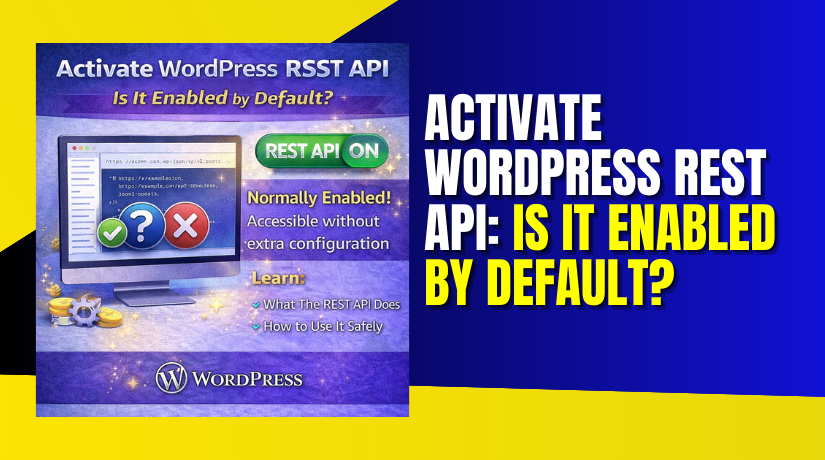
People say “enabled by default” for a simple reason. WordPress ships with the REST API built into core. So you usually do not need to install anything. But your server must still allow API requests to pass. Think of it like a door built into your house. The door exists, but others can lock it anytime. A firewall can block requests to the /wp-json/ route. A security plugin can also restrict access for safety. Some hosts add rules to stop bots and abuse. Those rules sometimes block real REST API calls by mistake. Public endpoints can show content, without a login token. Private actions need authentication, like creating orders or updates. Some sites allow admins, but block public visitors. That difference can confuse testing and debugging.
Think of the REST API in three simple states:
- Present: WordPress includes the API in your site code.
- Reachable: Your server allows the /wp-json/ route to load.
- Usable: Plugins and apps can read data, and authenticate safely.
If any state fails, key features may stop working.
Quick Check: How to Confirm REST API Is Working
Before you change any settings, test the REST API first. This quick check saves time and avoids wrong fixes. You can confirm access in a few simple steps. You do not need developer tools for this test. You only need your browser and your WordPress admin panel.
Method A: Open the WP-JSON Endpoint in Your Browser
The easiest test is opening the default REST API route. In your browser, type your website URL with this path. Use your real domain name in the example shown.
- https://yourdomain.com/wp-json/
If the REST API is working, you will see data output. It usually looks like structured text in JSON format. You may also see a list of links and namespaces. This is normal and it means WordPress is responding. If you see this, the API route is reachable. That is a strong sign things are working.
Now look for warning signs during this test. These results can mean wordpress rest api not working correctly.
- 404 Not Found means the route is missing or blocked.
- 403 Forbidden means something is denying access.
- 401 Unauthorized means the request needs valid login access.
- A blank page may point to server rules or caching issues.
- Redirects to login can mean forced auth or plugin rules.
If you see an error, note the exact error code. That code helps you find the right cause later.
Method B: Use WordPress Site Health to Spot REST Issues
WordPress also gives clues inside your dashboard tools. Go to your admin area and open Site Health. It can detect issues that affect REST API requests. It may show warnings when REST calls fail in WordPress. This often happens when plugins rely on REST endpoints.
Follow these steps in your WordPress dashboard:
- Go to Tools → Site Health.
- Open the Status tab for warnings and critical issues.
- Check the Info tab for server and WordPress details.
If Site Health shows REST related errors, take it seriously. It often means something blocks internal WordPress requests too. That is why editors, blocks, or WooCommerce screens may fail.
Method C: Test a Simple Public Endpoint
You can also test a basic public endpoint quickly. This confirms more than the main route. Public endpoints usually work without any login token. A simple example is checking posts output with WP-JSON.
Try opening a route like this on your site:
- https://yourdomain.com/wp-json/wp/v2/posts
If it loads, your API is responding correctly. If it fails, you likely have a block in place. This also helps when only some routes break.
What a “Working” Result Should Look Like
A healthy REST API response has these common signs:
- The page loads without a redirect loop.
- You see JSON text, not a blank white screen.
- You do not see a browser download error message.
- The response does not show 403 or 404 codes.
If your results look normal, your REST API is active.
Common Reasons the WordPress REST API Stops Working
A REST API issue usually has a clear cause. Most problems come from settings or server rules. You can fix many issues without custom coding. The key is to check the most common blocks first. Once you find the block, you can resolve it fast. Many site owners face this after updates or migrations. Some notice it after adding a security plugin. Others see it after moving to a new host. If your WordPress editor feels buggy, REST may be blocked. If WooCommerce screens load slow, REST may fail too. This is why wordpress rest api not working can feel random. It often breaks features that depend on background requests.
- Permalink or Rewrite Rule Issues
WordPress uses rewrite rules to map URLs correctly. REST endpoints also depend on these rewrite rules. If the rules get corrupted, routes can fail. This often happens after a migration or URL change. It can also happen after a server update. You may see 404 errors on /wp-json/ routes. You may also see endpoints return empty output. The API exists, but the route mapping fails.
Common reasons rewrite rules break are simple:
- You switched hosting and rules did not rebuild.
- You changed the site URL and did not refresh rules.
- A plugin edited rewrite settings in an unsafe way.
- Your .htaccess file is missing or not writable.
Permalinks issues are very common on Apache servers. They also happen on Nginx when rules are missing. If you use a managed host, rules may change silently. You should treat rewrite rules as a top suspect early. This is also a safe area to fix first.
- Security Plugins Blocking /wp-json/
Security plugins protect your site from attacks and bots. They often add hard rules to block risky endpoints. Some plugins block REST access for guest users. Some block it for everyone by mistake. Many plugins call it “Disable REST API” or “Block JSON.” They may do this to reduce data exposure. They may also block certain namespaces and routes. If you install a hardening plugin, check this setting. It can be enabled by default in some cases.
Here is what typically happens when security blocks REST:
- /wp-json/ shows 403 forbidden errors for visitors.
- The block editor fails to load or saves slowly.
- WooCommerce reports or admin panels act unstable.
- Login based calls fail due to blocked auth paths.
Some plugins also block REST when they detect a threat. They may block by IP, country, or user agent. This can affect developers and store managers too. It can also block apps used by your store team. Many security tools add firewall rules inside WordPress. They can also write rules into .htaccess or server settings. This is why you must check both plugin settings and server rules.
- Hosting or WAF Blocks Like Cloudflare and ModSecurity
Many USA websites run behind a web firewall system. This can be a host firewall or a cloud firewall. Cloudflare is a common example used by stores and blogs. Many hosts also use ModSecurity on shared servers. These tools block suspicious traffic patterns automatically. REST API calls can look like automated requests to a firewall. So the firewall blocks them as a false alarm.
These blocks often show up like this:
- You see 403 errors even with all plugins disabled.
- The issue appears only on public WiFi or certain networks.
- Requests work for admins but fail for visitors.
- The firewall logs show a rule hit on /wp-json/.
Some WAF rules block JSON responses due to size or frequency. Some block requests with specific query strings. Others block routes when rate limits trigger. This can happen when apps request data often. It can also happen when a crawler hits the endpoint repeatedly. If you recently enabled a WAF, check its events. Look for blocked requests linked to /wp-json/ routes. If you use a managed host, ask them to check WAF logs. In many cases, one allow rule fixes it fully.
- Cache, CDN, and Logged-In Confusion
Caching improves speed, but it can break API calls. Some cache systems store JSON responses like normal pages. That can confuse apps and plugins that need fresh data. A CDN can also cache API output incorrectly. If a cached response becomes stale, apps fail. You may also see wrong content returned for different users. This is common when cache rules ignore login states.
The issue often looks like this in real use:
- REST works for admins, but not for visitors.
- It works in one browser, but fails in another.
- It works after clearing cache, then breaks again.
- WooCommerce dashboards show missing or wrong data.
Many cache plugins have rules to exclude /wp-json/ by default. But not all do it correctly. Some need manual exclusion settings. Some CDNs require a page rule to bypass caching. If you recently enabled full page caching, check it. If you changed CDN settings, test again after bypassing cache. Caching problems can feel like a random bug. But they usually follow a pattern with login state. This is why testing logged-in and logged-out matters.
- Theme or Custom Code Disabling the REST API
Some themes and custom snippets disable REST for privacy. Developers sometimes add this code to hide user data. Some add it to block access for guest users. Others add it to reduce attacks on endpoints. But this can break plugins and WooCommerce features. It can also break editors that rely on REST calls.
REST disable code usually sits in these places:
- php in your active theme
- A custom plugin built by a developer
- A must-use plugin inside mu-plugins
- A site-specific utility plugin used for tweaks
Some snippets use filters to block all endpoints. Others block only “wp/v2” routes. Some also block “oembed” or “users” endpoints. Even small changes can break many features. If you cannot find the code, do an isolation test. Switch to a default theme like Twenty Twenty-Four. Then test the /wp-json/ route again. If it starts working, the theme likely caused it. If it still fails, a plugin or server rule is more likely.
When REST is blocked by code, you may see clear signs:
- The route loads, but returns “rest_disabled” style errors.
- Some endpoints work, but many return forbidden errors.
- WooCommerce apps fail to connect with proper keys.
Theme and custom code issues often start after updates. They can also appear after site cleanup and optimization. If a developer added a hardening snippet, it may be too strict.
How to Enable / Activate the WordPress REST API (Step-by-Step Fixes)
Now you know the common causes behind REST API failures. Next, you need a safe fix process. Start with the simplest step and test again. This avoids breaking your site while troubleshooting. Each step below can restore REST access fast. Follow them in order for the best results. If you need to enable WordPress REST API for a plugin, start here. If you need to activate WordPress REST API for an app, use the same flow.
5.1 Reset Permalinks First (Fast and Safe Fix)
Permalink rules control how WordPress handles custom routes. REST API routes also rely on these rewrite rules. If rules are stale, your endpoints may return 404. A permalink reset refreshes the rules without changing URLs. It is safe for most WordPress sites and stores.


Follow these steps in your WordPress dashboard:
- Go to Settings → Permalinks in the admin menu.
- Do not change anything on the page right now.
- Scroll down and click Save Changes
- Wait for the page to reload fully after saving.
- Test yourdomain.com/wp-json/ again in a new tab.
If the endpoint starts loading, rewrite rules were the cause. If it still fails, move to the next step. This is also a good step after migrations.
5.2 Check Security Plugin Settings and Allow REST Access
Security plugins often block JSON routes to reduce exposure. Some do it using a single toggle in settings. Others block by rules, firewall, or brute force modules. You must review the plugin settings carefully before guessing.
Here is what you should check inside your security plugin:
- Look for options like Disable REST API or Block REST API.
- Check for Prevent JSON access or Disable WP-JSON
- Review firewall logs for blocked requests to /wp-json/.
- Check if the block is only for guest users.
- Temporarily disable the rule, then test again safely.
If you find a REST block setting, turn it off. Then test the endpoint again using your browser. If it works now, keep the API allowed. If you need to restrict data, do it with safer rules. Avoid full blocks unless you understand the impact.
If your tool supports allowlisting, use it smartly:
- Allow /wp-json/ routes needed by your plugins.
- Avoid allowing unknown routes from untrusted sources.
- Limit access to sensitive endpoints when possible.
This is often the main fix when the API was blocked suddenly.
5.3 Check Hosting, Firewall, or WAF Rules That Block /wp-json/
Some problems live outside WordPress in server security rules. These rules block traffic before it reaches WordPress. This is common with Cloudflare, ModSecurity, and host firewalls. It is also common on shared hosting platforms.
Start with these quick checks:
- Turn off Cloudflare “Under Attack Mode” if enabled.
- Review Cloudflare WAF events for blocked REST requests.
- Check your host security panel for blocked paths.
- Ask hosting support to review blocks for /wp-json/.
When you contact hosting support, be direct and specific. Tell them the REST route is blocked and share errors. Mention the path and error code you see. They can add an allow rule or remove false positives. This fix is often quick once they locate the rule.
If you control server files, also check these areas:
- .htaccess rules that block “json” or “wp-json” paths.
- Nginx config rules blocking API routes.
- Security modules that deny requests based on headers.
After any change, clear cache and test again from a new browser.
5.4 Remove Code That Disables REST API (Theme, Plugin, MU-Plugins)
Sometimes REST API is blocked by code added on purpose. It may be a hardening snippet or custom plugin rule. It may also be added by a developer long ago. The problem is that these rules can be too strict today. They often break plugins, editors, and store tools.
Use this safe isolation method to find the source:
- Switch to a default theme for a short test.
- Disable plugins in a controlled way, not all at once.
- Test the WP-JSON route after each change.
- Stop when the endpoint starts working again.
If the endpoint works after a theme change, inspect theme files. The code is often inside functions.php or include files. If it works after disabling a plugin, check that plugin settings. If nothing changes, check mu-plugins on the server.
Common signs of a code-based block include:
- You get a REST error message in JSON output.
- Only admins can access REST endpoints successfully.
- Some endpoints return forbidden without a clear reason.
If you find the snippet, remove it carefully or adjust it. Avoid blocking REST globally without a clear plan. Blocking the full API can break many WordPress features.
5.5 Re-Test and Confirm the Fix Stays Stable
After each fix step, always test the same way. This helps you confirm real progress and avoid confusion. Use the same browser steps to reduce mixed results. Also test as logged out to confirm public access.
Use this re-test routine after each change:
- Open yourdomain.com/wp-json/ in a private window.
- Test yourdomain.com/wp-json/wp/v2/posts as a public route.
- Check Tools → Site Health for REST related warnings.
- Clear cache and CDN if you changed any rules.
- Repeat tests from another device if possible.
If your tests now succeed, your REST API is restored. If you still see errors, you may have two issues at once. Keep following the steps until results stay consistent.
Should You Restrict the REST API for Security?
Some site owners want to lock down REST for safety. That is a fair goal, but full blocks can backfire. Many plugins rely on REST for core features. WooCommerce also uses REST for apps and integrations. The block editor also uses REST for many actions.
A better approach is smart restriction, not full shutdown:
- Block only sensitive endpoints, not the whole API.
- Keep public content endpoints open when needed.
- Use strong login protection and user roles.
- Use firewall rules to block abuse, not valid users.
If you must restrict access, do it in a controlled way. Always test after any security change to avoid breakage. Keep backups before you apply strict rules on live sites.
Conclusion
The WordPress REST API usually works without extra setup. But plugins, server rules, and firewalls can block it. Start with a permalink reset and test /wp-json/ again. Then review your security plugin settings and WAF rules. If needed, isolate the issue using theme and plugin tests. Once your endpoint loads, confirm it stays stable over time. If you want expert help, WooHelpDesk can troubleshoot REST API blocks fast. We can fix security conflicts, hosting blocks, and plugin issues safely. Reach out to WooHelpDesk and get your site working smoothly again.
FAQs
1) Is the WordPress REST API enabled automatically on new sites?
Yes, WordPress includes it in core by default. Most new sites load /wp-json/ without extra setup.
2) Why does /wp-json/ show 404 or a blank page?
This often happens due to rewrite rule issues or server blocks. Reset permalinks and check firewall rules.
3) Can a security plugin block REST API without me knowing?
Yes, many plugins include REST hardening options. A single toggle can block /wp-json/ routes.
4) Does disabling XML-RPC disable the REST API too?
No, XML-RPC and REST API are different systems. Some security tools bundle settings, so check carefully.
5) Do WooCommerce and page builders rely on the REST API?
Yes, many features use background REST requests. Blocking REST can break dashboards, blocks, and tools.
6) What’s the safest way to restrict REST API without breaking plugins?
Restrict only sensitive routes and keep required endpoints open. Test key plugin features after each change.