
WooCommerce My Account Page Not Working? Here’s How to Fix It Fast
Table of Contents
- Introduction & Importance of the My Account Page
- Causes Behind WooCommerce My Account Page Problems
- Fixing the WooCommerce My Account Page Issues
- Use Diagnostic Tools for Safe Troubleshooting
- When to Call a WooCommerce Expert
- Prevention Tips to Avoid Future Problems
- Conclusion
Introduction & Importance of the My Account Page
One essential component of any WooCommerce store is the My Account page. It allows customers to view orders, manage addresses, and handle account settings. Without it, your store’s user experience breaks. Shoppers may get confused or frustrated, and that can lead to lost sales.
Once a buyer has made a purchase, this page becomes even more crucial. It acts like a personal dashboard where users can:
- Track past orders
- Download digital products
- Update billing and shipping details
- Change passwords
- Manage subscriptions or memberships
So when the My Account page stops working, it creates serious problems. Your customers may see errors, broken layouts, or nothing at all. In some cases, they may get redirected to unrelated pages or stuck in login loops. These issues can damage your brand’s trust and reduce conversions.
Store owners in the U.S., especially those managing WooCommerce shops for clients or small businesses, often face this challenge. We made this tutorial to assist you in fixing it correctly and promptly.
Whether you’re seeing a 404 error, a blank screen, or the buttons and tabs not working, we’ll explain how to fix it all. You’ll also learn how to spot plugin conflicts, theme issues, and redirect problems.
If you’re running a WooCommerce store and struggling with the My Account page not working, don’t worry — you’re not alone. You may improve user experience, safeguard the reputation of your store, and get back on track with the help of this tutorial.
Causes Behind WooCommerce My Account Page Problems
Before fixing anything, it’s important to understand what’s going wrong. Numerous factors can cause the WooCommerce My Account page to malfunction. Sometimes it’s a plugin conflict. Other times it’s a setting that got changed. We’ll examine the most typical causes and warning indicators in this section.
- WooCommerce My Account Page 404 Error
A 404 error indicates that the page is not accessible or does not exist. This is a common issue when:
- The My Account page was deleted accidentally
- The page is not configured in WooCommerce.
- Permalinks are out-of-date or broken.
When users visit the page, they see “Page Not Found.” This usually happens after updates or while changing page settings.
- WooCommerce My Account Page Blank
A blank page shows nothing—not even an error message. Another name for this is the “white screen of death.” It often happens due to:
- PHP errors or memory issues
- Theme or plugin conflicts
- Server misconfigurations
Since there’s no message, it can be hard to know what’s wrong. But behind the scenes, something has likely crashed.
- WooCommerce My Account Page Shortcode Not Working
The My Account page works using a shortcode: [woocommerce_my_account]. If the shortcode fails to work, the page may appear empty or broken. This happens when:
- The shortcode is placed in the wrong block
- A page builder like Elementor strips or alters the code
- The theme filters or disables shortcode rendering
You may also see plain text instead of a working customer dashboard.
- WooCommerce My Account Page Buttons or Tabs Not Working
Sometimes the layout loads, but the tabs or buttons don’t respond. You click “Orders” or “Downloads,” and nothing happens. Common causes include:
- JavaScript or jQuery conflicts from other plugins
- Minified scripts blocked by caching plugins
- Missing files due to CDN or theme errors
These problems affect page interaction and confuse customers.
- WooCommerce My Account Page Layout Broken or Not Loading
A layout issue means the page doesn’t look right. Some sections may overlap. Others may be missing or misaligned. You may notice:
- No spacing between content blocks
- Mobile layout displaying incorrectly
- Broken visual structure
These issues are usually caused by:
- Theme overrides of WooCommerce template files
- Outdated themes not tested with recent WooCommerce versions
- CSS not loading properly due to cache or CDN
- WooCommerce My Account Page Redirect Issues
Redirect problems often happen on login or logout. The user may:
- Rather than the account page, be directed to the homepage
- Get caught in a login loop
- See a “Too many redirects” error
This can be caused by:
- Plugins that manage login or redirection
- HTTPS or www conflicts in site settings
- Session or cookie issues
Fixing the WooCommerce My Account Page Issues
Now that we know what causes the issues, it’s time to fix them. This section covers real, tested methods to resolve each problem. We’ll take you step-by-step through every solution, whether it’s a faulty layout or a 404 problem.
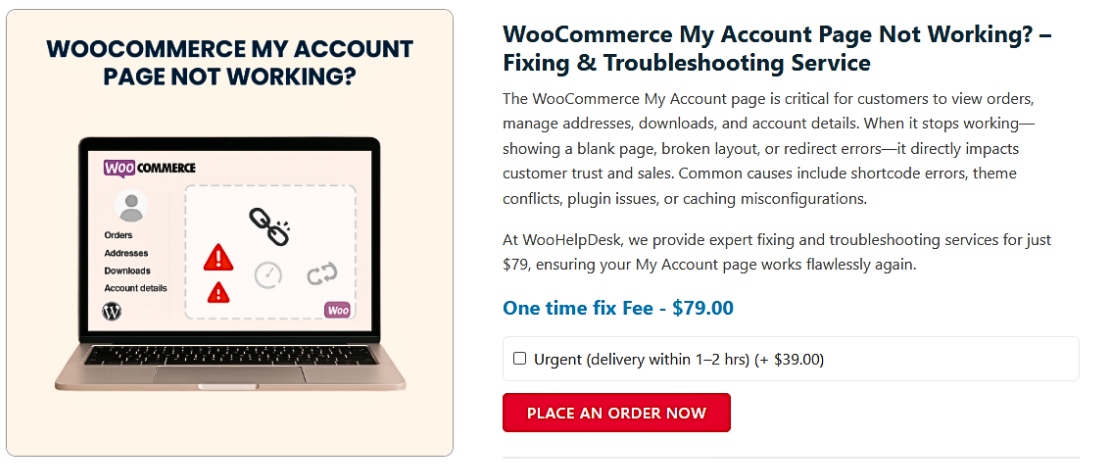
- Fixing WooCommerce My Account Page 404 Error
If your My Account page shows a 404 error, it’s likely unlinked or missing.
Step-by-Step Fix:
- Go to WooCommerce → Settings → Advanced.
- Under “Page setup,” check if My Account is set.
- If not, select the correct page from the dropdown.
- If the page is missing, create a new one.
- Title it “My Account”
- Add the shortcode [woocommerce_my_account] in the content area.
- Click Save changes.
- Now go to Settings → Permalinks and click “Save Changes” again.
- This refreshes your site’s URL structure.
- Fixing WooCommerce My Account Page Blank
A blank My Account page usually means a critical error behind the scenes.
Step-by-Step Fix:
- Enable debugging by editing your wp-config.php file.
- Add this line: define( ‘WP_DEBUG’, true );
- Reload the blank page. Check if an error message appears.
- Use an FTP tool or hosting panel to check for debug.log.
- It’s usually located in /wp-content/.
If you see plugin-related errors:


- Disable every plugin except WooCommerce to check for conflicts.
- Reload the My Account page.
- Reactivate each plugin individually to identify the conflict if it now functions.
Also, try switching to the Storefront theme. If the page works there, your theme is causing the issue.
- Fixing WooCommerce My Account Page Shortcode Not Working
If the shortcode doesn’t work, you’ll see a plain page or a raw shortcode.
Step-by-Step Fix:
- Make sure you’re using the correct shortcode:
- [woocommerce_my_account]
- Use the Shortcode block if editing with Gutenberg.
- Don’t paste into a Paragraph or HTML block.
- When utilizing a page builder, such as Elementor,
- Use the shortcode widget instead of raw text.
- Disable any plugin that filters or blocks shortcodes.
- Some visual plugins might strip shortcode content.
- Fixing WooCommerce My Account Page Buttons or Tabs Not Working
When users click on tabs like “Orders” or “Downloads” and nothing happens, it’s likely a JavaScript issue.
Step-by-Step Fix:
- Open your browser and press F12 or right-click → Inspect.
- Go to the Console tab. Look for red error messages.
- These show which scripts are failing.
- Disable cache/minification plugins like WP Rocket or Autoptimize.
- They often block or compress JS incorrectly.
- Disable all non-WooCommerce plugins.
- Then check if the tabs work again.
- Switch to the Storefront theme.
- If tabs work now, your theme has a conflict.
Some themes load tabs using Ajax or jQuery. A small conflict can stop everything.
- Fixing WooCommerce My Account Page Layout or Loading Issues
A broken layout makes your page hard to read or navigate.
Step-by-Step Fix:
- Check if your theme is overriding WooCommerce templates.
- Go to WooCommerce → Status → System Status
- Scroll to the section called “Templates.”
- Update your theme or get in touch with the developer if you notice out-of-date templates.
- Clear all site cache, CDN cache, and browser cache.
- CSS might not load because it’s cached incorrectly.
- Temporarily disable plugins that inject custom styles.
- Use the browser’s developer tools (F12 → Elements tab)
- Inspect broken sections and spot missing styles.
- Test on mobile to check for responsive issues.
- Layout bugs may only appear on smaller screens.
- Fixing WooCommerce My Account Page Redirect Issues
Redirect loops or login redirects are frustrating and confusing for users.
Step-by-Step Fix:
- Check if Site URL and WordPress URL match in Settings → General.
- Ensure both use either HTTPS or HTTP — not mixed.
- Disable redirect plugins temporarily.
- Plugins like Redirection or SEO tools can interfere.
- Clear cookies and browser cache.
- Session issues can trap users in login loops.
- Use an incognito browser window to test the login and logout processes.
- Use the Health Check plugin to troubleshoot in safe mode.
- This disables themes and plugins only for your session.
These solutions cover the most frequent issues WooCommerce users face with the My Account page. Always test fixes on a staging site before changing your live store. This avoids unexpected problems.
Next, we’ll show you tools that can help, and when it’s smart to call an expert.
Use Diagnostic Tools for Safe Troubleshooting
It’s risky to test fixes directly on your live WooCommerce store. A broken update or error can affect your customers. That’s why you should always use safe troubleshooting tools first. These tools let you find problems without affecting the live site.
Here are the best options:
- WP_DEBUG and WP_DEBUG_LOG
These are built-in WordPress tools. The wp-config.php file contains the option to enable them. When in use, they display or record any PHP faults that could cause your website to malfunction. This helps you track what’s going wrong behind the scenes. - Health Check & Troubleshooting Plugin
This free plugin lets you disable plugins and switch themes only for your own user session. Your visitors will still see the normal site. It’s perfect for finding plugin or theme conflicts without any risk. - Staging Site (Test Site)
A test version of your website is called a staging site. Many hosting companies offer this feature. You can try changes there first. If everything works, you can apply the same changes to your live site.
Tip: Always test big changes — like plugin updates or theme edits — on a staging site before applying them to your main site. This helps you avoid unexpected issues.
When to Call a WooCommerce Expert
Some issues go beyond simple fixes. If you’re stuck, call in a professional. Signs that you need professional assistance include:
- You’ve tried every solution, but nothing has worked.
- Errors involve your theme or database
- My Account page breaks after every update
- Checkout or login systems are also affected
An expert can save time and protect your store’s reputation. At WooHelpDesk, we help U.S. WooCommerce users fix problems fast. Whether it’s layout errors or login loops, we’ve seen it all.
Prevention Tips to Avoid Future Problems
Fixing is good, but prevention is better. Here’s how to avoid My Account issues going forward:
- Keep everything updated
Regularly update plugins, themes, and WooCommerce. - Test updates before applying
A staging site can be used to look for problems. - Limit plugin usage
Fewer plugins mean fewer chances of conflicts. - Back up your site often
In case something breaks, always have a current backup on hand. - Avoid editing WooCommerce core files
Use hooks or child themes for customizations.
With these tips, your store stays stable and smooth.
Conclusion
Although it’s a frequent problem, the WooCommerce My Account page not functioning can be resolved. Whether you’re facing a 404 error, blank screen, shortcode problems, or layout issues, this guide gives you simple, step-by-step solutions.
But if things still don’t work, don’t let it slow down your store or stress you out.
📞 Call WooHelpDesk at +1 888 602 0119 (US & Canada) for expert help with WooCommerce and WordPress websites.
We assist U.S. store owners just like you — fixing errors, improving site speed, and keeping your store running smoothly.



